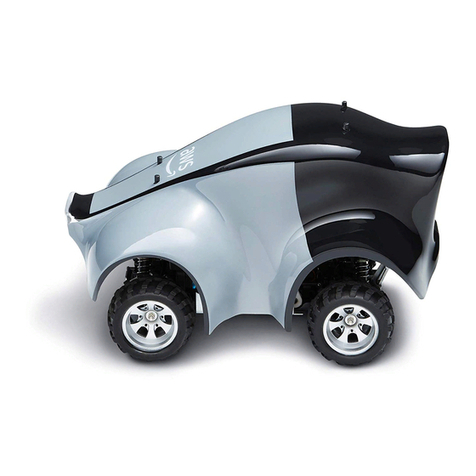
AWS DeepRacer User manual
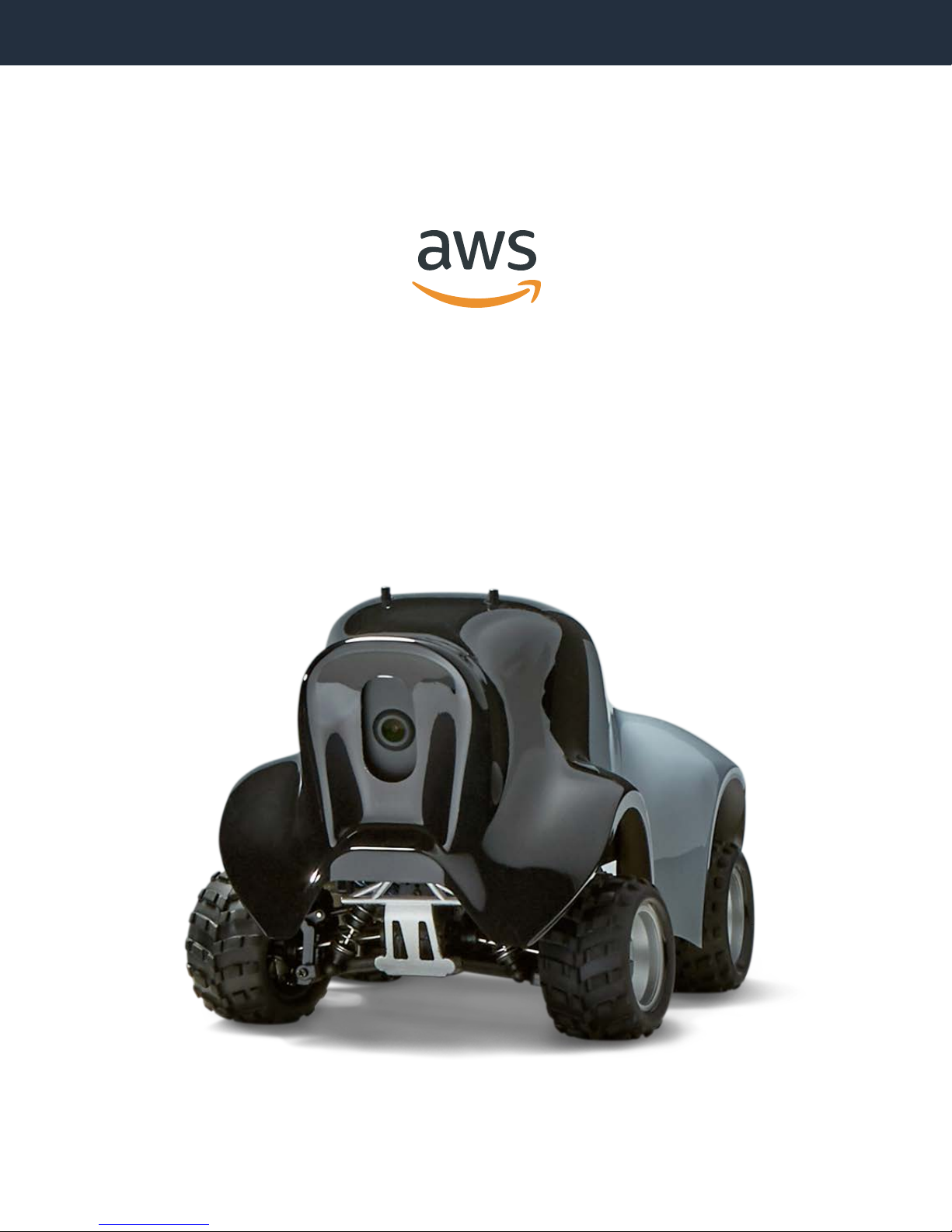
AWS DeepRacer
Getting Started Guide
1

Getting Started Guide
Contents
What’s in the box
Assemble your car
Get connected
Test drive
Autonomous model management
2

What’s in the box
1. Car chassis (with compute and camera
modules)
2. Car body
3. Car battery
4. Car battery charger
5. Car battery power adapter
6. Compute module power bank
7. Power bank’s connector cable
8. Power adapter and power cord for
compute module and power bank
9. 4 pins (car chassis pins)
10. 12 pins (spare parts)
11. USB-A to micro USB cable
3
4
5
1
68
7
2
9
10
11
Gather additional items
You’ll need some additional items, not included with your AWS Deep Racer, to get started:
Check to make sure you have all the parts pictured
- Computer or Laptop with USB port and access to the internet
- USB flash drive
- Wi-Fi network
- AWS Account
3

Assemble your car
Unpin the car chassis
Remove the pins and gently lift the car chassis in order to install the
car battery.
– Remove all four pins
– Lift car chassis. Careful! There are connected wires
under the chassis.
Connect car’s battery cable
Connect the car battery’s cables, aligning the cable colors, red with
red and black with black.
Secure the car battery
Use the straps to secure the car battery under the car chassis.
Keep all the cables inside the car
Pin the car chassis
Use the pins to re-secure the car chassis.
Push pins as deep as shown
4

Assemble your car
Install Power bank
Secure Power bank
Use the straps to tightly secure the power bank to the car chassis.
DO NOT CONNECT THE POWER BANK TO THE CAR.
Insert the power bank with the ON button and USB ports facing the back
of the vehicle.
Make sure USB ports are as shown, nearest the chassis USB port and the
power at the rear of the car.
5

Get connected
Connect to wall power
First, lets connect your car to power. Plug in the end of the power cord
into wall power and the other end to the USB-C power port on the car.
Look for this icon above the input
Look for this icon above the button
Turn on your car’s computer
Find the compute power button and press it to turn it on. The left
blue LED should turn solid blue.
Look for the blue light
The power indicator LED will start red and shift to blue. The blue LED
is a successful power on.
Download Wi-Fi credentials file
Press the download button to get the wifi-creds.txt file. Then save the
file as wifi-creds.txt.
The wifi-creds.txt file allows you to enter Wi-Fi credentials to connect
the car to a Wi-Fi network and display an IP address. The IP address
allows you to interact with the car wirelessly.
Download wifi-creds.txt
6
Get connected
USB_driveUSB_drive
USB_drive
USB_drive
Edit Wi-Fi credentials file
Open the file you just downloaded wifi-creds.txt using a code editor such
as Sublime Text, enter your Wi-Fi network’s name or SSID and password
WARNING: During the initial setup, please make sure the Wi-Fi has an
internet connection, so the device can update to the latest software. If
not, it will impact software update and the subsequent Wi-Fi
connections.
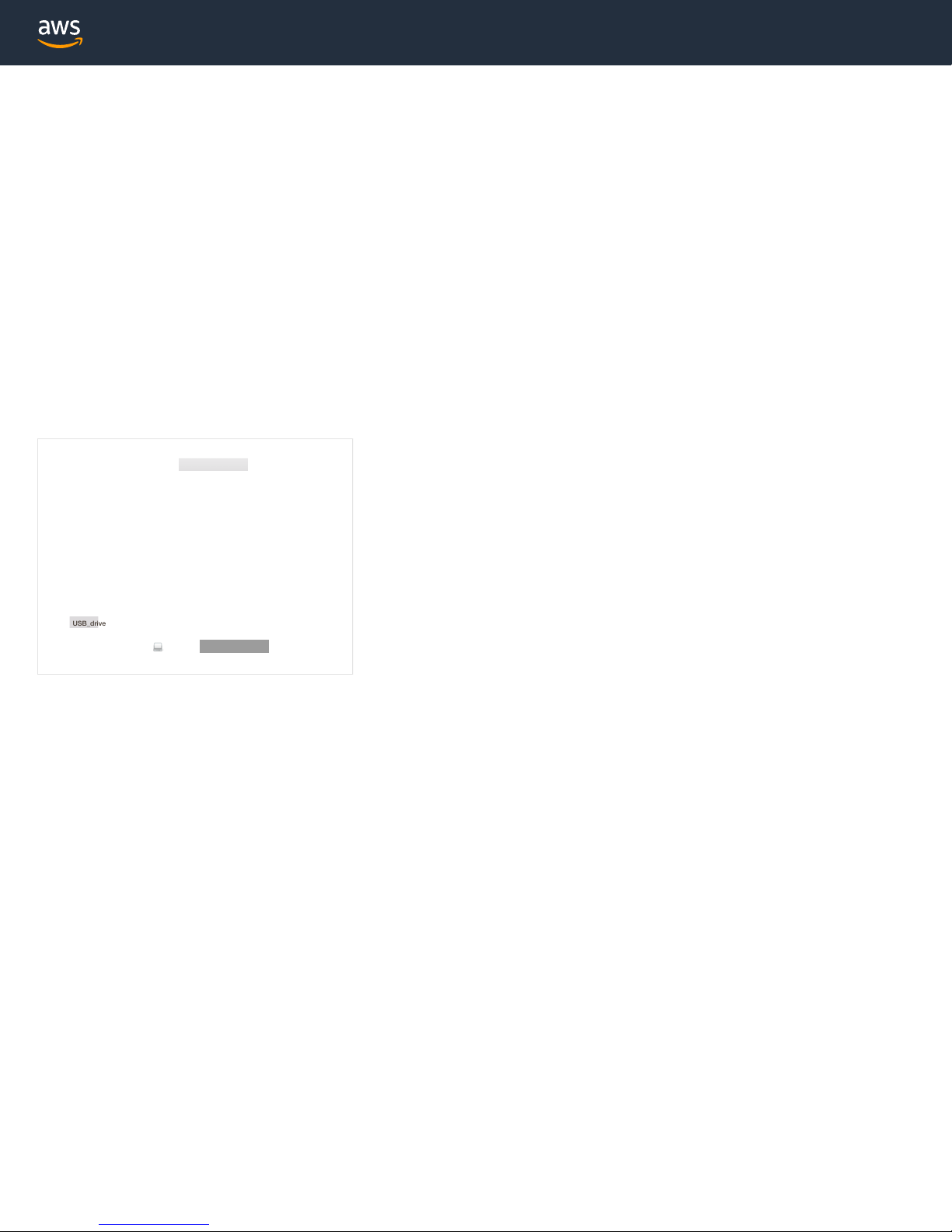
Save Wi-Fi credentials file to USB flash drive
Save the wifi-creds.txt file to the USB flash drive root folder. Eject the
USB flash drive from your computer.
Connect USB flash drive to your car
Now that you have a USB flash drive ready with your Wi-Fi network
credentials, you need to connect it to your car. The car reads the
wifi-cred.txt file and connects to the Wi-Fi network.
– Plug USB flash drive into your car, as pictured
– Look at car’s Wi-Fi LED light
Confirm connection
The car’s LED light should be blinking, when the second LED turns a solid
blue you have successfully connected your car to Wi-Fi.
If you see a red LED, disconnect the USB flash drive from the car. Connect
the USB flash drive to your laptop or computer and validate if you entered
the SSID and password correctly.

Get connected
USB_driveUSB_drive
USB_drive
USB_drive
Disconnect USB flash drive
Unplug the USB flash drive after the car’s Wi-Fi LED light has
turned solid blue.
Connect your USB flash drive to your computer or laptop. Open USB
flash drive and locate device-status.txt file. Open the file.
Reconnect USB flash drive and locate file
Get IP address
IP address is how you connect to your car via your mobile device or
computer to manually drive your car and manage settings.
Copy the IP address to your web browser
Use your mobile device, laptop or computer with a browser to manually
drive your car and manage settings. Copy the IP address from device-
status.txt and paste it in your web browser.
Troubleshooting: Your computer, laptop or phone needs to be connected
to the same network you entered in wifi-cred.txt file
– Open device-status.txt
– Find the IP address
– Copy IP address
8

Get connected
Accept and proceed
Web browsers inform you your connection is not private and you need
to view advanced options to accept and proceed.
Update your car’s software
Your car may require a software update.
Software update complete
Once the update is complete, disconnect from wall power. Follow
a few more steps to test drive your car.
– Car must be connected to wall power
– Click update software
– LEDs will blink while updates occur
– Software is complete when you see blue LEDs
9

Test drive
Connect the Power bank
Use the Power bank connector cable to connect the
power bank to the left USB-C port.
Turn on power bank
Press the ON button to turn on the Power bank. The LED lights on
the back of the Power bank should turn on. When all four LEDs are
on the battery is fully charged.
Turn on your car’s computer
Find the Compute power button and press it to turn it on. The left blue
LED should turn solid blue.
Wait for your car to connect to your Wi-Fi
network
The car turns on and begins to connect to a Wi-Fi network. Wait until
both LEDs turn a solid blue. When the second LED turns a solid blue
your car has successfully connected your car to a Wi-Fi network.
Look for this icon above the button
10
Other manuals for DeepRacer
2
Table of contents
Other AWS Motorized Toy Car manuals