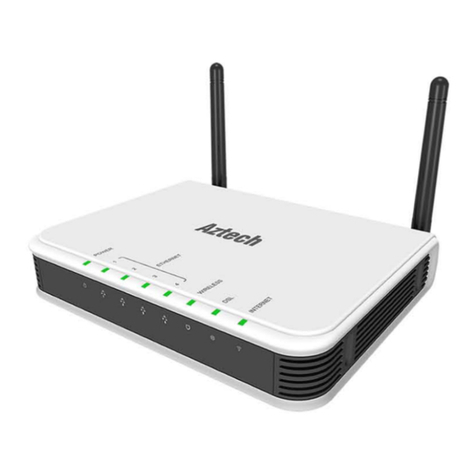
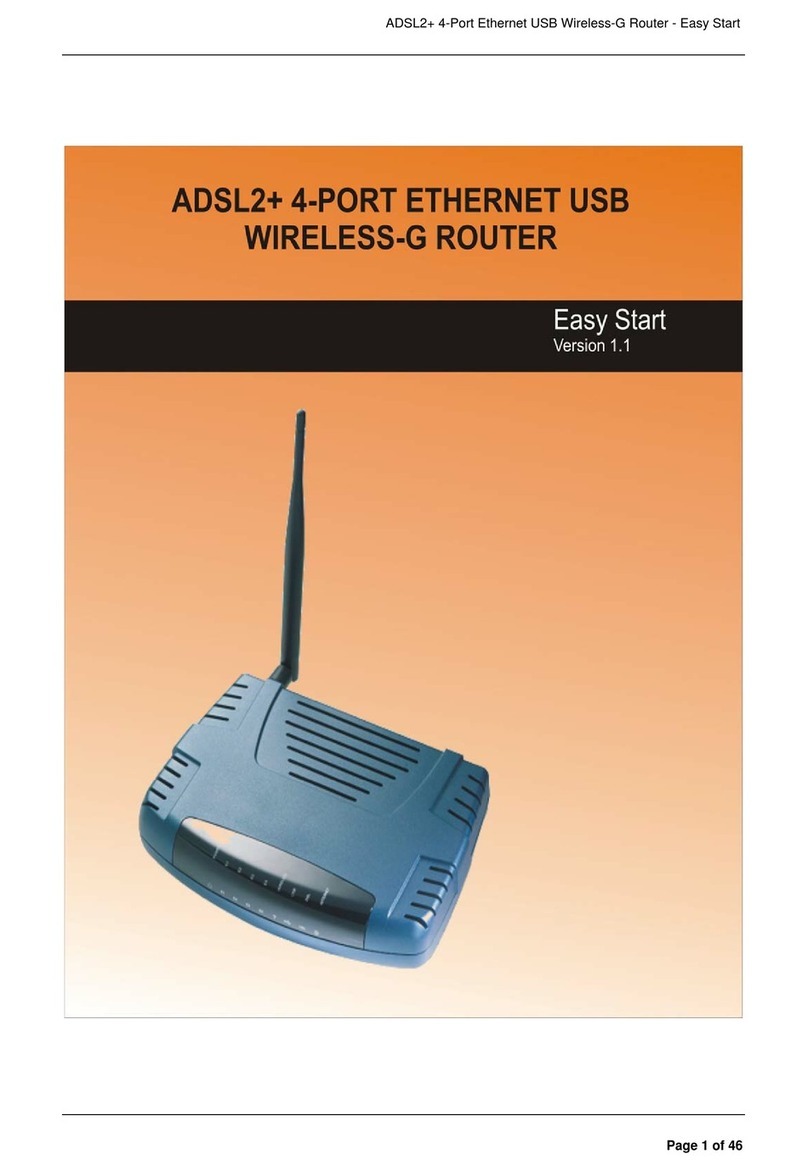
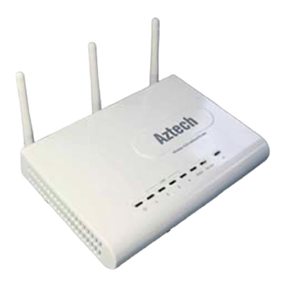
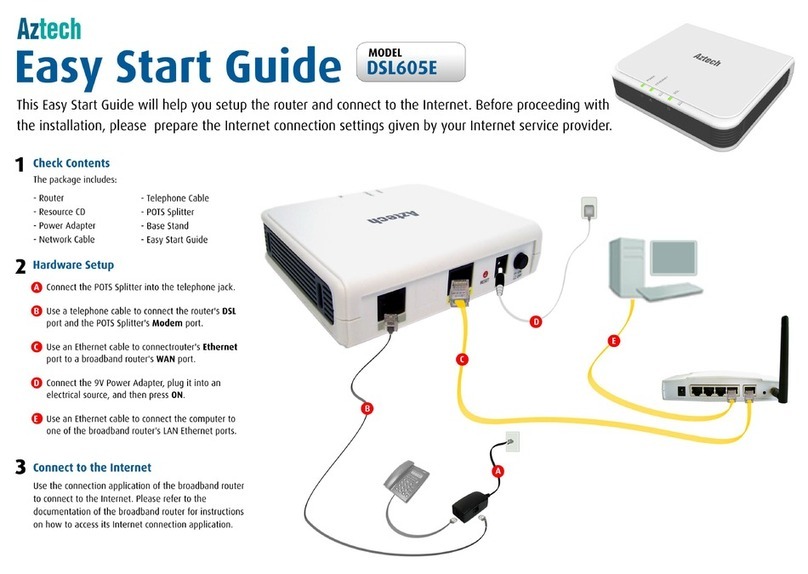
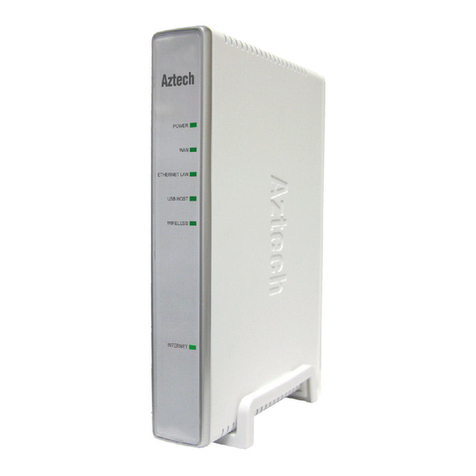
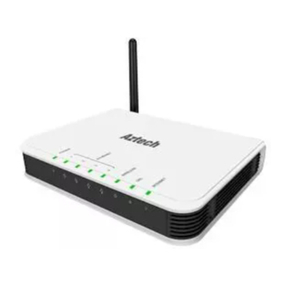
WL730RT4 802.11b/g Broadband Router
Quick Installation Guide
Check for Packing List
1
Application Diagram
1Before you begin, ensure that the Wireless Router, the
DSL/Cable modem supplied by your IP Provider, and PC are
turned off.
2
2
Connect an Ethernet cable to one of the ports on the
back of the Wireless Router to the Ethernet port on your
PC.
LA N
3
Connect your DSL/Cable Modem to the Internet port on
the Wireless Router using a standard RJ-45 Ethernet
4Turn on the DSL/Cable modem first.
5Then turn on your wireless router.
6Check the LEDs:
The , , and LEDs should be ON.
For each active LAN (PC) connection, the
LEDs (1-4) should be ON.
Power Internet WLA N
LA N A ctivit y
7Turn on your PC.
Before setting up the Wireless Router, make sure your PCs
are configured to "Obtai n an I P (or TCP/IP ) a ddr ess
automatically".
Notes
Click lick
.
S tar t C Cont ro l P anel Networ k a nd
Internet Connections (Right-clic k on) Loca l A re a
Connection P ro pertie s
Make sure the box next to is
checked. Click the Click
the button.
Internet Pr otocol (TCP/IP)
Pr operties
Internet Pr otocol (TCP/IP ) and
Select
Select " ".
Then click to complete the PC configuration.
"Obtai n an I P a ddr ess automatically".
Obtain DNS server addr ess automaticlly
OK
Restart your computer..
3
8For Windows 2000 & XP users, your computer should
obtain an IP Address automatically from the Wireless
Router's DHCP Server, after you've done the above steps
and restarted your computer
For Windows 2000 & XP
For Windows 98 / ME / Macintosh
Please refer to the User's Guide found on the CD.
ARM914
1. One Wireless BroadBand Router WL730RT4
2. One Power Adaptor
3. One Ethernet Network Cable
4. One Warranty Card
5. A Pair of Vertical Stand
6. One Set-up CD-ROM with User’s Manual
7. One Quick Installation Guide
7
6
Notebook with
Wireless Adaptor
PC with
Wireless Adaptor
CABLE/DSL MODEM
Connect the 802.11g
Wireless Router
Router Configuration
(for Internet Access)
WL730RT4
PCs with Ethernet Port