manuals.online logo
Brands
  1. Home
  2. •
  3. Brands
  4. •
  5. B&B Electronics
  6. •
  7. Media Converter
  8. •
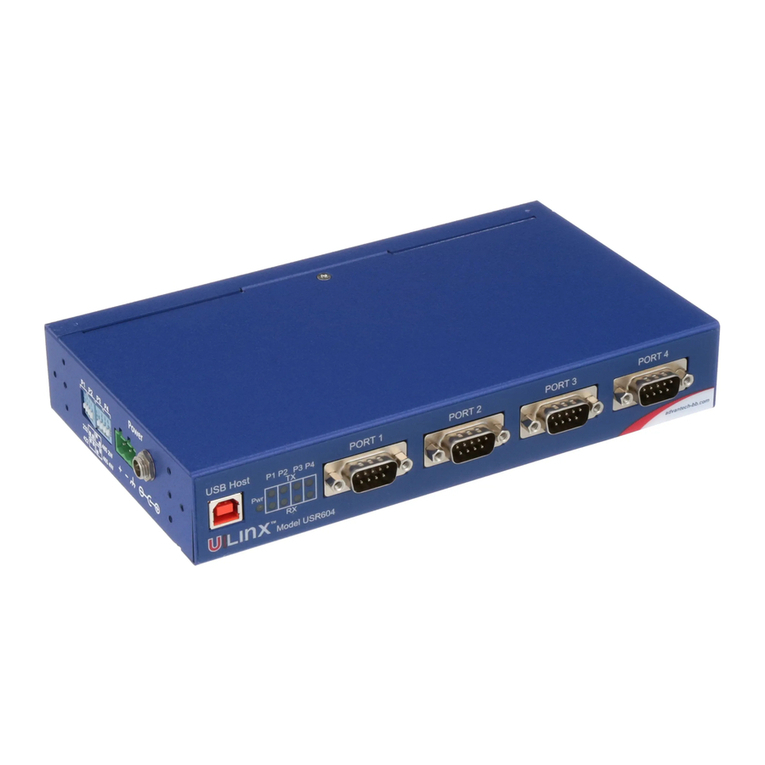
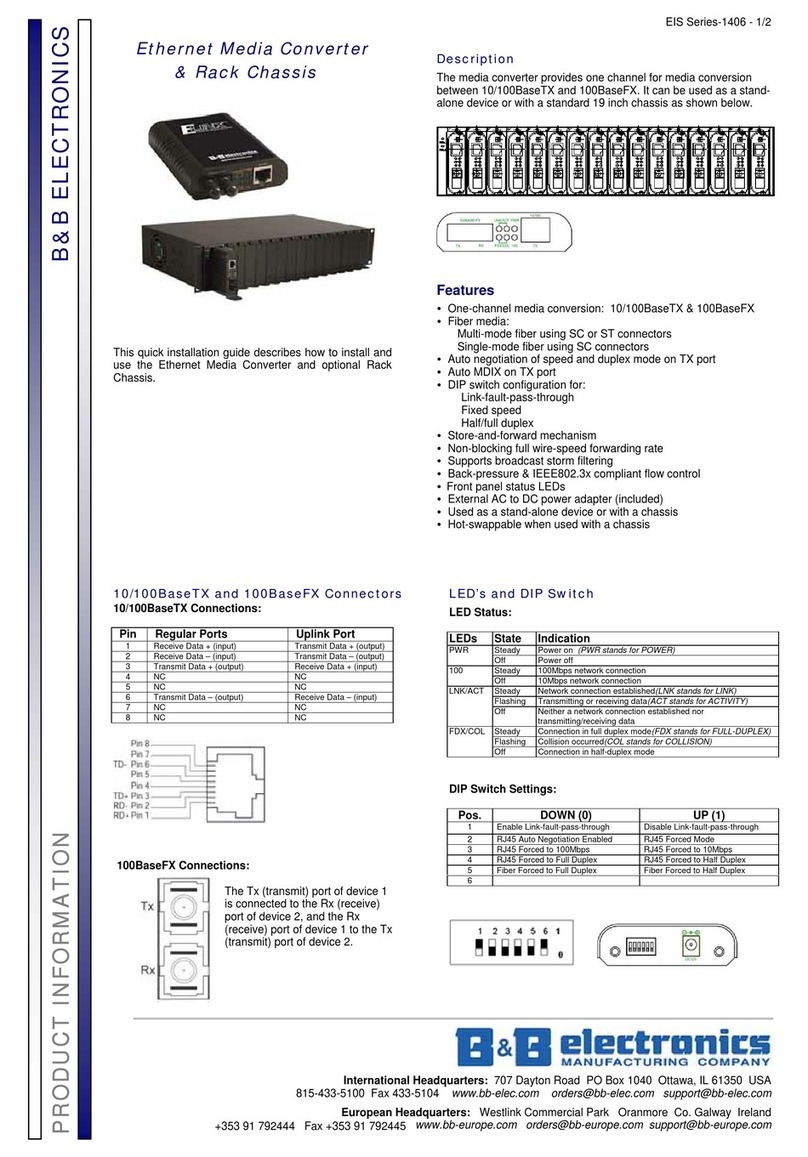
  9. B&B Electronics USR604 User manual

B&B Electronics USR604 User manual

Other B&B Electronics Media Converter manuals
B&B Electronics Industrial Media Converter EIR102 User manual
B&B Electronics

B&B Electronics Industrial Media Converter EIR102 User manual

B&B Electronics RS-232 to J1939 Converter CE 1939STB User manual

B&B Electronics

B&B Electronics RS-232 to J1939 Converter CE 1939STB User manual

B&B Electronics McPC-Gigabit User manual

B&B Electronics

B&B Electronics McPC-Gigabit User manual

B&B Electronics 422LP9R User manual

B&B Electronics

B&B Electronics 422LP9R User manual

B&B Electronics Parallel Port Input/Output Converter PPIO User manual

B&B Electronics

B&B Electronics Parallel Port Input/Output Converter PPIO User manual

B&B Electronics 485SD9TB User manual

B&B Electronics

B&B Electronics 485SD9TB User manual

B&B Electronics McBasic TP/FO User manual

B&B Electronics

B&B Electronics McBasic TP/FO User manual

B&B Electronics 422LPCOR User manual

B&B Electronics

B&B Electronics 422LPCOR User manual

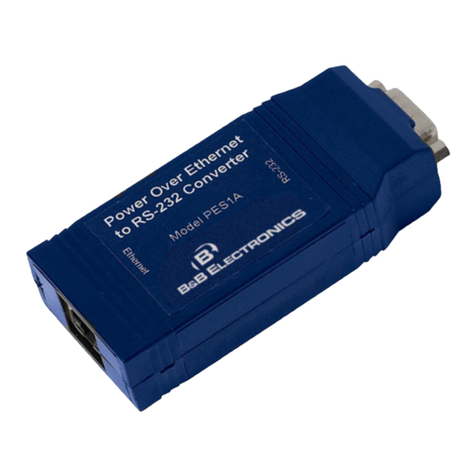
B&B Electronics PES1A User manual

B&B Electronics

B&B Electronics PES1A User manual

B&B Electronics iMcV-LIM 10/100 User manual

B&B Electronics

B&B Electronics iMcV-LIM 10/100 User manual

B&B Electronics BB-USR604 User manual

B&B Electronics

B&B Electronics BB-USR604 User manual

B&B Electronics PES1A User manual

B&B Electronics

B&B Electronics PES1A User manual

B&B Electronics High Speed Asynchronous to Synchronous Converter... User manual

B&B Electronics

B&B Electronics High Speed Asynchronous to Synchronous Converter... User manual

B&B Electronics MES1A User manual

B&B Electronics

B&B Electronics MES1A User manual
B&B Electronics McLIM TP-TX/FX User manual

B&B Electronics

B&B Electronics McLIM TP-TX/FX User manual

B&B Electronics RS-232 to Ethernet Converter ES1A User manual

B&B Electronics

B&B Electronics RS-232 to Ethernet Converter ES1A User manual

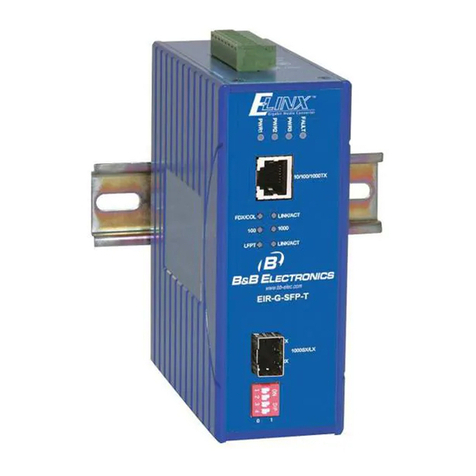
B&B Electronics EIR*-S series User manual

B&B Electronics

B&B Electronics EIR*-S series User manual

B&B Electronics Giga-MiniMC 856-10730-RX User manual

B&B Electronics

B&B Electronics Giga-MiniMC 856-10730-RX User manual

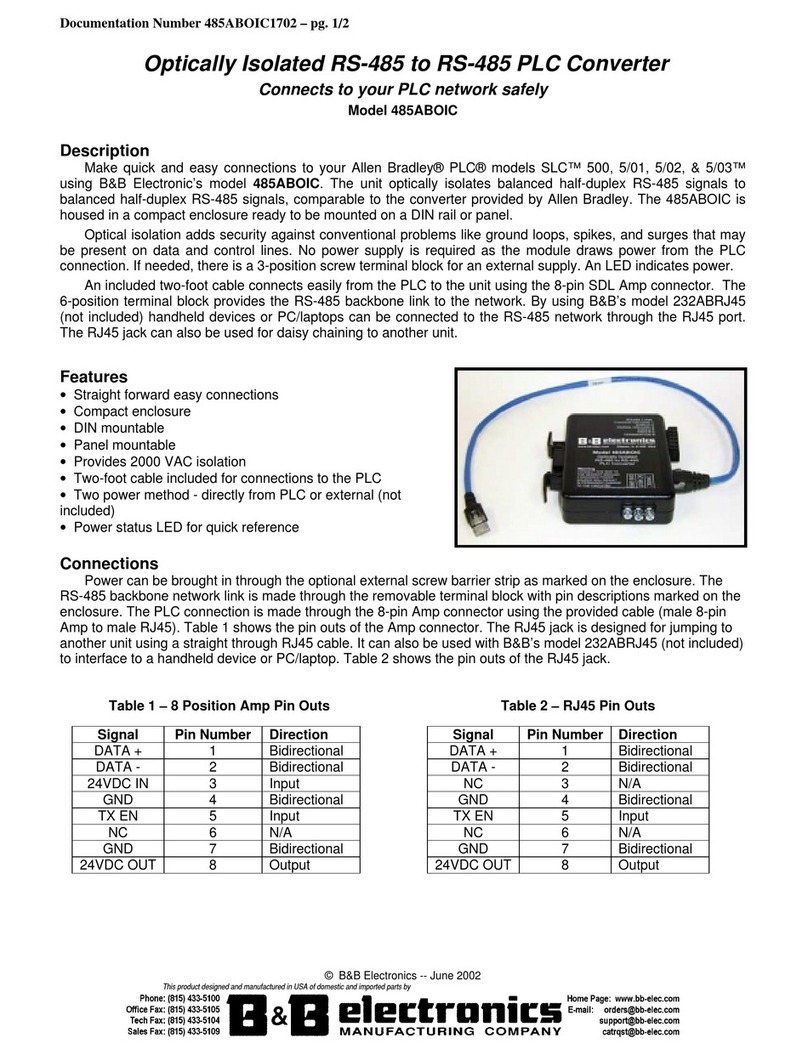
B&B Electronics 485ABOIC User manual

B&B Electronics

B&B Electronics 485ABOIC User manual

B&B Electronics MES1A User manual

B&B Electronics

B&B Electronics MES1A User manual

B&B Electronics Giga-McBasic-II User manual

B&B Electronics

B&B Electronics Giga-McBasic-II User manual

B&B Electronics Asynchronous to Synchronous Converter 2010 User manual

B&B Electronics

B&B Electronics Asynchronous to Synchronous Converter 2010 User manual

B&B Electronics 2IQEC2 User manual

B&B Electronics

B&B Electronics 2IQEC2 User manual
B&B Electronics IE-MiniMc User manual

B&B Electronics

B&B Electronics IE-MiniMc User manual
Popular Media Converter manuals by other brands

TR-Electronic CMS582M-4096/4096 IOL DMS 14H7 KRF Assembly instructions

TR-Electronic

TR-Electronic CMS582M-4096/4096 IOL DMS 14H7 KRF Assembly instructions

Korenix JetCon 2301S user manual

Korenix

Korenix JetCon 2301S user manual

StarTech.com ET91000LCOAM manual

StarTech.com

StarTech.com ET91000LCOAM manual

Alesis AI-3 Reference manual

Alesis

Alesis AI-3 Reference manual

Caton Vpro 5100 user guide

Caton

Caton Vpro 5100 user guide

Cypress CSC-5500 Operation manual

Cypress

Cypress CSC-5500 Operation manual

H&B TX-100 Installation and instruction manual

H&B

H&B TX-100 Installation and instruction manual

Bolin Technology D Series user manual

Bolin Technology

Bolin Technology D Series user manual

IFM Electronic Efector 400 RN30 Series Device manual

IFM Electronic

IFM Electronic Efector 400 RN30 Series Device manual

GRASS VALLEY KUDOSPRO ULC2000 user manual

GRASS VALLEY

GRASS VALLEY KUDOSPRO ULC2000 user manual

Linear Technology DC1523A Demo Manual

Linear Technology

Linear Technology DC1523A Demo Manual

Lika ROTAPULS I28 Series quick start guide

Lika

Lika ROTAPULS I28 Series quick start guide

Weidmuller IE-MC-VL Series Hardware installation guide

Weidmuller

Weidmuller IE-MC-VL Series Hardware installation guide

Optical Systems Design OSD2139 Series Operator's manual

Optical Systems Design

Optical Systems Design OSD2139 Series Operator's manual

Tema Telecomunicazioni AD615/S product manual

Tema Telecomunicazioni

Tema Telecomunicazioni AD615/S product manual

KTI Networks KGC-352 Series installation guide

KTI Networks

KTI Networks KGC-352 Series installation guide

Gira 0588 Series operating instructions

Gira

Gira 0588 Series operating instructions

Lika SFA-5000-FD user guide

Lika

Lika SFA-5000-FD user guide

manuals.online logo
manuals.online logoBrands
  • About & Mission
  • Contact us
  • Privacy Policy
  • Terms and Conditions

Copyright 2025 Manuals.Online. All Rights Reserved.

Install the Drivers
1
3
2Set DIP Switches
4Connect the Converter
Product Overview
Serial
Ports
LEDs
Power the Converter
USB Port
The USR602 can run on 5 V USB power if the host
port is providing 500 mA. It can also be powered
via the terminal block or barrel jack port.
Set the converter to RS-232 mode using the DIP
switches. Loopback pins 2 and 3. Using Hyper Termi-
nal or similar program, connect to the COM port. Set
the desired baud rate. Ensure that Hyper Terminal
local echo is OFF. Transmit data. If the same character
string is returned, the test is good.
DIP
Switches
Terminal block
and barrel jack
power
To prevent installation errors, do not plug in the
hardware until you have already installed the drivers.
Use the included CD to install the converter’s drivers in
the attached PC.
DIP
Switches SW# RS-232 RS-422 RS-485
4-Wire
RS-485
2-Wire
Port 1 1 Off ON Off ON
2 Off ON ON Off
Port 2 3 Off ON Off ON
4Off ON ON Off
Port 3 5 Off ON Off ON
6 Off ON ON Off
Port 4 7 Off ON Off ON
8 Off ON ON Off
When you connect the converter to the host
computer’s USB port the Found New Hardware
wizard will open. It will discover and install the
USB device. Then it will discover and install each
serial port. Allow Windows to install the converter
“Automatically.” There is no need to connect to the
Internet or Windows Update.
If a popup window says the software has not passed
Windows logo testing, that’s OK. Just click on
“Continue Anyway.”
When the wizard is complete the serial ports on the
converter will appear in Windows Device Manager
as new COM ports.
5Configure the Serial Ports
Open Control Panel. Click “System” to open the
Device Manager. Under “Ports,” double-click the
port to be configured.
On the “Serial Port Properties” window, set the
required communications parameters for the system
with which you are communicating. If necessary,
6Loopback Test
7LEDs
LED
Type Indication when ON
PWR
Computer is receiving adequate
voltage and current from USB or
power source
TX Serial interface is transmitting data
RX Serial interface is receiving data
click Advanced and set up the Advanced Properties.
(Refer to manual for more information.)
Troubleshooting
Fast, Easy Answers
One USB port is required for each installed device.
The USB port can be native to the PC or it can be a
USB port on a USB hub that is connected to a PC.
The device works with USB 1.1 or 2.0 ports. But it
has a maximum USB data rate of 12 Mbps.
To verify the installation you may open the Windows
Device Manager. Scroll down to Ports. Expand the
flyout window. You should see the new ports. If there
are no exclamation points or other trouble indicators
the ports are installed correctly and ready for use.
Sleep & Hibernate: Windows 7 disables USB transmit
while in Sleep & Hibernate.
Terminal Block
One conductor per terminal.
Use copper wire only.
Wire size 16 to 28 AWG.
Tightening torque 5 KG -CM.
Wire temperature rating: 105 °C
(Sized for 60 °C ampacity
Fast and easy on the web:
www.bb-elec.com
Four-port USB to
Serial Converter
USR604
© 2011 B&B Electronics Manufacturing Company
1-888-948-2248 | Europe: +353 91 792444
www.bb-elec.com
Recommended Accessories
Please double check
Step 6.
You can also use your
smart phone to access
complete documentation
on our website. Simply
scan the code to the right.
PS12VLB-INT-MED
Power Supply
http://www.bb-elec.com/
product_multi_family.asp?
MultiFamilyId=133&Trail=
16&TrailType=Top
MDR-20-24
DIN rail mount
power supply
http://www.bb-elec.com/
product_multi_family.asp?
MultiFamilyId=133&Trail=
16&TrailType=Top
USR604
Two Meter USB Cable
Panel mount adapters
DIN rail mount adapter
CD ROM with Drivers
First Things First...
Before you begin, be sure you have
the following:
707 Dayton Road | PO Box 1040 | Ottawa, IL 61350
Phone: 815-433-5100 | Fax: 815-433-5109
www.bb-elec.com | E-mail: [email protected]
•
•
Quick
Start
Guide
Information - FCC rules
This device complies with Part 15 of the FCC rules.
Operation is subject to the following two conditions:
(1) This device may not cause harmful interference.
(2) this device must accept any interference that may
cause undesired operation.
Information - UL Class 1 Div 2
Suitable for use in Class 1, Division 2, Groups A, B, C and
D Hazardous Locations, or Nonhazardous locations only.
WARNING - EXPLOSION HAZARD – DO NOT
DISCONNECT EQUIPMENT WHILE THE CIRCUIT IS LIVE
UNLESS THE AREA IS KNOWN TO BE FREE OF
IGNITABLE CONCENTRATIONS.
Install in accordance with control drawing
number 9340R0.
Ind. Cont. Eq.
For HAZ LOC
3HTV
E245458
Class I, Div. 2, Groups A, B, C & D
Temp. Code: T4A
Document number – PN9781_R000_USR604_4712qsg