manuals.online logo
Brands
  1. Home
  2. •
  3. Brands
  4. •
  5. Behringer
  6. •
  7. Music Equipment
  8. •
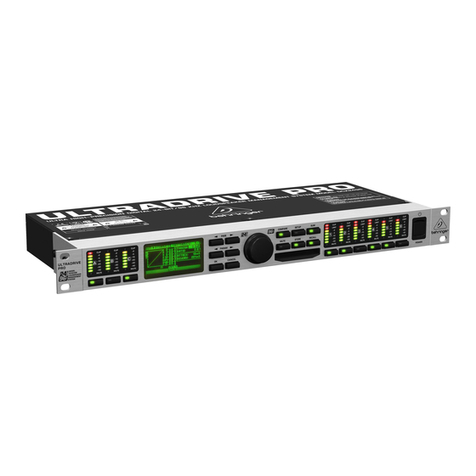
  9. Behringer ULTRADRIVE PRO DCX2496 User manual

Behringer ULTRADRIVE PRO DCX2496 User manual

Other manuals for ULTRADRIVE PRO DCX2496

10

Other Behringer Music Equipment manuals

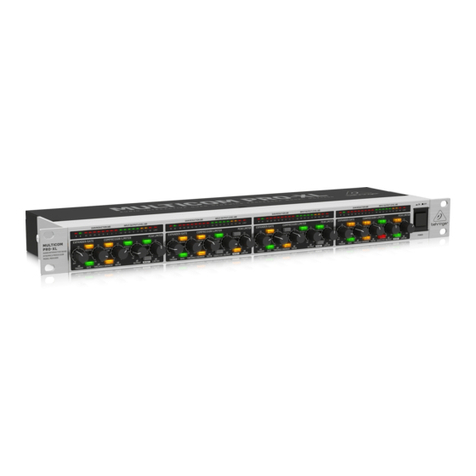
Behringer COMPOSER PRO-XL MDX2600 User manual

Behringer

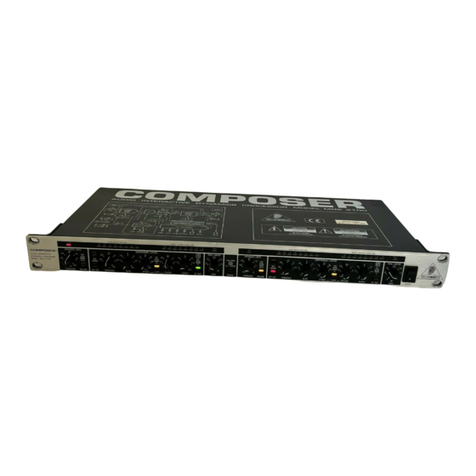
Behringer COMPOSER PRO-XL MDX2600 User manual

Behringer Ultragain Pro MIC2200 User manual

Behringer

Behringer Ultragain Pro MIC2200 User manual

Behringer studio 50usb User manual

Behringer

Behringer studio 50usb User manual

Behringer ULTRAMATCH SRC2000 User manual

Behringer

Behringer ULTRAMATCH SRC2000 User manual

Behringer ULTRAPATCH PRO PX3000 User manual

Behringer

Behringer ULTRAPATCH PRO PX3000 User manual

Behringer Ultra-G GI100 User manual

Behringer

Behringer Ultra-G GI100 User manual

Behringer EDISON EX1 User manual

Behringer

Behringer EDISON EX1 User manual

Behringer Blue Devil GX112 User manual

Behringer

Behringer Blue Devil GX112 User manual

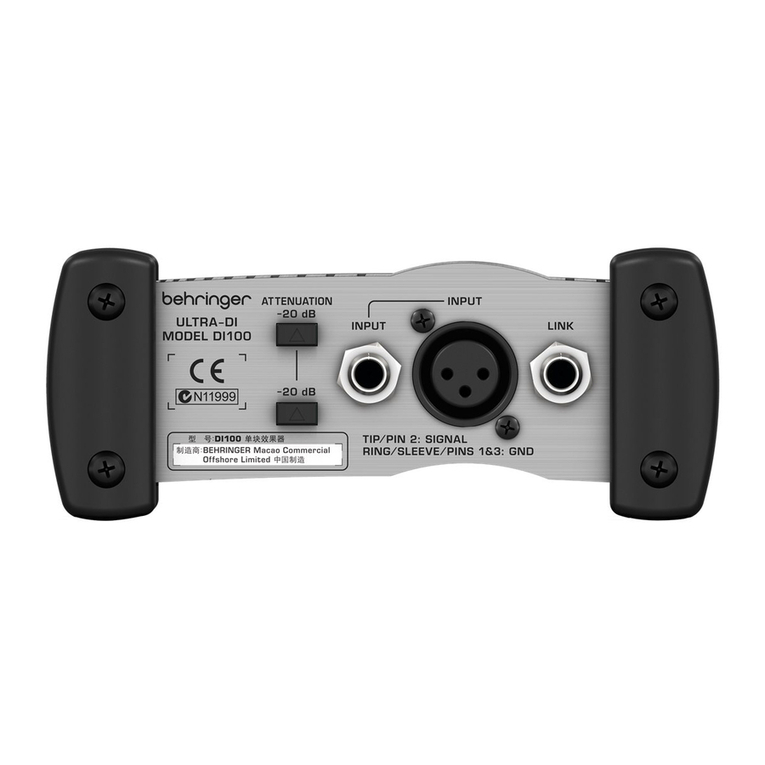
Behringer ULTRA-DI DI100 User manual

Behringer

Behringer ULTRA-DI DI100 User manual

Behringer Denoiser SNR2000 User manual

Behringer

Behringer Denoiser SNR2000 User manual

Behringer COMPOSER PRO MDX2200 User manual

Behringer

Behringer COMPOSER PRO MDX2200 User manual

Behringer ULTRAPATCH PRO PX3000 User manual

Behringer

Behringer ULTRAPATCH PRO PX3000 User manual

Behringer Ultralink Pro MX882 User manual

Behringer

Behringer Ultralink Pro MX882 User manual

Behringer XR18 XAIR User manual

Behringer

Behringer XR18 XAIR User manual

Behringer Ultracurve Pro DEQ2496 User manual

Behringer

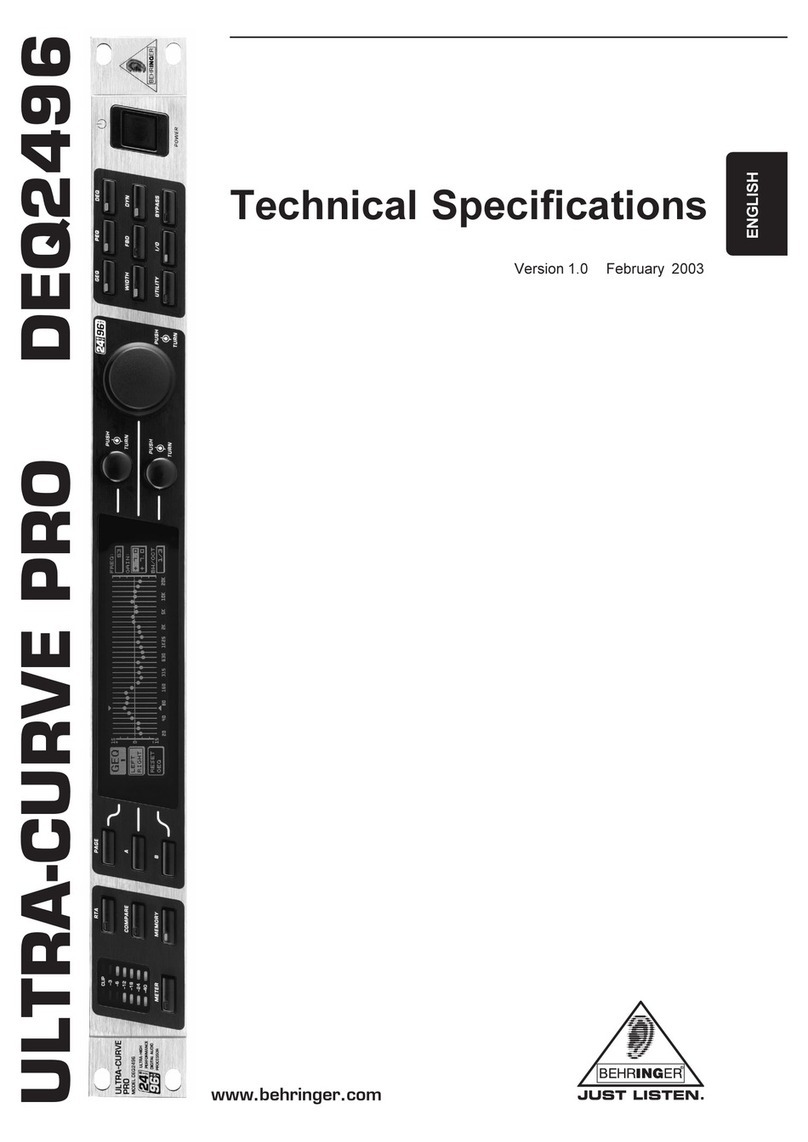
Behringer Ultracurve Pro DEQ2496 User manual

Behringer X-MADI User manual

Behringer

Behringer X-MADI User manual

Behringer Autocom MDX 1200 User manual

Behringer

Behringer Autocom MDX 1200 User manual

Behringer ULTRA-DI DI100 User manual

Behringer

Behringer ULTRA-DI DI100 User manual

Behringer AUTOCOM PRO-XL MDX1600 User manual

Behringer

Behringer AUTOCOM PRO-XL MDX1600 User manual

Behringer MicroHD HD400 User manual

Behringer

Behringer MicroHD HD400 User manual

Behringer Autocom Pro MDX1400 User manual

Behringer

Behringer Autocom Pro MDX1400 User manual

Behringer ULTRA-DI PRO DI4000 User manual

Behringer

Behringer ULTRA-DI PRO DI4000 User manual

Behringer Tweakalizer DFX69 User manual

Behringer

Behringer Tweakalizer DFX69 User manual

Behringer ECHO MACHINE EM600 User manual

Behringer

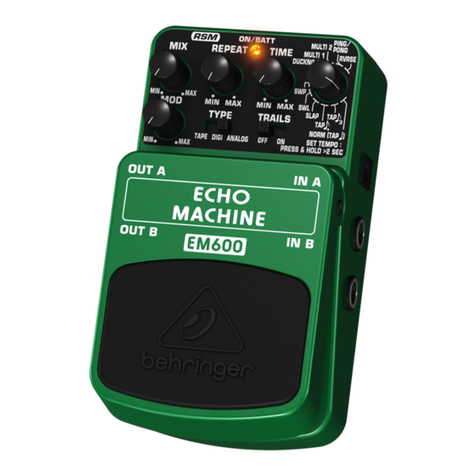
Behringer ECHO MACHINE EM600 User manual

Popular Music Equipment manuals by other brands

Aguilar CHORUSAURUS user guide

Aguilar

Aguilar CHORUSAURUS user guide

Fishman NEO-D user guide

Fishman

Fishman NEO-D user guide

HEXDEVICES Tama 12 user manual

HEXDEVICES

HEXDEVICES Tama 12 user manual

Mesa/Boogie Flux-drive owner's manual

Mesa/Boogie

Mesa/Boogie Flux-drive owner's manual

DOLFINOS The CARBON Edition user manual

DOLFINOS

DOLFINOS The CARBON Edition user manual

DAPAudio IPS-PT user guide

DAPAudio

DAPAudio IPS-PT user guide

Dynacord DPM 8016 owner's manual

Dynacord

Dynacord DPM 8016 owner's manual

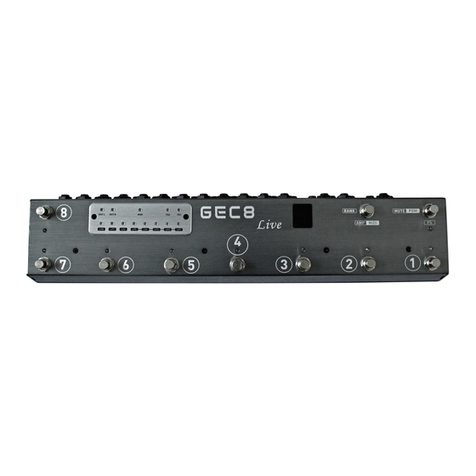
Moen GEC8 Live owner's manual

Moen

Moen GEC8 Live owner's manual

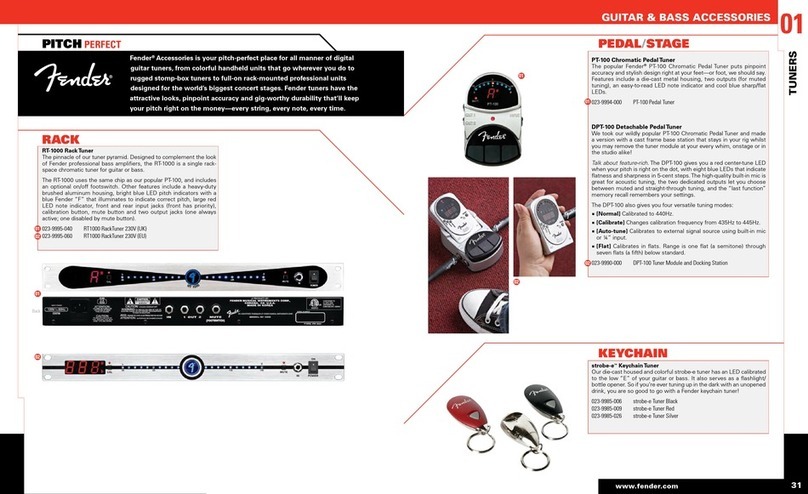
Fender 1 brochure

Fender

Fender 1 brochure

Yamaha MLC-16 operating manual

Yamaha

Yamaha MLC-16 operating manual

Sonuscore TIME TEXTURES manual

Sonuscore

Sonuscore TIME TEXTURES manual

flight of harmony V'Amp user guide

flight of harmony

flight of harmony V'Amp user guide

NANO PERFORMANCE MIXER quick guide

NANO

NANO PERFORMANCE MIXER quick guide

BHI NEIM 1031 MKII user guide

BHI

BHI NEIM 1031 MKII user guide

Befaco KICKALL user manual

Befaco

Befaco KICKALL user manual

Paia 9720 Assembly and using manual

Paia

Paia 9720 Assembly and using manual

limex ALPIN MASTER 128 user manual

limex

limex ALPIN MASTER 128 user manual

nord Electro 3 user manual

nord

nord Electro 3 user manual

manuals.online logo
manuals.online logoBrands
  • About & Mission
  • Contact us
  • Privacy Policy
  • Terms and Conditions

Copyright 2025 Manuals.Online. All Rights Reserved.

ULTRADRIVE PRO DCX2496
Version 1.1 June 2003
Users Manual
ENGLISH
2
ULTRADRIVE PRO DCX2496
This symbol, wherever it appears, alerts you to the
presence of uninsulated dangerous voltage inside
the enclosurevoltage that may be sufficient to
constitute a risk of shock.
This symbol, wherever it appears, alerts you to
important operating and maintenance instructions
in the accompanying literature. Please read the
manual.
IMPORTANT SAFETY INSTRUCTIONS
CAUTION: To reduce the risk of electric shock, do not remove
the top cover (or the rear section). No user
serviceable parts inside refer servicing to qualified
personnel.
WARNING: To reduce the risk of fire or electric shock, do not
expose this appliance to rain and moisture.
DETAILED SAFETY INSTRUCTIONS:
1) Read these instructi ns.
2) Keep these instructi ns.
3) Heed all warnings.
4) F ll w all instructi ns.
5) D n t use this device near water.
6) Clean nly with a dry cl th.
7) D n t bl ck any ventilati n penings. Install in acc rdance
with the manufacturers instructi ns.
8) D n t install near any heat s urces such as radiat rs,
heat registers, st ves, r ther apparatus (including
amplifiers) that pr duce heat.
9) D n t defeat the safety purp se f the p larized r
gr unding-type plug. A p larized plug has tw blades with
ne wider than the ther. A gr unding type plug has tw
blades and a third gr unding pr ng. The wide blade r the
third pr ng are pr vided f r y ur safety. If the pr vided plug
d es n t fit int y ur utlet, c nsult an electrician f r
replacement f the bs lete utlet.
10) Pr tect the p wer c rd fr m being walked n r pinched
particularly at plugs, extensi n c rds, and the p int at which
they exit the unit.
11) Only use attachments/access ries specified by the
manufacturer.
12) Use nly with the cart, stand, trip d, bracket, r table
specified by the manufacturer, r s ld with the device. When
a cart is used, use cauti n when m ving the cart/device
c mbinati n t av id injury fr m stumbling ver it.
13) Unplug this device during lightning st rms r when n t
used f r l ng peri ds f time.
14) Refer all servicing t qualified service pers nnel. Servicing
is required when the unit has been damaged in any way, such
as p wer supply c rd r plug is damaged, liquid has been
spilled r bjects have fallen int the device, the unit has been
exp sed t rain r m isture, d es n t perate n rmally, r
has been dr pped.
3
ULTRADRIVE PRO DCX2496
DCX2496
ULTRADRIVE PRO
Ultra High-Precisio Digital 24-Bit/96 kHz Loudspeaker Ma ageme t System
s3 analog inputs (one suitable as a digital stereo AES/EBU input) and 6 analog outputs or maximum lexibility
sHigh-end AKM® 24-Bit/96 kHz A/D and D/A converters or ultimate signal integrity and wide dynamic
range (112 dB)
sIntegrated sample rate converter or easy connection o external digital signals with sampling rates rom
32 to 96 kHz
sPrecise dynamic EQs or level-dependent equalization and extremely musical parametric EQs, selectable
or all inputs and outputs
sSeveral types o EQs (LP/BP/HP) or each input and output
sZero-attack limiters on all output channels or optimal signal protection
sFour di erent mono and stereo output operating modes
sIndividual crossover ilter types (Butterworth, Bessel and Linkwitz-Riley) with selectable roll-o characteristics
rom 6 to 48 dB/octave
sAdjustable delays or all inputs and outputs  allow manual or automatic correction or room temperature,
phase and arrival time di erences
sAdditional sum signal easily derived rom the A/B/C inputs
sFuture-proo ULTRADRIVE PRO so tware enables single or multi remote control via PC through
RS-232 and RS-485 inter aces (www.behringer.com)
sLink option via RS-485 network inter ace enables cascading o several ULTRADRIVE PROs
s60 user-de ined internal presets storable via PC so tware or on a PCMCIA card
sOpen architecture assures easy so tware updates
sUltra low-noise 4580 operational ampli iers or outstanding audio per ormance
sServo-balanced, gold-plated XLR connectors or all inputs and outputs
sHigh-quality components and exceptionally rugged construction or long li e and durability
sInternal switch-mode power supply or maximum lexibility (100 - 240 V~), noise- ree audio, superior
transient response plus lowest possible power consumption
sDesigned in Germany. Manu actured under ISO9000 certi ied management system
4
ULTRADRIVE PRO DCX2496
BLOCK DIAGRAM
5
ULTRADRIVE PRO DCX2496
MENU STRUCTURE
6
ULTRADRIVE PRO DCX2496
FOREWORD TABLE OF CONTENTS
1. INTRODUCTION ........................................................ 7
1.1 Before you get started .................................................... 7
1.1.1 Shipment .............................................................. 7
1.1.2 Initial operation ..................................................... 7
1.1.3 Warranty ............................................................... 7
1.2 The users manual .......................................................... 7
2. CONTROL ELEMENTS ............................................. 7
2.1 Front panel ...................................................................... 7
2.2 Rear panel ...................................................................... 8
3. QUICK START ........................................................... 9
3.1 Selecting an output configuration ................................... 9
3.2 Setting crossover frequencies ........................................ 9
3.3 Muting input/output channels (Mute) .............................. 9
3.4 Storing presets ................................................................ 9
3.5 Recalling presets ............................................................ 9
3.6 Restoring the factory presets ........................................ 10
4. MENU STRUCTURE AND EDITING ....................... 10
4.1 General operating structure and display presentation .. 10
4.2 SETUP menu ................................................................ 10
4.2.1 IN/OUT ................................................................ 10
4.2.2 DLY-CORR./AUTO-ALIGN ................................. 12
4.2.3 COPY .................................................................. 12
4.2.4 PAGE LOCK ....................................................... 13
4.2.5 GLOBAL LOCK .................................................. 13
4.2.6 MISCELLANEOUS ............................................. 14
4.3 IN A/B/C menu .............................................................. 15
4.3.1 GAIN ................................................................... 15
4.3.2 DELAY/NAME ..................................................... 15
4.3.3 EQ ....................................................................... 15
4.3.4 DYNAMIC EQ (FILTER) ..................................... 16
4.3.5 DYNAMIC EQ (DYNAMICS) .............................. 16
4.4 SUM menu .................................................................... 16
4.4.1 INPUT/GAIN ....................................................... 17
4.5 OUT 1-6 menu .............................................................. 17
4.5.1 GENERAL .......................................................... 17
4.5.2 X-OVER POINTS ............................................... 17
4.5.3 LIMITER ............................................................. 17
4.5.4 POLARITY/PHASE ............................................. 18
4.5.5 DELAY ................................................................ 18
4.6 MUTE menu .................................................................. 18
4.7 RECALL menu .............................................................. 18
4.8 STORE menu ................................................................ 19
4.8.1 INTERNAL/CARD ................................................ 19
4.8.2 DELETE/FORMAT ............................................... 19
4.8.3 COPY ................................................................... 20
4.8.4 PRESET-LOCK .................................................... 20
5. AUDIO CONNECTIONS .......................................... 20
6. APPLICATIONS ....................................................... 21
6.1 Stereo Tri-Amp operation .............................................. 22
6.2 Stereo Bi-Amp operation plus mono subwoofer ........... 23
6.3 3x Bi-Amp operation (LCR/Triple Bi-Amping) ............... 24
6.4 Stereo operation plus mono subwoofer ........................ 25
6.5 Stereo operation plus 2 subwoofers ............................. 26
6.6 Stereo Bi-Amp operation plus subwoofer and ............
additional monitor ....................................................... 27
6.7 Mono 6-Zone distribution mode .................................... 28
6.8 Stereo 3-Zone delay line ............................................... 29
6.9 3.0 Channel Surround ................................................... 30
6.10 Stereo 4-Way bridged system plus 2 monitors ........... 31
6.11 5-Way mono operation plus 1 additional mono signal 32
6.12 5.1 Surround operation ............................................... 33
7. SPECIFICATIONS ................................................... 34
8. WARRANT ............................................................. 35
Dear Customer,
welcome to the team of
ULTRADRIVE PRO users
and thank you very much
for expressing your confi-
dence in us by purchasing
the DCX2496. Writing this
foreword for you gives me
great pleasure, because it
represents the culmination
of many months of hard
work delivered by our
engineering team to achieve
a very ambitious goal: to
offer you a high-quality
device whose flexibility
makes it suitable for use
in studios, live and in
the sound reinforcement
rental market.
The task of designing our new ULTRADRIVE PRO DCX2496
certainly meant a great deal of responsibility which we assumed
by focusing on you, the discerning user and musician. Meeting
your expectations also meant a lot of work and night shifts. But it
was fun, too. Developing a product usually brings a lot of people
together, and what a great feeling it is when all who participated in
such a project can be proud of what theyve achieved.
It is our philosophy to share our enjoyment with you, because
you are the most important member of the BEHRINGER team.
With your highly competent suggestions for new products youve
made a significant contribution to shaping our company and making
it successful. In return, we guarantee you uncompromising quality
as well as excellent technical and audio properties at an extremely
reasonable price. All of this will enable you to give free rein to
your creativity without being hampered by budget constraints.
We are often asked how we manage to produce such
high-quality devices at such unbelievably low prices. The answer
is quite simple: its you, our customers! Many satisfied customers
mean large sales volumes enabling us to get better purchasing
terms for components, etc. Isnt it only fair to pass this benefit on
to you? Because we know that your success is our success too!
I would like to thank all of you who have made the
ULTRADRIVE PRO possible. You have all made your own
personal contributions, from the developers to the many other
employees at this company, and to you, the BEHRINGER user.
My friends, its been worth the effort!
Thank you very much,
Uli Behringer

7
ULTRADRIVE PRO DCX2496
2. CONTROL ELEMENTS
1. INTRODUCTION
Thank you very much for expressing your confidence in
BEHRINGER products by purchasing the ULTRADRIVE PRO
DCX2496our high-quality digital loudspeaker management
system designed specifically for both live and studio applications.

To operate a loudspeaker system that consists of several
speakers for the various frequency bands requires different input
signals for the individual loudspeakers. This requires a
frequency crossover network that devides the input signal
into several frequency bands. For this purpose, the
ULTRADRIVE PRO provides up to six outputs.
Multi-way speaker systems are used in many applications
including stereo systems, cinemas, discotheques and concert
halls. Due to the high quality demands made by todays consumers,
they can even be found in simple products such as TV sets.
Why?
A single loudspeaker cannot reproduce the entire audible
frequency spectrum with the same high quality. If it is connected
to a crossover network and only has to reproduce a limited
frequency band, the quality will improve considerably in terms of
frequency response and dispersion pattern. This also reduces
intermodulation distortion in the treble range (due to the diaphragm
displacement produced by bass frequencies).
+This manual first describes the termin l gy used, s
that y u understand the unit and its functi ns. Please
read the manual carefully and keep it f r future reference.
1.1 Before you get started
1.1.1 Shipment
The ULTRADRIVE PRO was carefully packed in the factory to
guarantee safe transport. Nevertheless, we recommend that you
carefully examine the packaging and its contents for any signs of
physical damage, which may have occurred during transit.
+If the unit is damaged, please d NOT return it t us, but
n tify y ur dealer and the shipping c mpany im-
mediately, therwise claims f r damage r replacement
may n t be granted.
1.1.2 Initial operation
Be sure that there is enough space around the unit for cooling
purposes and, to avoid over-heating, please do not place the
DCX2496 on high-temperature devices such as radiators or power
amps.
+Bl wn fuses must nly be replaced by fuses f the same
type and rating!
The console is connected to the mains via the supplied cable.
It meets the required safety standards.
+Please make sure that all units have a pr per gr und
c nnecti n. F r y ur wn safety, never rem ve r
disable the gr und c nduct r fr m the unit r the AC
p wer c rd.
1.1.3 Warranty
Please take time to fill out and return the warranty card within
14 days after the date of purchase. Alternatively, you can use our
online registration option available on the world wide web
(www.behringer.com). You will find the serial number on the rear
of your mixing console.
1.2 The users manual
The users manual is designed to give you both an overview of
the controls, as well as detailed information on how to use them.
You find a detailed short-description of the most important functions
in chapter 3.
2. CONTROL ELEMENTS
2.1 Front panel
Fig. 2.1: Input LEDs and display
The DCX2496 features three 6-segment LED displays (plus
CLIP and MUTE LED) for precise level adjustment of input
signals A-C.
If the input stage is overdriven, the CLIP LED will indicate
that the signal is distorting.
The bottom LED (#8) is the MUTE LED (red), which illumiates
when the respective input is muted (see chapter 4.6).
These are the input channel buttons, which allow you to
activate specific functions from the selected menus (e.g.
MUTE). Additionally, you can use these buttons to call up
the IN A/B/C menus (see chapter 4.3).
The DISPLAY shows all the menus available for preset
editing.
Fig. 2.2: Menu buttons and data wheel
Use these buttons to call up the DCX2496s menus (e.g.
SETUP, RECALL, etc.). The only exception is the C MPARE
button, which allows you to compare the edits made with
the previously selected presets. When COMPARE is active,
no value changes can be entered.
The PAGE buttons select single pages from one menu.
Individual parameters can be selected with the PARAM
buttons.
The data wheel allows you to edit the selected parameters.
With the K and CANCEL buttons you can either confirm or
cancel any settings made.
The PCMCIA card slot is used to exchange files between
your DCX2496 and a PC card with a flash memory.
+Please nly use 5 V ATA Flash Card PC cards
(min. 4 MB). Even th ugh the mem ry capacity f the
medium can be selected freely, y u can nly st re a
maximum f 60 presets.
8
ULTRADRIVE PRO DCX2496
2. CONTROL ELEMENTS
Fig. 2.3: utput LEDs
Outputs 1-6 each have a six 5-segment LED display (plus
MUTE, CLIP and LIMIT LED) showing the respective output
levels.
Like the input stages, the output stages should not be
overdriven, i.e. the CLIP LED should not illuminate.
The LIMIT LED illuminates when the limiter for the corres-
ponding output has been activated and is operating.
The bottom LED indicator (#8) is the MUTE LED, which
illuminates as soon as the corresponding output is muted
(see chapter 4.6).
Output channel buttons, with which you can enter the outputs
1-6 (see chapter 4.5) or mute or reactivate individual outputs
in MUTE mode (4.6).
Use the POWER switch to put your DCX2496 into operation.
The POWER switch should always be in the Off position
when you are about to connect your unit to the mains.
2.2 Rear panel
Fig. 2.4: Mains connector and RS-232/RS-485 interface
This is the FUSE H LDER of your DCX2496. Blown fuses
must be replaced by a fuse of the same type and rating.
The mains connection is an IEC receptacle. An appropriate
power cord is included.
The 9-pin RS-232 interface allows you to connect your
DCX2496 to a computer. This enables you to save and load
files, update the DCX2496 operating software, or remotely
control one or several ULTRADRIVE PRO units from a PC.
Free editor software can be downloaded at
www.behringer.com.
When you have daisy-chained several ULTRADRIVE PRO
via the LINK connectors (see ), please press the TERM
switch on the first and last unit of the chain, to avoid data
reflections and transmission errors.
+General rule: As s n as ne device in the chain is
integrated int the system via nly ne f the LINK
c nnect rs, the TERM switch must be pressed (ON).
Detailed inf rmati n n this can be f und in chapter
4.2.6 MISCELLANEOUS.
Use the LINK connectors A and B (RS-485 network interface)
and a commercially available network cable to daisy-chain
several ULTRADRIVE PROs.
Fig. 2.5: utput connectors
Balanced XLR output connectors for output channels 1-6.
Connect your power amps here.
Fig. 2.6: Input connectors
Balanced XLR input connectors A, B and C are used for
connecting input signals. Input A can also be used for digital
AES/EBU input signals. Input C can be used for line signals
or for connecting a measuring microphone. If AUTO ALIGN
has been enabled in the SETUP menu (see chapter 4.2.2),
input C will be set for mic levels automatically. Additionally,
phantom power for the measuring microphone will be
switched on.
9
ULTRADRIVE PRO DCX2496
3. QUICK START
3. QUICK START
This chapter is for those who cannot wait to use their new
DCX2496 in a practical application. You will find a description of
how you can explore your DCX2496 and its versatile and intuitive
features below. This chapter is just a starting point for future
excursions. So, please read the entire users manual to take full
advantage of all your DCX2496s features and functions.
Please work your way through the following six chapters
(3.1 to 3.6), one after the other. Here we go!
3.1 Selecting an output configuration
Fig. 3.1: Setup ß In/ ut
Press the SETUP button to call up the SETUP menu. On the
first menu page, select an output configuration (OUT
CONFIGURATION) to determine which outputs are used for which
frequency ranges. One mono and three stereo configurations are
available.
The mono configuration allows you to split the input signal into
six different frequency ranges. The stereo configurations allow a
maximum of three different frequency ranges per stereo side. The
abbreviations L, M and H stand for Low, Mid and High Speaker.
For more information see chapter 4.2.1 IN/OUT.
3.2 Setting crossover frequencies
Fig. 3.2: ut ß X- ver Points
In order to assign dedicated frequency bands to the output
channels, you have to define the crossover frequencies (X-Over)
for each of them. The crossover frequencies determine the upper
and lower limits of a frequency band, which allows you to clearly
separate the outputs from each other in terms of frequency.
Press the corresponding OUT button (1-6) and select menu page
2/8 using the PAGE buttons. With the parameters FREQ and TYPE
you can define the slope of the crossover frequency and also select
a filter type. When the parameter X-OVER ADJUST MODE is set
to LINK, any changes to the crossover frequency will also shift
the neighboring frequency ranges. For more information see
chapter 4.5.2 X-OVER POINTS.
3.3 uting input/output channels ( ute)
Fig. 3.3: Mute ß Select
Press the MUTE button to enter the MUTE menu. Here you can
mute the inputs and outputs of the DCX2496. On this page you
can mute or activate individual channels by pressing the channel
buttons (IN A/B/C and OUT 1-6), or all inputs/outputs by pressing
the PARAM and OK or CANCEL buttons. Thus, you can monitor
each frequency band, either individually or together with a
neighboring band, to allow perfect editing of the isolated frequency
range. To quit the MUTE menu press MUTE a second time. For
more detailed information see chapter 4.6 MUTE menu.
3.4 Storing presets
Fig.: 3.5: Store ß Internal/Card
Use the STORE button to save your presets. In this menu you
can store either in the internal memory (INT) or on a PC card
(CARD). More information on the STORE function can be found
in chapter 4.8 STORE menu.
3.5 Recalling presets
Fig. 3.6: Recall ß Internal/Card
Press the RECALL button to load presets from the internal
memory or a memory card. Select either INT or CARD (PCMCIA
memory card), then enter the preset you wish to recall. We included
some typical presets, which you can use as a basis for your own
applications. For further information see chapter 4.7 RECALL
menu.
10
ULTRADRIVE PRO DCX2496
4. MENU STRUCTURE AND EDITING
3.6 Restoring the factory presets
If you wish to restore the ULTRADRIVE PROs factory presets,
press and hold both PAGE buttons on the front panel switching
on the unit. The DCX2496 prompts you to confirm (OK) or
CANCEL. Press OK to erase the internal memory and restore the
factory presets.
+Please n te that rest ring the fact ry presets will
irrev cably erase all edited presets.
4. MENU STRUCTURE AND EDITING
This chapter describes all functions, operating steps and
parameter pages in full detail. While working with your DCX2496,
please keep the users manual on hand, and use it as a reference
in case of problems.
4.1 General operating structure and display
presentation
When you switch on your ULTRADRIVE PRO DCX2496, the
display shows a graphic with the current routing of the unit, i.e.
how inputs and outputs are linked to each other.
Use the buttons to the left of the output LED displays (SETUP,
MUTE etc.) to enter the various menus. Most of them include
several pages, which you can select with the PAGE buttons. The
PARAM button selects individual parameters from one page, the
data wheel edits them. Confirm new settings with OK, or cancel
your selection with CANCEL. This operating structure is the same
for all menus so it will not be repeated in each section of the manual.
The menu name is shown at the top-left of the display. Next to
this, and separated by an arrow, is the name of the current page
(e.g. SETUP ß IN/OUT). The page number of the corresponding
menu is shown on the right-hand side (e.g. 1/6 = page 1 of 6).
The bottom line also shows the menu name (e.g. SETUP). For
buttons IN A-C and OUT 1-6 (below the input/output LED displays),
the menus for the corresponding inputs/outputs are listed (IN A,
OUT 3 etc.). In addition, the output display also indicates the name
of the output (e.g. SUBWOOFER, RIGHT MID etc.).
4.2 SETUP menu
Use the SETUP menu to make basic adjustments necessary
for the operation of your ULTRADRIVE PRO. Press the SETUP
button to display the first page of this menu.
4.2.1 IN/OUT
Fig. 4.1: Setup ß In/ ut
The parameter OUT CONFIGURATION selects the general
operating mode in MONO mode input A is the preset signal source
for all outputs. In STEREO mode, three configurations are
available. Please use inputs A and B in these modes. The display
shows the OUT channels (L = LOW, M = MID and H = HIGH).
The stereo 3-way configuration LMHLMH has input A routed to
outputs 1, 2 and 3, and input B routed to outputs 4, 5 and 6. The
stereo 3-way configuration LLMMHH routes input A to outputs 1,
3 and 5, and input B to outputs 2, 4 and 6. The 2-way configuration
LHLHLH uses all three inputs here, A can be routed to outputs 1
and 2, B to outputs 3 and 4, and C to outputs 5 and 6. This
application is used for 3 x 2-way speaker systems or triple
bi-amping (see chapter 6.3).
Fig. 4.2: utput configuration
Fig. 4.3: Setup ß In/ ut
With the OUT STEREO-LINK function you can determine
whether processing with EQs, limiter, etc. is effective on the linked
outputs, or whether the settings for each output can be made
independently. When this function is enabled (ON), linking several
outputs to each other, the display will show small connecting lines
between the individual outputs.
The following link options (output configurations) are available:
1. MONO (no stereo links)
Fig. 4.4: utput configuration M N