manuals.online logo
Brands
  1. Home
  2. •
  3. Brands
  4. •
  5. Behringer
  6. •
  7. Recording Equipment
  8. •
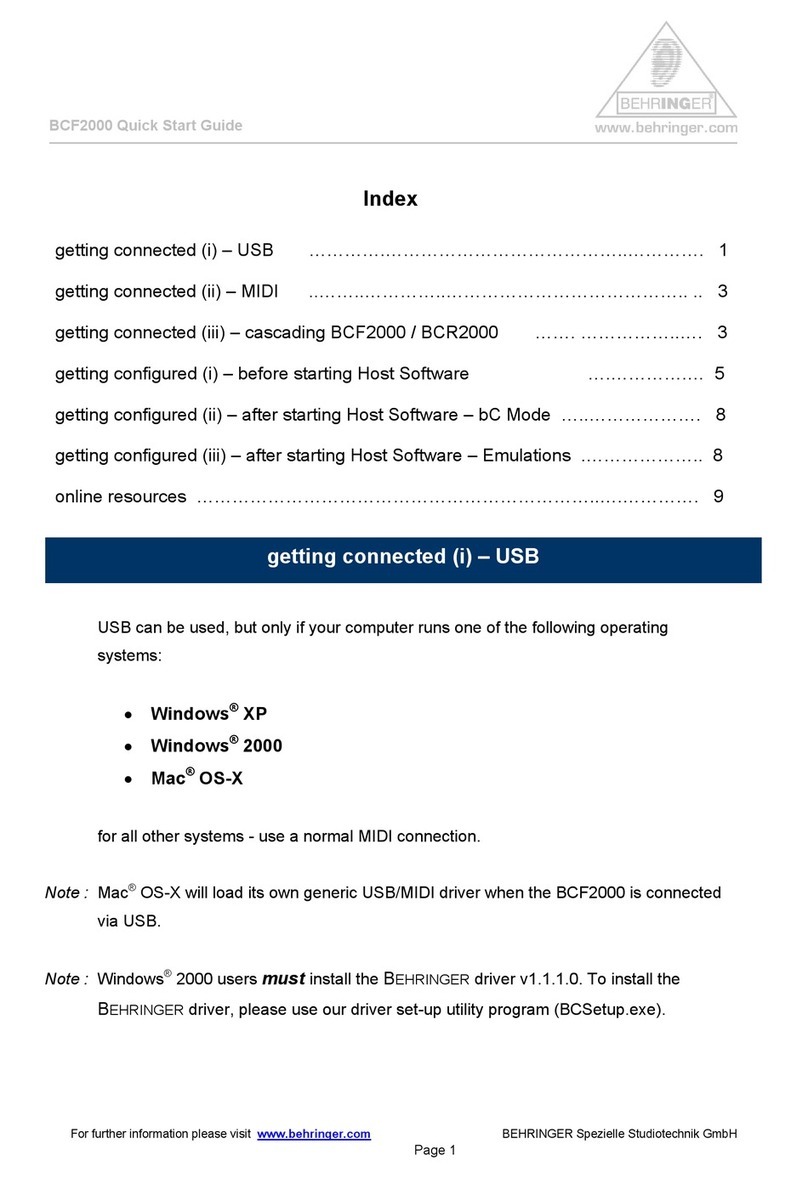
  9. Behringer FADERB CF2000B User manual

Behringer FADERB CF2000B User manual

This manual suits for next models

2

Other Behringer Recording Equipment manuals

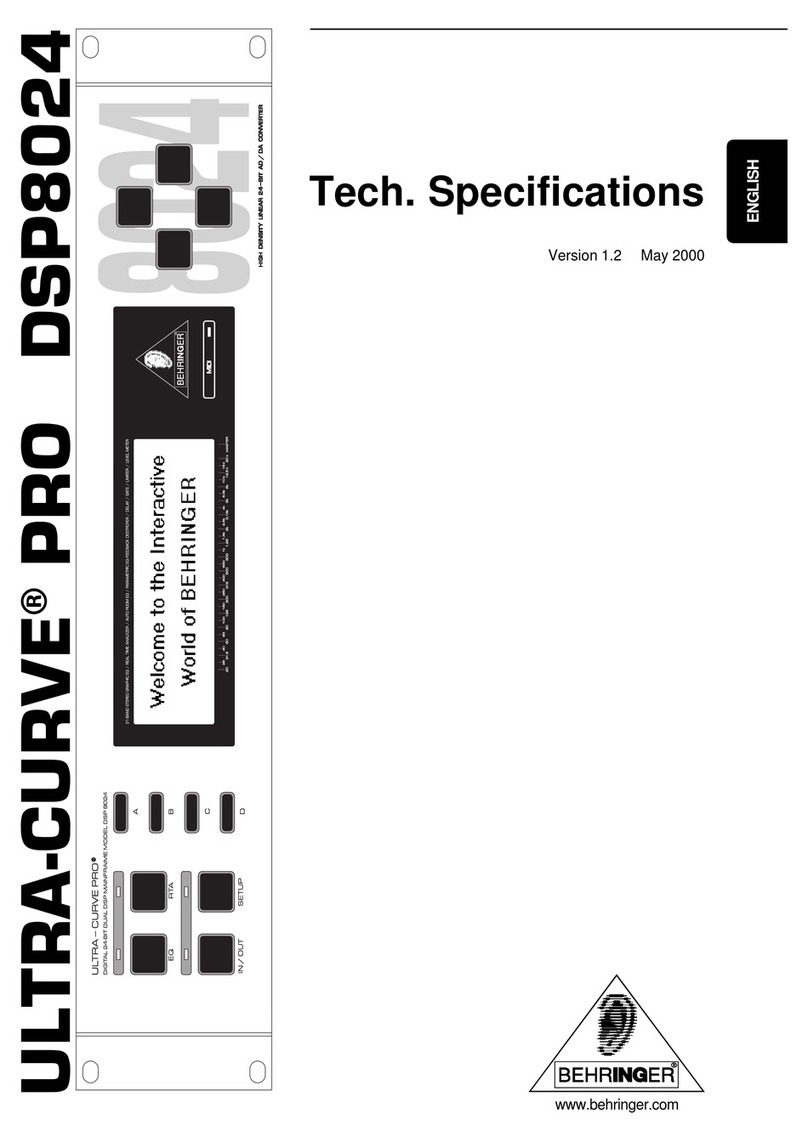
Behringer ULTRADRIVE PRO DCX2496 User manual

Behringer

Behringer ULTRADRIVE PRO DCX2496 User manual

Behringer CMD Micro User manual

Behringer

Behringer CMD Micro User manual

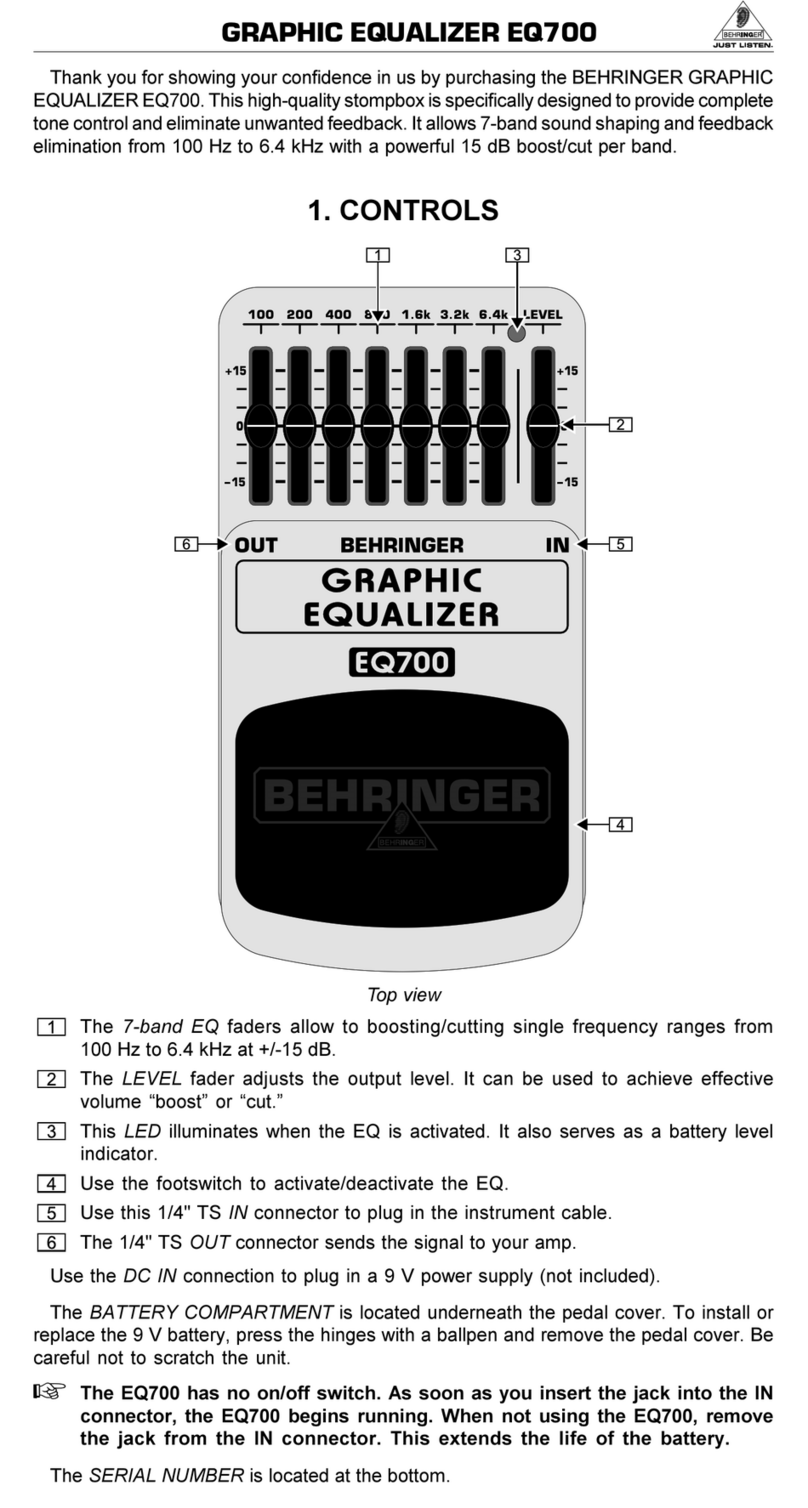
Behringer GRAPHIC EQUALIZER EQ700 User manual

Behringer

Behringer GRAPHIC EQUALIZER EQ700 User manual

Behringer B-Control Fader BCF2000 User manual

Behringer

Behringer B-Control Fader BCF2000 User manual

Behringer ULTRADRIVE DCX2496LE User manual

Behringer

Behringer ULTRADRIVE DCX2496LE User manual

Behringer V-Verb Pro REV2496 User manual

Behringer

Behringer V-Verb Pro REV2496 User manual

Behringer Tweakalizer DFX69 User manual

Behringer

Behringer Tweakalizer DFX69 User manual

Behringer X V-AMP LX1-X User manual

Behringer

Behringer X V-AMP LX1-X User manual

Behringer XENYX 302USB User manual

Behringer

Behringer XENYX 302USB User manual

Behringer DD400 User manual

Behringer

Behringer DD400 User manual

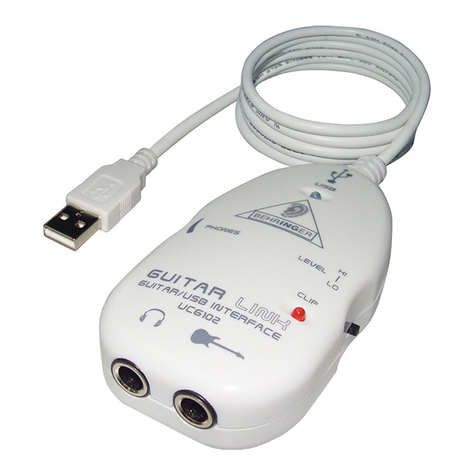
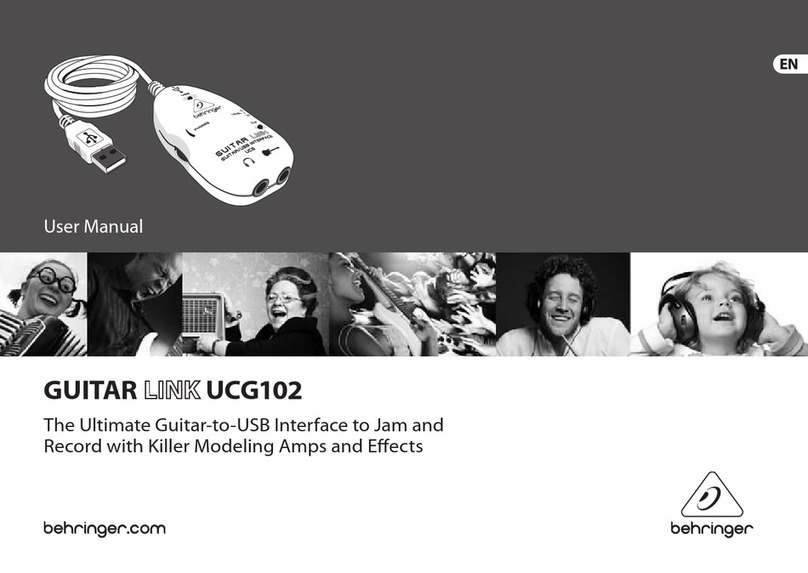
Behringer GUITAR LINK UCG102 User manual

Behringer

Behringer GUITAR LINK UCG102 User manual

Behringer X V-AMP User manual

Behringer

Behringer X V-AMP User manual

Behringer EURORACK UB1204-PRO User manual

Behringer

Behringer EURORACK UB1204-PRO User manual

Behringer SUPER-X PRO CX2310 User manual

Behringer

Behringer SUPER-X PRO CX2310 User manual

Behringer ADT1616 User manual

Behringer

Behringer ADT1616 User manual

Behringer Xenyx 1222FX User manual

Behringer

Behringer Xenyx 1222FX User manual

Behringer XENYX CONTROL1USB User manual

Behringer

Behringer XENYX CONTROL1USB User manual

Behringer EUROPOWER PMP500 User manual

Behringer

Behringer EUROPOWER PMP500 User manual

Behringer FEEDBACK DESTROYER PRO DSP1100P User manual

Behringer

Behringer FEEDBACK DESTROYER PRO DSP1100P User manual

Behringer ULTRAGAIN PRO-8 DIGITAL ADA8000 User manual

Behringer

Behringer ULTRAGAIN PRO-8 DIGITAL ADA8000 User manual

Behringer POWERLIGHT PL2000 User manual

Behringer

Behringer POWERLIGHT PL2000 User manual

Behringer MINIFEX FEX800 User manual

Behringer

Behringer MINIFEX FEX800 User manual

Behringer B-CONTROL Operating instructions

Behringer

Behringer B-CONTROL Operating instructions

Behringer X-Touch Compact User manual

Behringer

Behringer X-Touch Compact User manual

Popular Recording Equipment manuals by other brands

ThermoFisher Scientific Dionex DRS 600 Installation checklist

ThermoFisher Scientific

ThermoFisher Scientific Dionex DRS 600 Installation checklist

Shure ANIUSB-Matrix user guide

Shure

Shure ANIUSB-Matrix user guide

Nady Audio HE-1 user guide

Nady Audio

Nady Audio HE-1 user guide

AUDAC APM 01 User manual & installation guide

AUDAC

AUDAC APM 01 User manual & installation guide

Teac GF-350 owner's manual

Teac

Teac GF-350 owner's manual

Fractal Audio MFC-101 MARK III owner's manual

Fractal Audio

Fractal Audio MFC-101 MARK III owner's manual

bmcm USB-OI16 manual

bmcm

bmcm USB-OI16 manual

HHB BurnIT CDR-830 Service manual

HHB

HHB BurnIT CDR-830 Service manual

GE VersaMax IC200CPUE05 manual

GE

GE VersaMax IC200CPUE05 manual

IntesisBox MH-RC-MBS-1 user manual

IntesisBox

IntesisBox MH-RC-MBS-1 user manual

Attero Tech unD4l user manual

Attero Tech

Attero Tech unD4l user manual

Sennheiser UI 765 instruction manual

Sennheiser

Sennheiser UI 765 instruction manual

Sony RCD-W1 Operating Instructions  (primary... Service manual

Sony

Sony RCD-W1 Operating Instructions (primary... Service manual

Roland Planet-P  MKS-10 owner's manual

Roland

Roland Planet-P MKS-10 owner's manual

Roland BOSS GT-PRO Turbostart

Roland

Roland BOSS GT-PRO Turbostart

8x8 Inc Valcom V-2001A manual

8x8 Inc

8x8 Inc Valcom V-2001A manual

Waves SUB Align user guide

Waves

Waves SUB Align user guide

Mitsubishi Electric MAC-334IF-E installation manual

Mitsubishi Electric

Mitsubishi Electric MAC-334IF-E installation manual

manuals.online logo
manuals.online logoBrands
  • About & Mission
  • Contact us
  • Privacy Policy
  • Terms and Conditions

Copyright 2025 Manuals.Online. All Rights Reserved.

Version 1.0 November 2003
Users Manual
ENGLISH
B-CONTROL FADER BCF2000 B-CONTROL ROTARY BCR2000
2
B-CONTROL FADER BCF2000/B-CONTROL ROTARY BCR2000
This symbol, wherever it appears, alerts you to the
presence of uninsulated dangerous voltage inside
the enclosurevoltage that may be sufficient to
constitute a risk of shock.
This symbol, wherever it appears, alerts you to
important operating and maintenance instructions
in the accompanying literature. Please read the
manual.
IMPORTANT SAFETY INSTRUCTIONS
CAUTION: To reduce the risk of electric shock, do not remove
the top cover (or the rear section). No user
serviceable parts inside refer servicing to qualified
personnel.
WARNING: To reduce the risk of fire or electric shock, do not
expose this appliance to rain and moisture.
DETAILED SAFETY INSTRUCTIONS:
1) Read these instructi ns.
2) Keep these instructi ns.
3) Heed all warnings.
4) F ll w all instructi ns.
5) D n t use this device near water.
6) Clean nly with a dry cl th.
7) D n t bl ck any ventilati n penings. Install in acc rdance
with the manufacturers instructi ns.
8) D n t install near any heat s urces such as radiat rs,
heat registers, st ves, r ther apparatus (including
amplifiers) that pr duce heat.
9) D n t defeat the safety purp se f the p larized r
gr unding-type plug. A p larized plug has tw blades with
ne wider than the ther. A gr unding type plug has tw
blades and a third gr unding pr ng. The wide blade r the
third pr ng are pr vided f r y ur safety. If the pr vided plug
d es n t fit int y ur utlet, c nsult an electrician f r
replacement f the bs lete utlet.
10) Pr tect the p wer c rd fr m being walked n r pinched
particularly at plugs, extensi n c rds, and the p int at which
they exit the unit.
11) Only use attachments/access ries specified by the
manufacturer.
12) Use nly with the cart, stand, trip d, bracket, r table
specified by the manufacturer, r s ld with the device. When
a cart is used, use cauti n when m ving the cart/device
c mbinati n t av id injury fr m stumbling ver it.
13) Unplug this device during lightning st rms r when n t
used f r l ng peri ds f time.
14) Refer all servicing t qualified service pers nnel.
Servicing is required when the unit has been damaged in
any way, such as p wer supply c rd r plug is damaged,
liquid has been spilled r bjects have fallen int the device,
the unit has been exp sed t rain r m isture, d es n t
perate n rmally, r has been dr pped.
3
B-CONTROL FADER BCF2000/B-CONTROL ROTARY BCR2000
TABLE OF CONTENTS
1. INTRODUCTION ........................................................ 4
1.1 Before you get started .................................................... 4
1.1.1 Shipment .............................................................. 4
1.1.2 Initial operation ..................................................... 4
1.1.3 Warranty ............................................................... 4
1.2 System requirements ..................................................... 4
2. INTRODUCTION TO MIDI ......................................... 4
2.1 MIDI control for beginners .............................................. 4
2.2 The MIDI standard .......................................................... 5
2.3 MIDI connections ............................................................ 5
2.4 The MIDI format .............................................................. 5
3. CONTROL ELEMENTS AND CONNECTIONS ......... 6
4. CONTROLS ............................................................... 8
4.1 The operating modes ..................................................... 8
4.1.1 USB modes .......................................................... 8
4.1.2 Stand-alone modes ............................................ 10
4.2 Play mode menu ........................................................ 12
4.2.1 Selecting a preset .............................................. 12
4.2.2 Copy/store presets ............................................. 13
4.2.3 Copying encoder groups .................................... 13
4.3 Programming ................................................................ 13
4.3.1 The LEARN function .......................................... 13
4.3.2 Programming in EDIT mode .............................. 13
4.3.3 Settings in the global setup menu ..................... 16
4.3.4 Additional functions ............................................ 16
5. APPENDIX ............................................................... 17
6. SPECIFICATIONS ................................................... 18
7. WARRANTY ............................................................ 19
FOREWORD
Dear Customer,
welcome to the team of
BEHRINGER users, and
thank you very much for
expressing your confi-
dence in us by pur-
chasing the B-CONTROL.
Writing this foreword
for you gives me great
pleasure, because it
represents the culmi-
nation of many months of
hard work delivered by
our engineering team to
achieve a very ambitious
goal: to present two
outstanding USB MIDI
CONTROLLERS. Due to
their extreme flexibility
they can be used as a
central control unit with USB/MIDI interface as well as for mere
MIDI control applications. The task of designing our new
B-CONTROLs certainly meant a great deal of responsibility, which
we assumed by focusing on you, the discerning user and musician.
Meeting your expectations also meant a lot of work and night
shifts. But it was fun, too. Developing a product usually brings a
lot of people together, and what a great feeling it is when all who
participated in such a project can be proud of what theyve
achieved.
It is our philosophy to share our enjoyment with you, because
you are the most important member of the BEHRINGER team.
With your highly competent suggestions for new products youve
made a significant contribution to shaping our company and
making it successful. In return, we guarantee you uncompromising
quality as well as excellent technical and audio properties at an
extremely reasonable price. All of this will enable you to give free
rein to your creativity without being hampered by budget
constraints.
We are often asked how we manage to produce such high-
quality devices at such unbelievably low prices. The answer is
quite simple: its you, our customers! Many satisfied customers
mean large sales volumes enabling us to get better purchasing
terms for components, etc. Isnt it only fair to pass this benefit on
to you? Because we know that your success is our success too!
I would like to thank all of you who have made the B-CONTROL
possible. You have all made your own personal contributions,
from the developers to the many other employees at this company,
and to you, the BEHRINGER user.
My friends, its been worth the effort!
Thank you very much,
Uli Behringer
4
B-CONTROL FADER BCF2000/B-CONTROL ROTARY BCR2000
1. INTRODUCTION
Thank you very much for expressing your confidence in
BEHRINGER products by purchasing the B-CONTROL.
The B-CONTROL is an extremely flexible control surface
suitable for a wide array of applications. Regardless of whether
you want to intuitively control your sequencer software with mixers,
plug-ins and virtual instruments, or if you wish to use its broad
MIDI functions for controlling rack synthesizers, general MIDI
sound generators or effect processors, the B-CONTROL offers
you tremendous ease of use that leaves no wishes open.
To ensure the highest possible operating safety, our equipment
is manufactured according to the highest quality standards in the
audio industry. Additionally, we produce our equipment adhering
to the ISO9000 certified management system.
+The f ll wing users manual is intended t familiarize
y u with the units c ntr l elements, s that y u can
master all the functi ns. After having th r ughly read
the users manual, st re it at a safe place f r future
reference.
1.1 Before you get started
1.1.1 Shi ment
The B-CONTROL was carefully packed at the assembly plant
to assure secure transport. Should the condition of the cardboard
box suggest that damage may have taken place, please inspect
the unit immediately and look for physical indications of damage.
+Damaged equipment sh uld NEVER be sent directly t
us. Please inf rm the dealer fr m wh m y u acquired
the unit immediately as well as the transp rtati n
c mpany fr m which y u t k delivery f the unit.
Otherwise, all claims f r replacement/repair may be
rendered invalid.
+T assure ptimal pr tecti n f y ur B-CONTROL during
use r transp rt, we rec mmend utilizing a carrying
case.
+Please always use the riginal packaging t av id
damage due t st rage r shipping.
+Never let unsupervised children play with the
B-CONTROL r with its packaging.
+Please disp se f all packaging materials in an
envir nmentally-friendly fashi n.
1.1.2 Initial o eration
Please make sure the unit is provided with sufficient ventilation,
and never place the B-CONTROL on top of an amplifier or in the
vicinity of a heater to avoid the risk of overheating.
A power supply unit which meets the necessary safety
requirements is enclosed for connecting the B-CONTROL to the
mains.
1.1.3 Warranty
Please take a few minutes and send us the completely filled
out warranty card within 14 days of the date of purchase to assure
unproblematic warranty processing in the future. You may also
register online at www.behringer.com. The serial number needed
for the registration is located at the top of the unit. Failure to
register your product may void future warranty claims.
1.2 System requirements
f r USB perati n:
Up-to-date WINDOWS® PC or MAC® with a USB connection
+The B-CONTROL supp rts WINDOWS® XP and MAC
OSX® USB MIDI c mpatibility. S n, y u will be able
t d wnl ad drivers f r ther perating systems, f r
multi unit supp rt, new presets as well as a WINDOWS
edit r s ftware free f charge. Just click
www.behringer.c m t get it f r free.
+The BCF2000/BCR2000 can als be perated stand-
al ne with ut a PC as a pure MIDI c ntr ller. S ftware
c ntr l via MIDI is als p ssible, pr vided y ur
c mputer has a MIDI interface.
2. INTRODUCTION TO MIDI
2.1 MIDI control for beginners
Application possibilities for both B-CONTROL models, the
BCF2000 and the BCR2000, are truly wide-ranging. Well start
with a couple of general explanations and examples that should
quickly let you get a good understanding of MIDI basics.
What exactly d es the B-CONTROL d ?
Simply put, this a remote control for all kinds of MIDI equipment.
Using the faders (BCF2000 only), encoders (infinitely variable
rotary controls) and keys, an entire array of control functions can
be performed. Adjusting these parameters, you can control various
functions of external (hardware or software) equipment in real
time. For example, countless software mixers, sound generators
or effects can be remotely controlled. With these software
applications, you are dealing with simulations of real equipment
in your computer, whereby they are visually represented on the
computer screen, while the computer takes over the function of
replicating their respective functions.
And h w d es it w rk?
You can assign particular MIDI data to each control element on
the B-CONTROL for example, you can assign the so-called MIDI-
Controller 7 (CC 07) that adjusts the volume of a MIDI device to
one of the controls on your BCF2000/BCR2000. If you move/
turn the corresponding control on your B-CONTROL, you can
hear how the volume on the receiving MIDI device also changes
(provided it is also connected to an audio output). Keep the
following in mind:
+MIDI data is nly c ntr l data and c ntains n audi
inf rmati n!
What settings d I have t make? Where? H w?
Often, you can assign MIDI control data numbers, the so-called
control change or CC numbers, to individual MIDI parameters.
Thats particularly the case with music software such as software
sequencers, mixers and sound generators as well as the so-called
plug-ins (effect units or sound generators integrated into the
software).
Basically, y u have 2 pti ns:
You either set the desired control numbers at the B-CONTROL
and transmit them to the software you are controlling, or you can
set the desired control data directly on your MIDI device and let
the B-CONTROL receive the information about number
assignment using the LEARN procedure.
Example:
On a software synthesizer, you want to control filter frequency,
filter resonance and volume using the MIDI controllers 5, 6 and 7.
To receive MIDI data, youll need to perform the following
settings on your software synthesizer:
2. INTRODUCTION TO MIDI
5
B-CONTROL FADER BCF2000/B-CONTROL ROTARY BCR2000
sset filter frequency to CC 05
sset filter resonance to CC 06 (receive)
sset volume to CC 07 (receive)
To get detailed information on how to assign them, please refer
to chapter 4.3.2 Programming in the EDIT mode on page 13.
Now, define in the B-CONTROL the control elements that will
control these 3 parameters. You can either use the LEARN
function if the software synthesizer gives you the option to send
its CC data via MIDI, or you can implement the following settings
manually:
sAssign the push encoder 1 CC 05 to filter frequency control
via dial rotation.
sAssign the push encoder 2 CC 06 to filter resonance control
via dial rotation.
sAssign the push encoder 3 CC 07 to volume control
via dial rotation.
H w d I wire the B-CONTROL?
Several classic examples can be found in the explanations of
different operating modes (see chapter 4.1 The Operating
Modes). Basically, the following applies:
sIf you want to control hardware MIDI equipment, use the
MIDI connectors.
sTo control software MIDI equipment, you can either use the
MIDI connectors on your B-CONTROL  provided your
computer has a MIDI interface  or you can use a USB
connection.
sTo remotely control both hardware and software equipment,
several combination modes are available. These are
explained in chapter 4.1.
What kinds f equipment can I c ntr l with the B-CONTROL?
You can basically control any device supporting the MIDI format.
Both hardware and software MIDI devices are controlled exactly
the same. The only difference is in the wiring.
Here are a c uple f suggesti ns n h w y u can use y ur
B-CONTROL:
sEditing sound parameters of (virtual) synthesizers, sound
samplers, GM/GS/XG sound generators
sControlling parameters on effects equipment/software
plug-ins such as effects processors, reverbs, compressors,
equalizers etc.
sRemotely controlling software mixers (volume, panorama,
equalizers etc.)
sRemotely controlling transport functions (playback, forward,
stop etc.) on sequencers, hard disk recorders, drum
computers etc.
sUsing BCF2000 faders as drawbar control for virtual or digital
organ expanders
sControlling MIDI-enabled lighting equipment
sLive control of volume and sound parameters on expanders
sTriggering (i.e. playing live) short samples, drum loops,
shouts, effects etc.
sRemotely controlling groove boxes, step sequencers, MIDI
generators (such as arpeggiators etc.), DJ software and
other live software
sProgram changes and volume control on sound generators
(just like on a master keyboard)
sLikewise, applicable to band keyboardists, solo entertainers,
organists, electronic music performers, DJs, sound
engineers, home/project studio owners, theater technicians
etc.
2.2 The MIDI standard
The MIDI standard (Musical Instruments Digital Interface) was
developed in the early 80s to make communication between
equipment from different manufacturers possible. Over the years,
the MIDI interface has become hugely popular it has become a
matter of fact that complete studios can be connected via MIDI.
At the center of any such network is at least one computer that
controls peripheral equipment. You can use the B-CONTROL in
such a studio to control your sequencer or other software tools
running on your computer (e.g. software mixers, VST instruments,
effect plug-ins). But even if you dont use a computer, you can
use the B-CONTROL as a central control surface in your studio
for comfortably editing your rack synthesizers, GM/GS/XG sound
generators and effects equipment.
2.3 MIDI connections
The MIDI connections in the back of your B-CONTROL feature
the standard 5-pin DIN connectors. You will require MIDI cables
to connect your B-CONTROL to other MIDI equipment. In general,
commercially available ready-to-use cables can and should be
used. Their length should not exceed 15 m (50 ft.).
MIDI IN: Used for receiving MIDI data (parameter feedback,
SysEx data), or to mix MIDI signals with the B-CONTROL signals
(merge function).
MIDI OUT A/B: Data for controlling other MIDI equipment can
be sent through the MIDI outputs.
+The B-CONTROL has tw MIDI utputs. MIDI
OUT B can be c nfigured as MIDI THRU, s that the
inc ming data at MIDI IN can be passed thr ugh
unaffected.
2.4 The MIDI format
Although your B-CONTROL is very easy to use, it still makes
sense to review some information about this data format. Each
MIDI command, also called message, consists of a status byte
and up to two data bytes. The status byte defines the command
type, and the data bytes contain the corresponding values.
Different types of MIDI messages used by the B-CONTROL are
explained next:
N te messages:
Among keyboard hotshots, Note On and Note Off messages are
among the essential MIDI messages. Playing MIDI instruments
from a master keyboard or computer is only possible with these
messages. The B-CONTROL can also send Note Messages
however, this is not absolutely necessary to play music. This way,
note events are also used to trigger drumloops or individual notes
from a sampler. Many effects processors also allow rhythmic
entering of delay times or song tempos with note commands.
Note On and Note Off messages have the following data format:
Status Byte Data Byte 1 Data Byte
2
Note Off
&8n (n = channel #)
Note # Velocity
Note On
&9n (n = channel #)
Note # Velocity
Table 2.1: Data format of Note On and Note Off messages
The value range for channel numbers is between 1 and 16 for
data bytes it is 0 to 127. Even though Note Off messages are not
really used by keyboarders anymore, the B-CONTROLs support
sending this status information.
Velocity corresponds to the key pressure, and therefore to the
volume of a touch-sensitive keyboard (piano). Since the
B-CONTROL does not feature touch-sensitive keys, the velocity
value is transmitted with a fixed value that can be set during
programming.
+A n te c mmand can nly be assigned t keys,
f tswitches and push functi ns f the enc der.
2. INTRODUCTION TO MIDI
6
B-CONTROL FADER BCF2000/B-CONTROL ROTARY BCR2000
C ntr l Change (CC):
Control Change Messages are some of the most powerful MIDI
messages. Using them, a vast number of parameters and functions
can be recalled and automated. Individual control elements (faders,
rotary dials, keys etc.) can be assigned to CC messages on your
B-CONTROL. Because not only keys but also faders and rotary
dials can be used, control values can be controlled in real time
either statically or dynamically. A list with the standard controller
numbers can be found in this user manuals appendix.
NRPN:
Additionally, controllers that have no standardized assignment
can also be used, and can therefore be assigned according to no
predetermined rule. These controllers are called NRPNs (Non-
Registered Parameter Numbers). NRPNs are further subdivided
into MSB (Most Significant Byte) and LSB (Least Significant Byte)
in order to achieve a higher resolution. A lower resolution is
particularly easy to observe during fader movement of a mixer, in
which 7-bit (= 128 values) jumps in the signal level can be heard.
By subdividing NRPNs into MSB and LSB, you can achieve
14-bit resolution of faders and rotary dials, which means that the
movement of a fader is divided into more than 16,000 steps (214)!
In addition to NRPNs, there are also RPNs (Registered Parameter
Numbers). RPN commands are defined as GM (general MIDI),
GS (Roland) and XG (Yamaha) MIDI standards.
Pitch Bend
The pitch-bend wheel of a keyboard is used for tone modulation
and has its own commands in the MIDI format.
After T uch
MIDI keyboards featuring After Touch can respond to varying
key pressure even after you release the key (i.e. after the keystroke
is over) and can send this data via MIDI. This function either
reacts key-specific (key pressure) or it reacts to all notes at the
same time (channel pressure).
MIDI Machine C ntr l (MMC):
With MIDI Machine Control, you can assign transport functions
of a sequencer or drum computer (e.g. start, stop, FFW/RWD)
and locator points to individual keys with a permanently adjustable
time position (locate, punch in/out points).
Pr gram Change Messages and MIDI Bank Select:
Program change messages are used to recall programs/presets
in MIDI devices connected to your B-CONTROL. 128 program
numbers can be recalled. For devices with more than 128 presets,
use the bank select function, which lets you select a storage bank
before sending a program change.
Running Status:
Because the MIDI interface is a serial data transmission format
(meaning that its data is transmitted as a succession of individual
data segments), it became apparent very quickly that it may not
be fast enough. To avoid perceptible delays in the output of MIDI
data, Running Status was designed. It suppresses the
transmission of the status byte when the same MIDI messages
are transmitted in succession. This means that, for example,
during a continuous change of the data byte of a controller (e.g.
volume), the status byte is only sent once. The only thing that is
transmitted are the changes in the data byte. This goes on until
another status byte is sent. 8 bits are saved for each message
sent.
SysEx Dump:
System-Exclusive data refer to a function that makes
transmission of nonspecific data via MIDI possible. This is often
used for reading out memory contents and storing them externally.
The status byte notes the data type (SysEx) the first three data
bytes are a manufacturer ID, so that when you have a large MIDI
network, you can still talk to the correct MIDI device.
To make using several identical B-CONTROLs at the same
time possible, you can assign a device number (device ID) in the
global setup menu to each B-CONTROL, which assures that only
the correct device receives the data intended for it.
3. CONTROL ELEMENTS AND
CONNECTIONS
In this chapter, we will describe various control elements of
your B-CONTROL. All controls and connectors are explained in
detail, and well give you useful tips on how to use them.
The 8 infinitely variable push encoders are used to send
MIDI data. They have two functions (turn and press) that
can be assigned to different MIDI commands.
Each of these 16 keys can send one MIDI command.
The four-digit L D display indicates the current operating
software version briefly during startup. After that, it shows
the selected preset number. When in play mode, activating
one of the control elements indicates value changes on the
LED in real time. When in programming mode, it indicates
the type of MIDI commands, program/channel numbers and
parameter values.
Using the NCOD R GROUP keys, four so-called encoder
groups per preset can be recalled, so that eight PUSH
encoders for a total of 64 different MIDI functions are at
your disposal.
These LEDs indicate the following:
MIDI IN, OUT A and OUT B illuminate if MIDI data flows
through the respective connectors.
USB Mode illuminates if a USB connection to a computer is
active (your computer must be on).
The FOOT SW LEDs illuminate if the footswitch is actuated.
FOOT CTRL (BCF2000 only) illuminates when the footswitch
pedal is pressed (MIDI data is sent).
Permanently fixed functions are assigned to this key section:
STOR saves presets.
L ARN gets you to the LEARN mode.
DIT gets you to the EDIT mode.
Using the XIT key, you exit a programming level (edit mode/
global setup). Use it also to cancel a store or copy procedure.
The eight 100-mm faders of the BCF2000 are freely
assignable for controlling MIDI commands. They are
motorized, so they automatically slide into the predetermined
position when you switch to another preset. If the software
you are controlling or the MIDI device to which your
B-CONTROL is connected support parameter feedback, the
fader positions change automatically.
Using the PR S T keys, 32 presets can be recalled. The
preset number is shown in the display.
These four keys can be assigned to any MIDI command of
your choice.
The 24 infinitely variable rotary controls (encoders) of the
BCR2000 can be programmed to send MIDI control
commands. The LED circle show the current value.
These are the SWITCH connectors for connecting a
footswitch. Its polarity is automatically detected. On the
BCR2000, the first connector (SWITCH 1) can also be used
to connect a double footswitch with stereo jacks. In this
case, SWITCH 2 must remain unused.
3. CONTROL ELEMENTS ND CONNECTIONS

7
B-CONTROL FADER BCF2000/B-CONTROL ROTARY BCR2000
CONTROLLER connector (BCF2000 only). Here, you can
connect a footswitch that can be used for controlling
assignable MIDI data.
The POW R switch turns your B-CONTROL on. The
POWER switch should always be in its Off position when
connecting the unit to the mains.
+Please keep in mind: The POWER switch d es n t fully
disc nnect y ur B-CONTROL fr m the mains. Always
unplug the p wer c rd fr m the mains if y u d nt intend
t use y ur B-CONTROL f r l nger peri ds f time.
Fig. 3.1: The control surface of the B-CONTROLs
Fig.3.2: The back of the BCF2000 (control elements to coincide with the BCR2000)
3. CONTROL ELEMENTS ND CONNECTIONS
The connection to the mains is established using a standard
connection socket. A matching cable is included in the
shipment.
S RIAL NUMB R. Please take the time to fill out and return
the warranty card within 14 days after the date of purchase
to benefit from our extended warranty. The serial number is
located on the top side of your REV2496. You can also
register online at www.behringer.com.
8
B-CONTROL FADER BCF2000/B-CONTROL ROTARY BCR2000
Fig. 3.3: The footswitch connectors on the BCR2000
The USB connector is used for connecting to a computer
with a compatible USB input.
These are the MIDI connectors of your B-CONTROL.
Depending on the operating mode, MIDI OUT B doubles as
MIDI THRU.
4. CONTROLS
4.1 The o erating modes
Depending on how you want to use your B-CONTROL, you
should first select an operating mode.
You can use it as a pure USB controller for your computer
applications (software mixers, sequencers, soft synths, VST-
effects etc.), as a stand-alone MIDI controller, or as a combination
of both with different MIDI interface configuration possibilities.
Here is how you select an operating mode:
sKeep the EDIT key pressed, and press the STORE key at
the same time.
sYou are now in the global setup menu and you can let go of
both keys.
sNow, select an operating mode by turning the PUSH encoder 1.
You can select USB modes U-1 to U-4 and stand-alone
modes S-1 to S-3. The modes are described in detail in
chapter 4.1.1 and further, and examples about their use
are also given there. Please see also chapter 4.3.3.
sTo exit global setup, please press the EXIT key.
+The settings made in the gl bal setup menu are
aut matically st red and d n t have t be separately
saved.
The USB connection is briefly interrupted if you switch within a
USB mode, or when you switch from a USB mode to a stand-
alone mode and vice versa.
If a USB connection is made or lost while your
B-CONTROL is on, the selected operating mode is retained.
4.1.1 USB modes
USB m de U-1:
Fig. 4.1: Routing and use in USB mode 1
In USB mode 1, the B-CONTROL is connected to your PC by
using a USB cable. It sends MIDI data and receives parameter
feedback from the computer, provided that the music software
you are controlling supports these functions. This way, current
parameter values can be shown on the LED, or can be indicated
by the fader position.
All MIDI ports of the B-CONTROL are off. This mode is optimal
for controlling software tools (mixers, sequencers, synths, VST-
effects etc.) if you dont need any additional MIDI ports. This mode
is also very useful if you are already using other multi-channel
MIDI interfaces on your computer and cant address any additional
ones.
4. CONTROLS
9
B-CONTROL FADER BCF2000/B-CONTROL ROTARY BCR2000
USB-M de U-2:
Fig. 4.2: Routing and use in USB mode 2
Your B-CONTROL sends MIDI data to the computer and
receives parameter feedback, provided that the software you are
controlling supports this function. MIDI IN and OUT A are available
as a 16-channel MIDI interface for your computer. OUT B functions
as MIDI THRU and forwards MIDI IN data unchanged. OUT B is
not accessible from the computer, and doesnt send any control
data from the B-CONTROL. This mode is ideal for applications in
which you control music software on your computer and at the
same time need a USB MIDI interface with one IN and one OUT.
Additionally, a MIDI keyboard can be tapped into at the MIDI THRU
(OUT B) connector. This way, you can use a master keyboard to
import your arrangements into the sequencer, or to play back
software synths. OUT A controls a hardware sampler, while a
MIDI expander (sound generator without a keyboard e.g. a rack
synthesizer or a pure preset unit), an effects processor or similar
can be connected at OUT B, whereby it is directly controlled only
from the keyboard or is controlled only via program changes.
USB-M de U-3:
Fig. 4.3: Routing and use in USB mode 3
This is surely the most often used standard mode with
computer applications.
This setting is optimal for controlling software while all MIDI
connectors are used as a USB-MIDI interface for the computer. With
this function, there are 16 input channels and 32 output channels
available to your music software (IN and OUT A + OUT B).
The B-CONTROL transmits its data via USB to the computer.
The availability of parameter feedback from the computer to the
B-CONTROL depends on the software your are controlling. MIDI
expanders can not be directly accessed from the keyboard in this
operating mode. This operating mode is only used to import MIDI
tracks into the sequencer.
4. CONTROLS
10
B-CONTROL FADER BCF2000/B-CONTROL ROTARY BCR2000
USB-M de U-4 (expanded):
Fig. 4.4: Application in USB mode 4 (expanded)
4. CONTROLS
Fig. 4.5: Routing in USB mode 4
This operating mode should be selected if you want to couple
two B-CONTROLs (e.g. 1x BCF2000 & 1x BCR2000) to control
your software using both B-CONTROLS through a common USB
port. Additionally, MIDI OUT B of the first controller (unit 1) can
be used from the computer as a 16-channel MIDI output. The
data of both B-CONTROLs is mixed and is sent to the host
computer via USB. Select stand-al ne mode 3 for the second
unit (unit 2).
4.1.2 Stand-alone modes
The stand-alone modes come into play when the B-CONTROL
is not used as a USB-controller for controlling PC applications
but as a pure MIDI controller. With all stand-alone modes, all
MIDI connectors can be used simultaneously, and these modes
differ only in how the data is transmitted on the MIDI outputs. Of
course, not only sound generators can be remotely controlled
(as shown in the illustrations) but also effects processors, groove
boxes, hardware sequencers, lighting equipment, compact
studios, portable keyboards, e-pianos etc.  basically any
equipment with a MIDI input. This can also be your computer
with its own MIDI interface. The USB connector can not be used
while your B-CONTROL is in one of the stand-alone modes. A
merge function that makes mixing MIDI data from two different
sources to one output possible is active at output A in all stand-
alone modes.