Bodet HARMONYS Flash User manual
1
HARMONYS Flash - indoor
Installation and user manual
Notice d’installation et d’utilisation
Ensure upon reception that the product has not been damaged during transport.
S’assurer à réception que le produit n’a pas été endommagé durant le transport pour réserve au transporteur.
BODET SA
BP30 001
49340 TREMENTINES - France
Tel. support France: 02.41.71.72.99
Fax France: 02.41.71.72.01
Réf : 608127 B
www.bodet-time.com

2
EN
TABLE OF CONTENTS
1. GENERAL POINTS 4
1.1 Unpacking the Harmonys 4
1.2 Cleaning 4
1.3 Pré-requisit 4
2. INSTALLATION 5
3. USE - WEB SERVER 6
3.1 Home 6
3.2Networkconguration 7
3.3 Settings 8
3.4Alarmconguration 9
3.5 System 11
4. TECHNICAL SPECIFICATIONS 12
5. SUPPORT 13

3
FR
TABLE DES MATIERES
1. GÉNÉRALITÉS 14
1.1 Contenu de l’emballage 14
1.2 Nettoyage 14
1.3 Pré-requis 14
2. INSTALLATION 15
3. UTILISATION - SERVEUR WEB 16
3.1 Accueil 16
3.2Congurationréseau 17
3.3 Paramètres 18
3.4Congurationdesalarmes 19
3.5 Système 21
4. CARACTERISTIQUES TECHNIQUES 22
5. ASSISTANCE 23

4
1. GENERAL POINTS
Thank you for choosing the Bodet HARMONYS Flash. This product has been carefully designed to meet your needs
in accordance with ISO9001 quality standards.
We recommend that you read this manual carefully before using the product for the first time.
Retain this manual throughout the lifespan of your product so that you can refer to it when necessary.
Failure to follow these instructions may cause irreversible damage and invalidate the warranty.
Non-contractual data. BODET reserves the right to make certain changes to its devices, regarding functional,
technical, aesthetic or colour characteristics, without prior notice.
This manual is subject to change without notice. To obtain the most recent version of this document, please refer to
our website: www.bodet-time.com.
1.1 Unpacking the Harmonys
For 907795, it must contain :
•Harmonys Flash for indoor environment,
•Quick start guide.
1.2 Cleaning
Use an antistatic product.
Never use alcohol, acetone or other solvents which may damage product casing.
1.3 Pré-requisit
For the commissioning of the Harmonys Flash, you must install the SIGMA software (supplied on CD with your mas-
ter clock) on your PC. To download the latest version of the software, contact our export department who will send
to check compatibility of your equipment and the software version, please have the version of your
master clock.
The Ethernet network connection to which the Bodet Harmonys is connected must be PoE, the power
being supplied by a PoE switch or a PoE injector. Make sure that the power capacity of your switch or
injectorissufcienttopoweryourproduct.
EN
5
EN
2. INSTALLATION
Choose the location where the Harmonys Flash is to be installed according to the present of Ethernet cable.
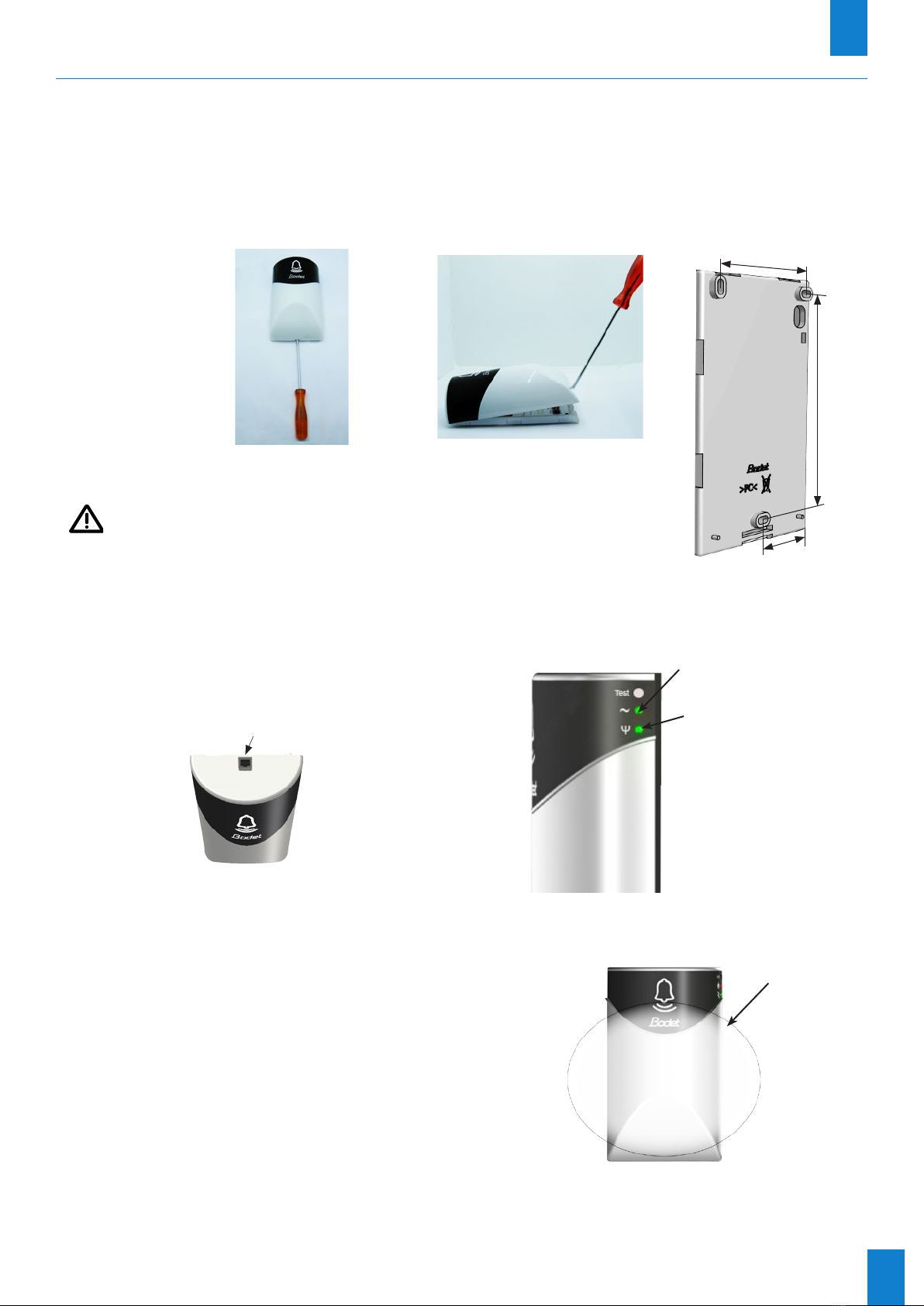
OpenthecaseoftheHarmonysFlashusingaat-bladescrewdriver.
1- Position the screwdriver in the space provided, located underneath the product (1).
2- Remove the cover using the tip of the screwdriver as a lever to separate the cover from the mounting plate (2).
1 2
Use the scewdriver as a lever to pry the cover open but do not push the
blade more than 1 cm inside the casing so that the blade is resting on the
back casing, not on the pc board.
3- Remove the front cover carefully.
4- Attach the Harmonys Flash using the 3 mounting screws provided
5- Make sure that the Harmonys Flash is resting well on the wall.
6- Connect the RJ45 Ethernet cable and clip the front panel
Light sequences
> Normal mode:
Green flash (200 ms) - White flash (200 ms) - Green flash (900 ms) - White flash (200 ms)
Length: 10 seconds.
> Alert mode:
Red flash (250 ms) - White flash (250 ms) - ...
Length: repeated for the entire duration of the alarm
> Localisation mode (Sigma software):
White flash (500 ms) - off (500 ms) - ...
Length: repeated for the entire duration of localisation
> Test mode (pressing the test button):
White flash (500 ms) - Red flash (500 ms) - Green flash (500 ms)
Length: cycle executed once
> Repeater error mode:
Red flash cycle.
70
44
130
Back casing - Rear view
On: power OK
Off: no power.
Green(fastashing):
network search.
Green(slowashing):
connected to the network
Red(slowashing):lossor
failure of network connection
RJ45 Ethernet connector
Zone of the light
sequences

6
3. USE - WEB SERVER
There are two methods of accessing the web interface:
1- Open a page in your internet browser then, in the search bar, enter the IP address of the product present on your
network (for example, 192.0.1.128).
2- Use the Sigma software, in the menu Configuration > IP devices > Harmonys Flash tab click on the button Web
server access to open the web server (refer to software manual, 607726).
The SIGMA software can be used to:
- detect the devices present on the network,
- configure each device (independently of each other, or copy the settings of one device to a group of devices),
- update the device’s software version,
3.1 Home
The home page contains the following general information:
- Product: product type.
- Name: product name + MAC address (in correspondence with the MAC address noted on the product identification
label during installation). By default: “Bodet-MAC address” (modifiable in the Network configuration
menu). The default value can be used to locate the product on the network on commissioning.
EN
7
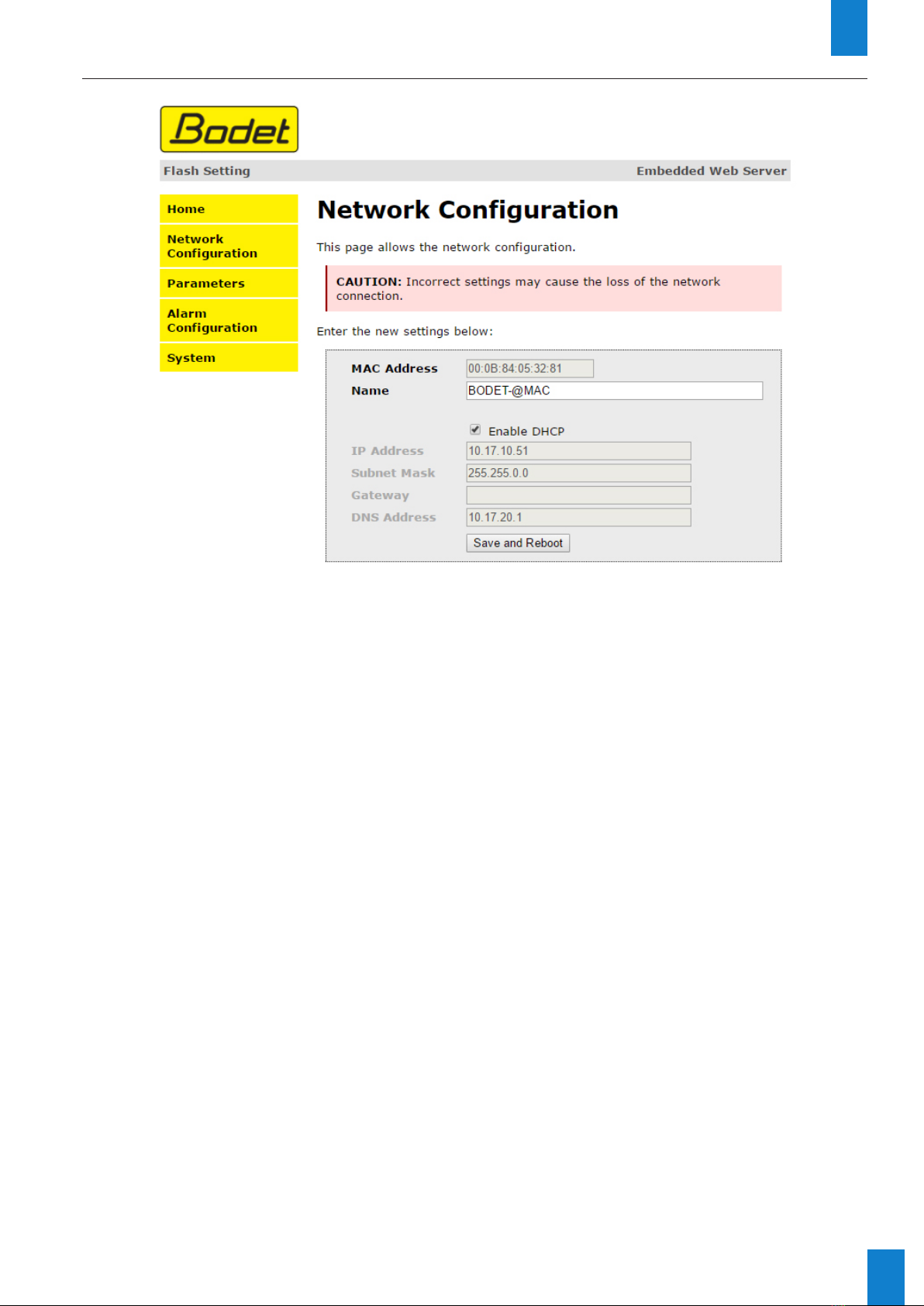
3.2 Networkconguration
This page can be used to configure the device on the network as follows:
- MAC address: this is the MAC address of the device. This address is unique to each product. This number is
indicated on a label on the rear of Bodet devices.
- Name: product name + MAC address (by default). It is advisable to include the physical location of the device in the
name of the product. Example: Flash_Home
- Enable DHCP tick box: enables automatic definition of the IP settings of the product on the network (where a DHCP
server is present on the network).
When the Enable DHCP tick box is not checked, the following parameters can be set manually:
- IP Address: allows manual definition of the product’s IP address.
- Mask: the subnet mask can be used to associate a device with the local network.
- Gateway: the gateway can be used to connect the device to two computer networks.
- DNS address: address which can be used to associate a product name with an IP address. This eliminates the need
to enter an IP address into the browser, as it can be replaced with a number or name defined by the
user, Example: www.bodet.com being easier to remember than 172.17.10.88.
The Save and Reboot button can be used to save data changes in the concerned device, and then restart it.
EN

8
3.3 Settings
This page can be used to configure the operational settings of the device as follows:
- Multicast (Address A and B): multicast address for sending ring commands (no schedule sent) (by default:
A=239.192.55.1, B= not specified).
- Brightness: Adjust the brightness to 4 levels (25%, 50%, 75% and 100%) depending on where the product is
installed (strongly or weakly sunny ...).
- Zone no.: enables definition of the number of the zone in which the product is located.
- Client repeater/server (tick box): in the case of a complex network installation with one or more remote sites, it may
be necessary to set up network gateways. To do so, it will be necessary to define
repeaters which will pass the information from one network to the other. For each
pair, one Flash is defined as the server and the other as the client. It is advisable,
although not compulsory, to place the server repeaters in the network where the
Sigma is located (and the microphone).
- Repeater address: can be used to enter the network address of the other Flash in the repeater pair.
The buttons Save and Save and Reboot can be used to save data changes in the concerned device, and then restart it.
EN
9
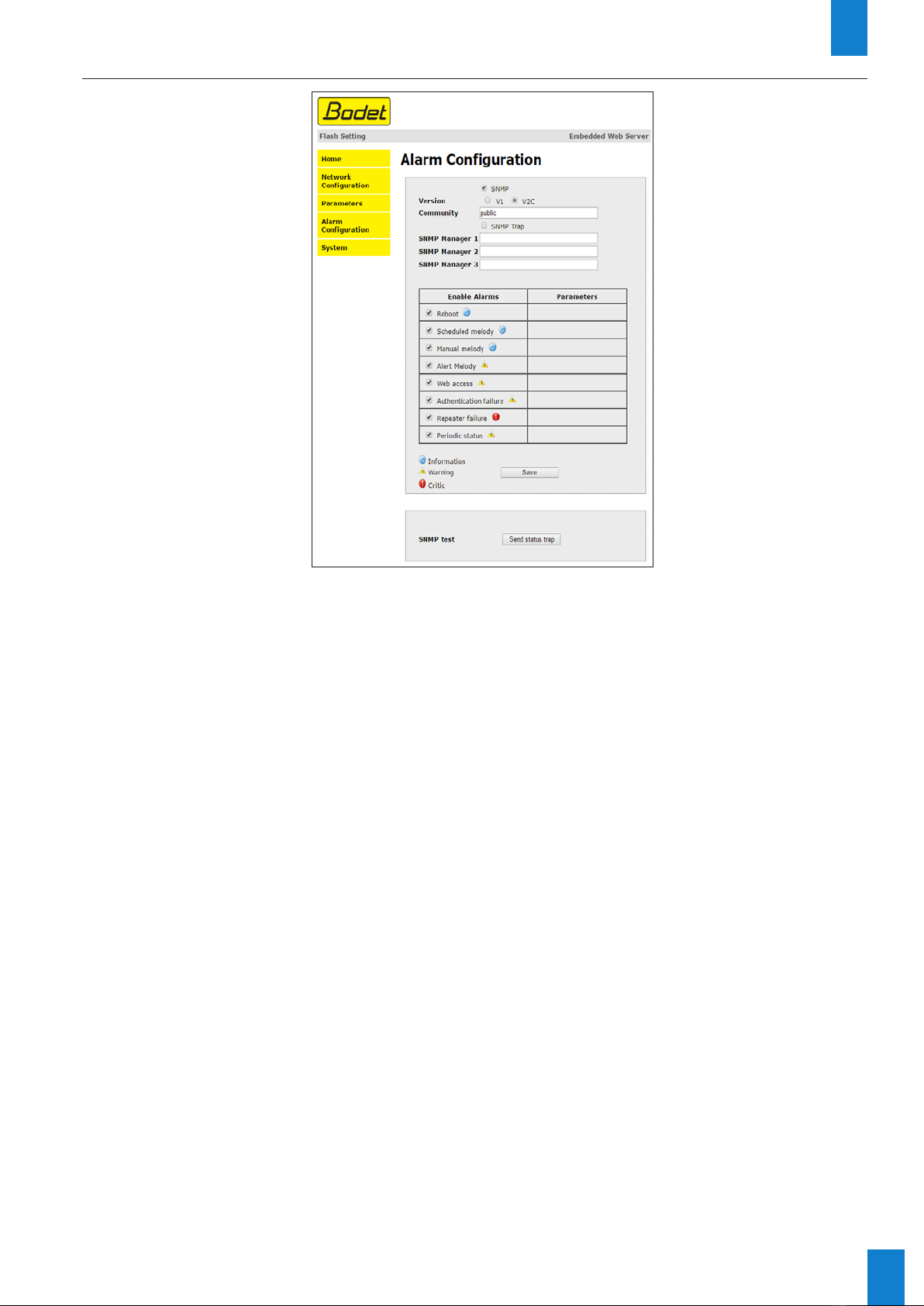
3.4 Alarmconguration
This page is used to enable device supervision, to define the information to be transmitted and the destination server.
One or more settings can be defined and configured as alarms.
The following information is displayed:
• Enable SNMP Trap: If enabled, error messages are sent to the SNMP Manager(s) automatically.
• SNMP Manager 1/2/3: IP addresses of servers receiving alerts from the clocks. SNMP Manager redundancy
increases the reliability of alerts.
• Community:Asetofclocksdenedbytheuser.Alltheclocksonthenetworkmusthavethesame
Community name.
• Reboot: This setting is used to detect a clock reboot.
• Scheduled melody: This parameter triggers an alarm when a programmed melody is played.
• Manual melody: This parameter is used to trigger an alarm when melody is initiated manually.
• Alert melody: This parameter triggers an alarm when an alert melody is played.
• Web access: This setting is used to trigger an alert if a user connects to the web server of the clock.
• Authentication failure: This setting is used to trigger an alert if a user sends an incorrect ID to the web server
of the clock.
• Repeater failure: This parameter triggers an alarm when a fault occurs on the repeater.
• Periodic Status: This setting is used to verify that the device is still working correctly (in case alerts are
“lost”).Thisvericationiscarriedoutatasetfrequency.
EN

10
EN
Information: Information on the normal operation of the product or the errors or faults reported are
minor and a visit by a maintenance technician to correct the fault is not strictly
necessary.
Warning: The errors or faults reported are significant and a visit by a maintenance technician to correct
the fault is necessary.
Critical: The errors or faults reported are serious and an urgent visit by a maintenance technician to
correct the fault is necessary.
Save is used to save any settings made on this page.
Send status trap is used to send a trap status to all of the configured SNMP managers to ensure that supervision is
configured correctly (make sure you click OK to save the settings).
Other manuals for HARMONYS Flash
1
Table of contents
Languages:
Other Bodet Accessories manuals