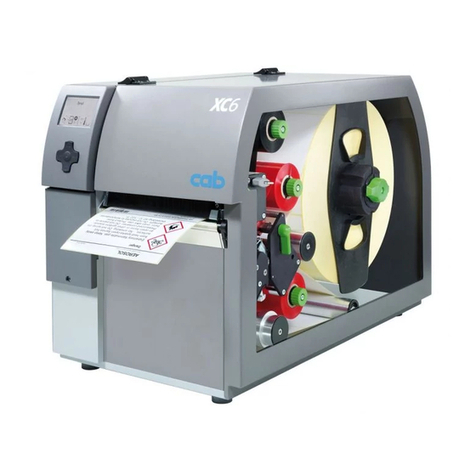
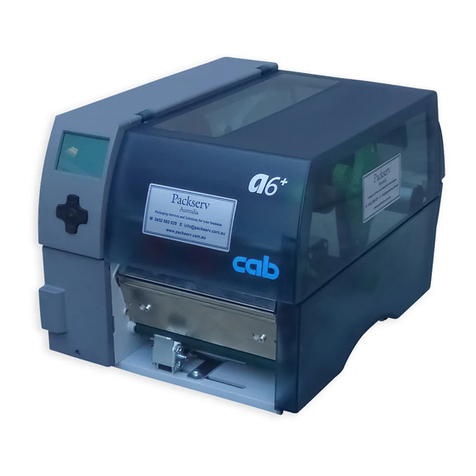
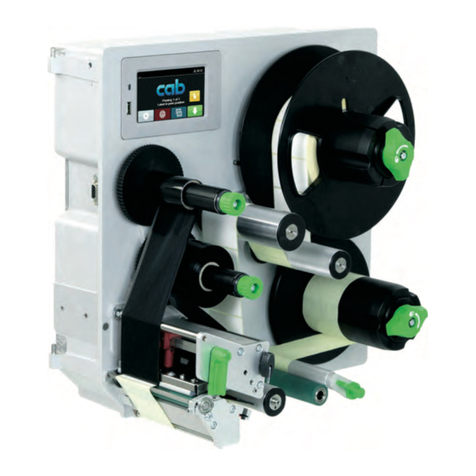
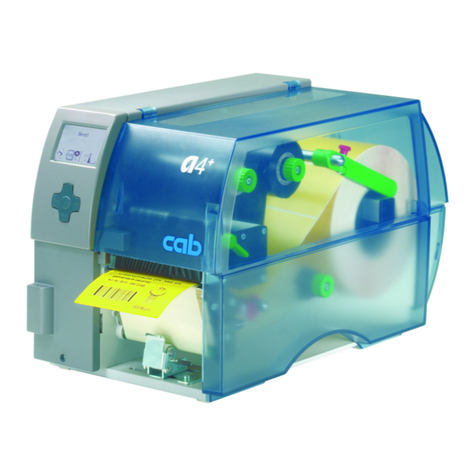
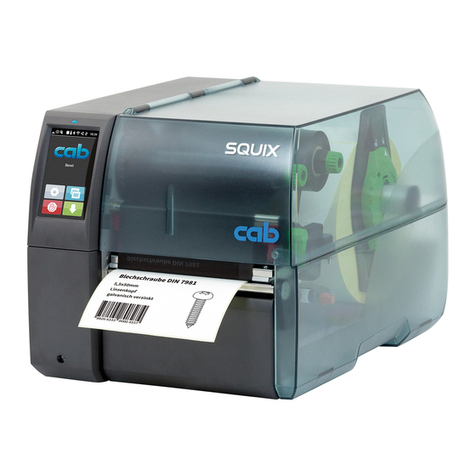
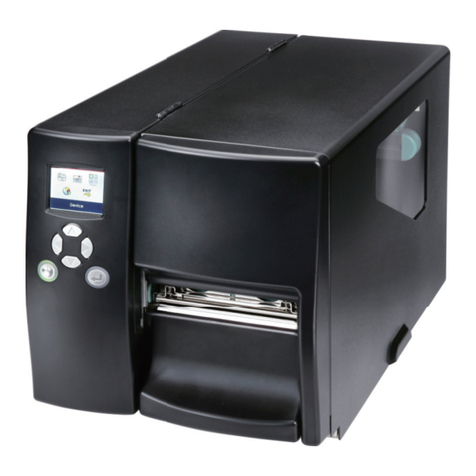
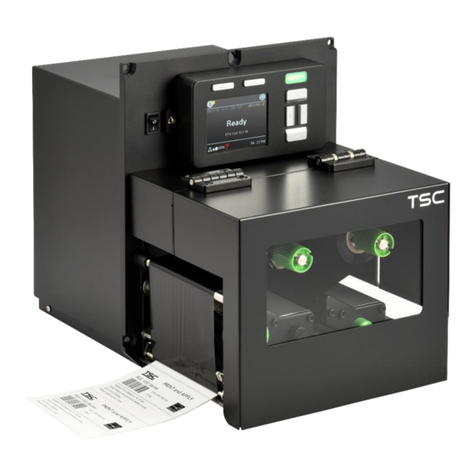
CAB XC Series User manual

Label Printer
Operator's Manual
XC Series

2 2
Family Type
XC XC4/300
XC6/300
Edition: 04/2013 - Part No. 9009051
Copyright
This documentation as well as translation hereof are property of
cab Produkttechnik GmbH & Co. KG.
The replication, conversion, duplication or divulgement of the
whole manual or parts of it for other intentions than its original
intended purpose demand the previous written authorization by
cab.
Editor
Regarding questions or comments please contact cab Produkt-
technik GmbH & Co. KG.
Topicality
Due to the constant further development of our products
discrepancies between documentation and product can occur.
Please check www.cab.de for the latest update.
Terms and conditions
Deliveries and performances are effected under the General
conditions of sale of cab.
Operator's Manual
for the following products
Germany
cab Produkttechnik
GmbH & Co KG
Postfach 1904
D-76007 Karlsruhe
Wilhelm-Schickard-Str. 14
D-76131 Karlsruhe
Telefon +49 721 6626-0
Telefax +49 721 6626-249
www.cab.de
France
cab technologies s.a.r.l.
F-67350 Niedermodern
Téléphone +33 388 722 501
www.cab.de
USA
cab Technology Inc.
Tyngsboro MA, 01879
Phone +1 978 649 0293
www.cabtechn.com
South Afrika
cab Technology (Pty.) Ltd.
2125 Randburg
Phone +27 11-886-3580
www.cab.de
Phone +86 21 6236-3161
2299 11C60
www.cabasia.net
cab (Shanghai) Trading Co.,Ltd
cab Technology Co, Ltd.
Junghe 23552, Taipei, Taiwan
Phone +886 2 8227 3966
Asia
Representatives in other countries on request.

2
3
Table of Contents
1 Introduction ............................................................................................................................................ 4
1.1 Instructions ............................................................................................................................................... 4
1.2 Intended Use ............................................................................................................................................ 4
1.3 Safety Instructions .................................................................................................................................... 4
1.4 Environment ............................................................................................................................................. 5
2 Installation .............................................................................................................................................. 6
2.1 Device Overview ...................................................................................................................................... 6
2.2 Unpacking and Setting-up the Printer ...................................................................................................... 8
2.3 Connecting the Device ............................................................................................................................. 8
2.3.1 Connecting to the Power Supply ........................................................................................................ 8
2.3.2 Connecting to a Computer or Computer Network .............................................................................. 8
2.4 Switching on the Device ........................................................................................................................... 8
3 Control Panel .......................................................................................................................................... 9
3.1 Structure of the Control Panel .................................................................................................................. 9
3.2 Symbol Displays ....................................................................................................................................... 9
3.3 Printer States ......................................................................................................................................... 10
3.4 Key Functions .........................................................................................................................................11
4 Loading Material ................................................................................................................................... 12
4.1 Loading Labels ....................................................................................................................................... 12
4.1.1 Preparing the Printer for Operation with External Rewinder............................................................. 12
4.1.2 Positioning the Label Roll on the Roll Retainer ................................................................................ 13
4.1.3 Loading Fanfold Labels .................................................................................................................... 13
4.1.4 Inserting Labels into the Print Mechanics ......................................................................................... 14
4.1.5 Setting the Label Sensor .................................................................................................................. 14
4.1.6 Setting the Head Locking Systems................................................................................................... 15
4.2 Loading Transfer Ribbon ........................................................................................................................ 16
4.3 Setting the Feed Path of the Transfer Ribbon ........................................................................................ 17
5 Printing Operation ................................................................................................................................ 18
5.1 Printhead Protection ............................................................................................................................... 18
5.2 Synchronization in Cut Mode ................................................................................................................. 18
5.3 Designing the Print Image with Direct Programming ............................................................................. 18
5.4 Ribbon Saving ........................................................................................................................................ 18
5.5 Avoiding Loss of Material ....................................................................................................................... 19
5.6 Avoiding Loss of Data ............................................................................................................................ 20
6 Cleaning ................................................................................................................................................ 21
6.1 Cleaning Information .............................................................................................................................. 21
6.2 Cleaning the Print Rollers ...................................................................................................................... 21
6.3 Cleaning the Printheads ......................................................................................................................... 21
7 Fault Correction ................................................................................................................................... 22
7.1 Types of Errors ....................................................................................................................................... 22
7.2 Problem Solution .................................................................................................................................... 22
7.3 Error Messages and Fault Correction .................................................................................................... 23
8 Media ..................................................................................................................................................... 25
8.1 Media Dimensions .................................................................................................................................. 25
8.2 Device Dimensions ............................................................................................................................... 26
8.3 Reex Mark Dimensions ........................................................................................................................ 27
8.4 Cut-out Mark Dimensions ....................................................................................................................... 28
9 Licences ................................................................................................................................................ 29
9.1 EC Declaration of Conformity ................................................................................................................. 29
9.2 FCC ........................................................................................................................................................ 29
10 Index ...................................................................................................................................................... 30

4 4
1.1 Instructions
Important information and instructions in this documentation are designated as follows:
Danger!
Draws your attention to an exceptionally grave, impending danger to your health or life.
!
Warning!
Indicates a hazardous situation that could lead to injuries or material damage.
!
Attention!
Draws attention to possible dangers, material damage or loss of quality.
i
Notice!
Gives you tips. They make a working sequence easier or draw attention to important working processes.
Environment!
Gives you tips on protecting the environment.
Handling instruction
Reference to section, position, illustration number or document.
Option (accessories, peripheral equipment, special ttings).
Time Information in the display.
1.2 Intended Use
• The device is manufactured in accordance with the current technological status and the recognized safety rules.
However, danger to the life and limb of the user or third parties and/or damage to the device and other tangible
assets can arise during use.
• The device may only be used for its intended purpose and if it is in perfect working order, and it must be used with
regard to safety and dangers as stated in the operating manual.
• The device printer is intended exclusively for printing suitable materials that have been approved by the manufac-
turer. Any other use or use going beyond this shall be regarded as improper use. The manufacturer/supplier shall
not be liable for damage resulting from unauthorized use; the user shall bear the risk alone.
• Usage for the intended purpose also includes complying with the operating manual, including the manufacturer‘s
maintenance recommendations and specications.
i
Notice!
The complete documentation is included in the scope of delivery on DVD, and can also currently be found in
the Internet.
1.3 Safety Instructions
• The device is congured for voltages of 100 to 240 V AC. It only has to be plugged into a grounded socket.
• Only connect the device to other devices which have a protective low voltage.
• Switch off all affected devices (computer, printer, accessories) before connecting or disconnecting.
• The device may only be used in a dry environment, do not expose it to moisture (sprays of water, mists, etc.).
• Do not use the device in an explosive atmosphere.
• Do not use the device close to high-voltage power lines.
• If the device is operated with the cover open, ensure that people‘s clothing, hair, jewelry etc. do not come into
contact with the exposed rotating parts.
• The device or parts of it, especially the printheads can become hot while printing. Do not touch during operation,
and allow to cool down before changing material and before disassembly.
1 Introduction

4
5
• Risk of crushing when closing the cover. Touch the cover at the outside only. Do not reach into the swivel range of
the cover.
• Perform only those actions described in this operating manual.
Work going beyond this may only be performed by trained personnel or service technicians.
• Unauthorized interference with electronic modules or their software can cause malfunctions.
• Other unauthorized work on or modications to the device can also endanger operational safety.
• Always have service work done in a qualied workshop, where the personnel have the technical knowledge and
tools required to do the necessary work.
• There are various warning stickers on the device. They draw your attention to dangers.
Warning stickers must therefore not be removed, as then you and other people cannot be aware of dangers and
may be injured.
• The maximum sound pressure level LpA is less than 70 dB(A).
Danger!
Danger to life and limb from power supply.
Do not open the device casing.
1.4 Environment
Obsolete devices contain valuable recyclable materials that should be sent for recycling.
Send to suitable collection points, separately from residual waste.
The modular construction of the printer enables it to be easily disassembled into its component parts.
Send the parts for recycling.
The electronic circuit board of the device is equipped with a lithium battery.
Take old batteries to collection boxes in shops or public waste disposal centers.
1 Introduction

6 6
2.1 Device Overview
12
7
9
6
2
1
3
5
8
10
4
11
1 Display
2 Navigator pad
3 Peripheral port (covered)
4 Print mechanics
5 Flap
6 Cover
7 Upper ribbon take-up hub
8 Upper ribbon supply hub
9 Roll retainer
10 Lower ribbon take-up hub
11 Swing arm with guide roller
12 Lower ribbon supply hub
Fig. 1 Overview
16
15
14
13
13 Upper ribbon deection
14 Printhead retainer with upper printhead
15 Upper print roller
16 Upper printhead locking lever
Fig. 2 Print mechanics - upper print unit for printing the main color
2 Installation

6
7
22
19
18
17
21
20 23
17 Lower ribbon deection
18 Printhead retainer with lower printhead
19 Lower print roller
20 Label sensor
21 Guide roller with guide ring
22 Guide roller
23 Lower printhead locking lever
Fig. 3 Print mechanics - lower print unit for printing the secondary color
24
25
26
27
28
29
30
31
24 Power switch
25 Power connection jack
26 Slot for PC Card Type II
27 Slot for CompactFlash memory card
28 Ethernet 10/100 Base-T
29 2 USB master ports for keyboard,
scanner or service key
30 USB high-speed slave port
31 Serial RS-232 C port
(not to be used 5.5 on page 19)
Fig. 4 Connections
2 Installation

8 8
2 Installation
2.2 Unpacking and Setting-up the Printer
Lift the printer out of the box via the straps.
Check printer for damage which may have occurred during transport.
Set up printer on a level surface.
Remove foam transportation safeguards near the printhead.
Check delivery for completeness.
Contents of delivery:
• Printer
• Power cable
• USB cable
• cablabel R2+, drivers and documentation on DVD
i
Notice!
Please keep the original packaging in case the printer must be returned.
!
Attention!
The device and printing materials will be damaged by moisture and wetness.
Set up transfer printers only in dry locations protected from splash water.
2.3 Connecting the Device
The standard available interfaces and connectors are shown in gure 4.
2.3.1 Connecting to the Power Supply
The printer is equipped with a wide area power unit. The device can be operated with a supply voltage of
230 V~/50 Hz or 115 V~/60 Hz without adjustment.
1. Check that the device is switched off.
2. Plug the power cable into the power connection socket (25).
3. Plug the power cable into a grounded socket.
2.3.2 Connecting to a Computer or Computer Network
!
Attention!
Loss of material!
The RS-232 interface is unsuitable for fast transmission of changing data 5.5 on page 19.
Use USB or Ethernet interface for print operation.
!
Attention!
Inadequate or no grounding can cause malfunctions during operations.
Ensure that all computers and cables connected to the transfer printer are grounded.
Connect the transfer printer to a computer or network by a suitable cable.
For details of the conguration of the individual interfaces Conguration Manual.
2.4 Switching on the Device
When all connections have been made:
Switch the printer on at the power switch (24).
The printer performs a system test, and then shows the system status Ready in the display.
If an error occurs during the system test, the symbol and type of error are displayed.

8
9
3.1 Structure of the Control Panel
The user can control the operation of the printer with the control panel, for example:
• Issuing, interrupting, continuing and canceling print jobs,
• Setting printing parameters, e.g. heat level of the printhead, print speed, interface conguration, language and
time of day ( Conguration Manual),
• Start the test functions ( Conguration Manual),
• Control stand-alone operation with a memory module ( Conguration Manual),
• Update the rmware ( Conguration Manual).
Many functions and settings can also be controlled by software applications or by direct programming with a
computer using the printer’s own commands. Programming Manual for details.
Settings made on the control panel make the basic settings of the printer.
i
Notice!
It is advantageous, whenever possible, to make adaptations to various print jobs in the software.
Ready
6
1
2
The control panel consists of a graphic display (1) and the navigator pad (2) with ve
integrated keys.
The graphic display indicates the current status of the printer and the print job,
indicates faults and shows the printer settings in the menu.
Fig. 5 Control Panel
3.2 Symbol Displays
The symbols shown in the following table may appear in the status line of the display, depending on the printer
conguration. They enable the current printer status to be seen quickly. For the conguration of the status line the
Conguration Manual.
Symbol Description Symbol Description Symbol Description
Clock
Ethernet link status
User memory in the clock
circuit
Date sheet
Temperature of the
printhead
Used memory
Date/time digital
PPP funds
Input buffer
Ribbon supply
Debug window for abc
programs
Access to memory card
Wi-Fi signal strength
Control of the lower
display line is handed
over to an abc
program
Printer is receiving data
Table 1 Symbol displays
3 Control Panel

10 10
3.3 Printer States
State Display Description
Ready Ready
and congured symbol displays,
such as time and date
The printer is in the ready state and can receive
data.
Printing label Printing label
and the number of the printed
label in the print job.
The printer is currently processing an active print
job.
Data can be transmitted for a new print job.
The new print job will start when the previous one
has nished.
Pause Pause
and the symbol
The printing process has been interrupted by the
operator.
The print process may be continued by pressing the
pause key.
The printing process has been interrupted automati-
cally by passing a pre-dened rest diameter of the
ribbon supply roll.
After loading a new ribbon roll the print process
may be continued by pressing the pause key.
Correctable error
and the type of error
and the number of labels still to
be printed.
An error has occurred that can be rectied by the
operator without interrupting the print job.
The print job can be continued after the error has
been rectied.
Irrecoverable error
and the type of error
and the number of labels still to
be printed.
An error has occurred that cannot be rectied
without interrupting the print job.
Critical error
and the type of error
An error occurs during the system test.
Switch the printer off and then on again at the
power switch or
Press cancel key.
Call Service if the fault occurs persistently.
Power Save Mode
and the key lighting is switched
off
If the printer is not used for a lengthy period, it
automatically switches to power save mode.
To exit power save mode: Press any key on the
navigator pad.
Table 2 Printer states
3 Control Panel
Other manuals for XC Series
1
This manual suits for next models
2
Table of contents
Other CAB Label Maker manuals