Casio PV-250X User manual

25
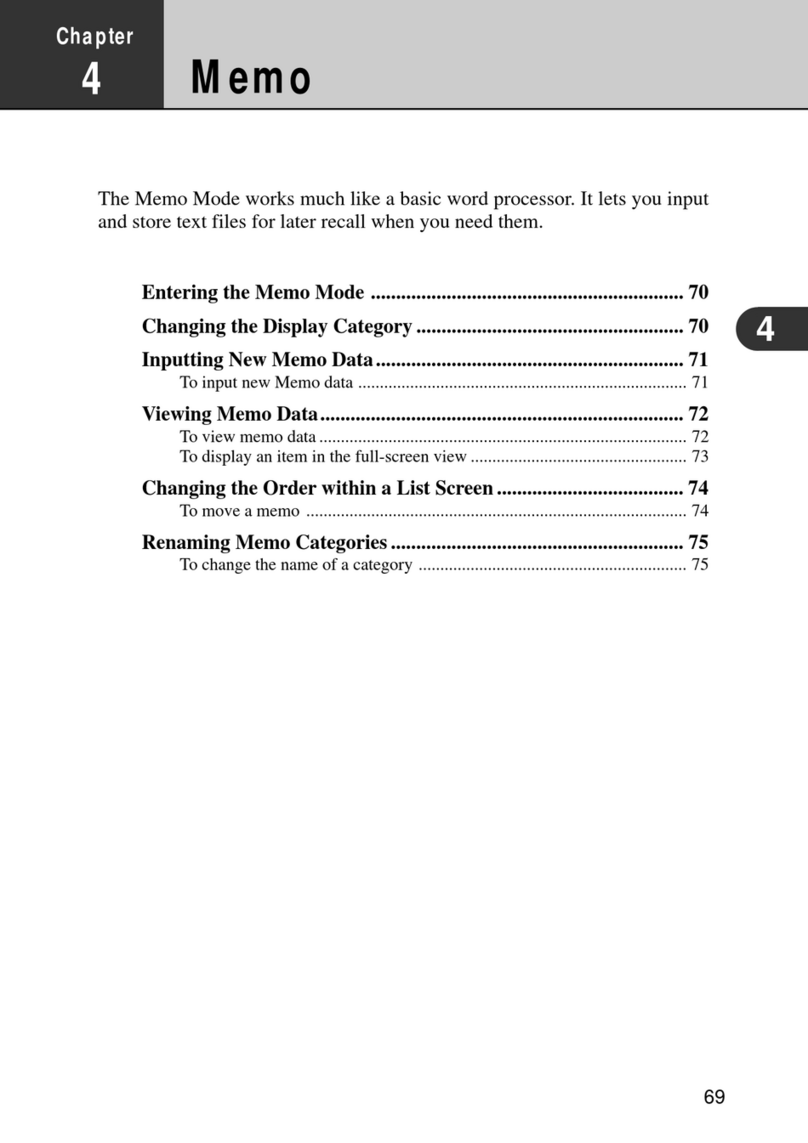
The Scheduler Mode provides you with a selection of powerful schedule
management tools that help to keep you on time all the time. In addition to
Schedule, Reminder, and To Do tools, you can select from among a variety of
different screens to view your appointments on a monthly, weekly, or daily
basis. You can even set alarms to help make sure you never miss an important
appointment or event.
Chapter
2Scheduler
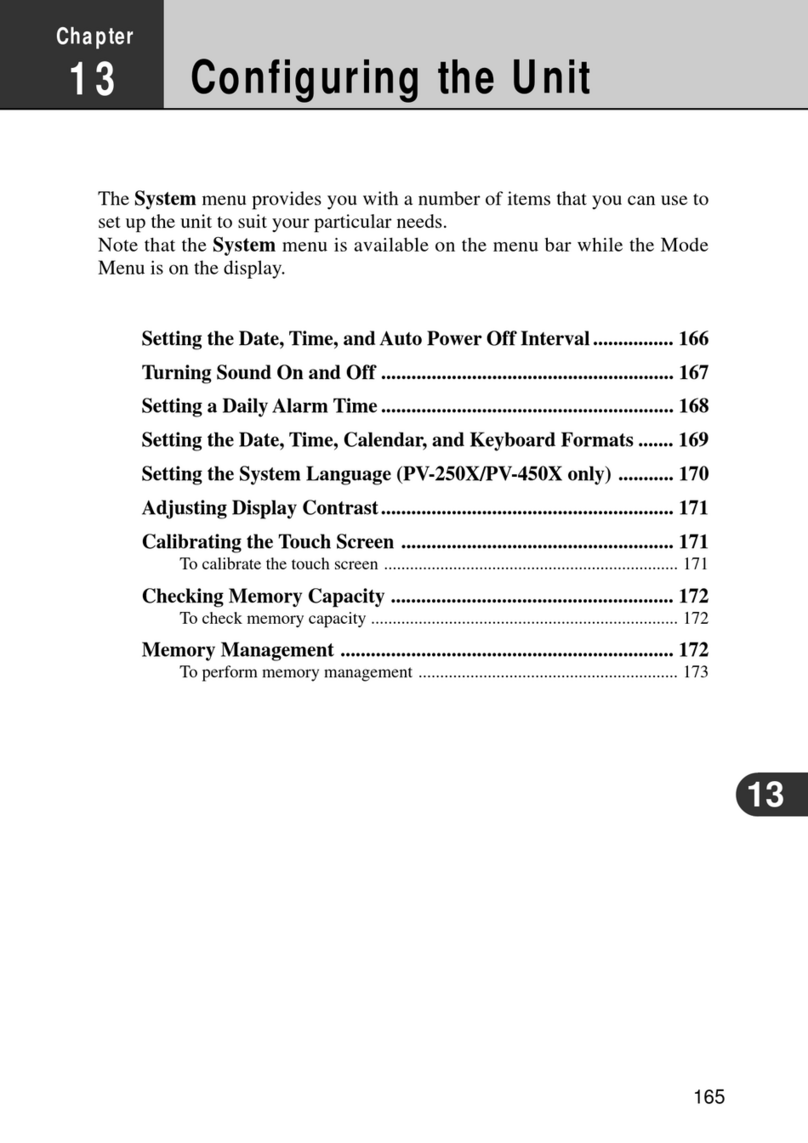
122
Entering the Scheduler Mode ........................................................ 26
Inputting New Scheduler Data ...................................................... 26
To input a single-date Schedule item.......................................................... 27
To input a multiple-date Schedule item with the New button .................... 29
To input a To Do item ................................................................................. 30
To input a Reminder item ........................................................................... 32
Reminder Types and Settings......................................................... 34
Importing Contacts Data Into a Schedule Item ........................... 36
To import Contacts data into a Schedule item ............................................ 37
Viewing Scheduler Data ................................................................. 38
Screen Organization ................................................................................... 39
Calendar Screens ........................................................................................ 39
1-Month Calendar.................................................................................. 40
2-Month Calendar.................................................................................. 42
3-Month Calendar.................................................................................. 43
Periodic Schedule Screens.......................................................................... 44
Weekly Scheduler Screen ...................................................................... 44
Daily Scheduler Screen ......................................................................... 45
Schedule Data Screen ................................................................................. 46
Schedule Data Screen (Single-Date) ..................................................... 46
Schedule Data Screen (Multiple-Date).................................................. 47
Reminder Screens ....................................................................................... 47
Reminder List Screen ............................................................................ 47
Reminder Data Screen ........................................................................... 48
To Do Screens............................................................................................. 48
To Do List Screen .................................................................................. 48
To Do Data Screen................................................................................. 50
Date Highlighting............................................................................ 51
To highlight dates ....................................................................................... 51
To unhighlight dates ................................................................................... 52
Jumping to a Specific Date............................................................. 53
To jump to a specific date ........................................................................... 53
Renaming To Do Categories........................................................... 54
To change the name of a category .............................................................. 54

26
Entering the Scheduler Mode
On the icon menu beneath the display screen, tap the Scheduler icon. This enters
the Scheduler Mode and displays the 1-month Calendar screen.
Now you can maneuver around the Scheduler Mode to input and recall data.
Inputting New Scheduler Data
This section describes how to input Schedule, To Do, and Reminder data. Note
that a Schedule item can be input as a “single-date” item (an appointment that
starts and ends on the same day) or a “multiple-date” item (an appointment that
spans more than one day). You can input a new multiple-date item with the New
button or with the calendar screen.

27
Chapter 2 Scheduler
To input a single-date Schedule item
1. While any Scheduler Mode data screen is on the display, tap New.
2. Tap Schedule.
1
2
3
• The new Schedule item is automatically assigned the date that was
selected (flashing) on the screen when you tapped New. You can leave
this date as it is or change it. To change the date, tap it and then use the
date keyboard that appears to make any changes you want. Tap NEXT
after you are finished.
1Data input tool bar
2Date
3Time bar

28
3. Input the start time and the end time if you want, and then tap NEXT.
4. Input a Schedule alarm time, if you want.
5. Tap NEXT to advance to the description text input screen.
6. Input text that describes the item.
7. After the item is the way you want, tap Save to store it.
• In addition to a date, you must input description text or a start time. The
PV Unit will refuse to store the item if it does not contain a date plus
description text or a start time.
Time keyboard
Text keyboard

29
Chapter 2 Scheduler
To input a multiple-date Schedule item with the New button
1. While any Scheduler Mode data screen is on the display, tap New.
2. Tap Multi-date item.
• The new Schedule item is automatically assigned the date that was
selected (flashing) on the screen when you tapped New for both the
start date and end date.
• If you drag the stylus across a range of dates in the 1-Month Calendar
screen (page 40), the above screen opens up with the range of dates
specified.
3. Tap the date you want to change and then input the year, month, and
day.
4. Tap NEXT to advance to the description text input screen.
5. Input text that describes the item.
Date keyboard
Data input tool bar
Text keyboard

30
6. After the item is the way you want it, tap Save to store it.
• Note that you must input a start date, end date, and description text. The
PV Unit will refuse to store the item if it does not contain a start date,
end date, and description text.
To input a To Do item
1. While any Scheduler Mode data screen is on the display, tap New.
2. Tap To Do.
1
2
3
4
5
3. Change the priority if you want.
• A new To Do item is automatically assigned a priority of B. Tap the
priority you want to change to. You can set the priority in this screen or
the following screens where it appears.
4. If you want to change the category, tap on current category setting.
1Priority
2Data input tool bar
3Category
4Due date
5Date keyboard

31
Chapter 2 Scheduler
5. Tap the category you want to change to and then tap NEXT.
6. Change the due date if you want, and then tap NEXT.
• The initial due date setting is the date that was selected (flashing) on the
screen when you tapped New. You can leave the initial date as it is or
change it.
7. Input an alarm date if you want, and then tap NEXT.

32
8. Input an alarm time, if you want.
• If you input an alarm time, be sure to also input an alarm date. You will
not be able to store the data item if you input an alarm time without an
alarm date.
9. Tap NEXT to advance to the description text input screen.
10. Input text that describes the item.
11. After the item is the way you want it, tap Save to store it.
• In addition to a due date, you must input description text. The PV Unit
will refuse to store the item if does not contain a due date and description
text.
To input a Reminder item
1. While any Scheduler Mode data screen is on the display, tap New.
2. Tap Reminder.
1
2
3
4
5
• The new Reminder item is automatically assigned the date that was
selected (flashing) on the screen when you tapped New as the start date
and end date. You can leave this date as it is or change it. To change the
date, tap it and then use the date keyboard that appears to make any
changes you want. Tap NEXT after you are finished.
1Data input tool bar
2Start date
3End date
4Reminder type
5Date keyboard

33
Chapter 2 Scheduler
3. Input the start time and end time if you want, and then tap NEXT.
4. Input an alarm time, if you want.
5. Tap NEXT to advance to the Reminder type screen.
6. Tap the Larrow to the right of the Reminder type to display a list of
available types, and tap the one you want to select.
7. Input the required data for the Reminder type you select, and then tap
NEXT.
• See “Reminder Types and Settings” on page 34 for details about
Reminder types and their settings.
• If you input data incorrectly (with a Reminder date that does not fall
between the start date and end date, for example), the PV Unit will refuse
to store the data item when you tap Save below.
Reminder type

34
8. Input text that describes the item.
9. After the item is the way you want it, tap Save to store it.
• In addition to a start date and end date, you must input description text
or a start time. The PV Unit will refuse to store the item if it does not
contain a start date and end date plus description text or a start time.
Reminder Types and Settings
The following describes each of the Reminder types available and provides details
about the settings required by each.
Daily
Repeated every day. No additional settings are required.
Weekly
Repeated the same day of the week, each week. Specify the day of the week
by tapping its button.
Buttons
Selected day of the week
Other manuals for PV-250X
16
Table of contents
Other Casio PDA manuals

Casio
Casio PV-250X User manual

Casio
Casio PV-100 User manual

Casio
Casio IT-10 Series User manual

Casio
Casio FP-200 User manual

Casio
Casio DT-900 User manual

Casio
Casio PV-S1600 User manual

Casio
Casio DX-500HG Troubleshooting guide

Casio
Casio CASSIOPEIA E-11 User manual

Casio
Casio PV-750 Plus User manual

Casio
Casio PV-S250 User manual

Casio
Casio Cassiopeia IT-2000 User manual

Casio
Casio SF-4300B Troubleshooting guide

Casio
Casio FA-6 User manual

Casio
Casio PV-S250 User manual

Casio
Casio SF-9700 User manual

Casio
Casio NX-4000 Troubleshooting guide

Casio
Casio PV-100 User manual

Casio
Casio PV-250X Technical document

Casio
Casio IT-G400 Series User manual

Casio
Casio PV-S250 User manual