manuals.online logo
Brands
  1. Home
  2. •
  3. Brands
  4. •
  5. Comelit
  6. •
  7. Home Automation
  8. •
  9. Comelit Icona Manager User manual

Comelit Icona Manager User manual

Other manuals for Icona Manager

2

Other Comelit Home Automation manuals

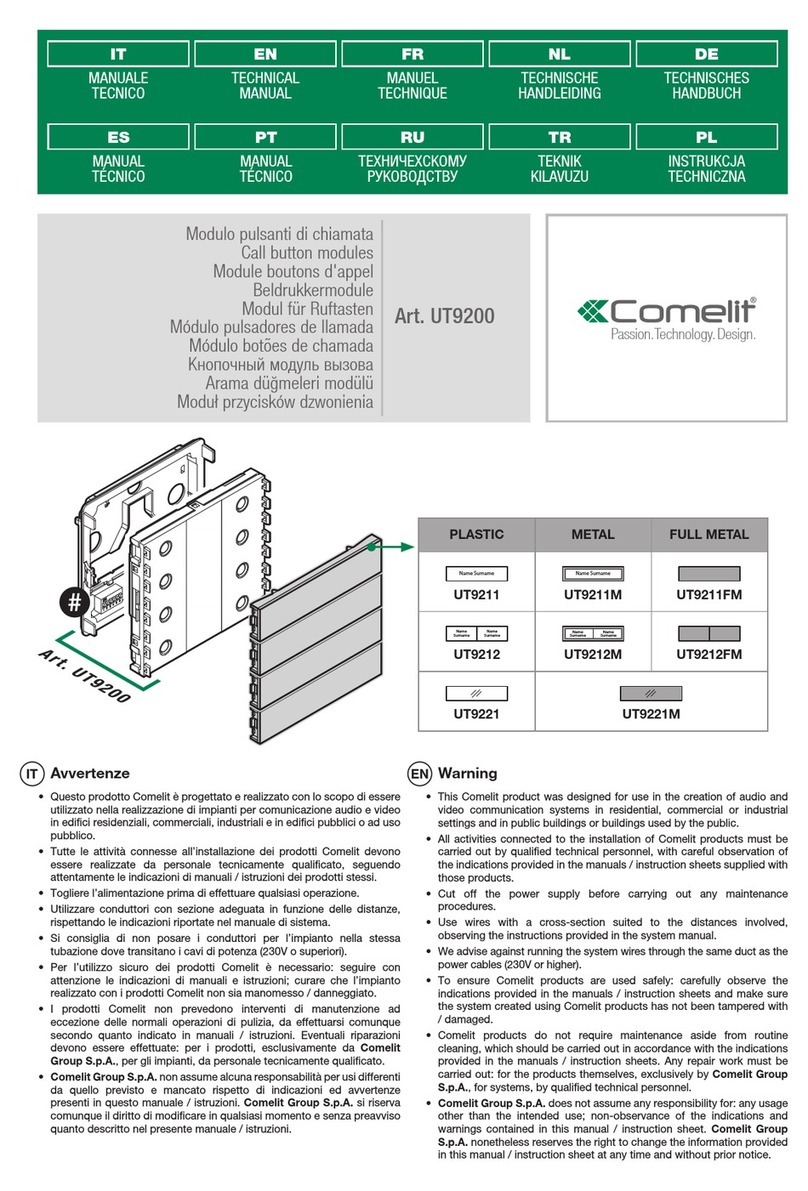
Comelit UT9200 User manual

Comelit

Comelit UT9200 User manual

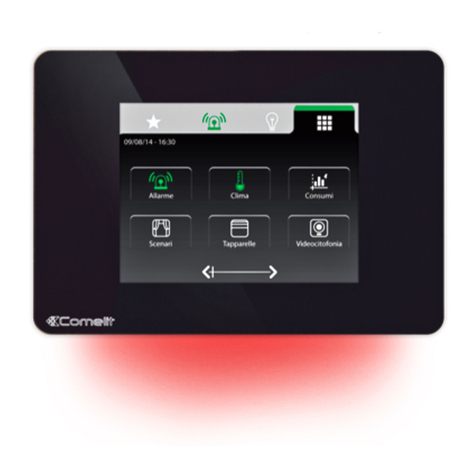
Comelit Minitouch User guide

Comelit

Comelit Minitouch User guide

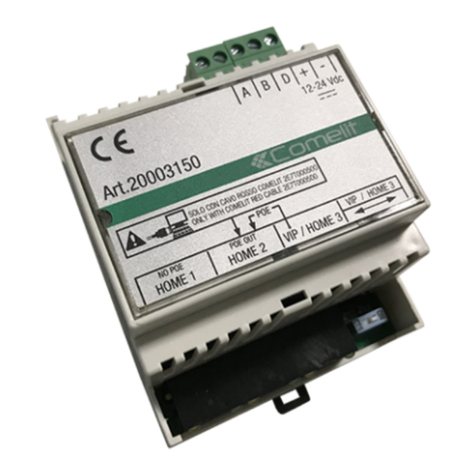
Comelit 20003150 User guide

Comelit

Comelit 20003150 User guide

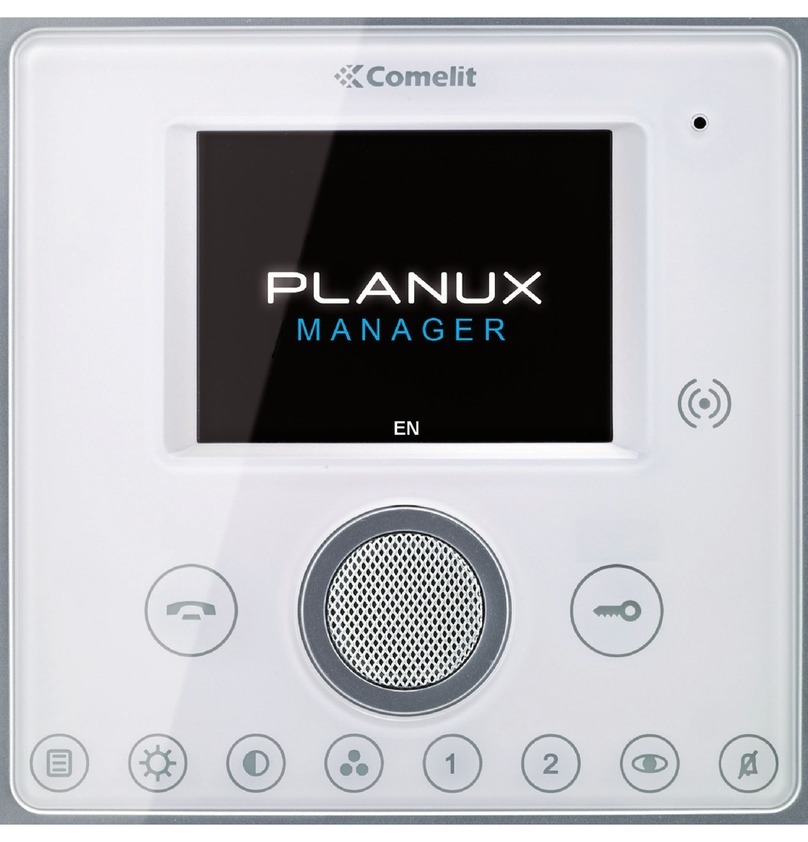
Comelit PLANUX MANAGER User manual

Comelit

Comelit PLANUX MANAGER User manual

Popular Home Automation manuals by other brands

Elko RF KEY manual

Elko

Elko RF KEY manual

Truth Hardware Sentry II installation instructions

Truth Hardware

Truth Hardware Sentry II installation instructions

FIBARO FGWPA-111 user manual

FIBARO

FIBARO FGWPA-111 user manual

Hezborg BGR8016B product manual

Hezborg

Hezborg BGR8016B product manual

MYDLINK Pro Series Quick installation guide

MYDLINK

MYDLINK Pro Series Quick installation guide

EVERSPRING AN180 manual

EVERSPRING

EVERSPRING AN180 manual

Panasonic KX-HNA101FX installation guide

Panasonic

Panasonic KX-HNA101FX installation guide

Coltech 18-1339 Original instructions

Coltech

Coltech 18-1339 Original instructions

nedis WIFILRF10C37 quick start guide

nedis

nedis WIFILRF10C37 quick start guide

Veho TA45 manual

Veho

Veho TA45 manual

Nexa ZPR-111 manual

Nexa

Nexa ZPR-111 manual

Leviton 47604-F6 installation instructions

Leviton

Leviton 47604-F6 installation instructions

IDS NXT vegas Hardware description

IDS

IDS NXT vegas Hardware description

Vimar 03975 user manual

Vimar

Vimar 03975 user manual

iNels RFIM-20B manual

iNels

iNels RFIM-20B manual

EVA Logik ZW30 manual

EVA Logik

EVA Logik ZW30 manual

Leviton ODCØP-S0W installation instructions

Leviton

Leviton ODCØP-S0W installation instructions

Vertilux VTi CELTIC DC Programming instructions

Vertilux

Vertilux VTi CELTIC DC Programming instructions

manuals.online logo
manuals.online logoBrands
  • About & Mission
  • Contact us
  • Privacy Policy
  • Terms and Conditions

Copyright 2025 Manuals.Online. All Rights Reserved.

EN
USER MANUAL
Icona Manager
art. 20003310W
art. 20003310B
2
• This Comelit product has been designed and manufactured for use in the creation of audio and video communication systems in residential, commercial, industrial and
public buildings.
• All activities connected to the installation of Comelit products must be carried out by qualified technical personnel, with careful observation of the indications provided in
the Manuals / Instruction sheets supplied with those products.
• Disconnect the power supply before carrying out any operations on the wiring.
• Use wires with a cross-section suited to the distances involved, observing the instructions provided in the system manual.
• We advise against running the system wires through the same duct as power cables (230V or higher).
To ensure Comelit products are used safely:
• carefully observe the indications provided in the Manuals / Instruction sheets,
• make sure the system created using Comelit products has not been tampered with / damaged.
• Comelit products do not require maintenance aside from routine cleaning, which should be carried out in accordance with the indications provided in the Manuals /
Instruction sheets.
• Any repairs must be carried out:
• for the products themselves, exclusively by Comelit Group S.p.A.,
• for the systems, by qualified technical personnel.
• Comelit Group S.p.A. accepts no liability for any purpose other than the intended use, or failure to observe the indications and warnings contained in this manual.
• Comelit Group S.p.A. reserves the right to change the information provided in this manual at any time and without prior notice.
Warning
3
CONTENTS
DESCRIPTION .................................................................................................... 4
FUNCTION KEYS......................................................................................... 4
SOFT-TOUCH KEYS ............................................................................... 4
CONNECTION TO THE HOME AUTOMATION BUS VIA COMELIT HUB ......... 5
MAIN MENU........................................................................................................ 5
MENU ICONS............................................................................................... 5
Alarm menu icon...................................................................................... 5
FAVOURITES, ADVANCED INFO AND WIDGET BAR ................................. 5
Favourites bar.......................................................................................... 6
Favourites page ....................................................................................... 6
Moving and removing favourites ............................................................. 6
Advanced info.......................................................................................... 6
Widget bar ............................................................................................... 6
USE OF ICONA MANAGER IN SIMPLESAFE SYSTEMS .................................. 7
ALARM................................................................................................................ 7
ALARM STATUS .......................................................................................... 7
RESET ALARMS .......................................................................................... 8
ACTIVATING THE ANTI-INTRUSION SYSTEM............................................ 8
DEACTIVATING THE ANTI-INTRUSION SYSTEM....................................... 9
PARTIAL AREA ACTIVATION....................................................................... 9
SETTINGS .................................................................................................. 10
Cameras ................................................................................................ 10
Customised activation ........................................................................... 10
Activation control................................................................................... 10
Event log................................................................................................ 11
Zone and area status............................................................................. 11
Shortcuts ............................................................................................... 11
Exit controls........................................................................................... 12
Phone book ........................................................................................... 12
OPTIONS.................................................................................................... 13
Change PIN............................................................................................ 13
Voice menu............................................................................................ 13
Installer menu ........................................................................................ 14
Auto activation....................................................................................... 14
Timer...................................................................................................... 14
Organize desktop .................................................................................. 14
Tones ..................................................................................................... 15
Configuration ......................................................................................... 15
DOOR ENTRY MONITORS............................................................................... 16
INTERCOMS .............................................................................................. 16
CAMERAS.................................................................................................. 16
DOORS OPEN............................................................................................ 16
ANSWERING SERVICE SETUP ................................................................. 16
MESSAGES................................................................................................ 17
CALL DIVERT............................................................................................. 17
VIDEO MEMORY........................................................................................ 17
AUDIO MESSAGE...................................................................................... 17
MULTIPLE ADDRESSES............................................................................ 18
OTHER / LIGHTS / IRRIGATION / AUTOMATIONS......................................... 19
FUNCTION SCHEDULING................................................................................ 19
LIGHTS.............................................................................................................. 21
DIMMABLE LIGHTS................................................................................... 21
DIMMER LIGHT SCHEDULING ................................................................. 21
DIMMABLE LIGHTS WITH PRESENCE SENSOR ..................................... 21
RGB DIMMABLE LIGHTS .......................................................................... 22
RGB LIGHTS SCHEDULING...................................................................... 23
CLIMATE........................................................................................................... 23
SEASON MODE ......................................................................................... 23
MANUAL FORCING ................................................................................... 24
SCHEDULING ............................................................................................ 24
LOADS .............................................................................................................. 25
CONSUMPTION................................................................................................ 25
CONSUMPTION/PRODUCTION COMPARISON....................................... 26
SCENARIOS...................................................................................................... 26
DESCRIPTION............................................................................................ 26
Instant.................................................................................................... 26
Scheduled.............................................................................................. 26
Conditioned ........................................................................................... 26
ENABLING/DISABLING A SCHEDULED OR CONDITIONED SCENARIO.....
27
AUDIO BROADCAST........................................................................................ 27
PLAYER SCREEN ...................................................................................... 28
PLAYLIST SCREEN.................................................................................... 28
LIBRARY SCREEN..................................................................................... 28
SCENARIOS............................................................................................... 29
RULES............................................................................................................... 29
ENABLING/DISABLING A RULE................................................................ 29
SETUP............................................................................................................... 30
GENERAL PARAMETERS.......................................................................... 30
Language............................................................................................... 30
Lock keypad and touch screen ............................................................. 30
Set date and time .................................................................................. 30
Information............................................................................................. 31
Volume control....................................................................................... 31
Melody settings ..................................................................................... 31
Soft touch keys...................................................................................... 32
Brightness control.................................................................................. 32
Set homepage ....................................................................................... 32
WIDGETS ................................................................................................... 32
CONDITIONS ............................................................................................. 32
CONSUMPTION......................................................................................... 33
Toolbar................................................................................................... 33
Currency ................................................................................................ 33
KCO2 ..................................................................................................... 33
Display ................................................................................................... 33
Rates...................................................................................................... 34
Thresholds ............................................................................................. 35
Reset (meters)........................................................................................ 35
Settings.................................................................................................. 35
ANTI-INTRUSION....................................................................................... 36
SCENARIOS............................................................................................... 36
Instant.................................................................................................... 36
Scheduled.............................................................................................. 39
Conditioned ........................................................................................... 39
KEY ............................................................................................................ 40
Advanced key functions ........................................................................ 40
AUDIO BROADCAST ................................................................................. 41
IP address.............................................................................................. 41
Port ........................................................................................................ 42
Username .............................................................................................. 42
Password............................................................................................... 42
PROTECTION............................................................................................. 42
User password....................................................................................... 42
Advanced passwords ............................................................................ 42
Home automation limits......................................................................... 43
CONFIGURE EVENT MESSAGES..............................................................43
ADVANCED................................................................................................ 43
Programming keys................................................................................. 43
Total reset.............................................................................................. 43
Update configurations ........................................................................... 43
Import/Export......................................................................................... 43
Update product ..................................................................................... 44
Update bracket...................................................................................... 44
Disable / Enable Vedo alarm..................................................................44
Home automation .................................................................................. 45
Door entry monitors............................................................................... 45
Consumption ......................................................................................... 49
Comelit Hub........................................................................................... 49

INTRODUCTION
4CONTENTS CONTENTS
Touch or swipe the zone shown in Fig. 1 to view the keys in
standby.
»The keys revert to standby after 10 seconds of inactivity.
Paragraph "Soft touch keys" on page 32
Fig.1
FUNCTION KEYS
DESCRIPTION
SOFT-TOUCH KEYS
Audio
Activates/deactivates conversation with the external unit.
Lock-release
Opens the corresponding door lock.
[programmable] actuators
Programmable key 1
intercoms / self activation / alarms (call priority 1-4) / lock-
release / actuators / scenarios
Programmable key 2
intercoms / self activation / alarms (call priority 1-4) / lock-
release / actuators / scenarios
Programmable key 3
intercoms / self activation / alarms (call priority 1-4) / lock-
release / actuators / scenarios
Video memory key
Offers direct access to the Messages menu.
STEADY LED: video memory or absent message active.
FLASHING LED: new message waiting.
Doors open key
Offers direct access to the Doors open section.
STEADY LED: signals the opening of one or more of the
doors listed in the directory.
Self Activation key
Activates the camera for the video external unit, allowing you
to see outside via the monitor.
[programmable]
intercom / self activation / lock-release / actuators / scenarios
1
2
3
5
6
4
1. Microphone
2. 4.3" touch screen
3. RFID key sensor
4. Micro SD card
5. Function keys
6. Soft-touch function keys
Programmable key:
(privacy) silent mode /+ (doctor) door opening upon call
• SILENT mode is used to deactivate / reactivate the ringtone for calls
originating from the external unit and the switchboard.
• DOOR OPENING UPON CALL mode allows automatic operation of
the lock-release on receipt of a call from the external unit.
• SILENT mode + DOOR OPENING UPON CALL mode, in addition to
deactivating the monitor ringtone, allows automatic operation of the
lock-release on receipt of a call from the external unit.
Press to enable the programmed mode.
STEADY LED: Programmed mode enabled.
MENU
5
CONTENTSCONTENTS CONTENTS
Connection to
the home automation bus via
Comelit Hub
If you are connecting to the home automation bus via the Comelit
Hub, you need to update Icona Manager to firmware version
3.0.0 or later, EE 2.7.1 or later.
Check the current version in the menu Setup/General
parameters/Information.
MENU ICONS
The icons in the main menu change colour to indicate whether
elements in the corresponding function are enabled.
NO ACTIVE ELEMENTS AT LEAST 1 ACTIVE ELEMENT
ALARM MENU ICON
the Alarm icon in the main menu changes colour to indicate the status
of the system.
Alarms
Alarms
Alarms
Alarm deactivated
across the entire
system
Alarm activated across
the entire system
Alarm partially
activated:
only some of the areas
and/or partial scenarios
are activated
Alarms
Alarms
Alarms
Sabotage/anomaly Alarm memory In alarm
FAVOURITES, ADVANCED INFO AND
WIDGET BAR
Allarme Videofonia Clima
Allarme
Termostato
17:36
20,0°
02/10/14
Altro Luci
0
30
Consumi
0
0
Irrigazione
Tapparelle
Carichi
Favourites bar
Favourites page
Advanced info
Press and hold one of the function icons in the main menu to open
the Favourites bar, Favourites page and Advanced info screen.
MAIN MENU
Touch the display to view the main menu.
07:15
01/05/2020
Zoom out to switch the screen back to standby mode.
If the device is displaying a screen where the gesture is
associated with a specific function, the screen switch-o
function will be automatically disabled.
The functions available in the menu vary depending on the type of
system installed and the elements enabled.
Alarms Climate
Alarms
Other Lights
5
30
0
0
Irrigation Automations Loads
Blinds
Thermo
20,0°
17:36
02/01/20
Video System
Navigate through the available screens by swiping with your finger
to the left or right.
Press the icon to immediately return to the main menu.
Press the icon to return to the previous screen.
MENU
6CONTENTS
Select the icon to change the order of the links in
Favourites; confirm.
Select the icon to delete the link; confirm.
Select the icon to exit the screen without making any
changes.
Advanced info
Select the icon to enable/disable displaying the
number of available elements and enabled elements
alongside the function icon.
Lights
» No info displayed.
Lights
5
30
» 5 elements enabled
30 elements available
Lights
30
30
» 30 elements enabled
30 elements available
This option can be enabled for: ALARMS / CLIMATE / OTHER
/ BLINDS / LIGHTS / IRRIGATION / AUTOMATIONS / LOADS
/ AUDIO BROADCAST.
Widget bar
The side bar on the home screen can be customised via the Setup
menu.
Video SystemAlarms Climate
Alarms
Thermo
Other Lights
5
30
2
6
Irrigation Automations Loads
Blinds 20,0°
17:36
02/01/20
• ALARM: the widget shows the alarm status of the system
(with or without advanced info)
• METER: you can associate a widget with one of the meters in the home
automation system. The widget shows the instantaneous reading of that
specific meter
• CLIMATE: the widget displays the temperature of the selected climate zone
and the status of the climate control system (off - heating - cooling)
• AUDIO BROADCAST: the widget displays a single player and information
(title and subtitle) about the track currently playing; play/pause button; player
status button (also the player connection)
• DATE AND TIME
Only the AUDIO BROADCAST widget is interactive.
Favourites bar
Select the icon to create a link to the selected function
in the favourites BAR.
NIGHT
bedroom 0|4 OFF ON
OFF ON
OFF ON
OFF ON
0|4
0|4
0|3
LIGHTS
bathroom
bedroom 2
disco
5|30
You can create a link to a function or to a home automation
room.
CAUTION! You cannot create a link to a single element!
Maximum number of links in the bar = 4
Favourites page
Select the icon to create a link to the selected function
in the favourites PAGE.
Thermo
Lights
5
30
Room 1
Scenarios Setup
Alarms
20,0°
0
0
2
4
17:36
02/01/20
If there are more than 9 links they will be shown across 2
screens.
Maximum number of links on the page = 18
Moving and removing favourites
Press and hold the icon for the link, in the bar or on the favourites
page, to open the options menu.
Termostato
Allarme Videofonia Clima
Allarme
17:36
20,0°
02/10/14
Altro Luci
0
30
Consumi
0
0
Irrigazione
Tapparelle
Carichi
Sposta
Rimuovi
ALARM
7
CONTENTS
ALARM
Alarms
Press the icon to access the Alarms menu.
Scenario 1
Scenario 2
Full set
Full unset
System o 17:43
3
4
5
6
21
1. Customisable functions (x4) - Activation command
2. Area status indicator
Paragraph "Area status indicators [2.]"
3. Settings
4. View cameras
5. Customisable icons (x2) - Shortcut commands
6. Clock
Use of Icona Manager in
SimpleSafe systems
√ Vedo 10, 34, 68 control panels not certified!
√ Art. 30001008XX - 300034XX - 30001068XX
√ Icona registered within the SimpleSafe system as MINITOUCH.
√control panel firmware version 2.2.4 and previous.
√ with certification EN 50131-1 and EN 50131-3
√ control panel firmware version 2.4.0 or higher
Update firmware art. 20003310W to version 2.4.2 or later.
Verify model and firmware version of the Vedo control panel.
Verify that the Set-up/Anti-intrusion/Configuration/Mode
menu settings are compatible.
Compatible mode = OFF (default)
Compatible mode = ON
A
B
√ VEDO10 - VEDO10EN - VEDO10FR - VEDO10NL - VEDO10DE - VEDO10ES
√ VEDO34 - VEDO34EN - VEDO34FR - VEDO34NL - VEDO34DE - VEDO34ES
√ VEDO68 - VEDO68EN - VEDO68FR - VEDO68NL - VEDO68DE - VEDO68ES
AREA STATUS INDICATORS [2.]
System off Insert total Insert partial
Alarm deactivated Alarm activated across the
entire system Alarm partially activated
Alarm log
Alarm in progress
In Tamper
A flashing icon signals the presence of anomalies.
Press the icon to view the details.
Press and hold the icon to show/hide a segmented view of the
area status.
Each segment represents one area of the alarm system.
The colour of the segments gives an indication of the status of each
individual area.
AREA > Area activated
AREA > Area partially activated
AREA > Area in alarm
AREA > Area deactivated
ALARM STATUS
√ An alarm is triggered
4
3
1
2
5
ALARM LOG
02/11/2019 17:49:41
Alarm
Disins.
Theft
Expansion 1 |1 ID: 19
Aree
1 2 3 4
6 7 8 9 10
1. Scroll through events
2. Date and time of selected event
3. View images in real time
4. View recorded video
5. View recorded images
6. Stop alarms
7. Reset telephone calls
8. Reset alarm
9. Unset alarms
10. Event details
Press the icon to view real time images from the camera
connected to the alarm zone.
Press the icon to view the video recorded when the
alarm was triggered.
Press the icon to view the images captured in
pre-alarm* and alarm mode.
Video / Images loading
Video / Images not available
ALARM
8CONTENTS
• To view images and videos, at least one camera must be
connected and associated with an area of the alarm system.
• The functions can be configured and activated via Safe Manager.
• *The pre-alarm images will only be captured if the "pre-alarm"
function has been assigned to the camera. The number of images
captured during the pre-alarm phase will depend on the pre-
alarm time; with a pre-alarm time of zero, images will only be
captured in alarm mode.
DESCRIPTION OF ALARM CONTROLS
Press to
stop
the selected alarm (the system remains
set).
Press to
delete
the emergency phone calls log.
Press to
reset
the alarms log.
Unset Press to unset the alarm system.
The Alarms menu keeps track of the alarm in progress.
Scenario 1
Scenario 2
Full set
Full unset
17:43
Alarm in progress
Press the icon to open the event details window.
ALARM LOG
02/11/2019 17:49:41
Allarms
Theft
Exp.1 |1 ID: 19
Aree
2
The REAL-TIME IMAGES and RECORDED IMAGES / VIDEOS
viewing functions can also be used from this window.
RESET ALARMS
The alarm system can be reset in any of the following 3 ways:
1. From the main screen of the Alarms menu, press the
“Reset alarms” icon.
2. Access the Alarms menu and press Settings.
Access the
Shortcuts
function by pressing the
corresponding icon.
Press the “Reset alarms” icon to reset the alarms log.
3. Perform a SET (even partial) of the areas in alarm.
The system does not provide any messages to inform you
that the operation was completed successfully!
ALARM
Reset alarms
Reset phone calls
Request assistance
Enable installer
ACTIVATING THE ANTI-INTRUSION SYSTEM
# OPTION A (with area status visible)
Press the icon in the main ALARM screen
The dierent colours indicate the alarm system status!
Key to colours page 5
Scenario 1
Scenario 2
17:43
Full set
Full unset
System o
# OPTION B (with area status hidden)
Access the Alarms menu and then press the icon to
access the Options menu.
Press the CUSTOMISED ACTIVATION icon.
ALARM
9
CONTENTS
PARTIAL AREA ACTIVATION
Press the partial activation icon.
Area 3Area 3
P1
P2
P1+P2
Area 4
IMM RIT
IMM RIT
IMM RIT
Area 4
Navigate through the available alarm areas by swiping with your
finger to the left or right
Select the desired area.
ALARM
Area 1 Area 2
Area 4
Area 4
Area 3
Press the full unset icon.
ALARM
Area 1 Area 2
Area 4
Area 4
Area 3
»The activated area is highlighted in green; the type of activation
performed is also indicated.
DEACTIVATING THE ANTI-INTRUSION SYSTEM
# OPTION A
Press the icon in the main ALARM screen
The icon varies according to the status of the alarm system!
Scenario 1
Scenario 2
Full set
Full unset
17:43
Insert partial
# OPTION B
Access the Alarms menu and then press the icon to
access the Options menu.
Press the CUSTOMISED ACTIVATION icon.
Select the desired area.
ALARM
Area 1
Area 3
Full set
Area 2
Area 4
Press the full unset icon.
ALARM
Area 1 Area 2
Area 4
Area 4
Area 3
Full set
ALARM
10 CONTENTS
ALARM
Area 1
Area 3
Full set
Area 2
Area 4
The activated area is highlighted in green; the type of activation
performed is also indicated.
SETTINGS
Access the Alarms menu and then press the icon to
access the options menu.
Press the icon of the desired camera to start playback.
Select the desired function by pressing the corresponding option.
Cameras
ALARM
Camera 1
Camera 2
Camera 3
Alarm settings-Cameras
Camera enabled and operating
Camera not connected
Camera fault
Each time an ALARM function parameter is modified, it will
be relayed to the control panel. In this case the configuration
update screen will be displayed.
ALARM
Area 1 Area 2
Area 4
Area 4
Area 3
The function allows you to display the areas of the system, the status
of each area and to activate/deactivate the alarm system in the chosen
areas.
Paragraph "Inserimento impianto antintrusione" on page 8and
"Disinserimento impianto antintrusione" on page 9
The function allows you to launch previously created activation
scenarios.
Customised activation
Activation control
Scenario P1
ALARM
Scenario P2
Scenario P1+P2
Scenario 4
[B]
[A]
Alarm settings-Customised activation
Alarm settings-Activation control
Swipe with your finger to the left or right to switch between the
available cameras.
Press the off icon to stop playback and return to the
previous screen.
SELF-IGNITION
Camera 1: In communication
Select the desired zone for partial activation and the activation
type.
• IMM = immediate
• RIT = delayed
Enter the alarm password to access the area.