manuals.online logo
Brands
  1. Home
  2. •
  3. Brands
  4. •
  5. Cove
  6. •
  7. Headset
  8. •
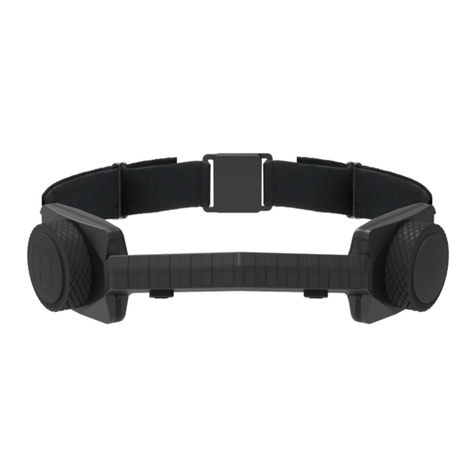
  9. Cove CV100 User manual

Cove CV100 User manual

Other manuals for CV100

1

Popular Headset manuals by other brands

Sony WI-SP510 Help guide

Sony

Sony WI-SP510 Help guide

LYSAR INDUSTRIES EQ1 manual

LYSAR INDUSTRIES

LYSAR INDUSTRIES EQ1 manual

Nacon RIG 500 PRO Series user guide

Nacon

Nacon RIG 500 PRO Series user guide

HUHD HW-933M instruction manual

HUHD

HUHD HW-933M instruction manual

H2O Audio Natalie Coughlin Signature Series iSH2-5A1 user guide

H2O Audio

H2O Audio Natalie Coughlin Signature Series iSH2-5A1 user guide

Bose IN-EAR HEADPHONES owner's guide

Bose

Bose IN-EAR HEADPHONES owner's guide

Intaride S-3 manual

Intaride

Intaride S-3 manual

Jabra Elite 7 Pro How do

Jabra

Jabra Elite 7 Pro How do

Sena SMH10 quick start guide

Sena

Sena SMH10 quick start guide

IASUS Stealth  IA-NT4-BASIC-BT manual

IASUS

IASUS Stealth IA-NT4-BASIC-BT manual

Sennheiser EPOS ADAPT 230 user guide

Sennheiser

Sennheiser EPOS ADAPT 230 user guide

Anycom PAROS-10 user manual

Anycom

Anycom PAROS-10 user manual

GE 98971 datasheet

GE

GE 98971 datasheet

Jabra PRO 9460 - PRO 9460-DUO user manual

Jabra

Jabra PRO 9460 - PRO 9460-DUO user manual

Hama 00184070 quick start guide

Hama

Hama 00184070 quick start guide

Plantronics Blackwire 3200 Series user guide

Plantronics

Plantronics Blackwire 3200 Series user guide

Blue Tiger Advantage PLUS user manual

Blue Tiger

Blue Tiger Advantage PLUS user manual

Jabra FR 20 user guide

Jabra

Jabra FR 20 user guide

manuals.online logo
manuals.online logoBrands
  • About & Mission
  • Contact us
  • Privacy Policy
  • Terms and Conditions

Copyright 2025 Manuals.Online. All Rights Reserved.

User Manual
Welcome to Cov
ess stress and better sleep is now within your
reach. Please use this manual for instructions to
get the best results
Cove works by using gentle vibrations behind the
ears to activate the part of your brain that
regulates anxiety, leading to a profound and
durable sense of calm. 
All you have to do is wear Cove 20 minutes a day.
As you continue to use it, your resilience to stress
will improve. Here’s everything you need to know to
get started.
USER MANUAL
Table of Contents
Getting Starte
What’s in the box
Cove headse
Carrying cas
Charging cabl
Setting up your Cov
Charging Cov
Pairing Cov
Putting on Cov
Setting the vibration leve
sing Cov
Starting a sessio
Syncing session
Notification
Before session
After session
Session histor
Care for your Cov
Updating Cov
Cleaning Cov
Specification
Dimension
Sensor and battery informatio
Warranty Informatio
Regulatory and Safety Notice
FCC statement and warnin
FCC warnin
Disposal Informatio
Troubleshootin
Getting hel
Typical troubleshooting






























8
TABLE OF CONTENTS
About Cove
TABLE OF CONTENTS
Vibration Strengt
buttons ( up/down )
Adjustable headband Mechanis
slide to open/close for optimal fit
Charge por
micro USB
Power butto
On/Off
*LED light setting
Power on - Blu
Power off - Yello
In session - Whit
Pairing - Purpl
Low Battery - Re
Charging - Green Pulsing
LED Light*
*To charge the device, plug the charging USB cable into a laptop or USB wall plug. Recharge between uses.
Getting Started
What’s in the box
In ach Cov box you will fin
∙ Your Cov insid its prot ctiv carrying cas
∙ G tting start d instruction
∙ A Micro-USB charging cabl
Setting up your Cov
Charging Cov
B for your first s ssion, mak sur th batt ry is fully charg d. 
To charg th batt ry
GETTING STARTED / 2
1. Locat th Micro-USB charging port on th l ft sid of th d vic 
2. Conn ct Cov to any USB pow r sourc via th includ d charging cabl 
3. Whil charging, Cov will display a pulsing gr n light
4. Wh n fully charg d, th light will stay solid gr n
Charge por
micro USB
LED Light*
Getting Started
Download the Cove ap
The Co e app is your companion when using Co e. Before your first session, download
the app on your mobile de ice and create a new account (or log into your existing
account). Once you pair your Co e to the mobile app, you can begin your first session.
Powering On Cov
The Co e Power button is located on the right side of the de ice. Hold the Power
button for 2 seconds, until a pulsing green light indicates that Co e is on
Pairing Cov
Prior to first use, you must pair Cove to the Cove app. 
To pair Cove
GETTING STARTED / 2
Power butto
On/Off
1. Enable Bluetooth on your mobile de ice
2. Launch the Co e app and sign into your Co e account
3. On the “Let’s set up your de ice” screen, tap “Add Co e.” 
4. Power on your Co e de ice by pressing the power button until a green pulsing light appears
5. Release the power button and press and hold the intensity down button (located on the left side
for at least 5 seconds until a blue light begins pulsing. This will make your Co e de ice disco erable
6. Make sure Co e is near your mobile de ice. The Co e app will automatically begin the pairing process
7. After pairing completes, the Co e app will direct you to the Home screen
Getting Started
Putting n C v
Cove fits comfortably around the back of your head, with the pads resting just behind
your ears and the loops over your ears. You can expand the width of Cove by expanding
the back band. Adjust Cove so it fits snugly. The pads and tips of the hooks should lie flat
on the skin, with any hair moved aside
GETTING STARTED / 3
Expand for comfort
Setting the vibrati n leve
The Vibration Intensity buttons are on the left side of the device. During sessions, these allow
you to increase or decrease the vibration on the pads.
Vibration Strengt
buttons ( up/down )
Using Cove
Starting a e io
Once Cove is paired with your mobile device, you can begin a session. For new users, you
will see a tutorial during your first session. Returning users can begin a session as normal
To start a session
USING COVE / 3 / 4
Syncing e ion
The Cove app provides a timeline of your Cove usage. Sessions will appear in the Cove app
after they sync
To sync sessions from Cove to the mobile app:
Once sessions sync to the Cove app, they are removed from the Cove device. We suggest
syncing after every session
Using Cove
Session histor
Sessio history is available o the Home scree of the Cove app. 
The weekly cale dar displays days where sessio s occurred.
USING COVE / 5
To view more detailed history, tap the “History” tab at the bottom
The History tab displays a timeli e of your activity., a d optio s to rate your sleep a d log your respo se
to stress. Tap a sessio card i your timeli e to display details about your sessio . Tap a prior stress log
to cha ge your rati g a d jour al e try
HISTORY PAGE SESSION CARD
Using Cove
Session histor
Sessio history is available o the Home scree of the Cove app. 
The weekly cale dar displays days where sessio s occurred.
USING COVE / 5
To view more detailed history, tap the “History” tab at the bottom
The History tab displays a timeli e of your activity., a d optio s to rate your sleep a d log your respo se
to stress. Tap a sessio card i your timeli e to display details about your sessio . Tap a prior stress log
to cha ge your rati g a d jour al e try
HISTORY PAGE SESSION CARD
Using Cove
Reminder
Y u can schedule reminders f upc ming sessi ns in the C ve app. Reminders appear as push
n tificati ns n the day and time y u select. 
T schedule an reminder
USING COVE / 5
1. Launch the C ve app, and l g in (if necessary)
2. Navigate t “Pr file” n the t lbar
3. Tap n “N tificati ns”, and then “Reminders
4. Tap “Add a reminder”, then ch se the time and days when y u w uld lik
t receive a n tificati n
5. Y u can update r delete y ur reminders at any time by tapping n 
reminder in the list
NOTIFICATIONS PAGE REMINDERS PAGE