Creative ZEN VISION M User manual
Other Creative Portable Multimedia Player manuals
Creative
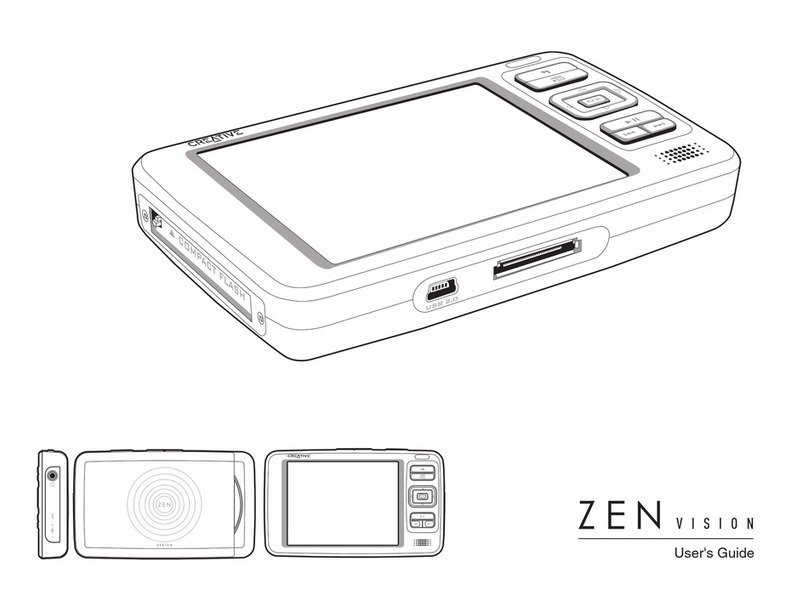
Creative ZEN Vision User manual
Creative
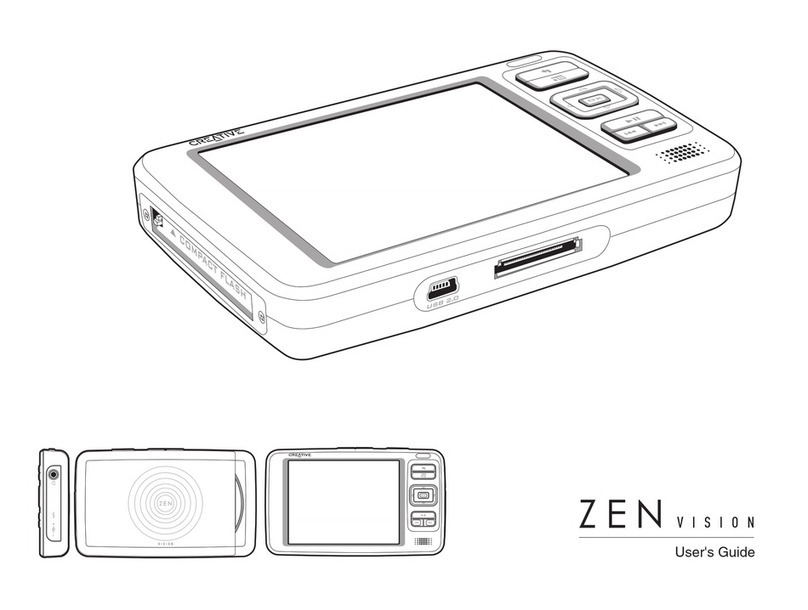
Creative ZEN Vision User manual
Creative
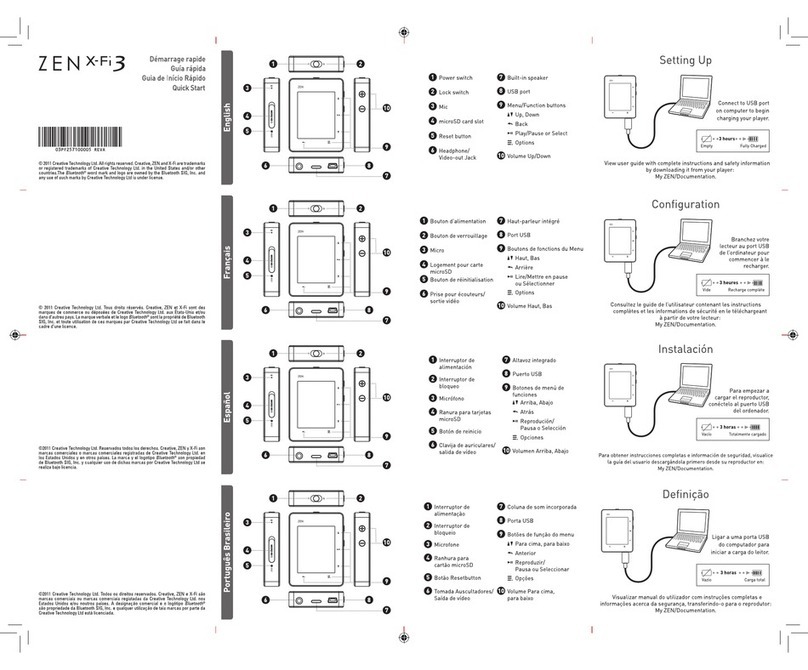
Creative ZEN X-FI3 - User manual

Creative
Creative Blaster Modem User manual
Creative
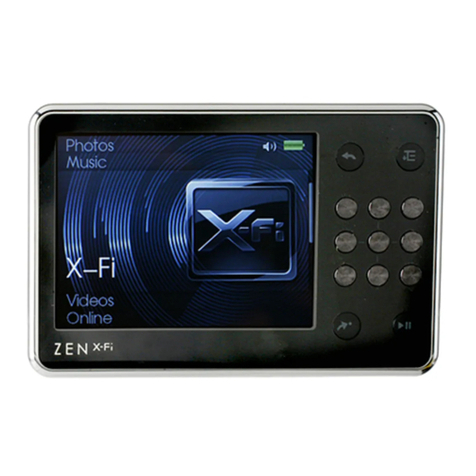
Creative Zen X-Fi User manual
Creative
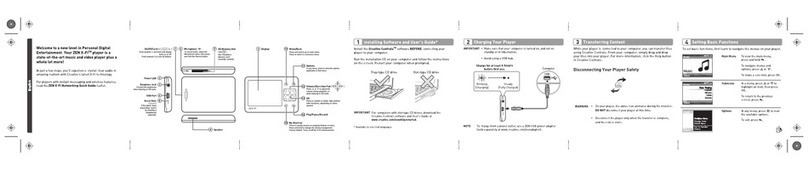
Creative ZEN X-FI 16GB/32GB - ZEN X-FI QUICKSTART ... User manual
Creative
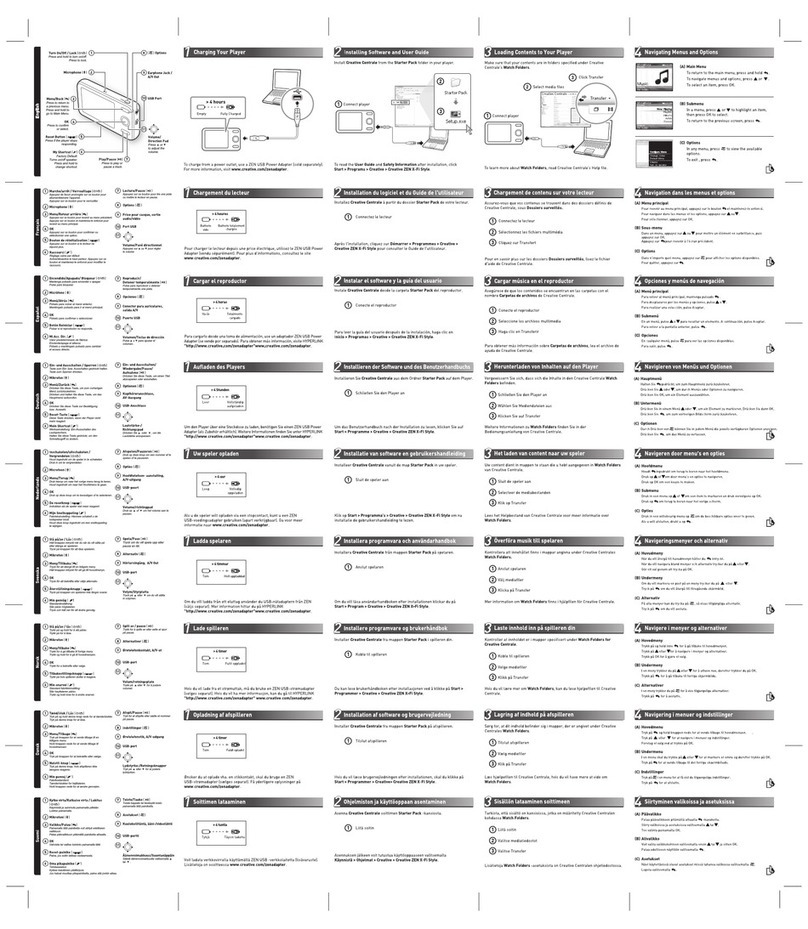
Creative ZEN X-FI STYLE - ANNEXE 193 User manual
Creative
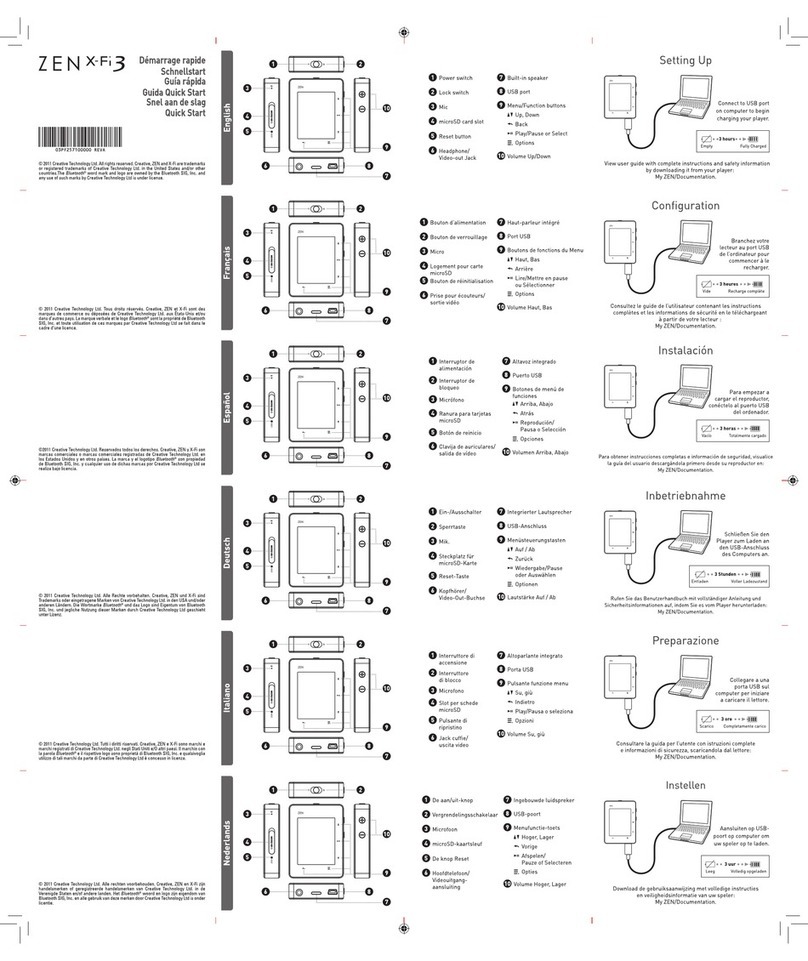
Creative ZEN X-FI3 - User manual

Creative
Creative Vado User manual
Creative
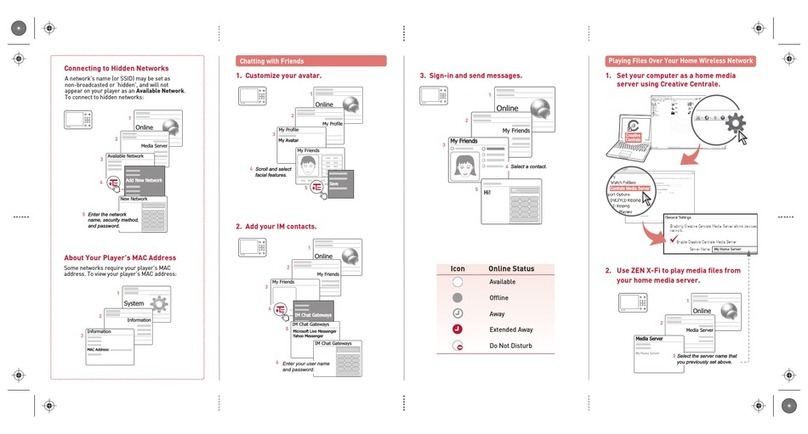
Creative ZEN X-FI 16GB - NETWORKING BACK User manual
Creative
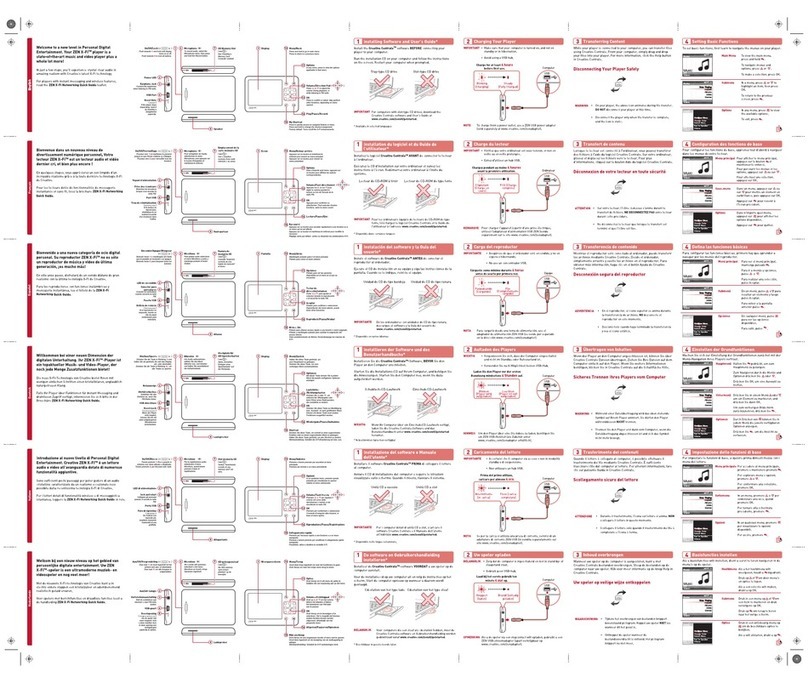
Creative ZEN X-FI - QUICK GUIDE 2 User manual
Creative
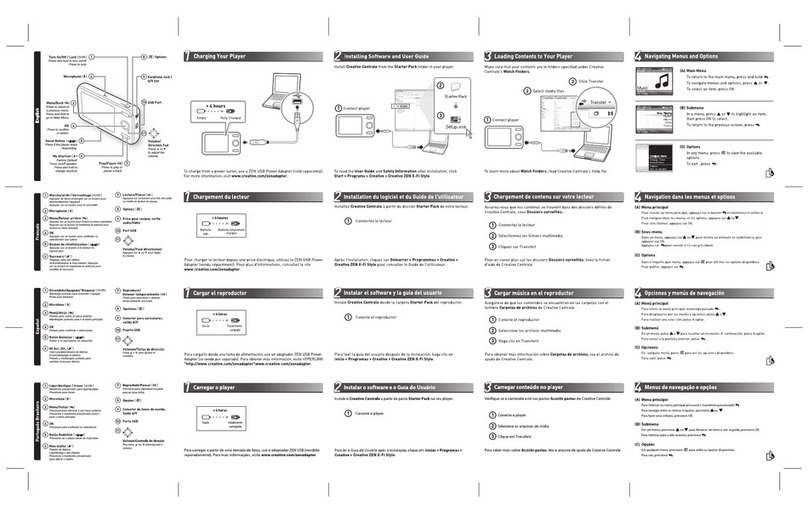
Creative ZEN X-Fi Style User manual
Creative
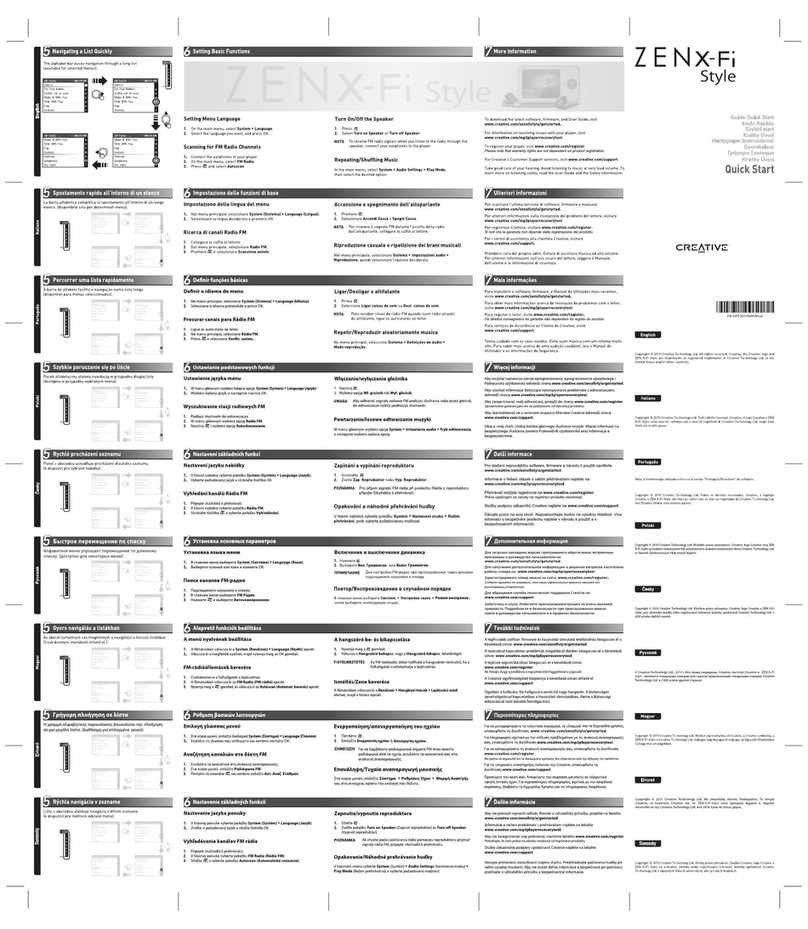
Creative ZEN X-FI STYLE - ANNEXE 454 User manual
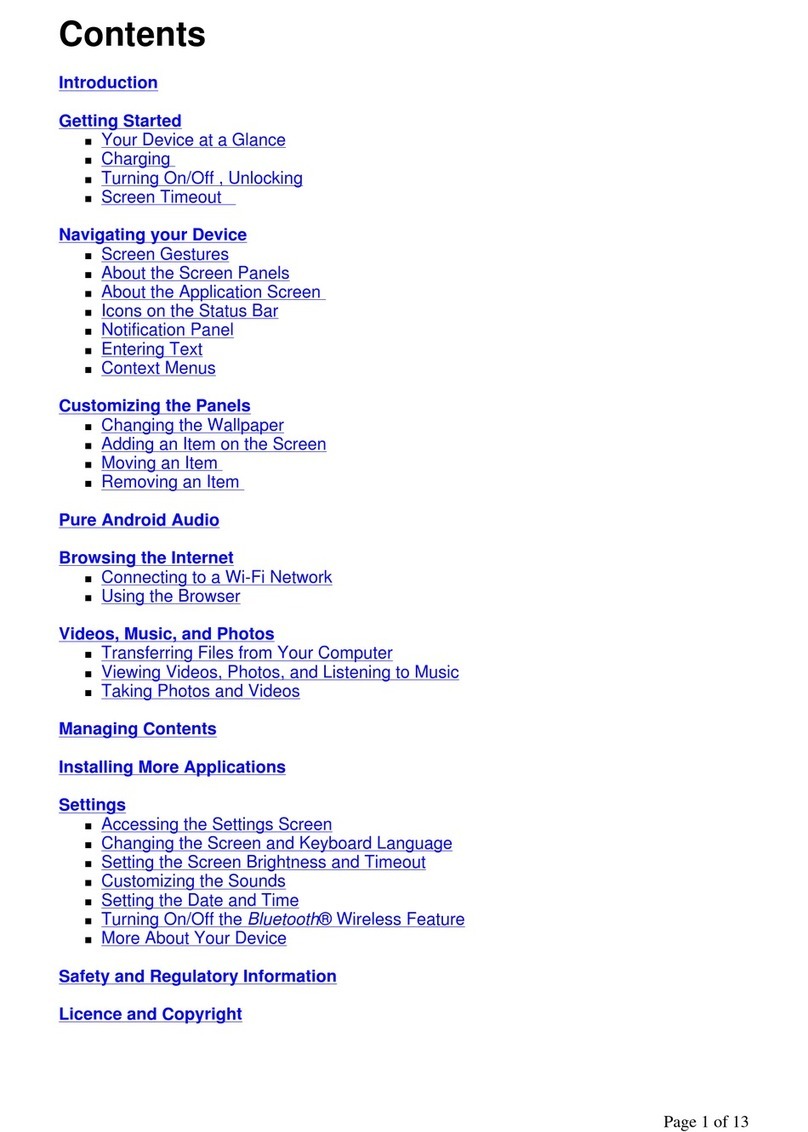
Creative
Creative ZEN Touch 2 User manual
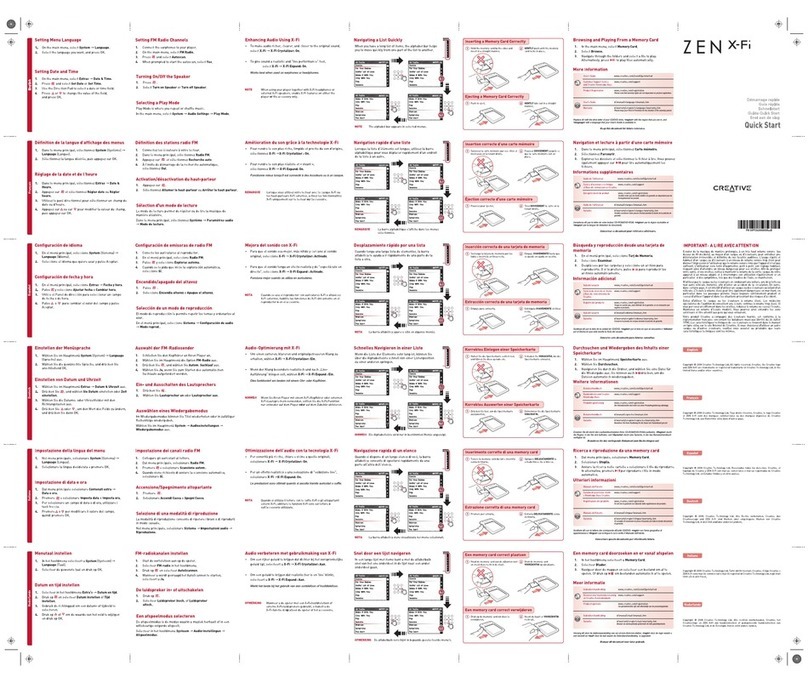
Creative
Creative ZEN X-FI - QUICK GUIDE 1 User manual
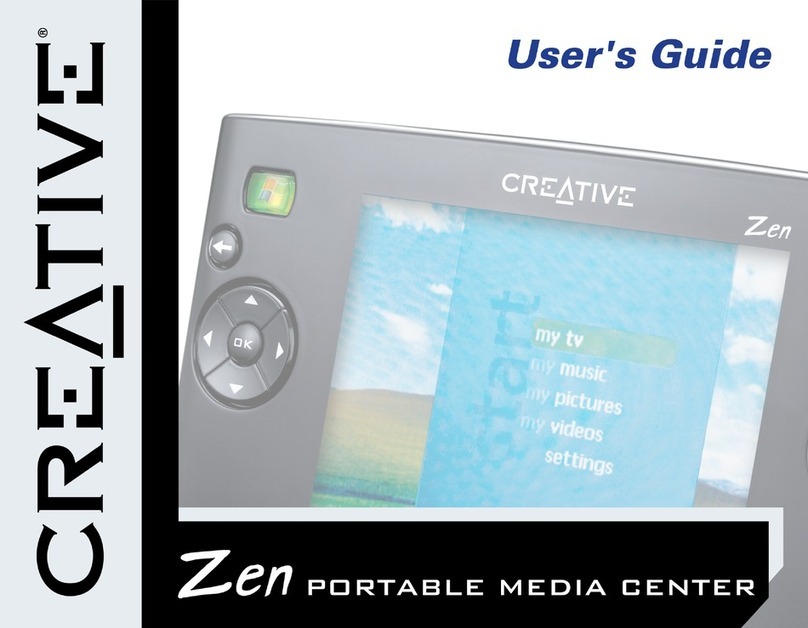
Creative
Creative ZEN User manual
Creative
Creative ZEN Vision User manual