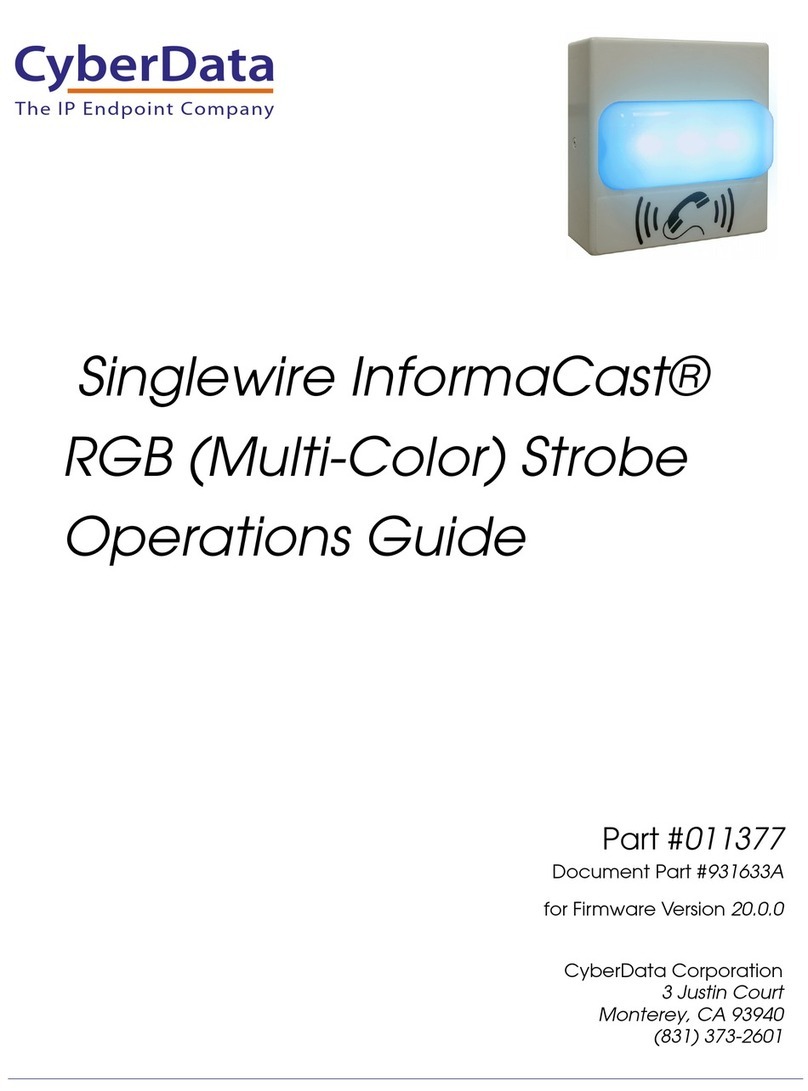
CyberData InformaCast User manual

Using the CyberData InformaCast
Enabled RGB Strobe
Document Part #931702B
CyberData Corporation
3 Justin Court
Monterey, CA 93940
(831) 373-2601

CyberData Corporation
3 Justin Court, Monterey, CA 93940
www.cyberdata.net
P 831.373.2601 | F 831.373.4193
USING THE CYBERDATA INFORMACAST ENABLED RGB STROBE
Doc. 931702B Page 1
Using the CyberData InformaCast Enabled RGB Strobe
Document #931702B
COPYRIGHT NOTICE:
© 2019, CyberData Corporation, ALL RIGHTS RESERVED.
This configuration guide and related materials are the copyrighted property of CyberData
Corporation. No part of this configuration guide or related materials may be reproduced or
transmitted, in any form or by any means (except for internal use by licensed customers), without
prior express written permission of CyberData Corporation. This configuration guide, and the
products, software, firmware, and/or hardware described in this configuration guide are the
property of CyberData Corporation, provided under the terms of an agreement between
CyberData Corporation and recipient of this configuration guide, and their use is subject to that
agreement and its terms.
DISCLAIMER: Except as expressly and specifically stated in a written agreement executed by
CyberData Corporation, CyberData Corporation makes no representation or warranty, express or
implied, including any warranty or merchantability or fitness for any purpose, with respect to this
configuration guide or the products, software, firmware, and/or hardware described herein, and
CyberData Corporation assumes no liability for damages or claims resulting from any use of this
configuration guide or such products, software, firmware, and/or hardware. CyberData
Corporation reserves the right to make changes, without notice, to this configuration guide and to
any such product, software, firmware, and/or hardware.
OPEN SOURCE STATEMENT: Certain software components included in CyberData products
are subject to the GNU General Public License (GPL) and Lesser GNU General Public License
(LGPL) “open source” or “free software” licenses. Some of this Open Source Software may be
owned by third parties. Open Source Software is not subject to the terms and conditions of the
CyberData COPYRIGHT NOTICE or software licenses. Your right to copy, modify, and
distribute any Open Source Software is determined by the terms of the GPL, LGPL, or third
party, according to who licenses that software. Software or firmware developed by CyberData
that is unrelated to Open Source Software is copyrighted by CyberData, subject to the terms of
CyberData licenses, and may not be copied, modified, reverse-engineered, or otherwise altered
without explicit written permission from CyberData Corporation.
TRADEMARK NOTICE: CyberData Corporation and the CyberData Corporation logos are
trademarks of CyberData Corporation. Other product names, trademarks, and service marks may
be the trademarks or registered trademarks of their respective owners.

CyberData Corporation
3 Justin Court, Monterey, CA 93940
www.cyberdata.net
P 831.373.2601 | F 831.373.4193
USING THE CYBERDATA INFORMACAST ENABLED RGB STROBE
Doc. 931702B Page 2
Revision Information
Revision 931702A was released on August 28th, 2019.
-Initial Release
Revision 931702B was released on September 3rd, 2019.
-CyberData InformaCast Enabled Outdoor (Multi-Color) Strobe added.

CyberData Corporation
3 Justin Court, Monterey, CA 93940
www.cyberdata.net
P 831.373.2601 | F 831.373.4193
USING THE CYBERDATA INFORMACAST ENABLED RGB STROBE
Doc. 931702B Page 3
Table of Contents
Table of Contents............................................................................................................................ 3
1.0 Setup Diagram .......................................................................................................................... 4
2.0 Test Setup Equipment............................................................................................................... 5
3.0 Before You Start....................................................................................................................... 6
4.0 Configuration Procedure: Setting up the Strobe....................................................................... 7
5.0 Configuration Procedure: Setting up the Strobe in InformaCast............................................ 11
6.0 Configuration Procedure: Creating A Message...................................................................... 20
7.0 Contact CyberData Corporation ............................................................................................. 23


CyberData Corporation
3 Justin Court, Monterey, CA 93940
www.cyberdata.net
P 831.373.2601 | F 831.373.4193
USING THE CYBERDATA INFORMACAST ENABLED RGB STROBE
Doc. 931702B Page 5
2.0 Test Setup Equipment
Equipment Part Number Firmware Version
CyberData InformaCast
Enabled RGB (Multi-
Color) Strobe
011377 Serial Number (3771xxxxx): 11.8.0
Serial Number (3772xxxxx): 20.0.0
CyberData InformaCast
Enabled Outdoor RGB
(Multi-Color) Strobe
011489 Serial Number (4980xxxxx): 20.0.0
InformaCast --- 12.1.1 21630

CyberData Corporation
3 Justin Court, Monterey, CA 93940
www.cyberdata.net
P 831.373.2601 | F 831.373.4193
USING THE CYBERDATA INFORMACAST ENABLED RGB STROBE
Doc. 931702B Page 6
3.0 Before You Start
Singlewire/InformaCast uses SLP as the primary method of discovery when adding devices to
your InformaCast server. It will be important to make sure you have SLP enabled on the
InformaCast Server and Multicast enabled on your switches. If you are unsure about SLP
configuration Singlewire has excellent documentation on enabling those features.
Registering and Troubleshooting your IP Speakers:
https://www.singlewire.com/blog/emergency-notification/ip-speaker-register
IP Speaker Registration and Troubleshooting Guide:
https://support.singlewire.com/s/article/IP-Speaker-Registration-and-Troubleshooting-Guide
Product Documentation and Utilities
Before you start, download the Operation and Quick Start guides from the downloads section of
the product webpage:
CyberData InformaCast Enabled RGB (Multi-Color) Strobe
https://www.cyberdata.net/collections/singlewire/products/011377
CyberData InformaCast Enabled Outdoor RGB (Multi-Color) Strobe
https://www.cyberdata.net/collections/singlewire/products/011489
The CyberData Discovery Utility can be used to locate CyberData devices on your network.
You may download it from the following web address:
http://www.cyberdata.net/assets/common/discovery.zip
Note: DHCP addressing mode is enabled on default on all noted firmware levels.

CyberData Corporation
3 Justin Court, Monterey, CA 93940
www.cyberdata.net
P 831.373.2601 | F 831.373.4193
USING THE CYBERDATA INFORMACAST ENABLED RGB STROBE
Doc. 931702B Page 7
4.0 Configuration Procedure: Setting up the Strobe
With SLP enabled once the Strobe is connected to the network it should detect the
Singlewire/InformaCast server(s) and fetch its configuration file. This is easy to verify via the
Home page of the Strobe’s web interface.
1. Click Launch Browser from the CyberData Discovery Utility or point your browser to
the CyberData device’s IP address to access the Home page of the web interface.
Figure 1. Discovery Utility
2. Enter the default credentials when prompted, and click the Log In button.
Username: admin
Password: admin
Figure 2. Web Interface Login

CyberData Corporation
3 Justin Court, Monterey, CA 93940
www.cyberdata.net
P 831.373.2601 | F 831.373.4193
USING THE CYBERDATA INFORMACAST ENABLED RGB STROBE
Doc. 931702B Page 8
3. Once the credentials have been entered, you will be sent to the Home page of the strobe’s
web interface.
Figure 3. InformaCast Enabled Strobe Home Page
The Home page gives a quick view of the device’s status. It is possible to view information
relating to Network Configuration, SIP registration status and firmware version are shown on the
Home tab.
Note: The web interface of an InformaCast enabled strobe may look different between firmware
versions. The process of using the product has not changed, just the layout of the web interface.

CyberData Corporation
3 Justin Court, Monterey, CA 93940
www.cyberdata.net
P 831.373.2601 | F 831.373.4193
USING THE CYBERDATA INFORMACAST ENABLED RGB STROBE
Doc. 931702B Page 9
4. Click on the Device menu button to navigate to the Device page.
Figure 4. Device Page
5. The Singlewire Broadcast Strobe Settings section is where the majority of
configuration will take place regarding use with InformaCast.
Table of contents
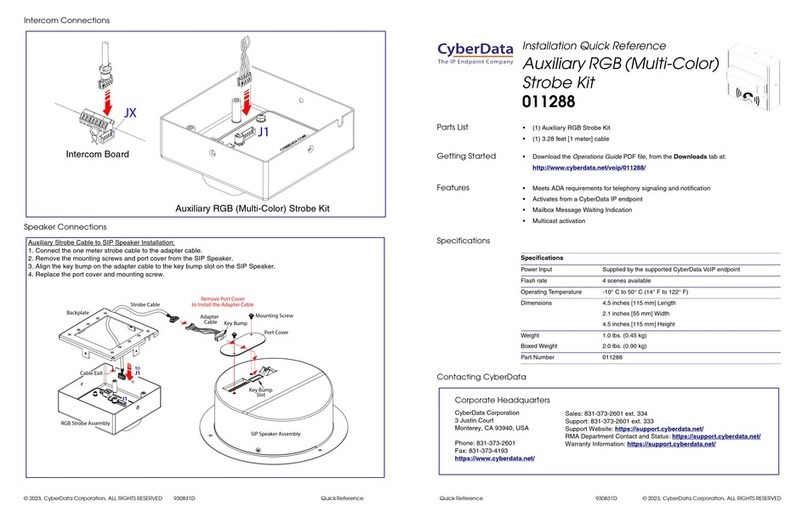
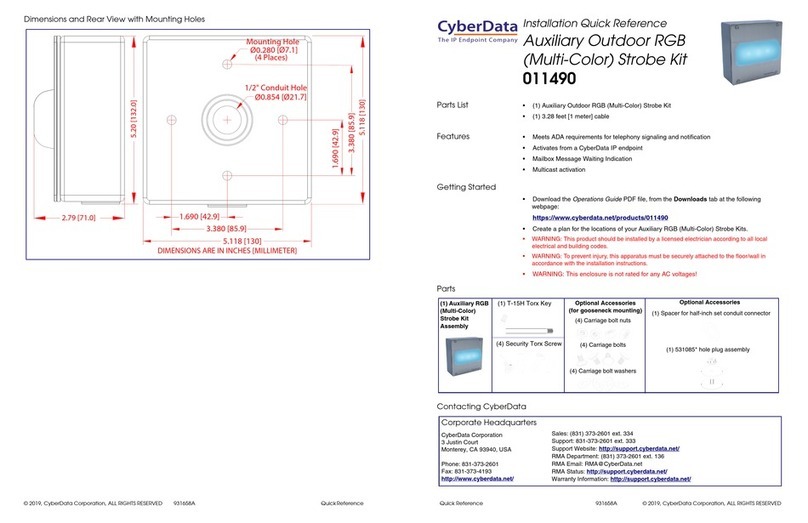
Other CyberData Lighting Equipment manuals
Popular Lighting Equipment manuals by other brands


Qazqa
Qazqa Suplux SL 3 Black 103062 instruction manual

Commercial Electric
Commercial Electric 54568141 Use and care guide
CREE LIGHTING
CREE LIGHTING 304 Series installation instructions
Goobay
Goobay 49867 user manual
ECOMAN ITALIA
ECOMAN ITALIA LED T8 instruction manual
Alkalite
Alkalite Krypton KT-81 user manual