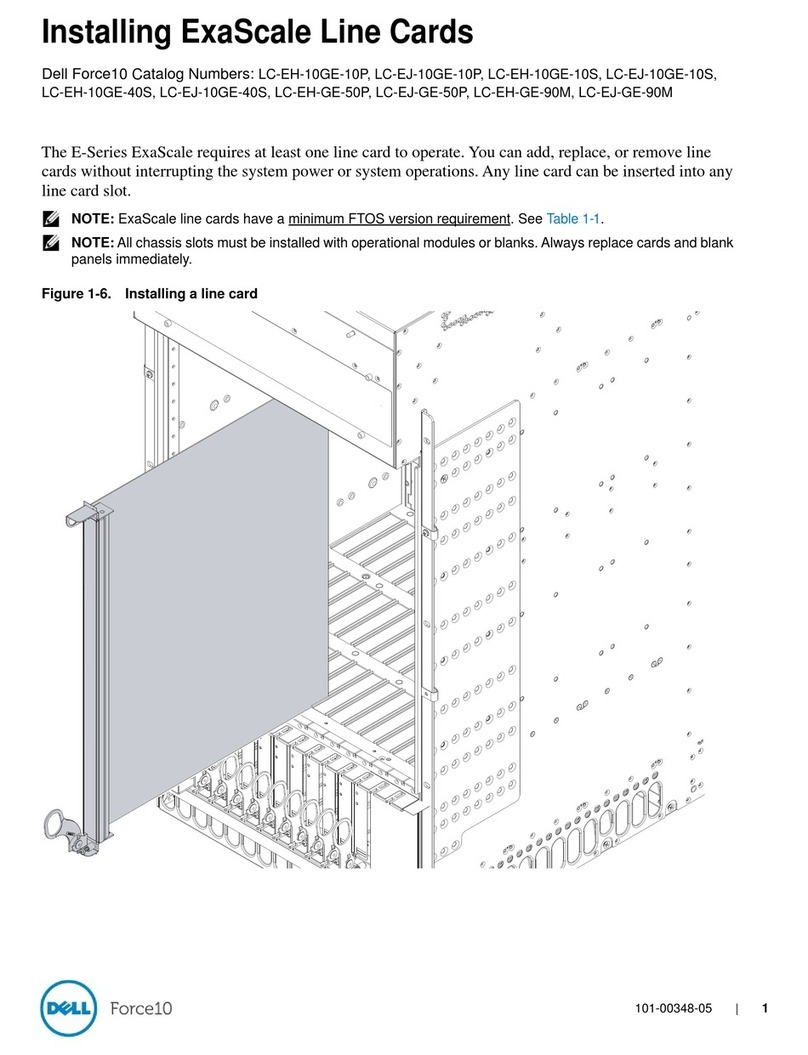
Dell PowerConnect W-6000M3 User manual

Dell PowerConnect W-6000M3 Controller Module
Installation Guide
0510764-MU-03 | April 2011 1
Introduction
The Dell PowerConnect W-6000M3 Controller Module is a hot-swappable Controller Module for use within the
Dell W-6000 Controller chassis. The W-6000 controller chassis is capable of containing up to four W-6000M3
modules, each of which can be configured as a master or local controller. Each W-6000M3 Controller Module is
capable of supporting up to 512 campus connected access points (APs). For compatibility and configuration
options, refer to “Configuration Options” on page 6.
Minimum Software Requirements
The W-6000M3 Controller Module requires ArubaOS 5.0.3 or later.
Package Checklist
z
Dell PowerConnect W-6000M3 Controller Module
z
Dell PowerConnect W-6000M3 Controller Module Installation Guide
z
Dell PowerConnect Quick Start Guide
zEnd User License Agreement (EULA)
zSafety, Environmental, and Regulatory Information (SERI) document
z
Warranty and Support Information (WSI) document
NOTE: The master controller, its redundant master controller, and all of its local controllers must run on the same ArubaOS
version. Once you upgrade your network and install the W-6000M3 Controller Module into your network, verify that the software
version on your W-6000M3 Controller Module matches the rest of the network. If the code shipped on the module is prior to the
version that you upgraded your network to, you must upgrade the code on the W-6000M3 Controller Module to match the rest of
the network.
NOTE: Inform your supplier if there are any incorrect, missing, or damaged parts. If possible, retain the carton, including the
original packing materials. Use these materials to repack and return the unit to the supplier if needed.
NOTE: Optional accessories, such SFP and XFP modules, are available for use with the W-6000M3 and are sold separately.
Contact your Dell sales representative for details and assistance.
Installation Guide

2Dell PowerConnect W-6000M3 Controller Module | Installation Guide
Hardware Overview
Figure 1 W-6000M3 Controller Module
Ports
1000Base-X (SFP) Ports
Ports 0 through 9 on the W-6000M3 are 1000Base-X (SFP) ports for fiber or copper connectivity and are intended
for use with Dell approved SFPs.
1000Base-X (SFP) Ports (Ports
0-9)
10GBase-X (XFP) Ports
(Ports 10 & 11)
Gigabit Ethernet
Management Port
Serial Console
Port
NOTE: Dell tests and supports Dell optics within their controller systems. Third party optics are not tested or supported; therefore,
Dell does not guarantee proper functionality of third party optics. For further details regarding Dell approved SFPs, refer to the Dell
PowerConnect W-Series SFP Optical Modules Installation Guide.

Dell PowerConnect W-6000M3 Controller Module | Installation Guide 3
10GBase-X (XFP) Ports
Ports 10 and 11 on the W-6000M3 are 10GBase-X fiber optic ports for use with Dell XFPs. XFPs are 10 Gbit hot-
swappable, optical transceivers, which convert serial electrical signals to external serial optical or electrical signals.
Gigabit Ethernet Management Port
This port is a 10/100/1000Base-T Gigabit Ethernet (RJ-45) port. Gigabit Ethernet uses all eight wires and each
pair is used in a bi-directional fashion, meaning the same pairs are used for both data transmission and reception.
This port also supports Auto MDIX, allowing the use of crossover of straight through cables. Figure 2 illustrates
the CAT-5 pin-out found on an RJ-45 connector. The CAT-5 pin-out pairs the following pins on a 10/100/
1000Base-T Gigabit Ethernet port: 1/2, 3/6, 4/5, and 7/8.
Figure 2 Gigabit Ethernet Port Pin-Out
NOTE: Dell tests and supports Dell optics within their controller systems. Third party optics are not tested or supported; therefore,
Dell does not guarantee proper functionality of third party optics. For further details regarding Dell approved XFPs, such as
technical specifications and installation instructions, refer to the Dell PowerConnect W-Series XFP Optical Modules Installation
Guide.
NOTE: Ethernet traffic on this port is out-of-band; this port is segmented from regular switching and routing functions and cannot
be used as a network data port.
1000Base-T Gigabit
Ethernet Port
RJ-45 Female
Pin-Out
Signal Name
1
2
3
4
5
6
7
8
BI_DC+
BI_DC-
BI_DD+
BI_DD-
BI_DA+
BI_DA-
BI_DB+
BI_DB-
Function
Bi-directional pair +C
Bi-directional pair -C
Bi-directional pair +D
Bi-directional pair -D
Bi-directional pair +A
Bi-directional pair -A
Bi-directional pair +B
Bi-directional pair -B

4Dell PowerConnect W-6000M3 Controller Module | Installation Guide
Serial Console Port
A serial console port is provided for connection to a terminal, allowing for direct local management. The port’s
RJ-45 female connector accepts an RS-232 serial cable with a male connector.
Figure 3 Serial Console Port Pin-Out
Communication settings for the serial console port are indicated in Table 1.
Table 1 Serial Connection Requirements
Serial Console Port Adaptor
A modular adaptor can be used to convert the RJ-45 (female) connector to a DB9 (male) connector. Refer to
Figure 4 for complete details
Figure 4 RJ-45 (female) to DB9 (male) Modular Adaptor Conversion
Baud Rate Data Bits Parity Stop Bits Flow Control
9600 8 None 1 None
Serial
Console Port
1
2
3
4
5
6
7
8
TxD
GND
RxD
RJ-45 Female
Pin-Out
Direction
Input
Output
GND
CAUTION: Do not connect an Access Point (AP) to the serial console port. The serial console port is only compatible with RS-
232 devices. Non-RS-232 devices, such as APs, are not supported and will cause the controller to fail.
3
4
5
2
5
63
RJ-45 DB-9
Internal
Connections
TxD
GND
RxD
1
2
3
4
5
6
7
8
TxD
GND
RxD
RJ-45 Female
Pin-Out
Direction
Input
Output
DB-9 Male
Pin-Out
TxD
RxD
Ground
5
4
3
2
1
9
8
7
6
Direction
Input
Output

Dell PowerConnect W-6000M3 Controller Module | Installation Guide 5
LED Status Indicators
Table 2 describes the W-6000M3 LEDs (show in Figure 5) and their function.
Figure 5 W-6000M3 Front Panel and LEDs
Table 2 W-6000M3 LED Behavior
LED Function Indicator Status
PWR Input Power Status On (Green) Power on
Off No power
STAT Module Status Indicator On (Green) Device is operational
On (Amber) Device is booting
On (Red) Device failed
Off Device is loading software
or no power
ACT Module Mode Indicator On (Green) Device in active mode
On (Yellow) Device in standby mode
Off Device has not determined
operating state or no
power
LNK/ACT Link Status Indicator On (Solid Green) Link has been established
On (Flashing Green) Port is transmitting or
receiving data
Off No link on port

6Dell PowerConnect W-6000M3 Controller Module | Installation Guide
Configuration Options
Configuration Requirements
The following requirements must be adhered to when running W-6000M3 Controller Modules within the Dell
PowerConnect W-6000:
zThe first W-6000M3 Controller Module must be installed in either Slot 0 or Slot 1 of the W-6000 chassis. W-
6000M3 modules in Slot 2 or Slot 3 will not boot if an W-6000M3 is not present in Slot 0 or Slot 1. Refer to
Figure 6 for Slot ID and locations within the Dell W-6000 chassis.
Slot 0 or Slot 1 must be populated before Slot 2 or Slot 3 since backplane communication occurs between the
following:
zSlot 0 communicates with Slot 2 and/or Slot 3
zSlot 1 communicates with Slot 2 and/or Slot 3
zThe W-6000M3 module is designed for installation within the W-6000 chassis utilizing 400 W power supplies
only. Refer to “Power Management” on page 10 for complete details.
zMinimum software requirements must be met prior to installing the W-6000M3. Refer to “Minimum
Software Requirements” on page 1 for complete details.
Figure 6 W-6000 Slot Configuration
zConfiguration options are also dependent on power requirements for each module. Refer to “Power
Management” on page 10 for complete details.
SLOT 1
SLOT 3
SLOT 0
SLOT 2

Dell PowerConnect W-6000M3 Controller Module | Installation Guide 7
Installation
Pre-Installation Requirements
The following tools and equipment are required for installation of an W-6000M3 module:
zPre-installed Dell PowerConnect W-6000 Controller Chassis(sold separately)
zESD-preventive wrist strap (not provided)
z#2 Phillips screwdriver (not provided)
zDell PowerConnect W-6000M3 Controller Module(s)
Physical Installation
To install an W-6000M3 module into an W-6000 chassis:
1. Use standard ESD precautions when installing an W-6000M3.
2. Remove the blank front panel or existing module from the appropriate slot in the W-6000 chassis (if
applicable).
3. Remove the W-6000M3 module from the shipping carton and ESD bag.
4. Slide the W-6000M3 into the W-6000 using the guide rails. The W-6000M3 must be seated within the guide
rails for proper installation (see Figure 7).
CAUTION: Many repairs may only be done by a certified service technician.You should only perform troubleshooting and
simple repairs as authorized in your product documentation, or as directed by the online or telephone service and support
team. Damage due to servicing that is not authorized by Dell is not covered by your warranty. Read and follow the safety
instructions that came with the product.
NOTE: Since the Dell W-6000M3 Controller Module is hot-swappable, the power to the chassis can be ON or OFF.
NOTE: Dell recommends the use of a blank front panel over any unused slots in an W-6000. The blank front panel is required for
proper cooling and air flow within the W-6000.

8Dell PowerConnect W-6000M3 Controller Module | Installation Guide
Figure 7 Installing an W-6000M3
W-6000 chassis
Dell W-6000M3
Controller Module
Guide Rails

Dell PowerConnect W-6000M3 Controller Module | Installation Guide 9
5. Secure the W-6000M3 to the W-6000 by tightening down the two captive screws using a #2 Phillips
screwdriver (see Figure 8). Turn the captive screws clockwise until the screws are hand tight. Do not over-
tighten the screws.
Figure 8 Securing an W-6000M3
Initial Setup and Network Connectivity
Once the physical installation is complete, run the initial setup on the W-6000M3 to configure the IP address of
the module (referred to as the controller in ArubaOS documentation) and other basic system information. For
complete details and instructions, refer to the Dell PowerConnect ArubaOS Quick Start Guide for the software
version installed on your controller.
Removal
1. Use standard ESD precautions when removing an W-6000M3.
2. Turn the captive screws counter-clockwise to loosen the screws and release the W-6000M3.
3. Slide and remove the W-6000M3 from the W-6000.
4. Install a blank front panel over any unused slots.
arun_0109
Captive Screw
NOTE: Since the Dell W-6000M3 Controller Module is hot-swappable, the power to the chassis can be ON or OFF.
NOTE: Dell requires the use of a blank front panel over any unused slots in a Dell W-6000 chassis. The blank front panel is required
for proper cooling and air flow within the W-6000.

10 Dell PowerConnect W-6000M3 Controller Module | Installation Guide
Power Management
The W-6000 controller supports up to three 400 W power supplies. If using one to two primary power supplies for
400 to 800 W of primary power, the use of a 400 W redundant power supply is possible.
For maximum capacity planning, add the maximum power draw required for all of the modules in your chassis
configuration to determine the required number of power supplies.
W-6000M3 Module and PSU Configuration Table
The following table displays the W-6000M3 module configurations, and the resultant power supply
configurations and power usage.
Table 3 Power Supply and Module Configurations
Module Number of Units
W-6000M3 Controller Module
(130 W max power draw each) 1234
Total Power (W) 130 260 390 520
Required number of PSUs 1112
Redundant number of PSUs 1 or 2 1 or 2 1 or 2 1
Table of contents
Languages:
Other Dell Control Unit manuals

Dell
Dell K804N User manual

Dell
Dell PowerEdge M420 User manual

Dell
Dell UPS 2700R Series User manual
Dell
Dell PowerEdge FN User manual

Dell
Dell PowerConnect W Series Operating and maintenance instructions
Dell
Dell LC-EJ-10GE-10P User manual

Dell
Dell MXG610s User manual

Dell
Dell H955N User manual

Dell
Dell FC SAN User manual

Dell
Dell PowerEdge M420 Service manual