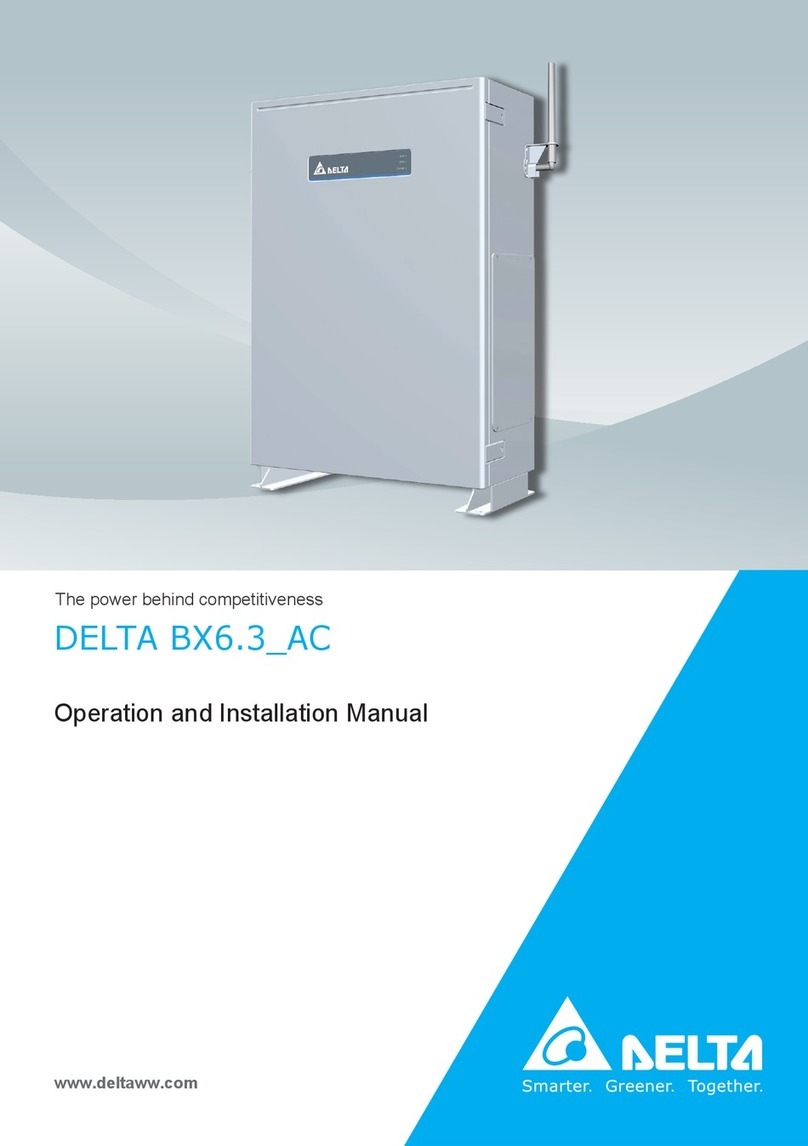
Delta R4E User manual

The power behind competitiveness
Delta Power Monitor
User Manual
R4E (for energy storage system.)
www.deltaww.com


Contents
■Introduction■
Precautions for Your Safety
Essential Points for Safety
Precautions for Use
Equipment Specification Considerations
Caring for the Product
1.Information on The Product
1.1.Principal Features
1.2.Power Monitor Set
1.3.Descriptions and Functions of Parts and Components
2. Installation Method
2.1.Wall Installation
2.2.Desktop Installation
2.3.Guiding the AC Adapter Cable
3.What Power Monitor can do
3.1.Principal Functions
3.2.Operation Screens
3.3.Interpreting and Operating Power Monitor
3.3.1.Home screen
3.3.2.Energy Log
3.3.3.Information
3.3.4.Setting
3.3.5.Inverter Status
4.When Something Seems Wrong (Troubleshooting)
4.1.Error Displays
4.2.Troubleshooting
5.Specifications
5.1.Power Monitor
5.2.Power Meter
5.3.Wireless Communication Unit (Wireless Set)
5.4.USB Wireless Module (Wireless Set)
5.5.Wireless Communication Unit for Inverter (Wireless Set)
04
06
07
08
09
10
11
14
19
20
20
21
22
23
23
26
59
67
84
85
87
89
90
91
91
92
3
■Note on expressions in this document■
Please note that product appearance, illustrations, screen depictions and data are
images only. They may vary slightly from the actual product. Please keep that in mind.

This User Manual provides precautions with the following notations and symbols for safe use of
the Power Monitor Set (for energy storage system.) (Power Monitor: R4E; Power Meter: P1E / P3E;
Wireless Communication Unit: N1E; Wireless Communication Unit for Inverter: N2E; Battery and
USB Wireless Module).
The expression “Product” refers to the Power Monitor, Power Meter, Wireless Communication Unit,
and Wireless Communication Unit for Inverter and USB Wireless Module. Precautions described
herein contain important aspects of safety.
Please observe and follow these descriptions.
Notations and symbols are described below:
Notations for safe use of the product and their meanings
Precautions for Your Safety
Failing to handle the Product properly may result in the described danger
leading to slight or intermediate level injuries and in some cases may also
result in serious injury or death.
Failing to handle the Product properly may result in the described danger
leading to slight or intermediate level injuries or property damages in some
instances.
■ Explanation of graphic symbols
● Electric Shock Precaution
Notifications pertaining to precautions for potential electric shock,
under specific conditions
● General
Unspecified general notifications pertaining to prohibited actions.
● Disassembly prohibited
Notifications pertaining to prohibition of equipment disassembly,
when doing so can potentially lead to injuries such as electric shock.
● General
Unspecified general notifications pertaining to instructions for users
4
Warning
Caution
Introduction

Do not allow any fire producing objects to be near the Product, or apply any spray,
including combustible gases, to the Product. The Product may ignite or explode in
the unlikely event such an occurrence takes place.
Do not touch the Product with wet hands.
The Product may cause injury due to electric shock or equipment malfunction may
occur in the unlikely event such an occurrence takes place.
Request the retailer where you purchased the Product or a specialist to perform
installation work, repairs, extensions, relocations and reinstallations of the Product.
Do not install the Product in a place that is subject to significant effects of vibration
and impact. There is danger of injury from the Product falling in some rare cases.
Do not install the Product in the following types of locations:
There is danger of burnout in some rare cases.
・
Locations that are exposed to rain water, such as outdoors or under eaves and the like.
・ Locations that are exposed to steam or where the moisture level is 30 to 85% RH,
such as lavatories, changing rooms, work sites, kitchens and the like.
・Do not use organic solvents (paint thinners, benzene and the like), strong alkaline
substances or strong acidic substances to clean the case of the Product. There is
danger of discoloring the case or the equipment malfunctioning in some rare cases.
When installing the Power Monitor on a wall made of materials that are not wood,
be sure to acquire plastic anchors available on the market to secure the Wall
Surface/Desktop Mounting Plate on the wall surface. There is danger of injury from
the Product falling in some rare cases.
Warning
Caution
Do not conceal the wiring of the AC adapter, through such means as embedding
the cable inside a wall.
Furthermore, do not place any heavy objects such as a furniture on top of the cable
and avoid damaging the cable by rolling wheels, such as castors, over the cable.
The Product may ignite or explode in the unlikely event such an occurrence takes place.
Do not disassemble or modify the Product.
The Product may cause injury or fire due to electric shock in the unlikely event
such an occurrence takes place.
Request the retailer where you purchased the Product or a specialist to perform
installation work, repairs, extensions, relocations and reinstallations of the Product.
5
Introduction

Items described below must be followed as they are necessary to secure safety.
1. Do not connect anything other than the dedicated AC adapter on the power source terminal of
the Power Monitor.
2. Request a specialist to dispose of the Product.
3. Pull the AC adapter off the power outlet when any abnormality is detected with the Product,
such as emission of smoke, heat or the like.
4. Turn OFF the power breaker, to which the Meter is connected when any abnormality is detected
with the Meter.
5. Do not install the Product in any place that is prevented from having air flow, such as inside
closets or under stairs.
6. Install the Product with the “DELTA” logo facing up when installing the Power Monitor on a wall.
When not installed on a wall, set the Product on the Wall Surface/Desktop Mounting Plate when
using the Product.
7. Take care to ensure no water or other liquid gets on the Power Monitor or the Meter.
8. There is danger of injury. Do not throw the Product.
9. Securely insert the AC adapter in a power outlet. Furthermore, periodically remove any dust on
the AC adapter.
10.The Product is not for outdoor use.
11.Do not install the Product at a high place or an unstable place when installing the product on a
desk.
Essential Points for Safety
6
Introduction

1. The Product is not a specified measuring instrument that passed any certification criteria of any
designated accreditation organization as prescribed by the Measurement Act. The Product may
only be used to provide a rough indication on the amount of power.
3. The Product may malfunction or may be damaged by static electricity. Be sure to remove any
static electricity on the body, through such means as touching a metal object nearby, prior to
coming into contact with the Product.
2. A touch panel type liquid crystal display has been adopted for the Product. Do not press or hit
hard on the surface of the display.
4. Do not connect a telephone line or household LAN cable to the LAN terminal on the Power
Monitor and the Wireless Communication Unit. There is danger of the Product malfunctioning.
5.
Insert the AC adapter of the Power Monitor in the power outlet at all times when using the Product.
Removing the AC adapter from the power outlet will prevent the system from obtaining detailed
data during such period and result in the omission of graphs and the like.
6. Keep the power supply (breaker for solar power generation) of the Meter turned ON at all times
when the Product is in use.
Precautions for Use
7
7. Reverting the date and time by at least a 15 minute interval into the past will result in the loss of
performance data. Set the date and time correctly.
Example : [A case where performance data is lost]
The time is inadvertently changed from 9:15 to 8:45 and then reverted to 9:15.
The performance data starting from 8:45 onwards are added to the performance data from 8:45
and the performance data for the period since 8:45 is lost. Lost data cannot be restored.
● Time is changed from 9:15 to 8:45.
● Time is changed from 8:45 to 9:15.
Example : [A case where performance data is not lost]
The time is inadvertently changed from 9:28 to 9:18 and then reverted to 9:28.
The performance data from 9:15 is fixed as of 9:30 and as such, the performance data is not lost,
as long as the time change does not extend to at least a 15 minute interval.
● Time is changed from 9:28 to 9:18.
● Time is changed from 9:18 to 9:28.
8:30 8:45 9:00 9:15 9:30
Data is added to that of 8:45.
Performance data is not lost.
Performance data is lost.
8:30 8:45 9:00 9:15 9:30
8:30 8:45 9:00 9:15 9:30 8:30 8:45 9:00 9:15 9:30
Introduction

8. Do not install the Product in following types of locations:
a) A location with severe fluctuation of temperature.
b) A location that is exposed to
sea breeze (excluding the Wireless Communication Unit for Inverter).
c) A location that is exposed to volatile, combustible, corroding or toxic gases.
d) A location exposed to direct sun light.
e) A location exceeding the operating temperature range (-20 to +50°C) (5 to 35°C for the USB
Wireless Module).
f ) A location with altitude of 2,000 meters or higher.
g) A location with a large amount of dust (powder dust, sand dust, cotton dust, metal dust,
saw dust, straw dust and the like).
h) A location covered by metals or metal fittings, metals installed on walls, on top of a metal desk,
between metal products or near telephone unit, facsimile unit, personal computer, personal
computer peripheral device, television set, microwave oven or induction heating (IH) product.
9. Store the Product in a location with the temperature ranging between -20 and +60°C, with the
humidity ranging from 30 to 85% RH.
10. The Product communicates wirelessly.
Install the Product as far away as possible from devices that emit strong radio waves, such as a
civil band radio equipment.
11. The communication performance varies depending on the peripheral environment. Verify in
advance that the Product is communicating normally when installing the Power Monitor on a wall.
12. Avoid installing the Power Monitor near iron plate or steel reinforcements and try to install the
Product with as much clear space as possible.
13. The Product is not compatible with the Total Amount Purchasing System of the Feed-in Tariff
Scheme for Reusable Energy.
14. Do not pull out the USB Wireless Module while the power is turned on. Communication with the
personal computer and the Meter will no longer be possible.
15. Turn OFF the power breaker for the solar power generation on the power distribution board,
remove the AC adapter of the Power Monitor from the power outlet, and contact the retailer where
the Product was purchased when any instance of radio frequency interference occurs with the Product.
16. Do not use any USB Wireless Module other than the one that was bundled with the Product.
1. The value displayed as power consumption may be greater than (or smaller than) the actual value
when the power being generated fluctuates due to fluctuation of sun light or the like. This arises
from the difference in the timing of data acquisition for the power production from the power feed-in
and purchase and is not due to a malfunction of the Product.
2. The amount of power purchased displayed on the Home screen or Log screen may differ from
the power amount indicated on statements from the power company, due to such causes of errors
as those described below:
(1) Errors in measurement: The error arising from the fact that the instrument used by the power
company for the purpose of calculating the amount of power purchased is not a specified
measuring instrument but instead it is another equipment.
(2) Errors in calculation: The error arising from rounding up or rounding off of figures in the
calculation and display process of the Power Monitor.
Equipment Specification Considerations
8
Introduction

Caring for the Product
Cleaning of the Product is recommended, in order to make it possible for you to use the Power
Monitor in the best possible condition at all times.
● Cleaning method
A touch panel has been adopted for this Product, the display on which becomes difficult to view
when soiled with fingerprints, sweat or oil.
・Wipe dry with a piece of dry, soft cloth.
Do not remove soiling by using excessive force. Doing so may result in the display being scratched
and can also cause malfunction.
・Do not apply any tape, plastic or rubber matter on the Product for a long period of time.
The Product may be soiled. In such an event remove the soiling when cleaning.
9
Introduction

The Product is intended for verifying the status of a solar power generation system. The Product
collects and takes measurements of respective power information, to display results as well as store
performance data for a prescribed period of time or provide assistance to save energy based on such
information.
● A 7-inch color liquid crystal display is adopted to provide a clear display.
● The LED backlight feature is adopted to reduce power consumption.
● A real-time display of the power production and consumption are provided.
● The degree of freedom in the selection of location for installation has been improved with the
support of the wireless communication (when the Wireless Set is in use).
● The Energy Saving Guide function has been incorporated.
● R4 is specifically used with energy storage solar system.
● User can view the status of the inverter and battery and
set up charge and discharge mode to battery
● The background image of the Home screen can be changed.
● Performance data can be output and loaded onto a personal computer.
● Setting feature of the Grid Setting is available.
● The touch panel is adopted for easier operations
※ Notes on basic operation of the touch panel
Power Monitor is operated by using a touch panel, which is manipulated by touching with a fingertip.
The basic operation of the touch panel is described below.
1.Information on The Product
1.1.Principal Features
10
■ Touch
Touch lightly on the screen surface with a finger.
Information on The Product

Verify that following items are available for use prior to using this feature.
No
1
2
3
4
5
6
1 unit
1 pc
2 pcs
1 unit
1 unit
Product name
Power Monitor
Wall Surface /
Desktop Mounting Plate
Wood screws (+) for Wall Surface /
Desktop Mounting Plate
(dia. 4 x 20 mm)
AC Adapter
Power Meter
Shape Qty Remarks
This is a plate used to install
the Product on a wall or on a
desk.
These are wood screws for
the Wall Surface / Desktop
Mounting Plate.
This is the power supply for
the Power Monitor.
1.2.Power Monitor Set
11
Quickinstallationguide 1 copy
Information on The Product
■ Wired Set (S4E_1P)

No
1
2
3
4
5
6
1 unit
1 pc
2 pcs
1 unit
1 unit
Product name
Power Monitor
Wall Surface /
Desktop Mounting Plate
Wood screws (+) for Wall Surface /
Desktop Mounting Plate
(dia. 4 x 20 mm)
AC Adapter
Power Meter
Shape Qty Remarks
This is a plate used to install
the Product on a wall or on a
desk.
These are wood screws for
the Wall Surface / Desktop
Mounting Plate.
This is the power supply for
the Power Monitor.
12
Quickinstallationguide 1 copy
Information on The Product
■ Wired Set (S4E_3P)

13
Information on The Product
91 pc
USB Wireless Module
The unit converts the Power Monitor
into a wireless communication
system.
10
11
1 unitWireless Communication Unit
■ Wireless Set (S4E_WiFi)
7
8
1 unit
1 pc
Wireless Communication Unit
Antenna for Inverter
Wireless Communication Unit for
Inverter
This is an antenna that is mounted
on the Wireless Communication
Unit for Inverter.
The unit converts the Inverter
into a wireless communication
system.
No Product name Shape Qty Remarks
Quickinstallationguide 1 copy

POWERMONITOR
■ Power Monitor
Important
Do not connect a telephone line or household LAN cable to the LAN terminal.
① LAN terminal (RJ-45 terminal) (fitted with a protective cover)
This is the terminal that is used to connect the system to an internet line. (A setup is required.)
② RS-485 (a 6-pin terminal)
This is the terminal that is used to connect a 6-pin connector provided, to link the supply of power
and signals from the Inverter.
③Power Supply terminal
This is the terminal that is used to connect the AC Adapter provided.
④ USB Terminal (for USB 1 and USB 2) (fitted with a protective cover)
Downloading of various data and upgrading of software versions can be performed.
Furthermore, the monitor and the Inverter, as well as the Meter can be converted into a wireless
communication system by connecting the USB Wireless Module provided with the Wireless Set.
* Customers are requested to procure their own USB memory and USB cable.
⑤ Insertion slot for anchoring the Wall Surface Mounting Plate.
This is the insertion slot used to install the Wall Surface / Desktop Mounting Plate when installing
the Product on the wall.
⑥ Insertion slot for anchoring the Desktop Mounting Plate
This is the insertion slot used to install the Wall Surface/ Desktop Mounting Plate when installing
the Product on desktop.
⑦Reset button
This is intended for use in maintenance work carried out by the manufacturer. Do not use this.
⑧Wiring access
According to the prescribed wiring method, remove the tab on the wiring access, and guide the
cable through.
⑨Touch Panel section
Displays are switched and various settings are performed by performing touch panel operations.
1.3.
Descriptions and Functions of Parts and Components
14
USB 1
USB 2
CAN-L
CAN-H
RS485-B
RS485-A
GND
+12V
LAN
DC 12V
①
②
③
④
⑥⑤⑦
④
⑨ ⑧
⑧
Front Back Side
Information on The Product

15
Information on The Product
■ Meter & Wireless Communication Unit (P1E & N1E)
(The figure depicts a situation where the Meter and the Wireless Communication Unit have been
connected and the Antenna has been oriented upwards.)
① Power Supply Input terminal (fitted with a protective cover)
This is the terminal for connecting the voltage detection cable.
②Current Sensor Connection terminal
This is the terminal for connecting the current sensor cable.
③Operation LED lamp
Green light turned on: Normal operation
Green light blinking: Standby or connection standby
Red light turned on: Hardware malfunction
Red light blinking: Communication interrupted
④ Communication Signal Input terminal (fitted with a protective cover)
This is the terminal for connecting the RS-485 cable.
⑤Reset button
This is the Reset button for the Wireless Communication Unit. Pressing this button restarts the
Wireless Communication Unit. Holding this button down for five or more seconds reverts the
Wireless Communication Unit to the default setting. Caution is required.
⑥Wireless Communication Unit Antenna
This is the antenna used to perform wireless communication with the Power Monitor. The antenna
can be detached from the main unit. (Do not remove the antenna.)
⑦Operation LED lamp
Green light turned on: Normal operation
Green light blinking: Standby or connection not established
Red light turned on: Hardware malfunction
Red light blinking: Communication malfunction
⑧ LAN terminal (fitted with a protective cover)
This is intended for use in maintenance work carried out by the manufacturer. Do not use this.
(Do not remove the protective cover.)
Warning
Do not open the protective cover or touch the internal parts and components with
your hand. The Product may cause injury due to electric shock in the unlikely event
such an action is taken.
②
Front Side
⑤
①
③
④
⑥
⑦
⑧

■ Power Meter & Wireless Communication Unit (P3E & N1E)
(The figure depicts a situation where the Meter and the Wireless Communication Unit have been
connected and the Antenna has been oriented upwards.)
① Power Supply Input terminal (fitted with a protective cover)
This is the terminal for connecting the voltage detection cable.
②Current Sensor Connection terminal
This is the terminal for connecting the current sensor cable.
③Operation LED lamp
Green light turned on: Normal operation
Green light blinking: Standby or connection standby
Red light turned on: Hardware malfunction
Red light blinking: Communication interrupted
④ Communication Signal Input terminal (fitted with a protective cover)
This is the terminal for connecting the RS-485 cable.
⑤Reset button
This is the Reset button for the Wireless Communication Unit. Pressing this button restarts the
Wireless Communication Unit. Holding this button down for five or more seconds reverts the
Wireless Communication Unit to the default setting. Caution is required.
⑥Wireless Communication Unit Antenna
This is the antenna used to perform wireless communication with the Power Monitor. The antenna
can be detached from the main unit. (Do not remove the antenna.)
⑦Operation LED lamp
Green light turned on: Normal operation
Green light blinking: Standby or connection not established
Red light turned on: Hardware malfunction
Red light blinking: Communication malfunction
⑧ LAN terminal (fitted with a protective cover)
This is intended for use in maintenance work carried out by the manufacturer. Do not use this.
(Do not remove the protective cover.)
Warning
Do not open the protective cover or touch the internal parts and components with
your hand. The Product may cause injury due to electric shock in the unlikely event
such an action is taken.
②
Front Side
⑤
①
③
④
⑥
⑦
⑧
16
Information on The Product

Information on The Product
17
②① ③
■ USB Wireless Module (Wireless Set)
①USB insertion slot
This is installed on the USB terminal of the Power Monitor.
② Button Not used.
③Operation LED lamp
Blue light blinking : Standby
Blue light on : Normal operation

18
■ Wireless Communication Unit for Inverter
(The figure depicts a situation where the antenna has been installed.) (Wireless Set)
① Wireless Communication Unit Antenna for Inverter
This is the antenna used to perform wireless communication with the Power Monitor.
The antenna can be detached from the main unit.
(Do not remove the antenna.)
②Communication cable insertion slot
Not used.
③ RS485 terminal
Not used.
④Terminal switch
Not used. (Default setting : ON)
⑤ Inverter anchoring screw
This is the screw used to secure the Inverter onto the main unit.
③
④
②
①
⑤
Information on The Product

50mm
50mm
150mm
20mm
■ Separation distance from respective surfaces of
main unit
■ Installing Wall Surface / Desktop Mounting Plate on Power Monitor
Wood screws, 4 dia
①
②
③
The Power Monitor may be mounted on a desktop or on a wall surface for use.
“Wall Installation”, “Desktop Installation” and “Guiding the AC Adapter Cable” are respectively
explained in this chapter.
* Communication status between the Inverter and the Meter must be verified prior to installation,
in order to use wireless communication for the Power Monitor.
* Consult the retailer where you purchased the Power Monitor when relocating your Power Monitor.
2.Installation Method
2.1.Wall Installation
19
● Installation on wall
① Install the Wall Surface / Desktop Mounting Plate
on the wall, using the wood screws provided.
・Install the Wall Surface / Desktop Mounting Plate on a location
that can withstand the weight of the main unit.
・Use countersunk screws of 4 dia., when installing at a location
where the provided wood screws cannot be used.
・
Apply torque of 1.5 to 2.0 Nm when installing wood screws on a wall made of wooden materials.
・ Install on a flat wall surface.
② Verify the hooking portion of the Wall Surface / Desktop Mounting Plate and the Wall Mounting
Plate and the insertion slot for anchoring the Wall Surface Mounting Plate on the reverse surface
of the main unit, then press on the main unit until the insertion slot for anchoring is positioned
above the upper section of the Wall Surface / Desktop Mounting Plate.
③ Slide the main unit lower in that position and securely engage the hooking portion.
・
Hook on the insertion slot for anchoring the Wall Surface Mounting Plate on the reverse surface
of the main unit on the Wall Surface / Desktop Mounting Plate and shift down by approximately
1 centimeter.
36.7mm
25mm
35mm
23.3mm
74mm
40mm
■Dimensions of Wall Surface / Desktop Mounting Plate
and the main unit
Main unit
Installation Method

20
■ When wiring from bottom
■ When wiring from top
● Desktop installation method
① Insert the Wall Surface / Desktop Mounting Plate in the insertion slot for anchoring the Desktop
Mounting Plate at the lower section of the main unit, being careful about the direction the plate
is facing.
② Verify to ensure that there is no gap between the Wall Surface / Desktop Mounting Plate and
Part A at the bottom of the main unit, as shown in the figure to the right.
①
②A
2.2.Desktop Installation
2.3. Guiding the AC Adapter Cable
②
②
①
Remove the tab on the wiring access, using a pair of pliers or the like.
(Remove burr with a pair of pliers to ensure that the cables are not scratched.)
② Guide through the cables.
There are two wiring accesses in the upper and lower sections
on the reverse side of the Power Monitor.
According to the prescribed wiring method, remove the tab
on the wiring access, and guide the cable through.
①
①
Installation Method
Other manuals for R4E
1
Table of contents
Other Delta Storage manuals

Delta
Delta Hybrid E5 User manual

Delta
Delta BX6.3 DD User manual

Delta
Delta BX6.3 AC Series Specification sheet

Delta
Delta BX6.3 DD Specification sheet

Delta
Delta MS300 Series User manual

Delta
Delta BX6.3 AC100 Series User manual

Delta
Delta STORAGE BOX User manual

Delta
Delta Rackman Australia MonkeyMESH User manual
Popular Storage manuals by other brands

Transcend
Transcend StoreJet 25 mobile user manual

Dell
Dell PowerVault 100T user guide

Kingston Technology
Kingston Technology DataTraveler 6000 user manual

Western Digital
Western Digital WDH2NC20000 - World Edition II Specifications

Allspace
Allspace Wall Organization System Assembly instructions

Sony
Sony MSX-M1GST operating instructions