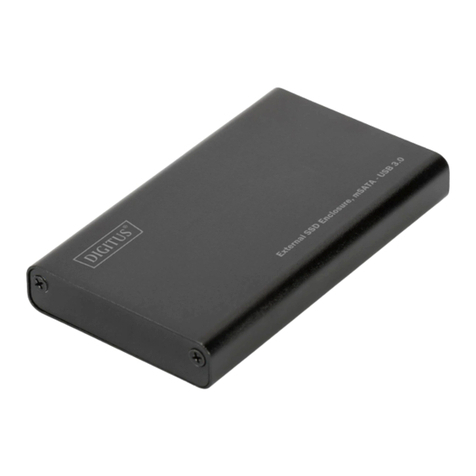
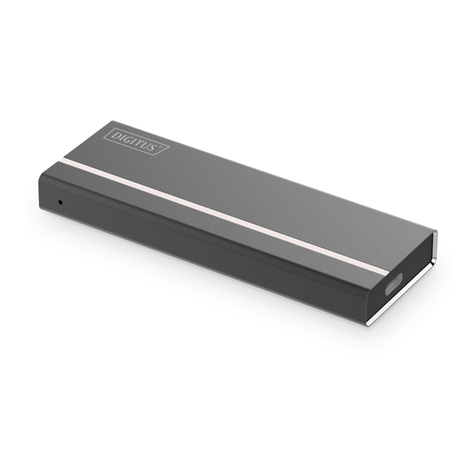
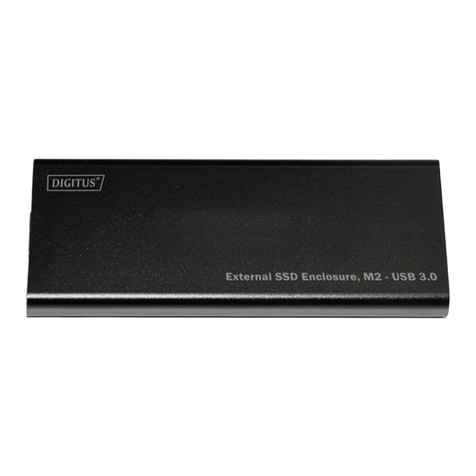
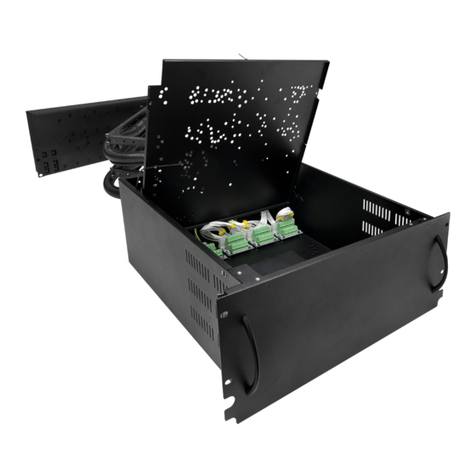
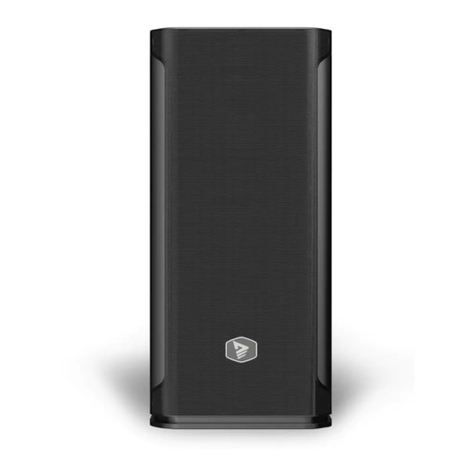
Digitus DA-71030 User manual
Other Digitus Enclosure manuals
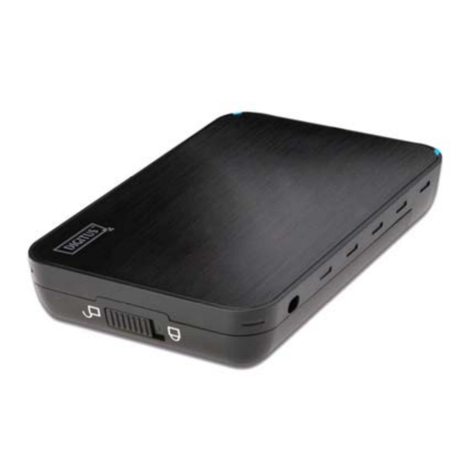
Digitus
Digitus DA-70577 User manual

Digitus
Digitus DA-71115 User manual
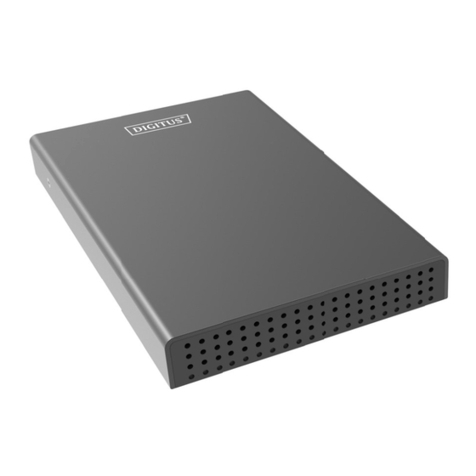
Digitus
Digitus DA-71113 User manual
Digitus
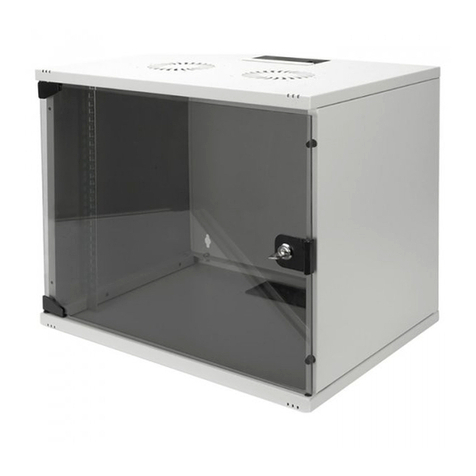
Digitus SoHo DN-19 U-S-1 Series User guide

Digitus
Digitus DA-71115 User manual

Digitus
Digitus DA-71050 User manual
Digitus
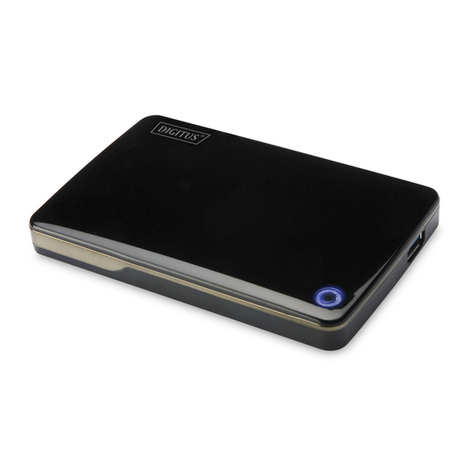
Digitus USB 2.0 External Enclosure 2.5" (6,35cm) User manual
Digitus
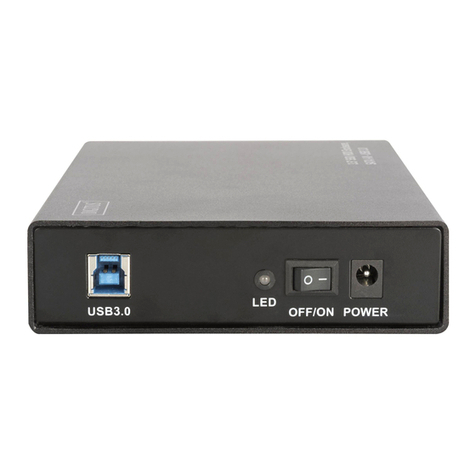
Digitus DA-71106 User manual
Digitus
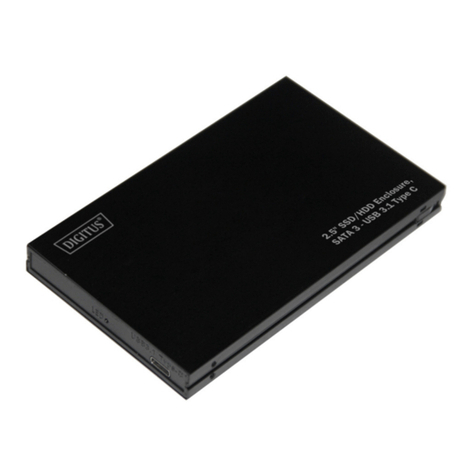
Digitus DA-71110 User manual

Digitus
Digitus DA-70550-1 User manual
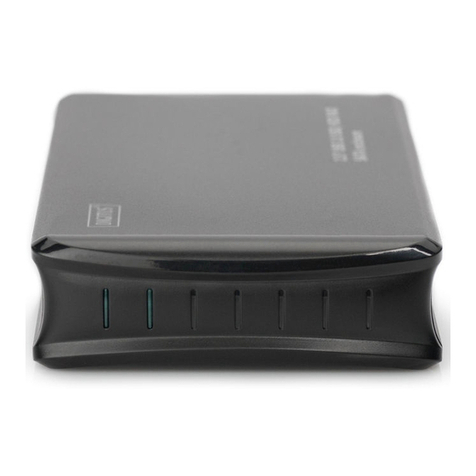
Digitus
Digitus DA-71116 User manual
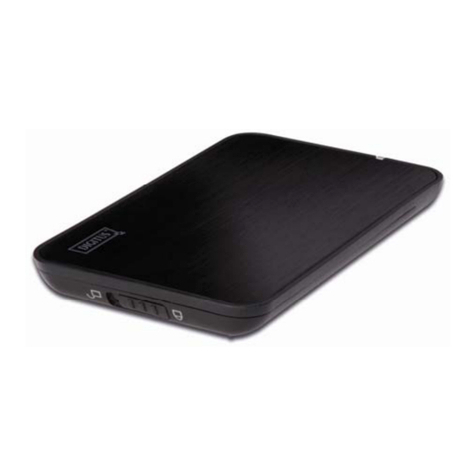
Digitus
Digitus DA-70557 User manual

Digitus
Digitus DA-71051 User manual
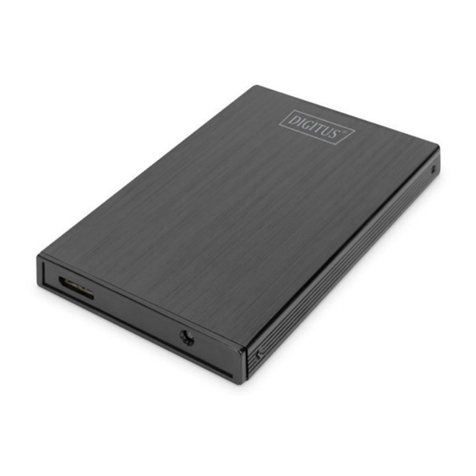
Digitus
Digitus DA-71105-1 User manual
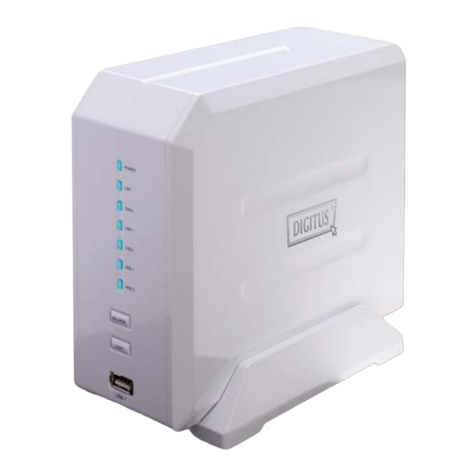
Digitus
Digitus 2-PORT NAS SATA HDD ENCLOSURE Operating and maintenance instructions

Digitus
Digitus USB 2.0 External Enclosure 2.5" (6,35cm) User manual
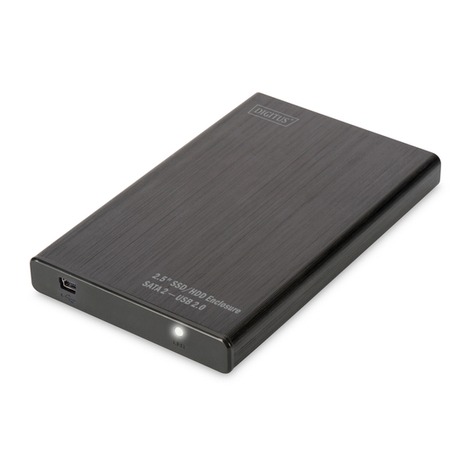
Digitus
Digitus DA-71104 User manual
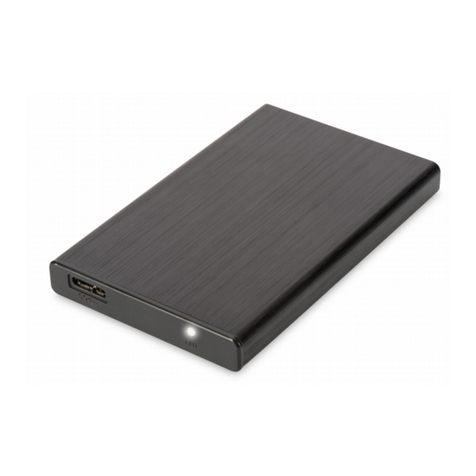
Digitus
Digitus DA-71105 User manual
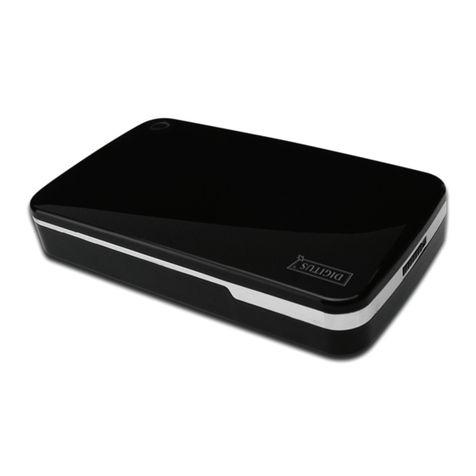
Digitus
Digitus Enclosure 3.5" User manual
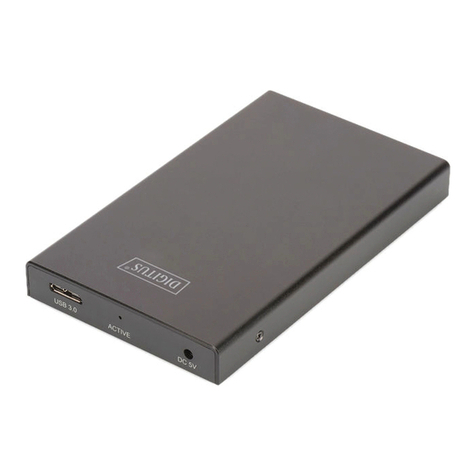
Digitus
Digitus DA-71114 User manual