V
V
Vi
i
ig
g
go
o
or
r
rA
A
AP
P
P
7
7
70
0
00
0
0
Q
Q
Qu
u
ui
i
ic
c
ck
k
k
S
S
St
t
ta
a
ar
r
rt
t
t
G
G
Gu
u
ui
i
id
d
de
e
e
Version: 1.21 Date: 27/04/2011
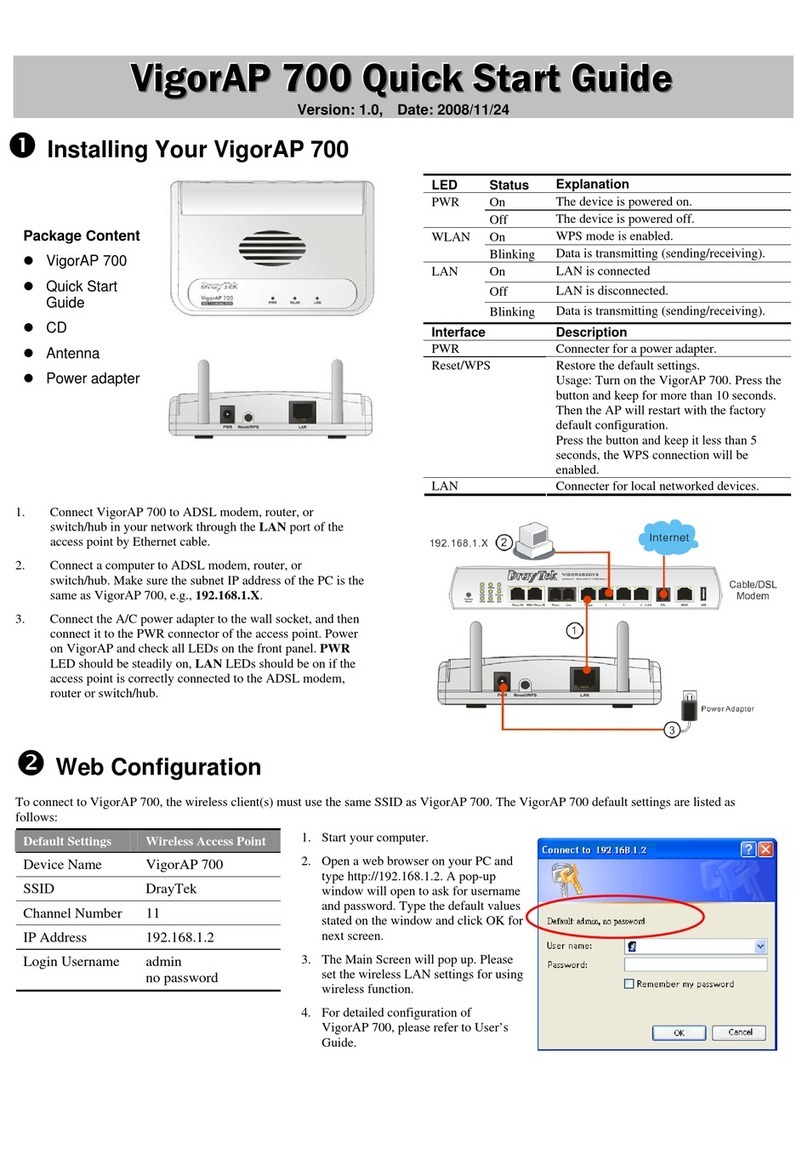
nInstalling Your VigorAP 700
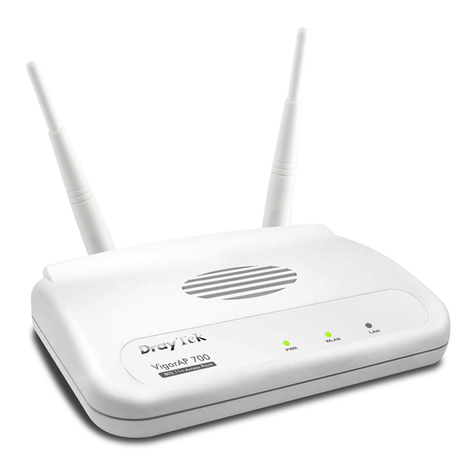
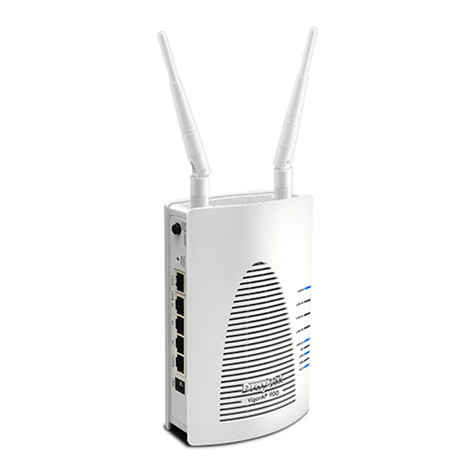
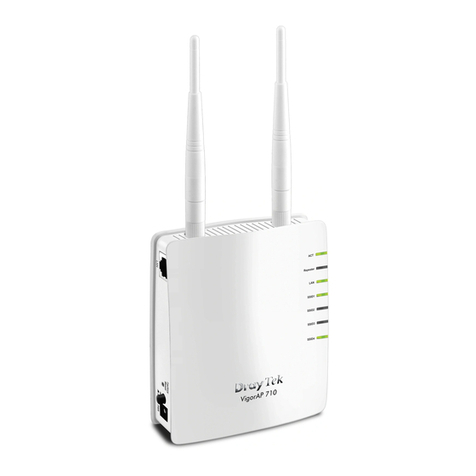
LED Status Explanation
On The device is powered on.
PWR Off The device is powered off.
On WPS mode is enabled.
WLAN Blinking Data is transmitting (sending/receiving).
On LAN is connected
Off LAN is disconnected.
LAN
Blinking Data is transmitting (sending/receiving).
Interface Description
Reset/WPS Restore the default settings.
Usage: Turn on the VigorAP 700. Press the
button and keep for more than 10 seconds.
Then the AP will restart with the factory
default configuration.
Press the button and keep it less than 5
seconds, the WPS connection will be
enabled.
LAN Connecter for local networked devices.
Package Content
zVigorAP 700
zQuick Start
Guide
zCD
zAntenna
zPower Adapter
Connecter for a power adapter.
1. Connect VigorAP 700 to ADSL modem, router, or
switch/hub in your network through the LAN port of the
access point by Ethernet cable.
2. Connect a computer to ADSL modem, router, or
switch/hub. Make sure the subnet IP address of the PC is
the same as VigorAP 700, e.g., 192.168.1.X.
3. Connect the A/C power adapter to the wall socket, and then
connect it to the PWR connector of the access point. Power
on VigorAP and check all LEDs on the front panel. PWR
LED should be steadily on, LAN LEDs should be on if the
access point is correctly connected to the ADSL modem,
router or switch/hub.
oWeb Configuration
To connect to VigorAP 700, the wireless client(s) must use the same SSID as VigorAP 700. The VigorAP 700 default settings are listed as
follows:
Default Settings Wireless Access Point
Device Name VigorAP 700
SSID DrayTek
Channel Number 11
IP Address 192.168.1.2
Login Username /
Password Admin /
1234
1. Start your computer.
2. Open a web browser on your PC and
type http://192.168.1.2. A pop-up
window will open to ask for username
and password. Type the default values
stated on the window and click OK for
next screen.
3. The Main Screen will pop up. Please
set the wireless LAN settings for using
wireless function.
4. For detailed configuration of
VigorAP 700, please refer to User’s
Guide.
!!! This document is offered for VigorAP 700 v2 only. For the
latest and correct firmware, please visit the DrayTek web site.
Using the wrong firmware could make your unit inoperable.