manuals.online logo
Brands
  1. Home
  2. •
  3. Brands
  4. •
  5. Duplo
  6. •
  7. Printer Accessories
  8. •
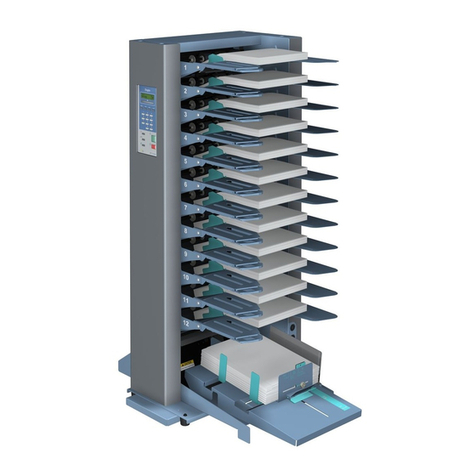
  9. Duplo DC-Micro 8 TC-800 User manual

Duplo DC-Micro 8 TC-800 User manual

Other Duplo Printer Accessories manuals

Duplo DFC-12 User manual

Duplo

Duplo DFC-12 User manual

Duplo DC-10 mini User manual

Duplo

Duplo DC-10 mini User manual

Popular Printer Accessories manuals by other brands

Star Micronics TSP800 Series install guide

Star Micronics

Star Micronics TSP800 Series install guide

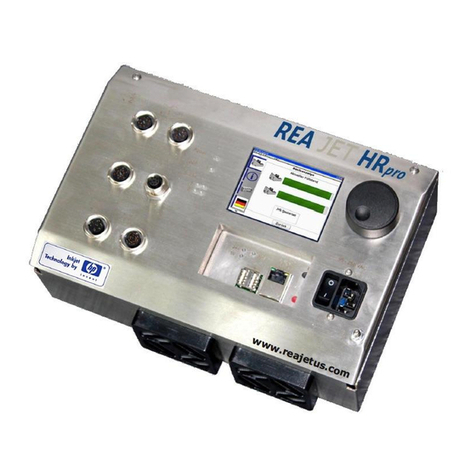
REA JET HR pro 2K user manual

REA

REA JET HR pro 2K user manual

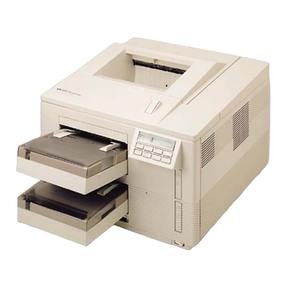
HP Laserjet,Color Laserjet 4si user guide

HP

HP Laserjet,Color Laserjet 4si user guide

oliser MS 45 instructions

oliser

oliser MS 45 instructions

Roland DU2-64 Supplementary manual

Roland

Roland DU2-64 Supplementary manual

Xerox EFI EXP6000 Specification sheet

Xerox

Xerox EFI EXP6000 Specification sheet

Canon Finisher-T1 Service manual

Canon

Canon Finisher-T1 Service manual

Sharp FO-1MK Service manual

Sharp

Sharp FO-1MK Service manual

Epson T6248 Product information sheet

Epson

Epson T6248 Product information sheet

Canon TonerRobot EP-27 instruction manual

Canon

Canon TonerRobot EP-27 instruction manual

GBC 16 Series user guide

GBC

GBC 16 Series user guide

Canon INNER 2-WAY TRAY-E1 INSTALLATION PROCEDURE

Canon

Canon INNER 2-WAY TRAY-E1 INSTALLATION PROCEDURE

Develop SD-509 installation manual

Develop

Develop SD-509 installation manual

Kyocera KM-6230 Instruction handbook

Kyocera

Kyocera KM-6230 Instruction handbook

Triumph Adler DF-710 Instruction handbook

Triumph Adler

Triumph Adler DF-710 Instruction handbook

Ricoh LCIT RT5100 Field service manual

Ricoh

Ricoh LCIT RT5100 Field service manual

Citizen CBM-202PC Series user manual

Citizen

Citizen CBM-202PC Series user manual

Canon Color imageCLASS MF8170c installation instructions

Canon

Canon Color imageCLASS MF8170c installation instructions

manuals.online logo
manuals.online logoBrands
  • About & Mission
  • Contact us
  • Privacy Policy
  • Terms and Conditions

Copyright 2025 Manuals.Online. All Rights Reserved.

1
“When You Need More Than Staples.”
Toll Free: 800-658-8788
Fax: 801-927-3037
[email protected]
DC-Micro 8
TC-800
Instruction Manual
2
Safety During Operation
In this manual, the following important symbols are used:
Warning: Ignoring this warning could cause serious injury or even death.
Caution: Ignoring this caution could cause injury or damage to property.
Warning
•Check the voltage and frequency for this unit on the label to the right ofthe power switch
•Ensure that the total current of the unit and other equipment connected to the same circuit does not
exceed the power supply capacity or the specified current of an extension cord (if used). If the
specified current or power supply capacity is exceeded, fire hazard may result.
•Do not scratch, damage, or remodel the power cord.
•Do not place heavy objects on the AC power cord, nor pull or bend it. These actions will damage
the AC power cord, leading to fire or electric hazard.
•Do not wind up the AC power cord even if it is too long, as this will lead to poor heat emission
and a fire hazard.
•Do not touch the plug of the AC power cord with wet hands, as this will result in an electric
hazard.
•Disconnect the AC power cord from the wall outlet by pulling the plug, not the cord. Pulling the
cord will damage the AC power cord, leading to fire or electrical hazard.
•If the plug or cord of the AC power cord becomes abnormally hot, first turn off the power switch
then disconnect the AC power cord from the wall outlet. Contact you dealer. If the unit continues
to be used in this state, fire or electrical hazard may result.
•When not using the unit for a long period of time because of vacations, etc., be sure to disconnect
the AC power cord from the wall outlet. A malfunction may cause a power leakage, leading to a
fire hazard.
•Remove dust on the prongs of the AC power cord and the surface from which the prongs extend
with a dry cloth. Accumulated dust may cause a fire hazard.
•If the unit becomes abnormally hot, emitting smoke or an abnormal smell, etc., first turn off the
power switch and disconnect the AC power cord from the wall outlet. Contact your dealer
immediately. If the unit is used in this state, fire or electrical hazard may result.
•Do not position the unit and its AC power cord near heating equipment or the vents of heaters; the
covers and cord coating may melt, causing fire or electrical hazard.
•Do not position the unit where the AC power cord may be stepped on; the AC power cord may
become damaged, causing a fire or electrical hazard.
•Do not remove covers or rear panels. The inside of the unit contains high-voltage and mechanism-
driving parts with a danger of electrical hazard or injury.
•Do not remodel the unit, as this may lead to fire or electrical hazard, resulting in injury.
•Before cleaning the unit, be sure to disconnect the AC power cord from the wall outlet; accidental
starting of the unit during cleaning may cause injury.
•Do no use flammable sprays inside or near the unit (e.g. when cleaning the unit). Such flammable
gas can be ignited and cause a fire or combustion.

3
Caution
•Do not install the unit in an environment other than that recommended, to avoid the risk of rust
and malfunction, leading power leakage, fire hazard, or electrical hazard. The recommended
environment is a follows:
•Do not install the unit in a very dusty environment, as this may lead to malfunction
•Do not lift or tilt the unit, as it may topple over and cause injury.
•Do not install the unit in a location subject to vibration, as it may move or overturn, causing
injury.
•Do no locate the unit in direct sunlight.
•Do not place the unit on a unstable table or in a tilted position as it may fall, causing injury.
•When the unit is to remain unused for a long period of time, disconnect the AC power cord from
the wall outlet to avoid electrical hazard from insulation failure, and fire hazard from power
leakage.
•Do not use the unit in a exposed location or splashing water droplets or where power leakage is
liable to occur, as this may result in electrical hazard.
Table of contents Page Number
Safety Precautions 1
Checking the accessories supplied 3
Handling the unit 4
Preparations 5
Operation 9
Checking error messages in the display 15
Troubleshooting and maintenance 21
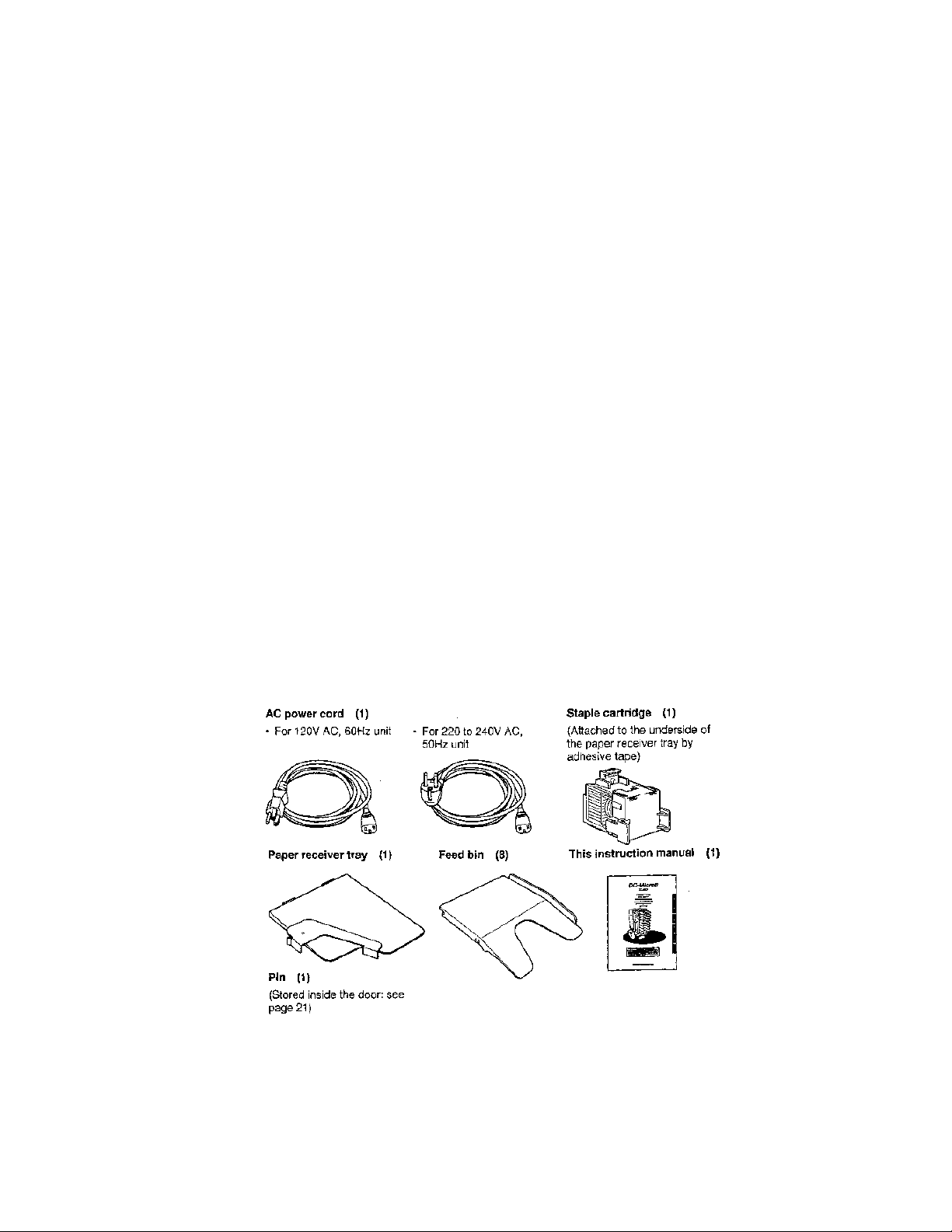
Checking the accessories supplied
Check that the following accessories are supplied with the collator. The number of each
accessory supplied is indicated in parentheses.
Handling the unit
When carrying the unit, hold as shown below (figure 1 or 2). Place the unit in a
horizontal and stable position.
4
5
Preparations
Carry out the following preparatory steps before you start operating the unit
6
7
8
1. Press the | side of the power switch to turn the unit on.
2. Select the paper size
-The default settings are as follows: A4 size for 220 to 240 V AC, 50 HZ unit, Letter size
for 120V AC, 60 Hz unit.
-Either A4 or letter size may be selected. See “selecting paper size” on page 12.
3. Stack the paper on feed bins
Please read “precautions when stacking the papers” on page 14.
-Press in the direction of the arrow all the feed bins are used.
-Put the last page to be collated on the bottom bin with the printed surface of the paper
upward and the top edge of the paper forward, as deep in the in as it will go.
-Stack the other pages (up to ) in the same way on the other bins in numerical order,
skipping no bins.
-Press each feed bin to the left until its paper guide rests lightly against the paper
4. Press the Staple button to select either staple or non-staple (offset) mode.
-When the staple mode is selected
9
-The staple mark appears in the display. The collated sets of paper will be stapled (not
offset).
-When the non-staple (offset) mode is selected
-The staple mark is not shown in the display.
-The collated sets of paper will be offset (staggered) to the left and right alternatively.
5. When the staple mode is selected in step 4:
-When the non-staple (offset) mode is selected in step 4:
6. Press the C mark on the dial (C button) to clear the counter to 0.
-If the counter in the display already shows 0, this step can be skipped.
7. Press the start/stop button to start the test operation
-One set of the paper will be processed and the unit will stop.
-Check the collated set of paper to ascertain:
That the paper is correctly sequenced on the bins; if it is not, check step 3 and
That in the staple mode, the sheets of paper in the set are aligned properly; if they are not,
follow steps for “adjusting paper alignment” on page 13.
10
-The first 5 to 10 sets of paper collated after the installation of the cartridge will not be
stapled. Repeat this step until the collated sets of paper are stapled.
-If any error occurs, the unit will stop automatically. Refer to “checking error messages in
After rectifying the error, press the start/stop button.
-With the test operation, the unit detects which bins contain paper. Only the detected bins
will operate after this test operation.
8. Turn the dial to set the number of sets (from 1 to 999)
-The speed at which the dial is turned corresponds to the speed at which the number
changes in the display.
-The number in the display will increase sequentially. After reaching 999, the number
will return to 0.
-The decrease the number, turn the dial counterclockwise. After reaching 0, the number
will jump to 999.
9. Press the start/stop button to start collating
-The collated sets of paper will be discharged onto the paper receiver tray.
-The number of discharged sets will be subtracted from the counter.
-The unit will automatically stop:
a. When the counter has reached 0 (the counter will then display the number set
in step 8).
b. When one or more bins contain no paper (to restart operation, reload the feed
bins as in step 3, then press the start/stop button), or
c. If any error has occurred (refer to “checking error messages in the display” on
page 15. After rectifying the error, press the start/stop button).
d. To stop collating during operation:
Press any button. To restart operation, press the start/stop button again.
e. To start collation of the same number of pages as the previous operation
1. The test operation can be skipped because the data detected in step 7
remains in memoryas long as the power remains in memory as long as
the power remains on. Just execute steps 3, 8, and 9. To change the
staple or non-staple mode, execute 3, 4, 8, and 9.
2. Note –The test operation must not be omitted for the collation of a
different numberof pages from the previous operation, or if the power
has been switched off.
f. Turning off the unit
Press the 0 sided of the power switch. The same mode (staple or non-staple
mode) will be restored when the unit is turned on again.