manuals.online logo
Brands
  1. Home
  2. •
  3. Brands
  4. •
  5. Dynex
  6. •
  7. Modem
  8. •
  9. Dynex 2300-0248 User manual

Dynex 2300-0248 User manual

This manual suits for next models

1

Other Dynex Modem manuals

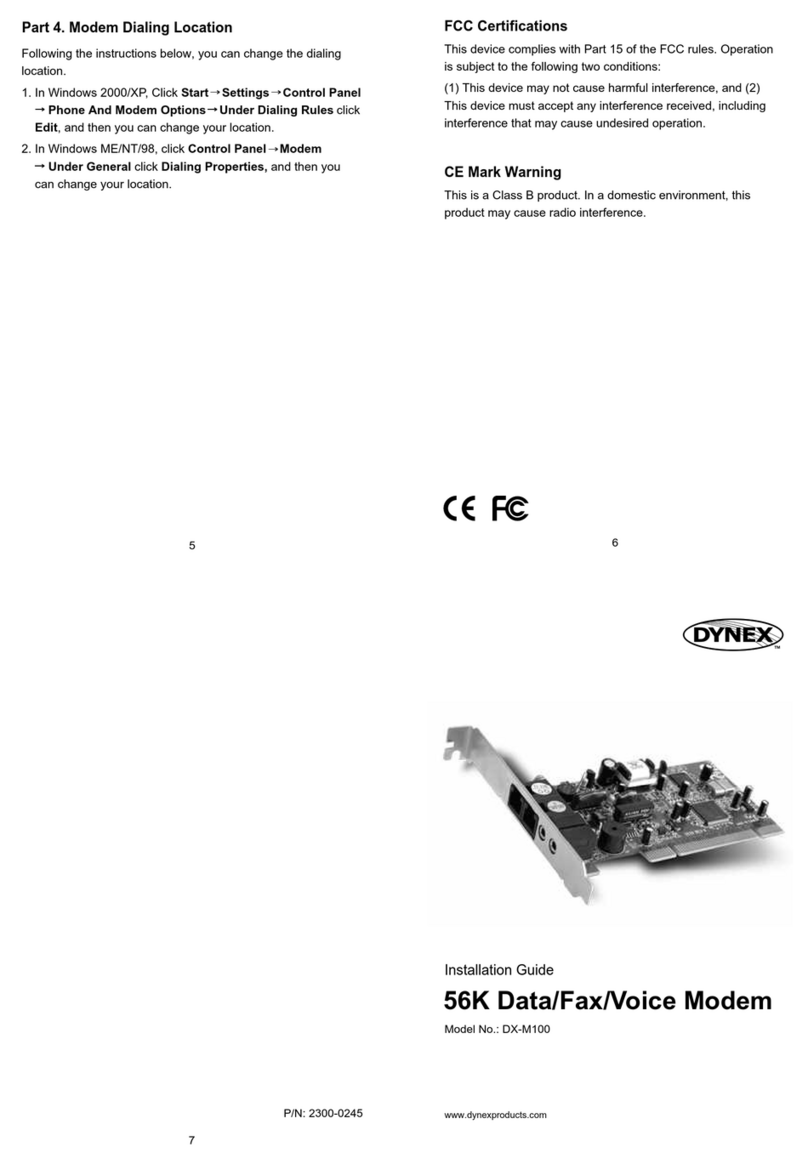
Dynex DX-M100 User manual

Dynex

Dynex DX-M100 User manual

Dynex DX-M110 User manual

Dynex

Dynex DX-M110 User manual

Dynex DX-M102 User manual

Dynex

Dynex DX-M102 User manual

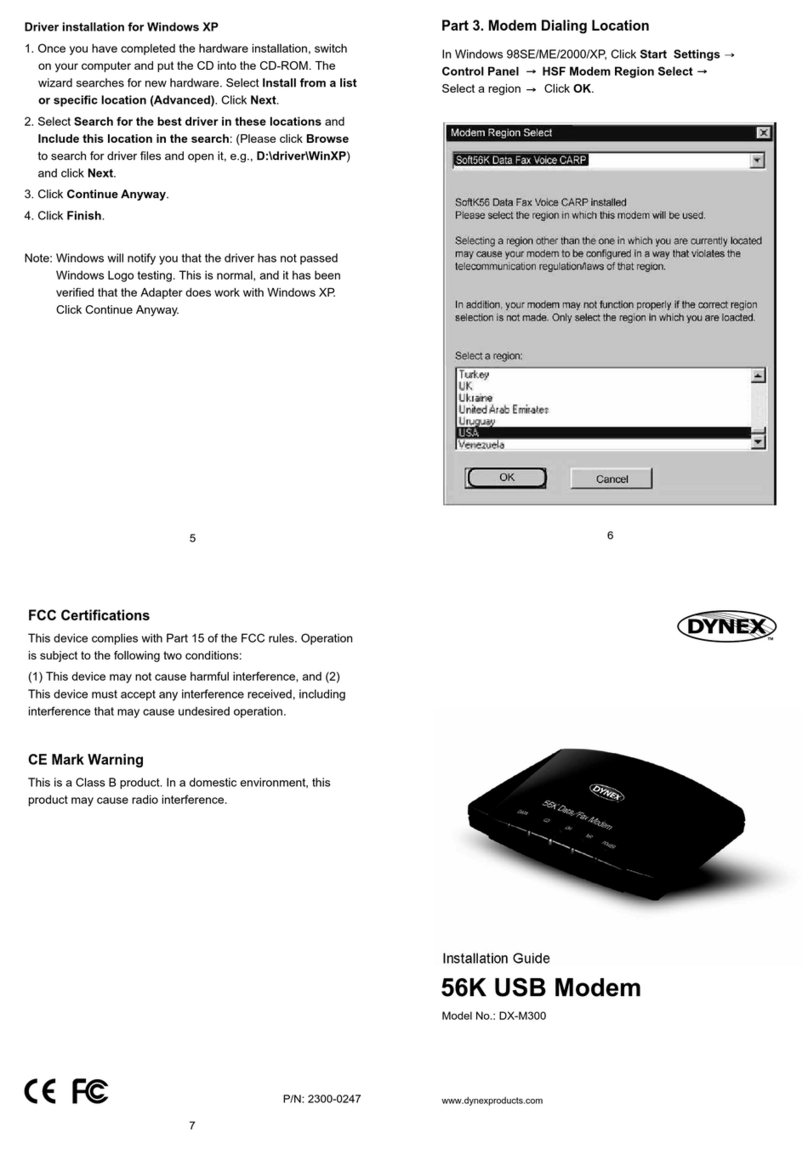
Dynex 2300-0247 User manual

Dynex

Dynex 2300-0247 User manual

Popular Modem manuals by other brands

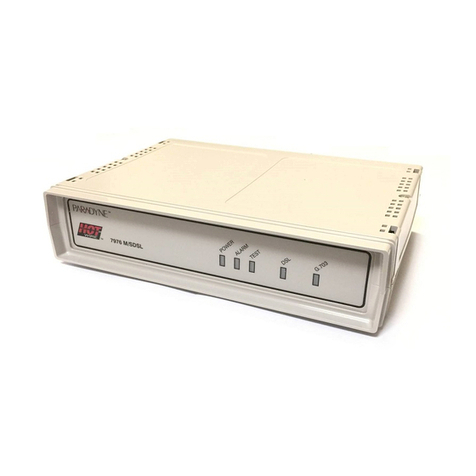
Paradyne COMSPHERE 3810 User guide supplement

Paradyne

Paradyne COMSPHERE 3810 User guide supplement

Zhone 6411-A1-xxx Technical specifications

Zhone

Zhone 6411-A1-xxx Technical specifications

Air 802 Linux USB?ADG?2 user guide

Air 802

Air 802 Linux USB?ADG?2 user guide

ETEK TD-8011 user manual

ETEK

ETEK TD-8011 user manual

Arris Touchstone CM8200 user guide

Arris

Arris Touchstone CM8200 user guide

3Com EtherLink 3C900B Installation and operating instructions

3Com

3Com EtherLink 3C900B Installation and operating instructions

Axxera DMH25 Operation manual

Axxera

Axxera DMH25 Operation manual

Lantronix M110 Series Command reference

Lantronix

Lantronix M110 Series Command reference

Megasat HD Stick 510se user manual

Megasat

Megasat HD Stick 510se user manual

Davicom DM562AP Operation manual

Davicom

Davicom DM562AP Operation manual

NetComm IG1000 Specifications

NetComm

NetComm IG1000 Specifications

Intelimax MA-2060 user manual

Intelimax

Intelimax MA-2060 user manual

ELPRO 905U-E user manual

ELPRO

ELPRO 905U-E user manual

SMC Networks D3CM1604V Administrator's manual

SMC Networks

SMC Networks D3CM1604V Administrator's manual

Telstra Wi-Fi 4G Advanced Pro X user guide

Telstra

Telstra Wi-Fi 4G Advanced Pro X user guide

Thrane&Thrane imarsat EXPLORER 300 user manual

Thrane&Thrane

Thrane&Thrane imarsat EXPLORER 300 user manual

Samsung AceLink SAM-335A user guide

Samsung

Samsung AceLink SAM-335A user guide

Enfora Enabler-G Integration guide

Enfora

Enfora Enabler-G Integration guide

manuals.online logo
manuals.online logoBrands
  • About & Mission
  • Contact us
  • Privacy Policy
  • Terms and Conditions

Copyright 2025 Manuals.Online. All Rights Reserved.

P/N: 2300-0248
5
6
7
PCMCIA 56K Data/Fax Modem
Model No.: DX-M200
www.dynexproducts.com
Installation Guide
Double click on “Control Panel/Modems”, select the “don't
detect my modem; I will select it from a list” option and
press the “Next” button.
Click on the “Have Disk” button from “Install New Modem”
window and press the “Next” button.
Windows then asks you to specify where the driver for the
modem is located. Insert the fax modem drivers diskette
into your floppy drive, select drive “A:\” and click “OK”.
Select the product name of fax modem from “Models” list
box and press the “Next” button.
Select the available COM port from the list box and press
the “Next” button.
You will see the “Your modem has been set up
successfully” window appear. That means the modem is
now ready for use.
Note: Windows will notify you that the driver has not passed
Windows Logo testing. This is normal, and it has been
verified that the Adapter does work with Windows XP.
Click Continue Anyway.
Part 3. Software Installation
Installing the Fax/Modem software
The communications software which is included with this
product comes with its own user's instructions located in the
readme file. This software will enable you to use your
modem in both data and fax modes.
Using Third Party Modem Communication Software
The PC Card fax modem is designed to work with the
software included with the modem. In addition, the modem
will operate with most other third-party DOS and Windows
data fax software applications. Please note the following
when configuring your fax modem with third-party software.
Many data communication programs require that you select
a modem during installation. If you do not see a listing for
this Fax Modem, you should select “Generic Fax Modem” or
“Standard Fax Modem” as your modem type.
If you are installing a fax program, it may ask you what Class
of fax modem you have. You should respond by selecting
“Class 1” or Class 2” (optional, please refer to your User's
Manual).
FCC Certifications
This device complies with Part 15 of the FCC rules. Operation
is subject to the following two conditions:
(1) This device may not cause harmful interference, and (2)
This device must accept any interference received, including
interference that may cause undesired operation.
CE Mark Warning
This is a Class B product. In a domestic environment, this
product may cause radio interference.
2
PCMCIA Fax Modem Card
RJ-11 Phone Line Cable and Adapter
Floppy Disk Driver
CD-ROM of Communication Software
Installation Guide
Package Information
1
3 4
Notebook PC with Pentium CPU or above
PC with PCMCIA Rev. 2.1 or later Type II socket
At least 16MB RAM
Operating System: DOS, Windows 95/98/ME/ NT/2000/XP
System Requirements
Part 1. Hardware Installation
Installing the PCMCIA modem card:
You will be installing the modem in the Type II or III PCMCIA
slot in your computer. If you are having trouble locating this
slot, refer to your computer's user manual or consult the
manufacturer of your computer.
Gently slide the PC Card into the PCMCIA slot. Make sure
the card is firmly in the socket. When this is done you will be
ready to setup and install your communication software.
Part 2. Driver Installation
1. Setup for DOS/Windows 3.x
Check your system manual or consult the manufacturer of
your computer to make sure your computer has the Card
and Socket Services drivers pre-installed. The driver
software allows your computer to access the PCMCIA
sockets.
The most popular and common Card and Socket Services
are AMI Card Manager Pro 3.0, Phoenix's PCM and
TM
Systemsoft Cardwizard .
If Card and Socket Services drivers are already installed in
your computer, you should be able to simply plug in your
fax modem care and begin installing and using the
software.
Please be sure the COM port for modem cards, which is
assigned by the Card and Socket Services, is the same as
the setting of your communication software in your
computer.
Click on the “Have Disk” button from “Install New
Modem” window and press the “Next” button.
Windows then asks you to specify where the driver for
the modem is located. Insert the fax modem drivers
diskette into your floppy drive, select drive “A:\” and click
“OK”.
Select the product name of fax modem from Models” list
box and press the “Next” button.
Select the available COM port from the list box and
press the “Next” button.
You will see the “Your modem has been set up
successfully” window appear. That means the modem is
now ready for use.
4. Setup for Windows 2000/XP
This device can be installed in Windows 2000/XP with the
default driver for V.90. Please update the driver in the
diskette then the PCMCIA modem card can support V.92
function. Just follow these steps to get up and running:
Insert the fax modem card into a PC Card slot in your
computer.
Start the computer.
The operating system will auto detect this device and install
it with the default driver.
3. Setup for Windows NT4.0
Windows NT comes with most of the drivers necessary
to access your fax modem. Just follow these steps to get
up and running:
Insert the fax modem card into a PC Card slot in your
computer.
Start the computer.
Double click on “Control Panel/Modems”, select the
“don't detect my modem; I will select it from a list” option
and press the “Next” button.
2. Setup for Windows 95/98
Windows 98 comes with most of the drivers necessary to
access your fax modem. Just follow these steps to get up
and running:
Start the computer.
Insert the fax modem card into a PC Card slot in your
computer, making sure the card is securely inserted into
the socket.
Windows will display the “New Hardware Found” dialog box.
Select the “Driver from disk provided by hardware
manufacturer” and click “OK”. If you do not see the above
selection, simply click “Next” to continue.
Make sure the directory is A:\in the drive window. Click
“OK” to continue. The modem is now ready for use.