manuals.online logo
Brands
  1. Home
  2. •
  3. Brands
  4. •
  5. Edimax
  6. •
  7. Switch
  8. •
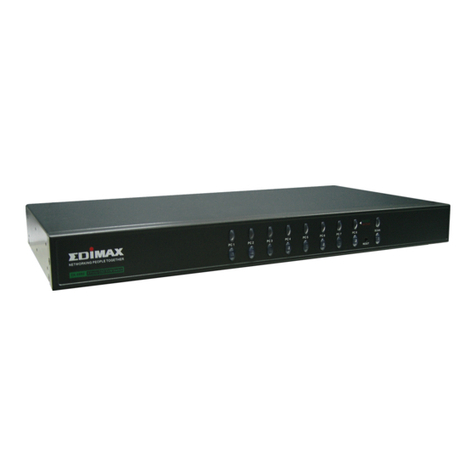
  9. Edimax EK-UAK2 User manual

Edimax EK-UAK2 User manual

This manual suits for next models

1

Other Edimax Switch manuals

Edimax Hub User manual

Edimax

Edimax Hub User manual

Edimax RAS108 User manual

Edimax

Edimax RAS108 User manual

Edimax ES-1016 User manual

Edimax

Edimax ES-1016 User manual

Edimax EU-PC2C User manual

Edimax

Edimax EU-PC2C User manual

Edimax ER-5398S User manual

Edimax

Edimax ER-5398S User manual

Edimax EK-PA2C User manual

Edimax

Edimax EK-PA2C User manual

Edimax EK-PAK4 User manual

Edimax

Edimax EK-PAK4 User manual

Edimax ES-5500M V2 User manual

Edimax

Edimax ES-5500M V2 User manual

Edimax ES-5844P User manual

Edimax

Edimax ES-5844P User manual

Edimax GS-1016 User manual

Edimax

Edimax GS-1016 User manual

Edimax GS-5424PLG Setup guide

Edimax

Edimax GS-5424PLG Setup guide

Edimax GS-5208PLG V2 User manual

Edimax

Edimax GS-5208PLG V2 User manual

Edimax ES-1016 User manual

Edimax

Edimax ES-1016 User manual

Edimax ES-5800G V3 Installation and operation manual

Edimax

Edimax ES-5800G V3 Installation and operation manual

Edimax EK-16RE Reference guide

Edimax

Edimax EK-16RE Reference guide

Edimax ES-516G+ User manual

Edimax

Edimax ES-516G+ User manual

Edimax SP-1101W User manual

Edimax

Edimax SP-1101W User manual

Edimax ES-5160G+ User manual

Edimax

Edimax ES-5160G+ User manual

Edimax ES-5224RS+ User manual

Edimax

Edimax ES-5224RS+ User manual

Edimax ES-5500G User manual

Edimax

Edimax ES-5500G User manual

Edimax EK-PSK2 User manual

Edimax

Edimax EK-PSK2 User manual

Edimax ES-5260GM User manual

Edimax

Edimax ES-5260GM User manual

Edimax EK-2U2C User manual

Edimax

Edimax EK-2U2C User manual

Edimax ES-3116RL User manual

Edimax

Edimax ES-3116RL User manual

Popular Switch manuals by other brands

SMC Networks SMC6224M Technical specifications

SMC Networks

SMC Networks SMC6224M Technical specifications

Aeotec ZWA003-S operating manual

Aeotec

Aeotec ZWA003-S operating manual

TRENDnet TK-209i Quick installation guide

TRENDnet

TRENDnet TK-209i Quick installation guide

Planet FGSW-2022VHP user manual

Planet

Planet FGSW-2022VHP user manual

Avocent AutoView 2000  AV2000BC AV2000BC Installer/user guide

Avocent

Avocent AutoView 2000 AV2000BC AV2000BC Installer/user guide

Moxa Technologies PT-7728 Series user manual

Moxa Technologies

Moxa Technologies PT-7728 Series user manual

Intos Electronic inLine 35392I operating instructions

Intos Electronic

Intos Electronic inLine 35392I operating instructions

Cisco Catalyst 3560-X-24T Technical specifications

Cisco

Cisco Catalyst 3560-X-24T Technical specifications

Asante IntraCore IC3648 Specifications

Asante

Asante IntraCore IC3648 Specifications

Siemens SIRIUS 3SE7310-1AE Series Original operating instructions

Siemens

Siemens SIRIUS 3SE7310-1AE Series Original operating instructions

Edge-Core DCS520 quick start guide

Edge-Core

Edge-Core DCS520 quick start guide

RGBLE S00203 user manual

RGBLE

RGBLE S00203 user manual

Thrustmaster FLIGHT SIMULATOR X quick guide

Thrustmaster

Thrustmaster FLIGHT SIMULATOR X quick guide

Southwire SURGE GUARD 41390 RVC troubleshooting guide

Southwire

Southwire SURGE GUARD 41390 RVC troubleshooting guide

Buhler Nivotemp NT 61 Brief instructions

Buhler

Buhler Nivotemp NT 61 Brief instructions

Kramer VS-41HDCP user manual

Kramer

Kramer VS-41HDCP user manual

Techly IDATA AU-270 user manual

Techly

Techly IDATA AU-270 user manual

Belkin F1U109 user manual

Belkin

Belkin F1U109 user manual

manuals.online logo
manuals.online logoBrands
  • About & Mission
  • Contact us
  • Privacy Policy
  • Terms and Conditions

Copyright 2025 Manuals.Online. All Rights Reserved.

EK-UAK2 / EK-UAK4
2/4 ports USB KVM Switches
Q
Qu
ui
ic
ck
k
I
In
ns
st
ta
al
ll
la
at
ti
io
on
n
G
Gu
ui
id
de
e
KVM Switching Client Software for Windows
User-definable Hotkeys
Independent/Simultaneous Audio & PC Switching
Auto scan Delay Time Programmable
Introduction
The EK-UAK2 / EK-UAK4 is a 2 / 4 ports Slim Palmtop
USB KVM Switch with optional audio and microphone
switching function. It allows you to access, control, boot
and reboot multiple USB-enabled computers. The
independent audio/mic switching function allows an
uninterrupted audio experience on a same connected
computer even when you switch to another computer.
Out-of-the-box Installation
Step 1. Insert the companion CD ROM into your CD drive,
and the installer program will be run, click the “USB Series
Utility Setup” then click “Click To Setup Utility” the
programs will be start… (or you can find it with the Explorer
and double-click its software icon to start installation).
Complete the software installation on each of the
computers to be connected to the KVM Switch.
After the installation is completed, you will see a KVM
Switcher icon on the system tray of your window desktop.
Just right click to evoke the operation menu and double-
click to evoke configuration box. For operation details of the
KVM Switcher software, please refer to the “Operation
Quick Reference.
: No live connection detected
: Current active PC channel is on port 1
: Current active PC channel is on port 2
The KVM Switcher Software supports only the Windows
operating system on PC platforms. For other OS platforms such as
Linux , you can still use the keyboard hotkey - ScrLk + ScrLK - to
switch PC. However, this switching hotkey is not available on non-
PC platform such as MacOS. When connected to a Mac machine,
use the face-panel button to switch port.
Step 2. Connect the shared USB keyboard, mouse,
monitor, speaker/headphone and microphone each to its
port on your KVM Switch.
Step 3. Connect each KVM PC port to a computer, using
the slim 3-in-1 KVM combo cable and the audio/mic cable.
After you have connected the KVM and computers properly,
Now you can operate the KVM Switch immediately.
Some older computers with USB interface might need to
manually enable the USB option in the BIOS settings before
you can use any USB devices. If your USB interface does not
work, please check the USB option status in the BIOS.
If you use Windows 95/98/SE and has not yet installed a USB
mouse on your computer, there might be an error message
telling you that mouse is not detected and prompting you to
decide whether to ignore the same message in the future,
and yet you found there is no mouse movement to disable
this message….So it is suggested that you should installed
your USB mouse on your computer first, before connecting it
to this KVM Switch.
EK-UAK4 Configuration Diagram
Easy Operation
There are two methods to control your KVM Switch for PC
switching: using the face-panel push buttons or a hotkey
sequence. For audio/mic switching, use the hotkey
command. See Quick Reference Sheet
Face-panel buttons
The face-panel buttons allows you a direct control over PC
port switching. Simply press the button to switch PC port.
By default, PC port switching and Audio/Mic port switching
are unbound (either will be switched independently).
Keyboard hotkey
A keyboard hotkey sequence consists of at least three
specific keystrokes: See Quick Reference Sheet
Hotkey = Ctrl+ Alt + [Command key]*
Universal hotkey = ScrLK + ScrLk
* The command key is user-definable via the configuration dialog box
Each keystroke within a hotkey sequence should be pressed
within 2 seconds. Otherwise, the hotkey sequence will not be
validated.
S
Sl
li
im
m
P
Pa
al
lm
mt
to
op
p
U
US
SB
B
K
KV
VM
M
S
Sw
wi
it
tc
ch
h
-
-
O
Op
pe
er
ra
at
ti
io
on
n
Q
Qu
ui
ic
ck
k
R
Re
ef
fe
er
re
en
nc
ce
e
There are three methods to control your KVM
Switch for PC and Audio/Mic channel selection:
using (1) the face-panel push button, (2) a hotkey
sequence or (3) the KVM Switcher Software.
Face-panel button
The face-panel button allows you a direct control over
KVM switching operation. Simply press the button to
switch to the corresponding PC port (and audio/mic
channel, if binding is enabled). By default, PC port
switching and audio/mic port switching are bound
together.
You can use the face-panel button to switch to an empty
port that is not connected with any computer. Normally, if you
use keyboard hotkeys or the KVM Switcher software, you will not
be able to switch to an empty port.
Keyboard hotkeys
User-definable hotkeys for PC selection:
Hotkey sequence = Ctrl + Alt + [command key]*
* Please refer to next section for keys that are qualified to
be used as a command key
Universal hotkey for PC toggle-switching:
Both the universal hotkey, ScrLk + ScrLk and the
user-definable hotkey, Ctrl + Alt + [command key] WILL
NOT allow you to switch to an empty port that is not
connected with any computer. To force your KVM to
switch to an empty port, just press the face-panel button
to switch.
Universal Hotkey sequence = ScrLk + ScrLk
* For other operating systems on PC such as Linux, you
can still use this special hotkey to facilitate PC switching.
This special hotkey is not available for Mac. HOWEVER,
you can press button to switch in any case.
Each keystroke within a hotkey sequence should be
pressed within 2 seconds. Otherwise, the hotkey sequence will
not be validated.
After perform port switching, you have to wait till the KVM
Switch icon shows forth the target port before you can perform
next switching again. The KVM Switcher icon could be found on
the system tray of your Windows desktop after its installation.
All the hotkeys are only functional after your PCs are
booting into the OS. If you want to switch PC in the
BIOS/preboot stage, press the face-panel button to switch.
KVM Switcher Software (only for Windows platform)
In addition to PC switching, the KVM Switcher Software
also allows you more advanced functions such as
described in the next section….
.
KVM Switcher Operation Reference
Switch to PC x by Operation Menu
Right-click the KVM Switcher icon to evoke the operation
menu, then select whichever PC that is available for
switching. Once you select a PC channel, it will
immediately switch to that PC. Note that the unconnected

port(s) or the active port will be grayed-out and non-
selectable.
KVM SWITCHER Operation Menu KVM SWITCHER Configuration
Dialog Box
Switch to PC x by Keyboard Hotkeys
Hit the hotkey according to your current hotkey definition:
Hotkey sequence = Ctrl + Alt + [command key]*
* The factory default hotkey setting is Ctrl + Alt + 1/2/3/4 for PC
1/2/3/4. You can also use ScrLk + ScrLk to switch PC.

Start Auto-scan
Right-click the KVM Switcher icon to evoke the operation
menu, then select Start Auto-Scan to activate auto-
scanning.
Stop Auto-scan
(While auto-scanning) right-click the KVM Switcher icon
to evoke the operation menu, then select Stop Auto-Scan
to de-activate auto-scanning. Or you can press any
button on the face-panel to stop Auto-scan.
KVM Switcher configuration
Right-click the KVM Switcher icon and select Settings or
double-click the icon to bring up the configuration dialog
box.
Define Hotkey commands
You can specify the command key as you like by typing it
in. For example, you can specify the hotkey for switching
to PC 1 as CTRL + ALT + A by typing an A (not case-
sensitive) in the editable field.
Hotkey Sequence = CTRL + ALT + [command key]*
* The command key is user-definable via the configuration
dialog box
Except those control keys such as Alt, Ctrl, Shift, CAPS,
Tab, Esc and those functions keys and edit keys, all other keys
on the keyboard, including those number keys on the number
pad are all qualified to be used as hotkey command key. In
addition to the software KVM Switching by the operation menu
and the user-defined hotkeys, you can always use the universal
hotkey for PC switching – ScrLk + ScrLk
Turn On Buzzer (optional feature, not available on this
model)
This is feature is not available on this model. [Check this
option to turn on the buzzer sound]
Fix Audio Port at PC x
Check this option and then select the PC to fix the
audio/mic channel to the selected PC. Once this option is

checked, the audio/mic channel will be fixed and become
non-switchable.

Auto Scan Period
Select the Auto-scan period from 10 ~ 60 seconds with
an increment of 5 seconds. The Auto-scan period is the
time your KVM Switch will wait to switch to next PC.