manuals.online logo
Brands
  1. Home
  2. •
  3. Brands
  4. •
  5. enphase
  6. •
  7. Gateway
  8. •
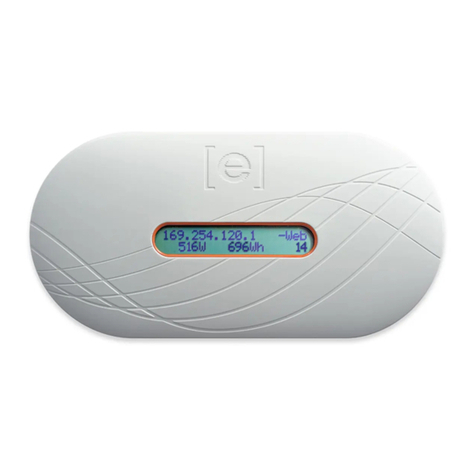
  9. enphase Envoy Communications Gateway User manual

enphase Envoy Communications Gateway User manual

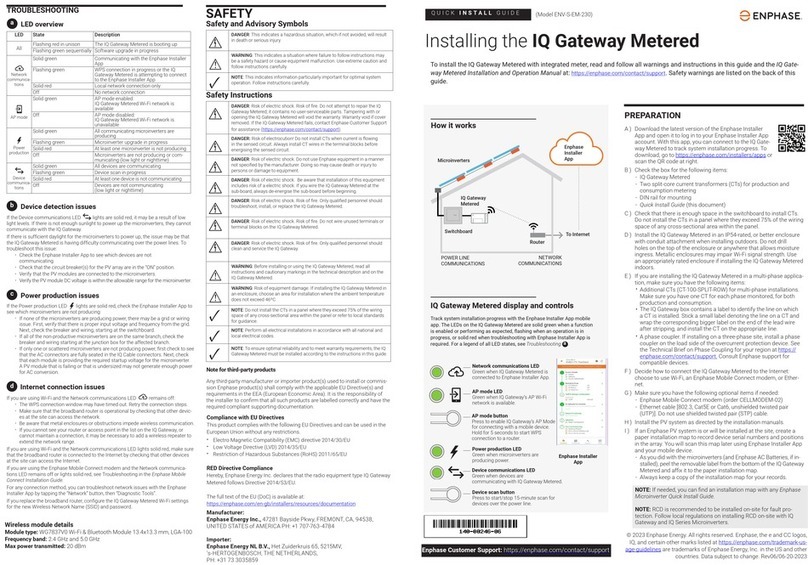
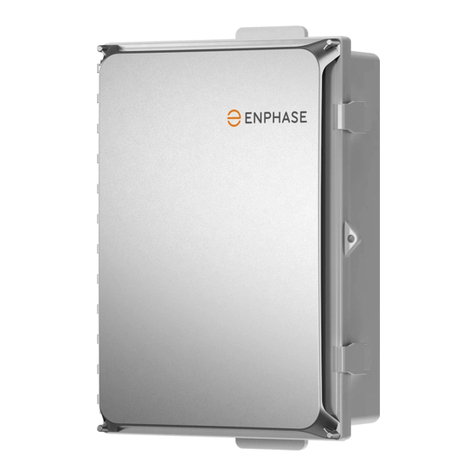
EnvoyTM Communications Gateway
Quick Install Guide
1
Before using this guide, read and follow all warnings and instructions in the Envoy Communications Gateway
Installation and Operation Manual at: http://www.enphase.com/support/downloads. You may then use this guide as a
quick reference during installation and setup of the Envoy.
Affix the Serial Number Label to the Map
The following diagram of the Envoy and its connections shows the serial number label near the left
mounting bracket. Peel this label from the Envoy and affix it to the installation map.
menu
button
Ethernet cable
to broadband
router AC power cord
for wall-mounting,
route AC power cord
and Ethernet cable
through cable channel Note: You can find an installation
map at the back of the Enphase
microinverter manual.
Envoy Communications Gateway Quick Install Guide
2
3
4
Register the Envoy
Register the Envoy at the Enlighten website:
https://enlighten.enphaseenergy.com.
Connect Ethernet and Power Cables
UÊ Plug the Ethernet cable into the
Ethernet port on the Envoy.
UÊ Plug the other end of the cable into a
port on the broadband router.
UÊ Plug the Envoy’s AC cord into a
dedicated wall outlet.
Ethernet cable
Do not plug the Envoy
into a power strip, surge
protector , or
uninterruptable power
supply (UPS). These
devices impede power
line communications.
Note: Do not permanently mount
the Envoy until you complete the
Communication Check in step 6.
Find a Location for the Envoy
Locate an electrical outlet close to the load
center. Place the Envoy so that its AC cord
can reach this outlet.
enter system data
enter the Envoy
serial number
AC load
center
Envoy
AC power
cord
broadband
router
Envoy
Warning: Do not remove power from
the Envoy if the LCD displays:
“Upgrading. . . Do Not Unplug.”
5Add Power Line Communication Bridges
(optional)
Use the included power line communication
bridges if the Envoy needs to be located away
from the broadband router.
UÊ Plug one of the bridges into the same AC
socket as the broadband router and attach an
Ethernet cable to the bridge.
UÊ Plug the other bridge into an AC socket near
the Envoy and attach the Ethernet cable to the
bridge.
UÊ Reapply power to the Envoy to force it to
refresh its IP address.
broadband
router
Envoy
Power line
communication
bridges
7Mount the Envoy to the Wall (optional)
You can wall-mount the Envoy or place it on a
table top.
UÊ Use two #8 drywall screws or wall anchors
(not included) to mount the Envoy to the
wall. Maximum screw head diameter is
0.889 cm (0.35 inches).
Note: Ensure that you have completed
a Communication Check showing three
bars or more before permanently mount-
ing the Envoy. If the level is lower, the
Envoy might need to be relocated.
6Check the Envoy’s Progress
a. Assess Internet Connection
UÊ Look for the + Web indica-
tion. If it does not appear
within 15 minutes after con-
necting to the broadband
router, see Troubleshooting
aon back.
b. Check Device Count
An automatic device scan will detect the
microinverters.
UÊ Check that the Envoy LCD shows a com-
plete device count after about 30 minutes.
If it does not, see Troubleshooting band
con back.
[]
Level
+Web
25
c. Assess Power Line Communications
UÊ Wait until the Priority New Device Scan
is complete (Priority Scan is Active will
no longer be shown on the LCD).
UÊ Press and hold the Envoy menu but-
ton. Release it when the LCD window
displays Enable Communication Check.
The Communication Check will run for
20 minutes.
UÊ Note the number of bars shown in the
Communication
Check. If fewer than
three bars are shown,
see Troubleshooting
don back.
View System Performance in Enlighten
If you have not done so already, log in to
Enlighten to view site data.
Enphase Energy Customer Support: support@enphaseenergy.com or 877-797-4743
140-00027 Rev 03
8Build the Virtual Array in Enlighten
Use Array Builder to create the virtual array in
Enlighten using the installation map as your
reference.
Refer to the Enphase microinverter
installation and operation manual for
information on microinverter installation
and commissioning.
9
Troubleshooting
Internet Connection Issue
If, after 15 minutes, you see -Web instead of
+Web, make sure that the broadband router is
operational. Check that other devices at the site
can access the Internet.
If the broadband router is operational, press and
hold the Envoy menu button and release it when
the LCD window displays Get New IP Address.
Wait for 15 minutes.
If this fails, unplug the Envoy, wait for 20 seconds,
and plug it back in. Wait 15 minutes for connection.
Device Detection Slow
If, after 30 minutes (longer for large installations),
the count of devices shown is fewer than the num-
ber of microinverters installed, or if the number of
bars is between zero and two, relocate the Envoy
to the power outlet closest to the load center.
Device Detection Stalled
If the number of bars is three or more, but
the Envoy has not detected all of the installed
microinverters within 60 minutes (longer for large
installations), contact Enphase Customer Support.
Power Line Communication Level is Low
If the number of bars is fewer than two as a result
of a communication check, relocate the Envoy to
the power outlet closest to the load center. (You
may also need to use power line communica-
tion bridges if the load center is remote from the
router).
a
b
c
d

Other manuals for Envoy Communications Gateway

10

Other enphase Gateway manuals

enphase Envoy Communications Gateway User manual

enphase

enphase Envoy Communications Gateway User manual

enphase IQ System Controller 2 User manual

enphase

enphase IQ System Controller 2 User manual

enphase Envoy-S User manual

enphase

enphase Envoy-S User manual

enphase ENV-S-AM1-230-60 User manual

enphase

enphase ENV-S-AM1-230-60 User manual

enphase Envoy Communications Gateway User manual

enphase

enphase Envoy Communications Gateway User manual

enphase CT-100-SPLIT ROW User manual

enphase

enphase CT-100-SPLIT ROW User manual

enphase IQ8D User manual

enphase

enphase IQ8D User manual

enphase Envoy Communications Gateway User manual

enphase

enphase Envoy Communications Gateway User manual

enphase Envoy-S Standard ENV-S-WB-230-F User manual

enphase

enphase Envoy-S Standard ENV-S-WB-230-F User manual

enphase ENV-S-WM230 User manual

enphase

enphase ENV-S-WM230 User manual

enphase Envoy Communications Gateway User manual

enphase

enphase Envoy Communications Gateway User manual

enphase Enphase Envoy-S Metered User manual

enphase

enphase Enphase Envoy-S Metered User manual

enphase Envoy Communications Gateway User manual

enphase

enphase Envoy Communications Gateway User manual

enphase Enboy R Quick start guide

enphase

enphase Enboy R Quick start guide

enphase Envoy Communications Gateway User manual

enphase

enphase Envoy Communications Gateway User manual

enphase CT-100-SPLIT ROW User manual

enphase

enphase CT-100-SPLIT ROW User manual

enphase ENV-S-WM230 User manual

enphase

enphase ENV-S-WM230 User manual

enphase Envoy Communications Gateway User manual

enphase

enphase Envoy Communications Gateway User manual

enphase ENV-S-EM-230 User manual

enphase

enphase ENV-S-EM-230 User manual

enphase Enphase Envoy-S Metered User manual

enphase

enphase Enphase Envoy-S Metered User manual

enphase ENP-ENV-S-EM-230 Instruction Manual

enphase

enphase ENP-ENV-S-EM-230 Instruction Manual

enphase Envoy Communications Gateway User manual

enphase

enphase Envoy Communications Gateway User manual

enphase IQ Combiner 3C-ES User manual

enphase

enphase IQ Combiner 3C-ES User manual

enphase Envoy-S User manual

enphase

enphase Envoy-S User manual
Popular Gateway manuals by other brands
RTA 460 user manual

RTA

RTA 460 user manual

DAE INSTRUMENT CC1000a06 Reference

DAE INSTRUMENT

DAE INSTRUMENT CC1000a06 Reference

Kunbus PR100074 user manual

Kunbus

Kunbus PR100074 user manual

Endress+Hauser Firldgate SFG500 manual

Endress+Hauser

Endress+Hauser Firldgate SFG500 manual

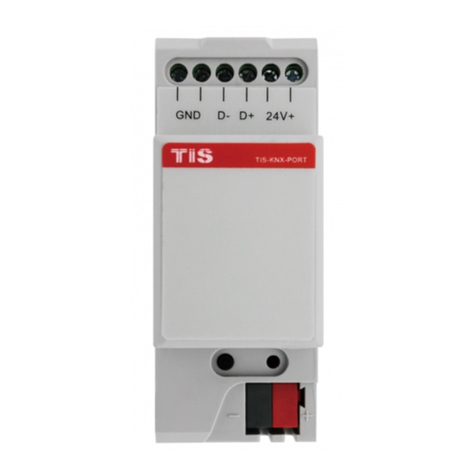
TIS KNX-PORT installation manual

TIS

TIS KNX-PORT installation manual

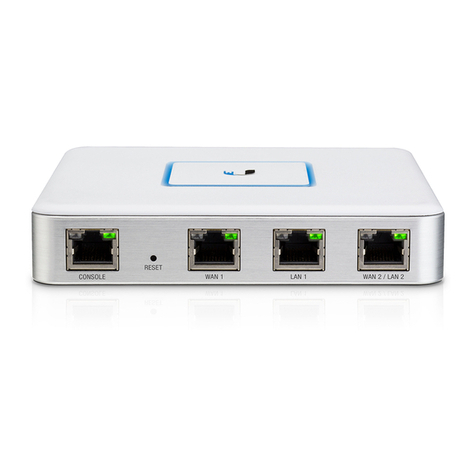
Ubiquiti USG quick start guide

Ubiquiti

Ubiquiti USG quick start guide

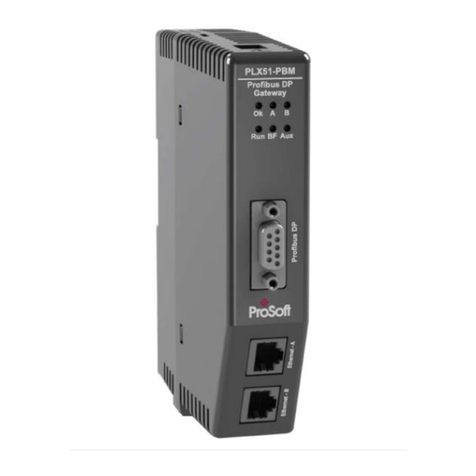
ProSoft Technology PLX51-PBM user manual

ProSoft Technology

ProSoft Technology PLX51-PBM user manual

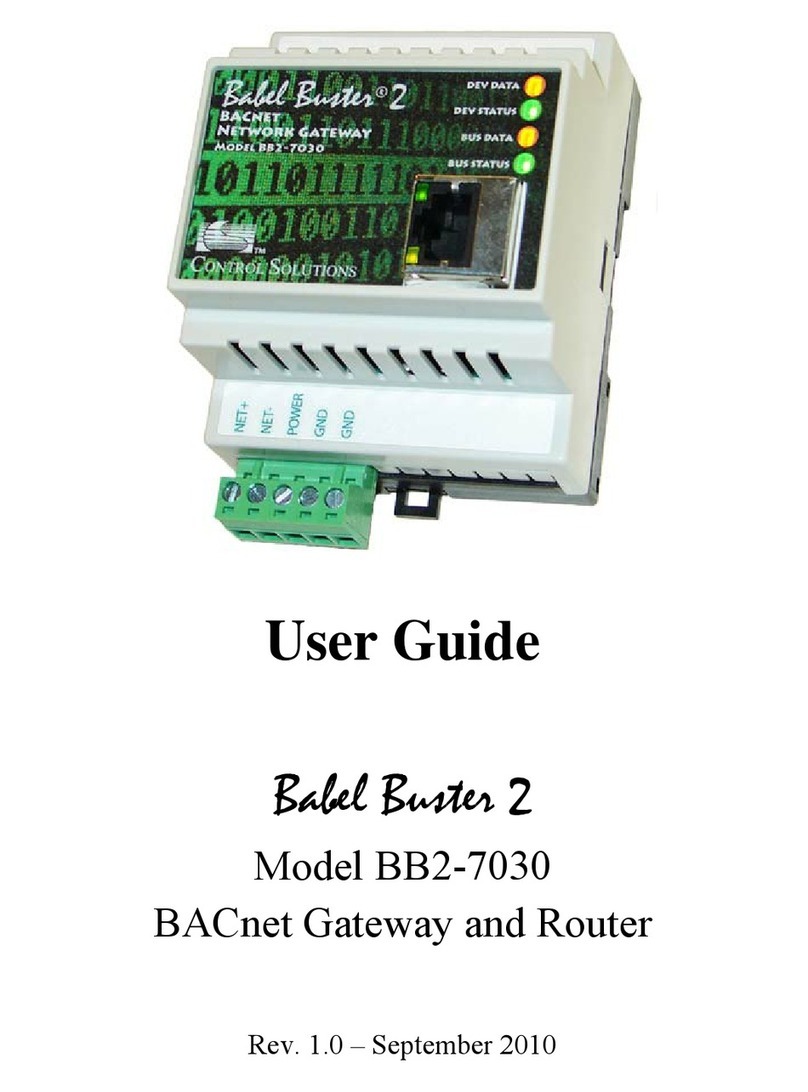
CONTROL SOLUTIONS BB2-7030 user guide

CONTROL SOLUTIONS

CONTROL SOLUTIONS BB2-7030 user guide

NETGEAR CGD24N installation guide

NETGEAR

NETGEAR CGD24N installation guide

Asotel Dynamix DW-0101/H user manual

Asotel

Asotel Dynamix DW-0101/H user manual

Beam MG200-FB10 installation guide

Beam

Beam MG200-FB10 installation guide

Comcast HOME-5A58 user guide

Comcast

Comcast HOME-5A58 user guide

Avaya Media Gateway G350 Quick start for hardware installation
Avaya

Avaya Media Gateway G350 Quick start for hardware installation

Grandstream Networks GXW-4104 Configuration guide
Grandstream Networks

Grandstream Networks GXW-4104 Configuration guide

Symantec S500 quick start guide

Symantec

Symantec S500 quick start guide
WiSilica WiseMesh Configuration

WiSilica

WiSilica WiseMesh Configuration
DEUTSCHMANN AUTOMATION UNIGATE IC - Powerlink instruction manual
DEUTSCHMANN AUTOMATION

DEUTSCHMANN AUTOMATION UNIGATE IC - Powerlink instruction manual

Dension 500S GW53MO1 installation guide

Dension

Dension 500S GW53MO1 installation guide

manuals.online logo
manuals.online logoBrands
  • About & Mission
  • Contact us
  • Privacy Policy
  • Terms and Conditions

Copyright 2025 Manuals.Online. All Rights Reserved.