manuals.online logo
Brands
  1. Home
  2. •
  3. Brands
  4. •
  5. Epson
  6. •
  7. Projector
  8. •
  9. Epson PowerLite Home Cinema 3100 Specification sheet

Epson PowerLite Home Cinema 3100 Specification sheet

Other manuals for PowerLite Home Cinema 3100

1

This manual suits for next models

1

Other Epson Projector manuals

Epson PowerLite Pro Cinema 800 HQV HQV video... User manual

Epson

Epson PowerLite Pro Cinema 800 HQV HQV video... User manual

Epson BrightLink 475Wi System manual

Epson

Epson BrightLink 475Wi System manual

Epson PowerLite 84 Specification sheet

Epson

Epson PowerLite 84 Specification sheet

Epson EB-W16 User manual

Epson

Epson EB-W16 User manual

Epson EX3280 Specification sheet

Epson

Epson EX3280 Specification sheet

Epson EH-TW6100 User manual

Epson

Epson EH-TW6100 User manual

Epson EB-93 User manual

Epson

Epson EB-93 User manual

Epson PowerLite Pro Z8000WUNL User manual

Epson

Epson PowerLite Pro Z8000WUNL User manual

Epson EMP EMP-7700 User manual

Epson

Epson EMP EMP-7700 User manual

Epson EX90 Specification sheet

Epson

Epson EX90 Specification sheet

Epson PowerLite 52c User manual

Epson

Epson PowerLite 52c User manual

Epson 1700C - PowerLite XGA LCD Projector User manual

Epson

Epson 1700C - PowerLite XGA LCD Projector User manual

Epson EB-L20002U Use and care manual

Epson

Epson EB-L20002U Use and care manual

Epson PowerLite Home Cinema 5030UB Specification sheet

Epson

Epson PowerLite Home Cinema 5030UB Specification sheet

Epson EB-U32 User manual

Epson

Epson EB-U32 User manual

Epson DREAMIO EH-DM3 User manual

Epson

Epson DREAMIO EH-DM3 User manual

Epson PowerLite Cinema 550 User manual

Epson

Epson PowerLite Cinema 550 User manual

Epson PowerLite Pro Cinema 4030 User manual

Epson

Epson PowerLite Pro Cinema 4030 User manual

Epson Dreamino EMP-TW20 User manual

Epson

Epson Dreamino EMP-TW20 User manual

Epson PowerLite 92 User manual

Epson

Epson PowerLite 92 User manual

Epson EH-TW6000 User manual

Epson

Epson EH-TW6000 User manual

Epson V11H177020 - Powerlite 76C LCD Projector Reference guide

Epson

Epson V11H177020 - Powerlite 76C LCD Projector Reference guide

Epson 755c - PowerLite XGA LCD Projector Specification sheet

Epson

Epson 755c - PowerLite XGA LCD Projector Specification sheet

Epson EB-L630U User manual

Epson

Epson EB-L630U User manual

Popular Projector manuals by other brands

iEmmet MP-312 user manual

iEmmet

iEmmet MP-312 user manual

Sony VPL-HS10 Marketing Specifications & Features manual

Sony

Sony VPL-HS10 Marketing Specifications & Features manual

Sony VPL-HW65ES Quick reference manual

Sony

Sony VPL-HW65ES Quick reference manual

Toshiba TLP-791U Specifications

Toshiba

Toshiba TLP-791U Specifications

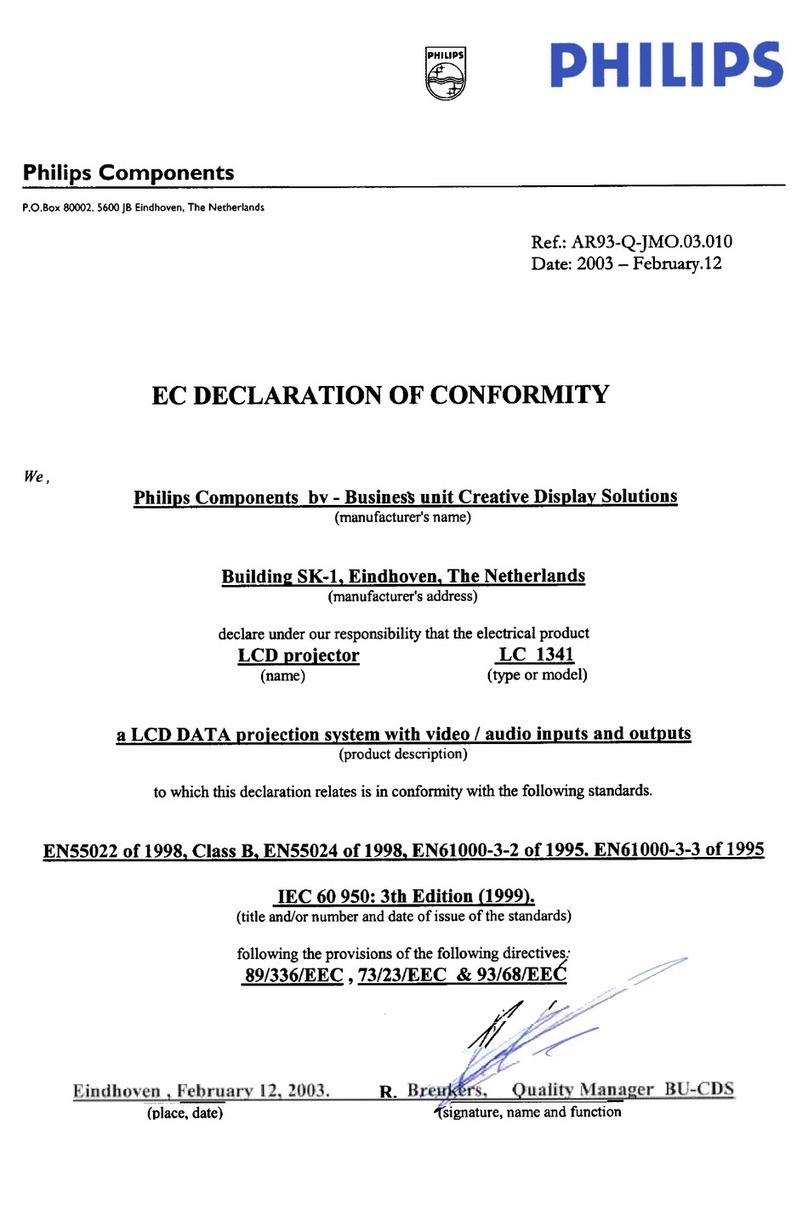
Philips LC1341 Declaration of conformity

Philips

Philips LC1341 Declaration of conformity

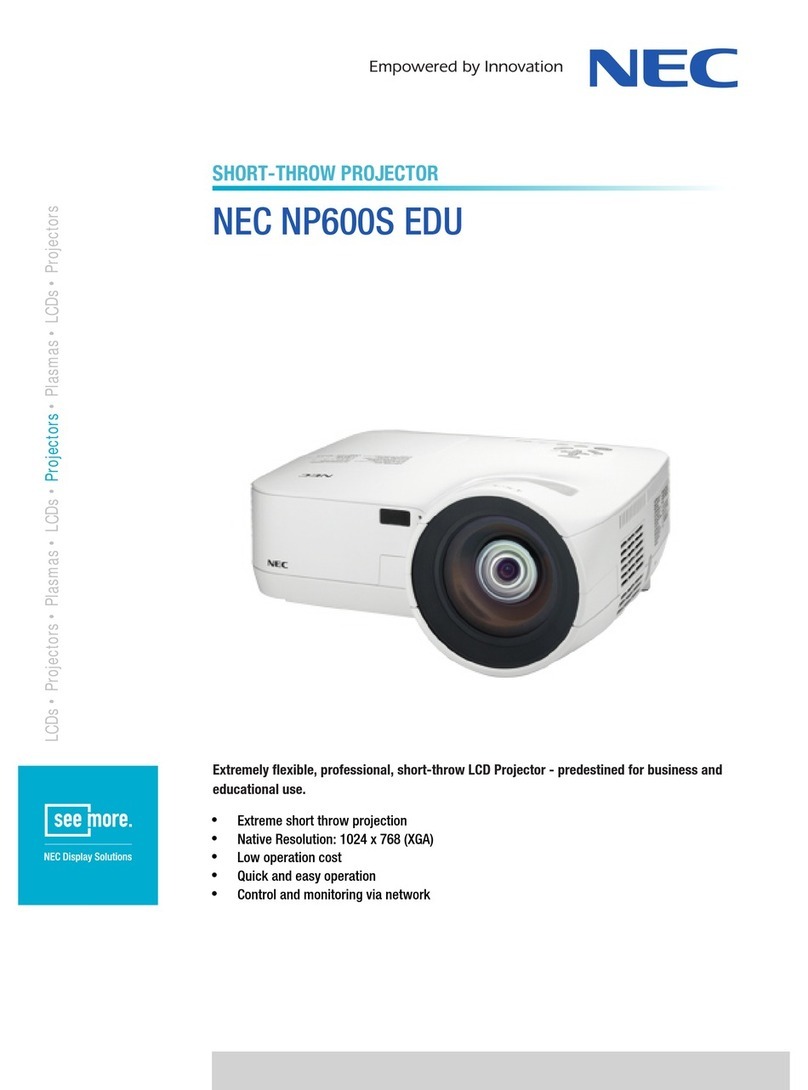
NEC NP600S EDU Specifications

NEC

NEC NP600S EDU Specifications

BenQ SH753P user manual

BenQ

BenQ SH753P user manual

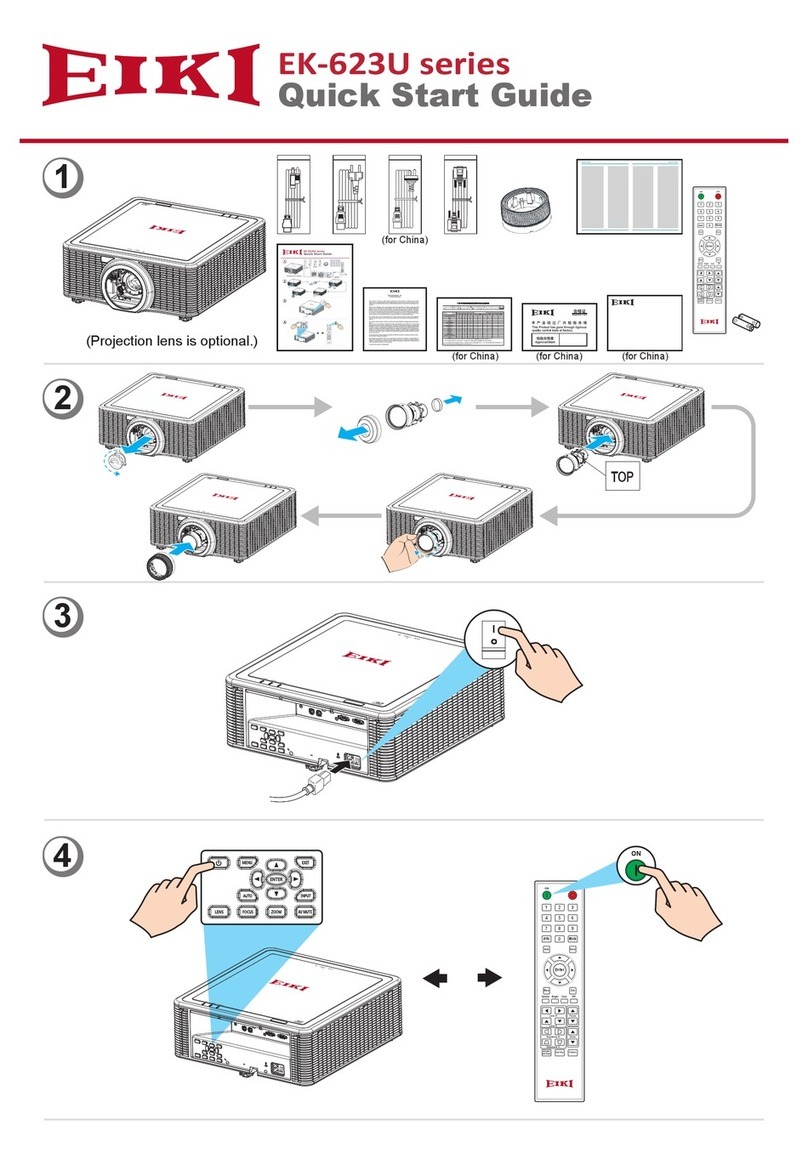
Eiki EK-623U series quick start guide

Eiki

Eiki EK-623U series quick start guide

Christie LHD700 user manual

Christie

Christie LHD700 user manual

Navitar FX instruction manual

Navitar

Navitar FX instruction manual

InFocus LitePro 560 user guide

InFocus

InFocus LitePro 560 user guide

Sony SRX-R815P operating instructions

Sony

Sony SRX-R815P operating instructions

Vivitar DP1500 X specification

Vivitar

Vivitar DP1500 X specification

Asus ZenBeam Latte user manual

Asus

Asus ZenBeam Latte user manual

BOXLIGHT CP-322i/CP-634i user manual

BOXLIGHT

BOXLIGHT CP-322i/CP-634i user manual

JVC 1108TTH-AO-AO instructions

JVC

JVC 1108TTH-AO-AO instructions

Projectiondesign evo2sx+ user guide

Projectiondesign

Projectiondesign evo2sx+ user guide

Eiki EIP-25 Service manual

Eiki

Eiki EIP-25 Service manual

manuals.online logo
manuals.online logoBrands
  • About & Mission
  • Contact us
  • Privacy Policy
  • Terms and Conditions

Copyright 2025 Manuals.Online. All Rights Reserved.

Quick Setup
Before using the projector, make sure you read the safety instructions in the
online User’s Guide.
Note: These illustrations show the PowerLite Home Cinema 3700, but the
instructions are the same for the PowerLite Home Cinema 3100 unless
otherwise noted.
Connect the projector
Choose from the following connections. See the sections below or the online
User’s Guide for details and additional connection types.
Video device
Connect multiple video devices and use the Source buttons on the remote
control or the Home and arrow buttons on the projector to switch between
them.
HDMI cable
Mobile media device
Connect tablets, smartphones, and other devices that support the MHL™
standard to the HDMI 2/MHL port.
MHL cable
Streaming device
Some devices may require an adapter or may not require an MHL cable. Not all
features or functions may be supported. Check your device’s documentation for
more information.
Connect audio
External speakers
Connect your device’s audio output to your home theater receiver or powered
speakers.
Note: When outputting sound through an external source, you may need to
reduce the projector volume to zero or make sure that the correct audio output
is selected on your device to prevent duplicate sound from being heard from
the projector (PowerLite Home Cinema 3700).
Home theater system
Video source
Surround sound Receiver Projector
Video cable
Powered speakers
External speakers Video source Projector
Video cable
Note: See your home theater receiver documentation for more information
on connections.
Audio Out port
You can connect the projector to external self-powered speakers through the
Audio Out port.
3.5 mm stereo mini cable
Built-in speaker (PowerLite Home Cinema 3700)
The projector has a built-in speaker that can play audio from a connected video
source (DVD player, streaming device, etc.) using an HDMI connection.
HDMI cable
Streaming device
Turn on your equipment
1 Turn on your video source.
2 Plug in the projector.
3 Remove the lens cap.
4 Press the power button on the projector or the On button on the
remote control. The power light flashes blue, then stays on.
Note: To shut down the projector, press the power button on the
projector twice or the Standby button on the remote control once.
You don’t have to wait for the projector to cool down.
5 Use the arrow buttons on the remote control to highlight any of the
options on the Home screen that appear, then press Enter to select it.
You can switch between projection sources and quickly access various
adjustment options from this screen.
6 The default language of the menu system is English. To select another
language, press the Menu button on the projector or remote control.
Select Extended and press Enter. Select Language and press Enter.
Select your language and press Enter. Press the Menu button to exit the
menu system.
Adjust the image
1 If you don’t see an image, press one of the Source buttons on the remote
control or the Home and arrow buttons on the projector to select the
image source.
Note: If you still see a blank screen or have other display problems,
see “Troubleshooting.”
2 For the best image quality, place the projector directly in front of the
center of the screen, facing the screen squarely. If this is not possible, turn
the horizontal and vertical lens shift dials to adjust the image position and
center it on the screen.
3 If the image is tilted, adjust the front feet as shown below.
4 Turn the zoom ring to reduce or enlarge the image.
5 Turn the focus ring to sharpen the image.
6 If your image is uneven on the sides, you can use the keystone correction
feature to adjust the image. To use this feature, you must first set the lens
to the center-top position using the lens shift dials.
Press the or button to display the keystone correction screen.
Then press the , , , or button to correct for horizontal keystone
distortion and the or button to correct for vertical keystone
distortion.
Using the remote control
Make sure the batteries are installed as shown (two AA batteries).
Turn projector on
Choose which source
to display
Access projector
menus
Turn projector off
Navigate projector
menus
Display Home screen
For more information on using the remote control, see the online
User’s Guide.
Viewing 3D images
To view 3D content, you must first connect a 3D-compatible video device to
one of the HDMI ports on your projector. You will also need a pair of Epson®
(part number V12H548006) or Epson-compatible RF 3D active shutter glasses.
1 Turn on and begin playback on the 3D-compatible video device.
Note: Make sure you set the video device to play content in 3D mode.
2 Press the 3D Format button on the remote control, if necessary.
3 Slide the power switch on your 3D glasses to the On position.
Note: If the glasses don’t automatically display 3D content, you may
need to pair them with the projector. Move the glasses within 10 feet
(3 m) of the projector, then press and hold the Pairing button on the
3D glasses for at least 3 seconds. The status light on the glasses will
alternately flash green and red, then remain green for 10 seconds if
pairing is successful.
PowerLite®Home Cinema 3100/3700
Quick Setup
Before using the projector, make sure you read the safety instructions in the
online User’s Guide.
Note: These illustrations show the PowerLite Home Cinema 3700, but the
instructions are the same for the PowerLite Home Cinema 3100 unless
otherwise noted.
Connect the projector
Choose from the following connections. See the sections below or the online
User’s Guide for details and additional connection types.
Video device
Connect multiple video devices and use the Source buttons on the remote
control or the Home and arrow buttons on the projector to switch between
them.
HDMI cable
Mobile media device
Connect tablets, smartphones, and other devices that support the MHL™
standard to the HDMI 2/MHL port.
MHL cable
Streaming device
Some devices may require an adapter or may not require an MHL cable. Not all
features or functions may be supported. Check your device’s documentation for
more information.
Connect audio
External speakers
Connect your device’s audio output to your home theater receiver or powered
speakers.
Note: When outputting sound through an external source, you may need to
reduce the projector volume to zero or make sure that the correct audio output
is selected on your device to prevent duplicate sound from being heard from
the projector (PowerLite Home Cinema 3700).
Home theater system
Video source
Surround sound Receiver Projector
Video cable
Powered speakers
External speakers Video source Projector
Video cable
Note: See your home theater receiver documentation for more information
on connections.
Audio Out port
You can connect the projector to external self-powered speakers through the
Audio Out port.
3.5 mm stereo mini cable
Built-in speaker (PowerLite Home Cinema 3700)
The projector has a built-in speaker that can play audio from a connected video
source (DVD player, streaming device, etc.) using an HDMI connection.
HDMI cable
Streaming device
Turn on your equipment
1 Turn on your video source.
2 Plug in the projector.
3 Remove the lens cap.
4 Press the power button on the projector or the On button on the
remote control. The power light flashes blue, then stays on.
Note: To shut down the projector, press the power button on the
projector twice or the Standby button on the remote control once.
You don’t have to wait for the projector to cool down.
5 Use the arrow buttons on the remote control to highlight any of the
options on the Home screen that appear, then press Enter to select it.
You can switch between projection sources and quickly access various
adjustment options from this screen.
6 The default language of the menu system is English. To select another
language, press the Menu button on the projector or remote control.
Select Extended and press Enter. Select Language and press Enter.
Select your language and press Enter. Press the Menu button to exit the
menu system.
Adjust the image
1 If you don’t see an image, press one of the Source buttons on the remote
control or the Home and arrow buttons on the projector to select the
image source.
Note: If you still see a blank screen or have other display problems,
see “Troubleshooting.”
2 For the best image quality, place the projector directly in front of the
center of the screen, facing the screen squarely. If this is not possible, turn
the horizontal and vertical lens shift dials to adjust the image position and
center it on the screen.
3 If the image is tilted, adjust the front feet as shown below.
4 Turn the zoom ring to reduce or enlarge the image.
5 Turn the focus ring to sharpen the image.
6 If your image is uneven on the sides, you can use the keystone correction
feature to adjust the image. To use this feature, you must first set the lens
to the center-top position using the lens shift dials.
Press the or button to display the keystone correction screen.
Then press the , , , or button to correct for horizontal keystone
distortion and the or button to correct for vertical keystone
distortion.
Using the remote control
Make sure the batteries are installed as shown (two AA batteries).
Turn projector on
Choose which source
to display
Access projector
menus
Turn projector off
Navigate projector
menus
Display Home screen
For more information on using the remote control, see the online
User’s Guide.
Viewing 3D images
To view 3D content, you must first connect a 3D-compatible video device to
one of the HDMI ports on your projector. You will also need a pair of Epson®
(part number V12H548006) or Epson-compatible RF 3D active shutter glasses.
1 Turn on and begin playback on the 3D-compatible video device.
Note: Make sure you set the video device to play content in 3D mode.
2 Press the 3D Format button on the remote control, if necessary.
3 Slide the power switch on your 3D glasses to the On position.
Note: If the glasses don’t automatically display 3D content, you may
need to pair them with the projector. Move the glasses within 10 feet
(3 m) of the projector, then press and hold the Pairing button on the
3D glasses for at least 3 seconds. The status light on the glasses will
alternately flash green and red, then remain green for 10 seconds if
pairing is successful.
PowerLite®Home Cinema 3100/3700
You can also automatically convert 2D HDMI content to 3D. To enable the
2D-to-3D Conversion option, press the Menu button on the projector or
remote control. Select Signal and press Enter, then select 3D Setup and
press Enter. Select 2D-to-3D Conversion and press Enter. Select the Weak,
Medium, or Strong setting, then press Enter.
See the online User’s Guide for more information on adjusting 3D images.
Troubleshooting
If you see a blank screen or the No signal message after turning on your
video device or computer, check the following:
• Make sure the power light on the projector is blue and not flashing.
• Press one of the Source buttons on the remote control or the Home and
arrow buttons on the projector to switch to the correct image source, if
necessary.
• If you’re using a Windows®laptop, press the function key on your
keyboard that lets you display on an external monitor. It may be labeled
CRT/LCD or have an icon such as . You may have to hold down the
Fn key while pressing it (such as Fn + F7). Wait a moment for the display
to appear.
• If you’re using a Mac laptop, open System Preferences and select
Displays. Click the Arrangement tab and select the Mirror Displays
checkbox.
If the keystone correction feature doesn’t correct the image, make sure you
first set the lens to the center-top position using the horizontal and vertical
lens shift dials.
If 3D images aren’t displaying properly, check the following:
• Make sure to wear the 3D glasses within 32 feet (10 m) of the projector.
• Check that your 3D glasses have not entered standby mode. Slide the
power switch on the 3D glasses into the Off position, then back to the
On position.
• Press the Menu button on your remote control, select the Signal menu,
then 3D Setup, then select 3D Display. Make sure that the 3D option is
selected. You may also need to set the Diagonal Screen Size setting in
the Signal menu. See the online User’s Guide for more information.
• Check that your video device and media are both 3D-compatible. Refer
to the documentation that came with your video device for more
information.
Where to get help
Manuals
For more information about using the projector, click the icons on your
desktop to access the online manuals (requires an Internet connection). If you
don’t see icon links to the manuals, you can install them from the projector CD
or go to the Epson website, as described below.
Telephone support services
To use the Epson®PrivateLine®Support service, call (800) 637-7661. This service
is available for the duration of your warranty period. You may also speak with
a support specialist by calling (562) 276-4394 (U.S.) or (905) 709-3839 (Canada).
Support hours are 6 am to 8 pm, Pacific Time, Monday through Friday, and
7 am to 4 pm, Pacific Time, Saturday. Days and hours of support are subject
to change without notice. Toll or long distance charges may apply.
Internet support
Visit www.epson.com/support (U.S.) or www.epson.ca/support
(Canada) for solutions to common problems. You can download utilities and
documentation, get FAQs and troubleshooting advice, or e-mail Epson.
Registration
Register today to get product updates and exclusive offers. You can use the CD
included with your projector or register online at www.epson.com/webreg.
EPSON and PowerLite are registered trademarks, and EPSON Exceed Your Vision is a registered logomark of
Seiko Epson Corporation. PrivateLine is a registered trademark of Epson America, Inc.
Mac is a trademark of Apple Inc., registered in the U.S. and other countries.
General Notice: Other product names used herein are for identification purposes only and may be trademarks
of their respective owners. Epson disclaims any and all rights in those marks.
This information is subject to change without notice.
© 2016 Epson America, Inc., 6/16
Printed in XXXXXX CPD-51844
Optional accessories
For a list of optional accessories, see the online User’s Guide.
You can purchase RF 3D glasses (part number V12H548006) or other
accessories from an Epson authorized reseller. To find the nearest reseller,
call 800-GO-EPSON (800-463-7766). Or you can purchase online at
www.epsonstore.com (U.S. sales) or www.epson.ca (Canadian sales).
Notices
Bluetooth Safety and Specifications
Contains Bluetooth module model: DBUB-E207
This document provides safety instructions and describes the specifications. Read this
document carefully before use to ensure your safety and product performance.
U.S.
FCC Notices
Contains FCC ID: BKMAE-E207
This device complies with Part 15 of the FCC Rules. Operation is subject to the following
two conditions: (1) This device may not cause harmful interference, and (2) this device
must accept any interference received, including interference that may cause undesired
operation.
This equipment has been tested and found to comply with the limits for a Class B
digital device, pursuant to Part 15 of the FCC Rules. These limits are designed to provide
reasonable protection against harmful interference in a residential installation. This
equipment generates, uses and can radiate radio frequency energy and, if not installed
and used in accordance with the instructions, may cause harmful interference to radio
communications. However, there is no guarantee that interference will not occur in a
particular installation. If this equipment does cause harmful interference to radio or
television reception, which can be determined by turning the equipment off and on, the
user is encouraged to try to correct the interference by one of the following measures:
• Reorient or relocate the receiving antenna.
• Increase the separation between the equipment and receiver.
• Connect the equipment into an outlet on a circuit different from that to which the
receiver is connected.
• Consult the dealer or an experienced radio/TV technician for help.
Caution: Changes or modifications not expressly approved by the party responsible for
compliance could void the user’s authority to operate this equipment.
This antenna of this device must not be co-located or used in conjunction with any
other antenna or transmitter except in accordance with FCC multi-transmitter product
procedures.
Properly shielded cables must be used for connections to LCD Projector in order to meet
FCC emission limits. The cable for peripheral with a ferrite core must be used for RF
interference suppression.
FCC Radiation Exposure Statement:
This equipment complies with FCC radiation exposure limits set forth for an
uncontrolled environment. This equipment should be installed and operated with
minimum distance 7.9 inches (20 cm) between the radiator and your body.
Canada
Industry Canada (IC) Notices
Contains IC: 1052D-E207
This Class B digital apparatus complies with Canadian ICES-003.
CAN ICES-3(B)/NMB-3(B)
This device complies with Industry Canada license-exempt RSS standard(s). Operation
is subject to the following two conditions: (1) This device may not cause harmful
interference, and (2) this device must accept any interference received, including
interference that may cause undesired operation of the device.
This device and its antennas(s) must not be co-located or operating in conjunction with
any other antenna or transmitter except in accordance with IC multi-transmitter product
procedures.
Radiation Exposure Statement:
This equipment complies with IC radiation exposure limits set forth for an uncontrolled
environment. This equipment should be installed and operated with minimum distance
20 cm (7.9 inches) between the radiator and your body.
This equipment is not permitted for use on aircraft or satellites.

You can also automatically convert 2D HDMI content to 3D. To enable the
2D-to-3D Conversion option, press the Menu button on the projector or
remote control. Select Signal and press Enter, then select 3D Setup and
press Enter. Select 2D-to-3D Conversion and press Enter. Select the Weak,
Medium, or Strong setting, then press Enter.
See the online User’s Guide for more information on adjusting 3D images.
Troubleshooting
If you see a blank screen or the No signal message after turning on your
video device or computer, check the following:
• Make sure the power light on the projector is blue and not flashing.
• Press one of the Source buttons on the remote control or the Home and
arrow buttons on the projector to switch to the correct image source, if
necessary.
• If you’re using a Windows®laptop, press the function key on your
keyboard that lets you display on an external monitor. It may be labeled
CRT/LCD or have an icon such as . You may have to hold down the
Fn key while pressing it (such as Fn + F7). Wait a moment for the display
to appear.
• If you’re using a Mac laptop, open System Preferences and select
Displays. Click the Arrangement tab and select the Mirror Displays
checkbox.
If the keystone correction feature doesn’t correct the image, make sure you
first set the lens to the center-top position using the horizontal and vertical
lens shift dials.
If 3D images aren’t displaying properly, check the following:
• Make sure to wear the 3D glasses within 32 feet (10 m) of the projector.
• Check that your 3D glasses have not entered standby mode. Slide the
power switch on the 3D glasses into the Off position, then back to the
On position.
• Press the Menu button on your remote control, select the Signal menu,
then 3D Setup, then select 3D Display. Make sure that the 3D option is
selected. You may also need to set the Diagonal Screen Size setting in
the Signal menu. See the online User’s Guide for more information.
• Check that your video device and media are both 3D-compatible. Refer
to the documentation that came with your video device for more
information.
Where to get help
Manuals
For more information about using the projector, click the icons on your
desktop to access the online manuals (requires an Internet connection). If you
don’t see icon links to the manuals, you can install them from the projector CD
or go to the Epson website, as described below.
Telephone support services
To use the Epson®PrivateLine®Support service, call (800) 637-7661. This service
is available for the duration of your warranty period. You may also speak with
a support specialist by calling (562) 276-4394 (U.S.) or (905) 709-3839 (Canada).
Support hours are 6 am to 8 pm, Pacific Time, Monday through Friday, and
7 am to 4 pm, Pacific Time, Saturday. Days and hours of support are subject
to change without notice. Toll or long distance charges may apply.
Internet support
Visit www.epson.com/support (U.S.) or www.epson.ca/support
(Canada) for solutions to common problems. You can download utilities and
documentation, get FAQs and troubleshooting advice, or e-mail Epson.
Registration
Register today to get product updates and exclusive offers. You can use the CD
included with your projector or register online at www.epson.com/webreg.
EPSON and PowerLite are registered trademarks, and EPSON Exceed Your Vision is a registered logomark of
Seiko Epson Corporation. PrivateLine is a registered trademark of Epson America, Inc.
Mac is a trademark of Apple Inc., registered in the U.S. and other countries.
General Notice: Other product names used herein are for identification purposes only and may be trademarks
of their respective owners. Epson disclaims any and all rights in those marks.
This information is subject to change without notice.
© 2016 Epson America, Inc., 6/16
Printed in XXXXXX CPD-51844
Optional accessories
For a list of optional accessories, see the online User’s Guide.
You can purchase RF 3D glasses (part number V12H548006) or other
accessories from an Epson authorized reseller. To find the nearest reseller,
call 800-GO-EPSON (800-463-7766). Or you can purchase online at
www.epsonstore.com (U.S. sales) or www.epson.ca (Canadian sales).
Notices
Bluetooth Safety and Specifications
Contains Bluetooth module model: DBUB-E207
This document provides safety instructions and describes the specifications. Read this
document carefully before use to ensure your safety and product performance.
U.S.
FCC Notices
Contains FCC ID: BKMAE-E207
This device complies with Part 15 of the FCC Rules. Operation is subject to the following
two conditions: (1) This device may not cause harmful interference, and (2) this device
must accept any interference received, including interference that may cause undesired
operation.
This equipment has been tested and found to comply with the limits for a Class B
digital device, pursuant to Part 15 of the FCC Rules. These limits are designed to provide
reasonable protection against harmful interference in a residential installation. This
equipment generates, uses and can radiate radio frequency energy and, if not installed
and used in accordance with the instructions, may cause harmful interference to radio
communications. However, there is no guarantee that interference will not occur in a
particular installation. If this equipment does cause harmful interference to radio or
television reception, which can be determined by turning the equipment off and on, the
user is encouraged to try to correct the interference by one of the following measures:
• Reorient or relocate the receiving antenna.
• Increase the separation between the equipment and receiver.
• Connect the equipment into an outlet on a circuit different from that to which the
receiver is connected.
• Consult the dealer or an experienced radio/TV technician for help.
Caution: Changes or modifications not expressly approved by the party responsible for
compliance could void the user’s authority to operate this equipment.
This antenna of this device must not be co-located or used in conjunction with any
other antenna or transmitter except in accordance with FCC multi-transmitter product
procedures.
Properly shielded cables must be used for connections to LCD Projector in order to meet
FCC emission limits. The cable for peripheral with a ferrite core must be used for RF
interference suppression.
FCC Radiation Exposure Statement:
This equipment complies with FCC radiation exposure limits set forth for an
uncontrolled environment. This equipment should be installed and operated with
minimum distance 7.9 inches (20 cm) between the radiator and your body.
Canada
Industry Canada (IC) Notices
Contains IC: 1052D-E207
This Class B digital apparatus complies with Canadian ICES-003.
CAN ICES-3(B)/NMB-3(B)
This device complies with Industry Canada license-exempt RSS standard(s). Operation
is subject to the following two conditions: (1) This device may not cause harmful
interference, and (2) this device must accept any interference received, including
interference that may cause undesired operation of the device.
This device and its antennas(s) must not be co-located or operating in conjunction with
any other antenna or transmitter except in accordance with IC multi-transmitter product
procedures.
Radiation Exposure Statement:
This equipment complies with IC radiation exposure limits set forth for an uncontrolled
environment. This equipment should be installed and operated with minimum distance
20 cm (7.9 inches) between the radiator and your body.
This equipment is not permitted for use on aircraft or satellites.