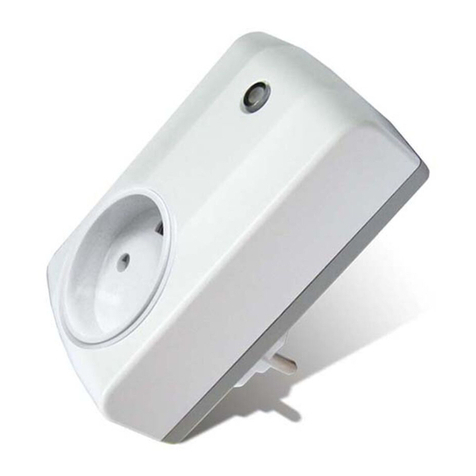
The AN186 Z-Wave Plug is a Z-Wave Plus
TM
enabled device and is fully compatible with any Z-Wave
TM
enabled network. The device can be set up in a Z-Wave network to communicate directly with other end
devices such as PIR motion detector, or to report directly to a Z-Wave controller (usually a gateway).
This Z-Wave Plug is designed to control the on/off status of lighting and appliances in the home. Remote
On/Off control of the connected load is possible even when paired with other manufacturer’s Wireless
Controller. Each module is also designed to act as a repeater to re-transmit RF signal to ensure that it is
received by its intended destination by routing the signal around obstacles and radio dead spots.
Product Overview
Adding to Z-Wave
TM
Network
Auto Inclusion
The Z-Wave plug supports Auto Inclusion feature where it will automatically enter Inclusion mode when
first powered up after a factory reset.
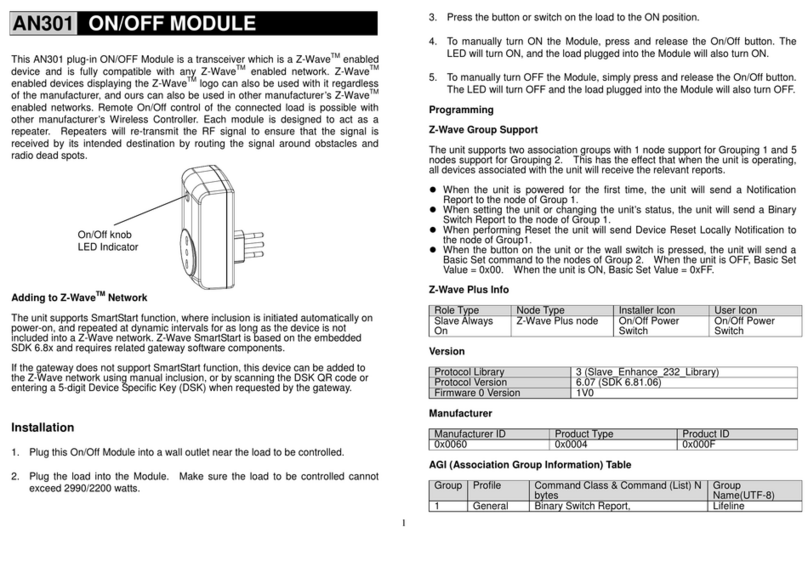
1. In the front casing, there is an On/Off knob which is used to carry out inclusion, exclusion or
association.
2. Put a Z-Wave Controller into inclusion/exclusion mode.
3. Plug this On/Off device into a wall outlet near the load to be controlled.
4. The Inclusion process should be completed when the LED stops blinking.
Note: If Auto Inclusion fails, refer to the Troubleshooting section regarding Manual Inclusion.
Testing
1. From the Z-Wave Controller’s interface, turn on the newly added On/Off Module (refer to
the Controller’s user manual for instructions). The LED indicator on the module should
turn on.
2. Turn off the module before connecting any appliance to it.
Installation
1. Plug this On/Off Module into a wall outlet near the appliance/lighting to be controlled.
2. Plug the appliance into the Controllable outlet of the module, indicated by a wireless icon printed on
the module.
Note: There are two outlets at opposite sides of the module. Appliances plugged into the
controllable outlet can be controlled by this module whereas the other side is non-controllable and
acts only as an electrical pass-through outlet.
Important: Make sure the total appliance load of both sides do not exceed 1400 watts, which
means if the load of controllable outlet is changed, the other side should be altered accordingly. For
instance, if the load of controllable outlet is 1400 watts, the other should be 0 watt; while if the load
of controllable outlet is 1100 watts, the other should be 300 watts.
3. Set the switch on the appliance permanently to the ON position.
4. To control the appliance manually from the module, simply press the module’s On/Off knob. When
the red indicator LED turns ON (for about 5 seconds) this indicates electrical power is directed into
the appliance. When the LED turns off, electrical power is cut off from the appliance.
Programming
Z-Wave Group
The unit supports either one of two Z-Wave Association Groups:
Group 1: Association with 1 Controller node.
Group 2: Association with 4 nodes (i.e. end devices such as detectors or other lighting switches).This
allows the On/Off module to receive commands directly from these end devices without the participation
of the controller.
Group 1 commands:
When the unit is powered for the first time, the unit will send a Notification Report to the node of
Group 1.
When setting the unit or changing the unit’s status, the unit will send a Binary Switch Report to the
node of Group 1. When the unit is OFF, Switch Binary Report Value = 0x00. When the unit is ON,
Switch Binary Report Value = 0xFF.
Device Reset: When performing Factory Reset the unit will send Device Reset Locally Notification to
the node of Group1.
Group 2 commands:
When the button on the unit is pressed, the unit will send a Basic Set command to the nodes of
Group 2. When the unit is OFF, Basic Set Value = 0x00. When the unit is ON, Basic Set Value = 0xFF.
Z-Wave Plus Info
Role Type Node Type Installer Icon User Icon
Slave Always On Z-Wave Plus node On Off Power Switch On Off Power Switch
Version