manuals.online logo
Brands
  1. Home
  2. •
  3. Brands
  4. •
  5. Extron electronics
  6. •
  7. Switch
  8. •
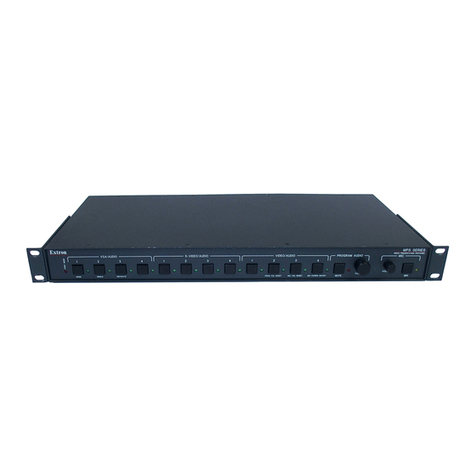
  9. Extron electronics MPS 409 User manual

Extron electronics MPS 409 User manual

Other manuals for MPS 409

1

Other Extron electronics Switch manuals

Extron electronics SW4 12G HD-SDI User manual

Extron electronics

Extron electronics SW4 12G HD-SDI User manual

Extron electronics SW AV User manual

Extron electronics

Extron electronics SW AV User manual

Extron electronics VSW 2VGA A User manual

Extron electronics

Extron electronics VSW 2VGA A User manual

Extron electronics SW8/12 VGA Ars User manual

Extron electronics

Extron electronics SW8/12 VGA Ars User manual

Extron electronics SW2 VGArs User manual

Extron electronics

Extron electronics SW2 VGArs User manual

Extron electronics SW6 VGA Ars User manual

Extron electronics

Extron electronics SW6 VGA Ars User manual

Extron electronics Andora User manual

Extron electronics

Extron electronics Andora User manual

Extron electronics ISS 608 User manual

Extron electronics

Extron electronics ISS 608 User manual

Extron electronics SW2 VGA DA2 A User manual

Extron electronics

Extron electronics SW2 VGA DA2 A User manual

Extron electronics IN1804 Series User manual

Extron electronics

Extron electronics IN1804 Series User manual

Extron electronics SW2 HDMI User manual

Extron electronics

Extron electronics SW2 HDMI User manual

Extron electronics MPS 112 User manual

Extron electronics

Extron electronics MPS 112 User manual

Extron electronics DXP DVI Pro User manual

Extron electronics

Extron electronics DXP DVI Pro User manual

Extron electronics SW2 VGA DA2 AF R User manual

Extron electronics

Extron electronics SW2 VGA DA2 AF R User manual

Extron electronics MPS 602 User manual

Extron electronics

Extron electronics MPS 602 User manual

Extron electronics PVS 405D User manual

Extron electronics

Extron electronics PVS 405D User manual

Extron electronics DXP HD 4K Series User manual

Extron electronics

Extron electronics DXP HD 4K Series User manual

Extron electronics SW HDMI Series User manual

Extron electronics

Extron electronics SW HDMI Series User manual

Extron electronics SW2 VGAxi User manual

Extron electronics

Extron electronics SW2 VGAxi User manual

Extron electronics MTPX Series User manual

Extron electronics

Extron electronics MTPX Series User manual

Extron electronics SW2 ARxi User manual

Extron electronics

Extron electronics SW2 ARxi User manual

Extron electronics IN1804 Series User manual

Extron electronics

Extron electronics IN1804 Series User manual

Extron electronics TeamWork 400 User manual

Extron electronics

Extron electronics TeamWork 400 User manual

Extron electronics SMX System User manual

Extron electronics

Extron electronics SMX System User manual

Popular Switch manuals by other brands

SMC Networks SMC6224M Technical specifications

SMC Networks

SMC Networks SMC6224M Technical specifications

Aeotec ZWA003-S operating manual

Aeotec

Aeotec ZWA003-S operating manual

TRENDnet TK-209i Quick installation guide

TRENDnet

TRENDnet TK-209i Quick installation guide

Planet FGSW-2022VHP user manual

Planet

Planet FGSW-2022VHP user manual

Avocent AutoView 2000  AV2000BC AV2000BC Installer/user guide

Avocent

Avocent AutoView 2000 AV2000BC AV2000BC Installer/user guide

Moxa Technologies PT-7728 Series user manual

Moxa Technologies

Moxa Technologies PT-7728 Series user manual

Intos Electronic inLine 35392I operating instructions

Intos Electronic

Intos Electronic inLine 35392I operating instructions

Cisco Catalyst 3560-X-24T Technical specifications

Cisco

Cisco Catalyst 3560-X-24T Technical specifications

Asante IntraCore IC3648 Specifications

Asante

Asante IntraCore IC3648 Specifications

Siemens SIRIUS 3SE7310-1AE Series Original operating instructions

Siemens

Siemens SIRIUS 3SE7310-1AE Series Original operating instructions

Edge-Core DCS520 quick start guide

Edge-Core

Edge-Core DCS520 quick start guide

RGBLE S00203 user manual

RGBLE

RGBLE S00203 user manual

Thrustmaster FLIGHT SIMULATOR X quick guide

Thrustmaster

Thrustmaster FLIGHT SIMULATOR X quick guide

Southwire SURGE GUARD 41390 RVC troubleshooting guide

Southwire

Southwire SURGE GUARD 41390 RVC troubleshooting guide

Buhler Nivotemp NT 61 Brief instructions

Buhler

Buhler Nivotemp NT 61 Brief instructions

Kramer VS-41HDCP user manual

Kramer

Kramer VS-41HDCP user manual

Techly IDATA AU-270 user manual

Techly

Techly IDATA AU-270 user manual

Belkin F1U109 user manual

Belkin

Belkin F1U109 user manual

manuals.online logo
manuals.online logoBrands
  • About & Mission
  • Contact us
  • Privacy Policy
  • Terms and Conditions

Copyright 2025 Manuals.Online. All Rights Reserved.

1
MPS 409 Setup Guide
Installation
Step 1 — Disconnect Power
Remove power from the switcher and all other devices that will be connected.
1
MODE
2
SINGLE
1
SEPARATE
2
COMBINE DVI/HDMI
12
123MUTE
MPS 409
DIGITAL MEDIA PRESENTATION SWITCHER
MUTE
VIDEO INPUTSHDMI INPUTS
MIC PROGRAM AUDIO
DVI INPUTSVGA/YUV INPUTS
CONFIG
EXEC
MODE
Step 2 — Mount the Switcher
The MPS 409 is housed in a full rack width, 8.5 inch deep, 1U high metal enclosure. Select a
mounting location, then choose an appropriate mounting option and mount the switcher.
Step 3 — Cable the Switcher
Make certain the MPS 409, all sources, and displays are powered off. Run all audio, video,
communication and power cables for operation.
a. Attach up to two VGA/YUV (b), two DVI (l), three HDMI (f), and two composite video (h)
input devices to the switcher.
b. Connect the VGA/YUV output (c), DVI output (m), HDMI output (p), and video (r) output
from the switcher to the appropriate display inputs.
c. For stereo input, connect up to nine audio sources to each of the unbalanced stereo audio
input groups; VGA/YUV (d), DVI (n), HDMI (g), and Video (i). See the 3.5 mm plug
connector diagram on the right for wiring.
50/60 Hz
100-240V 0.4A MAX VIDEO
MPS 409
MIC/LINE
OFF MIC
OUTPUT R
L
2
2
1
1
21
3
21 VGA/YUV HDMI
PROGRAM
AUDIO
OUT
L R MIC/LINE
Tx Rx
RS-232
1 2
ON
LEVEL
+48V
ON LINE
OUTPUT
OUTPUT
OUTPUT
OUTPUT
OUTPUT
OUTPUT
OUTPUT
DVI-D
21
21 2
1 3 1
2
R
L
R
L
l n o p q r sm
b c d f g h ie
This guide provides basic instructions for an experienced technician to install, set up, and
operate the Extron® Media Presentation Switcher, MPS 409. Where possible in the following
pages, line drawings are used to clarify steps discussed in the text. Installation and service
must be performed by authorized personnel only.
Unbalanced OutputBalanced Output
Tip
NO Ground Here
Sleeve(s)
Tip
NO Ground Here
L R
AUDIO
Tip
Ring
Sleeve(s)
Tip
Ring
L R
AUDIO
CAUTION
For unbalanced audio, connect the
sleeve(s) to the ground contact.
DO NOT connect the sleeve(s) to the
negative (-) contacts.
Tip (+)
Sleeve ( )
Sleeve ( )
Ring
(R+)
Tip (L+)
RCA Connector
3.5 mm Stereo Plug Connector
(unbalanced)
g. (Optional) If the switcher is connected to a computer or host
controller for remote control, connect the host RS-232 cable to the
3-pin captive screw connector on the rear of the switcher (see the
figure at right).
d. For unbalanced stereo output, connect an output device to each of the
output groups; VGA/YUV (e), DVI (o), HDMI (q), and Video (s).
See the 3.5 mm plug connector diagram on the right for wiring.
Ground ( _ )
Receive (Rx)
Transmit (Tx)
Bidirectional
RS-232
Device
Ground ( _ )
Receive (Rx)
Transmit (Tx)
RxTx
(5 mm)
MAX.
Do not tin
the wires!
Balanced Mic Input
Unbalanced Mic Input
(5 mm)
MAX.
Tip
Ring
Sleeve
Tip
Sleeve
50/60 Hz
100-240V 0.2A MAX VIDEO
MPS 409
MIC/LINE
OFF MIC
OUTPUT R
L
2
2
1
1
21
3
21 VGA/YUV HDMI
PROGRAM
AUDIO
OUT
L R MIC/LINE
Tx Rx
RS-232
1 2
ON
LEVEL
+48V
ON LINE
OUTPUT
OUTPUT
OUTPUT
OUTPUT
OUTPUT
OUTPUT
OUTPUT
DVI-D
21
21 2
1 3 1
2
R
L
R
L
e. Connect an audio amplifier to the Program Audio Output connectors.
See the connector diagram on the right for proper wiring.
f. (Optional) Connect a microphone to the rear Mic/Line connector
(see the figure at right). Refer to the microphone user guide for
proper wiring and phantom power requirements.
Set switch 2 of the DIP switch bank down (off) for a microphone. If
phantom power (+48V) is required, set switch 1 up (on).
2
MPS 409 Setup Guide (Continued)
Single Switcher Mode
Single switcher mode emulates one switcher with 9 inputs (9x1). Only one input
can be selected at a time, indicated by a single lit LED on the front panel input
selections. The selected video input will output on the associated group output
only while the audio is output on the group output and Program Audio Output.
To enable single switcher mode:
Press and hold the Mode button (VGA/YUV Input #1) for three seconds, then press
and release the Single button (VGA/YUV Input #2). The associated LED indicates
if single switcher mode is on (when lit) or off. When the Mode button is released,
the LED resumes input indication.
In the example below, HDMI input #2 is selected. Only the HDMI output is active.
HDMI audio, indicated by the flashing LED, is routed to both the group output and
Program Audio Output.
1
MODE
2
SINGLE
1
SEPARATE
2
COMBINE DVI/HDMI
12
123
MUTE
MPS 409
DIGITAL MEDIA PRESENTATION SWITCHER
MUTE
VIDEO INPUTSHDMI INPUTS
MIC PROGRAM AUDIO
DVI INPUTSVGA/YUV INPUTS
CONFIG
EXEC
MODE
Single Switcher Mode
Separate Switcher Mode
Separate switcher mode allows the four groups of inputs (DVI, HDMI, VGA, and
composite video) to be used individually. Each group has an independent output
creating four independent switchers. Up to four inputs can be selected at one
time, one in each group, indicated by four lit LEDs. The audio and video of the
selected input group outputs only on the associated group output. Audio from the
last input selection also goes to the Program Audio Output. Of the four selected
inputs, the audio input routed to the Program Audio Output is indicated by the
blinking input LED.
To enable separate switcher mode:
Press and hold the Mode button (VGA/YUV Input #1) for three seconds, then press
and release the Separate (DVI input #1) button. The associated LED indicates if
separate switcher mode is on (when lit) or off. When the Mode button is released,
the LED resumes input indication.
In the example below, VGA/YUV input #2, DVI input #1, HDMI input #3 and
Video input #2 are selected. All four group outputs are active with their respective
AV input signals on them. The audio of DVI input #1 is also routed to the Program
Audio Output, indicated by the flashing LED.
1
MODE
2
SINGLE
1
SEPARATE
2
COMBINE DVI/HDMI
12
123
MUTE
MPS 409
DIGITAL MEDIA PRESENTATION SWITCHER
MUTE
VIDEO INPUTSHDMI INPUTS
MIC PROGRAM AUDIO
DVI INPUTSVGA/YUV INPUTS
CONFIG
EXEC
MODE
Separate Switcher Mode
Combined HDMI/DVI Mode
Combined mode allows the MPS 409 to function as a 5x1 HDMI/DVI switcher.
This is accomplished by switching a selected DVI or HDMI input to the HDMI video
output, deactivating the video output.
In single-combine mode, the front panel input selection LEDs operate the same
as when in single switcher mode (a single lit LED indicates the current input
selection).
1
MODE
2
SINGLE
1
SEPARATE
2
COMBINE DVI/HDMI
12
1
23MUTE
MPS 409
DIGITAL MEDIA PRESENTATION SWITCHER
MUTE
VIDEO INPUTSHDMI INPUTS
MIC PROGRAM AUDIO
DVI INPUTSVGA/YUV INPUTS
CONFIG
EXEC
MODE
Press and release
Single Mode
Single Switcher Mode
Press and Hold
for three seconds
1
MODE
2
SINGLE
1
SEPARATE
2
COMBINE DVI/HDMI
12
1
2 3 MUTE
MPS 409
DIGITAL MEDIA PRESENTATION SWITCHER
MUTE
VIDEO INPUTSHDMI INPUTS
MIC PROGRAM AUDIO
DVI INPUTSVGA/YUV INPUTS
CONFIG
EXEC
MODE
Enable Separate Switcher Mode
Press and release
Separate Mode
Press and Hold
for three seconds
Setup and Operation — Video Switching
The MPS switcher can be connected to as many as nine input devices simultaneously and operate in one of four switching modes:
single (the default), separate, single combined, or separate combined. To view the current mode, press and hold the Mode button
(VGA/YUV input #1). The associated mode LEDs (single, separate, single+combined, or separate+combined) will light.
3
MPS 409 Setup Guide (Continued)
In separate-combine mode, only one input selection is allowed from the
HDMI/DVI groups along with a single input selection from the VGA/YUV group
and another from the Video group. So there will only be three front panel input
LEDs lit in combined mode rather than four when in separate switcher mode.
To enable combined switcher mode:
Press and hold the Mode button (VGA/YUV Input #1) for three seconds, then
press and release the Combine DVI/HDMI button (DVI input #2). The Combine
DVI/HDMI button LED indicates if combined switcher mode is on (when lit)
or off. The Single and Separate button LEDs indicates whether it is in single
switcher mode or separate switcher mode. When the Mode button is released,
the LED resumes input indication.
1
MODE
2
SINGLE
1
SEPARATE
2
COMBINE DVI/HDMI
12
1
2 3 MUTE
MPS 409
DIGITAL MEDIA PRESENTATION SWITCHER
MUTE
VIDEO INPUTSHDMI INPUTS
MIC PROGRAM AUDIO
DVI INPUTSVGA/YUV INPUTS
CONFIG
EXEC
MODE
Combined Switcher Mode
Press and release
Combine DVI/HDME
Press and Hold
for three seconds
Setup and Operation — Optimizing the Audio
For optimal audio quality, the audio input levels can be adjusted individually. In addition, the microphone
and program output levels can be adjusted separately using the front panel controls. Program output and
microphone levels are independent from each other. Muting program audio does not mute the microphone
input.
Setting the Input Audio Level
1. Simultaneously press and hold the Program Audio Mute and MIC Mute
buttons until the two mute LEDs flash three times, then release both
buttons.
2. Press a Video Input button for the audio to be adjusted (video input #1
is shown). If an input button is not pressed, the switcher times out and
exits audio level adjustment mode.
3. In audio adjustment mode, when an input button is pressed, the front
panel input LEDs indicate the current gain/attenuation setting. Factory
default is 0 dB (all LEDs off). Rotate the Program Audio volume knob
clockwise to increase and counterclockwise to decrease the audio level. The
front panel LEDs display the level setting as the knob is adjusted (see
Audio Gain/Attenuation Adjustments in the MPS 409 User Guide).
4. Once the desired level is achieved, to adjust another input, select it within
three seconds. If audio adjustments are complete, to exit the gain/attenuation
mode:
a. Do not press any front panel buttons for at least three seconds, or
b. Press the Program Audio Mute and MIC Mute buttons.
At any time during the adjustments, if the front panel buttons are not pressed or
the program knob is not rotated within three seconds, the switcher times out and
the gain/attenuation mode is exited.
Setting the Program Output Audio Level
1. Turn on all equipment and select an input with an audio signal present.
2. Turn on program audio by pressing the Program Audio Mute button (the LED
goes out).
3. Using the Program Audio volume control (right), adjust the volume of the
audio amplifier connected to the Program Audio Out connector to achieve
the desired sound level.
Setting the Microphone Level
1. Turn on all equipment and select an input with an audio signal present.
2. If the program audio output level has not been adjusted, do so before setting
the microphone level.
3. If phantom power is required for the microphone, be certain it is on.
4. Turn on the microphone by pressing the MIC Mute button (the LED goes out).
5. Talk into the microphone in a normal voice and adjust the Mic volume knob
(right) to the desired sound level.
1
MODE
2
SINGLE
1
SEPARATE
2
COMBINE DVI/HDMI
12
12
3MUTE
MPS 409
DIGITAL MEDIA PRESENTATION SWITCHER
MUTE
VIDEO INPUTS
HDMI INPUTS
MIC PROGRAM AUDIO
DVI INPUTSVGA/YUV INPUTS
CONFIG
EXEC
MODE
a Press and hold
for 3 seconds
b Press input to
select
c Adjust input
level
1
MODE
2
SINGLE
1
SEPARATE
2
COMBINE DVI/HDMI
12
123
MUTE
MPS 409
DIGITAL MEDIA PRESENTATION SWITCHER
MUTE
VIDEO INPUTSHDMI INPUTS
MIC
PROGRAM AUDIO
DVI INPUTSVGA/YUV INPUTS
CONFIG
EXEC
MODE

1
MODE
2
SINGLE
1
SEPARATE
2
COMBINE DVI/HDMI
12
123MUTE
MPS 409
DIGITAL MEDIA PRESENTATION SWITCHER
MUTE
VIDEO INPUTSHDMI INPUTS
MIC
PROGRAM AUDIO
DVI INPUTSVGA/YUV INPUTS
CONFIG
EXEC
MODE
4
MPS 409 Setup Guide (Continued)
Extron USA - West
Headquarters
+800.633.9876
Inside USA/Canada Only
+1.714.491.1500
+1.714.491.1517 FAX
Extron USA - East
+800.633.9876
Inside USA/Canada Only
+1.919.863.1794
+1.919.863.1797 FAX
Extron Europe
+800.3987.6673
Inside Europe Only
+31.33.453.4040
+31.33.453.4050 FAX
Extron Asia
+800.7339.8766
Inside Asia Only
+65.6383.4400
+65.6383.4664 FAX
Extron Japan
+81.3.3511.7655
+81.3.3511.7656 FAX
Extron China
+400.833.1568
Inside China Only
+86.21.3760.1568
+86.21.3760.1566 FAX
Extron Middle East
+971.4.2991800
+971.4.2991880 FAX
© 2010 Extron Electronics All Rights Reserved. www.extron.com
68-1833-50
Rev. A
07 10
Setting the Microphone Talk-Over Threshold
Microphone threshold (the volume where vocal audio is detected) and the program audio level during talkover are adjustable via SIS
commands. See Audio Adjustments in the MPS 409 User Guide for additional SIS commands.
1. Speak into the microphone in a normal voice. The main program audio level should drop moderately. If not, adjust the microphone
threshold level.
2. Stop speaking into the microphone. Main program audio should recover to its previous level after approximately four seconds. If
not, adjust the microphone threshold level.
3. If the program audio during talkover is too loud, or too soft, adjust the program audio level.
Mic talk-over threshold
Display talk-over threshold X* * 2 # Thr X* ] Shows the mic threshold
number. X* = 0 through 15,
default = 8.
Decrement threshold – * 2# Thr X* ] Decrements mic threshold one
step.
Increment threshold + * 2# Thr X* ] Increments mic threshold one
step.
View mic talk threshold 2 # X* ]