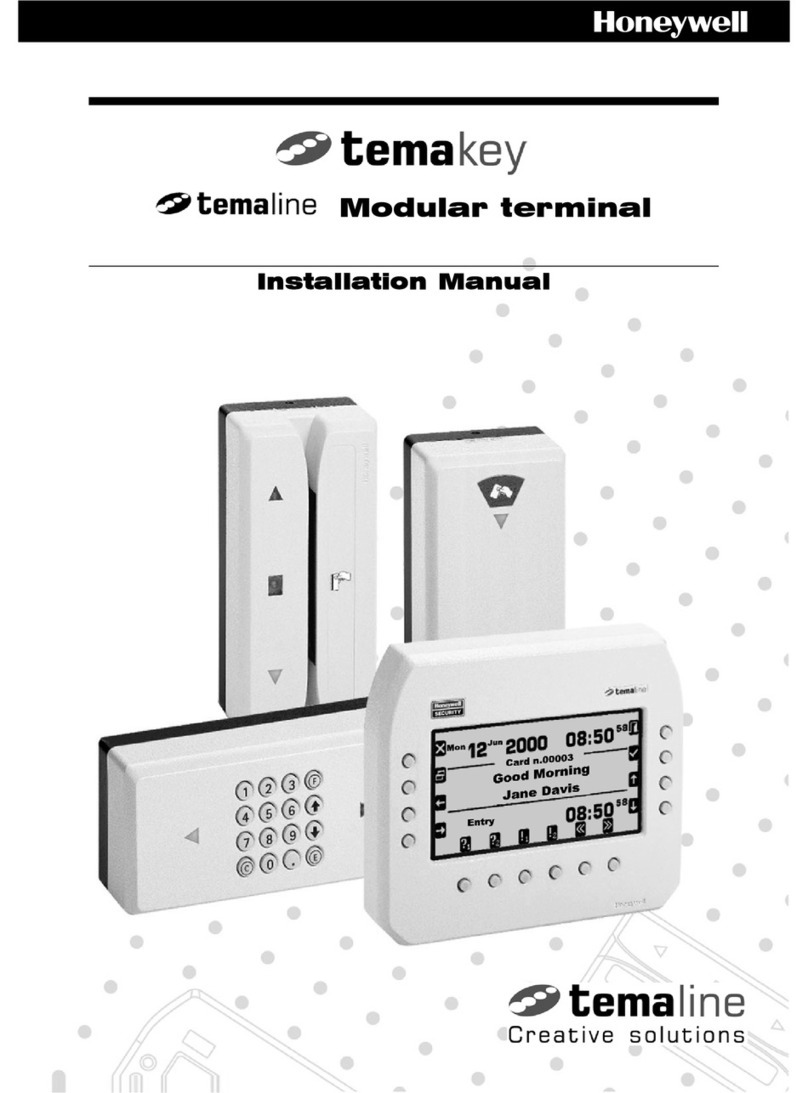
Frontier Lite/Pro User manual

F
Fr
ro
on
nt
ti
ie
er
r
U
UL
LV
V
L
Li
it
te
e
/
/
P
Pr
ro
o
U
Us
se
er
r’
’s
s
M
Ma
an
nu
ua
al
l

P
Pr
re
ef
fa
ac
ce
e
i
A
Ab
bo
ou
ut
t
t
th
hi
is
s
M
Ma
an
nu
ua
al
l
Thank you for purchasing our Frontier Touch Terminal. This terminal
offers highly enhanced features, with easy connection to various optional
devices for optimal performance. This user manual describes how to setup
and connect your terminal.
C
Co
op
py
yr
ri
ig
gh
ht
t
© Copyright 2006
All rights reserved. This product and related documentation are protected
by copyright and are distributed under licenses restricting their use,
copying, and distribution. No part of this documentation may be
reproduced in any form by any means without prior written authorization
of the manufacturer and its licensors, if any.
S
Sa
af
fe
et
ty
y
n
no
ot
ti
ic
ce
es
s
B
Be
ef
fo
or
re
e
Y
Yo
ou
u
P
Pr
ro
oc
ce
ee
ed
d
• Read the safety notices and the User Manual carefully before using the
product.
• Keep the box and packaging in case the product needs to be shipped in
the future.
• Follow the product and warning label instructions.
• Any changes or modifications that do not follow the instructions in this
manual will void this product's warranty.
P
Po
ow
we
er
r
S
Su
up
pp
pl
ly
y
S
Sa
af
fe
et
ty
y
N
No
ot
te
es
s
• To avoid electric shocks, disconnect the power cord from the electrical
outlet before relocating the system.
• Make sure the voltage of the power outlet conforms within voltage range
of the terminal. Failure to comply may cause the electric shock or
damage to the terminal. If you are not sure of the electricity voltage that
you are using, contact your local electricity company.
• To avoid fire or electric shocks, do not overload electric power outlets.
• Protect the power cord from being walked on or pinched particularly at
plug, convenience receptacles, and the point where they exit from the
apparatus.

Preface
ii
O
Op
pe
er
ra
at
ti
in
ng
g
I
In
ns
st
tr
ru
uc
ct
ti
io
on
ns
s
• Keep this manual for future reference.
• Keep this equipment from moisture and dust.
• Place the equipment on a stable surface before setting it up.
• If there is any of the following situation arise, notify a qualified service
technician immediately:
The power cord or plug is damaged.
Liquid has been spilt on to the equipment.
The equipment has been dropped and damaged.
The equipment does not function normally.
• Do not block any ventilation openings to prevent the equipment from
overheat.
• Do not leave the equipment in a non air-conditioned environment
where the storage temperature may go above 60°C (140°F), as this can
cause damage to the equipment.
M
Ma
ai
in
nt
te
en
na
an
nc
ce
e
• Gently wipe screen with a clean soft hair lens brush, or a lint-free cloth.
• Do not apply pressure to the screen while cleaning.
• Do not spray any liquid directly onto the screen or the casing of the
Frontier ULV Terminal.
• Chemical cleaners have been reported to cause damage on the screen
of the Frontier Terminal.
W
Wa
ar
rn
ni
in
ng
g
a
an
nd
d
A
At
tt
te
en
nt
ti
io
on
n
• The technical descriptions and specifications of the equipment are
subject to change without notice.
• For safety reasons, wear gloves when assembling the product.

Preface
iii
F
Fe
ed
de
er
ra
al
l
C
Co
om
mm
mu
un
ni
ic
ca
at
ti
io
on
ns
s
(
(F
FC
CC
C
S
St
ta
at
te
em
me
en
nt
t)
)
This device complies with FCC Rules Part 15. Operation is subject to the
following two conditions:
• This device may not cause harmful interference.
• This device must accept any interference received including
interference that may cause undesirable operation.
This equipment has been tested and found to comply within the limit of a
Class A digital device, pursuant to Part 15 of the FCC Rules. These limits
are designed to provide reasonable protection against harmful interference
in a residential installation. This equipment generates, uses and can radiate
radio frequency energy and, if not installed and used in accordance with
the manufacturer’s instructions, may cause harmful interference to radio
communications. However, there is no guarantee that interference will not
occur in a particular installation. If this equipment does cause harmful
interference to radio or television reception, which can be determined by
switching the equipment on and off, the user is encouraged to try to correct
the interference by one or more of the following measures:
• Reorient or relocate the interference receiving antenna.
• Increase the distance of separation between the equipment and
interference receiver.
• Connect the equipment to a power outlet on a circuit different from
that to which the interference receiver is connected.
• Consult the dealer or an experienced radio/TV technician for help.
WARNING:
The use of shielded cables for connection of the monitor to the graphics
card is required to assure compliance with FCC regulations. Changes or
modifications to this unit not expressly approved by the party responsible
for compliance could void the user’s authority to operate this equipment.

C
Co
on
nt
te
en
nt
t
iv
Chapter 1..........................................................................................................1
Welcome ................................................................................................................. 1
Overview of Frontier ULV.............................................................................. 1
Rear View ................................................................................................... 2
OSD Control Buttons ................................................................................ 3
Features............................................................................................................. 4
Unpacking ........................................................................................................ 5
Chapter 2..........................................................................................................6
Getting Started ...................................................................................................... 6
Pre-installation Notice..................................................................................... 6
Default Setting ........................................................................................... 6
Limitations ................................................................................................. 7
Hardware Installation ..................................................................................... 8
Installing the Adapter and Internet for Lite type.................................. 8
Installing the Adapter and Internet for Pro type................................... 9
Installing the Customer Display for Lite type ..................................... 10
Installing the Customer Display for Pro type...................................... 10
Installing the 2nd display (for Pro type only)...................................... 11
Installing the MSR ................................................................................... 12
LCD Operating Angle ................................................................................... 12
Appendix .......................................................................................................13
Technical Information........................................................................................ 13
Specifications.................................................................................................. 13
Frequently Asked Questions (FAQ)............................................................ 15

C
Ch
ha
ap
pt
te
er
r
1
1
1
C
Ch
ha
ap
pt
te
er
r
1
1
W
We
el
lc
co
om
me
e
Congratulations on your purchase of this POS terminal. Your easy-to-use POS
terminal is designed to help you enhance your business flexibility by offering a
superior customer experience.
O
Ov
ve
er
rv
vi
ie
ew
w
o
of
f
F
Fr
ro
on
nt
ti
ie
er
r
U
UL
LV
V
Frontier ULV 1.0 Frontier ULV 1.5 ~ 2.0
Model Lite Pro Lite Pro
CPU VIA Eden 1GHz (Fan-less) VIA C7 1.5 GHz ~ 2.0 GHz
Chipset VIA CN700 + 8237R+
HDD 2.5” x 1 2.5” / 3.5 “ x 1 2.5” x 1 2.5” / 3.5 “ x 1
CF memory card
Storage devices DOM (Disk On Module)
Serial Port
3 (Touch &
MSR I/F
included)
6 (Touch &
MSR I/F
included)
3 (Touch &
MSR I/F
included)
6 (Touch &
MSR I/F
included)
USB port 5 (USB Ver. 2.0)
Powered USB None 2 (1 x 12V/ 1 x
24V) None 2 (1 x 12V/ 1 x
24V)
DC Output for
peripherals None DC 12V & DC
24V plug None DC 12V & DC
24V plug
ULV Lite
U
LV Pr
o
Counter space-saver Powerful expansion capability
Dual dis
p
la
y
for advertisin
g

Chapter 1 — Welcome
2
R
Re
ea
ar
r
V
Vi
ie
ew
w
The rear panel view, with the input and output ports, is shown in the
illustration.
DESCRIPTION
1 Line Out
2 LAN port
3 USB port x 2
4 COM 3
5 CF Card slot
6 2nd VGA port (ULV
Pro only)
7 K/B, M/S Combo port
8 24V DC input
DESCRIPTION
1 Powered USB 24V
2 Powered USB 12V
3 COM 4
4 LPT Port
5 COM 5 (RJ45 for
customer display)
6 Cash Drawer Port
(COM 6)
7 12V DC output
8 24V DC output
Upper I/O Ports (ULV Lite/ Pro)
Lower I/O Ports (ULV Pro only)

Chapter 1 — Welcome
3
O
OS
SD
D
C
Co
on
nt
tr
ro
ol
l
B
Bu
ut
tt
to
on
ns
s
ICON FUNCTION
1 Press the Power button to start up the system.
Press the Power button for 4 seconds to shut down the system
from hardware.
Press the Power button and “Brightness +” button for 4-6
seconds to reset the system from the hardware.
2 Power LED Red: Standby mode.
Green: System start up.
3
4
Brightness +
Brightness –
Press the “Brightness +” and “Brightness –” button to active the
adjustment mode, then press Brightness +” and “Brightness –”
button for brightness adjustment. The setting will be saved after
releasing the button for 6 seconds.
5
6
Speaker +
Speaker –
Press the “Speaker +” and “Speaker –” button to active the
adjustment mode, then press “Speaker +” and “Speaker –”
button for brightness adjustment. The setting will be saved after
releasing the button for 6 seconds.
Note:
Press the “Brightness –” and “Speaker +” to restore the factory default setting.

Chapter 1 — Welcome
4
F
Fe
ea
at
tu
ur
re
es
s
This POS terminal comes equipped with the following features:
Noise-free • The fan-less, noise free design of the Frontier ULV
is ideal for noise-intolerant environment such as
hospitals, museum, and SPA resorts, etc.
Low power
consumption
• ULV (Ultra Low Voltage) design of the device is
embedded with a unique chip set and CPU renders
power saving function.
Saving cost of
ownership
• Modular design provides the owner with the
following benefits: (a) cost effectiveness, (b)
customization flexibility, and (c) easy maintenance.
Compact size/
Aesthetic
design
• Slimmest in the POS industry standard (24 mm).
This elegant, economic POS system features a sleek,
compact design base that saves counter space and
adds appeal to the service environment.
Dust/water-
proof
• Frontier ULV series features a highly durable,
rigorously tested design that is reliable and
dependable in rugged environments.
WEPOS/XPE
solution
• Solution is recommended to be bundled with
embedded solution for high performance and other
added values.
Environment
protection
• Environmental friendly, RoHS compliant product.
Higher
stability
• The Frontier ULV has a longer overall system
MTBF to provide a higher stability during
operation.

Chapter 1 — Welcome
5
U
Un
np
pa
ac
ck
ki
in
ng
g
Before setting up your Frontier ULV, check that the package contains the
following items. If any of the items are missing or damaged, contact your
vendor immediately.
Frontier Touch
Terminal
Customer Display
(optional)
2nd Customer Display
(optional)
AC Power Cord Power Adapter Magnetic Stripe
Reader (optional)
Accessory Package
1. Screws (black) for MSR x 1
2. Driver CD disc
3. User's Manual
4. DC24V power cable (Pro only)
5. PS/2 COMBO Y cable
6. USB rubber cove
7. Cable clamp
8. P.E. sheet
This manual suits for next models
6
Table of contents