Frymaster Computer Magic Installation manual

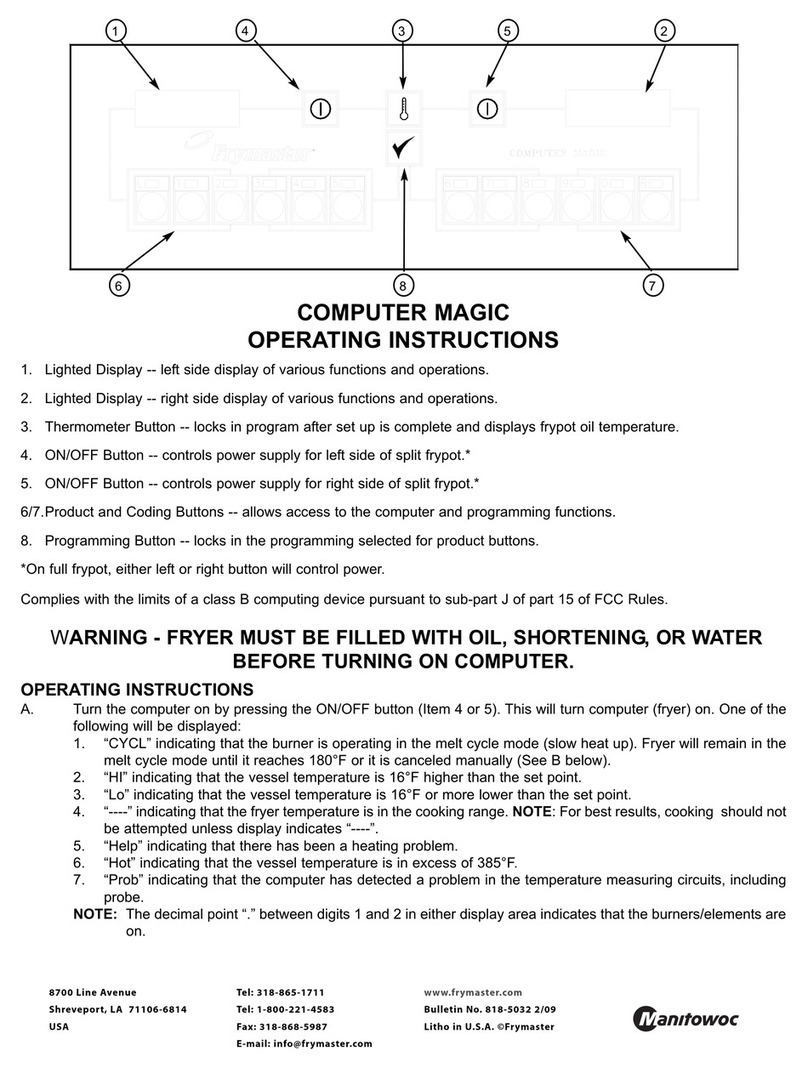
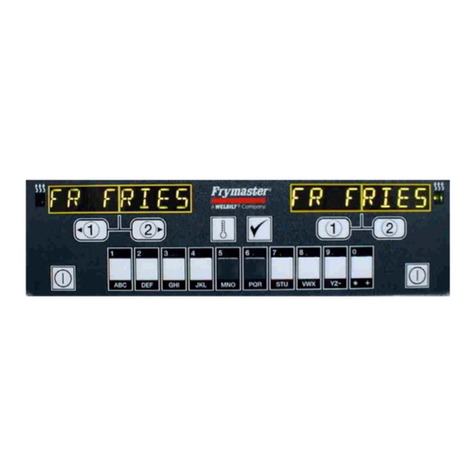
1. Lighted Display -- left side display of various functions and
operations.
2. Lighted Display -- right side display of various functions and
operations.
3. Thermometer Button -- locks in program after set up is
complete and displays frypot oil temperature.
4. ON/OFF Button -- controls power supply for left side of split
frypot.*
5. ON/OFF Button -- controls power supply for right side of split
frypot.*
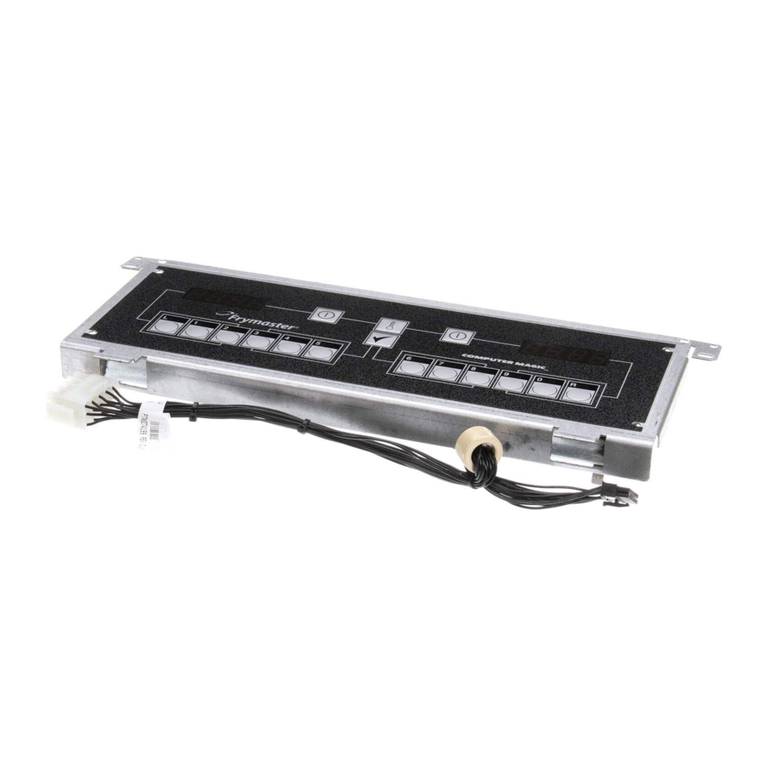
6/7. Product and Coding Buttons -- allows access to the
computer and programming functions.
8. Programming Button -- locks in the programming selected for
product buttons.
*On full frypot, either left or right button will control power.
FRYER MUST BE FILLED WITH OIL,
SHORTENING OR WATER BEFORE TURNING ON
COMPUTER. COMPUTER CANNOT BE PROGRAMMED
DURING A COOKING CYCLE.
PROGRAMMING INSTRUCTIONS FOR THE FRYMASTER
COMPUTER. PLEASE READ INSTRUCTIONS BEFORE
PROGRAMMING COMPUTER.
FULL POT
1. Press ON/OFF BUTTON, Item 4 or 5.
2. To enter program mode, press PROGRAMMING BUTTON
(Item 8), "CODE" will appear in left display. If you have
pressed this button in error and do not wish to program,
simply press PROGRAMMING BUTTON (Item 8), again.
NOTE: Computer will flash "BUSY" if cooking is in progress.
3. Enter Code Number: Press 1,6,5,0 in that sequence on Item
6 and 7. (Your program will not be accepted unless these
numbers are entered. This prevents an unauthorized person
from changing your present instructions.) Press
PROGRAMMING BUTTON (Item 8), to lock in code.
4. "SP-r" (SET POINT) will appear in the left display (Item 1).
This is for setting temperature; temperature previously
selected will be displayed in the right display (Item 2). Enter
temperature desired. Press PROGRAMMING BUTTON,
(Item 8) to lock in temperature setting. If you do not need to
change the temperature, press PROGRAMMING BUTTON
(Item 8).
5. “SELP" (SELECT PRODUCT) appears in Item 1. Press the
product button to be programmed (L, 1, 2, 3, 4, 5, 6, 7, 8, 9,
0, R). Press PROGRAMMING BUTTON (Item 8), to lock in
code.
6. "SENS" (SENSITIVITY) appears in Item 1. The sensitivity
number previously selected will be displayed in Item 2. Enter
the new desired sensitivity number. Press PROGRAMMING
BUTTON (Item 8) to lock in sensitivity setting. If you do not
need to change the sensitivity, press PROGRAMMING
BUTTON (Item 8).
NOTE: SENS -- Sensitivity is a built-in feature that causes the
computer to adjust cooking time to compensate for the drop in
shortening temperature when a basket of product is placed into
the fryer. Different food products will vary in density, basket load
size and initial temperature. Food products will also vary in how
well cooked a product is required to be. A proper sensitivity
setting for each product will assure a high-quality product each
time. For example: four ounces of french fries can be
programmed to be cooked to the same quality as two and one-
half pounds. Some experimenting with the range of 1 to 9 may
be required to obtain the desired quality to meet your
specifications.
7. "COOC" (COOK) is now displayed in Item 1. If a cooking
time has been entered in the program prior to this
programming, it will appear in Item 2. If that time is correct,
press PROGRAMMING BUTTON (Item 8). If you wish to
change that time, enter the numbers desired. The new time
will be displayed in Item 2. Press PROGRAMMING BUTTON
(Item 8). Press PROGRAMMING BUTTON (Item 8), to lock
in code.
8. "SH-" is now displayed in Item 1. If your product requires
shaking during the cooking process, set the time by pressing
the number of minutes to cook before shaking. This number
will appear in the right display (Item 2).
Example: Total Cook Time 3:00 minutes
Shake After Cooking 1:00 minute
9. Set the desired shake time. At the end of the set time, a
beeper will sound, and the product button will flash for 3
seconds. If none is required, set the time at "0" and press
PROGRAMMING BUTTON (Item 8).
COMPUTER MAGIC
PROGRAMMING INSTRUCTIONS
WARNING

10. "HD-" will appear in Item 1. Set the time you require for
holding the cooked product, 13 seconds to 60 minutes. Press
PROGRAMMING BUTTON (Item 8). If you do not wish to
use the HOLD time, enter "0" and press PROGRAMMING
BUTTON (Item 8). "SELP" will again display in Item 1. If
more products are to be programmed, return to Step 5 and
follow all instructions to this point.
ADDITIONAL HOLD TIME INSTRUCTIONS
Programming hold timer to another product button: In the event
the same product is being cooked in more than one basket, any
product button can be programmed to use the hold timer
normally used with a different product button. Example: Program
button "3" for 7:00 minutes hold time. Then when programming
button "R" for hold time, press address 4. Both "3" and "R" will
then use the same hold time of 7:00 minutes. See below for
button numbers and their assigned address numbers. Any other
button can be programmed to use the same hold time.
BUTTON L 1 2 3 4 5 6 7 8 9 0 R
ADDRESS 1 2 3 4 5 6 7 8 9 10 11 12
11. When you complete your program, lock in the program by
pressing THERMOMETER BUTTON (ITEM 3).
SPLIT POT
1. Press either ON/OFF BUTTON, Item 4 or Item 5.
2. To enter the program modes, press PROGRAMMING
BUTTON (Item 8). "CODE" will appear in the left display
(Item 1). If you have pressed this button in error and do not
wish to program, simply press PROGRAMMING BUTTON,
(Item 8) again. NOTE: You cannot program the computer
while it is in the cook mode. The computer will flash "BUSY"
if cooking is in progress.
3. Enter Code Number: Press 1,6,5,0 in that sequence on Item
6 and 7. (Your program will not be accepted unless these
numbers are entered. This prevents an unauthorized person
from changing your present instructions.)
4. "SP-r" (SET POINT) will appear in Item 1; this is for setting
the cooking temperature for the right side of split pot. The
temperature previously selected will be displayed in Item 2.
Enter new temperature desired. Press PROGRAMMING
BUTTON (Item 8) to lock in temperature setting. If you do not
wish to change the set point, press PROGRAMMING
BUTTON (Item 8).
5. "SP-L" (SET POINT) will appear in the left display (Item 1).
This is for setting the cooking temperature for the left side of
split pot. The temperature previously selected will be
displayed in the right display (Item 2). Enter the new
temperature desired and press PROGRAMMING BUTTON
(Item 8) to lock in temperature setting. If you do not wish to
change the set point, press PROGRAMMING BUTTON (Item
8).
6. "SELP" (SELECT PRODUCT) will appear in Item 1. Select
buttons "L" through "5" (Item 6) for programming the left side
of split pot; select buttons "6" through "R" (Item 7) for
programming the right side of split pot. Press the product
button (Item 6 or 7) to be programmed.
7. "SENS" will appear in Item 1. Refer to steps 6-11 under Full
Pot Programming Instructions to program individual product
buttons.
BOIL FEATURE
1. Before buttoning the fryer(s) ON, close the frypot drain
valve(s): fill empty frypot with mixture of cold water and
FRYMASTER FRYER 'N' GRIDDLE cleaner. Follow
instructions when mixing.
ON EARLY SPLIT POT COMPUTERS, BOTH
POTS WILL GO TO BOIL OPERATION. ON
CURRENT SPLIT POT COMPUTERS, BOIL MODE WILL NOT
TURN ON BOTH SIDES OF COMPUTER. EACH SIDE WILL
HAVE TO BE TURNED ON SEPARATELY.
2. To program computer for Boil Feature, press ON/OFF
BUTTON (Item 4 or 5).
3. Press PROGRAMMING BUTTON (Item 8) "CODE" will
appear in the left display.
4. Enter Code Number: Press 1,6,5,3 in that sequence. The
right display will read BOIL. The temperature is automatically
set for a temperature of 195°F (91°C). The fryer will attain
this proper boil temperature and remain there until the OFF
button (Items 4 or 5) is pressed which cancels the boil-out
mode. In high-altitude locations, the fryer must be monitored
constantly for over-boil conditions. If over-boil conditions
occur, turn off fryer immediately, allow to cool and re-enter
boil mode to continue the boil-out operation.
FRYER RECOVERY TIME CHECK
1. The computer automatically checks the recovery time each
time the pot temperature drops below 250 °F (121°C). To
check recovery time, press PROGRAMMING BUTTON (Item
8) "CODE" will appear in the left display (Item 1).
2. Enter Code Number: Press 1,6,5,2 in that sequence on Items
6 and 7. The recovery time will appear in both displays, (Item
1 and Item 2) for five seconds.
TEMPERATURE SELECTION MODE --
FAHRENHEIT TO CELSIUS
1. To change the computer temperature from Fahrenheit to
Celsius or Celsius to Fahrenheit, press ON/OFF BUTTON
(Item 4 or 5).
2. Press the PROGRAM BUTTON (Item 8). "CODE" will appear
in left display (Item 1).
3. Enter Code Number 1,6,5,8 in that sequence on Items 6 and
7. The computer will automatically toggle the temperature
from Fahrenheit to Celsius or Celsius to Fahrenheit.
4. Press the THERMOMETER BUTTON (Item 3) to display the
temperature in the newly selected mode.
CONSTANT OIL-TEMPERATURE-DISPLAY MODE
1. The cooking oil temperature will be displayed constantly at
all times. To program constant temperature display, press
ON/OFF BUTTON (Item 4 or 5).
2. Press the PROGRAM BUTTON (Item 8). "CODE" will appear
in left display (Item 1).
3. Enter Code 1,6,5,L in that sequence on Items 6 and 7. The
COMPUTER DISPLAY (Item 2) for full pot (Item 1 and 2) for
split pot will display oil temperature constantly.
4. To remove the constant oil-temperature display, repeat step 2
and 3. NOTE: During product cooking process, the cooking
time will not be displayed, but timing is taking place.
WARNING
8700 Line Avenue
Shreveport, LA 71106-6800
USA
Tel: 318-865-1711
Tel: 1-800-221-4583
Fax: 318-868-5987
E-mail: info@frymaster.com
www.frymaster.com
Bulletin No. 818-5031 7/09
Litho in U.S.A. ©Frymaster
Other manuals for Computer Magic
2
Other Frymaster Control Panel manuals