logo
Brands
  1. Home
  2. •
  3. Brands
  4. •
  5. Furrion
  6. •
  7. Home Theater System
  8. •
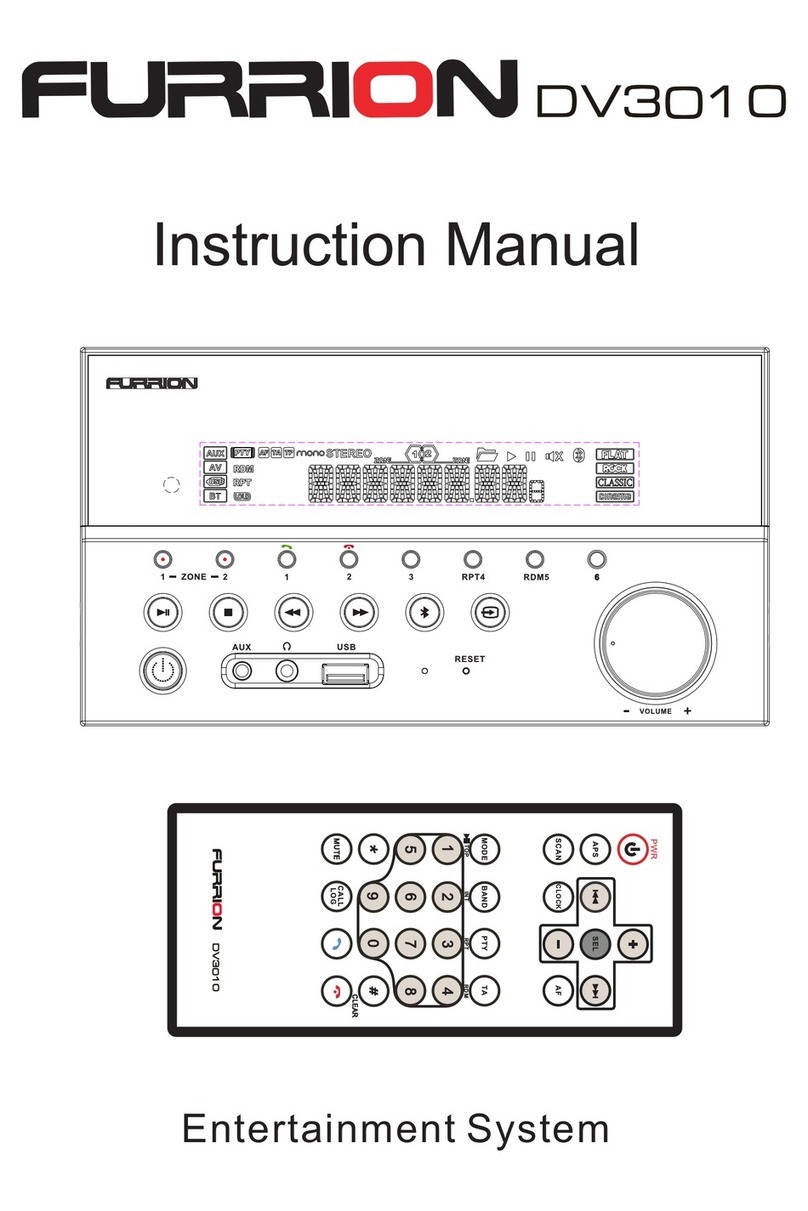
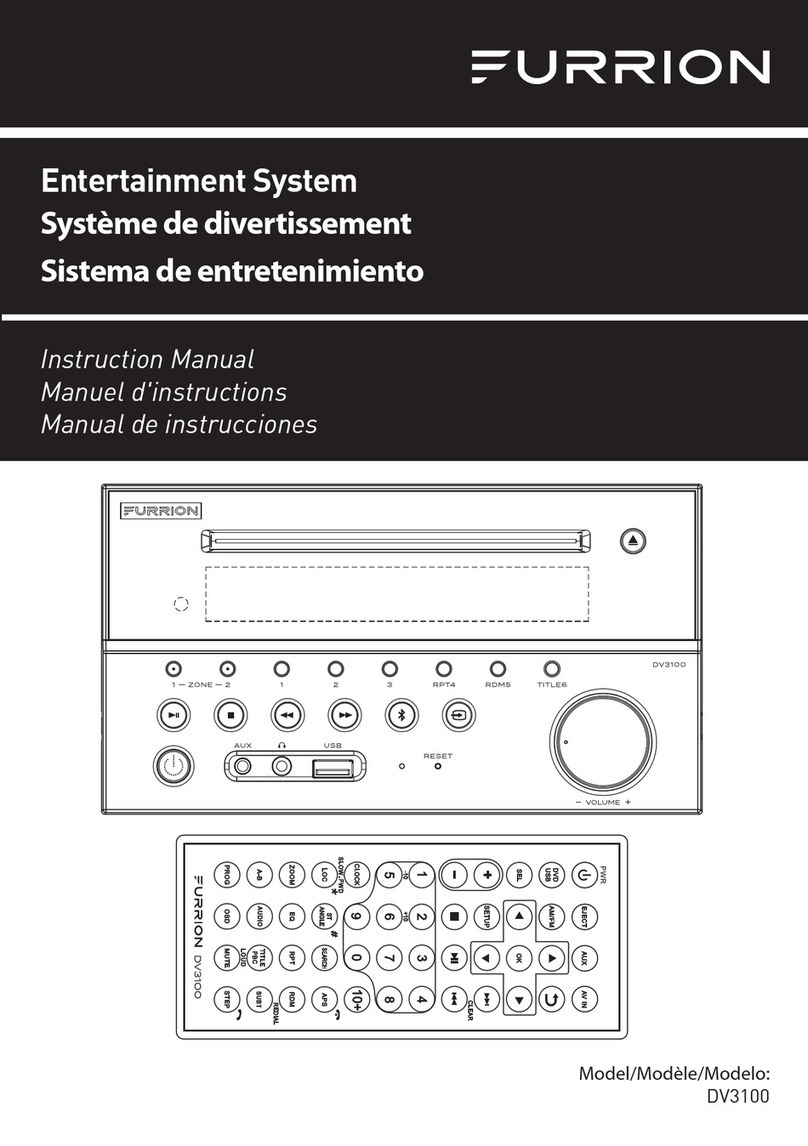
  9. Furrion DV3100 User manual

Furrion DV3100 User manual

Other manuals for DV3100

1

Other Furrion Home Theater System manuals

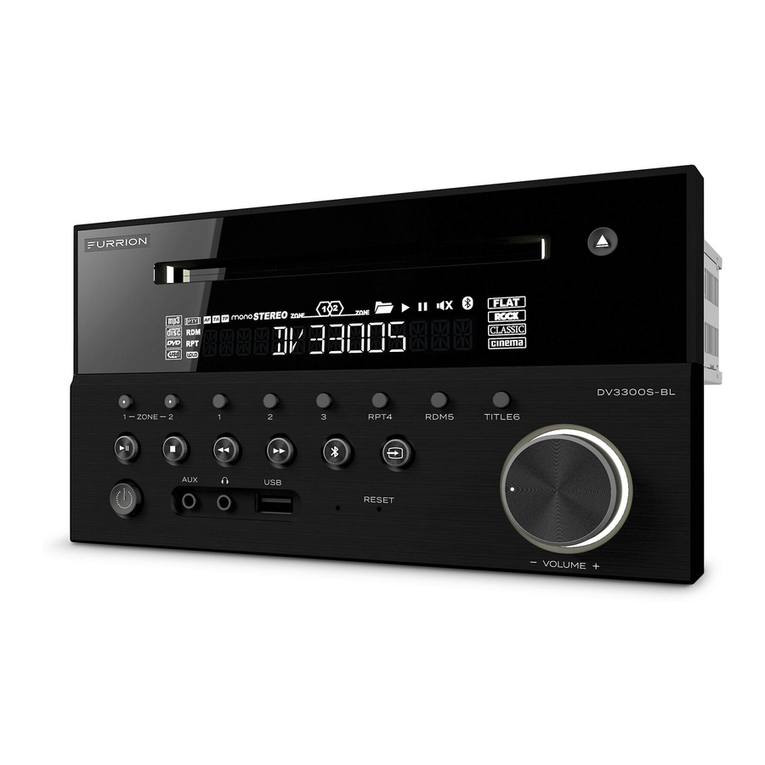
Furrion DV3300S-BL User manual

Furrion

Furrion DV3300S-BL User manual

Furrion DV3300S-BL User manual

Furrion

Furrion DV3300S-BL User manual

Furrion DV3100 User manual

Furrion

Furrion DV3100 User manual

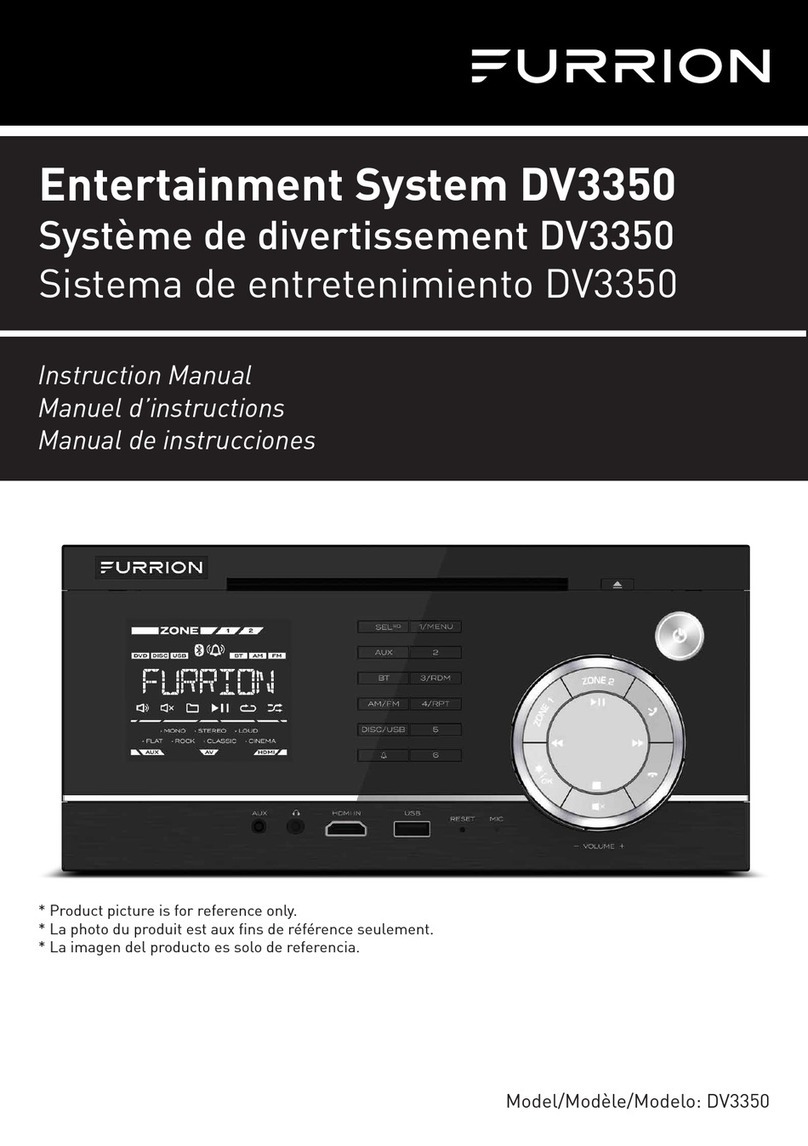
Furrion DV3350 User manual

Furrion

Furrion DV3350 User manual

Furrion DV1230 User manual

Furrion

Furrion DV1230 User manual

Furrion DV3010 User manual

Furrion

Furrion DV3010 User manual

Furrion DV3050 User manual

Furrion

Furrion DV3050 User manual

Furrion DV3300 User manual

Furrion

Furrion DV3300 User manual

Furrion DV7100 series User manual

Furrion

Furrion DV7100 series User manual

Furrion DV1100 User manual

Furrion

Furrion DV1100 User manual

Furrion DV3150 User manual

Furrion

Furrion DV3150 User manual

Furrion FDHK32V1A User manual

Furrion

Furrion FDHK32V1A User manual

Popular Home Theater System manuals by other brands

Samsung HT-ES4200K user manual

Samsung

Samsung HT-ES4200K user manual

Harman Kardon HS 100 owner's manual

Harman Kardon

Harman Kardon HS 100 owner's manual

Samsung HT-P10 instruction manual

Samsung

Samsung HT-P10 instruction manual

Philips HTS5131 User manaul

Philips

Philips HTS5131 User manaul

Goodmans GDVD19SWS user manual

Goodmans

Goodmans GDVD19SWS user manual

Moxi media center user guide

Moxi

Moxi media center user guide

Samsung HT-EM35 user manual

Samsung

Samsung HT-EM35 user manual

LG HE903PAW manual

LG

LG HE903PAW manual

Bose SoundTouch 520 owner's guide

Bose

Bose SoundTouch 520 owner's guide

Sony BDV-N990W installation guide

Sony

Sony BDV-N990W installation guide

Manta GK-500 user manual

Manta

Manta GK-500 user manual

Sharp SBW800 user manual

Sharp

Sharp SBW800 user manual

Philips HTS3541 user manual

Philips

Philips HTS3541 user manual

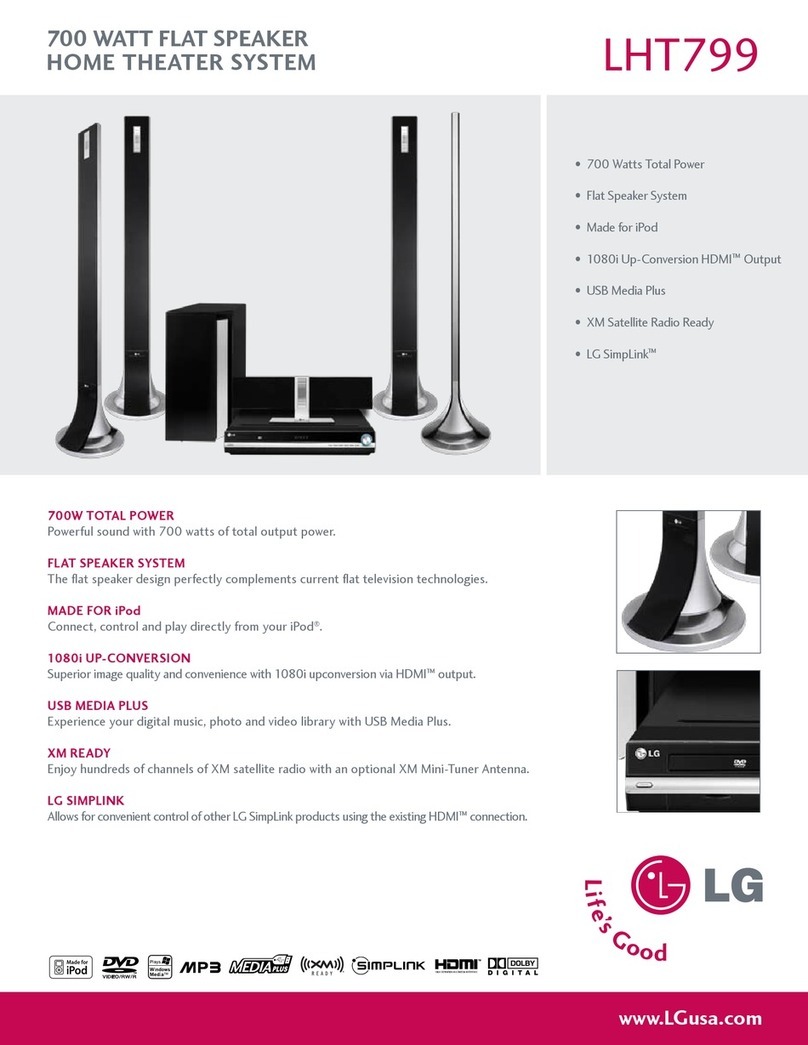
LG LHT799 specification

LG

LG LHT799 specification

Samsung HT-TWZ415 user manual

Samsung

Samsung HT-TWZ415 user manual

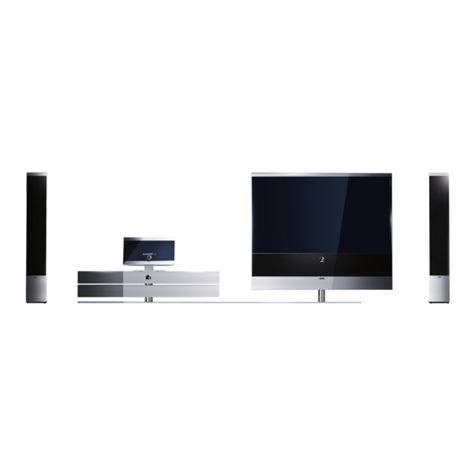
Loewe REFERENCE 52 SL FHD+ 200 NMP Service manual

Loewe

Loewe REFERENCE 52 SL FHD+ 200 NMP Service manual

Samsung AH68-02166R user manual

Samsung

Samsung AH68-02166R user manual

RCA 600-Watt owner's manual

RCA

RCA 600-Watt owner's manual

https://manuals.online logo
https://manuals.online logoBrands
  • About & Mission
  • Contact us
  • Privacy Policy
  • Terms and Conditions

Copyright 2025 Manuals.Online. All Rights Reserved.

4x25W RMS
200x110.5 190xmm
6
NTSC/PAL/AUTO(optional)
Audio
receiver
18
19
19
19
19
19
20
20
20
20
21
21
21
21
22
22
22
22
23
23
23
24
24
25
25
25
29
30
31
33
34
25
18
11
14
15
17
7. To play an audio file from a external Bluetooth device(mobile phone) on the wall
mount Stereo
8.To setup your Stereo using
(1) Turn on the NFC function of your mobile phone and m
(2) With the NFC detection area of
NFC(only support mobile phone with NFC function)
ake sure the screen is active
and unlocked.
your phone touch with the NFC detection area
of the Stereo, you can connect or disconnect your mobile phone with the Stereo
conveniently.
Note: For the first time pair and connect, it will ask you to input a password.
The password is “0000”.
5.1 Incoming call ringing, short press TEL button on the remote control or 1 button on
the front panel to accept the call.
(1) Short press TEL button on the remote control or 1 button on
the front panel,
it will show last phone number on the LCD, then it will execute the dialing.
(2) Short press REDIAL button on the remote control, it will dial the last phone number.
5.2 To reject Incoming call ringing, short press HANG UP button on the remote control
the front panel to REJECT the call.or 2 button on
5.3 During a phone call, short press HANG UP button on the remote control
the front panel to end the call.or 2 button on
Note: During other modes(execpt Bluetooth conversation), press BT MODE button on the
front panel to switch the mode with others.
Note: When an incoming call is present the caller’s phone number will be displayed
on the screen.
(with mobile phone) or receiving a call, the car audio will temporarily wake up.
After the device has been paired successfully and Wall mount Stereo screen displays
LINK OK
If your mobile device supports A2DP you will then be able to stream music from
your Bluetooth device so it can be played by stereo speaker.
You must select on your mobile Bluetooth device to play the audio through Bluetooth.
If your mobile device supports AVRCP then you will be able to control the basic phone
audio output functions by the Wall mount Stereo controls. Eg.Play Pause.
Bluetooth with NFC function
Auxiliary inputs on front and rear
USB input with charging function
2 zone multi room audio output
2 x RCA audio/video outputs for connecting 2 additional TVs
1 x subwoofer output
Clock
terminated with an insulated end to avoid wires shorting or earthing which
Do not attempt to disassemble or adjust this product, contact a service center
for assistance.
4
Fig.1 Fig.2 Fig.3
A
B
+ side up
correct
correct
wrong
wrong
wipe it off before using.
,
Note: Press BT MODE button on the front panel to switch between Unit and Phone
during BT phone conversation.
mobile
Short press CLEAR button to cancel the wrongly input number if necessary
Short press TEL button to execute the dialing.
result in injury or fire.
30
PREVIOUS BUTTON/CLEAR BUTTON
9
AV IN MODE BUTTON
UP BUTTON
NEXT BUTTON
RIGHT BUTTON
DOWN BUTTON
AM/FM RADIO MODE BUTTON
RANDOM BUTTON
REPEAT BUTTON
LEFT BUTTON
PROGRAM BUTTON
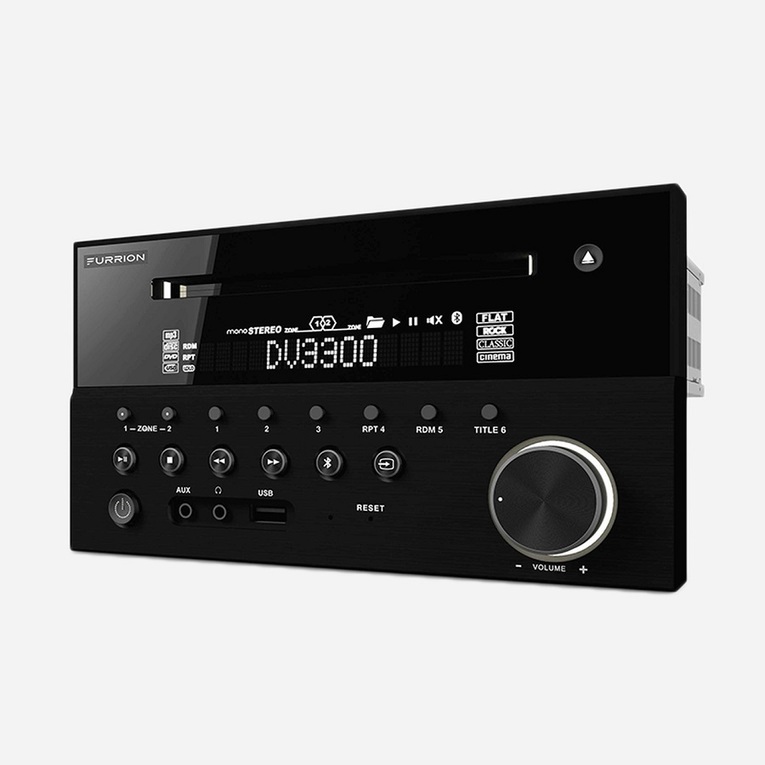
1.6 Locations and Names of the Controls
1. DISC SLOT
2. IR REMOTE CONTROL SENSOR
3. 1/2/3 BUTTON
1 TEL /REDIAL BUTTON
2 HANG UP BUTTON
4.ZONE A/B BUTTON
5.
6.PLAY/PAUSE BUTTON
RADIO REGION SELECT BUTTON
7.POWER BUTTON
8.STOP BUTTON
9.AUX IN SOCKET
10.HEADPHONE SOCKET
11. USB SOCKET
12.BT MODE BUTTON/EQ BUTTON
13.MICROPHONE IN
14.RESET BUTTON
15.INPUT MODE BUTTON
16.5/RANDOM BUTTON
17.VOL KNOB/SEL BUTTON
18.6/TITLE BUTTON
19.4/REPEAT BUTTON
20.LCD DISPLAY
21.EJECT BUTTON
22.NFC DETECTION AREA
78 9 10 11 14 15 16 17
18
21
2
4
3
5
19
RESET
AB
123RPT4 RDM5 TITLE6
ZONE
VOLUME
AUX USB
12 13
1
22
20
6
/ BUTTON
the relative content of SYSTEM SETUP menu for details.
28
HUE
It is for adjusting the hue of the video output.
SATURATION
It is for adjusting the saturation of the video output.
SHARPNESS
It is for adjusting the sharpness of the video output.
5.17.5 SPEAKER SETUP
DOWNMIX
It is for selecting your desired sound effect when there is no center speaker
and subwoofer. There are 3 modes: LT/RT, STEREO, VSS.
LT/RT: When playing a disc with PRO LOGIC Dolby stereo effect, choose the
item, so it will output audio signal with vivid theatre effect.
STEREO: If you choose the item, when outputting audio signal with 5.1 channels,
it will output the left and right channels of signal ; when outputting audio signal
with 2 channels, it will output the common 2 channels of stereo signal.
VSS: If you choose the item, when playing a disc recorded with 5.1 channels,
the main channel speakers can output audio signal with VSS effect.
5.17.6 DIGITAL SETUP
DYNAMIC RANGE
After selecting the compression mode of LINE OUT, set the item, so you can
adjust the linear compression ratio. If you set it to be FULL, the Peak-to-Peak
value of the audio signal is the minimum; if you set it to be OFF, the Peak-to-
Peak value is the maximum.
DUAL MONO
It is for selecting a desired audio output mode for the left and right ways of signal.
It is mainly for Karaoke of Ac3. There are 4 modes in all as follows:
STEREO, MONO L, MONO R, MIX MONO.
CONTRAST
It is for adjusting the contrast of the video output
Description of icons on the LCD display
1.USB icon
After inserting a USB storage, USB icon is lit.
2.DVD icon
After inserting a DVD disc, DVD icon is lit.
3.DISC icon
After inserting a disc(DVD,VCD,CD), DISC icon is lit.
4.MP3 icon
If a disc or a USB storage contains MP3 format files, MP3 icon is lit.
5.RDM icon
In random playback mode, RDM icon is lit.
6.MONO icon
In mono audio mode, MONO icon is lit.
7.STEREO
In stereo audio mode, STEREO icon is lit.
8. ZONE <1> icon
When selecting the ZONE A speakers, ZONE <1> icon is lit.
9.ZONE <2> icon
When selecting the ZONE B speakers, ZONE <2> icon is lit.
10. FOLDER icon
If a USB storage contains more than 2 folders(contains playback file),
FOLDER icon is lit.
11.PLAYBACK icon
During disc or USB playback state, PLAYBACK icon is lit.
12.PAUSE icon
During disc or USB pause playback state, PAUSE icon is lit.
13.MUTE icon
When the Stereo is on mute state, MUTE icon is lit.
14. BLUETOOTH icon
When the Stereo is paired and connected successfully, icon is lit.
15.FLAT icon
When selecting flat audio mode playback, FLAT icon is lit.
16.ROCK icon
When selecting rock audio mode playback, ROCK icon is lit.
17.CLASSIC icon
When selecting classic audio mode playback, CLASSIC icon is lit.
18.CINEMA icon
When selecting cinema audio mode playback, CINEMA icon is lit.
19.LOUD icon
When selecting loud audio mode playback, LOUD icon is lit.
20.RPT icon
In repeat playback mode, RPT icon is lit.
BLUETOOTH

27
an audio language.
Press MUTE button on the remote control to mute the audio,
will flash in the display. Press MUTE again to cancel.“MUTE”
Press MODE button repeatedly to select Tuner,Disc(After
disc),USB(After inserting a USB storage), BT,
AV IN and AUX mode.
INPUT
inserting a
Press EQ button to select between CINEMA,ROCK CLASSIC,
FLAT.
Press and hold CLOCK button on the remote control to enter
CLOCK Setup, rotate VOL KNOB to adjust hour. Press it briefly
to minute setting and rotate it to adjust. Once time is set,the unit
will automatically set after a few seconds.
Press and hold LOUD button on the remote control to turn on
or off LOUD mode.
Press ZONE A or B button to select speaker output,
“ZONE <1>” or “ZONE <2>” will display
on the LCD once it is selected.
RESET
26
9
For the DVD System Menu, there are 6 setup pages in all. They display as follows:
5.17.1 SYSTEM SETUP
TV TYPE
The setup item is for matching TV screen size.
4:3 PS: Choose the item when connecting a TV set with 4:3 screen. When playing
the pictures with 16:9 size, the left and right parts of the video will be cut out,
and display in full screen.
4:3 LB: Choose the item when connecting a TV set with 4:3 screen. When playing
the pictures with 16:9 size, the top and bottom parts of the TV screen will be
turned into a black square respectively.
16:9: Choose the item when connecting a TV set with 16:9 wide screen.
PASSWORD
This setup item is for locking or unlocking the rating level of the Parental Control.
The defaulted state is locked. The defaulted password is 0000.
You can set a new password that you like: Select the PASSWORD item and then
press the > button to enter it, then input the original password 0000, and then
press the OK button to unlock it. Press the > button to enter it again, then input
a new password that you like and then press the OK button to make it effective.
Before the other persons see the Manual, you should get the password in mind
and cut out the part of PASSWORD in the Manual.
RATING
The item is for setting a new rating level of the Parental Control.
1. Select the PASSWORD item and then press the > button to enter it, then input
the password mentioned above, and then press the OK button to unlock the
setting of the rating level of the Parental Control.
2. Select the RATING item and then press the > button to enter it, then use the
direction buttons to select your desired rating level, then press the OK button
to confirm.
3. Select the PASSWORD item again and then press the > button to enter it, then
input the password, and then press the OK button to lock the new setting of
the rating level of the Parental Control.
DEFAULT
This item is for making all setup items change back to original status.
TV SYSTEM
The Stereo supports output of various TV system.
If your TV has only NTSC or PAL system, the screen will blink and become
colorless when a wrong TV system is selected. In this case go to TV SYSTEM
and select NTSC, PAL or AUTO to match the system of your TV.
Press and hold PLAY/PAUSE button for 5 seconds
set AM/FM radio region(Europe/USA1/USA2) to
Press or button to move radio
one step at a time.frequence down or up
Press and hold or button
search the next strongest station
to
automatically.
Press and hold INPUT MODE button on the front panel
briefly press
select between FM1,FM2.FM3,AM1,AM2.
or AM/FM button on the remote control to
Press and hold APS button on the remote control to
store the six strongest station in the
18 FM stations and 12 AM stations
can be stored)
automatically
current band.(Up to
Briefly Press APS button on the remote control to scan
presets 1-6 in the current band.
Press LOC button on the remote control to turn on/off
LOC.
In FM mode,press ST button on the remote control to
select the Stereo or Mono sound mode.
Area Frequency
Selection
Storing and Recalling
Station Presets
Stereo/Mono