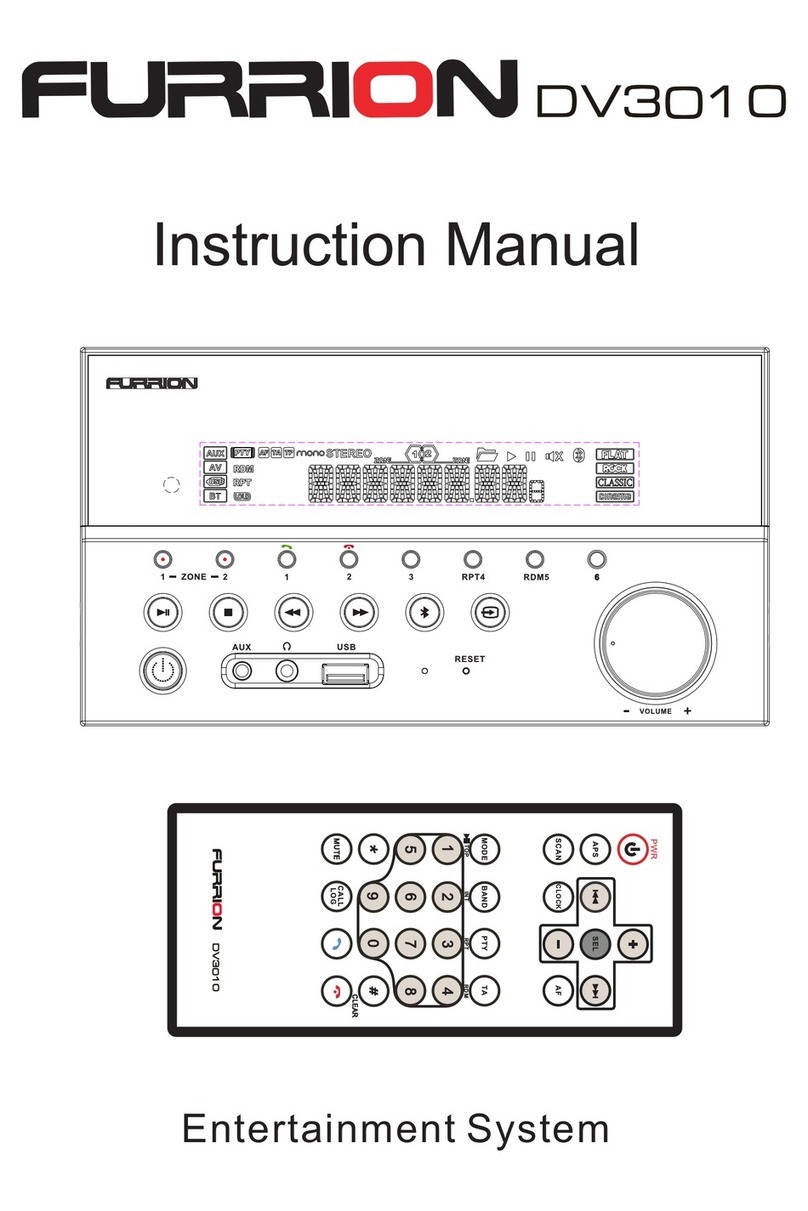
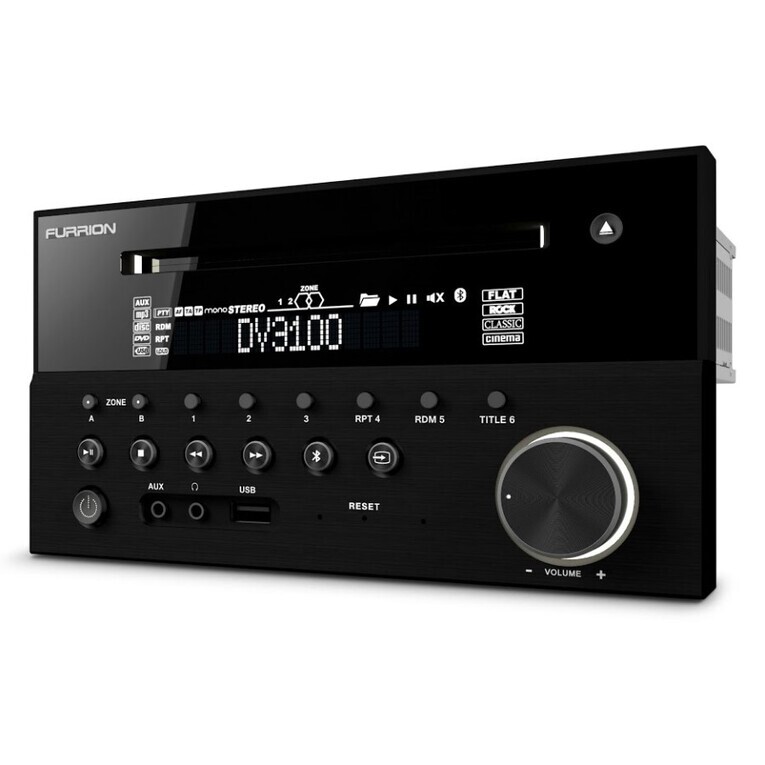
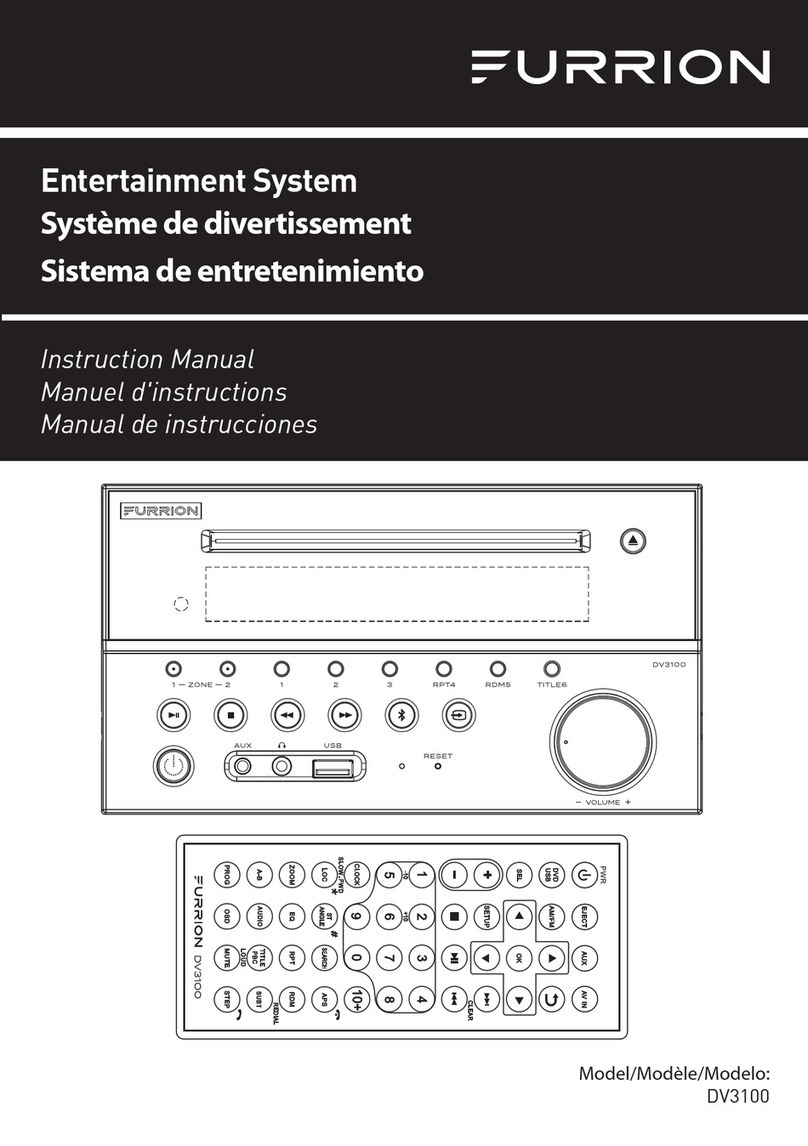
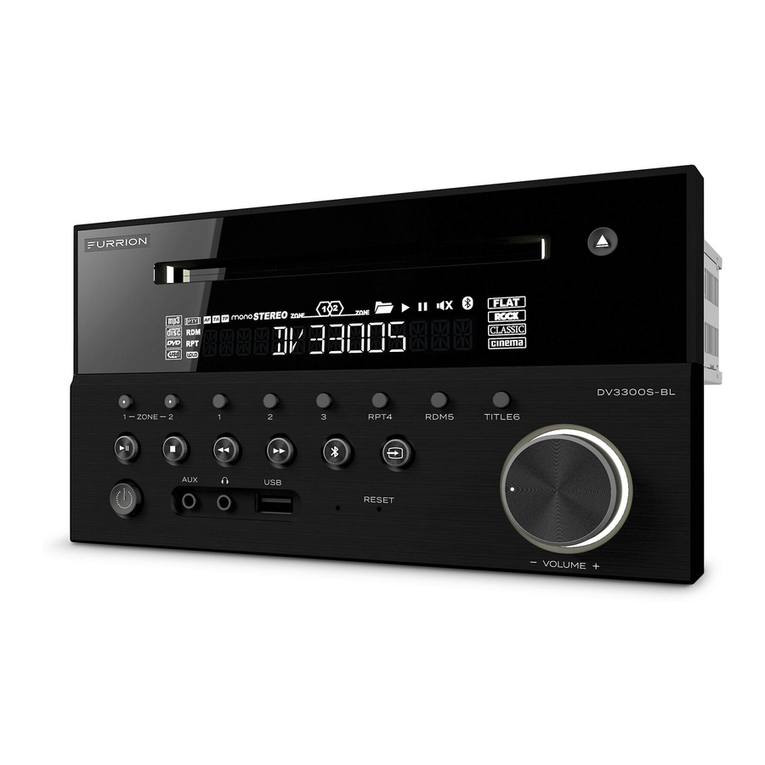
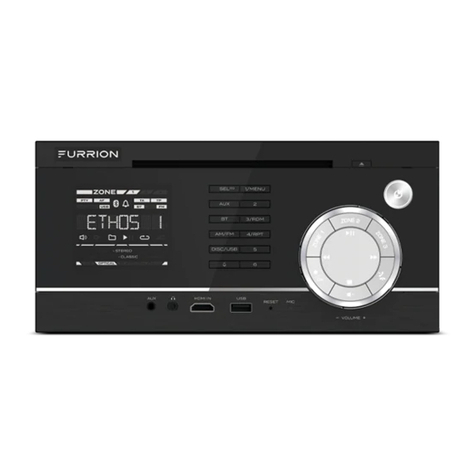
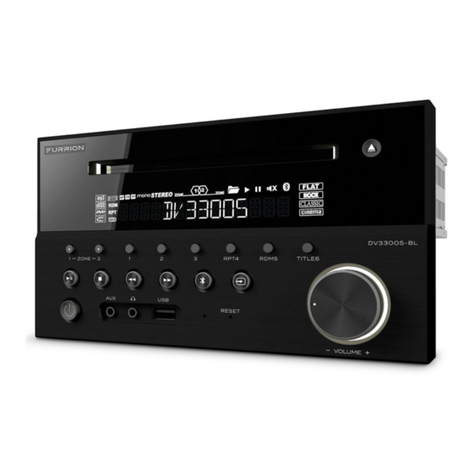
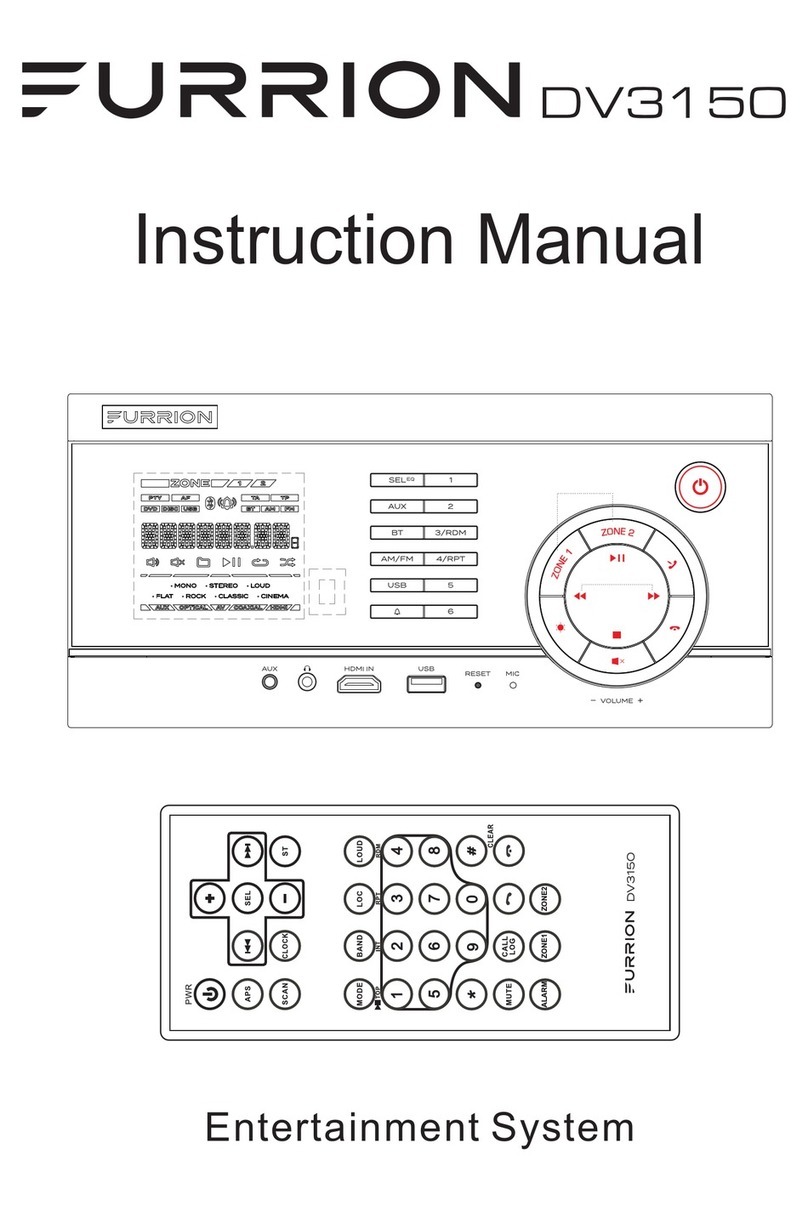
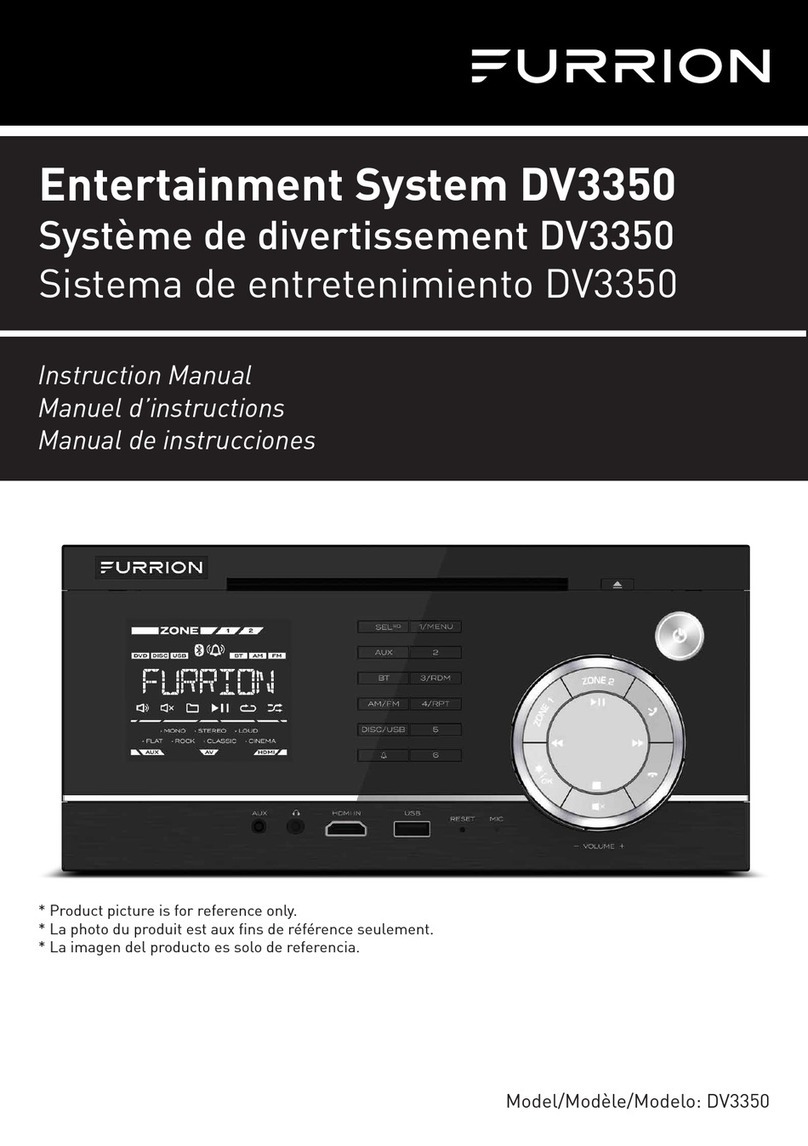
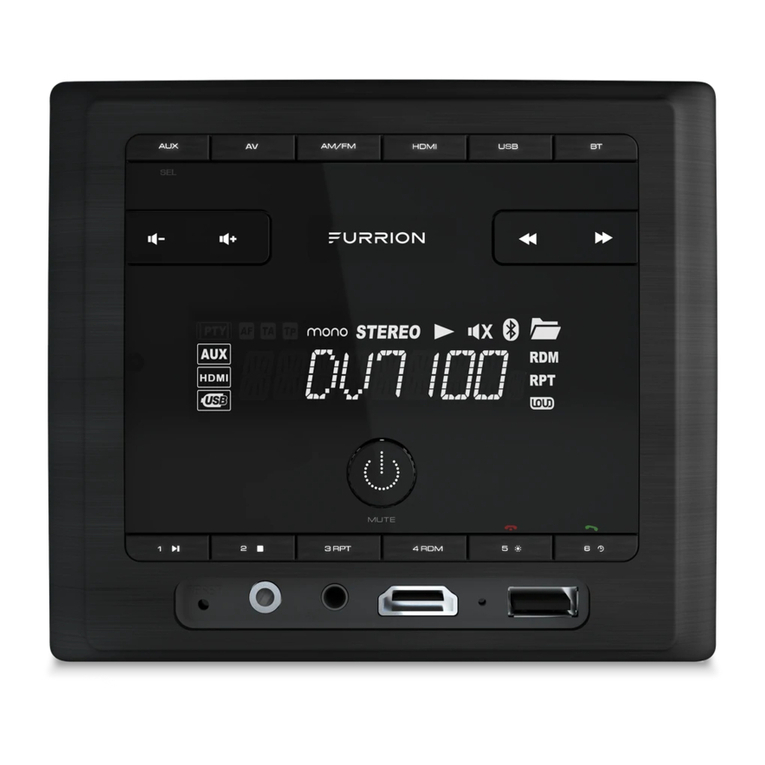
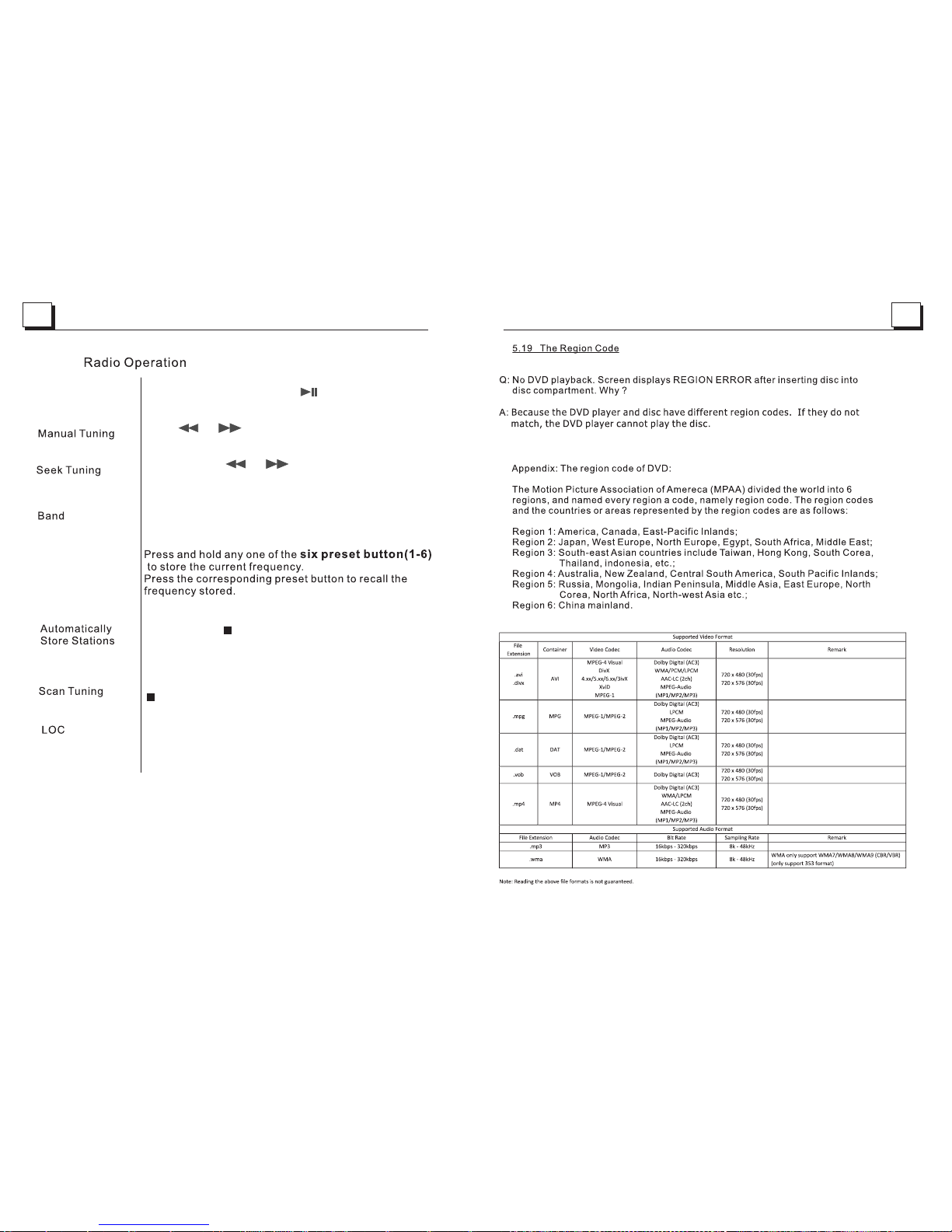
Description of icons on the LCD display
1.USB icon
After inserting a USB storage, USB icon is lit.
2.DVD icon
After inserting a DVD disc, DVD icon is lit.
3.DISC icon
After inserting a disc(DVD,VCD,CD), DISC icon is lit.
4.MP3 icon
If a disc or a USB storage contains MP3 format files, MP3 icon is lit.
5.RDM icon
In random playback mode, RDM icon is lit.
6.MONO icon
In mono audio mode, MONO icon is lit.
7.STEREO
In stereo audio mode, STEREO icon is lit.
8. ZONE <1> icon
When selecting the ZONE 1 speakers, ZONE <1> icon is lit.
9.ZONE <2> icon
When selecting the ZONE 2 speakers, ZONE <2> icon is lit.
10. FOLDER icon
If a USB storage contains more than 2 folders(contains playback file),
FOLDER icon is lit.
11.PLAYBACK icon
During disc or USB playback state, PLAYBACK icon is lit.
12.PAUSE icon
During disc or USB pause playback state, PAUSE icon is lit.
13.MUTE icon
When the Stereo is on mute state, MUTE icon is lit.
14. BLUETOOTH icon
When the Stereo is paired and connected successfully, BLUETOOTH icon is lit.
15.FLAT icon
When selecting flat audio mode playback, FLAT icon is lit.
16.ROCK icon
When selecting rock audio mode playback, ROCK icon is lit.
17.CLASSIC icon
When selecting classic audio mode playback, CLASSIC icon is lit.
18.CINEMA icon
When selecting cinema audio mode playback, CINEMA icon is lit.
19.LOUD icon
When selecting loud audio mode playback, LOUD icon is lit.
20.RPT icon
In repeat playback mode, RPT icon is lit.
6. To play an audio file from an external Bluetooth device(mobile phone) on the wall
mount Stereo
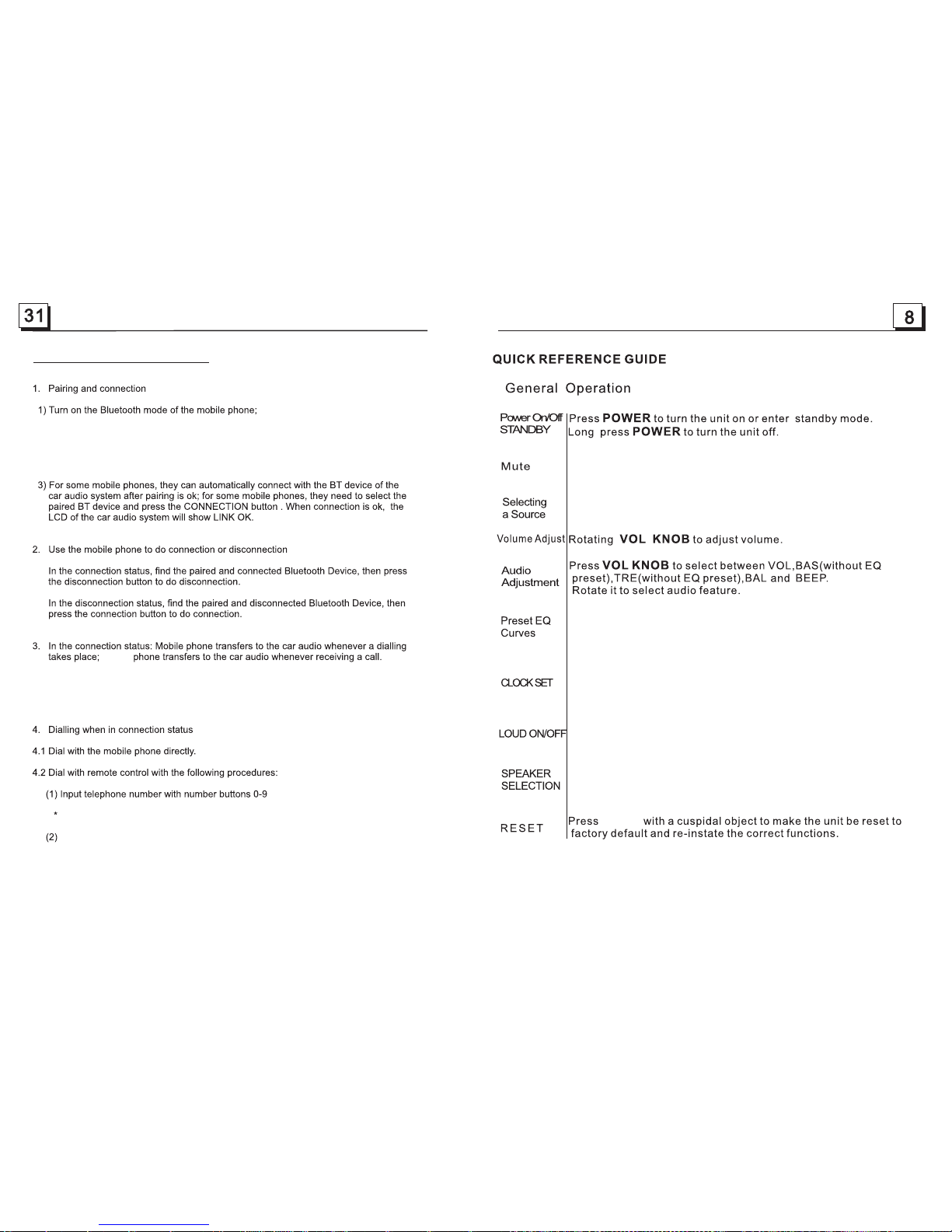
7.To setup your Stereo using NFC(only support mobile phone with NFC function)
(1) Turn on the NFC function of your mobile phone and make sure the screen is active
and unlocked.
(2) With the NFC detection area of your phone touch with the NFC detection area
of the Stereo, you can connect or disconnect your mobile phone with the Stereo
conveniently.
Note: For the first time pair and connect, it will ask you to input a password.
The password is “0000”.
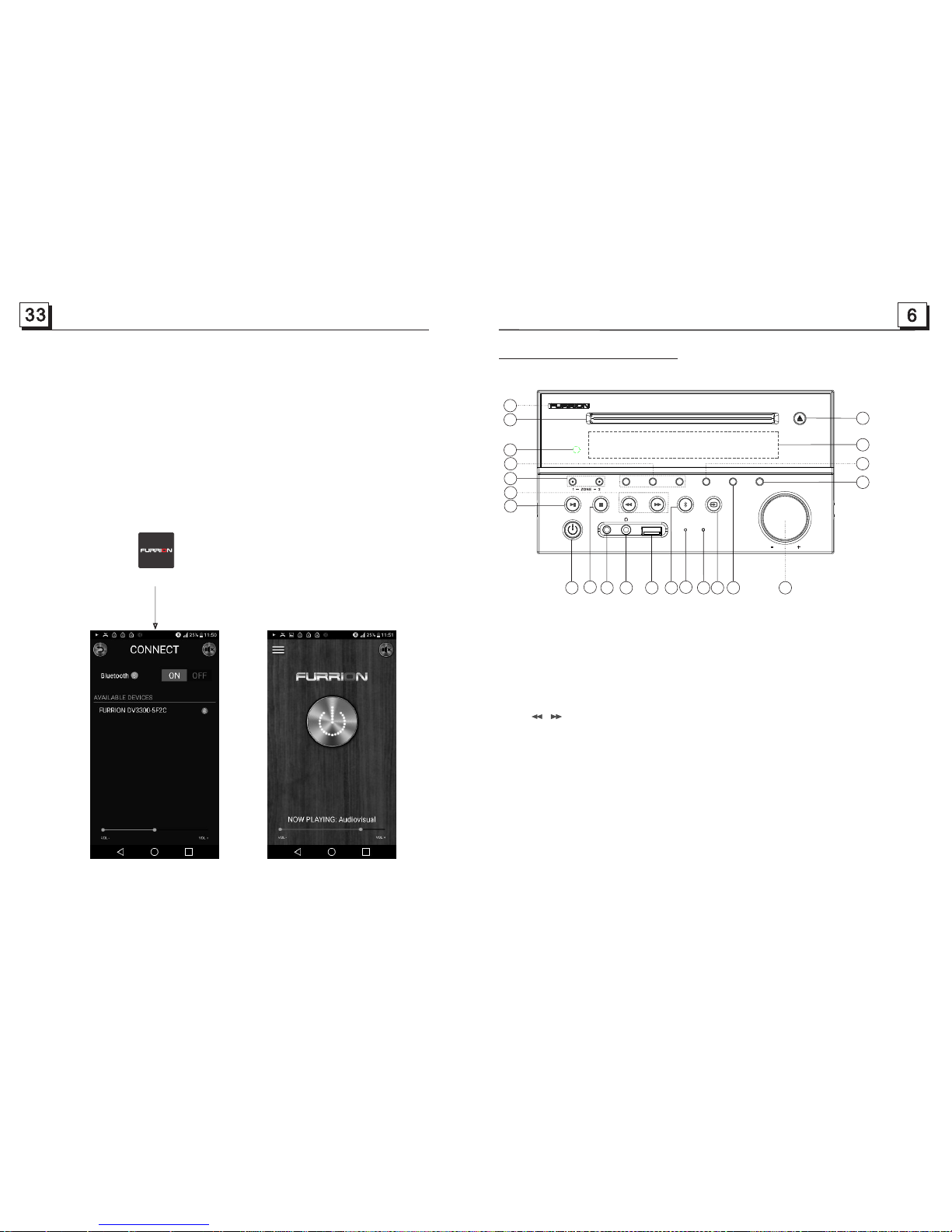
5.1 Incoming call ringing, short press TEL button on the remote control or 1 button on
the front panel to accept the call.
(1) Short press TEL button on the remote control or 1 button on the front panel,
it will show last phone number on the LCD, then it will execute the dialing.
(2) Short press REDIAL button on the remote control, it will dial the last phone number.
5.2 To reject Incoming call ringing, short press HANG UP button on the remote control
or 2 button on the front panel to REJECT the call.
5.3 During a phone call, short press HANG UP button on the remote control
or 2 button on the front panel to end the call.
Note: During other modes(execpt Bluetooth conversation), press BT MODE button on the
front panel to switch the mode with others.
Note: When an incoming call is present the caller’s phone number will be displayed
on the screen.
After the device has been paired successfully and Wall mount Stereo screen displays
LINK OK
If your mobile device supports A2DP you will then be able to stream music from
your Bluetooth device so it can be played by stereo speaker.
You must select on your mobile Bluetooth device to play the audio through Bluetooth.
If your mobile device supports AVRCP then you will be able to control the basic phone
audio output functions by the Wall mount Stereo controls. Eg.Play Pause.