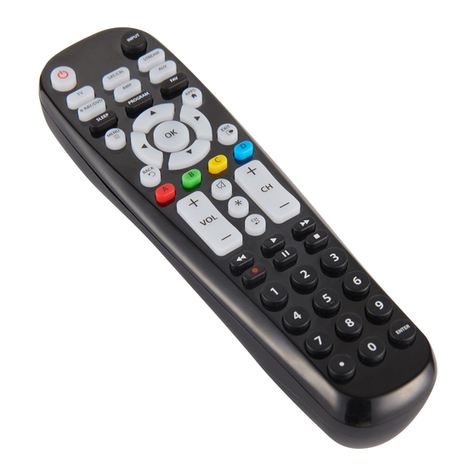
GE 24999 User manual

Universal Remote
Instruction Manual
24999

2
Table of Contents
Introduction ...........................................................................................................................3
Button Functions ................................................................................................................4
DVD/DVR Punch-Through Feature ....................................................................5
Setup ........................................................................................................................................6
Battery Installation ...................................................................................................6
Battery Saver ...............................................................................................................6
Code Saver....................................................................................................................6
Power-On default ......................................................................................................6
Liquid Crystal Display (LCD) ...................................................................................6
Code Setup ...................................................................................................................6
Setup ........................................................................................................................................7
Code Entry .............................................................................................................................8
Code Entry Using On-Screen Code List ...........................................................9
Direct Code Entry .......................................................................................................8
Searching For Codes ................................................................................................9
Code Identification Feature ...........................................................................................9
Programming Combo Device Codes .........................................................................9
Volume/Mute Control Feature ................................................................................... 10
Setting Volume/Mute Control, Punch-Through ................................................. 10
Setting any Mode to use its own Volume/Mute ................................................ 10
Resetting Mute/Volume Control to defaults ....................................................... 11
Setting Time of Day ........................................................................................................ 12
Setting the Date ............................................................................................................... 12
Setting the Backlight Delay ......................................................................................... 13
Full System Reset to factory defaults .................................................................... 13
Timer Setup ........................................................................................................................ 14
Sleep Timer ............................................................................................................... 14
Setting and Clearing Timers ................................................................................14-15
Code Learning ................................................................................................................... 16
Tips on Learning ...................................................................................................... 16
Learning Commands ..................................................................................................... 18
Clearing Commands ...................................................................................................... 19
Clearing Learned commands for a mode ................................................... 19
Master Clear .............................................................................................................. 19
Troubleshooting ............................................................................................................... 20

3
Introduction
Congratulations on your purchase of this 24999 Universal Remote
Control. It is one of the most unique looking, and easy to use remote
controls available today. Its stylish looking blue backlight, and metallic
keypad is like no other remote. With the 24999 juggling multiple remote
controls is a thing of the past! Your 24999 Universal Remote controls
up to 8 devices, including the most popular brands of TV, VCR, DVD, SAT,
CBL, and audio equipment.
Note: Some functions from your original remote may not be controlled
by the 24999 remote. Use the original remote, if available, to control
such functions. Sometimes buttons other than described in these
instructions may actually perform the function. For example, the CHAN
and VOL buttons might be used to navigate through menu choices.
We recommend you experiment with the remote to identify if such
situations pertain to your equipment.
The 24999 Universal Remote is easy to use, easy to program, and it
gives you total control—at the touch of your fingertips!

4
Note: The REC button must be pressed TWICE to record from your
device. For some brands of VCRs, you might need to press the REC
button once, then press it again for three seconds.
Some buttons on the remote might have functions that are referred
to by different names on the device you are controlling. E.G. LAST may
be called RECALL, or ENTER may be called DISPLAY. These differences
depend on the brand and model of your product. Also, this remote can
only operate features that exist on your product. E.G., your product
must have LAST ability for the LAST button to operate this feature.
Button Functions
1.
2.
3.
4.
5.
6.
7.
8.
9.
10.
11.
12.
13.
26.
25.
24.
23.
22.
21.
20.
19.
18.
17.
16.
15.
14.

5
Button Functions, cont.
1. Liquid Crystal Display (LCD): Helps with setup and displays the
Mode the remote is in, and time, etc.
2. SETUP: Used for setting up your remote.
3. TV, DVD, DVR, etc.: Selects product to be operated.
4. EXIT: Exits On-Screen Menus/Returns to previous On-Screen
selection.
5. Dot: Used for digital channels, e.g. 2.3.
6. MENU: Brings up the device Menu screen (if available) - use with
UP, DOWN, LEFT, and RIGHT navigation buttons.
7. MUTE: Turns off the TV sound while the picture remains.
8. UP, DOWN, LEFT & RIGHT: Navigation buttons.
9. VOLUME UP/DOWN: Changes the volume level of the product,
normally the TV.
10. OK: Selects menu items for the device you are controlling.
11. ABCD buttons: Used to store learned commands.
12. REPLAY: On some DVRs, this button replays the last 8 seconds of a
program.
13. PAGE DOWN: Sets your Favorites ratings, and moves one screen
down at a time in guides and menus.
14. RECORD, PLAY, STOP, REW, FF, PAUSE: Control buttons that
operate your DVD/DVR even when the remote is set to operate the
TV. Also operates DVD Scan -/+.
15. LIVE: Returns to live TV.
16. PAGE UP: Sets your Favorites ratings, and moves one screen up at
a time in guides and menus.
17. INPUT: For some TVs, press repeatedly to select available viewing
sources (antenna, cable box, VCR, DVD, etc.).
18. DVR List: Press to display list of recorded shows on your DVR.
19. CHANNEL UP/DOWN: Changes the channels. Also controls DVD/
CD CHAPTER +/- track selection, i.e., DVD/CD Track Skip Up/Down.
Note the DVR buttons also control the DVD when in DVD Mode.
20. LAST: Returns to the previously selected channel, or DVD repeat
toggle.
21. INFO: Displays/selects on-screen channel information.
22. GUIDE: Displays on-screen program or channel guides.
23. ENTER: Used after direct channel number entry to immediately
change to the selected channel.
24. NUMBERS: Enter numbers for direct channel selection. Some
products require Enter to be pressed after channel selection.
25. ASPECT: Aspect Ratio Control selects viewing format for the
displayed picture, e.g., Wide, Zoom, etc.
26. POWER: Turns device on or off.
DVD/DVR Punch-Through Feature
This remote allows the 6 DVD/DVR transport buttons (i.e., PLAY, PAUSE,
STOP, FF, REWIND, and REC) to operate the programmed TV, DVD,
SAT, DVR, Cable device if the code has these button functions e.g. if
you have programmed a SAT/DVR or Cable/DVR, etc. Otherwise the
transport keys will punch-through to the last DVD or VCR programmed
mode you used, i.e., the transport buttons control your DVD or VCR
player even when you are in TV, SAT or Cable mode.

6
Battery Installation
1. On the back of the remote, push down on the
tab and lift the cover off.
2. Match the batteries to the + and - marks inside
the battery case, then insert 2 AAA Alkaline
batteries.
3. Press the battery cover back into place.
Battery Saver
Your remote automatically turns off if the buttons
are depressed more than 30 seconds. This will
save your batteries should your remote get stuck
in a place where the buttons remain depressed
(e.g., between the sofa cushions).
Code Saver
All user programmed settings, except Time, Day, and Date will be stored
in permanent memory while you are changing batteries, so you will not
lose any codes stored in the remote while you are changing batteries.
Time, Day, and Date, will be cleared to the factory defaults when the
batteries are replaced.
Power-On Default
The remote powers on in TV mode.
Liquid Crystal Display (LCD)
The LCD lets you see at a glance what mode the remote is in. It also
includes a clock that displays the time and day, and a visual indication
that the remote is transmitting when you press a button.
Code Setup
The SETUP button is used to setup the remote. You can either setup the
remote using the code for your brand of product, from the code tables
(on separate sheet), or you can search through the library of codes until
you find a code that works for your product.
You can store any kind of code under any mode (except TV). I.E. you can
store a VCR code under the CBL button, or a DVD code under the VCR
button, etc. However, you can only store TV codes under the TV button.
The SETUP button is used for programming the remote and accessing
any additional features - e.g. Shifted functions, see below. To enter setup
mode, press and hold the SETUP button until “CODE SETUP” appears in
the display. The “SET” symbol will always be shown when the remote is
in Setup. Successive presses of the SETUP button shows available Setup
options in the order shown below.
1. CODE SETUP – press OK here to program a Mode e.g. Code Entry,
Search, etc. See Code Setup options below.
2. SYSTEM SETUP – press OK here to set Time, Date, Volume Control, etc.
3. TIMER SETUP – press OK here to set Timer events.
4. LEARN SETUP – press OK here to program a Mode with Learned
commands.
5. EXIT SETUP – press OK here to Exit Setup routines and return to
normal operation.
Press OK to select the desired programming step required.
Exit from Setup occurs automatically after approximately 15 seconds if
no buttons is pressed. TIME OUT is displayed.
When the remote is busy processing in Setup routines, “Please Wait” is
displayed.
Setup

7
Setup, cont.
Setup Screen Navigation Use the SETUP, OK, and Up, Down, Left and
Right navigation buttons for Setup screen navigation and selection.
To exit the Setup routines and return to normal operation, press the
EXIT button or navigate to the “EXIT SETUP” screen and press OK.
Completion of some Setup routines will automatically return the remote
to normal operation.
Mode button press Display Pressing and holding a Mode button
changes to that Mode and displays the active Mode and its code, e.g.,
DVD and the programmed 4-digit code e.g., 0768. The display returns to
normal when you release the button.
SETUP (Shift) Display Pressing and releasing the Setup button displays
the active Mode of the remote e.g. DVD, the Date e.g. 3:26 (Month:Day)
and indicates “Shift” operation with “(S)”. Press and release Exit to return
to normal display. To use the SETUP button for Shift - Press and release
SETUP followed by the desired secondary function button.

8
Code Entry
Code Setup Options: Pressing OK at the CODE SETUP screen presents
3 options for programming a Mode with codes. These are LIST CODES
(lets you enter a 4 digit code from the on-screen code list), ENTER CODES,
(lets you enter a 4 digit code directly from the printed code list) SEARCH
CODES, (lets you search through the codes stored in the remote to find
the correct one for your device).
Code Entry using On-screen Code List
1. Manually turn on the device to be controlled.
2. Press and hold the SETUP button until CODE SETUP is displayed
(takes about 3 seconds), then release the SETUP button.
3. Press and release OK. LIST CODES is displayed.
4. Press and release OK. MODE KEY? is displayed.
5. Press and release the desired mode button (TV, VCR, DVD, etc.). The
Mode is displayed along with its currently programmed code.
6. Using the UP/DOWN buttons, select the Device type to be
programmed (TV, VCR, DVD, etc. Note - For TV Mode, only a TV
Device can be selected.
7. Press and release OK to confirm selection.
8. The Code List Brand and Code will now be displayed (e.g. Admiral
0000). Use the UP/DOWN buttons to select the Brand and LEFT/
RIGHT buttons to select the Code. Codes can be tested on your
device using VOLUME, MUTE, CHANNEL, POWER, INPUT, PLAY,
STOP, FF, REWIND and PAUSE. Once the correct code has been
found, press and release OK to install the Code.
9. PLEASE WAIT is briefly displayed, followed by SUCCESS and the
remote returns to normal operation.
10. With your device on, press CHANNEL UP. If the device responds,
no further programming is required. Note: If some buttons do not
operate your equipment, try one of the other codes for your brand
of device.
Direct Code Entry
1. Manually turn on the device to be controlled.
2. Press and hold the SETUP button until CODE SETUP is displayed
(takes about 3 seconds), then release the SETUP button.
3. Press and release OK. LIST CODES is displayed.
4. Press the DOWN navigation button until ENTER CODES is displayed.
5. Press and release OK. MODE KEY? is displayed.
6. Press and release the desired mode button (TV, VCR, DVD, etc.). The
Mode is displayed along with its currently programmed code.
7. Enter the 4 digit code from the code tables (on separate sheet). After
the 4th digit is entered SUCCESS is displayed and the remote returns
to normal operation.
If an invalid code is entered, CODE ERROR is shown in the display and
the remote returns to normal operation.
8. With your device on, press CHANNEL UP. If the device responds,
no further programming is required. Note: If some buttons do not
operate your equipment, try one of the other codes for your brand
of device.

9
Searching for Codes
If your product does not respond after you have tried all the codes for
your brand, or if your brand is not listed, try searching for your code by
following these steps.
1. Manually turn on the device (TV, VCR, DVD, etc.) to be controlled.
2. Press and hold the SETUP button until CODE SETUP is displayed
(takes about 3 seconds), then release the SETUP button.
3. Press and release OK. LIST CODES is displayed.
4. Press the down navigation button repeatedly until SEARCH CODES is
displayed.
5. Press and release OK. MODE KEY is displayed.
6. Press and release the desired mode button (TV, VCR, DVD, etc.).
DEVICE? TV is displayed.
7. Using the Up/Down keys, select the Device type to be programmed
(TV, VCR, DVD, etc. Note - For TV Mode, only a TV Device can be
selected.
8. Press and release OK to confirm selection. SEARCH KEY? is displayed.
9. Press the CHANNEL UP button (or POWER, or PLAY for VCRs/
DVDs) repeatedly (up to 300 times) until the Device to be controlled
changes channel, turns off or responds accordingly. SEARCHING
is displayed (along with the Device selection) during the search
process. If the desired Code is accidentally passed then press the
CHANNEL DOWN button to backtrack through the Library. Press
CHANNEL UP (or POWER or PLAY) to change direction forward again.
10. Press and release OK to install the Code. PLEASE WAIT is briefly
displayed, followed by SUCCESS and the remote returns to normal
operation.
Notes:
1. If the Device does not have a CHANNEL UP button, use PLAY (VCR/DVD)
or the POWER button instead.
2. Code Search starts from the currently stored 4-digit number under
that Mode.
3. When all codes have been searched SEARCH END is displayed and
remote returns to normal operation.
Code Identification Feature
Press and hold the respective Mode key in normal operation to display
the programmed code for that Mode e.g., DVD Code 0768.
Programming Combo Device Codes
Some combo (combination) devices (TV/DVR, TV/DVD, DVD/DVR, etc.)
require you to set up 2 different modes to control both parts of the
combo. For example, if you have a TV/DVD combo, you might need to
set up one code under the TV mode to control the TV and a separate
code (under other modes) to control the DVD.
Code Entry, cont.

10
System Setup Options
Pressing OK at the SYSTEM SETUP screen accesses the System Setup
Options for Volume Punch-Through control Setup, Time Setup, Date Setup,
Backlight Setup and System Reset.
Volume/Mute Control and Punch-Through Feature
Your remote allows you to select which device mode controls VOLUME
and MUTE. This remote is initially set for all device modes to use their
own Volume/Mute control if present. If the programmed code does not
have Volume/Mute operation, then VOLUME and MUTE will “punch-
through” (hand-over) control to the TV mode device without you
needing to change to TV mode. Note: Any mode chosen for Volume/
Mute control must have its own Volume/Mute function or else VOLUME
and MUTE will not function.
Setting ALL Volume/Mute Control to any one Mode (ALL VOL. SET)
This routine can set all Modes to “punch-through” to any one chosen
Mode for Volume/Mute button control without needing to change to
that Mode.
1. Press and hold the SETUP button until CODE SETUP is displayed
(takes about 3 seconds), then release the SETUP button.
2. Press the down navigation button until SYSTEM SETUP is displayed.
3. Press and release OK. VOL/MUTE SETUP is displayed.
4. Press and release OK. ALL VOL. SET is displayed.
5. Press and release OK. ALL VOL. MODE? is displayed.
6. Press and release desired Mode key (TV, VCR, DVD, etc.) for Volume/
Mute control. PLEASE WAIT is briefly displayed, followed by SUCCESS
and the remote returns to normal operation.
All Modes will now punch-through to your chosen Mode for Volume/
Mute control. If the chosen Mode has no Volume/Mute commands of its
own, “Volume Error” is shown in the display and the remote returns to
normal operation.
Setting any Mode to use its own Volume/Mute Control (MODE VOL.
SET)
This sets any Mode to use only its own Volume/Mute control, i.e.
Volume/Mute punch-through is disabled for this Mode. Note - If your
chosen Mode has no Volume/Mute functions of its own then the
Volume/Mute buttons will do nothing.
1. Press and hold the SETUP button until CODE SETUP is displayed
(takes about 3 seconds), then release the SETUP button.
2. Press the down navigation button until SYSTEM SETUP is displayed.
3. Press and release OK. VOL/MUTE SETUP is displayed.
4. Press and release OK. ALL VOL. SET is displayed.
5. Press the down navigation button until MODE VOL. SET is displayed
6. Press and release OK. MODE VOL. MODE? is displayed.
7. Press and release desired Mode key (TV, VCR, DVD, etc.) to be disabled
for Volume/Mute punch-through control. PLEASE WAIT is briefly
displayed, followed by SUCCESS and the remote returns to normal
operation.
The chosen Mode will now use its own Volume/Mute control.
Setup, cont.
Table of contents
Other GE Universal Remote manuals