3Installing on a Network
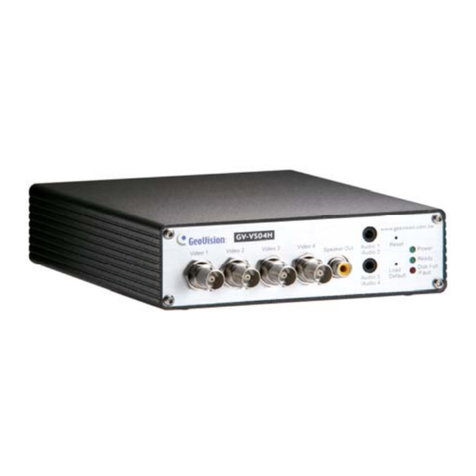
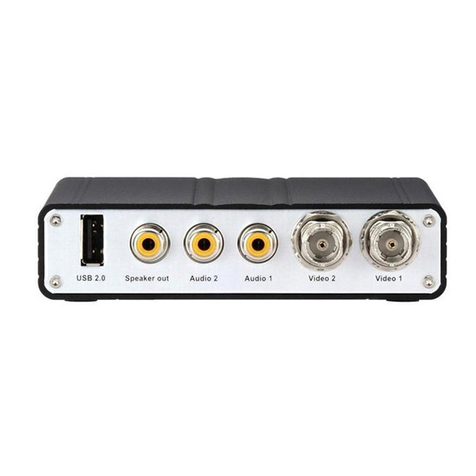
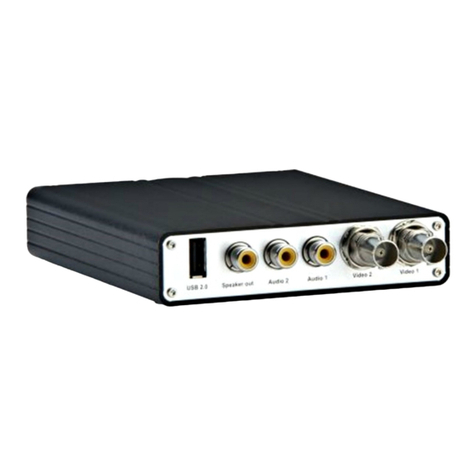
These instructions describe the basic connections to install the GV-Video
Server on the network. Here we use GV-VS04H as an example to
demonstrate the steps.
1. Connect your camera’s video output to the BNC video input.
2. Connect the microphone to the RCA audio input using the 3.5 mm
Stereo to RCA Cable.
3. Connect the hub or switch on the LAN to the unit’s 10/100 Mbps port.
4. Connect power using one of the following methods:
5. Optionally connect the DC Male-to-Male Cable to power on the camera
through the GV-Video Server.
6. Wait until both Power and Ready LEDs are on and then you can
access its Web interface. See 4. Accessing the Camera later in the
Quick Start Guide.
●Use the supplied power adapter, connect to power.
●Use the Power over Ethernet (PoE) function. The power is
provided over the network cable.
1
354
Continued on the reverse
4Accessing the GV-Video Server
To access the Web interface of the GV-Video Server, it is required to use
Microsoft Internet Explorer 7.x or later.
Note: For the users of Internet Explorer 8, additional settings are
required. For details, see Appendix C in GV-Video Server User’s
Manual on the software DVD.
1. Install the GV-IP Device Utility program included on the Software DVD.
2. On the GV-IP Utility window, click the button to search for the IP
devices connected in the same LAN. Click the Name or Mac Address
column to sort.
System Requirement
By default, the IP address of your GV-Video Sever is assigned by the DHCP
server unless your router does not support DHCP. In this case, the default
IP address will be 192.168.0.10. Follow the steps below to look up the IP
address and access the Web interface.
Note: The PC installed with GV-IP Device Utility must be under the
same LAN with the GV-Video Server you wish to configure.
Note: 1. The GV-VS11 does not support PoE function.
2. The DC Male-to-Male Cable and 3.5 mm Stereo to RCA Cable
are only supplied for GV-VS04H and GV-VS14.
3. The GV-Video Server cannot work with the microphone
requiring power from the unit. Use the microphone that has
external power supply.
4. When PoE is applied, you cannot power on the camera
through the GV-Video Server.
Checking the IP Address and Logging In
2