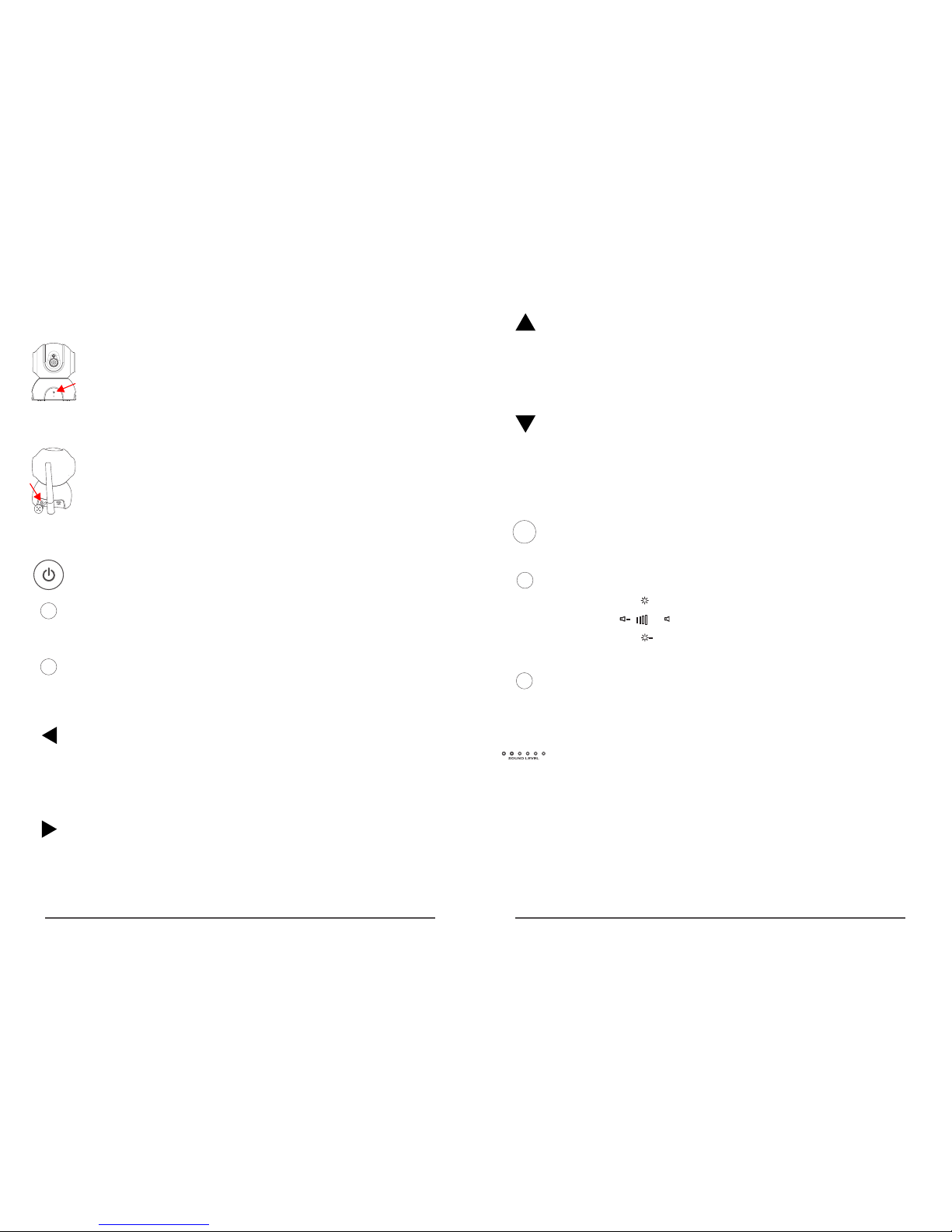
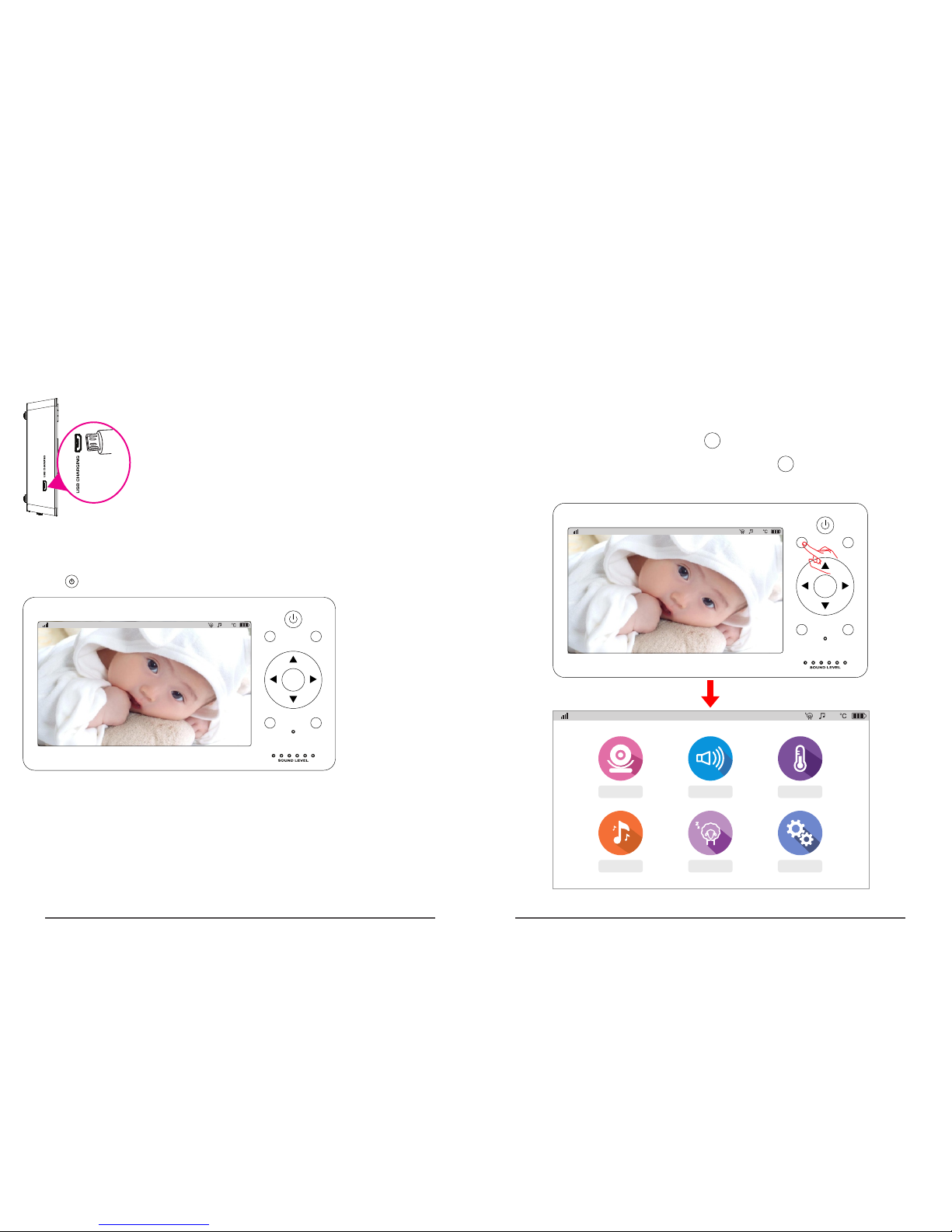
Turn on/off the display (press for 2s)
Sleep button. Press this button, the screen is off, press it
again, the screen turns on. (this button does not
influence automatic sleep setup. Automatic sleep still
functions normally.)
In real-time viewing, by pressing this button, the camera
can be controlled to turn left.
In menu interface, by pressing this button, the menu
cursor shifts left.
In shortcut interface, press this button to turn down
volume.
In real-time viewing, by pressing this button, the image
size is doubled.
In menu interface, pressing this button to confirm.
In real-time viewing, by pressing this button, the camera
can be controlled to turn upward.
In menu interface, by pressing this button, the menu
cursor shifts upward.
In shortcut interface, by pressing this button, brightness
of the display is increased
SLEEP
OK
MENU
Press the button to jump to Menu, press the button again,
exit from Menu. The button also has the function of
returning to previous step.
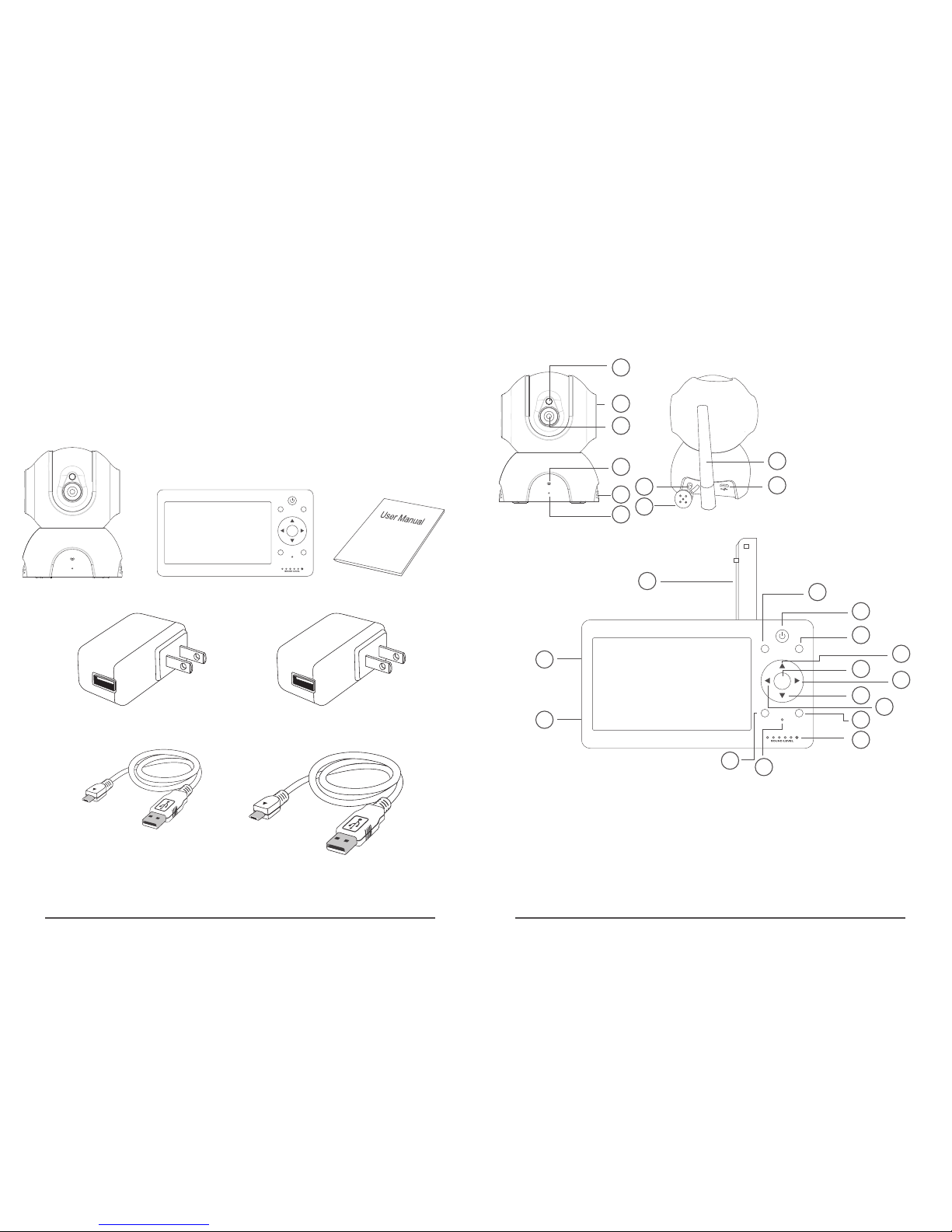
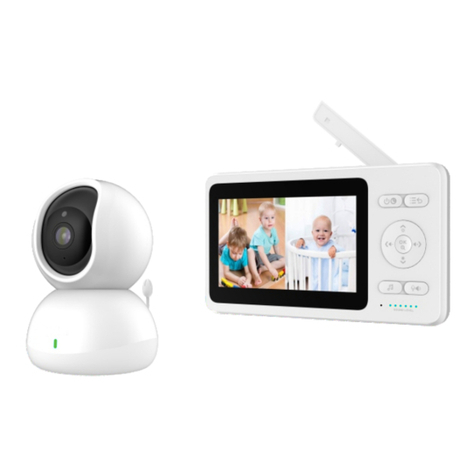
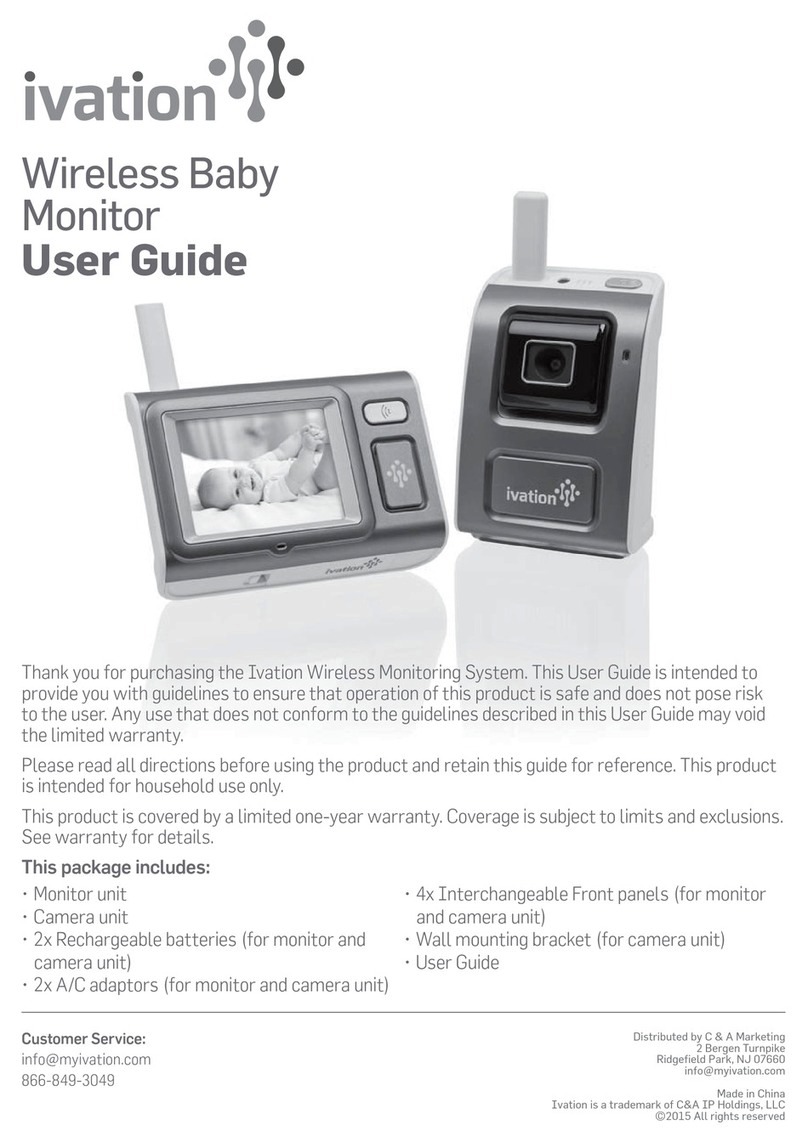
Function introduction of buttons for monitor
Status indicator LED:
03 04
In real-time viewing, by pressing this button, jump to
talkback function; releasing the button, talkback function
is off. The voice from camera end cannot be heard till the
button is released.
TALK
SHORT CUT
Shortcut button. By pressing this button, shortcut
interface pops up, volume and brightness of
the monitor can be adjusted.
+
+
In real-time viewing, by pressing this button, the camera
can be controlled to turn right.
In menu interface, by pressing this button, the menu
cursor shifts right.
In shortcut interface, press this button to turn up volume.
In real-time viewing, by pressing this button, the camera
can be controlled to turn downward.
In menu interface, by pressing this button, the menu
cursor shifts downward.
In shortcut interface, by pressing this button, brightness
of the display is decreased
Function introduction of buttons for camera
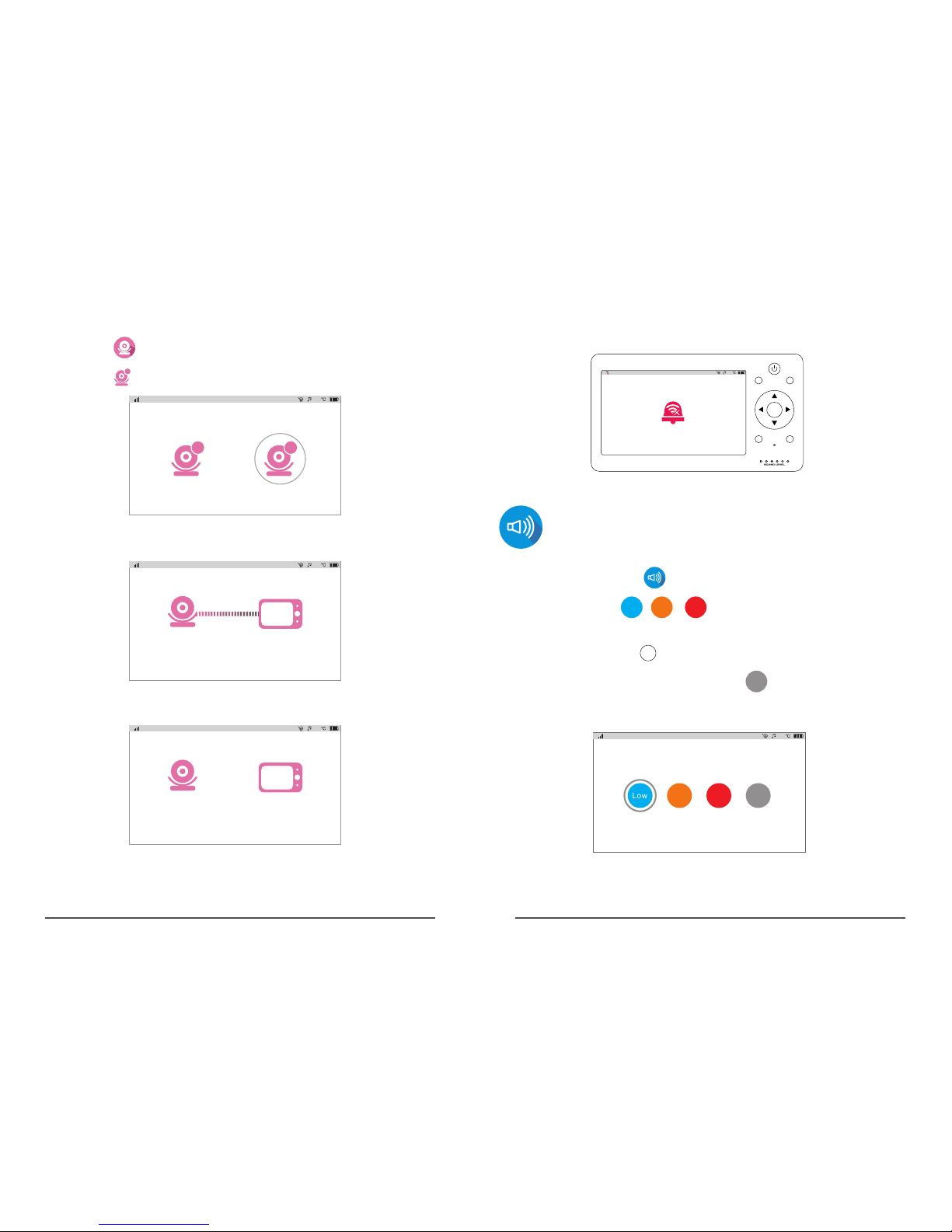
Indicator LED. When green LED flashes slowly,
startup is successful, or the camera is disconnected
with the monitor. When green LED flashes quickly,
the camera and monitor are being paired. When
green LED is on constantly, the camera and monitor
are paired successfully.
SET button. Short press it for 1s, jump to pairing
mode; long press for 5s, factory reset.
The first green LED lights constantly: indicates that
the camera and monitor are connected successfully
The first green LED flashes slowly (once per second):
indicates that it is starting, without connecting the camera
The first green LED flashes quickly (3 times per
second): indicates code matching