logo
Brands
  1. Home
  2. •
  3. Brands
  4. •
  5. Haier
  6. •
  7. LCD TV
  8. •
  9. Haier LV-2610P User manual

Haier LV-2610P User manual

This manual suits for next models

1

Other Haier LCD TV manuals

Haier LE19B610 User manual

Haier

Haier LE19B610 User manual

Haier HL55XZK22 User manual

Haier

Haier HL55XZK22 User manual

Haier L24T6 User manual

Haier

Haier L24T6 User manual

Haier HLT71 User manual

Haier

Haier HLT71 User manual

Haier LC32F2120 User manual

Haier

Haier LC32F2120 User manual

Haier LE19B13200 User manual

Haier

Haier LE19B13200 User manual

Haier HL32K User manual

Haier

Haier HL32K User manual

Haier 32T51 User manual

Haier

Haier 32T51 User manual

Haier HL24XP1 User manual

Haier

Haier HL24XP1 User manual

Haier LED40T3 User manual

Haier

Haier LED40T3 User manual

Haier L26B1120b User manual

Haier

Haier L26B1120b User manual

Haier HL32XK2 User manual

Haier

Haier HL32XK2 User manual

Haier HLH26BB User manual

Haier

Haier HLH26BB User manual

Haier L26A8A-A User manual

Haier

Haier L26A8A-A User manual

Haier LE19Z6 User manual

Haier

Haier LE19Z6 User manual

Haier HL26R-A User manual

Haier

Haier HL26R-A User manual

Haier 26T32 User manual

Haier

Haier 26T32 User manual

Haier L1509-A User manual

Haier

Haier L1509-A User manual

Haier LE19P620 User manual

Haier

Haier LE19P620 User manual

Haier 48LTV3002 User manual

Haier

Haier 48LTV3002 User manual

Haier HL22XLT2 User manual

Haier

Haier HL22XLT2 User manual

Haier LE32K6000 User manual

Haier

Haier LE32K6000 User manual

Haier LT22R3CW User manual

Haier

Haier LT22R3CW User manual

Haier LE40B650CF User manual

Haier

Haier LE40B650CF User manual

Popular LCD TV manuals by other brands

Panasonic Vieta TX-26LX600P null

Panasonic

Panasonic Vieta TX-26LX600P null

LG 22LK33 Series null

LG

LG 22LK33 Series null

Philips BDL323I null

Philips

Philips BDL323I null

LG 32LC4R* Service manual

LG

LG 32LC4R* Service manual

Samsung LA32E420 E-manual

Samsung

Samsung LA32E420 E-manual

Dell W1900 19 Setting up

Dell

Dell W1900 19 Setting up

Samsung LN40C670M1F user manual

Samsung

Samsung LN40C670M1F user manual

Toshiba 57X3000A owner's manual

Toshiba

Toshiba 57X3000A owner's manual

Runco CX-52HD Owner's operating manual

Runco

Runco CX-52HD Owner's operating manual

Sharp LC-32AX3H Service manual

Sharp

Sharp LC-32AX3H Service manual

Philips 47PFL7704D Specifications

Philips

Philips 47PFL7704D Specifications

Vizio VO42LFHDTV10A user manual

Vizio

Vizio VO42LFHDTV10A user manual

Philips 42PF7520D/79 user manual

Philips

Philips 42PF7520D/79 user manual

Insignia NS-LCD32-09 Service manual

Insignia

Insignia NS-LCD32-09 Service manual

Sony WEGA KLV-27HR3 operating instructions

Sony

Sony WEGA KLV-27HR3 operating instructions

Nexus NX32031 owner's manual

Nexus

Nexus NX32031 owner's manual

Zenith Z32LC2D Specifications

Zenith

Zenith Z32LC2D Specifications

Sony KDL-32S3000R - 32" Class Bravia S-series Digital Lcd... Specifications

Sony

Sony KDL-32S3000R - 32" Class Bravia S-series Digital Lcd... Specifications

https://manuals.online logo
https://manuals.online logoBrands
  • About & Mission
  • Contact us
  • Privacy Policy
  • Terms and Conditions

Copyright 2026 Manuals.Online. All Rights Reserved.

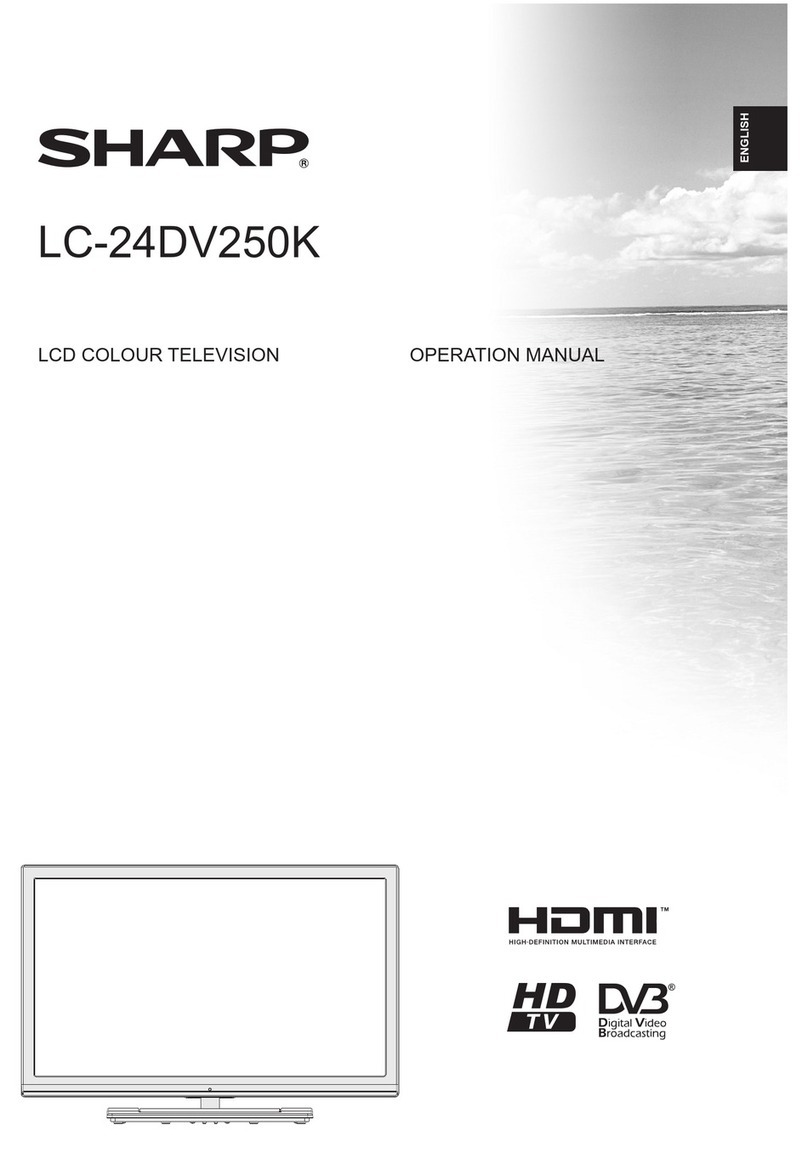
LV-2610P
LV-3210P
LV-2610P
LV-3210P
LCD COLOR TELEVISION
OPERATING
INSTRUCTIONS
◆Wide view-angle display, high contrast
◆MTS
◆HDMI
01
009050****
CONTENTS
Warning and caution...........................................................................................2
Important safety instructions..................................................................................4
Buttons and interface position............................................................................5
Preparation for remote control..........................................................................6
Remote control panel..........................................................................................7
Basic operation.................................................................................................8
Screen display...................................................................................................9
TV program setting..........................................................................................10
Image control................................................................................13
Sound control...................................................................................................14
Function setting......................................................................................15
Time setting...........................................................................................................19
Signal source setting..............................................................................................20
Basic playback...............................................................................................21
Advanced playback......................................................................................22
Special function playback...........................................................................................23
DVD system setup.........................................................................................24
Playable discs..............................................................................................28
Disc protection and DVD characteristics.............................................................29
Other setting function............................................................................30
External audio and video equipment connection..............................................31
Using your TV as a computer display..............................................................32
Specifications...................................................................................................33
Trouble shooting guide...............................................................................................34
BUTTONS AND INTERFACE POSITION
5
Front control panel
Back interface
1. Antenna input
2. Earphone output
3. AV output
4. AV input
5. S-VIDEO input
6. YPbPr input
7. VGA audio input interface
8. VGA input
9. HDMI input
10.Power input socket
10 1
2
34
5
6
7
8
9
6
PREPARATION FOR REMOTE CONTROL
Remote control installation
1. According to the figure display below, place the remote control with face down,
then open the cover of battery apartment.
2. As in the figure display below, install two AAA batteries. (The + and - symbol of
battery must match with the marks on the remote).
3.Close the cover of battery apartment.
Cautions for using remote control
Confirm there is no object between the
remote control and the remote sensor
of TV set.
Sunshine or other strong light will
interfere the signal sent by the remote
control. In this situation turn the TV
set to avoid the direct light source.
Do not put the remote control in direct
heat or a damp place, or potential
damage to the remote may occur.
Please use two AAA 1.5V batteries.
Do not mix battery types.
Install the batteries as the correct
polarities.
Do not use the rechargeable batteries.
LV-2610P/LV-3210P
Power button
Program down/up button
Volume down/up button
TV/AV switch button
Menu button
CH-
INPUT
MENU
CH+
VOL-
VOL+
Power indicator
Remote sensor
AUDIO
VIDEO
L
R
COMPONENT
STOP
OPEN/CLOSE
PLAY/PAUSE
NEXT
PREV
Stop button
Previous button
Play/Pause button
Open/Close button
Next button
3
2
1
++
78
REMOTE CONTROL PANEL
1
2
Power button
Select button
press SELECT button repeatedly to
select TV, DVD mode.
Channel list button
Favorite channel list button
Parent control button
TV button
DVD button
Zoom button (in DVD mode)
DVD functions
Closed caption decode button
Picture mode button
Sound mode button
Freeze button
Brings up the main menu to the screen
Time button
Shows the input source mode
Display button
Up/Down/Left/Right/OK button
Allows you to navigate the on-screen
menus and adjust the system settings
to your preference.
Exit button
Zoom button (in TV mode)
Mono/Stereo/SAP switch button
Sleep timer button
Mute button
Light button
Volume up/down button
Channel up/down button
Number button
Above ten program selection button
(in DVD mode)
Recall button
Buttons and Descriptions
3
4
5
7
6
8
9
/
/
F.REV/F.FWD
Previous/Next
Stop
Play/Enter
10
11
12
13
14
15
16
17
18
19
20
21
22
23
24
25
26
27
28
29
BASIC OPERATION
1. If the TV set is in standby status, pressing power
button can cancel the standby status, then enter
the power on status. The power on channel number
will display on the screen and it will disappear
without operation in several seconds.
2. Pressing power button again, the TV set will enter
standby status.
Standby set: connecting the power supply wire,
the TV set will enter standby status.
TV PROGRAM SELECTION AND VOLUME
ADJUSTMENT
You can use CH+/- button or number button to
select the TV channel number.
Press VOL+/- button to adjust the volume.
RECALL
Pressing RECALL button can switch the channel to the
last channel you watched.
MUTE FUNCTION
1. Press MUTE button to shut off the TV sound, the
screen displays mute mark.
2. Press MUTE button again or VOL+ button to turn
on the TV sound.
OSD LANGUAGE SELECTION
Select the LANGUAGE item in the menu.
1.Press MENU button to make the main menu display.
2.Press button to select FUNCTION menu.
3. Press button to select LANGUAGE item.
4. Press button to select the language you need.
POWER ON/OFF TV
POWER
1
3
6
11
10
15
14
5
4
2
78
9
19
23
20
25
16
17
18
22
21
24
26
29
28
27
12
13
Pause/Step
P.MODE
P.G.
FAV.LIST
CH.LIST
POWER
TV MODE DVD MODE
TV DVD ZOOM
S.MODE
P
SA
FREEZE
NF
I O
OK
RECALL
FUNCTION
LANGUAGE ENGLISH
BLUE SCREEN OFF
OSD SETTING
IMAGE POSITION
ADVANCE
SAVE MODE AUTO
CLOSED CAPTION OFF
PARENT CONTROL
FUNCTION
LANGUAGE ENGLISH
BLUE SCREEN OFF
OSD SETTING
IMAGE POSITION
ADVANCE
SAVE MODE AUTO
CLOSED CAPTION OFF
PARENT CONTROL
SOUND
SOUND STANDARD
BALANCE 50
AVC ON
EQUALIZER
SURROUND ROOM
DIGITAL BASS ON
10
9
SCREEN DISPLAY
For your convenient operation and in order to know the TV set, we offer the below
menus.
Picture setting menu
Sound setting menu Timer setting menu
Function setting menu
Tuner setting menu
Operation instructions
The real display may be different from the above menus, if you need adjust, please do as
follows:
1.Press MENU button to open the menu, press button to select every menu
separately.
2.Press button to select the item needs adjust.
3.Press button to adjust the selected item, or enter the next menu.
4.Press MENU button to return the last menu or exit the screen menu display.
Note: “press button to select the menu ”operation in the user’s manual, please
refer to these operation instructions.
PICTUREPICTURE
PICTURE SOFT
CONTRAST 45
BRIGHTNESS 45
TINT 50
COLOR 45
SHARPNESS 50
COLOR TEMP. NORMAL
ZOOM WIDE
TUNER
CH. SOURCE CABLE
CH. NUM. 11
SKIP OFF
FINE TUNE
AUTO SCAN
EDIT PROGRAM
FAVORITE
TIMER
SLEEP TIMER OFF
CLOCK - - : - -
TIME OFF - - : - -
BOOK TIME - - : - -
BOOK CHAN. 0
CHANNEL SOURCE
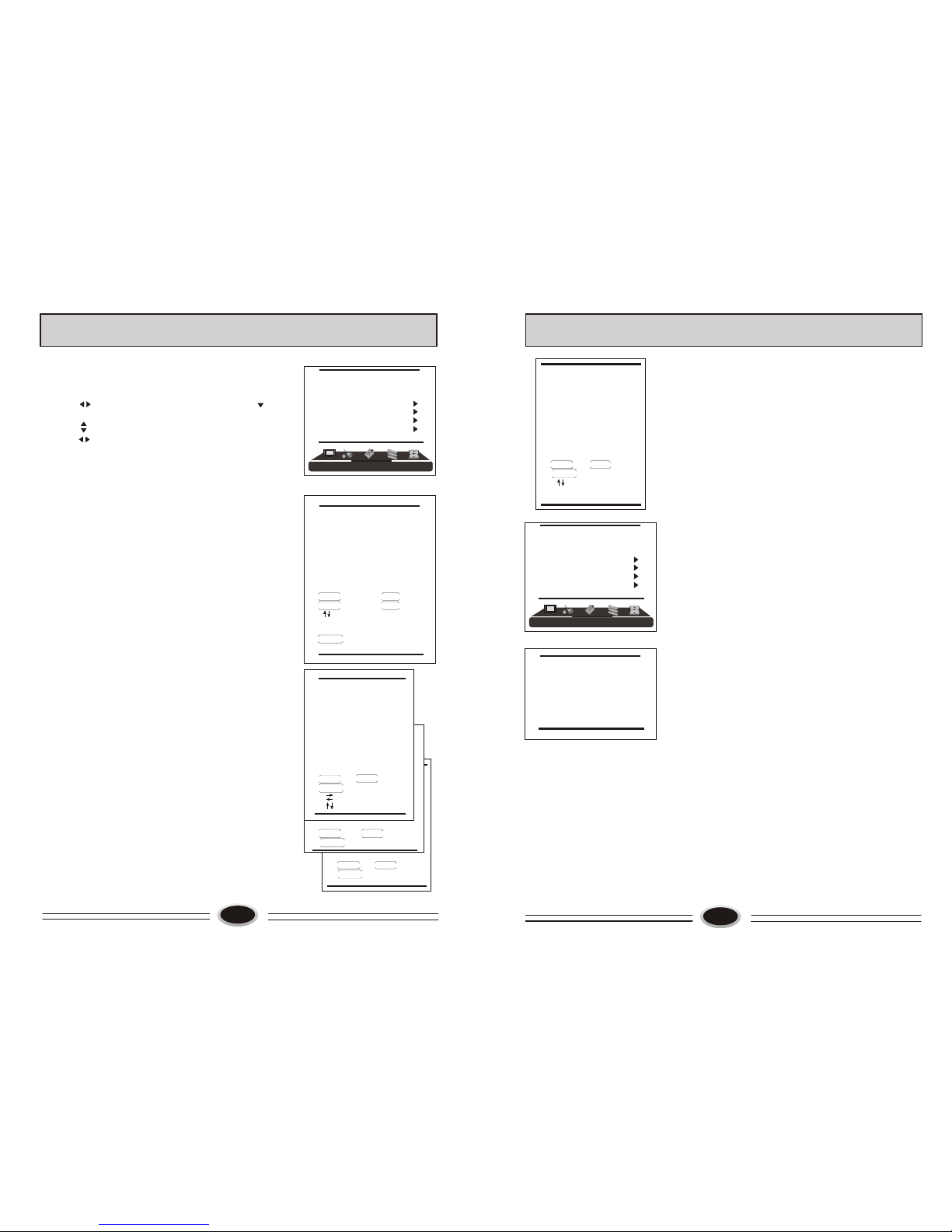
Manual search can search and order the program freely.
1.Press MENU button to make the main menu display.
2.Press button to select TUNER menu, press
button to enter.
3. Press button to select CH. SOURCE item,
4. Press button to select CATV or AIR.
AUTO SCAN
Using AUTO SCAN can search all receiving
programs. We recommend using auto search to
search the program when you use this TV set for
the first time.
1.Press MENU button to make the main menu display.
2.Press button to select TUNER menu, press
button to enter.
3.Press button to select AUTO SCAN.
4.Press button to start searching, press MENU
button to stop auto scan during searching.
Note: The order of the auto scan is due to the
frequency of the program, generally speaking,
it is used only at the first time you search the
program, and once the order of the program has
been confirmed, you don’t have to use this
function, otherwise the order of the program
will be changed.
FINE TUNE
When you can’t get a satisfactory picture effect,
you can fine tune to obtain.
1.Press MENU button to make the main menu display.
2.Press button select TUNER menu, press
button to enter.
3. Press button to select FINE TUNE item.
4. Press button to start fine tune until you
obtain the best picture and sound, then loose
the button, press MENU button to exit.
TV PROGRAM SETTING
30
259.25
AUTO SCAN
55
FINE TUNE
TUNER
CH SOURCE CABLE
CH. NUM. 11
SKIP OFF
FINE TUNE
AUTO SCAN
EDIT PROGRAM
FAVORITE
TUNER
CH SOURCE CABLE
CH. NUM. 11
SKIP OFF
FINE TUNE
AUTO SCAN
EDIT PROGRAM
FAVORITE
TUNER
CH SOURCE CABLE
CH. NUM. 11
SKIP OFF
FINE TUNE
AUTO SCAN
EDIT PROGRAM
FAVORITE
001
002
003
004
005
006
007
008
009
010
DELETE
VOL+ OK VOL- CANCEL
MENU RETURN
11 12
TV PROGRAM SETTING
EDIT PROGRAM
Using this function, you can rename, skip, delete, copy
and insert the channel.
1.Press MENU button to make the main menu display.
2.Press button select TUNER menu, press
button to enter.
3.Press button to select EDIT PROGRAM item,
press button to enter the sub-menu.
RENAME
1.Press CH+/- button to select the channel you need
operate, press red button to enter rename mode.
2.Press VOL+/- button to select the number position of
channel name, press CH+/- button to select number.
3.During operating, if you want to cancel input, press
green button to exit, after setting, press VOL+ button to
save. The channel name set will display before
channel number on the top right corner of screen.
SKIP
1.Press CH+/- button to select the channel you need
skip, press VOL- button to skip the current channel.
2.During operating, if you want to cancel input, press
VOL- button to exit, after setting, press VOL+ button
to save.
3.When you use CH+/- button to select channel, this
channel number will be skipped. But you can still
use number button to select the skipped channel number.
4.If you want to cancel skip, please select the skipped
channel and do above steps.
DELETE
1.Press CH+/- button to select the channel you need
delete, press CH+ button to delete the current channel.
2.During operating, if you want to cancel delete, press
VOL- button to exit, after setting, press VOL+ button to
save.
3.The deleted channel will disappear from the channel
list completely, you can’t use CH+/- button or one
digit selection button to select this channel.
001
002
003
004
005
006
007
008
009
010
VOL+ RENAME CH+ DELETE
VOL- SKIP CH- COPY
[ ] SELECT
[AUDIO] PAGEUP
[PICTURE] PAGEDOWN
MENU RETURN
001
002
003
004
005
006
007
008
009
010
SKIP
VOL+ OK VOL- CANCEL
MENU RETURN
001
002
003
004
005
006
007
008
009
010
RENAME
VOL+ OK VOL- CANCEL
MENU RETURN
[ ] POSITION
[ ] CHAR.
TUNER
CH SOURCE CABLE
CH. NUM. 11
SKIP OFF
FINE TUNE
AUTO SCAN
EDIT PROGRAM
FAVORITE
001
002
003
004
005
006
007
008
009
010
COPY
VOL+ OK VOL- CANCEL
MENU RETURN
[ ] SELECT
[AUDIO] PAGEUP
[PICTURE] PAGEDOWN
TV PROGRAM SETTING
COPY
1.Press CH+/- button to select the channel you need
copy, press CH- button to copy the current channel.
2.Press CH+/- button to select the channel you need
copy to, press VOL+ button to save. During operating
press VOL- button to cancel copy.
3.The copied channel may have same setting as the
original copied channel.
FAVORITE
1.Press MENU button to make the main menu display.
2.Press VOL+/- button to select TUNER menu, press
CH- button to enter.
3.Press CH+/- button to select FAVORITE item.
4. Press VOL+/- button to enter favorite menu.
TUNER
CH SOURCE CABLE
CH. NUM. 11
SKIP OFF
FINE TUNE
AUTO SCAN
EDIT PROGRAM
FAVORITE
FAV1 1
FAV2 1
FAV3 1
FAV4 1
FAV5 1
13
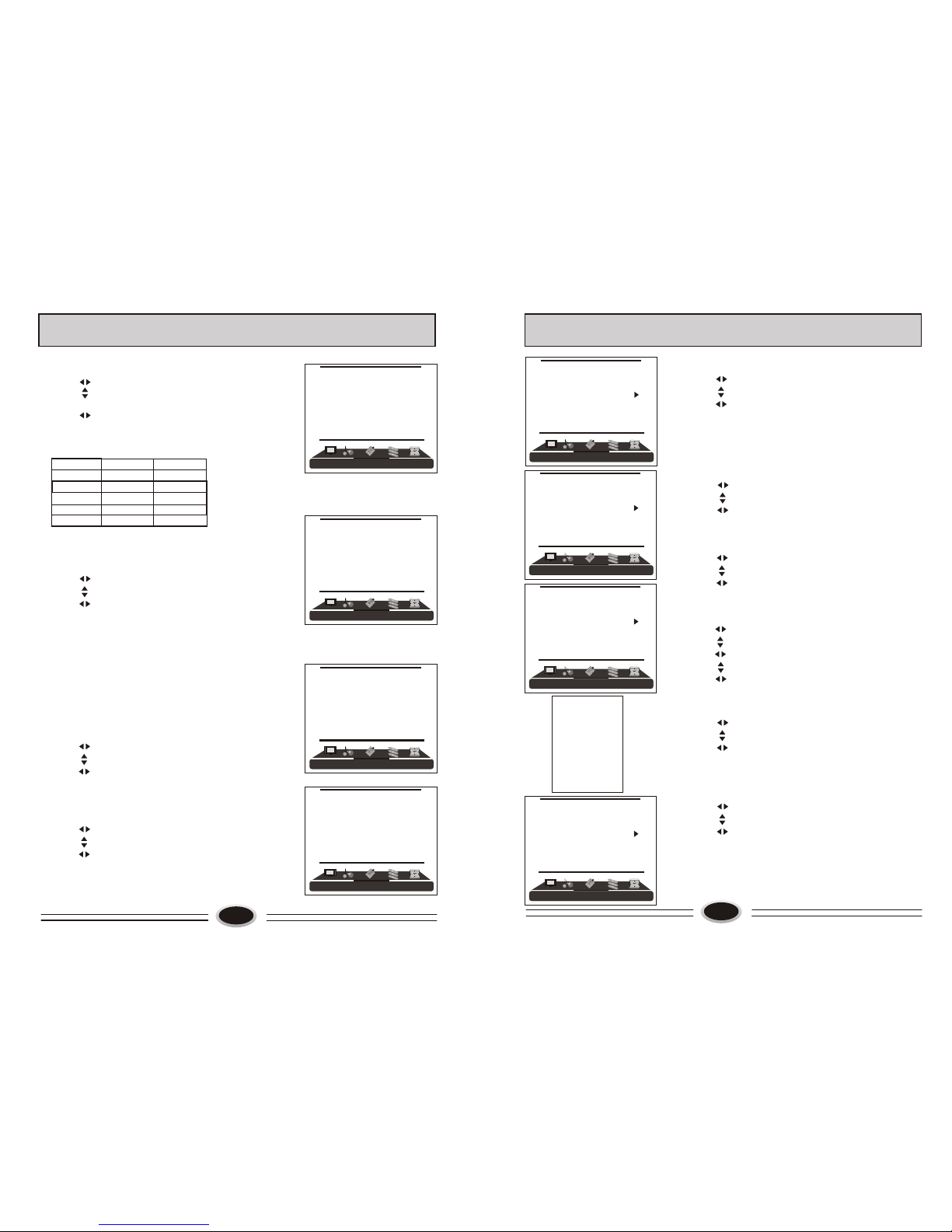
1.Press MENU button to make the main menu display.
2.Press button to select PICTURE menu.
3.Press button to select the item that needs
adjust.
4.Press button to adjust the selected item, the
detailed adjustment is as following table.
The table of picture item adjustment effect
SET YOUR FAVOURITE PICTURE MODE
14
IMAGE CONTROL
PICTURE MODE
1.Press MENU button to make the main menu display.
2.Press button to select PICTURE menu.
3.Press button to select PICTURE item.
4.Press button to select STANDARD, SOFT,
USER or BRIGHT.
STANDARD: common mode.
SOFT: the image effect is soft.
USER: set the image effect you like.
BRIGHT: suitable for sport image.
Note: You can also press P.MODE button on the remote
control to select the picture modes.
COLOR TEMPERATURE
1.Press MENU button to make the main menu display.
2.Press button to select PICTURE menu.
3.Press button to select COLOR TEMP. item.
4.Press button to select NORMAL, COOL or
WARM.
ZOOM
1.Press MENU button to make the main menu display.
2.Press button to select PICTURE menu.
3.Press button to select ZOOM item.
3.Press button to select WIDE, NORMAL, ZOOM
or CINEMA.
Note: You can also press SIZE button on the remote
control to select the zoom modes.
Note: Tint is only valid in N system.
PICTUREPICTURE
PICTURE SOFT
CONTRAST 45
BRIGHTNESS 45
TINT 50
COLOR 45
SHARPNESS 50
COLOR TEMP. NORMAL
ZOOM WIDE
PICTUREPICTURE
PICTURE SOFT
CONTRAST 45
BRIGHTNESS 45
TINT 50
COLOR 45
SHARPNESS 50
COLOR TEMP. NORMAL
ZOOM WIDE
PICTUREPICTURE
PICTURE SOFT
CONTRAST 45
BRIGHTNESS 45
TINT 50
COLOR 45
SHARPNESS 50
COLOR TEMP. NORMAL
ZOOM WIDE
PICTUREPICTURE
PICTURE SOFT
CONTRAST 45
BRIGHTNESS 45
TINT 50
COLOR 45
SHARPNESS 50
COLOR TEMP. NORMAL
ZOOM WIDE
*
Items VOL- VOL+
Contrast
Brightness
Color
Tint
Sharpness
Weak Strong
Dark Bright
Light Thick
Green Red
Blur Sharp
SOUND CONTROL
SOUND
SOUND STANDARD
BALANCE 50
AVC ON
EQUALIZER
SURROUND ROOM
DIGITAL BASS ON
SOUND MODE
1.Press MENU button to make the main menu display.
2.Press button to select SOUND menu.
3.Press button to select SOUND item.
4.Press button to select STANDARD, NEWS,
USER or MUSIC.
Note: You can also press S.MODE button on the remote
control to select the sound modes.
BALANCE
1.Press MENU button to make the main menu display.
2.Press button to select SOUND menu.
3.Press button to select BALANCE item.
4.Press button to adjust the value.
AUTOMATIC VOLUME CONTROL
1.Press MENU button to make the main menu display.
2.Press button to select SOUND menu.
3.Press button to select AVC item.
4.Press button to select ON or OFF.
EQUALIZER
1.Press MENU button to make the main menu display.
2.Press button to select SOUND menu.
3.Press button to select EQUALIZER item.
4.Press button to enter.
5.Press button to select different frequency.
6.Press button to adjust.
SURROUND
1.Press MENU button to make the main menu display.
2.Press button to select SOUND menu.
3.Press button to select SURROUND item.
4.Press button to select ROOM, THEATER,
OFF or VALLEY .
DIGITAL BASS
1.Press MENU button to make the main menu display.
2.Press button to select SOUND menu.
3.Press button to select DIGITAL BASS item.
4.Press button to select ON or OFF.
SOUND
SOUND STANDARD
BALANCE 50
AVC ON
EQUALIZER
SURROUND ROOM
DIGITAL BASS ON
SOUND
SOUND STANDARD
BALANCE 50
AVC ON
EQUALIZER
SURROUND ROOM
DIGITAL BASS ON
SOUND
SOUND STANDARD
BALANCE 50
AVC ON
EQUALIZER
SURROUND ROOM
DIGITAL BASS ON
50 90
75 80
100 70
300 80
1K 30
3K 50
5K 80
10K 70
15K 60
1615
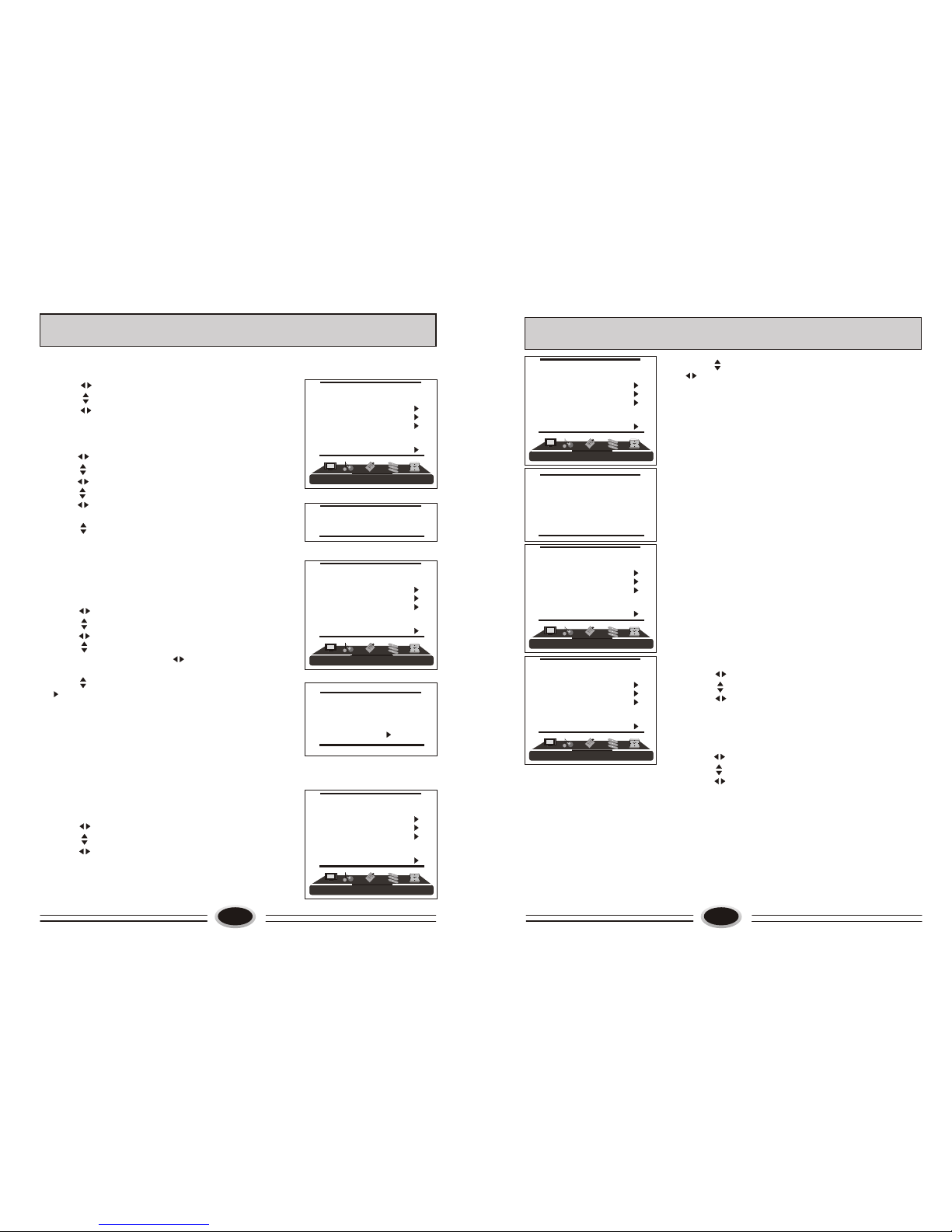
FUNCTION SETTING
FUNCTION
LANGUAGE ENGLISH
BLUE SCREEN OFF
OSD SETTING
IMAGE POSITION
ADVANCE
SAVE MODE AUTO
CLOSED CAPTION OFF
PARENT CONTROL
BLUE SCREEN
1.Press MENU button to make the main menu display.
2.Press button to select FUNCTION menu.
3.Press button to select BLUE SCREEN item.
4.Press button to select ON/OFF.
OSD SETTING
1.Press MENU button to make the main menu display.
2.Press button to select FUNCTION menu.
3.Press button to select OSD SETTING item,
press button to enter the sub-menu.
4.Press button to select DUARA. item,
5.Press button to adjust the duration time of OSD,
and you can adjust the time from 5s to 60s.
6.Press button to select the HALF TONE
item, the larger the value is , the higher the
half tone is.
7.Press MENU button to save and exit.
IMAGE POSITION
1.Press MENU button to make the main menu display.
2.Press button to select FUNCTION menu.
3.Press button to select IMAGE POSITION item,
press button to enter the sub-menu.
4.Press button to select H-POSITION or
V-POSITION item, press button to adjust the
image position in horizontal or vertical direction.
5.Press button to select AUTO item, pressing
button can adjust the image position
automatically. If the arrow changes from green to
yellow, it shows that the automatic adjustment finishes.
6.In VGA mode, if you don’t get a satisfactory automatic
adjustment effect, you can select PHASE, CLOCK to
adjust the image properly.
ADVANCE
Using this function can improve the quality and
expressive force of image.
1.Press MENU button to make the main menu display.
2.Press button to select FUNCTION menu.
3.Press button to select ADVANCE item,
press button to enter the sub-menu.
DUARATION 15S
HALT TONE 50
FUNCTION
LANGUAGE ENGLISH
BLUE SCREEN OFF
OSD SETTING
IMAGE POSITION
ADVANCE
SAVE MODE AUTO
CLOSED CAPTION OFF
PARENT CONTROL
FUNCTION
LANGUAGE ENGLISH
BLUE SCREEN OFF
OSD SETTING
IMAGE POSITION
ADVANCE
SAVE MODE AUTO
CLOSED CAPTION OFF
PARENT CONTROL
H-POSITION 48
V-POSITION 31
PHASE 100
CLOCK 55
AUTO
FUNCTION SETTING
4.Press button to select different item, press
button to adjust.
AAA: using this function can improve the
brightness, contrast and arrangement of image.
There are ON, SPLIT, MOVE and ZOOM four
modes.
CTI: opening this function can restrain the
different color from crossing and interfering, in
order to improve the quality of picture.
LTI: opening this function can dynamically optimize
the brightness of image, in order to improve the
quality of picture.
DLC: opening this function can adjust the sight depth
of image according to the image content dynamically
optimize.
SKIN: opening this function can optimize the skin of
character in the image, in order to make the image
more natural.
DNR: use digital mode to restrain the image noise, in
order to reduce the interference. There are OFF,
WEAK, MEDIUM and STRONG four modes.
SAVE MODE
Using this function can reduce the power consumption
of TV set.
1.Press MENU button to make the main menu display.
2.Press button to select FUNCTION menu.
3.Press button to select SAVE MODE item.
4.Press button to select AUTO, MODE1 or
MODE2.
CLOSED CAPTION
1.Press MENU button to make the main menu display.
2.Press button to select FUNCTION menu.
3.Press button to select CLOSED CAPTION item.
4.Press button to select OFF, CC1, CC2,CC3,
CC4,TEXT1, TEXT2, TEXT3 or TEXT4.
When CCD is in OFF mode, the CCD content will not
display; when it is in CC 1 mode, the CLOSED
CAPTION will be started, and the contents of
CLOSED CAPTION1 will be displayed after the
FUNCTION menu disappears; in a similar way,
in CC 2/CC3/CC4 mode, the contents of CLOSED
CAPTION2/CLOSE CAPTION3/CLOSE
CAPTION4 will be displayed after the FUNCTION
menu disappears. When it is in TEXT1 mode, the
FUNCTION
LANGUAGE ENGLISH
BLUE SCREEN OFF
OSD SETTING
IMAGE POSITION
ADVANCE
SAVE MODE AUTO
CLOSED CAPTION OFF
PARENT CONTROL
FUNCTION
LANGUAGE ENGLISH
BLUE SCREEN OFF
OSD SETTING
IMAGE POSITION
ADVANCE
SAVE MODE AUTO
CLOSED CAPTION OFF
PARENT CONTROL
FUNCTION
LANGUAGE ENGLISH
BLUE SCREEN OFF
OSD SETTING
IMAGE POSITION
ADVANCE
SAVE MODE AUTO
CLOSED CAPTION OFF
PARENT CONTROL
AAA ON
CTI ON
LTI ON
DLC ON
SKIN ON
DNR MEDIUM