
Hi-Touch Imaging Technologies CS-310 User manual

www.hi-ti.com
1
HiTi Card Printer
CS-310/320
User Manual
HiTi V.2007.11

www.hi-ti.com
2
ACKNOWLEDGEMENTS
Microsoft, MS, MS-DOS and Windows are registered trademarks of Microsoft
Corporations.
Pentium is a U.S. registered trademark of Intel Corporation.
TrueType is a U.S. trademark of Apple Computer, Inc.
Adobe and Acrobat are registered trademarks of Adobe Systems Incorporated.
Brands and product names are trademarks or registered trademarks of their
respective companies.
COPYRIGHT
The information contained in this document is subject to change without notice.
HiTi Digital, Inc. makes no warranty of any kind with regard to this material,
including, but not limited to, the implied warranties of merchantability and fitness
for a particular purpose.
HiTi Digital, Inc. shall not be liable for any errors or for incidental or
consequential damages in connection with the furnishing, the performance, or
the use of this material.
Reproduction, adaptation, or translation of this manual is prohibited without
prior written permission of HiTi Digital, Inc., except as allowed
under copyright laws.
HiTi Digital, Inc., HiTi, HiTi company logo, Photo Desiree, Card Desiree, "Digital
mini-lab just for you", HiTi name (written in Simplified Chinese or Traditional
Chinese), are trademarks or registered trademarks in Taiwan, China and other
countries using HiTi Digital, Inc..

www.hi-ti.com
3
SAFETY INSTRUCTIONS
1. Read these instructions carefully. Keep these instructions for future reference.
Follow all warnings and instructions as marked on the product.
2. Unplug this product from the wall outlet before cleaning. Do not use liquid
detergents or aerosol cleaners. Use a damp cloth for cleaning.
3. Do not use this product near water.
4. Do not place this product on an unstable cart, stand, or table. The product
may fall, causing serious damage to the product.
5. Openings in the cabinet and at the bottom provide ventilation; to ensure a
reliable operation of the product and to protect it form overheating, these
openings should not be blocked or covered. Placing the product on a bed, sofa,
rug, or other similar surface may never block the openings. These products
should never be placed near or over a radiator or a heat register, or in a built-in
installation, unless proper ventilation is provided.
6. This product should be operated from the type of power indicated on the
marking label. If you are not sure of the type of power available, consult with
your dealer or with the local power company.
7. If an extension cord is used with this product, make sure that the total ampere
rating of the equipment plugged into the extension cord does not exceed the
ampere rating of the extension cord. Also, make sure that the total rating of all
products plugged into the wall outlet does not exceed the fuse rating.
8. Do not attempt to service this product yourself, as opening or removing covers
may expose you to dangerous voltage points or other harmful risks. Refer all
servicing to qualified service personnel.

www.hi-ti.com
4
Instruction 5
Chapter 1 Hardware Installation 6
1-1 Check Accessories 6
1-2 Appearance Of CS-310/320 7
1-3 Install Power Cord & USB Cable 10
1-4 Install Cleaning Roller 11
1-5 Install Card & Ribbon 12
Chapter 2 Software Installation 14
2-1 Install Driver (Win 2000 & XP/Vista ) 15
2-2 Uninstall Driver (Win 2000 & XP/Vista ) 16
2-3 Install Card Desiree CS 17
2-4 Driver Instruction 18
Chapter 3 Operation Instruction 29
3-1 LCD Display Instruction 29
3-2 Operation Instruction 29
Chapter 4 How To Clean & Maintain 31
4-1 Clean Cleaning Roller 32
4-2 Clean Print Path 33
4-3 Clean TPH Head 34
4-4 Clean Air Filter 35
4-5 Clean Card-insert Mechanism 36
4-6 Clean Ribbon Sensor 37
Chapter 5 Troubleshooting 38
5-1 Error Message & Solution 38
Appendix A Hi-Ti Card Printer Specification 45
Appendix B Safety Instructions 46
Appendix C FCC Compliance Statement 47
Appendix D Customer Service Information 52
Appendix E Order Information 54

www.hi-ti.com
5
Instruction
Thank you for choosing HiTi Card Printer. We hope this will just be the beginning
of our long-term and successful association. With this HiTi card printer, you can
easily and conveniently print high quality plastic cards, such as personalized ID
cards/credit cards, membership cards,.…etc. Please read this manual carefully
and complete the installation before operating the printer.
HiTi Card Printer CS-310/320 Features
zSupports double-side printing*.
zHigh quality printing.
zSupports multiple ribbon types.
zSupports various card types.
zCompatible with HiTi Card Desiree CS professional
software.
*CS-310 supports single-side printing only.
www.hi-ti.com
6
Chapter 1 Hardware Installation
1-1 Check Accessories
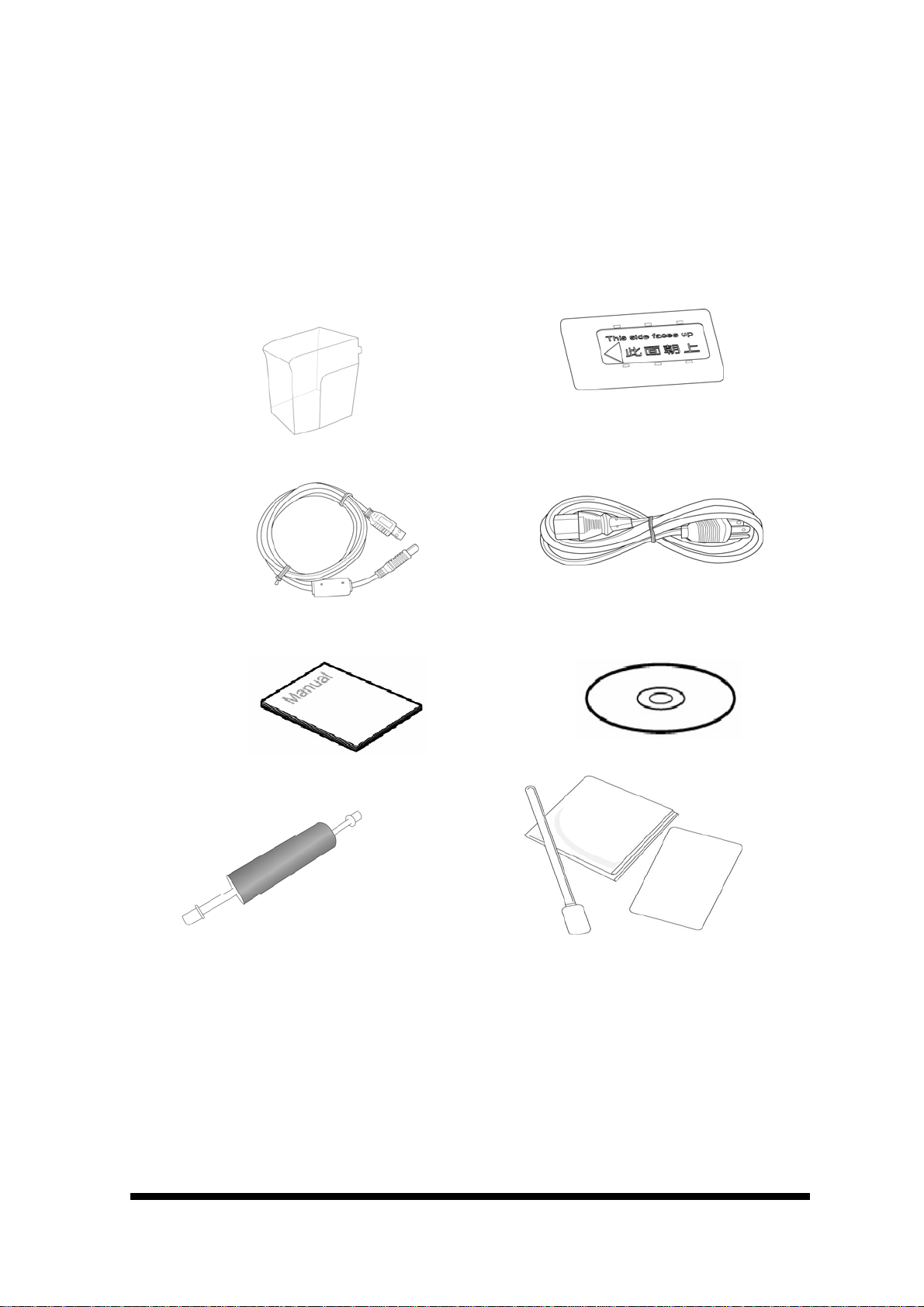
Please make sure the following items are included when you unpack the card
printer.
1.Card Output Hopper
2. Weight
3. USB Cable
4. Power Cord
5. User Manual
6. CD
7. Cleaning Roller
8. Cleaning Kit
If any of the above items is missing, please contact your nearest HiTi
customer-support facility or your local HiTi distributor. For detailed information,
please refer to Appendix D:Customer Service Information.

www.hi-ti.com
7
1-2 Appearance of CS-310/320
zCS-310/320 Front side*
A. Card Input Hopper
This is the Card Input Hopper for storing blank cards. Please insert the blank cards gently and
remember to shield them with the built-in cover to avoid any dust entering in there.
B. Card thickness selection button
HiTi CS-310/320 provides four selections for thickness: 0.3 mm (10 mil), 0.5 mm (20 mil), 0.8 mm
(30 mil) and 1.0 mm (40 mil). Please move and slide the selector for thickness to the correct
thickness position, which matches the thickness of the cards in the Card Input Hopper.
Remark: The Thickness tolerance of cards are 03mm +/-0.02mm (0.28 ~ 0.32mm), 0.5mm +/-0.03mm
(0.47 ~ 0.53mm), 0.8mm +/-0.04mm (0.76 ~ 0.84mm), 1.0mm +/-0.05mm (0.95 ~ 1.05mm). If your card
thickness is out of the above specification, it may cause significant damage to HiTi ribbon; may
reduce the life span of HiTi Card Printer; may damage print head; and may cause unsatisfactory
color performance.
C. LCD Display:
The status of the printer is displayed on the LCD screen, you can use [◄], [►], [OK], [ESC]
buttons to control the operation of the printer and for troubleshooting.
D. ID Button
To replace ribbon cartridges, please gently slide the ID button on the top of the printer to open the
ribbon door.
E. Rejected box
When an error occurs during the reading/writing process for smart chips and/or magnetic cards,
these cards are ejected into a rejected box, which holds about 20 cards. The system will show an
error message when cards accumulate to around 20 pieces in the rejected box. Please remove
these cards to continue the printing task.
F. Card Output Hopper
The printed cards will be placed here.
*For CS310i / CS320i (Card Printer + Laminator), the front view is shown as follows.
Laminator Card Printer

www.hi-ti.com
8
zCS-310/320 Back side*
A. Power Switch
This switch turns the power of the printer on or off.
B. Power Socket
Connect your power cord here.
C. USB Connector
Please connect the printer to a controlling device, such as a PC or a laptop,
hereby using the build-in USB connector.
D. Specification Label
Printer specification and detail information display label.
*For CS310i / CS320i (Card Printer + Laminator), the back view is shown as follows.
A
B
C
D
Card Printer Laminator

www.hi-ti.com
9
zControl Panel.
A. LED Light
Turn the power on. The printer will automatically initiate a system check and turn
on the green LED light to indicate that the printer status is normal. If an error
occurs, an error message will be shown on the LCD display and flash the LED.
Please refer to “Chapter 5 Troubleshooting” for resolving this error message.
Status Light: Green LED means that the status of the card printer is normal.
Error Light: Red LED means that an error has occurred. Please begin the
troubleshooting procedures.
B. LCD display
The device status and error messages are displayed on this LCD display.
C. Control Button
You can use [◄], [►], [OK], [ESC] buttons to check the information and the
status of the printer or use these buttons to initiate the cleaning process.

www.hi-ti.com
10
1-3 Install Power Cord & USB Cable
1. Connect the printer to the AC power outlet using the supplied power cord.
2. Please connect the printer to a PC using the supplied USB Cable.
3. Turn on the “Power Switch". Before you turn on the “Power Switch”, please
make sure that you have already installed the printer driver. Please refer to
Chapter 2.
4. You will see a "New Hardware Found" message display on the PC screen.
Then it will automatically initiate the printer driver.
5. The card printer will automatically check the printer status when you turn on
the power. If the “status LED” lights stable green; that would indicate that the
printer is ready. If the “error LED” lights on, please check the ERROR
message displayed on the LCD display and look it up in the troubleshooting
procedures.
6. Hardware and driver installation are finished.
This manual suits for next models
1
Table of contents
Other Hi-Touch Imaging Technologies Printer manuals

Hi-Touch Imaging Technologies
Hi-Touch Imaging Technologies BS-iD400 User manual
Hi-Touch Imaging Technologies
Hi-Touch Imaging Technologies 630PL User manual
Hi-Touch Imaging Technologies
Hi-Touch Imaging Technologies Mug Heat Press Kit User manual
Hi-Touch Imaging Technologies
Hi-Touch Imaging Technologies 630PL/PS User manual
Hi-Touch Imaging Technologies
Hi-Touch Imaging Technologies CS-300 User manual
Hi-Touch Imaging Technologies
Hi-Touch Imaging Technologies S400 User manual
Hi-Touch Imaging Technologies
Hi-Touch Imaging Technologies 63xPL/PS User manual
















