manuals.online logo
Brands
  1. Home
  2. •
  3. Brands
  4. •
  5. Hioki
  6. •
  7. Other
  8. •
  9. Hioki LR5011 User manual

Hioki LR5011 User manual

Other manuals for LR5011

1

Other Hioki Other manuals

Hioki PW3360-20 User manual

Hioki

Hioki PW3360-20 User manual

Hioki PW3360-20 User manual

Hioki

Hioki PW3360-20 User manual

Hioki LR5092-20 User manual

Hioki

Hioki LR5092-20 User manual

Popular Other manuals by other brands

GO Industries 38017 installation instructions

GO Industries

GO Industries 38017 installation instructions

Cissell 30LBCMAN2 manual

Cissell

Cissell 30LBCMAN2 manual

RIDGID K-60SP manual

RIDGID

RIDGID K-60SP manual

Gage Bilt GB751SH-5 Original instructions

Gage Bilt

Gage Bilt GB751SH-5 Original instructions

OVE SIERRA 60 installation manual

OVE

OVE SIERRA 60 installation manual

ReelCraft 7800 OLB21 operating instructions

ReelCraft

ReelCraft 7800 OLB21 operating instructions

Body Armor 4x4 ECO-SERIES user manual

Body Armor 4x4

Body Armor 4x4 ECO-SERIES user manual

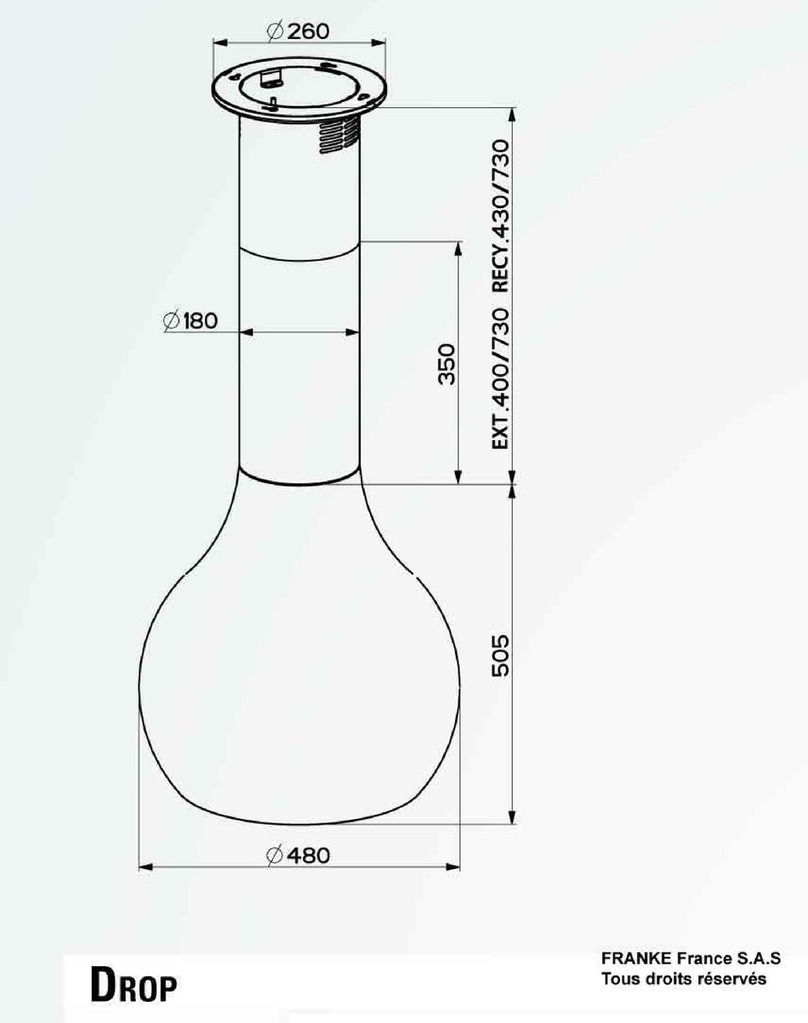
ROBLIN DROP Dimensions

ROBLIN

ROBLIN DROP Dimensions

EMG EMG-ACB BARREL Installation information

EMG

EMG EMG-ACB BARREL Installation information

MiniSolar MT-150 Assembling Guide

MiniSolar

MiniSolar MT-150 Assembling Guide

Parkside PSZ 250 B2 Operation and safety notes

Parkside

Parkside PSZ 250 B2 Operation and safety notes

ABB REM 610 Technical reference manual

ABB

ABB REM 610 Technical reference manual

Parkside 55992 translation of original operation manual

Parkside

Parkside 55992 translation of original operation manual

Skyjacker F250 installation instructions

Skyjacker

Skyjacker F250 installation instructions

IBM IBM SYSTEM Z overview

IBM

IBM IBM SYSTEM Z overview

Grech Motors G28 owner's manual

Grech Motors

Grech Motors G28 owner's manual

NOVAK BATTERY CARE SHEET Using

NOVAK

NOVAK BATTERY CARE SHEET Using

Telemotive blue PiraT Mini Startup guide

Telemotive

Telemotive blue PiraT Mini Startup guide

manuals.online logo
manuals.online logoBrands
  • About & Mission
  • Contact us
  • Privacy Policy
  • Terms and Conditions

Copyright 2025 Manuals.Online. All Rights Reserved.

LR5011
TEMPERATURE LOGGER
Operation Manual
June 2013 Revised edition 2 Printed in Japan
LR5011B981-02 13-06H
Read First
Thank you for purchasing the HIOKI LR5011
Temperature Logger.
This guide introduces the logger's basic mea-
surement procedure to first-time users.
Before using the instrument, be sure to read the Instruc-
tion Manual carefully.
Installing the Battery 1Press the PUSH tab as
shown, and pull the bat-
tery cover back.
Install the battery as
shown.
Align the holes in the
battery cover with the
projections on the back
of the logger.
While confirming that
there are no gaps, press
with your fingers to
close the battery cover.
2
3
4
1
23
4
When the battery is installed, the logger
turns on (there is no power switch).
Connecting a Temperature Sensor
Align the triangles on the plug
body and in front of the sensor
jacks, and insert the plug
securely. (Insert the protruded
parts of the connecting cable
into the holes of the device.)
2Preparations
1Confirmation
LR6 alkaline battery
(Pre-installed in the log-
ger.)
Temperature Sensor
(Please use Hioki-brand options.
See the Instruction Manual.)
LR5011
3Settings
Logger and Accessories
Option
Temperature sensors are available as options. Select according
to your application.
1
2
3
Display the settings, and select
the setting item.
Configure the setting as
needed.
Apply the new setting contents.
(The setting items are displayed as shown under Setting Display
on page 2.)
4Recording
Start
From the Measurement display, hold the
button for two seconds.
Note: Continue pressing the button until the
[REC] indicator changes from a blink-
ing to on state.
When the blinking stops and the data count is
zeroed, recording starts.
After one second, the measurement display
reappears.
Hold the button for two seconds
while recording (while [REC] is displayed).
Note: Continue pressing the button until the
[REC] indicator changes from a blinking
to off state.
[REC] disappears when
recording stops.
If the stop method is set
to [OFF], recording stops
automatically when mem-
ory becomes full.
Logger memory contains the data for two recording sessions. (Be
aware that old data is erased when starting recording after two record-
ing sessions.)
Data can be imported to a computer without stopping recording.
Before recording, install the logger and perform
pre-measurement inspection.
(See the Instruction manual for details.)
Stop
Display Example: Setting the
recording interval to 10 minutes.
Instruction manual
LR5091 Communication Adapter
(Includes LR5000 Utility Program
CD [PC application software] and
USB Cable)
Stand
Importing data to a computer requires the optional LR5091
Communication Adapter or LR5092-20 Data Collector
Refer to this manual for
operating procedure
details, or when prob-
lems occur.
This is the logger
stand. See the Instruc-
tion Manual for details.
Example: LR9604
Confirm package contents, and prepare needed items. Install the battery and connect the cable to the logger.
No measured value is displayed.
Is the sensor plug inserted all the way in?
Verify the correct plug orientation, and insert it as
far as possible.
If the values are not displayed despite these
measures, the sensor and logger need to be
inspected and repaired.
Please contact your dealer or Hioki representative.
Note: The maximum and minimum values are not displayed when the
recorded data count is 0.
The display is blank.
Is auto power saving enabled (set to ON)?
When enabled, the display blanks after 30 seconds of operator inactivity.
Press any button or send a communication signal to turn on the display.
The [REC] indicator disappears even though recording has not
been stopped.
Is the stop method disabled (set to OFF)?
With disabled, recording stops automatically when memory becomes full.
To record continuously until stopped by the REC/STOP button, enable the
stop method.
(In this case, old data is overwritten when the memory becomes full.)
Recorded data has disappeared.
Does recording restart after stopping?
Note that if recording is accidentally restarted after stopping, data recorded
prior to the last recording is automatically erased.
(The logger retains the data from both current and most recent prior
recording operations.)
To erase logger memory
Erase using the PC Utility program. See the Instruction manual for details.
The battery is depleted too quickly.
Are you using the battery originally supplied with the logger?
Are you using a zinc-manganese battery?
Install a new AA-size (LR6) alkaline battery.
Setting Display Measuring Display
Troubleshooting
(Returns to the measuring display)
Measured value
Recorded data
count
Maximum value
Minimum value
Operating Buttons
Setting Display: Displays settings (recording interval, date
and time, etc.)
Measuring Display: Displays recorded data (measured val-
ues, recorded data count, etc.)
Indicators
Battery Status Indicator
REC
Recording in progress
AL
Upper/lower threshold exceeded
ENDLESS
Stop method enabled
STAT
Recording mode enabled
MAX, MIN
Maximum and minimum values
DATA
Recorded data count
Power Save
Battery life is extended when on (enabled).
Default is on.
Recording Mode
When on (statistical recording), instantaneous, maximum, minimum, and aver-
age values are recorded at each interval. (Record statistical values) Battery life is
shorter.
Default is off.
Stop Method
Select what happens when memory becomes full.
When on, the oldest data is overwritten (Endless Recording), and when off,
recording stops (One-Time Recording).
Default is on.
SET
Displays settings.
(-), (+)
Changes Measurement display contents.
Changes setting values on the Settings display.
REC/STOP
Hold for two seconds to start/stop recording.
From a setting display, switches to measurement display.
Power Save Setting
Recording Mode Setting
Stop Method Setting
Minute Setting
Hour Setting
Recording Interval Setting
Year Setting
Month Setting
Day Setting

5Importing and Displaying Data on a
Computer
1
Installing the PC Application
Program
1
3
2
Click
Insert the
CD
Click
LR5000 Utility Program Operating Requirements
• CPU 1 GHz or faster processor clock
• RAM At least 512 MB
• OS Windows XP SP2 or later
Windows Vista SP1 or later
Windows 7
• Library .NET Framework 2.0/3.5
• Interface USB
• Monitor Resolution 1024 × 768 or higher
• Hard Disk At least 30 MB free space
(Additional space is required for storing
recorded data. Another 500 MB may be
required if .NET Framework 2.0 or 3.5 is
not yet installed.)
What if the PC Utility program cannot be installed?
• Be sure that the computer meets the above operating require-
ments.
• Carefully read "Installing the PC Application Program" in the
Instruction manual, and reinstall. Pay special attention to the
following items.
1. Be sure to log in using an Administrator account.
2. Before installing, be sure to close any programs running on
the computer.
2
Starting the PC Utility Program
Required Items: Supplied CD
(for Windows XP) LR5091 Communication Adapter,
USB cable
From the Windows [Start] menu, select [All Pro-
grams]-[HIOKI]-[LR5000 Utility Software]-
[LR5000 Utility] to start the program.
The program starts automatically from the next Windows
logon, and the icon appears in the task tray (notification
area).
2. Click
3
Importing (Saving) Recorded Data to a Computer, and Graph Display
1
or
Required Items: LR5091 or LR5092-20 and supplied USB cable
Connect to the com-
puter via USB cable
2
Data importing
begins automatically Data is saved to
a file.
3
The viewer starts up
automatically with a
graph displayed
1. Click
PC Utility Program Features
Making Detailed Settings Displaying Recorded Data
in a Table
Configure settings on the LR5000 "Data Logger" series loggers, and
on the LR5092-20 Data Collector.
The PC utility program can access settings that cannot be accessed
from the logger itself.
For example,
Set recording start/stop method and timing to start and stop
recording automatically at scheduled times (Timer Measure-
ments).
Measurement data can be freely scaled for display (Scaling).
Set upper and lower thresholds so that measurements outside
of the range cause [AL] (Alarm) to appear on the logger
screen (Alarm Judgment).
Add comments to measurement data.
Processing Recorded Data
2010/8/1 9:00 2010/8/3 17:00
Recording Start Recording Stop
Printing Recorded Data
Example Graph Printout
Organizing Recorded Data
Process data imported to the computer.
Freely scale for display (Scaling)
Calculate electric power easily (using clamp logger measurement
values)
Calculate energy cost easily (using clamp logger measurement
values)
Calculate duty cycle
Integration
Calculate dew-point temperature (using temperature/humidity
logger measurement values)
Sort data imported to the computer.
Copy (files between folders)
Move (selected files between folders)
Delete (selected files)
Combine
(multiple recording files into one, and save with new file name)
Extract
(data for a specified period, and save with new file name)
See the Instruction manual for details.