6Install the IP Utility Software and Discover Devices
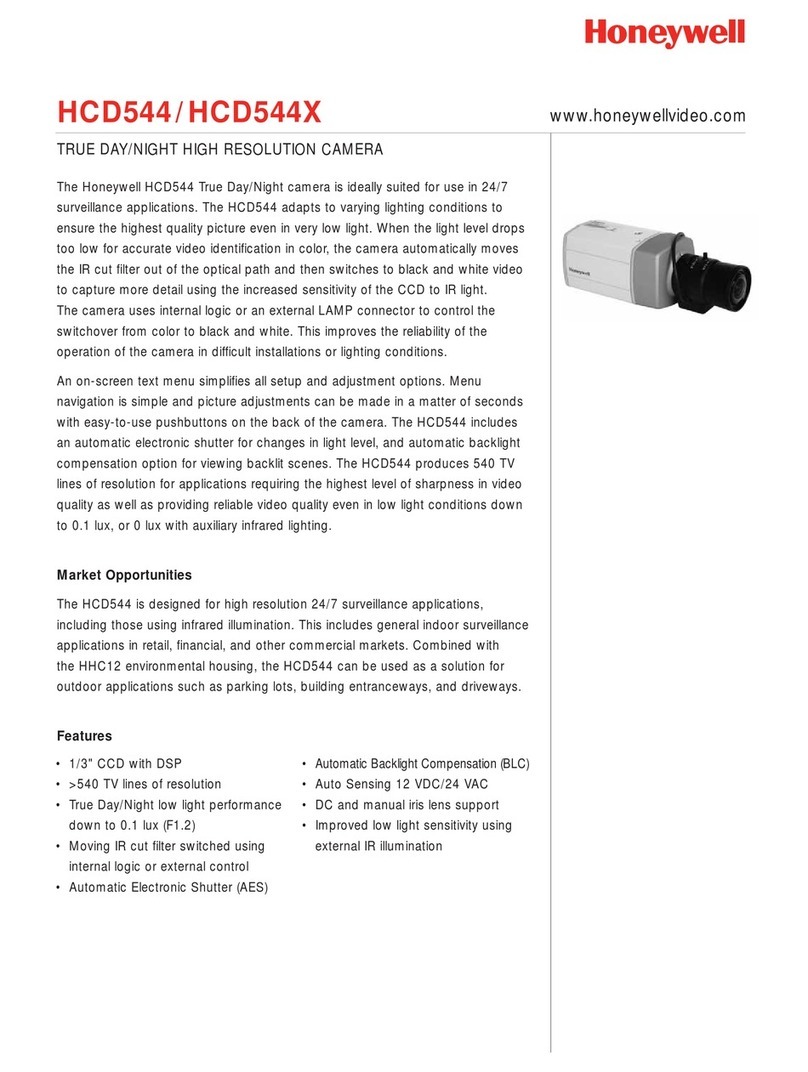
Windows administrator privileges are required System Requirements
Confirm the computer meets the system requirements and close
all other applications that may be open on your computer.
Launch the Honeywell IP Utility InstallShield Wizard either from
the CD or via the Honeywell website.
1
2
3
4
5
CD: Insert the CD into the CD-ROM drive. The Wizard opens automatically. If it doesn’t, navigate to
[CD drive] \ Honeywell IP Utility\ and double-click the Honeywell IP Utility Setup.exe file.
Website: Navigate to https://www.honeywellvideo.com/products/cameras/pt/212587.html.
Under Download Software, click the Honeywell IP Utility link.
When the Honeywell IP Utility InstallShield Wizard opens, follow the instructions. Once the installation is
complete, double-click the Honeywell IP Utility icon on the desktop to open the IP Utility Logon
window .
Select Administrator, enter the password 1234 and click the arrow button. IP Utility discovers your devices
connected to the network. After the initial discovery, the network automatically continues to discover devices
that are newly added or removed from the network.
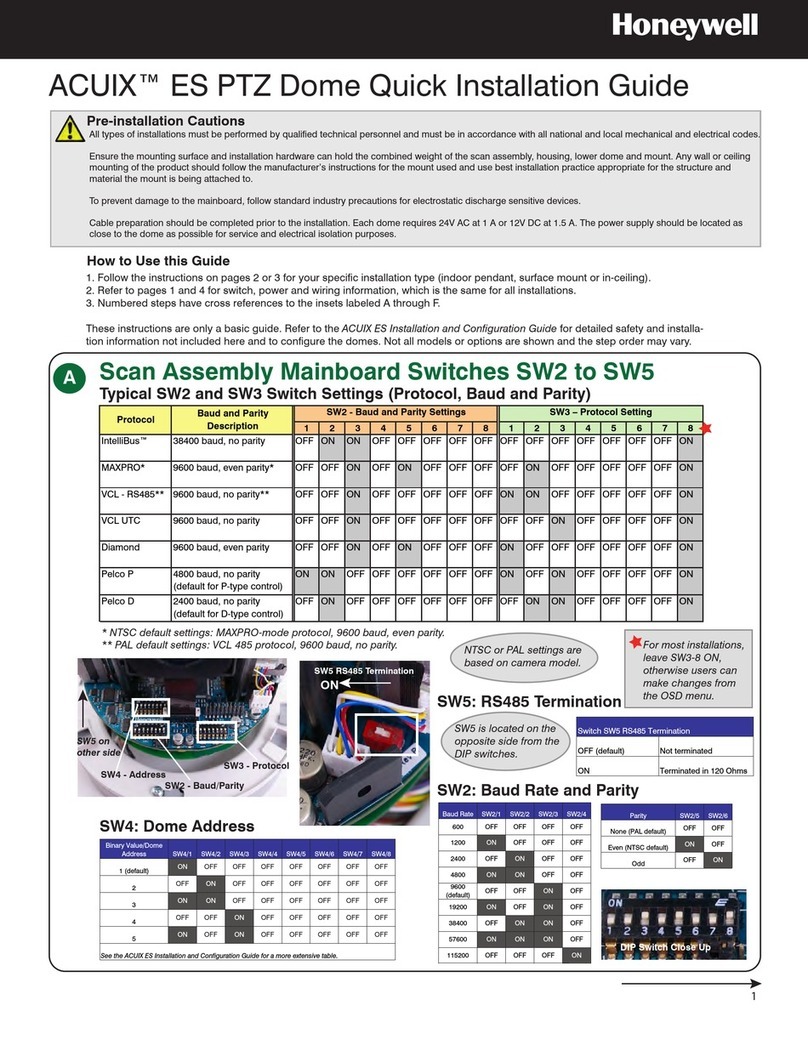
From the Discovery pane, double-click the ACUIX IP dome you want to connect to (or select the device and
click Connect ). The IP network setting details, such as device name, IP address and subnet mask can
now be configured for each connected device.
5
800-01115 Rev B (07-2009)
Option Description
Device Name By default, the device name is the device type plus the MAC Address. It is
recommended that you change the device name.
IP Address The IP address of the device on the network.
Subnet Mask
The subnet mask, or netmask, value of the device on the network. IP networks can
be divided into several smaller networks by subnetting. When a network is
subnetted, you must specify a subnet mask, which tells network devices which
smaller network they belong to. If the subnet mask is not properly configured, the
camera or dome may not be able to communicate with other devices on the
network.
Default Gateway
The default gateway address that connects the device to the network. Enter the IP
address of the host to use as a gateway between networks. The gateway allows
communication between devices that are on different networks. Without a correct
gateway setting, the camera or dome cannot receive or transmit data from or to
devices that are not in the same network address range.
Mac Address The MAC address is a factory-assigned address that is unique for each device.
7Configure the IP Network Settings Automatically or Manually
To Obtain an IP Address Automatically, click the check box and enter a Device Name for example,
LobbyDome001. Click Apply. The network automatically assigns the IP address based on the DHCP network
server details. If no DHCP server is present on the network, it defaults to an APIPA address (169.254.x.x).
To Manually Enter IP Addresses click to clear the check box. Enter a Device Name for example,
LobbyDome001,IP Address, Subnet Mask and Default Gateway. Click Apply to save the settings. When
manually updating the network settings, it is important to enter the correct IP network settings before apply-
ing them. Incorrect values may cause a failure when connecting to the device. See the table below for details.
Component Requirement
Operating System Windows® XP® or WINServer 2003
Processor Intel® Pentium® IV, 3.0 GHz or faster
RAM 512 MB RAM or higher
Web Browser
Microsoft® Internet Explorer®
V6.0 or later
1
2
Also see Where Do I Find More Information?
to download the full installation guide.
It is important to click Apply to save any configuration change.