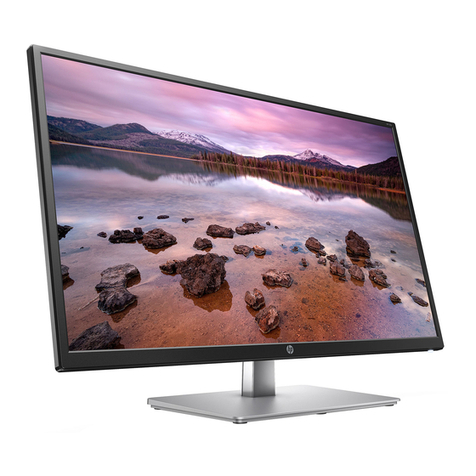
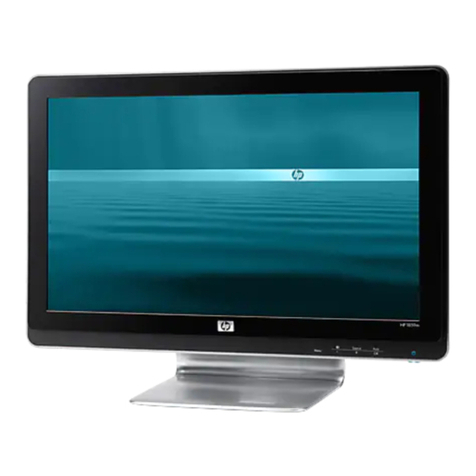
HP 2209T User manual

USER'S MANUAL
L2105tm / 2209t LCD Touch Monitors
Agency no.: HSTND-2791-Q

Copyright © 2009-2011Hewlett-Packard Development Company, L.P. All Rights Reserved.
No part of this manual, including the products and software described in it, may be reproduced,
transmitted, transcribed, stored in a retrieval system, or translated into any language in any form or by
any means, except documentation kept by the purchaser for backup purposes, without the express
written permission of HP.
Product warranty or service will not be extended if: (1) the product is repaired, modified or altered,
unless such repair, modification of alteration is authorized in writing by HP; or (2) the serial number of
the product is defaced or missing.
HP PROVIDES THIS MANUAL "AS IS" WITHOUT WARRANTY OF ANY KIND, EITHER EXPRESS
OR IMPLIED, INCLUDING BUT NOT LIMITED TO THE IMPLIED WARRANTIES OR CONDITIONS
OF MERCHANTABILITY OR FITNESS FOR A PARTICULAR PURPOSE. IN NO EVENT SHALL HP,
ITS DIRECTORS, OFFICERS, EMPLOYEES OR AGENTS BE LIABLE FOR ANY INDIRECT,
SPECIAL, INCIDENTAL, OR CONSEQUENTIAL DAMAGES (INCLUDING DAMAGES FOR LOSS
OF PROFITS, LOSS OF BUSINESS, LOSS OF USE OR DATA, INTERRUPTION OF BUSINESS
AND THE LIKE), EVEN IF HP HAS BEEN ADVISED OF THE POSSIBILITY OF SUCH DAMAGES
ARISING FROM ANY DEFECT OR ERROR IN THIS MANUAL OR PRODUCT.SPECIFICATIONS
AND INFORMATION CONTAINED IN THIS MANUAL ARE FURNISHED FOR INFORMATIONAL
USE ONLY, AND ARE SUBJECT TO CHANGE AT ANY TIME WITHOUT NOTICE, AND SHOULD
NOT BE CONSTRUED AS A COMMITMENT BY HP. HP ASSUMES NO RESPONSIBILITY OR
LIABILITY FOR ANY ERRORS OR INACCURACIES THAT MAY APPEAR IN THIS MANUAL,
INCLUDING THE PRODUCTS AND SOFTWARE DESCRIBED IN IT.
Products and corporate names appearing in this manual may or may not be registered trademarks or
copyrights of their respective companies, and are used only for identification or explanation and to the
owners' benefit, without intent to infringe.
Third Edition (January 2011)
Document Part Number: 582769-003

Agency Regulatory Notices
Federal Communications Commission Notice
This equipment has been tested and found to comply with the limits for a Class B digital device,
pursuant to Part 15 of the FCC Rules. These limits are designed to provide reasonable protection
against harmful interference in a residential installation. This equipment generates, uses, and can
radiate radiofrequency energy and, if not installed and used in accordance with the instructions, may
cause harmful interference to radio communications. However, there is no guarantee that interference
will not occur in a particular installation. If this equipment does cause harmful interference to radio or
television reception, which can be determined by turning the equipment off and on, the user is
encouraged to try to correct the interference by one or more of the following measures:
Reorient or relocate the receiving antenna.
Increase the separation between the equipment and the receiver.
Connect the equipment into an outlet on a circuit different from that to which the receiver is
connected.
Consult the dealer or an experienced radio or television technician for help.
Modifications
The FCC requires the user to be notified that any changes or modifications made to this device that
are not expressly approved by Hewlett Packard Company may void the user's authority to operate the
equipment.
Cables
Connections to this device must be made with shielded cables with metallic RFI/EMI connector hoods
to maintain compliance with FCC Rules and Regulations.
Declaration of Conformity for Products Marked with the FCC Logo (United
States Only)
This device complies with Part 15 of the FCC Rules. Operation is subject to the following two
conditions:
1. This device may not cause harmful interference.
2. This device must accept any interference received, including interference that may cause
undesired operation.
For questions regarding the product, contact:
Hewlett Packard Company
P. O. Box 692000, Mail Stop 530113
Houston, Texas 77269-2000
Or, call 1-800-HP-INVENT (1-800 474-6836)
For questions regarding this FCC declaration, contact:
Hewlett Packard Company
P. O. Box 692000, Mail Stop 510101
Houston, Texas 77269-2000
Or, call (281) 514-3333
To identify this product, refer to the Part, Series, or Model number found on the product.

Canadian Notice
This Class B digital apparatus meets all requirements of the Canadian Interference-Causing
EquipmentRegulations.
Avis Canadien
Cet appareil numérique de la classe B respecte toutes les exigences du Règlement sur le
matérielbrouilleur du Canada.
Japanese Notice
Korean Notice
Power Cord Set Requirements
The monitor power supply is provided with Automatic Line Switching (ALS). This feature allows the
monitor to operate on input voltages between 100–120V or 200–240V.The power cord set (flexible
cord or wall plug) received with the monitor meets the requirements for use in the country where you
purchased the equipment. If you need to obtain a power cord for a different country, you should
purchase a power cord that is approved for use in that country. The power cord must be rated for the
product and for the voltage and current marked on the product's electrical ratings label. The voltage
and current rating of the cord should be greater than the voltage andcurrent rating marked on the
product. In addition, the cross-sectional area of the wire must be a minimum of 0.75 mm² or 18 AWG,
and the length of the cord must be between 6 feet (1.8 m) and 12 feet (3.6 m).If you have questions
about the type of power cord to use, contact an authorized HP service provider. A power cord should
be routed so that it is not likely to be walked on or pinched by items placed uponit or against it.
Particular attention should be paid to the plug, electrical outlet, and the point where the cord exits from
the product.
Japanese Power Cord Requirements
For use in Japan, use only the power cord received with this product.
CAUTION: Do not use the power cord received with this product on any other products.

Product Environmental Notices
Materials Disposal
This HP product contains mercury in the fluorescent lamp in the display LCD that might require special
handling at end-of-life. Disposal of this material can be regulated because of environmental
considerations. For disposal or recycling information, contact the local authorities or the Electronic
Industries Alliance (EIA) http://www.eiae.org.
Disposal of Waste Equipment by Users in Private Household in the
European Union
This symbol on the product or on its packaging indicates that this product must not be
disposed of with your household waste. Instead, it is your responsibility to dispose of your waste
equipment by handing it over to a designated collection point for the recycling or waste electrical and
electronic equipment. The separate collection and recycling of your waste equipment at the time of
disposal will help to conserve natural resources and ensure that it is recycled in a manner that protects
human health and the environment. For more information about where you can drop off your waste
equipment for recycling, please contact the local city office, the household waste disposal service or
the shop where you purchased the product.
Chemical Substances
HP is committed to providing our customers with information about the chemical substances in our
products as needed to comply with legal requirements such as REACH (Regulation EC No
1907/2006of the European Parliament and Council). A chemical information report for this product can
be found at http/go/reach.
Restriction of Hazardous Substances (RoHS)
A Japanese regulatory requirement, defined by specification JIS C 0950, 2005, mandates that
manufacturers provide Material Content Declarations for certain categories of electronic products
offered for sale after July 1, 2006. To view the JIS C 0950 material declaration for this product, visit
http://www.hp.com/go/jisc0950.
Monitor Placement Considerations
For displays with glossy bezels the user should consider the placement of the display as the bezel
may cause disturbing reflections from surrounding light and bright surfaces.

1
Table of Contents
Safety Instructions............................................................................................................... 2
Recycling Information.......................................................................................................... 3
System components and accessories................................................................................ 4
Connection instructions ...................................................................................................... 5
Installing the display...................................................................................................................... 5
Packaging procedures .................................................................................................................. 5
Adjusting the viewing angle .......................................................................................................... 5
Connection instructions................................................................................................................. 6
Using the display.................................................................................................................. 7
Turning on the display................................................................................................................... 7
Function controls........................................................................................................................... 7
Operating the Touch Screen ............................................................................................... 8
Touch Software Installation for Microsoft Windows 7 and Windows Vista (Plug and Play) .......... 8
Touch Software Installation for Microsoft Windows XP ................................................................ 8
Control of the Touch Function..................................................................................................... 11
When Using Your Touchscreen Monitor ..................................................................................... 13
OSD selection..................................................................................................................... 14
OSD Menu .................................................................................................................................. 14
Troubleshooting.................................................................................................................16
Touch Screen Troubleshooting Tips ........................................................................................... 17
Production Specifications ................................................................................................. 18
Preset Modes...................................................................................................................... 19
Appendix............................................................................................................................. 20
Connector pin assignment .......................................................................................................... 20

2
Safety Instructions
Please keep the display away from any heat sources such as electric radiators or direct
sunlight. Place the display in a stable and well-ventilated place.
The holes or openings on the display are designed for ventilation. Do not cover or block
the ventilation holes or openings with any objects.
Remove protective film on the screen before you use the display
As the display surface is vulnerable to scratches, avoid touching the surface with nail or
pen point.
Shut off the power supply before cleaning. Use a soft lint-free cloth instead of a tissue to
wipe the screen.
You may use a glass cleaner to clean the product as required. However, never spray the
cleaner directly onto the display surface.
Do not attempt to repair this product yourself! Improperly disassembly of the product may
expose you to danger! If your problem cannot be solved according to the
"Troubleshooting" guidelines, contact your regional HP authorized service provider,
http://www.hp.com/support.

3
Recycling Information
HP encourages customers to recycle used electronic hardware, HP original print cartridges, and
rechargeable batteries. For more information about recycling programs, go to
http://www.hp.com/recycle.

4
System components and accessories
Use the provided stylus as a touch pointing device. However, the stylus is not required for optical
touch applications; for example, finger and other pointing instruments may be used.
If any component is missing, please contact your local dealer for technical support or customer
service.
Note: Please keep the original carton and packing materials for future transportation or shipment of
the display.
LCD display Power cord Audio cable
Signal cable (VGA) USB cable DVI cable
Quick Start Guide User's manual (CD)
Quick Start
Guide
Stylus

5
Connection instructions
Installing the display
Install: Remove:
Place the display on the table (Figure 1)
Packaging procedures
If you need to package the display again, please keep the original carton and packing materials.
The procedures for re-packaging the display are as follows:
1. Unplug the power cord from the display (make sure all attached peripherals are already turned
off).
2. Put the display into the carton in the original packaging manner.
Important
Before you start, place a clean towel or cloth on a flat surface, on which you can place the removed
display panel without being damaged.
Adjusting the viewing angle
You may adjust the display's viewing angle from -5° ~ 20°.
(Figure 2)
Note:
When you adjust the viewing angle of the display, avoid touching the LCD display with your fingers,
as this may damage or break the liquid crystal screen.
When you adjust the angle of your display, pay attention to your adjustment action, as shown in the
figure above.
This manual suits for next models
2
Table of contents
Other HP Monitor manuals