
HTC HTC Flyer User manual
Your HTC Flyer
User guide

Contents
Getting started
Inside the box 8
HTC Flyer 8
Top cover 10
SIM card 11
Storage card 12
Battery 13
Switching the power on or off 13
Entering your PIN 14
Finger gestures 14
Setting up HTC Flyer for the first time 15
Ways of getting contacts into HTC Flyer 15
Home screen 16
Basics
Adjusting the volume 18
Sleep mode 18
Status and notifications 19
Notifications panel 22
Connecting HTC Flyer to a computer 23
Copying files to or from the internal storage or storage card 24
Copying text, looking up information, and sharing 25
Printing 26
Personalizing
Making HTC Flyer truly yours 27
Personalizing HTC Flyer with scenes 27
Changing your wallpaper 28
Applying a new skin 29
Personalizing your Home screen with widgets 29
Adding icons and other shortcuts on your Home screen 31
Adding folders on your Home screen 31
Rearranging or removing widgets and icons on your Home screen 32
Customizing the launch bar 33
Rearranging the Home screen 34
Using sound sets 34
Rearranging or hiding application tabs 36
Customizing the lock screen 37
Search and Web browser
Searching HTC Flyer and the Web 38
Using the web browser 40
2 Contents

Downloading from the Web 42
Viewing bookmarks and previously visited pages 42
Setting browser options 44
Tablet pen and fun apps
About the tablet pen 45
Choosing your pen type, color, and stroke 47
Highlighting and drawing in pen-integrated apps 48
About Notes 50
Writing a note 51
Reviewing a note 53
Switching to Kid Mode 54
Scribble mode 55
Snapbooth and Camera
Snapbooth 57
Camera 58
Photos, videos, and music
Gallery 63
Music 71
Connected Media 75
HTC services
HTC Watch 77
HTCSense.com 77
Accounts and sync
About online accounts 80
Synchronizing with a Google Account 80
Adding a social network account 81
Managing your online accounts 81
Social
Facebook for HTC Sense 83
Facebook app 84
What’s the difference between Facebook app and Facebook for HTC Sense? 85
Twitter for HTC Sense 85
Using Friend Stream 86
Tweeting in Friend Stream 89
Chatting in Google Talk 90
Email
Gmail 93
Mail 94
Calendar
About Calendar 103
3 Contents

Creating an event 103
Changing Calendar views 105
Managing Calendar events 106
Dismissing or snoozing event reminders 107
Showing or hiding calendars 107
Changing Calendar settings 108
About the Calendar widget 108
Maps and location
Location settings 109
Locations 109
Car Panel 116
Google Maps 117
People
Transferring contacts from your old phone 121
About the People app 122
Your contacts list 123
Setting up your profile 124
Importing contacts from your SIM card 124
Adding a new contact 124
Searching for a contact 125
Importing a contact from an Exchange ActiveSync account 125
Merging contact information 126
Backing up your contacts to the storage card 127
Contact information and conversations 127
Sending contact information as a vCard 129
Contact groups 129
Adding People widgets 131
Messages
Opening Messages 133
Sending a text message (SMS) 133
Sending a multimedia message (MMS) 134
Resuming a draft message 136
Viewing and replying to a message 136
Forwarding a message 137
Previewing message conversations 138
Viewing and saving an attachment from a multimedia message 138
Push messages 139
Managing message conversations 139
Setting message options 141
Android Market and other apps
Finding and installing apps from Android Market 142
Using the Clock 144
Checking Weather 147
Reading eBooks 148
Reading news feeds 151
Keeping track of your stocks 153
Working on documents 154
Viewing a PDF 155
4 Contents

Watching videos on YouTube 155
Sharing games and apps 157
HTC Sync
About HTC Sync 158
Installing HTC Sync 158
Setting up HTC Sync to recognize HTC Flyer 159
Getting to know the workspace 159
Setting up synchronization 160
Synchronizing HTC Flyer 163
Installing an app from your computer to HTC Flyer 163
Synchronizing another device with your computer 164
Downloading the latest HTC Sync upgrade 164
Keyboard
Using the onscreen keyboard 165
Entering words with predictive text 166
Entering text by speaking 168
Entering text by tracing 168
Editing text 169
Adjusting input settings 170
Internet connections
Data connection 171
Wi-Fi 172
About connection widgets 174
Connecting to a virtual private network (VPN) 174
Using HTC Flyer as a modem (USB tethering) 175
Connecting HTC Flyer to the Internet through a computer (Internet Pass-through) 176
Using HTC Flyer as a wireless router 176
Bluetooth
Bluetooth basics 177
Connecting a Bluetooth headset or car kit 177
Disconnecting or unpairing from a Bluetooth device 178
Sending information using Bluetooth 179
Receiving information using Bluetooth 181
Security
Protecting your SIM card with a PIN 182
Protecting HTC Flyer with a screen lock pattern, PIN, or password 182
Settings
Settings on HTC Flyer 184
Changing display settings 185
Changing sound settings 187
Changing the language 187
Optimizing battery life 187
Managing memory 188
Checking information about HTC Flyer 189
5 Contents

Update and reset
Software updates 190
Restarting HTC Flyer 191
Resetting HTC Flyer 191
Trademarks and copyrights
Index
6 Contents
Conventions used in this guide
In this user guide, we use the following symbols to indicate useful and important
information:
This is a note. A note often gives additional information, such as what happens
when you choose to do or not to do a certain action. A note also provides
information that may only be applicable to some situations.
This is a tip. A tip gives you an alternative way to do a particular step or procedure,
or lets you know of an option that you may find helpful.
This indicates important information that you need in order to accomplish a certain
task or to get a feature to work properly.
This provides safety precaution information, that is, information that you need to be
careful about to prevent potential problems.
7 Conventions used in this guide
Getting started
Inside the box
You will find the following inside the box:
§HTC Flyer
§Tablet pen
§Tablet pen battery
§USB cable
§Power adapter
§3.5mm stereo headset
§Protective case
§Quick guide
§Safety and regulatory guide
§Call center card (hotline card)
§Warranty card
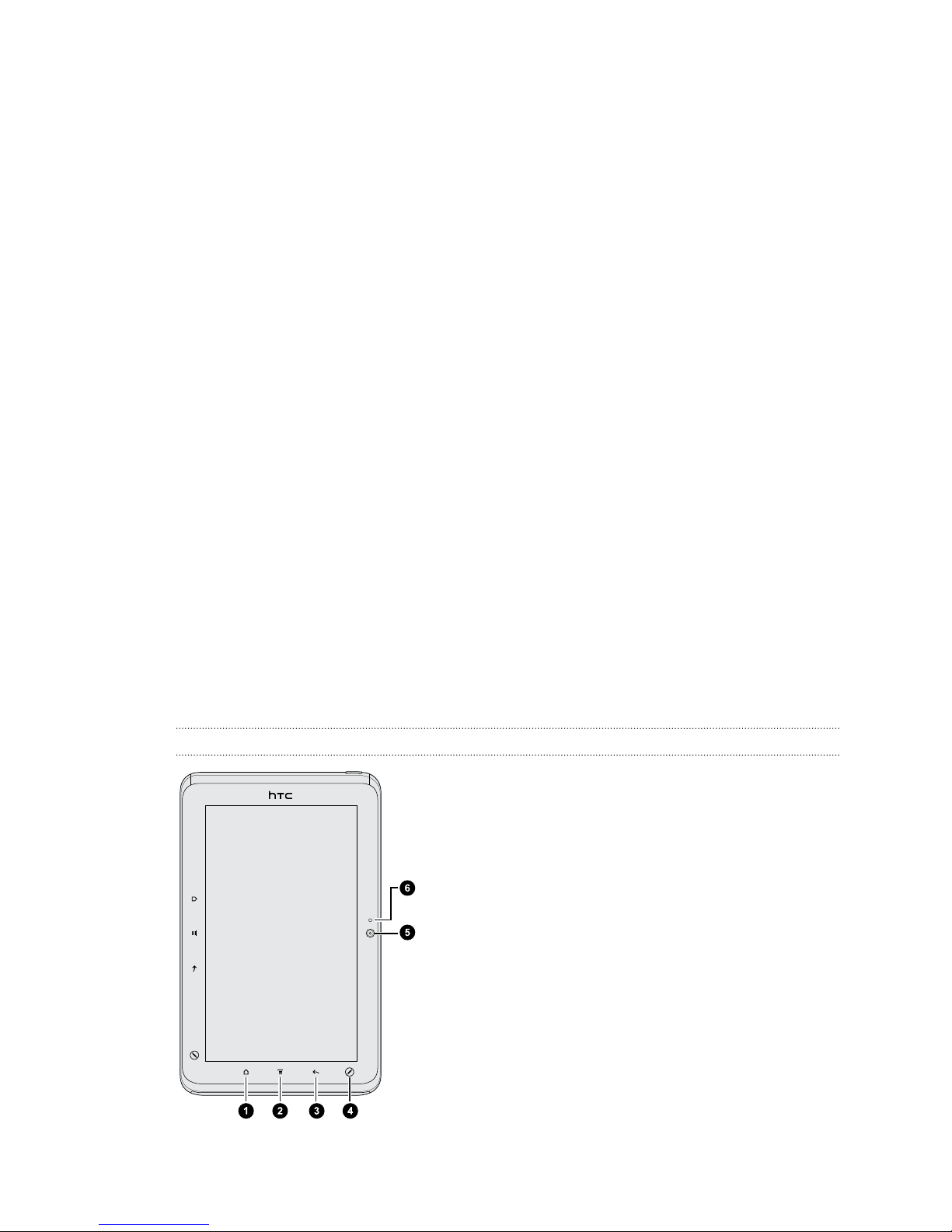
HTC Flyer
Front panel
1. HOME
2. MENU
3. BACK
4. PEN OPTIONS
5. Front camera
6. Front camera on or off indicator
8 Getting started
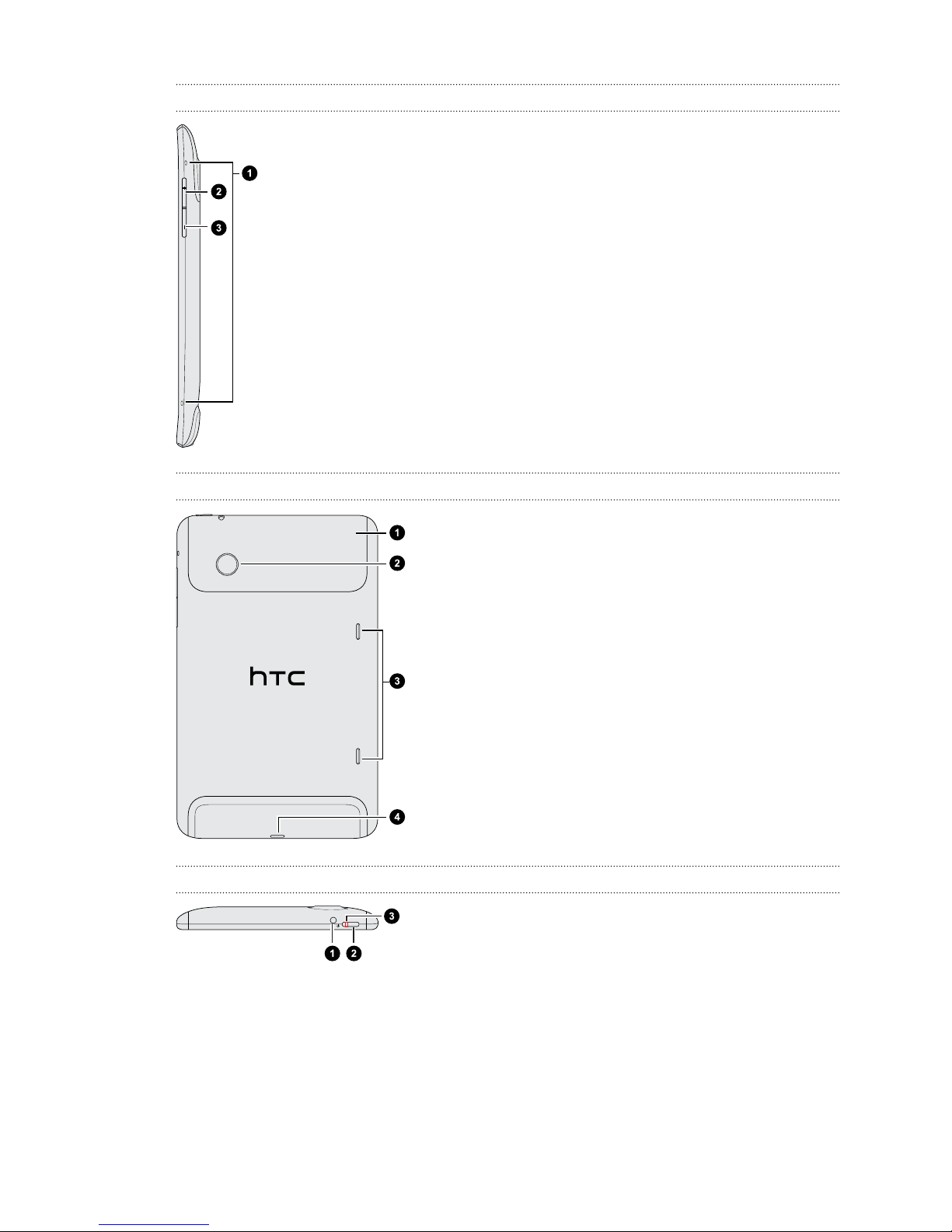
Right panel
1. Microphones
2. VOLUME UP
3. VOLUME DOWN
Back panel
1. Top cover
2. 5 megapixel camera
3. Speakers
4. USB connector
Top panel
1. 3.5mm headset jack
2. POWER
3. Charging notification
9 Getting started

Top cover
Removing the top cover
Remove the top cover to access the SIM card and storage card slots.
1. Turn off HTC Flyer and hold it securely with the front facing down.
2. With your right and left thumbs, push the top cover out to remove it.
Replacing the top cover
1. Align the two teeth underneath the top cover (one on each side) with the two
notches on the top of HTC Flyer.
2. Place the top cover on HTC Flyer, gently press down on the cover with your
thumbs, and then push it in until it clicks and locks into place.
10 Getting started
Other manuals for HTC Flyer
6
This manual suits for next models
1
Table of contents
Other HTC Tablet manuals
Popular Tablet manuals by other brands

Laser
Laser MID-1060 Quick operation guide

MUNBYN
MUNBYN IRT09J Easy setup guide

Motorola
Motorola MC3090R - Win CE 5.0 Professional 520 MHz quick start guide

Dell
Dell Latitude ST Setup and features information

Lenovo
Lenovo IdeaTab S6000L Hardware Maintenance Manual

Venturer
Venturer WT9L11 quick start guide











