manuals.online logo
Brands
  1. Home
  2. •
  3. Brands
  4. •
  5. IBM
  6. •
  7. Laptop
  8. •
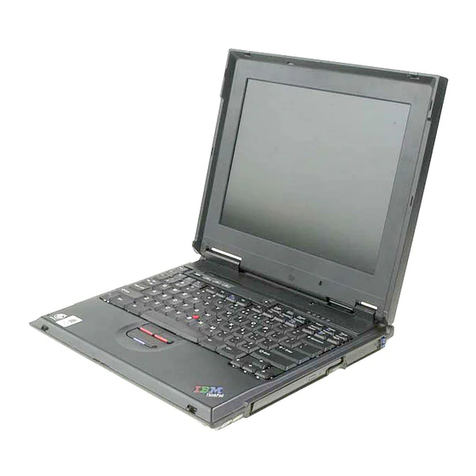
  9. IBM ThinkPad i 140M Owner's manual

IBM ThinkPad i 140M Owner's manual

This manual suits for next models

26

Other IBM Laptop manuals

IBM ThinkPad A21m Owner's manual

IBM

IBM ThinkPad A21m Owner's manual

IBM ThinkPad 240 User manual

IBM

IBM ThinkPad 240 User manual

IBM THINKPAD A20M User manual

IBM

IBM THINKPAD A20M User manual

IBM ThinkPad 560Z Dimensions

IBM

IBM ThinkPad 560Z Dimensions

IBM THINKPAD A30 User manual

IBM

IBM THINKPAD A30 User manual

IBM ThinkPad 755CX User manual

IBM

IBM ThinkPad 755CX User manual

IBM ThinkPad R40e User manual

IBM

IBM ThinkPad R40e User manual

IBM THINKPAD R50 series User manual

IBM

IBM THINKPAD R50 series User manual

IBM 600E - ThinkPad 2645 - PII 400 MHz Manual

IBM

IBM 600E - ThinkPad 2645 - PII 400 MHz Manual

IBM 2635 Owner's manual

IBM

IBM 2635 Owner's manual

IBM ThinkPad i Series 1400 User manual

IBM

IBM ThinkPad i Series 1400 User manual

IBM ThinkPad T30 2366 Owner's manual

IBM

IBM ThinkPad T30 2366 Owner's manual

IBM ThinkPad 600X? User manual

IBM

IBM ThinkPad 600X? User manual

IBM ThinkPad T40 series Owner's manual

IBM

IBM ThinkPad T40 series Owner's manual

IBM ThinkPad R51 Installation guide

IBM

IBM ThinkPad R51 Installation guide

IBM ThinkPad T30 Series User manual

IBM

IBM ThinkPad T30 Series User manual

IBM ThinkPad R40e Service manual

IBM

IBM ThinkPad R40e Service manual

IBM ThinkPad R40e Instruction Manual

IBM

IBM ThinkPad R40e Instruction Manual

IBM THINKPAD X32 - User manual

IBM

IBM THINKPAD X32 - User manual

IBM THINKPAD X40 Owner's manual

IBM

IBM THINKPAD X40 Owner's manual

IBM ThinkPad i Series 1400 User manual

IBM

IBM ThinkPad i Series 1400 User manual

IBM ThinkPad 390X User manual

IBM

IBM ThinkPad 390X User manual

IBM 92P1703 Manual

IBM

IBM 92P1703 Manual

IBM ThinkPad i Series 1400 Manual

IBM

IBM ThinkPad i Series 1400 Manual

Popular Laptop manuals by other brands

EUROCOM ARMADILLO 2 W840AU Service manual

EUROCOM

EUROCOM ARMADILLO 2 W840AU Service manual

HP EliteBook 8570p Maintenance and service guide

HP

HP EliteBook 8570p Maintenance and service guide

Toshiba L300-EZ1522 Specifications

Toshiba

Toshiba L300-EZ1522 Specifications

HP Compaq 6520s Maintenance and service guide

HP

HP Compaq 6520s Maintenance and service guide

Lenovo ThinkPad T530 null

Lenovo

Lenovo ThinkPad T530 null

Lenovo ThinkPad X1 Carbon user guide

Lenovo

Lenovo ThinkPad X1 Carbon user guide

Lenovo ThinkPad T400s Ghid de service şi depanare

Lenovo

Lenovo ThinkPad T400s Ghid de service şi depanare

Toshiba TE2000 user manual

Toshiba

Toshiba TE2000 user manual

Acer SP514-51N user manual

Acer

Acer SP514-51N user manual

Fujitsu P1620 - LifeBook - Core 2 Duo 1.2 GHz Getting started

Fujitsu

Fujitsu P1620 - LifeBook - Core 2 Duo 1.2 GHz Getting started

Dell G3 15 Setup and specifications

Dell

Dell G3 15 Setup and specifications

Clevo D400P Service manual

Clevo

Clevo D400P Service manual

HP EliteBook 840r G4 Maintenance and service guide

HP

HP EliteBook 840r G4 Maintenance and service guide

Clevo NL51CU Service manual

Clevo

Clevo NL51CU Service manual

Dell Inspiron 3700 Get started

Dell

Dell Inspiron 3700 Get started

Toshiba R700-S1320 Specifications

Toshiba

Toshiba R700-S1320 Specifications

Lenovo ThinkPad 310D reference guide

Lenovo

Lenovo ThinkPad 310D reference guide

Sony PCG-F801A user guide

Sony

Sony PCG-F801A user guide

manuals.online logo
manuals.online logoBrands
  • About & Mission
  • Contact us
  • Privacy Policy
  • Terms and Conditions

Copyright 2025 Manuals.Online. All Rights Reserved.

S37L-5192-00
IBM Mobile Systems
ThinkPad i Series 1400 (2611)
This Manual Supports The
Following Models:
1412, 1419, 1452, 1456,
1459, 1472, 1476, 1479,
140A, 140C, 140F, 140H, 140K,
140L, 140M, 140T, 143C, 143H,
143K, 143L, 143M, 143T, 147A,
147F, 147A, 149C, 149F, 149H,
149K, 149M, 149T,
Hardware Maintenance Manual
May 1998
Before using this information and the product it supports,
be sure to read the general information under “Read This
First” on page 1.
First Edition (May 1999)
The following paragraph does not apply to the United
Kingdom or any country where such provisions are
inconsistent with local law:
INTERNATIONAL BUSINESS MACHINES CORPO-
RATION PROVIDES THIS PUBLICATION "AS IS"
WITHOUT ANY WARRANTY OF ANY KIND, EITHER
EXPRESS OR IMPLIED, INCLUDING, BUT NOT LIMITED
TO, THE LIMITED WARRANTIES OF
MERCHANTABILITY OR FITNESS FOR A PARTICULAR
PURPOSE. Some states do not allow disclaimers or
express or implied warranties in certain transactions; there-
fore, this statement may not apply to you.
This publication could include technical inaccuracies or
typographical errors. Changes are periodically made to the
information herein; these changes will be incorporated in
new editions of the publication. IBM may make improve-
ments or changes in the products or the programs
described in this publication at any time.
Requests for technical information about IBM products
should be made to your IBM Authorized Dealer or your
IBM Marketing Representative.
 Copyright International Business Machines Corpo-
ration 1999. All rights reserved. Note to US Government
Users — Documentation related to restricted rights — Use,
duplication, or disclosure is subject to restrictions set forth
in GSA ADP Schedule Contract with IBM Corp.
Contents
ThinkPad i Series 1400 Hardware Maintenance
Manual . . . . . . . . . . . . . . . . . . . . . 1
Read This First .................. 1
How to Use Error Messages .......... 1
How to Diagnose Multiple FRUs ........ 1
What to Do First ................ 2
Screw Notices . . . . . . . . . . . . . . . . . 3
Power-On and Setup Password .......... 4
Check Procedures . . . . . . . . . . . . . . . . 5
Power Systems Check ............. 6
Planar Board Check .............. 8
Memory Check . . . . . . . . . . . . . . . . 8
Keyboard and External Input Device Check . . . 9
Audio Function Check ............. 10
TrackPoint IV Check .............. 10
Diskette Drive Check .............. 11
CD-ROM/DVD-ROM Drive Check ........ 11
Modem Board Check ............. 12
BIOS Utility . . . . . . . . . . . . . . . . . . . . 13
Navigating the BIOS Utility ........... 14
Power Management Features ........... 15
Screen Blanking Mode ............. 15
Standby Mode . . . . . . . . . . . . . . . . . 15
Hibernation Mode . . . . . . . . . . . . . . . 16
Symptom-to-FRU Index . . . . . . . . . . . . . . 17
Numeric Error Codes and Messages ...... 17
Beep Symptoms . . . . . . . . . . . . . . . . 19
No Beep Symptoms .............. 19
Keyboard/TrackPoint-Related Symptoms . . . . 20
LCD-Related Symptoms . . . . . . . . . . . . 20
Indicator-Related Symptoms . . . . . . . . . . 22
Power-Related Symptoms . . . . . . . . . . . 22
Memory-Related Symptoms . . . . . . . . . . 22
Audio-Related Symptoms . . . . . . . . . . . 23
PC Card (PCMCIA)-Related Symptoms ..... 23
Power Management-Related Symptoms ..... 23
Peripheral-Device-Related Symptom . . . . . . 24
Modem-Related Symptoms . . . . . . . . . . . 25
Intermittent Problems . . . . . . . . . . . . . 25
Undetermined Problems . . . . . . . . . . . . 25
Related Service Procedures ............ 27
Flash Memory Update ............. 27
Status Indicators . . . . . . . . . . . . . . . . 27
Power Switch . . . . . . . . . . . . . . . . . 29
Diagnostic Program Diskette .......... 29
Maintenance Program Diskette ......... 30
Fn Key Combinations ............. 32
Product Overview . . . . . . . . . . . . . . . . . 33
FRU Removals and Replacements ......... 34
Before FRU Removals and Replacements .... 35
Contents iii

Battery Assembly . . . . . . . . . . . . . . . 36
DIMM and DIMM Cover ............ 37
Modem Board Cover and Modem Board .... 38
Keyboard . . . . . . . . . . . . . . . . . . . 39
CPU Thermal Plate .............. 41
RTC Battery, CPU EMI Shield and Hard Disk Drive 42
PCMCIA Holder . . . . . . . . . . . . . . . . 44
LCD Assembly ................. 45
Upper Cover (Keyboard Bezel) ......... 47
CD Control Card ................ 49
Trajection Board and Modem Connector (RJ11
Cable Assembly) . . . . . . . . . . . . . . . 50
DC/DC Charger . . . . . . . . . . . . . . . . 51
Audio PCB and S-Video PCB .......... 52
Audio Cable and Speaker Cable ........ 53
Audio Connector Board ............ 55
Fan Assembly . . . . . . . . . . . . . . . . . 56
Diskette and CD-ROM/DVD-ROM Drives Assembly 57
Planar Board . . . . . . . . . . . . . . . . . 60
LCD Front Cover (12.1-inch) .......... 61
LCD Front Cover (14.1-inch) .......... 66
Locations . . . . . . . . . . . . . . . . . . . . . 72
Front View . . . . . . . . . . . . . . . . . . 72
Bottom View . . . . . . . . . . . . . . . . . . 73
Rear View . . . . . . . . . . . . . . . . . . . 73
Switch Locations . . . . . . . . . . . . . . . . 74
System Unit Parts Listing ............. 75
LCD Unit Parts Listing ............... 79
12.1" LCD Unit Parts Listing .......... 79
14.1" LCD Unit Parts Listing .......... 81
Miscellaneous Parts . . . . . . . . . . . . . . . . 83
Telephone/Modem . . . . . . . . . . . . . . . . 84
Power Cord . . . . . . . . . . . . . . . . . . . 85
Notices . . . . . . . . . . . . . . . . . . . . . . 86
Trademarks . . . . . . . . . . . . . . . . . . . 86
iv ThinkPad i Series 1400
ThinkPad i Series 1400 Hardware
Maintenance Manual
Read This First
Before you go to the check procedures, be sure to read
this section.
Important Notes
Only certified trained personnel should service the
computer.
Read the FRU service procedures before replacing
any FRUs.
Be extremely careful during write operations such as
copying, saving, or formatting. Drives in the computer
that you are servicing might have been rearranged or
the drive startup sequence might have been altered. If
you select an incorrect drive, data or programs could
be overwritten.
Ensure that you replace FRUs with the appropriate
model. When you replace the FRU, make sure that
the model of the machine and FRU part number are
correct by referring to the part list.
FRUs should not be replaced because of a single,
unreproducible failure. Single failure can occur for a
variety of reasons that have nothing to do with a
hardware defect, such as: cosmic radiation,
electrostatic discharge, or software error. FRU
replacement should be considered only when a recur-
ring problem exists. In this case, clear the error log
and run the test again. Do not replace FRUs if log
errors do not reappear.
Be careful not to replace a non-defective FRU.
How to Use Error Messages
Use the error codes displayed on the screen to diagnose
failures. If more than one error code is displayed, begin the
diagnosis with the first error code. The cause of the first
error code can result in the other false error codes being
displayed.
How to Diagnose Multiple FRUs
If the adapter or device has more than one FRU, the error
code could be caused by either FRU. Before replacing
multiple FRUs, try removing or exchanging each FRU one
by one in the designated sequence, to see if the symptoms
change.
ThinkPad i Series 1400 1
What to Do First
The servicer must include the following in the parts
exchange form or parts return form that is attached to the
returned FRU:
1. Name and phone number of servicer.
2. Date of service.
3. Date when part failed.
4. Date of purchase.
5. Failure symptoms, error codes appearing on display,
and beep symptoms.
6. Procedure index and page number in which failing
FRU was detected.
7. Failing FRU name and part number.
8. Machine type, model number and serial number.
9. Customer's name and address.
Before checking problems with the computer, determine
whether or not the damage applies to the warranty by
referring to the following:
Note for Warranty: During the warranty period, the cus-
tomer may be responsible for repair costs if the computer
damage was caused by misuse, accident, modification,
unsuitable physical or operating environment, or improper
maintenance by the customer. The following list provides
some common items that are not covered under warranty
and some symptoms that may indicate the system was
subjected to stresses beyond normal use:
The following is not covered under warranty:
LCD panel cracked by applying excessive force or by
being dropped.
Scratched (cosmetic) parts.
Cracked or broken plastic parts, broken latches,
broken pins, or broken connectors caused by exces-
sive force.
Damage caused by liquid spilled into the system.
Damage caused by improperly inserting a PCMCIA
card or installation of an incompatible card.
Diskette drive damage caused by pressing the
diskette drive cover or inserting diskettes with multiple
labels.
Damaged or bent diskette drive eject button.
CD-ROM/DVD-ROM drive damage caused by exces-
sive force, shock, or by being dropped.
Fuses blown by attaching a nonsupported device.
Forgotten computer password (making computer
unusable).
2ThinkPad i Series 1400
If the following symptoms are present, they may indicate
damage caused by non-warranted activity:
Missing parts may be a symptom of unauthorized
service or modification.
HDD spindles can become noisy if subjected to
excessive force or by being dropped.
Screw Notices
The computer uses special nylon-coated screws with the
following characteristics:
They maintain tight connections.
They do not easily come loose, even with shock or
vibration.
They need additional force to tighten.
They should be used only once.
Do the following when you service the machine:
Keep the screw kit (P/N 05K4841) in your tool bag.
Always use new screws if you are instructed.
Use a torque screwdriver if you have one.
Loose screws can cause a reliability problem. The IBM
ThinkPad computer addresses this problem with nylon-
coated screws. Tighten screws as follows:
Plastic to plastic
Turn an additional 90 degrees after the screw head
touches the surface of the plastic part.
Logic card to plastic
Turn an additional 180 degrees after the screw head
touches the surface of the logic card.
Torque driver
If you have a torque driver, refer to the "Torque"
column with each step.
Make sure you use the correct screw, and tighten all
screws firmly to the torque shown in the table if you have a
torque screwdriver. Never use a screw that you
removed. Use a new one. Make sure the screws are
tightened firmly.
ThinkPad i Series 1400 3
Power-On and Setup Password
To clear a password from the system, first identify the
system password switch by referring to “Switch Locations”
on page 74, then follow these steps:
1. Turn off the computer.
2. Unplug the AC Adapter and remove the battery.
3. Remove the keyboard by referring to “Keyboard” on
page 39, and the thermal plate by referring to “CPU
Thermal Plate” on page 41.
4. Move the password switch (SW3, switch 4) from OFF
to ON to bypass the password.
Note: SW2 has four switches. Its switch 4 is the
password bypass/check switch. Turning the
switch to the ON position is "bypass pass-
word"; the OFF position is "check password".
Refer to “Switch Locations” on page 74.
5. Plug in the AC adapter and turn on the system.
6. While the ThinkPad logo is being displayed, wait for a
beep before pressing F1 to enter the BIOS Utility.
7. Select "System Security" from the BIOS Utility main
menu and press Enter.
8. Set the "Power-On Password" setting to "None" to
clear the password.
9. Save and exit the BIOS Utility.
10. Turn off the system and unplug the AC Adapter.
11. Move the password switch from ON to OFF to enable
the password function.
12. Reinstall the thermal plate and keyboard.
13. Reinstall the battery pack and plug in the AC Adapter.
To use the password function again, enter the BIOS Utility
and set a password.
4ThinkPad i Series 1400
Check Procedures
Use the following procedure as a guide for computer prob-
lems.
Notes:
1. The diagnostic tests are intended to test only IBM
products. Non-IBM products, prototype cards, or mod-
ified options can give false errors and invalid system
responses.
2. Some test items require tools as shown below:
Audio wrap cable (P/N: 65G5180)
FDD: Erasable 2HD diskette
Parallel: Wrap plug (P/N: 72X8546)
Parallel: Test cable (P/N: 05K2580)
Serial: Wrap plug (P/N: 72X8546)
PCMCIA: PC test card (P/N: 35G4703)
CD-ROM/DVD-ROM: Any data and audio CDs
Screwdriver kit (P/N: 95F3598)
Screwdriver kit (P/N: 05K4693)
Torque screwdriver (P/N: 05K4695)
5mm socket wrench (P/N: 05K4694)
ThinkPad i Series 1400 Diagnostics Diskette (3
diskette pack, P/N: 09N1020)
ThinkPad i Series 1400 Maintenance Diskette
(P/N: 09N1025)
1. Obtain the failing symptoms in as much detail as pos-
sible.
2. Verify the symptoms by attempting to recreate the
failure by running the diagnostic test or by repeating
the same operation.
3. Use the following table with the verified symptom to
determine which page to go to. Search the symptoms
column and find the description that best matches
your symptom; then go to the page shown in the "Go
to" column.
Symptoms (Verified) Go to
Power failure. (The
power-on indicator does not
go on or stay on.)
“Power Systems Check” on
page 6, then use table in
“Power-Related Symptoms”
on page 22.
POST does not complete.
No beeps or error
codes/messages are indi-
cated.
“Symptom-to-FRU Index” on
page 17, then use table in
“No Beep Symptoms” on
page 19.
POST detected an error and
displayed numeric error
code with error message.
“Symptom-to-FRU Index” on
page 17.
ThinkPad i Series 1400 5
Symptoms (Verified) Go to
Other symptoms Appropriate check
instructions in this section,
then use appropriate tables
in “Symptom-to-FRU Index”
on page 17.
Power Systems Check
To verify the symptom of the problem, power on the com-
puter using each of the power sources as follows:
1. Remove the battery pack, diskette drive, and hard
disk drive.
2. Connect the AC Adapter and check that power is sup-
plied.
3. Install the diskette drive or hard disk drive one at a
time, and check that power is supplied from each
power source.
If you suspect a power problem, refer to the appropriate
power supply check listed below:
“Checking the AC Adapter”
“Checking the Operational Charging” on page 7
“Checking the Battery Pack” on page 7
Checking the AC Adapter: If the computer fails
only when the AC Adapter is used or if the power-on indi-
cator of the AC Adapter does not turn on, make sure of the
following:
Power cord is not damaged.
Power cord is securely connected to the AC Adapter
and AC power outlet.
If the above confirmation does not solve the problem,
replace the AC Adapter.
If the power-on indicator of the AC Adapter is on, then
proceed to the next step.
1. Unplug the AC Adapter cable from the computer and
measure the output voltage at the plug of the AC
Adapter cable.
Pin Voltage (V dc)
1 19.0 20.5
2 Ground
6ThinkPad i Series 1400