manuals.online logo
Brands
  1. Home
  2. •
  3. Brands
  4. •
  5. Infra Cool
  6. •
  7. Network Accessories
  8. •
  9. Infra Cool F-1.3 User manual

Infra Cool F-1.3 User manual

This manual suits for next models

2

Popular Network Accessories manuals by other brands

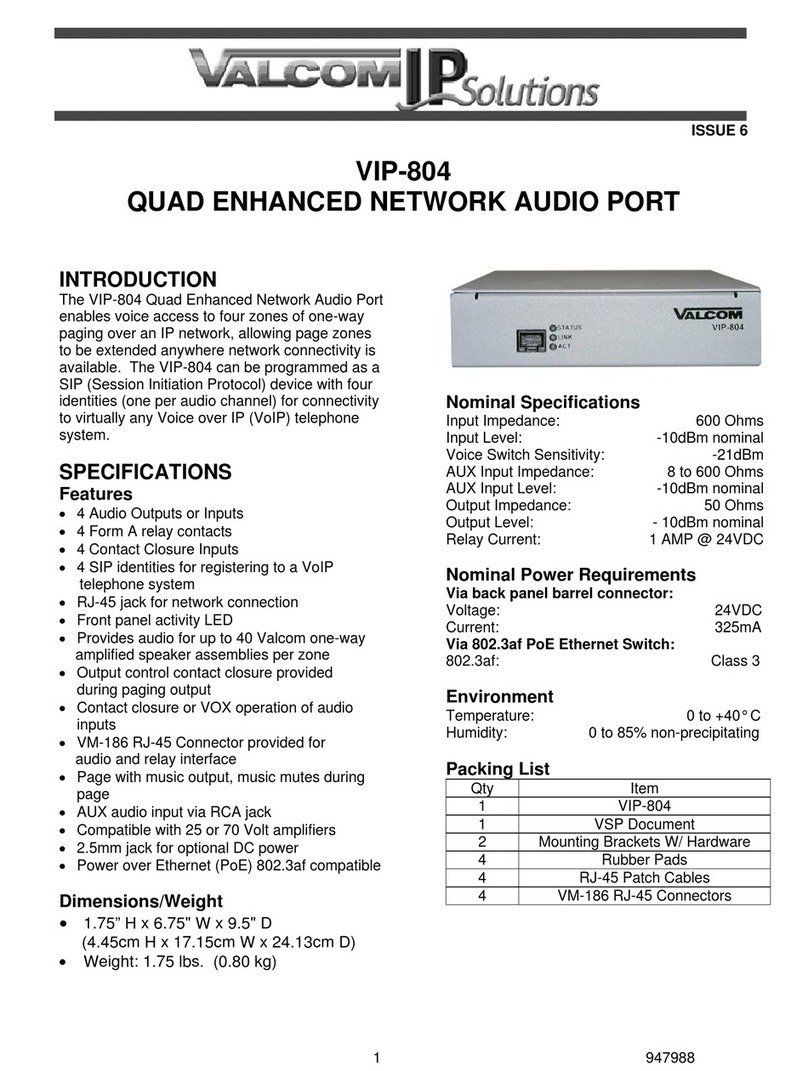
Valcom VIP-804 user guide

Valcom

Valcom VIP-804 user guide

SKUTCH BA-1000 Technical reference manual

SKUTCH

SKUTCH BA-1000 Technical reference manual

Asus AAEON FWS-2365 user manual

Asus

Asus AAEON FWS-2365 user manual

AMCI RBE2-8 user manual

AMCI

AMCI RBE2-8 user manual

Cisco ONS 15600 Reference manual

Cisco

Cisco ONS 15600 Reference manual

Optimus UMX-MC6 operating instructions

Optimus

Optimus UMX-MC6 operating instructions

AMG Systems AMG2783R-1-DR-SF instruction manual

AMG Systems

AMG Systems AMG2783R-1-DR-SF instruction manual

SamKnows whitebox version 1 installation instructions

SamKnows

SamKnows whitebox version 1 installation instructions

Devolo dLAN 200 AVsmart+ Technical data

Devolo

Devolo dLAN 200 AVsmart+ Technical data

Extreme Networks PoS Installation and user guide

Extreme Networks

Extreme Networks PoS Installation and user guide

Valcom VIP-821 user guide

Valcom

Valcom VIP-821 user guide

Tyco Electronics FIST-GPS2-J installation instructions

Tyco Electronics

Tyco Electronics FIST-GPS2-J installation instructions

AMG Systems AMG5424R instruction manual

AMG Systems

AMG Systems AMG5424R instruction manual

Cisco ONS 15600 Reference manual

Cisco

Cisco ONS 15600 Reference manual

Black Box TS605A Specifications

Black Box

Black Box TS605A Specifications

Black Box ME745A-M-R2 Specifications

Black Box

Black Box ME745A-M-R2 Specifications

NEC Univerge SV9100 installation manual

NEC

NEC Univerge SV9100 installation manual

TSAT AS TSAT 3000 Command reference manual

TSAT AS

TSAT AS TSAT 3000 Command reference manual

manuals.online logo
manuals.online logoBrands
  • About & Mission
  • Contact us
  • Privacy Policy
  • Terms and Conditions

Copyright 2025 Manuals.Online. All Rights Reserved.

www.austin-hughes.comUM-IC-Basic-1U-Q116V1
Rack Airflow Control
User Manual
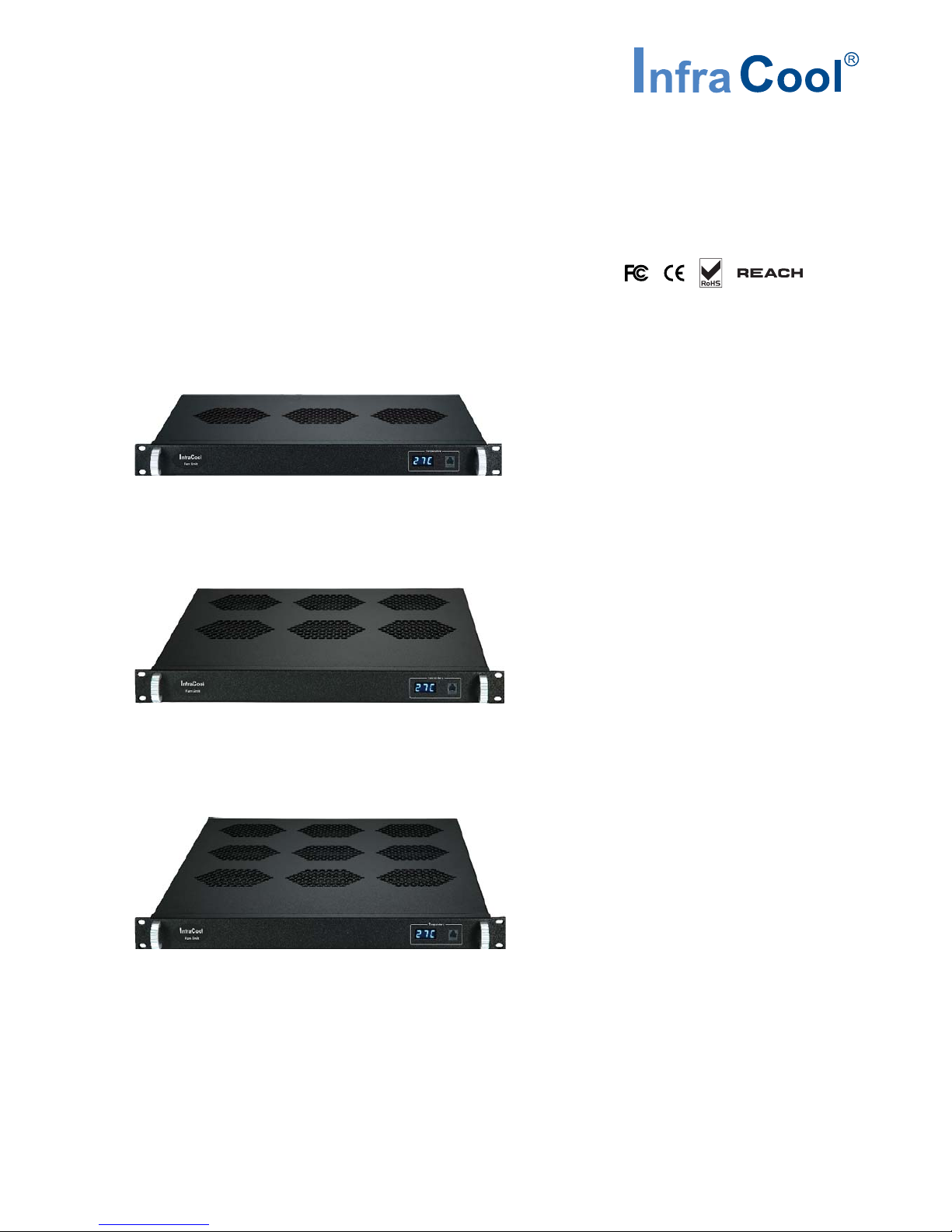
1U Rackmount Basic Fan Unit
F-1.3
F-1.6
F-1.9
www.austin-hughes.comUM-IC-Basic-1U-Q116V1
Legal Information
First English printing, October 2002
Information in this document has been carefully checked for accuracy; however, no guarantee is given to the correctness
of the contents. The information in this document is subject to change without notice. We are not liable for any injury or
loss that results from the use of this equipment.
Safety Instructions
Please read all of these instructions carefully before you use the device. Save this manual for
future reference.
■Unplug equipment before cleaning. Don’t use liquid or spray detergent; use a moist cloth.
■Keep equipment away from excessive humidity and heat. Preferably, keep it in an air-conditioned environment with
temperatures not exceeding 40º Celsius (104º Fahrenheit).
■When installing, place the equipment on a sturdy, level surface to prevent it from accidentally falling and causing dam
age to other equipment or injury to persons nearby.
■When the equipment is in an open position, do not cover, block or in any way obstruct the gap between it and the
power supply. Proper air convection is necessary to keep it from overheating.
■Arrange the equipment’s power cord in such a way that others won’t trip or fall over it.
■If you are using a power cord that didn’t ship with the equipment, ensure that it is rated for the voltage and current
labeled on the equipment’s electrical ratings label. The voltage rating on the cord should be higher than the one listed
on the equipment’s ratings label.
■Observe all precautions and warnings attached to the equipment.
■If you don’t intend on using the equipment for a long time, disconnect it from the power outlet to prevent being dam
aged by transient over-voltage.
■Keep all liquids away from the equipment to minimize the risk of accidental spillage. Liquid spilled on to the power
supply or on other hardware may cause damage, fire or electrical shock.
■Only qualified service personnel should open the chassis. Opening it yourself could damage the equipment and invali
date its warranty.
■If any part of the equipment becomes damaged or stops functioning, have it checked by qualified service personnel.
What the warranty does not cover
■Any product, on which the serial number has been defaced, modified or removed.
■Damage, deterioration or malfunction resulting from:
□Accident, misuse, neglect, fire, water, lightning, or other acts of nature, unauthorized product modification, or
failure to follow instructions supplied with the product.
□Repair or attempted repair by anyone not authorized by us.
□Any damage of the product due to shipment.
□Removal or installation of the product.
□Causes external to the product, such as electric power fluctuation or failure.
□Use of supplies or parts not meeting our specifications.
□Normal wear and tear.
□Any other causes which does not relate to a product defect.
■Removal, installation, and set-up service charges.
Regulatory Notices Federal Communications Commission (FCC)
This equipment has been tested and found to comply with the limits for a Class B digital device, pursuant to Part 15 of the
FCC rules. These limits are designed to provide reasonable protection against harmful interference in a residential instal-
lation.
Any changes or modifications made to this equipment may void the user’s authority to operate this equipment. This
equipment generates, uses, and can radiate radio frequency energy and, if not installed and used in accordance with the
instructions, may cause harmful interference to radio communications.
However, there is no guarantee that interference will not occur in a particular installation. If this equipment does cause
harmful interference to radio or television reception, which can be determined by turning the equipment off and on, the
user is encouraged to try to correct the interference by one or more of the following measures:
■Re-position or relocate the receiving antenna.
■Increase the separation between the equipment and receiver.
■Connect the equipment into an outlet on a circuit different from that to which the receiver is connected.

www.austin-hughes.comUM-IC-Basic-1U-Q116V1
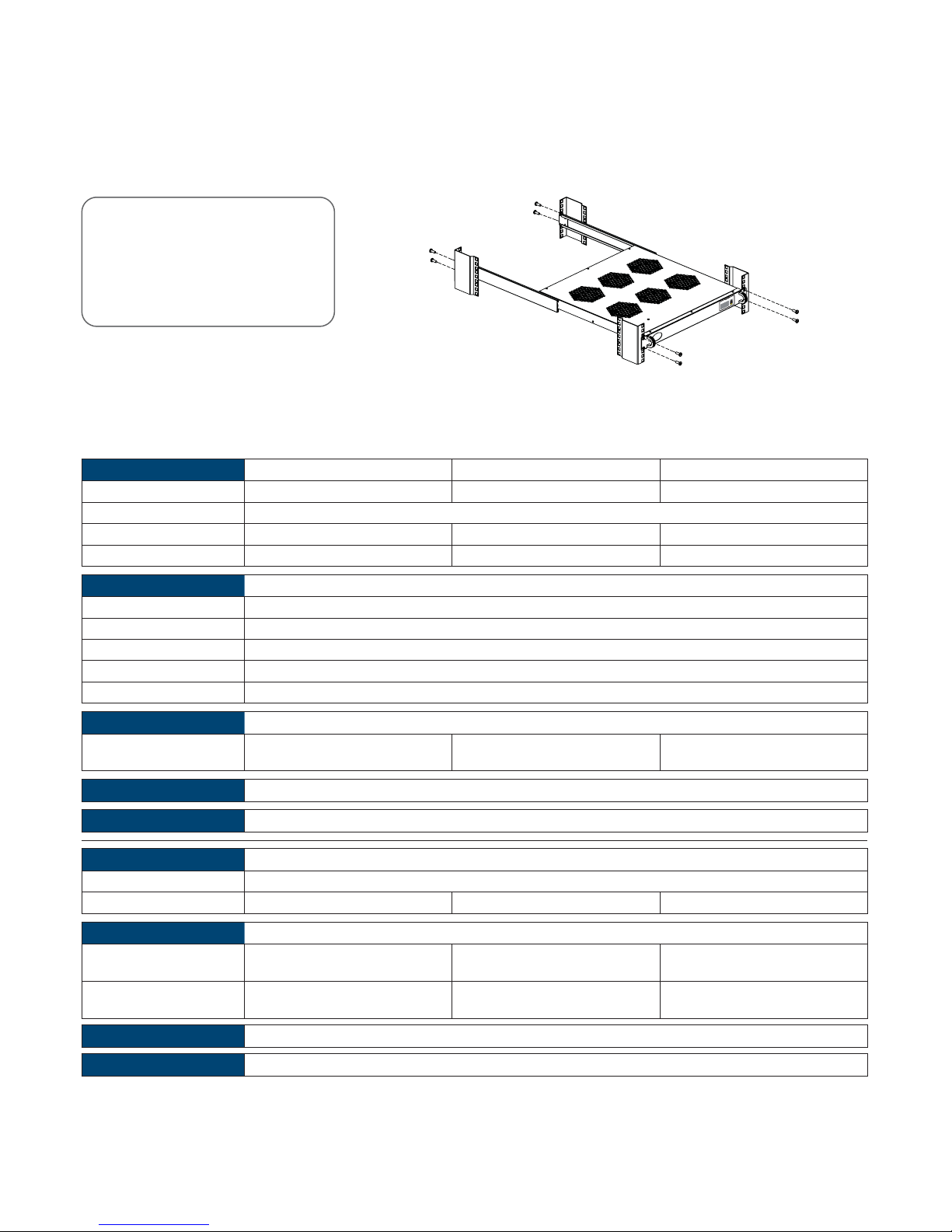
Rear mounting
brackets
The equipment comes with the standard parts shown on the package contents. Check and make sure they are included and in good
condition. If anything is missing, or damage, contact the supplier immediately.
Unpacking
Package Content
- 1U fan tray x 1 pc
- 6 ft power cord x 1 pc
- Rear mounting bracket x 1 pair
- External temperature sensor x 1 pc
* Bracket for F-1.6 & F-1.9 only
* M6 screws for fixing are not included
M6 screws
F-1.6
P. 1
Specifications
Fan F-1.3 F-1.6 F-1.9
No. of Fans : 3 6 9
Individual Fan CFM : 108 CFM
Unit CFM ( approx. ) : 324 CFM 648 CFM 972 CFM
MTBF : 50,000 hrs 50,000 hrs 50,000 hrs
Environmental
Operating : 0 to 50°C Degree
Storage : -5 to 60°C Degree
Relative humidity : 5~90%, non-condensing
Shock : 50G peak acceleration ( 11ms, half-sine wave )
Vibration : 58~100Hz / 0.98G ( 11ms / cycle )
Weight
Net / Gross : 4 kgs ( 8.8 lbs )
5 kgs ( 11 lbs )
6.8 kgs ( 15 lbs )
8 kgs ( 17.6 lbs )
9 kgs ( 19.8 lbs )
11 kgs ( 24.2 lbs )
Casing Color : Black
Mounting : 1U rackmount
Power
Input : Auto-sensing, 100V or 240V AC at 50 or 60Hz via IEC type cord
Consumption : 20W 40W 60W
Dimensions
Product : 480 x 298.3 x 43.5 mm
18.9 x 11.7 x 1.71 inch
480 x 458.3 x 43.5 mm
18.9 x 18 x 1.71 inch
480 x 623.3 x 43.5 mm
18.9 x 24.5 x 1.71 inch
Packing : 380 x 535 x 120 mm
15 x 21.1 x 4.7 inch
550 x 550 x 120 mm
21.7 x 21.7 x 4.7 inch
550 x 730 x 120 mm
21.7 x 28.7 x 4.7 inch
Regulatory : FCC, CE
Environmental : RoHS2 & REACH compliant
Installation
www.austin-hughes.comUM-IC-Basic-1U-Q116V1
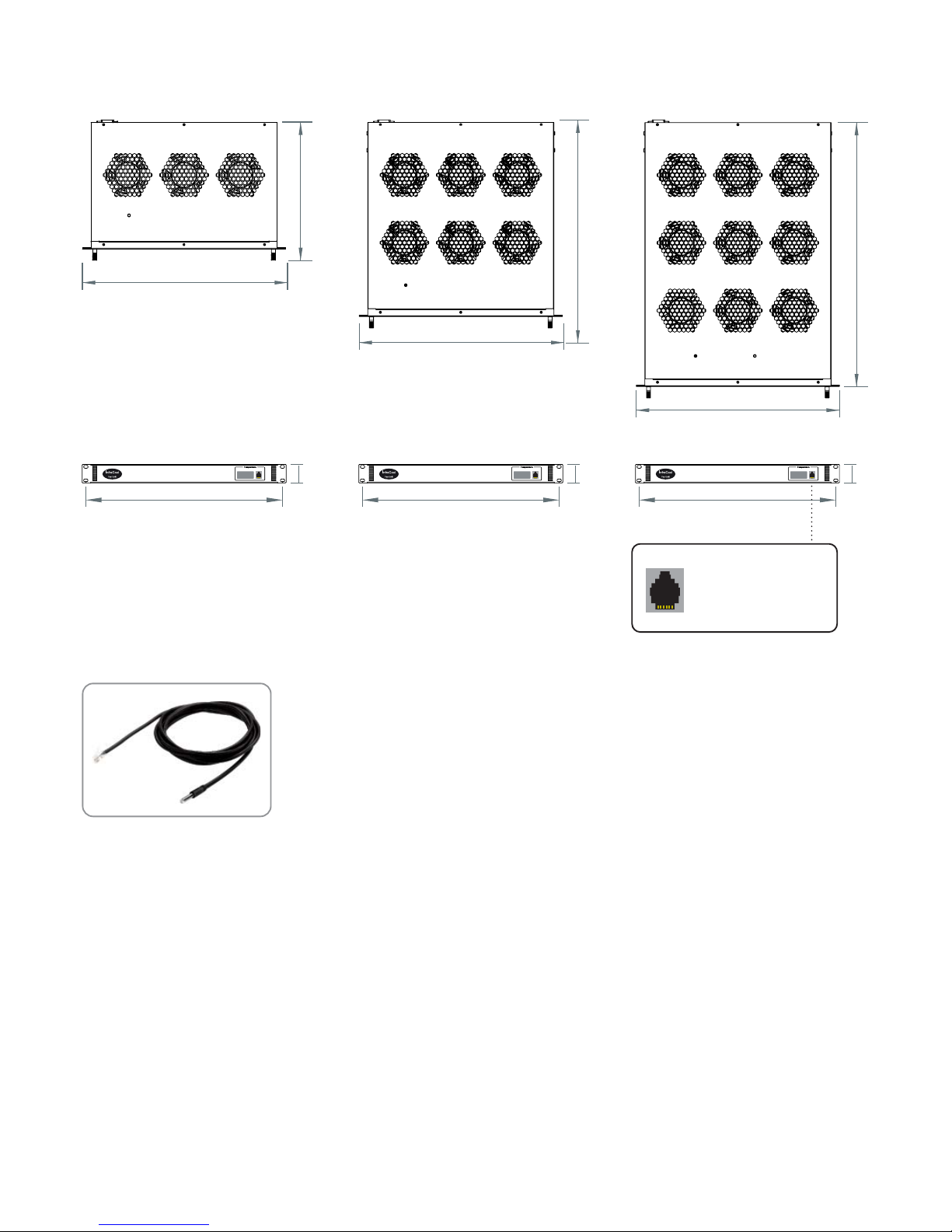
43.5
463
43.5
463
43.5
463
Dimensions
298.3
480
458.3
480
623.3
480
F-1.3 F-1.6 F-1.9
P. 2
Temp. port bundled
w/ a temp. sensor
External Temperature Sensor
- Plug & Play
- 2M wire
Note : The temp. sensor supports Celsius ( °C ) and Fahrenheit ( °F ). It will be preset
before delivery according to the user’s region. If the user wants to change the setting,
please power off the unit and then open the front panel. After that, switch the button
on the temp. sensor PCB to your preferred setting.
The company reserves the right to modify product specifications without prior notice and assumes no responsibility for
any error which may appear in this publication.
All brand names, logo and registered trademarks are properties of their respective owners.
Copyright 2016 Austin Hughes Electronics Ltd. All rights reserved.