CONCEPT IQ. Installation & Programming Manual.
Install
p7
Standard LED Terminal. 995500
© 2001. Inner Range Pty. Ltd. Part No: 635500
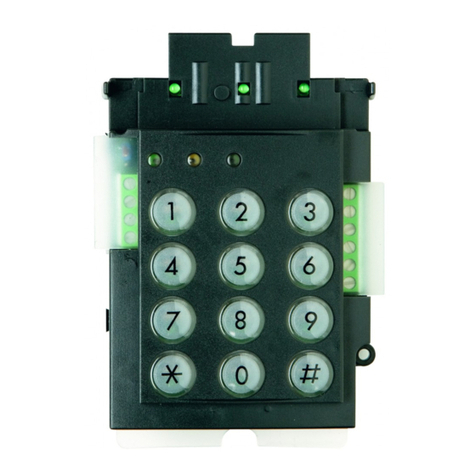
The LED Terminal is the main operator interface for the Concept IQ system.
The Terminal provides status display of 16 Zone Inputs and 4 Areas along with indication of “Power”, “Fault”, “Home Mode”
and “Armed” conditions. Audible button press feedback is provided and the built-in Beeper also provides indication of
Alarms, Entry/Exit warnings, Auto-Arm warning, User Operation OK and User Operation Unsuccessful.
While the system can be programmed via Upload/Download software, the LED Terminal also provides the ability for the
Installer to program all system parameters.
LAN connections to the Control
Module T4 connector.
4 Core
Security Cable
recommended.
(14/0.2)
INSTALLATION.
Mounting the Terminal.
-The Terminal must be installed on a flat, vertical surface in an
appropriate location. Ensure that the display will be at, or slightly
below eye level, for all Users.
-Remove the rear mounting plate from the back of the Terminal.
-Cut suitable holes in the mounting surface for cable entry and the
fasteners. (The rear mounting plate can be used as a template)
NOTE: The Terminal is also designed to be mounted on plasterboard/
gyprock surfaces using a standard switch plate Mounting Clip. e.g.
Clipsal 154 or HPM 712. (84mm mounting centres)
-The rear mounting plate can now be installed using appropriate
fasteners through the holes provided. Remember to insert the LAN
cable and any other wiring through the cable entry cutout first.
-Connect the wiring into the Screw Terminal block T2.
-Clip the Terminal onto the rear mounting plate by first locating the
tongue at the top of the Terminal into the slot provided by the rear
mounting plate, then clip the bottom of the Terminal into place.
LAN connection. A maximum of 4 LAN Modules can be connected to
the system LAN. The LAN must be connected as follows:
-Recommended cable is 4 core or 6 core security cable 14/0.20.
(NOT twisted pair. Twisted pair cable [e.g. Category 5] may be used,
however, DO NOT combine “Clock” & “Data” on the same pair)
-Do not apply power to cable until all connections are made & checked.
-Maximum cabling distance from the Control Module to the furthest
Module must not exceed 100 metres.
-Maximum total LAN cabling in the system must not exceed 150 m.
-DO NOT connect the “CLK” & “DATA” wires to the Control Module until
all LAN Modules (e.g. Terminals) are Commissioned. (See below)
ADDRESSING & COMMISSIONING (Read “LAN connection” first)
1. Enable Terminal Configuration Mode.
Method 1: -Remove power from the Terminal.
-Hold down the <NEXT> and <HOME> keys.
-Re-apply power to the Terminal.
-Release the <NEXT> and <HOME> keys.
Method 2: -Hold down the <NEXT> and <HOME> keys.
-Short the “RST” (Reset) link on the rear of the Terminal.
-Release the <NEXT> and <HOME> keys.
2. Note the current Address setting. The current Address of the Terminal will be displayed via the Zone 1 to 4 Lamps.
The Zone Lamp number that corresponds to the current Address will flash.
3. Select the new Terminal Address number.
-Press the key that corresponds to the required Address (1 to 4) within 10 seconds, then press <ENTER>.
-When the <ENTER> key is pressed, the Terminal will exit Terminal Configuration Mode.
4. Initialize the LAN. If a new Terminal is added to an existing system, once the Terminal is configured and connected to
the system LAN, the LAN must be initialized by Removing and Re-applying power to the Control Module.
Remember to disconnect the battery also when removing power.
5. Area Assignment. Additional system programming allows Terminals to be configured for Single Area or Multi-Area
Mode (Address 961), and an “Associated Area” to be defined for each Terminal (Addresses 952 to 955).
Standard LED Terminal. Version 1.01