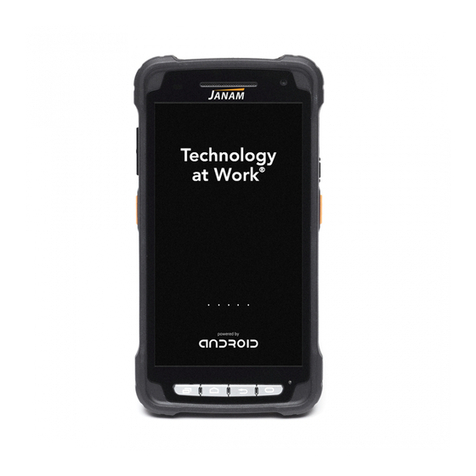
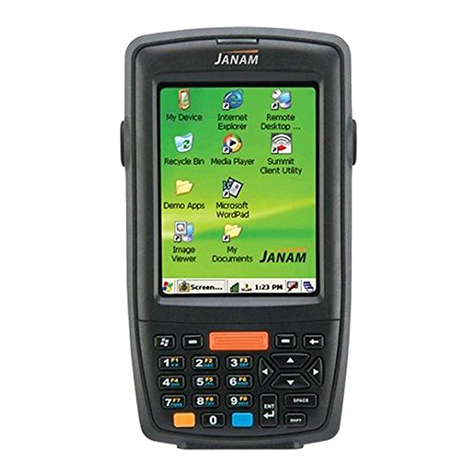
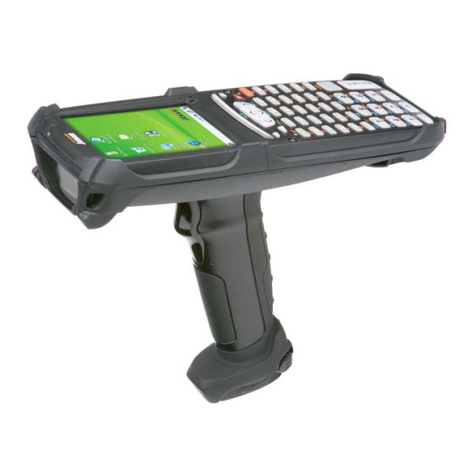
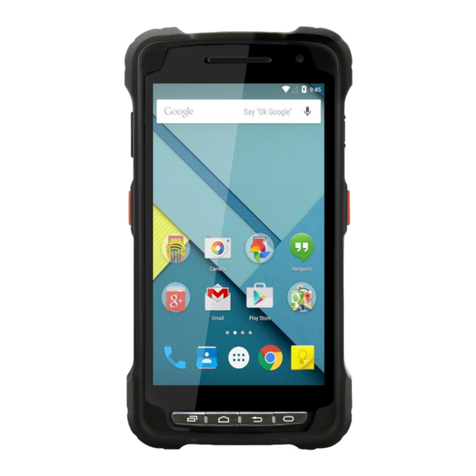
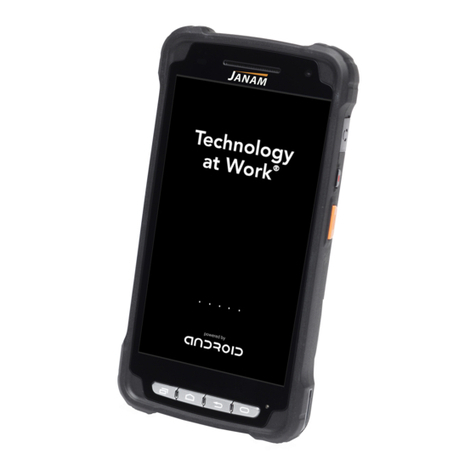
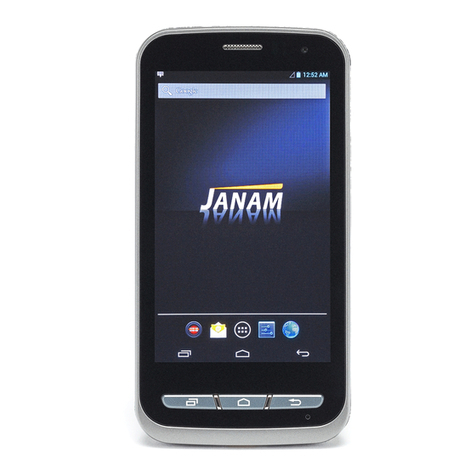
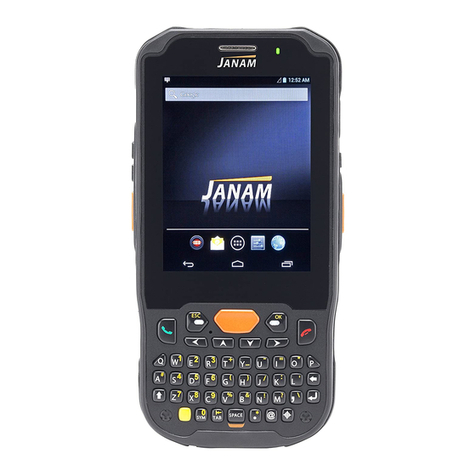
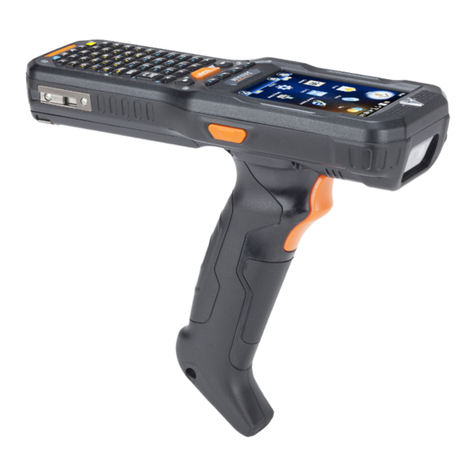
Janam XT2+ User manual

XT2+ User Manual
Technology at Work®
* 2019 Janam Technologies LLC. All rights reserved.
Version 2
March 2019

XT2+ User Manual
Janam Technologies LLC Version 2, March 2019 II
Copyright 2019 Janam Technologies LLC. All rights reserved.
XT2+ Rugged Touch Computer, Janam and the Janam logo are trademarks of Janam Technologies
LLC. ARM and Cortex are registered trademarks of ARM Limited (or its subsidiaries) in the EU and/or
elsewhere. Android is a trademark of Google Inc. Other product and brand names may be trademarks
or registered trademarks of their respective owners.
Janam Technologies LLC assumes no responsibility for any damage or loss resulting from the use of
this guide.
Janam Technologies LLC assumes no responsibility for any loss or claims by third parties which may
arise through the use of this product.
Janam Technologies LLC assumes no responsibility for any damage or loss caused by deletion of data
as a result of malfunction, dead battery or repairs. To protect against data loss, be sure to make
backup copies (on other media) of all important data.
Follow all usage, charging and maintenance guidelines in the Product User Guide. If you have ques-
tions, contact Janam.
Important: Please read the End User License Agreement for this product before using the device or
the accompanying software program(s). Using the device or any part of the software indicates that
you accept the terms of the End User License Agreement.

Contents XT2+ User Manual
Janam Technologies LLC Version 2, March 2019 Contents—1
Contents
1 Introduction CH-PG
Introduction 1-1
Key Features 1-1
Hardware Overview 1-2
2 Getting Started CH-PG
Unpacking the XT2+ 2-1
Recommended Host PC Requirements 2-1
XT2+ SDK 2-1
Battery Safety 2-2
Installing the Battery 2-2
Charging the XT2+ Battery 2-3
XT2+ Battery Condition Information 2-4
Turning the XT2+ On 2-5
Turning the XT2+ Off 2-6
Touch Screen Navigation 2-6
Screen Rotation 2-7
Lock Screen 2-7
Home Screen 2-8
App Screen 2-9
Function Keys 2-9
3 Janam XT2+ Setup CH-PG
microSD Card Storage 3-1
SIM Cards 3-2
USB Port 3-2
Backup and Restore: Auto Backup 3-3
Backup and Restore: Manual Backup 3-4
Backup and Restore: Restore 3-4
Resetting to Factory Condition 3-5
Android Security 3-6
Lock Screen Types 3-6
Additional Screen Security Settings 3-7
Device Settings: Display 3-8
Device Settings: Sound & Notifications 3-8
Device Settings: Storage 3-9
Device Settings: Apps 3-9
Personal Settings: Accounts 3-10
Personal Settings: Google Account 3-10
Personal Settings: Language & Input 3-11
System Settings: Date & Time 3-12
System Settings: Accessibility 3-12
4 Wireless Network Connection CH-PG
Introduction 4-1
Connecting to a WLAN network 4-2
WLAN options 4-3
Advanced WLAN options 4-3
5 Bluetooth CH-PG
Introduction 5-1
Bluetooth Concepts 5-2
Making Bluetooth Discoverable 5-2
Bluetooth Pairing 5-3
Bluetooth Services 5-3
6 Camera CH-PG
Introduction 6-1
Camera Controls Overview 6-2
Camera Settings 6-3
Camera Zoom 6-4
Editing Pictures 6-5

Contents XT2+ User Manual
Janam Technologies LLC Version 2, March 2019 Contents—2
7 Email CH-PG
Introduction 7-1
Setting up Email 7-1
Manual Email Setup 7-2
During Email Setup 7-2
General and Account Settings 7-2
General Email Settings 7-3
Account-specific Email Settings 7-3
Email Settings: Signature 7-3
Email Settings: Data Usage 7-3
Email Settings: Notification Settings 7-3
Email Settings: Server Settings 7-3
Email Inbox 7-4
Creating and Sending an Email 7-4
Deleting an Email Account 7-4
9 Barcode Scanning CH-PG
Using the Imager 9-1
Scanning with the Janam XT2+ 9-1
Scan Settings 9-2
Scan Settings Table 9-2
Scan Settings Options 9-3
Scan Symbologies 9-4
Scan Demo app 9-5
Scan Wedge app 9-6
15 Regulatory and Maintenance CH-PG
XT2+ Regulatory Information 15-1
Regulatory and Safety Approvals 15-1
XT2+ w/ WWAN, WLAN and Bluetooth 15-2
XT2+ w/ WLAN and Bluetooth 15-2
Battery Safety Guidelines 15-4
Battery Charger Guidelines 15-4
11 GPS CH-PG
Introduction 11-1
Janam XT2+ GNSS Support 11-1
GPS and Location Services 11-2
Location Service by App 11-2
14 Specifications CH-PG
Janam XT2+ Specifications 14-1
16 Troubleshooting CH-PG
Troubleshooting the Janam XT2+ 16-1
12 User Applications CH-PG
Google Play Store 12-1
Play Store My Apps & Games Listing 12-1
Google Play Store Settings 12-2
Settings: General 12-2
Settings: User Controls 12-2
Alternate App Sources 12-2
Uninstalling Apps 12-2
Access and User Restrictions 12-2
8 Tools CH-PG
CPU Settings 8-1
Astro File Manager 8-1
Program Buttons 8-2
System Information 8-2
10Phone Functionality CH-PG
Introduction 10-1
Phone Screen 10-1
During Call Features 10-2
Answering a Call 10-2
Settings 10-2
Using Apps During a Call 10-2
13 FOTA Update CH-PG
Update via FOTA Client 13-1

Introduction XT2+ User Manual
Janam Technologies LLC Version 2, March 2019 Introduction 1—1
XT2+ Rugged Touch Computer
Key Features
— Pocket-sized powerhouse weighing only 10 ounces
— Android 6 operating system
— Brilliant 5-inch color display with Corning® Gorilla® Glass 3
— High-performance 1D and 2D barcode scanning
— Quad-core Qualcomm MSM8916 CPU @1.2GHz
— Multiple 5’/1.5m drops to concrete per MIL-STD 810G
— Sealed to IP67 standards against dust and immersion in up to 3 feet of water
— Embedded RFID/NFC reading capabilities
— 8GB or 16GB of built-in memory with expansion capability
— User-accessible microSD card slot with SD and SDHC support
— Dual-band 802.11a/b/g/n Wi-Fi and Bluetooth 4.0 connectivity
— 4G LTE WWAN
— 8.0MP/2.0MP front- and rear-facing color auto-focus cameras
— High-sensitivity GNSS (GPS, BeiDou and GLONASS or Galileo concurrently)
— 3000mAh Li-ion battery
Introduction
1

Introduction XT2+ User Manual
Janam Technologies LLC Version 2, March 2019 Introduction 1—2
Hardware Overview
1 3 4 5 6 7 8 92
10
11
12
13
14 15 16 17 18
19 20
21
22
1. Illuminance sensor
2. LED indicator
3. Barcode scanner
4. Front camera
5. Lanyard port
6. Mag stripe reader (if equipped)
7. Speaker
8. Rear camera (if equipped)
9. Camera LED flash (if equipped)
10. Audio jack
11. Power key
12. Scan trigger
13. Battery compartment lock
14. Recent apps key
15. Home key
16. Back key
17. Programmable key
18. Microphone
19. Power jack
20. Dock connector
21. Scan trigger
22. Volume

Getting Started XT2+ User Manual
Janam Technologies LLC Version 2, March 2019 Getting Started 2—1
Getting Started
Unpacking the Janam XT2+ Rugged Touch Computer
Make sure you have the following:
— Janam XT2+ Rugged Touch Computer
— Stylus with Tether
— Screen protector
— Power Supply (includes US Type A, Europe CEE 7/7, UK BS89/13 adapters)
Recommended Host Computer Requirements
— Microsoft® Windows®-compatible host computer with USB port
— Microsoft Windows 10, Windows 8/8.1, Windows 7
— If installing the Android™ SDK, at least 1.5 GB disk space for the Android SDK,
emulator system images, and caches, plus 500 MB disk space for Android Studio is needed.
Janam XT2+ SDK
The Janam XT2+ Software Development Kit enables programmers to develop applications for
Janam XT2+ rugged touch computers running the Android™ operating system. It contains details
and instructions for developing applications that access the XT2+ embedded scanner.
The development kit, which can be downloaded from Janam’s Product Zone (login required), is
designed for use with the publicly available Android SDK.
2

Getting Started XT2+ User Manual
Janam Technologies LLC Version 2, March 2019 Getting Started 2—2
Charging the Janam XT2+ Rugged Touch Computer
BATTERY SAFETY GUIDELINES
The XT2+ has a removable and rechargeable battery. Replace only with a Janam-approved battery.
There is the risk of explosion if the battery is replaced by an incorrect type. For more information on
battery replacement contact JanamCare at 866-915-5311. Use only battery chargers approved for
the XT2+ by Janam. Janam and its affiliates disclaim any liability for damage caused by the use of
other chargers or batteries. Observe the following guidelines for safe use of Li-Ion batteries:
1. Do not expose the battery to excessive heat or cold. Do not short-circuit. Do not incinerate.
2. To avoid risk of fire, burn or damage to your battery, do not allow a metal object to touch
battery contacts.
3. Do not disassemble the battery. There are no user serviceable parts inside.
4. If battery leakage is observed, avoid any contact with affected area and properly dispose
of the battery.
5. If you come in contact with battery leakage, rinse exposed area with soap and water.
If it contacts the eye, flush the eye with water for 15 minutes and seek medical attention.
6. Dispose of used battery promptly. Keep away from children. Do not disassemble or
dispose of in fire.
7. When discarding a battery, contact your local waste disposal provider to understand
local restrictions for disposal or recycling of batteries.
BATTERY CHARGER SAFETY GUIDELINES
1. Do not use the equipment in or near areas in which sparks are likely or possible.
2. Do not let equipment’s metal contacts and electrical sockets come in contact with metal objects.
3. For indoor use only. Do not expose the equipment to rain or any liquids.
4. Do not use or store the equipment in direct sunlight or in areas that are prone to get hot
such as in a parked vehicle, near a heat duct or close to other heat sources.
5. Keep equipment’s metal contacts and electrical sockets free from debris that could
obstruct charging or could cause a short circuit.
Installing the XT2+ battery
To install or replace the XT2+
battery, remove the battery
compartment cover on the back
of the unit by sliding the spring-
loaded cover lock to the left,
holding it in that position, and
then gently pulling the cover up
by the two tabs on the left and
right of the cover.

Getting Started XT2+ User Manual
Janam Technologies LLC Version 2, March 2019 Getting Started 2—3
Glide the battery into the com-
partment, making sure not to
cover up the plastic pull tab. The
tab is used to pull the battery out
of the compartment. Firmly push
the battery into place.
Before putting the battery com-
partment cover back in place,
check for the presence and condi-
tion of the blue seal along the in-
side perimeter of the cover. If the
blue seal is damaged or missing,
replace it. Do not operate the
XT2+ with a missing or damaged
battery compartment seal, as this
could allow liquids to enter and
damage the device.
To put the cover back on, insert
its upper part first. Then, starting
with the upper part, gently close
the cover until all of the cover
clips have snapped into place and
the cover lock is in its locked position.
Charging the XT2+ battery
To charge the battery using the DC Power Adapter Kit:
1. Slide the appropriate US/UK/EUR adapter plug onto the AC/DC power adapter housing.
2. Insert the DC power plug into the DC power jack on the bottom of the XT2+.
3. Plug in the AC/DC power supply. The XT2+ LED indicator will light red while charging
and will change to green when fully charged. Use only easily accessible wall sockets
that are easily reached with the length of the supplied power cable.
To charge the battery using the Cradle Kit:
1. Insert the DC power plug into the DC power jack on the
cradle. Insert the XT2+ into the cradle.
2. Plug in the AC/DC power supply. The XT2+ LED indicator
will light red while charging and will change to green when fully
charged. Use only easily accessible wall sockets that are
easily reached with the length of the supplied power cable.

Getting Started XT2+ User Manual
Janam Technologies LLC Version 2, March 2019 Getting Started 2—4
XT2+ Battery Condition and Usage Information
Android provides information on battery charge level in percent, estimated amount of battery charge
remaining, and how much of the battery capacity has been used by various applications and device
functions. This information can be accessed as follows:
On the start screen, swipe down from the top to open status bar,
then touch and hold Battery to get to Battery screen.
Or, from the apps screen, swipe left to get to the Battery icon,
tap on it to get to the Settings menu,
tap on Battery to get to the Battery screen.
View battery status and level, and estimated battery life remaining.
To view battery usage by application, tap on Battery use.
Tip — You can conserve battery life by:
1. Using the AC adapter to plug the
XT2+ into an external power source.
2. Manually or auto-suspend device
operation when possible.
3. Reducing screen brightness.
4. Turning off wireless functionality
(Wi-Fi, Bluetooth, location services,
or GPS) when not in use.
Table of contents
Other Janam Handheld manuals
Janam
Janam xt series User manual
Janam
Janam XG200 Series User manual
Janam
Janam XG3 Series User manual

Janam
Janam XP20 User manual

Janam
Janam XG100 User manual

Janam
Janam XM7 5 + Series User manual
Janam
Janam XM2-RFID User manual
Janam
Janam XM75WA User manual
Janam
Janam XG3 Series User manual
Janam
Janam XM series User manual