manuals.online logo
Brands
  1. Home
  2. •
  3. Brands
  4. •
  5. Janus
  6. •
  7. Lock
  8. •
  9. Janus Nokē ONE User manual

Janus Nokē ONE User manual

This manual suits for next models

1

Popular Lock manuals by other brands

Magic 105 manual

Magic

Magic 105 manual

Gantner GAT NET.Lock 7020 System Installation, configuration & operation

Gantner

Gantner GAT NET.Lock 7020 System Installation, configuration & operation

Dorma Studio Classic Installation instruction

Dorma

Dorma Studio Classic Installation instruction

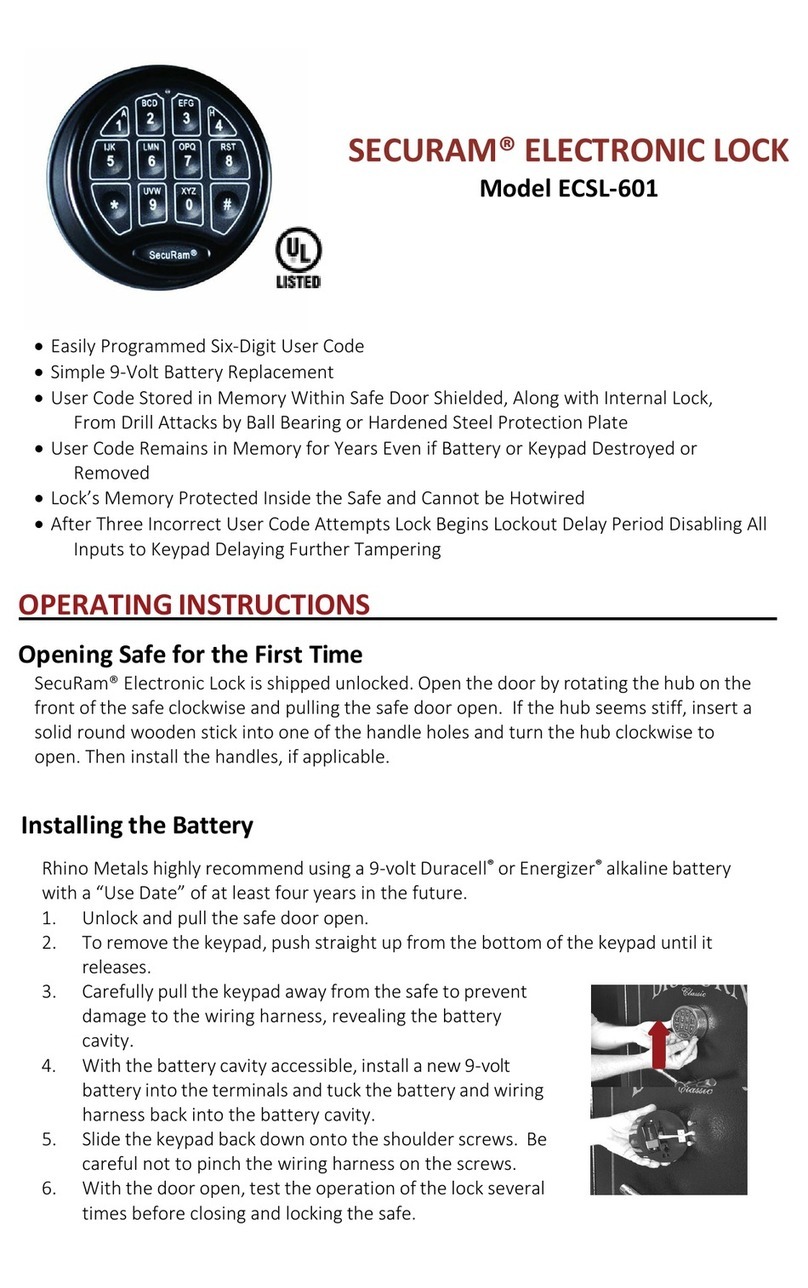
Securam ECSL-601 quick start guide

Securam

Securam ECSL-601 quick start guide

Sudhaus 3003 operating manual

Sudhaus

Sudhaus 3003 operating manual

Safety 1st 48517 user guide

Safety 1st

Safety 1st 48517 user guide

Pado FDS-10 user manual

Pado

Pado FDS-10 user manual

Esco systeQ Series installation instructions

Esco

Esco systeQ Series installation instructions

COMPX National D8951 instruction sheet

COMPX

COMPX National D8951 instruction sheet

secureo Key Box instruction manual

secureo

secureo Key Box instruction manual

Stock Loks C8713 instruction sheet

Stock Loks

Stock Loks C8713 instruction sheet

COMPX 1T-058 Information

COMPX

COMPX 1T-058 Information

Auslock T11 user manual

Auslock

Auslock T11 user manual

Stealth SAFES ShadowVault Instructions & Troubleshooting

Stealth SAFES

Stealth SAFES ShadowVault Instructions & Troubleshooting

Knox KeySecure 5 Admin & user guide

Knox

Knox KeySecure 5 Admin & user guide

Kwikset 48334/01 Quick installation guide

Kwikset

Kwikset 48334/01 Quick installation guide

Metra Electronics Door Access Terminal Combo Technical manual

Metra Electronics

Metra Electronics Door Access Terminal Combo Technical manual

Kilitronik miniK10m operating manual

Kilitronik

Kilitronik miniK10m operating manual

manuals.online logo
manuals.online logoBrands
  • About & Mission
  • Contact us
  • Privacy Policy
  • Terms and Conditions

Copyright 2025 Manuals.Online. All Rights Reserved.

SETUP HARDWARE
A: Slide removal tool onto Nokē ONE so the
edge of tool and left edge of Nokē ONE connect
Removal Tool
Remove Battery Holder
Nokē ONE
B: While tightly holding removal tool in place, use opposite hand to firmly push in battery holder to release it
C: Insert battery into battery holder. Be sure positive end is on the right
Battery Holder
*Use only battery supplied with Nokē One. Do not attempt to
use other batteries as they will not have the necessary voltage,
current, and capacity required for optimal performance
D: With battery in holder, insert the battery
holder back into the device. Press firmly on
top and bottom to engage both hooks
TESTING HARDWARE *Be sure Nokē ONE is functioning correctly before installing on door
A: Before being added to the site and receiving electronic keys, you can unlock
Nokē ONE by touching the plastic window on the front of the device three times.
The light will turn blue when touch is accepted
INSTALLATION
Unlock and Lock Nokē ONE
B: After touching three times, the light will turn green to indicate that the
Nokē ONE device is now ready for unlocking
C: Slide the hasp left to the open position and right to lock.
The light will turn red to confirm device is locked
Unlocked Position Locked Position
*Remove the existing Hasp from the door before installing Nokē ONE Device
ADDING Nokē ONE TO SITE
SUPPORT
A: Confirm the four existing holes line up with bolts
on Nokē ONE. *Drill new holes if needed
B: If door does not have a middle hole for cam lock, an
additional hole will need to be drilled to accommodate
the plastic back window for the motion sensor
C: Remove backing from adhesive
mounting tape on back side of Nokē ONE
D: Push Nokē ONE firmly onto door
E: Open door and go inside unit and then
pull door back down. You are now inside
unit and can see the back of the device
F: While looking at four bolts, pull firmly on
each of them to extend them through door
G: Place mounting plate over holes.
Be sure to orient the plate so center
hole is closer to the bottom
H: Add the four nuts to ends of
bolts and tighten
A: Use the Nokē Smart-Entry App to
scan QR code on the device and add
device to the Smart-Entry system
B: Using web portal, be sure
electronic keys are sent to
Nokē ONE via gateways
C: Use the app to unlock the device
after it has been synced to the system.
The QR sticker can now we removed
UNLOCK
If you need support, please call 1(833) 257-0240
*See back side of guide
for instructions on how
to use the included
alignment template

USING THE ALIGNMENT TEMPLATE
Nokē Inc. here with declares that this unit complies with the fundamental
requirements and relevant regulations set forth by Guideline 1999/5/EU.
The declaration of conformity can be found at noke.com/ce or requested
by e-mail: [email protected]
©2020-21 Nokē
Nokē ONE
FCC ID: 2AFRJ-1A
FCC Compliance Statement
QUICK START GUIDE
A: Fold both flaps back along dotted line
B: Align the right edge of template to the edge of the door panel.
For vertical alignment, insert folded flaps into groove in the door
corrugation
Right Edge
of Door Panel
Template Flap
C: Use a marker to mark positioning
for holes and then drill holes
Fold down
Template Front Template Back