manuals.online logo
Brands
  1. Home
  2. •
  3. Brands
  4. •
  5. Jawbone
  6. •
  7. Fitness Tracker
  8. •
  9. Jawbone JL04 User manual

Jawbone JL04 User manual

This manual suits for next models

1

Other Jawbone Fitness Tracker manuals

Jawbone UP2 User manual

Jawbone

Jawbone UP2 User manual

Jawbone Up Move JL06 User manual

Jawbone

Jawbone Up Move JL06 User manual

Jawbone Up3 User manual

Jawbone

Jawbone Up3 User manual

Jawbone CORE User manual

Jawbone

Jawbone CORE User manual

Popular Fitness Tracker manuals by other brands

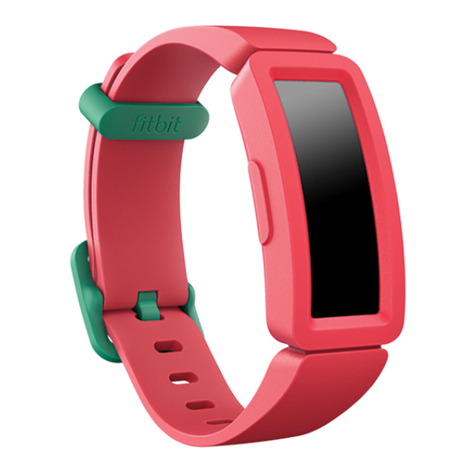
Fitbit Zip ace 2 user manual

Fitbit Zip

Fitbit Zip ace 2 user manual

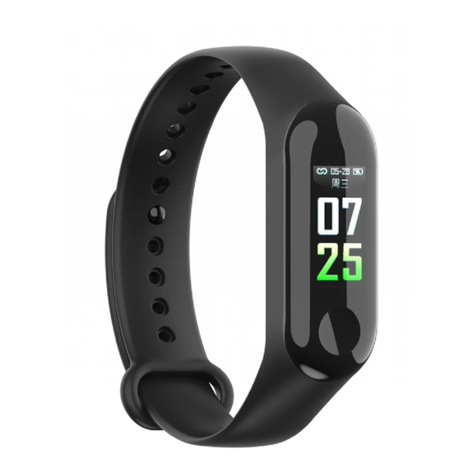
Brigmton BSPORT-B2-N-A-R instruction manual

Brigmton

Brigmton BSPORT-B2-N-A-R instruction manual

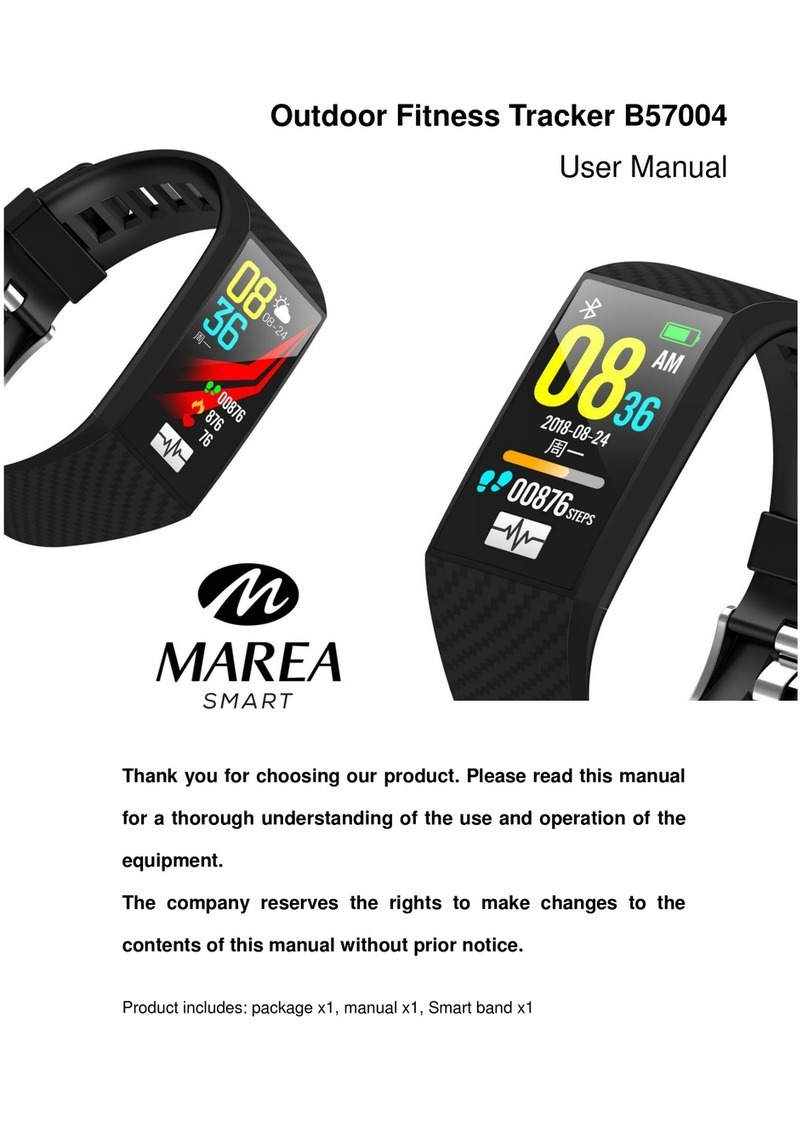
Marea Smart B57004 user manual

Marea Smart

Marea Smart B57004 user manual

Misfit SHINE quick start guide

Misfit

Misfit SHINE quick start guide

Yamaha BODIBEAT quick start guide

Yamaha

Yamaha BODIBEAT quick start guide

Fitbit Zip Fitbit Zip user guide

Fitbit Zip

Fitbit Zip Fitbit Zip user guide

Seaver CEEFIT user manual

Seaver

Seaver CEEFIT user manual

Garmin vívosmart HR Quick start manual

Garmin

Garmin vívosmart HR Quick start manual

Sky HEALTHBAND user manual

Sky

Sky HEALTHBAND user manual

Fitbit Zip Charge HR user manual

Fitbit Zip

Fitbit Zip Charge HR user manual

Garmin Vivosport owner's manual

Garmin

Garmin Vivosport owner's manual

iHealth Edge user manual

iHealth

iHealth Edge user manual

Valore VHA-14 manual

Valore

Valore VHA-14 manual

Canyon CNE-SB01BN quick start guide

Canyon

Canyon CNE-SB01BN quick start guide

Brigmton BSPORT-BB instruction manual

Brigmton

Brigmton BSPORT-BB instruction manual

Fitbit Zip Versa user manual

Fitbit Zip

Fitbit Zip Versa user manual

Merlin ActiFit Lite instruction manual

Merlin

Merlin ActiFit Lite instruction manual

Carbon Health LogBand CH-M1-11 quick start guide

Carbon Health

Carbon Health LogBand CH-M1-11 quick start guide

manuals.online logo
manuals.online logoBrands
  • About & Mission
  • Contact us
  • Privacy Policy
  • Terms and Conditions

Copyright 2025 Manuals.Online. All Rights Reserved.

!
PRODUCT
UP3 BY JAWBONE
!
MODEL#
JL04
!
UNITED STATES
!
“FCC ID: V3J-JL04”
FCC Compliance Statement
This device complies with Part 15 of the FCC Rules. Operation is subject to the
following two conditions: (1) this device may not cause harmful interference, and (2)
this device must accept any interference received, including interference that may
cause undesired operation.
!
NOTE:
This equipment has been tested and found to comply with the limits for a Class B
digital device, pursuant to Part 15 of the FCC Rules. These limits are designed to
provide reasonable protection against harmful interference in a residential installation.
This equipment generates, uses, and can radiate radio frequency energy and, if not
installed and used in accordance with the instructions, may cause harmful interference
to radio communications. However, there is no guarantee that interference will not
occur in a particular installation. If this equipment does cause harmful interference to
radio or television reception, which can be determined by turning the equipment off
and on, the user is encouraged to try to correct the interference by one of the
following measures:
•
Reorient or relocate the receiving antenna.
•
Increase the separation between the equipment and receiver.
•
Connect the equipment into an outlet on a circuit different from that to which
the receiver is connected.
•
Consult the dealer or an experienced radio/TV technician for help.
!
FCC CAUTION
The FCC requires the user to be notified that any changes or modifications made to
this device that are not expressly approved by Jawbone may void the user’s authority
to operate the equipment.
RF exposure information: This device meets FCC requirements for RF exposure in
controlled or uncontrolled environment
!
!
!
!
!
!
!
!
!

BC
!
!
EUROPE
!
EU Declaration of Conformity - The telecommunications functionality of this product
may be used in the EU and EFTA countries. Products bearing the CE marking
comply
with one or more of the following EU Directives as may be applicable: Low
Voltage
Directive 2006/95/EC; EMC Directive 2004/108/EC; R&TTE Directive 1999/5/EC;
RoHS Directive 2011/65/EU. Jawbone EU Address:11th Floor, Newcombe house,
45
Notting Hill Gate, London, W11 3LQ
!
CANADA
“IC: 7589A-JL04”
!
This Class B digital apparatus meets all requirements of the Canadian Interference-
Causing Equipment Regulations, CAN ICES-3(B)/NMB-3(B). This device has
Bluetooth
capability, the device complies with Industry Canada license-exempt RSS
standard(s).
Operation is subject to the following two conditions: (1) this device may
not cause
interference, and (2) this device must accept any interference, including
interference
that may cause undesired operation of the device. RF exposure
information: This
device meets IC requirements for RF exposure in controlled or
uncontrolled
environment
Le présent appareil est conforme aux CNR d'Industrie Canada applicables aux
appareils radio exempts de licence.L'exploitation est autorisée aux deux conditions
suivantes : (1) l'appareil ne doit pas produire de brouillage, et (2) l'utilisateur de
l'appareil doit accepter tout brouillage radioélectrique subi, même si le brouillage est
susceptible d'en compromettre le fonctionnement. Renseignements sur l'exposition
RF
: Cet appareil répond aux exigences IC d'exposition aux RF dans un
environnement
contrôlé ou non contrôlé
AUSTRALIA
JAPAN
!
!
!
This is a Class B product. In a domestic environment this product may cause
interference when it close radio or television. Please use the equipment in accordance
with the user manual.
!
Class B 警語
この装置は、クラスB情報技術装置です。この装置は、家庭環境で使用することを目
的としてい
ますが、この装置がラジオやテレビジョン受信機に近接して使用されると、受信障害を
引き起こ
すことがあります。取扱説明書に従って正しい取り扱いをして下さい。VCCI-B
!
INDONESIA
37971/SDPPI/2014
4433
!
!
TAIWAN
!
!
低功率電波輻射性電機管理辦法
!
第十二條經型式認證合格之低功率射頻電機,非經許可,公司、商號或使用者均不得擅自變更
頻
率、加大功率或變更原設計之特性及功能。
!
第十四條低功率射頻電機之使用不得影響飛航安全及干擾合法通信;經發現有干擾現象時,應立
即停用,並改善至無干擾時方得繼續使用。前項合法通信,指依電信法規定作
業之無線電通信。
低功率射頻電機須忍受合法通信或工業、科學及醫療用電波輻射性電機設備之干
!
!
Korea!
!
MSIP-CRM-V3J-JL04
Class B Equipment (For Home Use Broadcasting & Communication Equipment)
This equipment is a home use (Class B) electromagnetic wave suitability
equipment
and to be used mainly at home or in other areas.
!
!
SINGAPORE
!
!
1.기기의명칭(모델명):특정소출력무선기기(무선데이터통신시스템용무선기기)(JL04)
2.인증번호:MSIP-CRM-V3J-JL04
3.인증받은자의상호:Aliphcom
4.제조자/제조국:Aliphcom/중국
!
CCAM14LP0510T2!
!
PHILIPPINES
!
!
!
!
RUSSIA
TURKEY
Türkiye Cumhuriyeti: EEE Yönetmeliğine Uygundur
!
!
CHINA
!
!
!
!
!
!
!
!
!
!
!
!
!
!
!
!
!
!
!
!
!
!
!
!
!
!
!
!
!
!
!
!
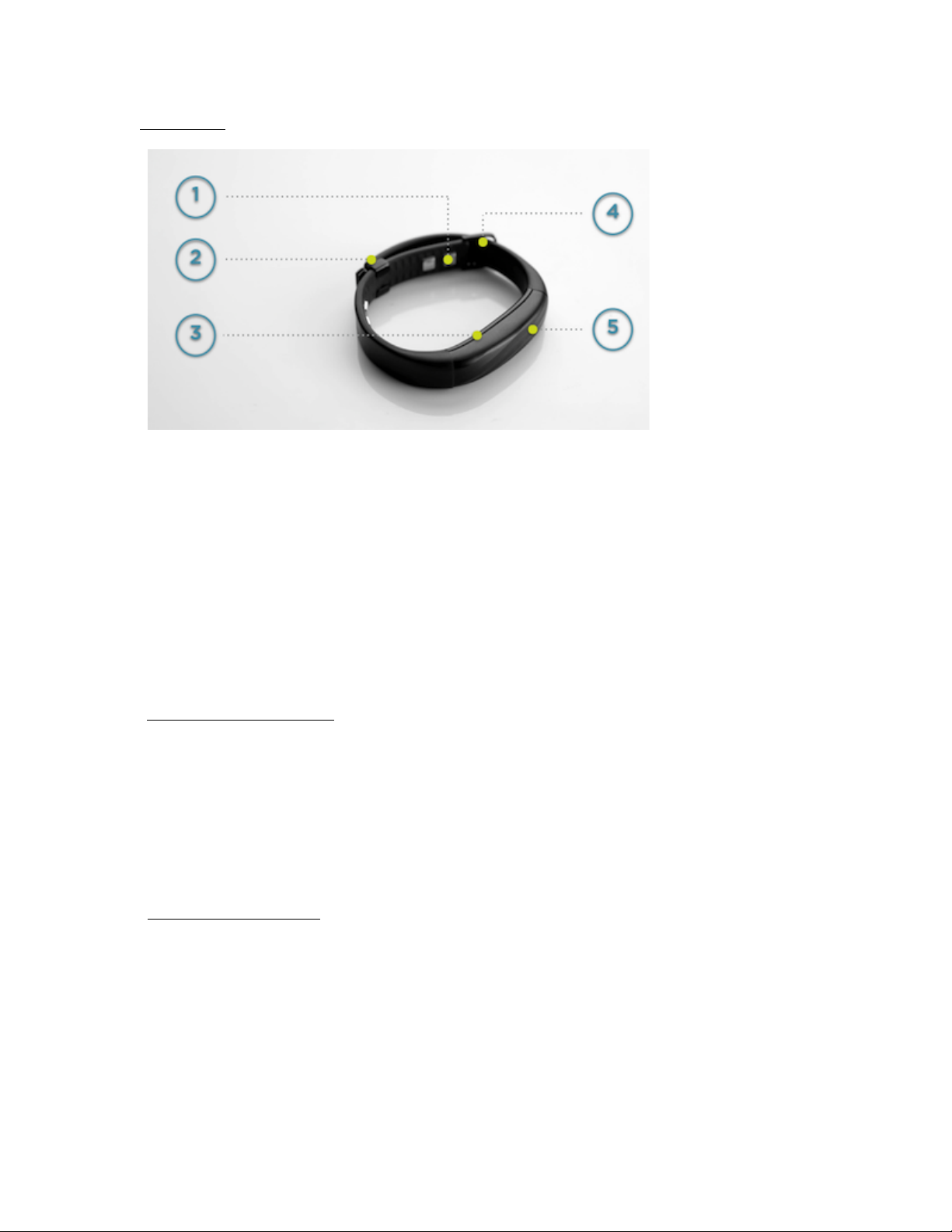
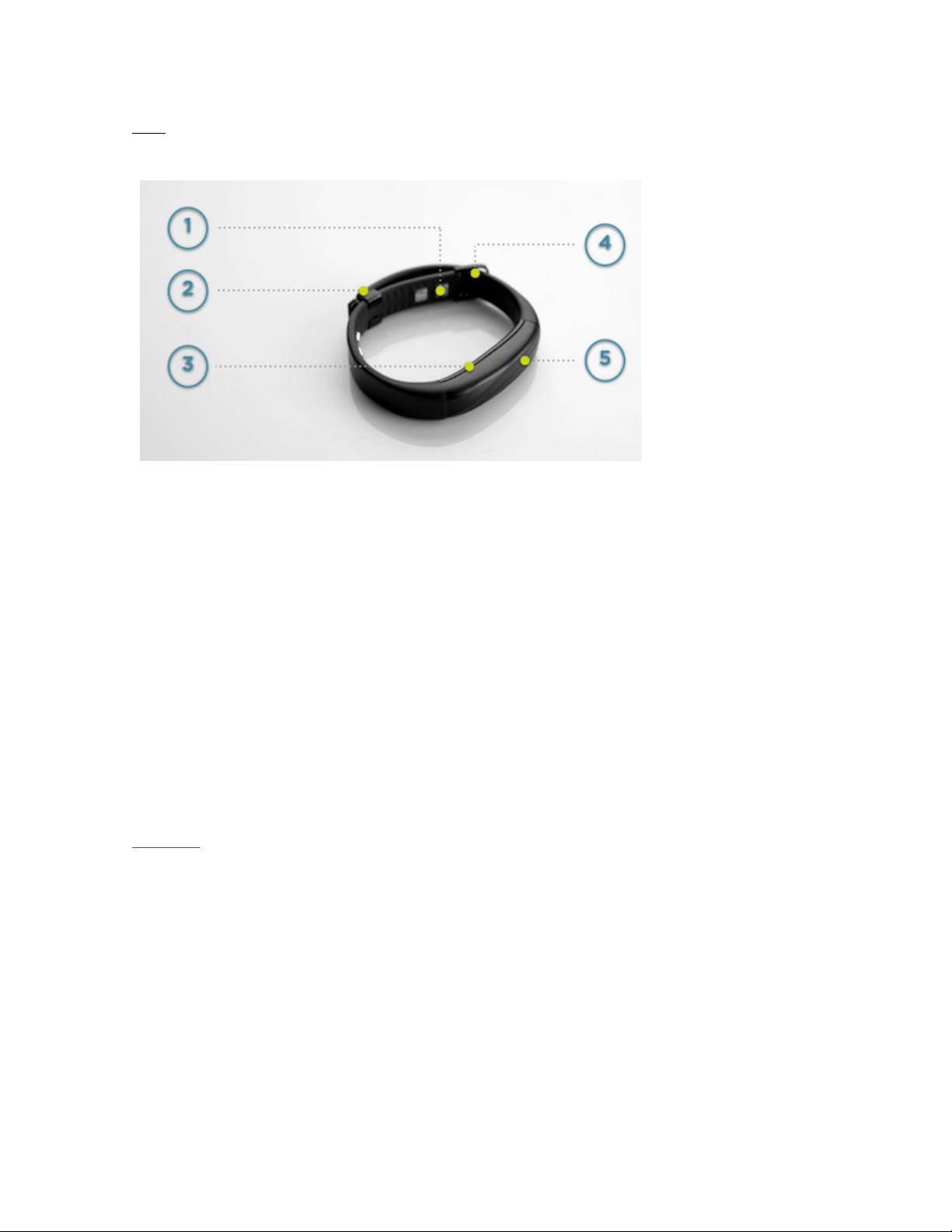
ANATOMY
!
Materials
•
Medical grade TPU rubber
•
Anodizedaluminum
•
Titanium alloy
!
Your band is rain, splash, sweat, and shower-resistant. Remember to remove your
band in extreme conditions such
as surfing or in saunas.
!
UP3’s surface allows you to switch modes, view your current mode and interact
with
notifications.
ACTIVATE YOUR BAND
!
You need to activate your new band before you use it.
!
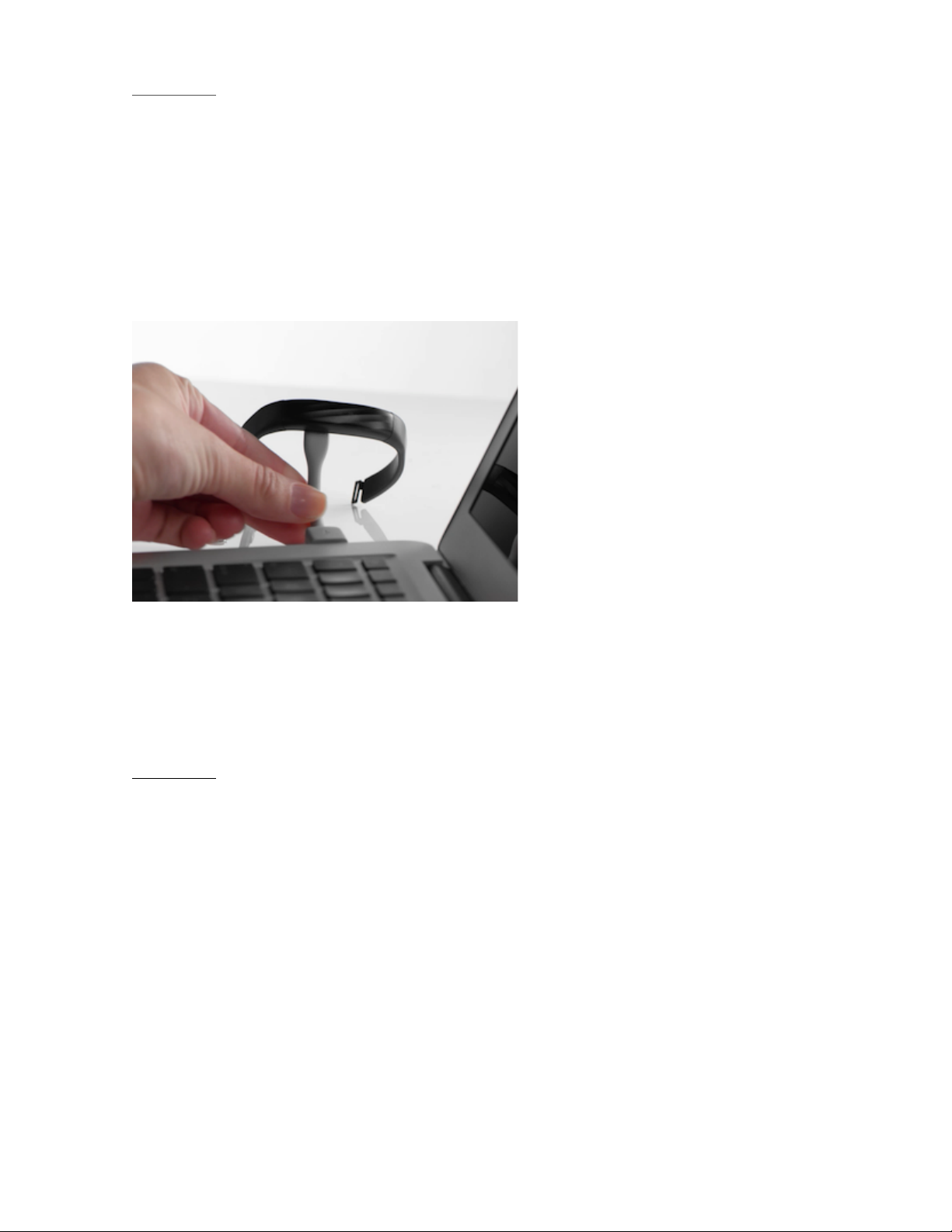
To activate, attach your band to the included USB cable. Then plug the cable into
a
powered USB port. Watch for the lights.
!
To charge your band, you’ll need your band, your USB charging cable and a computer.
CHARGE YOUR BAND
First, hold your band with the loop at the bottom. Then connect the charging cable
from the right, making sure that the pins in the charger align with the band. A magnet
will hold the charger in place.
!
Next, bend the charging cable and insert it into your computer. When you plug the
charging cable into a power source, your band icons will pulse. If charging without
a
computer, you can also use a standard USB wall adaptor.
!
When your band is fully charged the band icons will stop pulsing and the runner
icon
will glow.
!
!
More about charging:
!
•
It takes just over one hour to fully charge your battery.
•
A full charge lasts up to 7 days (varies by use).
•
The moon and runner icon will flash simultaneously to alert you that your
battery has only 10% remaining
!
!
SYNCING AND PAIRING
!
UP is a system. The tracker records your movements and sleep. The app displays your
data. Data collected by the tracker is communicated wirelessly with Bluetooth LE. To
sync data, your tracker must remain connected to your device via Bluetooth. Press the
tracker button to connect at any time. Your data will sync with the app once it has
connected. When syncing, a progress bar displays in the app. Your data also syncs
every minute when the app is open and your tracker is connected and within 33 feet
of an iOS device. When the app is running in the background, your data will sync
every
20 minutes. Once the sync is complete, you can immediately review your
progress in
the activity log. You can review your activity log later by pulling down on
the
homescreen. Swipe up to close.
!
!
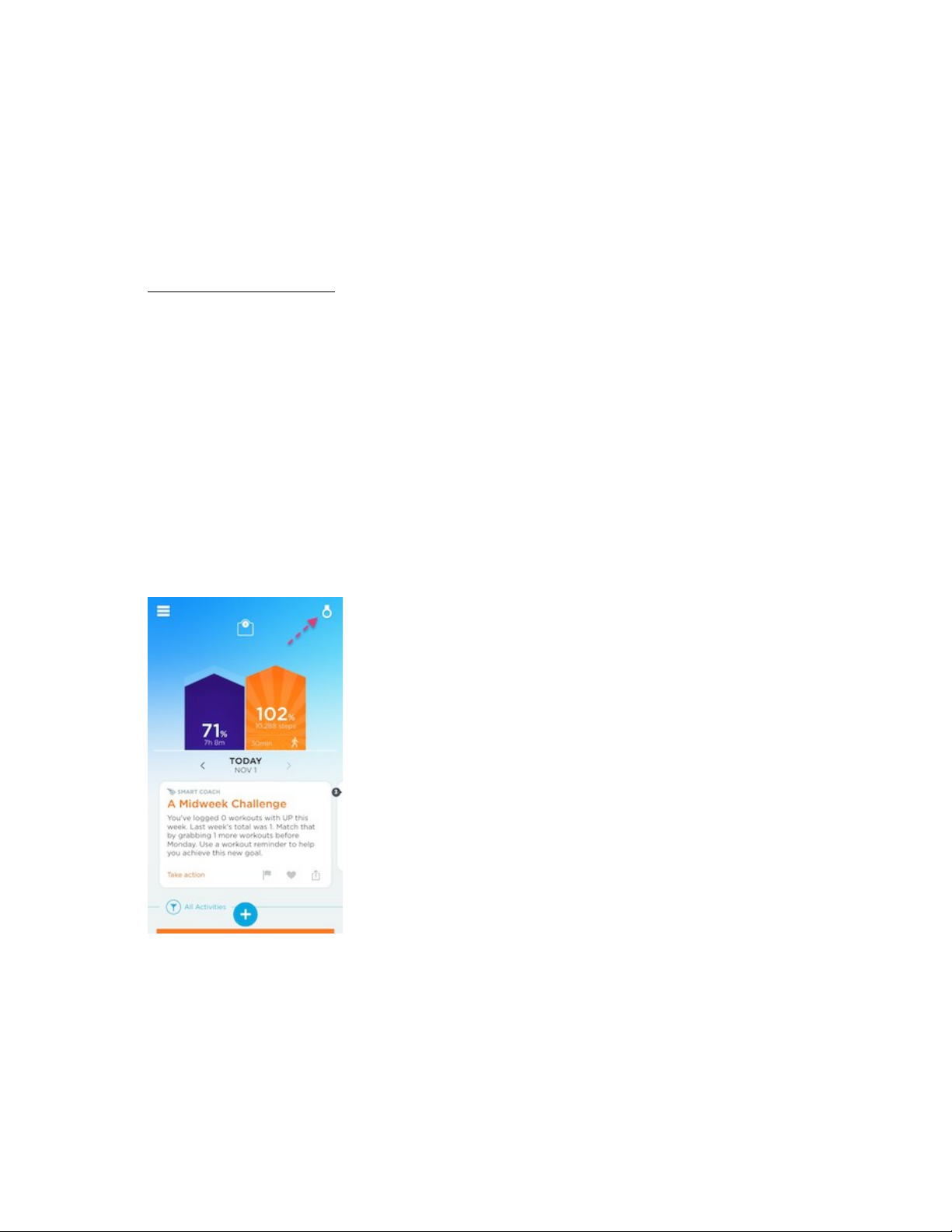
Check if device is synced: To check your tracker’s connectivity, open the UP app
and
check the status badge in the upper right corner. If a tracker icon appears, your
tracker is connected.
AddIng a new device: If you’d like to connect a new tracker, please see Add Another
Tracker.
!
Troubleshooting
If your tracker is disconnected, you’ll see a red Bluetooth symbol in the upper right
corner of your homescreen. To reconnect, try the following steps:
•
Close the app, then relaunch.
•
Turn off your device’s Bluetooth. Wait 1 minute, then turn it on again. Finally,
relaunch the app.
•
Check your internet connection. The UP app needs the internet to sync.
!
•
Restart your device.
•
Perform a soft reset on your tracker.
!
BAND NOTIFICATIONS
!
You can receive notifications directly on your UP3.
!
Step Goal
When you reach your step goal for the day, your band will vibrate and the notification
icon and runner icon will flash.
!
Smart Alarm
Use Smart Alarm to wake you up during a period of Light sleep. To learn more about
Smart Alarm, go here.
!
If you use Smart Alarm, your band will wake you up with gentle vibrations. The
notification icon and moon icon will also flash.
!
To snooze Smart Alarm, gently tap your band surface once. If you snooze, the band
will wake you up at a specified moment, not necessarily during Light sleep. To dismiss
the alarm, gently touch and hold the band surface.
Reminder
If you use Reminders in the UP app, you’ll see the following reactions:
!
!
Reminder
!
Tracker display
!
Bedtime
!
Moon and notification icon flash.
!
Move
!
Runner and notification icon flash.
!
Water
!
Notification icon flashes.
!
!
!
Meal
!
Notification icon flashes.
!
Pill
!
Notification icon flashes.
!
Custom
!
Notification icon flashes.
To dismiss a Reminder, gently tap your tracker once.
Idle Alert
Idle Alerts notify you when you have been still for a specified period of time. To learn
more about Idle Alerts, go here.
!
If you use Idle Alerts and have been idle for a specified period of time, the runner icon
will flash for a few seconds, then stop. You do not need to dismiss an Idle Alert.
!
UP App Notification
When UP sends a notification, for example when you have reached an achievement or
accomplished a Today I Will, the app will send a push notification to your phone. Your
band will notify you by flashing the notification icon and vibrating. Check the UP app
to see your notification.
!
CHANGINGMODES
!
UP3’s display allows you to see current mode, change modes and receive
notifications.
Your band has 3 different modes:
•
Awake mode
•
Stopwatch mode
•
Sleep mode
Awake Mode
Use awake mode to track your steps during the day. This is your band’s default mode.
From awake mode, gently double tap the band surface twice to wake. The runner icon
will glow to indicate that you are in awake mode.
Stopwatch Mode
Use stopwatch mode to track the steps and duration of a specific activity.
To start stopwatch mode, wake the band, then tap once, then touch and hold. Your
band will vibrate and the runner icon will flash three times. To return to awake
mode,
wake the band, then touch and hold.
Your timed activity will appear in the UP app. You can always edit the details of
the
activity, including the duration, from the UP app. To learn more about
Stopwatch
mode, go here.
Sleep Mode
Use sleep mode to track the quality and quantity of your Light and Sound sleep.
From awake mode, wake the band by gently double tapping the band surface. Then
touch and hold the surface. Your band will vibrate and the moon icon will flash once.
To return to awake mode, wake the band by gently double tapping. Then touch
and
hold the band surface. Your band will vibrate and the runner icon will flash
once.
Open the UP app to view more sleep details, like the amount of Sound and Light
sleep
you experience.
!
架構
物料:
1. 電極
2 扣環與帶扣
3. 充電埠
4. 扣圈
5. 表面
物料
• 醫用級 TPU 橡膠
• 電鍍鋁
•鈦合金
你的手環可以防雨水、濺水和防汗並可戴著淋浴。但在進行極端活動 (如滑浪或焗桑拿) 前,記得除下你
的手環。
啟動手環
在你使用全新的 UP3 手環前,需要先進行啟動。
要啟動你的手環,請將手環插入隨附的 USB 充電線。
然後將充電線插入已通電的 USB 埠。
觀察狀態燈,再將手環從充電線移除並與你的手機配對。
!
為手環充電
如要為手環充電,你需要手環、一條 USB 充電線和一部電腦。
首先,拿著手環並將扣圈朝下,然後在右邊連接充電線,並確保充電器上的插腳與手環對齊,磁石會固定
充電器的位置。
接下來,彎曲充電線並插入至你的電腦。當你將充電線插入電源時,手環圖示會閃爍。如果沒有電腦,亦
可使用標準 USB 入牆式充電器來充電。
當你的手環已經充滿電時,手環圖示會停止閃爍,而跑手圖示則會亮起。
關於充電的更多資料:
• 你的手環電池只需一個多小時即可充滿電。
• 充滿電的手環電池可使用長達 7 天 (視使用情況而定)。
• 當你的電池電量太低,月亮與跑手圖示會同時閃爍,來提示你電量只剩 10%。
同步和配對
介紹
UP 是一個系統。手環會記錄你的活動和睡眠狀況。應用程式會顯示你的數據。手環收集到的數據會透過低
耗電藍牙無線連接。
如要同步數據,你的手環必須透過藍牙保持與裝置連接。輕輕點兩下喚醒手環即可隨時連接。你的數據會
在連接後立即與應用程式同步,進度列會在同步期間顯示在應用程式中。
應用程式開啟時,以及手環與 iOS 裝置連接並相距 33 呎內時,你的數據會每分鐘同步一次。而當應用程
式在背景中執行時,你的數據會每 20 分鐘同步一次。
當同步完成後,你可以立即在活動記錄中查看你的進度。你可以稍後在主畫面中向下拉以查看你的活動記
錄,向上滑動即可關閉。
檢查裝置是否已同步
如要檢查手環的連線狀態,開啟 UP 應用程式然後檢查右上角的狀態徽章。如果你看到手環圖示,即代表
你的手環已連線。