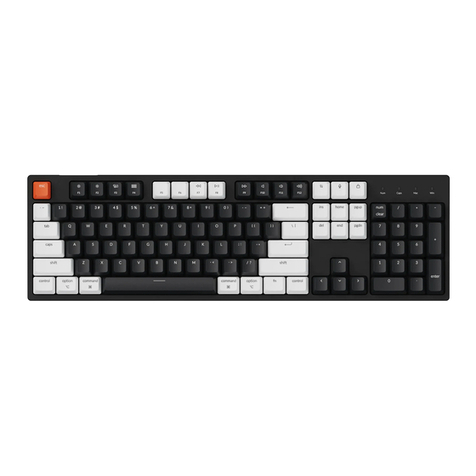
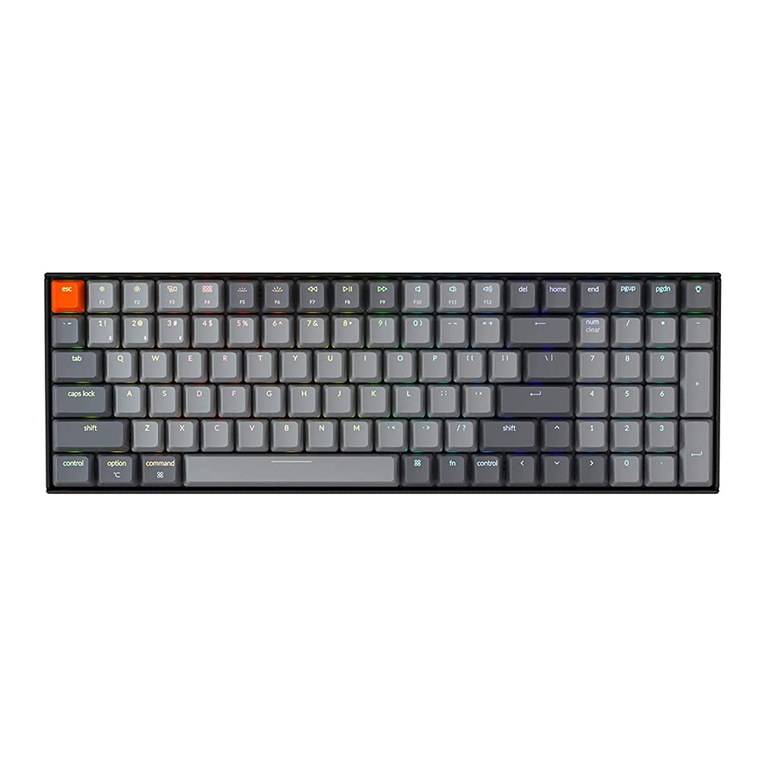
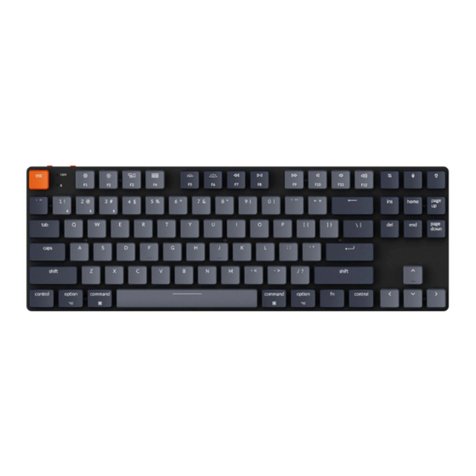
Keychron C3 Pro User manual

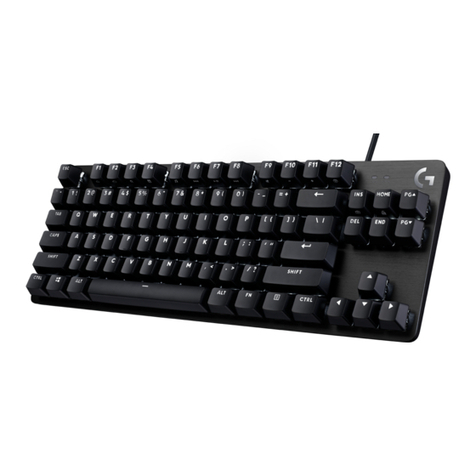
C3 Pro Tenkeyless Mechanical Keyboard

Keychron C3 Pro Tenkeyless Mechanical Keyboard x 1
Type-C Cable x 1
Keycap Puller x1
Extra Keycaps Set x 1
Manual x 1
Quick Start Guide x 1
IN THE BOX:
2

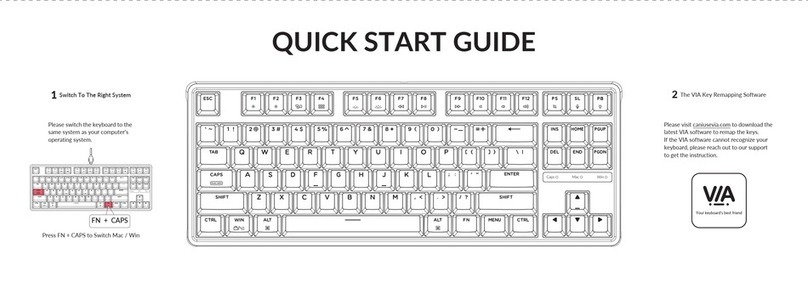
QUICK START GUIDE
3
2
1
Switch To The Right System
The VIA Key Remapping Soware
Please switch the keyboard to the
same system as your computer’s
operating system.
Please visit caniusevia.com to download the
latest VIA software to remap the keys.
If the VIA software cannot recognize your
keyboard, please reach out to our support
to get the instruction.
Your keyboard’s best friend
Press FN + CAPS to
Switch Mac / Win
FN + CAPS

4
The Layers
3
The Backlight
Press FN + Q to change the lighng effect Press FN + TAB to turn the backlight on/off
4
There are four layers of key sengs on the
keyboard. The layer 0 and layer 1 are for the
Mac system. The layer 2 and layer 3 are for
the Windows system.
If your keyboard is switched
to Mac, then layer 0 will be
acvated.
If your keyboard is switched to Windows, then the
layer 2 will be acvated. Remember that if you are
using it in Windows mode, please make changes to
the layer 2 instead of the top layer (the layer 0).
This is a common mistake people are making.
FN + Q FN + TAB

Adjust The Backlight Brightness
5
Acvate Siri / Cortana
6
5
Press FN + W to increase the backlight brightness Press FN + S to decrease the backlight brightness
For Siri on Mac: Go to System preferences > Siri >
select “Hold Command Space” opon.
For Cortana on Windows: Select Start > Sengs > Cortana and
select the shortcut by pressing Windows key + C key.
*Windows Cortana is only available for Windows 10 and above OS. Cortana is
only available in certain countries / regions and might not work everywhere.
*Siri key only works on macOS and does not work on iOS.
Hold Command Space
WIN + C
FN + W FN + S

Factory Reset
8
6
Press FN + N to switch 6-key rollover/N-key rollover
6-key rollover: the keyboard can detect up to 6 simultaneous key inputs.
N-key rollover: the keyboard can detect all key inputs without limit to
the number of key presses.
* The keyboard turns on the N-key rollover by default.
The Key Rollover
7
① Plug in the power cable and factory reset the keyboard by pressing
fn + J + Z (for 4 seconds).
② Download the right firmware and QMK Toolbox from our website.
③ Unplug the power cable. Hold the ESC key* first and then plug the cable
in again.
④ Release the ESC key, and the keyboard will now enter DFU mode.
Please flash the firmware with QMK Toolbox.
⑤ Factory reset the keyboard again by pressing fn + J + Z (for 4 seconds).
Troubleshooting? Don’t know what’s going on with the keyboard?
Or hold the reset button under the space bar keycap.
FN + N

7
C3 PRO TENKEYLESS MECHANICAL KEYBOARD SPECIFICATIONS
Specifications
Layout
Switch type
Width
Length
Keyboard feet
height
Angle
Front height
Back height
TKL
Mechanical
137.8 mm
364.6 mm
1.3 mm
4 / 6 / 8.7 degree
29.9 mm (without keycaps)
41.8 mm (with keycaps installed)
20.6 mm (without keycaps)
31.8 mm (with keycaps installed)

C3 PRO TENKEYLESS MECHANICAL KEYBOARD OVERVIEW
8
① Caps Lock Indicator
② Mac Layout
③ Windows Layout
④ Type-C Port
④
Mac / Windows ① ② ③

DEFAULT KEY LAYOUT:
9
LAYER 0: This layer will be acvated when your keyboard is switched to Mac.
Scr- Scr+
Le Shi
Le Ctrl Le
Opon
MO(1) Right Ctrl
Le
Command
Right
Command
Right Shi
Brght-
Brght+
Prvs Play Next Mute Vol- Vol+
PS PB
Mission
Control
Launch
Pad

10
LAYER 1: This layer will be acvated when your keyboard is switched to Mac and press the FN/MO(1) key.
BL
Toggle
BLCycle
Brght+
Brght-
Mac/Win
NKRO
F1 F3F2 F4 F6 F7 F8 F9 F10 F11 F12F5
BLCycle
SIRI
Other manuals for C3 Pro
1
Other Keychron Keyboard manuals
Keychron
Keychron Q8 User manual
Keychron
Keychron K3 User manual
Keychron
Keychron Q1 User manual
Keychron
Keychron Q3 User manual
Keychron
Keychron C3 Pro User manual

Keychron
Keychron C1 User manual
Keychron
Keychron K11 Pro User manual
Keychron
Keychron K2 User manual
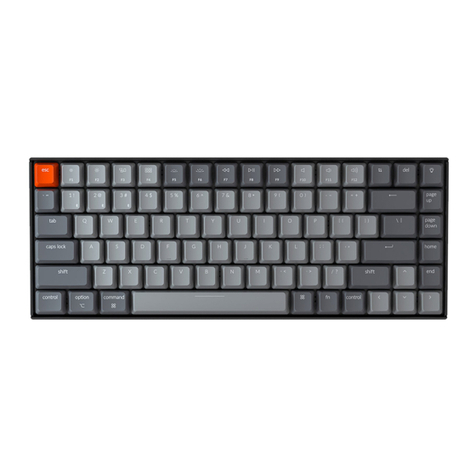
Keychron
Keychron K2 User manual
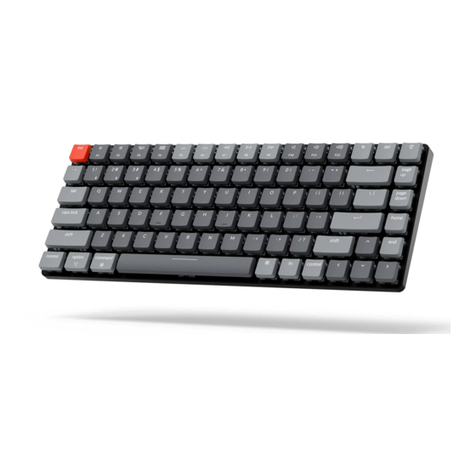
Keychron
Keychron K3 User manual
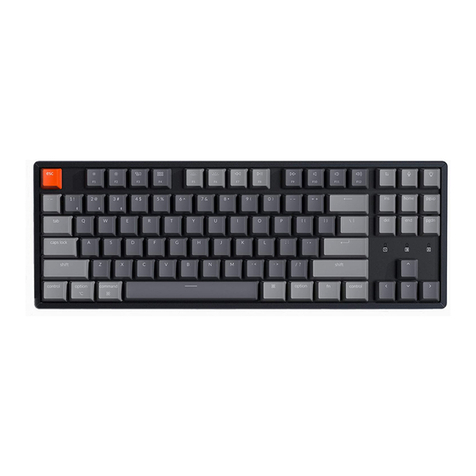
Keychron
Keychron K8 User manual
Keychron
Keychron Q14 Pro User manual
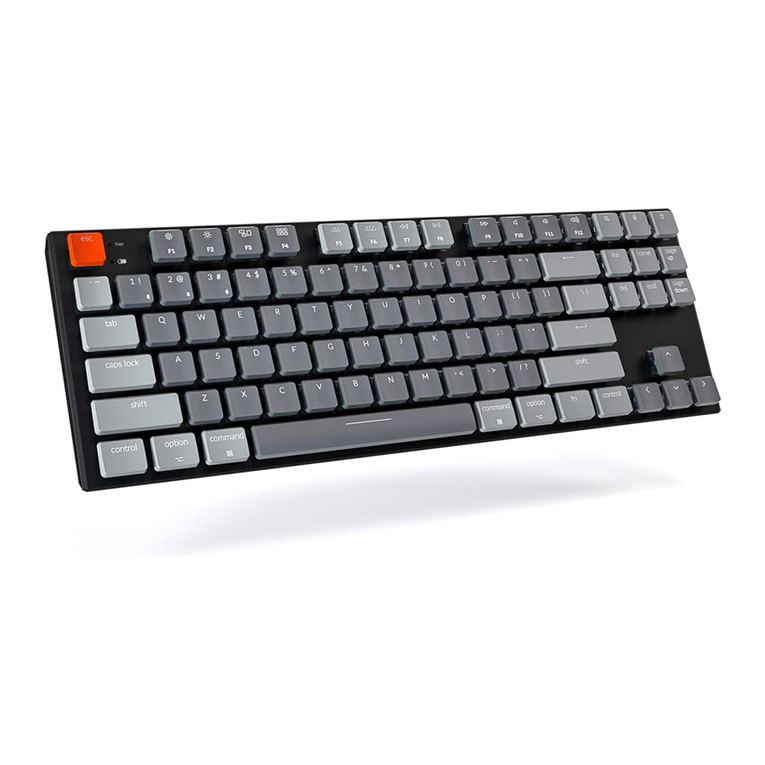
Keychron
Keychron K!1 User manual
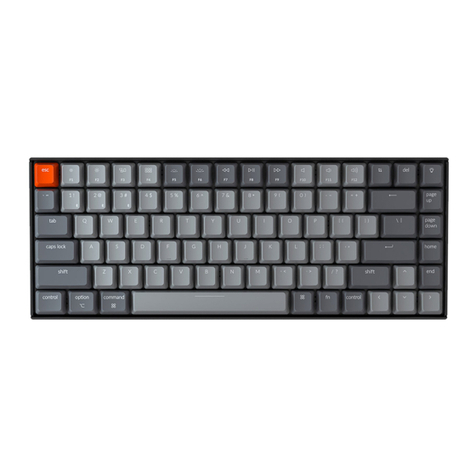
Keychron
Keychron K2 User manual
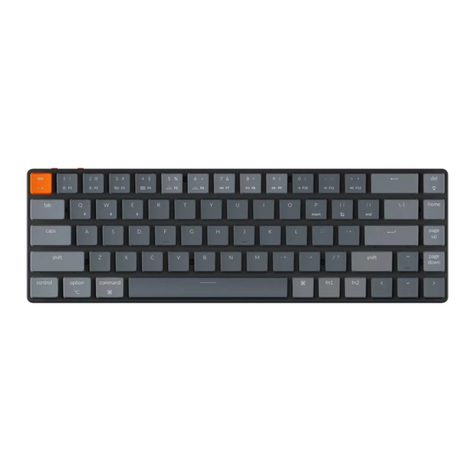
Keychron
Keychron K7 User manual

Keychron
Keychron K10 Pro User manual

Keychron
Keychron K1 Max User manual

Keychron
Keychron K7 User manual
Keychron
Keychron V3 MAX User manual
Keychron
Keychron K!1 User manual