Kistler LabAmp User manual

LabAmp
network
configuration
guide
002-808e-07.20


Page 1
002-808e-07.20
Thank you for choosing a Kistler quality product characterized
by technical innovation, precision and long life.
Information in this document is subject to change without
notice. Kistler reserves the right to change or improve its
products and make changes in the content without
obligation to notify any person or organization of such changes
or improvements.
© 2017 ... 2020 Kistler Group. Kistler Group products are pro-
tected by various intellectual property rights. For more details
visit www.kistler.com. The Kistler Group includes Kistler Holding
AG and all its subsidiaries in Europe, Asia, the Americas and
Australia.
Kistler Group
Eulachstrasse 22
8408 Winterthur
Switzerland
Tel. +41 52 224 11 11
info@kistler.com
www.kistler.com
Foreword
Foreword

LabAmp network configuration guide
002-808e-07.20
Page 2
Content
1. Introduction.................................................................................................................................. 3
2. IPcongurationoptions.............................................................................................................4
3. Differentsetupoptions...............................................................................................................5
3.1 Direct connection without network connection ...................................................................5
3.1.1 Options for direct connections...............................................................................7
3.1.2 Exampleofastaticconguration ..........................................................................8
3.2 DHCPconguration,PCindaisy-chain............................................................................10
3.3 DHCPconguration,PCsomewhereinthenetwork........................................................12
4. Firstconnectionviaethernet...................................................................................................13
Total pages 15

Introduction
Page 3
002-808e-07.20
1. Introduction
Products like the Kistler LabAmp amplifiers are very versatile
devices and offer tremendous advantages by the fact that
they provide an Ethernet interface for communication and can
be accessed conveniently from any point within the network.
This document gives a short overview about the different
options how to use such devices conveniently in different
situations/environments. A correct configuration is essential
for an efficient and satisfying operation.

LabAmp network configuration guide
002-808e-07.20
Page 4
2. IP configuration options
In a computer network, every device needs to have a unique
address for a clear identification, the so called IP (internet
protocol) address. There are two fundamental ways how the
devices get their IP settings: static and dynamic.
Static IP configuration
Each device within the network has a static IP address
The IP settings need to be configured manually on each
device in the network
The user is responsible that no IP conflicts occur (every
address only used once)
Dynamic IP configuration
Each device in the network receives an IP address auto-
matically
The addresses are distributed by a DHCP server (dynamic
host configuration protocol)
If no DHCP server is present in the network, the IP
addresses are automatically negotiated among the devices
(Automatic Private IP Addressing (APIPA) or also AutoIP)
Depending on the situation, the different ways have different
advantages and disadvantages
Direct connection to PC
without any network connection
See 3.1
Direct connection to PC
in a local network
See 3.2
Devices distributed in network
See 3.3
Fig. 1: Different network setups

Different setup options
Page 5
002-808e-07.20
3. Different setup options
3.1 Direct connection without network connection
Fig. 2: Different examples of direct connections to a PC
Recommended situation
Static IP configuration AutoIP
If some devices are connected to a dedicated com-
puter for certain measurements without the need to
be connected to a company network or the internet
at the same time.
When a computer is used where the IP settings
can’t be changed to a static configuration due to
missing permission.
When a first connection needs to be established
to one or more LabAmp devices.
When just an ad-hoc measurement needs to be
performed and the computer stays connected du-
ring this time.

LabAmp network configuration guide
002-808e-07.20
Page 6
Advantages
Static IP configuration AutoIP
A static configuration is very convenient as every
device has its known settings and keeps it even if
power is switched off, cables are unplugged, etc.
Addresses can be noted down and devices can
be even labelled with their addresses so everyone
knows how to connect quickly to each device.
As the name already indicates, the mechanism works
automatically, so no settings need to be configured
manually. No administrator rights are required on
the computer. After acertain time, the IP addresses
are automatically determined and the devices are
accessible. The actual addresses can be found by
using the Kistler Network Setup Wizard.
Disadvantages
Static IP configuration AutoIP
If the used computer is corporate IT equipment
which is also needed for company network & inter-
net access, it might be an inconvenient setup as not
only the devices need to be in static IP configuration
but also the used computer. As bigger company
networks are normally using DHCP servers, the
computer’s IP settings would need to be changed
every time it shall be connected to the LabAmps.
Furthermore, restrictions by the IT administrators
might even forbid changing the IPsettings of acom-
puter or accessing certain IP address ranges.
AutoIP, also known as APIPA (Automatic Private
IP Addressing), is a fallback mechanism. Initially,
adevice in dynamic configuration waits for a DHCP
server in the network to obtain an IP address. In
adirect connection device(s)-to-computer, there is
no such server. After a certain time with no answer,
AutoIP is used to determine an IP address for each
involved network device. This process can take up
to 2 minutes which can be inconvenient.
Furthermore, when the devices are rebooted, the
process starts from scratch and takes again some
time. In addition, it is likely, that the created IP
addresses have changed.
A short disconnection of the computer shouldn’t
lead to aloss of the IP addresses unless the com-
puter’s settings deactivate the Ethernet port and
switch to Wifi as soon as there is no physical Eth-
ernet connection anymore. In this case, the Auto-
IP process starts again once the network cable is
connected again.

Different setup options
Page 7
002-808e-07.20
3.1.1Options for direct connections
1. Every network interface has its own IP settings. In case
the standard Ethernet interface of a computer is dedi-
cated to access a company network, e.g. an external
USB-to-Ethernet adapter can be used. This additional
network interface can then be set to a static config-
uration to profit from above described advantages.
Fig. 3: A simple but useful USB-to-Ethernet adapter.
Picture source: Trendnet
2. As most notebooks nowadays offer network access via
Wifi and Ethernet connection, the Ethernet interface can
be set to a static configuration to profit from above men-
tioned advantages while the company network and inter-
net can be still accessed using the Wifi network adapter.
However, sometimes the operating system or the com-
puter’s BIOS settings (e.g. HP EliteBooks, “LAN/WLAN
switching” setting) block the use of Wifi and Ethernet
at the same time. Normally, this can be configured. Ask
your IT administrator to make the necessary changes
if you don’t feel comfortable to make changes in your
computer’s BIOS.

LabAmp network configuration guide
002-808e-07.20
Page 8
3.1.2 Example of a static configuration
A valid configuration for a static IP setting is the following:
Computer settings:
IP-address: 192.16 8.1.10 0
Subnet mask: 255.255.255.0
Default gateway: 192.168.1.1
LabAmp settings:
IP-address:
192.168.1.101 (for further
devices count up the last
number; 102, 103, etc.)
Subnet mask: 255.255.255.0
Default gateway: 192.168.1.1
The LabAmp settings can be configured either by using the
Kistler Network Setup Wizard or on the individual web user
interface of every device. The computer settings need to
be configured in the control panel
→
Network And Sharing
Center
→
LAN connection
→
Properties:
Table of contents
Other Kistler Amplifier manuals

Kistler
Kistler 5159A Series User manual

Kistler
Kistler 5018A Series User manual
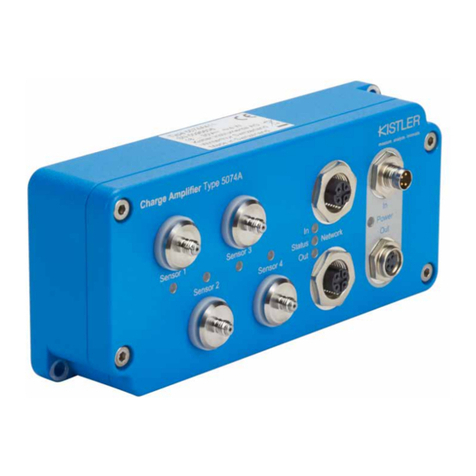
Kistler
Kistler 5074A Series User manual

Kistler
Kistler 5995A Series User manual

Kistler
Kistler 5181A Series User manual

Kistler
Kistler 5166A Series User manual

Kistler
Kistler 5080A Series User manual
Kistler
Kistler 4624AK Series User manual

Kistler
Kistler 5073A Series User manual

Kistler
Kistler 5028A Series User manual