Laser EBmulti-EB850 User manual

EBmulti-EB850
USER MANUAL
1
Please read carefully before use

EBmulti-EB850
USER MANUAL
TABLE OF CONTENTS
Important Safety Instructions and Precautions ........................................................................ 4
What’s in the Box ...................................................................................................................... 5
Product Connections and Use ................................................................................................... 5
GETTING TO KNOW YOUR PRODUCT ........................................................................................ 6
Power On/Power Off ............................................................................................................. 6
. Connecting to a Computer ................................................................................................ 7
3. Initial Charge and Subsequent Charges ............................................................................. 7
4. Recharging the Battery ...................................................................................................... 7
5. Default folders ................................................................................................................... 7
6. Using the Micro-SD Card (Not Included) ........................................................................... 7
MAIN MENU .............................................................................................................................. 8
1. Browser History ................................................................................................................. 8
. e-Book ................................................................................................................................ 9
.1 Viewing eBooks .............................................................................................................. 10
3. Music Player..................................................................................................................... 11
3.1 Media Library options .................................................................................................... 11
3. Music Playback Screen .................................................................................................. 1
3.3 Music Playback Options ................................................................................................. 1
5. Video ................................................................................................................................ 14
5.1 Video Playback Options ................................................................................................. 14
6 Radio ................................................................................................................................. 15
6. FM Record ...................................................................................................................... 16
7 Record ............................................................................................................................... 16
8 Photo................................................................................................................................. 17
6. Explorer ............................................................................................................................ 18
8. Settings ............................................................................................................................ 19
8.1 Setting the time and date .............................................................................................. 0
9. File Management ............................................................................................................. 0
9.1 Connecting e-Book with The PC .................................................................................... 0
9. Manage files .................................................................................................................. 0

EBmulti-EB850
USER MANUAL
3
TABLE OF CONTENTS
9.3 File Support .................................................................................................................... 1
How to download DRM eBooks .............................................................................................. 1
Purchase eBooks from Borders® .............................................................................................
Hints and tips for using Adobe® ..........................................................................................
CHARGING THE EBMULTI-EB850 .............................................................................................
Trouble-shooting ..................................................................................................................... 3
Technical Specifications* ........................................................................................................ 4
Supported file types ............................................................................................................ 4
Available accessories ............................................................................................................... 5
Contact information ................................................................................................................ 5

EBmulti-EB850
USER MANUAL
4
IMPORTANT SAFETY INSTRUCTIONS AND PRECAUTIONS
• Read all instructions carefully before use.
• Retain manuals for future reference.
• Use this product only in the manner described.
• Only use a water-dampened soft-cloth to clean the surface of this product.
• Use electronic devices in well ventilated areas & not exposed to excess vibration.
• The following will damage this product: any liquid such as water or moisture,
extreme heat; cold; humidity, dusty or sandy environments.
• Only place this device on stable surfaces and ensure that any attached cables are
secure and will not cause the device to fall.
• If charging is required, it is recommended to thoroughly charge electronic devices for
the first time overnight. Subsequent charges can be as needed. During charging, or
extended use, the product may become warm.
• There are no user serviceable parts in this product.
• Un-authorized attempts to dismantle or repair this product will void product
warranty and may result in dangerous electric shock.
• Do not use this product if you are in control of dangerous machinery such as a motor
vehicle.
• Remove any power or data cords by pulling them from the plug and not the cord.
• Using this device near other electronic devices may cause interference.

EBmulti-EB850
USER MANUAL
5
WHAT’S IN THE BOX
1 x Laser EBMULTI-EB850 e-Book READER
1 x Earphones
1 x USB cable
1 x User Manual (this document)
PRODUCT CONNECTIONS AND USE

EBmulti-EB850
USER MANUAL
6
Name Descripti n
1. Power On/Off: Turns the device ON, OFF.
2. Play / Pause / Rotate Begins or Pause playback and Rotates eBook view
from portrait to landscape.
3. Enter Confirms selection or opens files
4. Return Cancel a selection or to return to previous menu.
5. Zoom Zoom in and out on eBooks or Images
6. Directional LEFT & RIGHT
Move cursors Left/Right and turn pages.
Previous/Next during music playback.
Volume control during Video playback
7. Directional UP & DOWN
Move cursors Up/Downwards, turn to
previous/next page when reading and set the
volume during music playback
8. Headphone jack Connect to earphones or other audio devices
9. Micro SD card slot Expand Storage by inserting Micro SD cards
10.
MIC Microphone for recording.
11.
USB port Connect to PC or charger
12.
DC port Charge the eBook reader using a compatible AC
charger
13.
Main ON/OFF switch Hard ON/OFF switch
14.
Speaker Built in speaker (rear or device)
GETTING TO KNOW YOUR PRODUCT
P wer On/P wer Off
Slide the Main ON/OFF Switch to the on position.
When the device is off, press and hold the On/Off button for 3 seconds to turn it on.
When the device is powered on, press and hold the On/Off button for 3 seconds to turn it off.

EBmulti-EB850
USER MANUAL
7
2. C nnecting t a C mputer
Turn the player on, and then connect the player to the PC with the USB cable (included). The PC will detect
the eBook reader as a standard USB mass storage device as soon as it is connected. The Micro SD card slot
will only be displayed if a card is inserted. EBook functions are not accessible when connected to a PC
3. Initial Charge and Subsequent Charges
We recommend that your first three charges are up to 1 hours each. This will help optimise battery life as
well as provide a longer usage time. Subsequent charges only need up to 5 hours.
4. Recharging the Battery
This player is powered by a special Li-ion polymer rechargeable battery and can operate continuously for over
7-8 hours when reading an e-Book. When the battery becomes weak, connect the USB cable to your device
via the USB port. It normally takes about 4-5 hours for a full recharge.
5. Default f lders
The only default folder on the EBmulti-EB850 is .adobe-digital-editions. This folder is required to store all
purchased and borrowed eBooks.
Other folder for storing MUSIC, VIDEO or other files can be created as needed through the Computer
Window when the reader is connected to the computer in the same manner as they are created on any
other drive on the computer.
6. Using the Micr -SD Card (N t Included)
This e-book supports micro-SD memory cards up to 16GB capacity for storing thousands of books, music and
pictures. To begin operation, slide the micro-SD card into the slot. The contacts of the card should face down
away from the screen when inserting. Push the card gently until it clicks into place. To eject the card, just
push it in slightly and it will spring back out.
Note1: Default folders are created on the e-book and also on the micro-SD card. In this event it is possible
to see two folders with the same name during navigation.
Note 2: If files are saved and used from the micro-SD card they will still be displayed in “Browser History”
list even if the micro-SD card is removed but they cannot be opened until the card is inserted again.
EBmulti-EB850
USER MANUAL
8
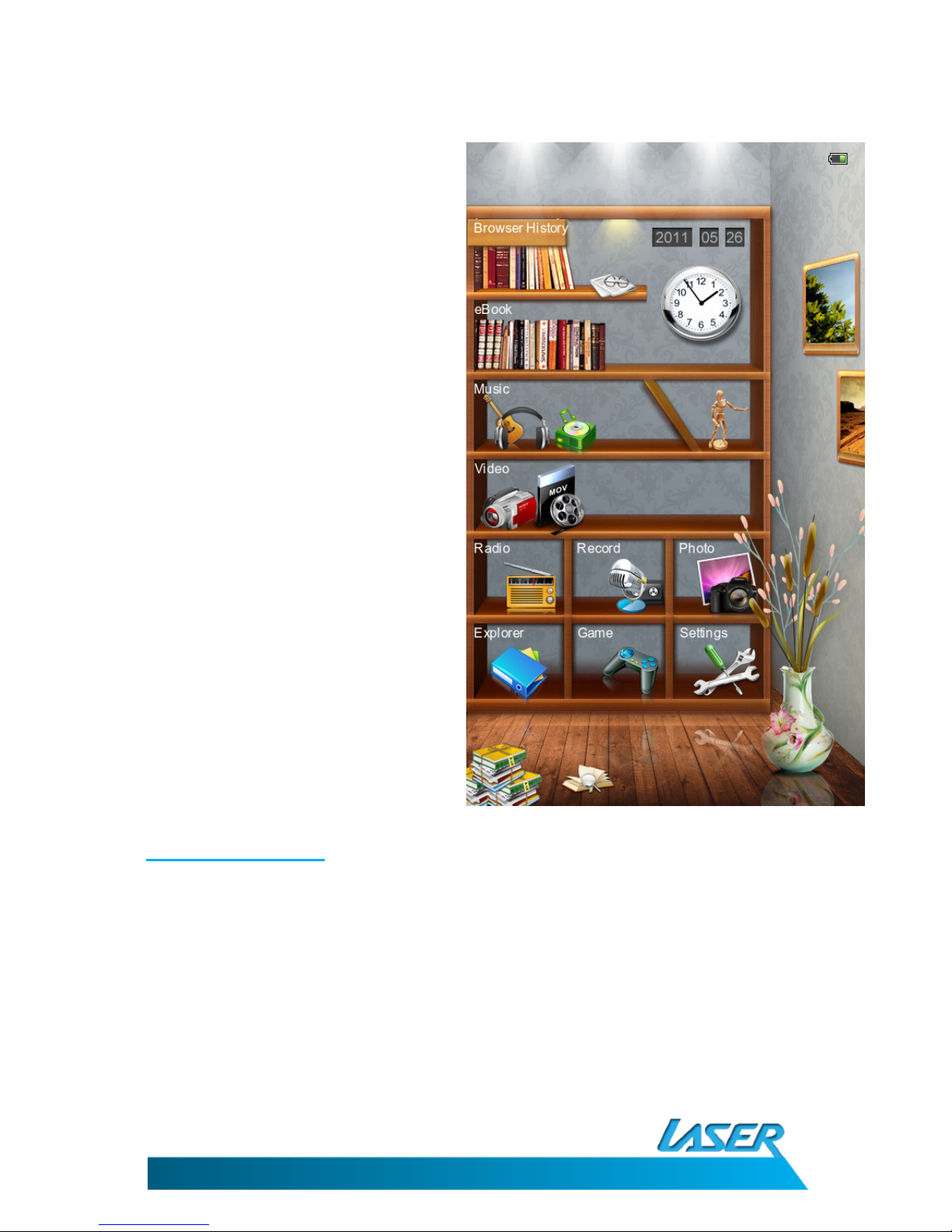
MAIN MENU
The Main Menu consists of the following sections:
1) Browser History
) eBook
3) Music
4) Video
5) Radio
6) Record
7) Photo
8) Explorer
9) Game
10) Settings
1. Br wser Hist ry
Browser History: This will display your recently viewed files.
Press the UP/DOWN buttons to select "Browser History" and press the Enter button to enter. Then press
UP/DOWN button to select the option you want and press the Power button to enter/open the document.
Press the Enter button to display the management list and select the option Del: delete selected enter,
Delete All: delete all entries on list or exit: exit the option list.
Historical records are only deleted in this menu.
Press Return button to return to the previous menu.

EBmulti-EB850
USER MANUAL
9
2. e-B k
Press UP/DOWN buttons to select e-Book and press
the Enter button to enter.
6 options for displaying the eBook order are shown.
1. By File name:
Displays all the eBook in order as per the file
name for each file.
2. By Title:
Displays all the eBooks stored on your
reader (including the SD card in fitted) in
title order.
3. By Auth r:
Displays all the eBooks stored on your
reader in by Author.
Note: This selection requires the Authors
details to be added in the files properties.
Not all file types support this option.
4. By Dir:
Displays all the directories on the eBook
reader.
5. By Thumbnail:
Displays the eBooks stored on your reader
as Book Covers.
Note: note all files support this option.
6. MediaLib Update:
This option updates the files stored on your
reader and the Micro SD card if fitted.
Select the eBook to be viewed by one of the above methods by using the up and down buttons.
Press the Enter button once the desired file is highlighted.

EBmulti-EB850
USER MANUAL
10
2.1 Viewing eB ks
When view an eBook you can use the buttons to access the following features or submenus.
Butt n Acti n
Return Returns screen to previous menu
Up & Down Selects next or previous page or section to display
Left & Right Selects next or previous page or section to display
Rotate Rotates the display between portrait and landscape.
Press the Zoom button to display the Zoom options (Zoom options dependant on file format to be
displayed)
Opti n Acti n
Scale to S Scales font to small
Scale to M Scales font to medium
Scale to L Scales font to large
Scale to XL Scales font to extra large
Use the up and down buttons to select the correct option and then press the enter button to
confirm.
Note: High resolution and graphic rich files may take a few second to resize after option is selected.
Different files types may produce variations in available Options
Press the Enter button to display the following options.
Opti n Acti n
Jump to Page Use the left, right, up and down buttons to select the page number to
jump to and then press the Enter button.
Save Mark* Saves the current page as bookmark.
Load Mark* Jump to a previously Saved Mark.
Del Mark* Deletes previously save Marks.
Browser Mode Auto: Pages are turned automatically at preset
intervals.
Manual: Pages must be turned manually when
required.
Flip Time Select the time to automatically turn the pages when browser mode is
set to Auto. 10, 15, 0, 5 & 30 seconds.
Information Displays information about the current file you are viewing (if data is
available).
Table of Contents Displays the table of contents for the current eBook. (if included). Use
the Up, Down, Left and Right button to highlight a chapter then press
Enter to select.
Table of contents
Other Laser Ebook Reader manuals