12 13EN -- EN
LENCO PLAYLINK-6 OPERATION MANUAL LENCO PLAYLINK-6 OPERATION MANUAL
2. In the direct mode, the multi-zones and multi-room functions are not available.
Your mobile device can only be connected to one speaker.
3. If a song is played when you press the Direct mode key, the song continues to be
played during a certain time, this is normal.
7.2 Reset
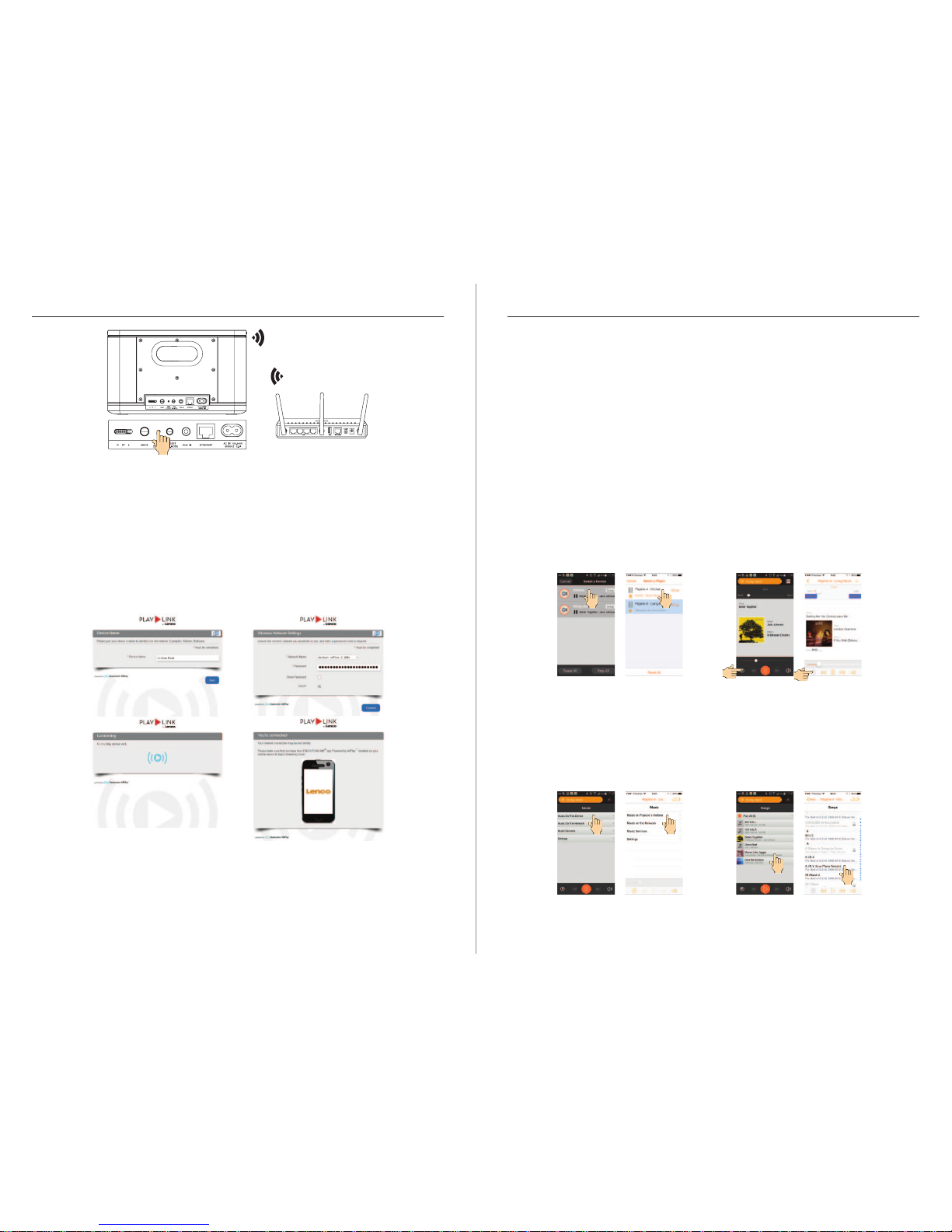
In case you want to connect your speaker to another network, it should be reset and
connected again with the network of your preference.
To reset the speaker, press the DIR.MODE/RESET button for more than 5 seconds.
This makes the speaker go back to the factory settings and the network SSID name,
password, and speaker’s name are cleared.
8. Bluetooth Operation
Your speaker can be connected in Bluetooth mode to a Bluetooth compatible device.
→Press the mode key to display the LED indicator flashing Blue.
→Open the Bluetooth function of your mobile phone and looking for “PLAYLINK” device
Note: If your phone is equipped with the NFC function, please just place the phone on the
top of the box and follow the instructions to connect.
→Connect to the Playlink, the LED turns to permanent blue
→Start playing
Note: The Wi-Fi and Bluetooth (BT) signals can interfer and create noise during bluetooth
playing. Please make sure you don’t play from the Playlink app at same time you are playing
with the blue-tooth connection (also if the speaker is in a group and you play to another
speaker in the same group). If you want to use the BT mode at same time than WiFi mode,
you need to connect your speaker in the 5 GHz band (you need a 5 GHz router).
9. DLNA router operation
Your speaker is compatible DLNA audio.
Set the speaker into Access Point mode as described in 7.
Connect your DLNA devices to the Access Point. The router function accepts DLNA audio
devices, can be DLNA controller, server or renderer.
Open your DLNA controller application and wait to display the several DLNA devices
connected to the network. Select a song on a DLNA server from a DLNA controller and
play it on the selected renderer.
Note:
1. The DLNA router function is available in Direct mode, Line-In mode and Bluetooth
mode.
2. As a DLNA compatible renderer, the PLAYLINK6 can be seen by a DLNA con-troller.
Select the “PLAYLINK6” in the renderer list to play your selected song.
10. Trouble shootings
1.
2.
3.
4.
1.
2.
1.
2.
Cannot associate
my speaker to my
router
I cannot see my
speaker in the APP
Some songs can-
not be played
Cannot see your
PC on the net-
work
Cannot play songs
from the network
Wifi connection
not success
Please make sure to wait at least one minute after POWER-
ON before try to connect your speaker to a router.
Reset your speaker (Press RESET key at the back more than
5 seconds, see page 4) wait one minute, and try again.
If the speaker was already associated to a WiFi net-work and
you want to connect it to another network, you must reset
the speaker (see above)
Try to associate your speaker using the browser of a personal
computer (see page 6).
Please make sure your mobile device (mobile Phone/tablet)
is connected to the same network as your speaker.
After open the APP, wait 30 seconds to one minute to see the
speaker, depending the speed of your net-work. The system
need time to publish the speaker on the network becoming
recognizable by the APP.
The system does not support the WMA formats, if you have
those songs, please convert it to MP3.
Some songs bought on music’s stores (for example Apple
store) contains restricted rights and cannot be played.
Windows 7 and above only: Please check if you allow your PC to
share the contents on the network (right click on Network in your
PC+ share contents).
Check if you don’t have an active firewell which can block the
streaming from the PC or from the NAS.
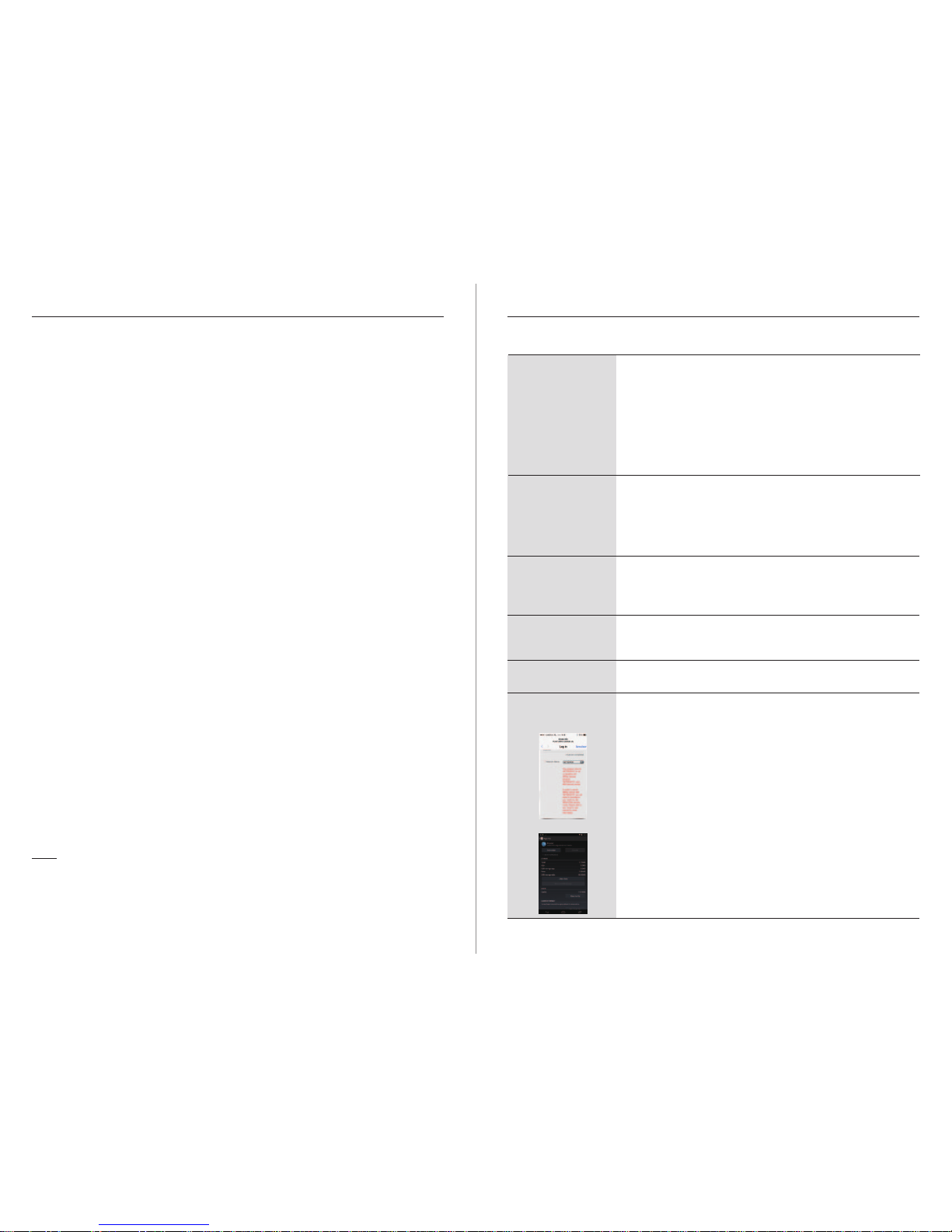
When you receive error screen (Figure A) your router setting must
be changed from WPA to WPA2 or WPA2-PSK. Please check
your instruction manual of your router, or contact the helpdesk
of the router.
- You must “push and hold” for 10 seconds the reset button
of the Playlink speaker. ( this because you had stopped in the
middle of the installation procedure)
- For android device we advise to go to the settings, app’s, All,
go to your internet browser and clear cache, refer to Figure B.
(this because your browser could go to addresses saved in its
memory which are no longer available)
After that you must start at step 1. Connect via the wifi settings
at your smartphone/tablet to the Playlink speaker (for example
Playlink6-4c39cb_AJ ).
When after waiting for 3 minutes your smartphone is not finding
the Playlink speaker we recommend to disconnect power from
your Playlink speaker and wait for 3 minutes before connecting
to power again.
Figure A
Figure B