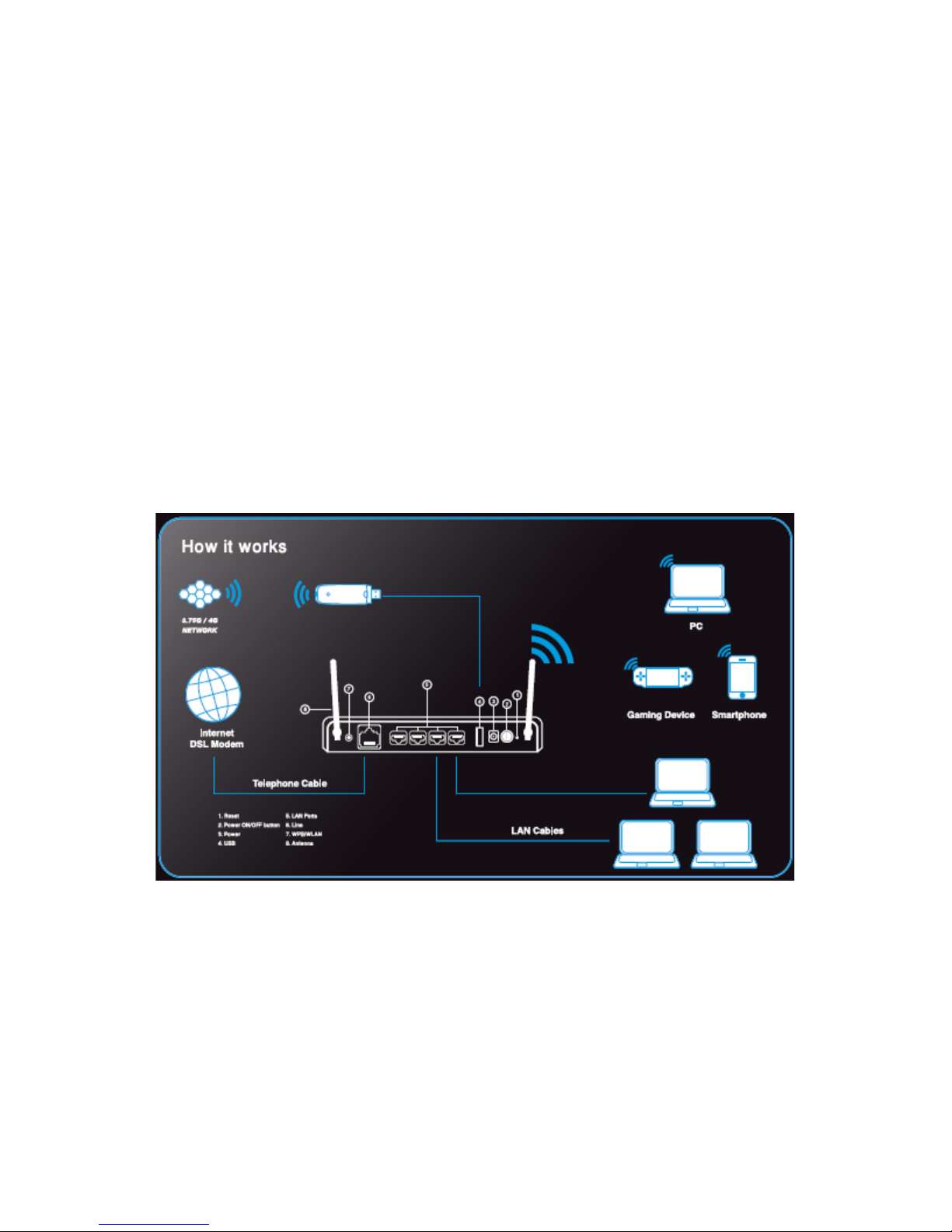
3. If you have both ADSL Subscription and 3G/4G USB MODEM (Back-up mode)
•Follow both step 1 and 2
Back-up feature means when the ADSL Internet is down, 3G/4G internet
wakes-up and gets active. When ADSL Internet is back active, 3G/4G internet
sleeps back and gets inactive.
4. Connect the power adapter to the power socket.
5. Switch on your LogN HN-DR4PN2U.
Make sure:
•PWR Led is ON (Stable/Yellow)
•WLAN Led is ON (Stable/Yellow)
•ADSL Led is ON (Stable/Yellow) after little time of blinking (In case you have
ADSL Subscription and you have connected the telephone cable to your LogN
HN-DR4PN2U)
•USB Led is ON (In case you have 3G/4G USB MODEM and you have plugged it
into the USB port)
•Internet Led is OFF (It will go ON after little time if you only have 3G/4G USB
MODEM and no Telephone line is plugged)
6. Select to connect your PC to LogN HN-DR4PN2U either wirelessly or by wire. Make
sure not to connect both wirelessly and by wire at the same time.
•If wirelessly, make sure your PC wireless is ON, search for “LogN” in your PC
wireless list, connect.
•If by wire, connect one end of the LAN cable to the LAN port of the LogN HN-
DR4PN2U, connect the other end of the LAN cable to the LAN port of your PC or
laptop. Make sure the selected LAN port Led is ON (Stable/Yellow).
Hardware Configuration
Running 3G/4G Internet Service
1. 3G/4G USB MODEM works by plugging it and powering LogN HN-DR4PN2U ON. Wait a
little until the 3G/4G USB MODEM LED settles, you will find Internet Led ON (Blinking
Fast/Yellow). You are connected to 3G/4G Internet.
Note:
In case you only have 3G/4G USB MODEM, you will need no configuration for the “ADSL
Internet Service”. You may only need to proceed with “Changing Wireless Name” and/or
“Securing Wireless Connection”.
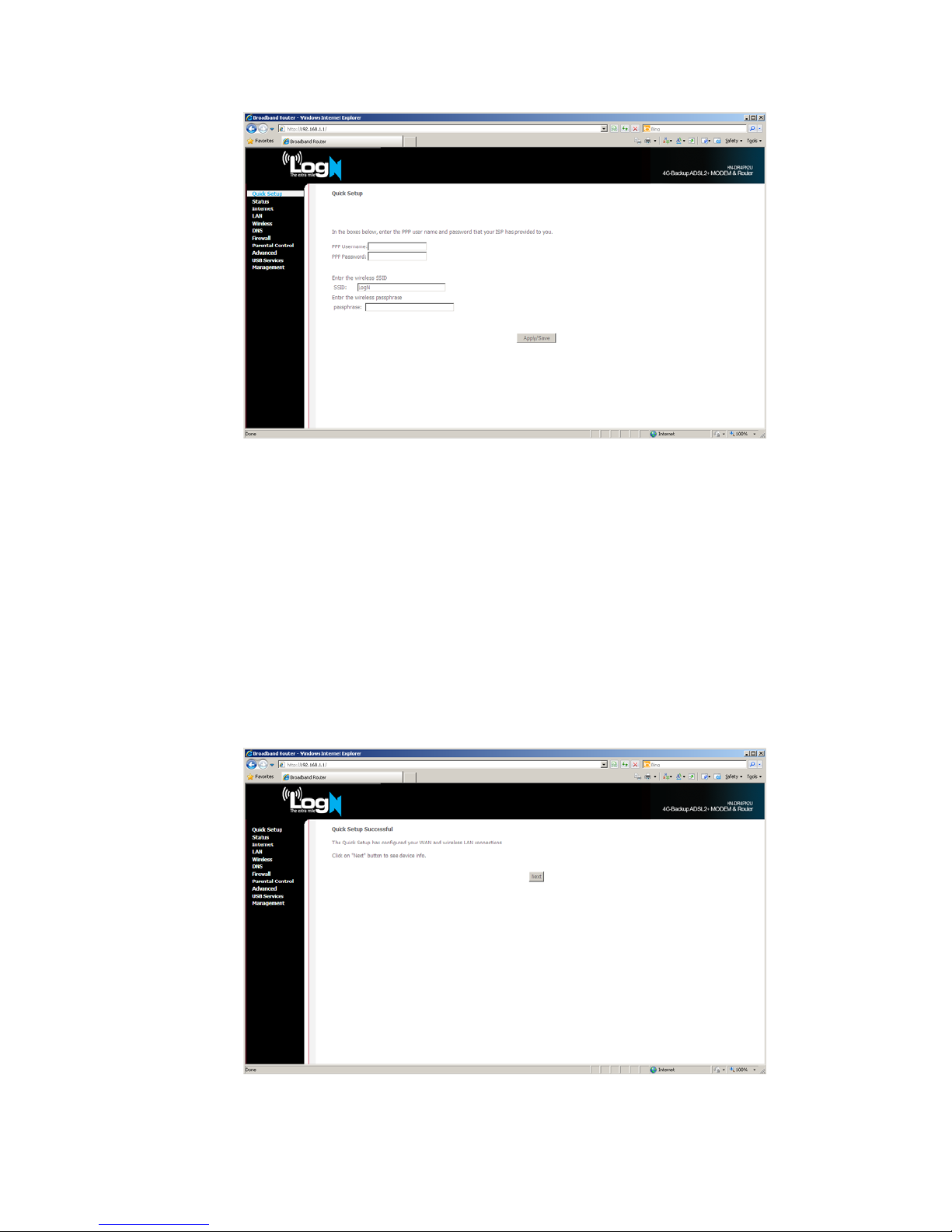
In case you have both ADSL Subscription and 3G/4G USB MODEM, you can enjoy the Back-
up feature. You still need to proceed with “ADSL Internet Service” and/or “Changing
Wireless Name”/ “Securing Wireless Connection”.