manuals.online logo
Brands
  1. Home
  2. •
  3. Brands
  4. •
  5. Lorex
  6. •
  7. Security Camera
  8. •
  9. Lorex LNE8974A Series User manual

Lorex LNE8974A Series User manual

This manual suits for next models

3

Other Lorex Security Camera manuals

Lorex LNZ44P4 Series User manual

Lorex

Lorex LNZ44P4 Series User manual

Lorex LEV2522PK4B User manual

Lorex

Lorex LEV2522PK4B User manual

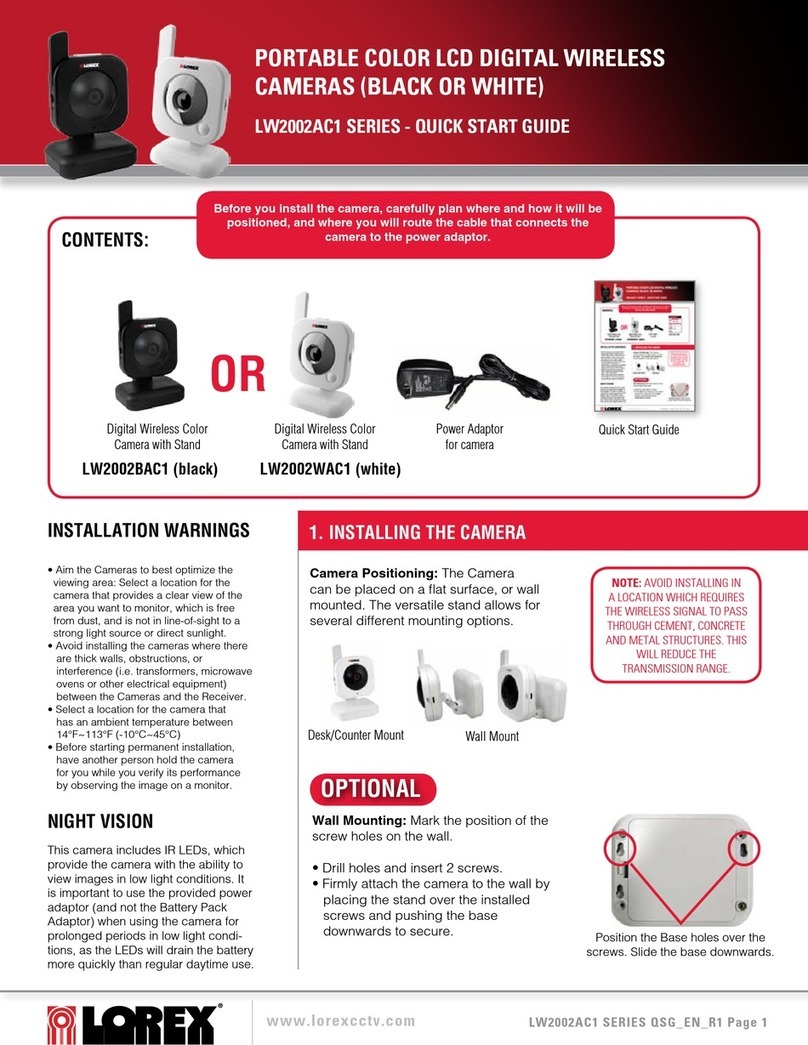
Lorex LW2100AC1 User manual

Lorex

Lorex LW2100AC1 User manual

Lorex LND4750A Series User manual

Lorex

Lorex LND4750A Series User manual

Lorex LNB9232 Series User manual

Lorex

Lorex LNB9232 Series User manual

Lorex LW2101 series User manual

Lorex

Lorex LW2101 series User manual

Lorex W891UA Series User manual

Lorex

Lorex W891UA Series User manual

Lorex LNE3003 User manual

Lorex

Lorex LNE3003 User manual

Lorex mCAM DVM5031 User manual

Lorex

Lorex mCAM DVM5031 User manual

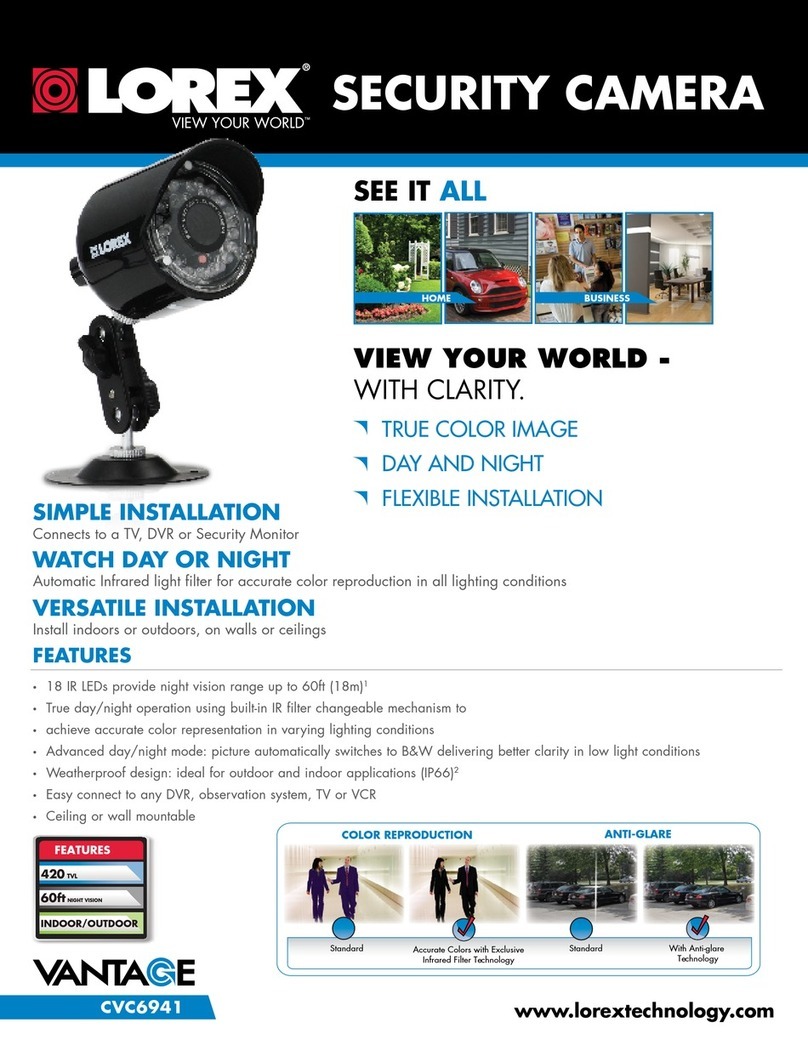
Lorex CVC6941 User manual

Lorex

Lorex CVC6941 User manual

Lorex LNB9292 Series User manual

Lorex

Lorex LNB9292 Series User manual

Lorex E910 Series User manual

Lorex

Lorex E910 Series User manual

Lorex Vantage LDC7051 SERIES User manual

Lorex

Lorex Vantage LDC7051 SERIES User manual

Lorex LNB4421 Series User manual

Lorex

Lorex LNB4421 Series User manual

Lorex CVS1000 User manual

Lorex

Lorex CVS1000 User manual

Lorex SG7520 User manual

Lorex

Lorex SG7520 User manual

Lorex Vantage LW2231 User manual

Lorex

Lorex Vantage LW2231 User manual

Lorex Vantage CVC7707 Series User manual

Lorex

Lorex Vantage CVC7707 Series User manual

Lorex VANTAGE LND2152 SERIES User manual

Lorex

Lorex VANTAGE LND2152 SERIES User manual

Lorex LNZ3522B User manual

Lorex

Lorex LNZ3522B User manual

Lorex LZV2925 Operating and maintenance manual

Lorex

Lorex LZV2925 Operating and maintenance manual

Lorex SG600B User manual

Lorex

Lorex SG600B User manual

Lorex CVC6950 SERIES User manual

Lorex

Lorex CVC6950 SERIES User manual

Lorex LWB3801AC1 User manual

Lorex

Lorex LWB3801AC1 User manual

Popular Security Camera manuals by other brands

ADEMCO RapidDome Owners Operating & Installation Guide

ADEMCO

ADEMCO RapidDome Owners Operating & Installation Guide

EverFocus EBA2880 user manual

EverFocus

EverFocus EBA2880 user manual

Honeywell OptiCAM-IR Installation and setup guide

Honeywell

Honeywell OptiCAM-IR Installation and setup guide

Uniq UC-600 user manual

Uniq

Uniq UC-600 user manual

OPTICOM NVD-120-S datasheet

OPTICOM

OPTICOM NVD-120-S datasheet

Steren CCTV-221 instruction manual

Steren

Steren CCTV-221 instruction manual

Arm Electronics C420BCDNVFIR Features

Arm Electronics

Arm Electronics C420BCDNVFIR Features

Eneo PLD-2036PTZ installation guide

Eneo

Eneo PLD-2036PTZ installation guide

Axis AXIS M20 Series installation guide

Axis

Axis AXIS M20 Series installation guide

Panasonic KX-HCM230 operating instructions

Panasonic

Panasonic KX-HCM230 operating instructions

COP-USA CC15NV-SL Specifications

COP-USA

COP-USA CC15NV-SL Specifications

Active Silicon HARRIER H.264 quick start guide

Active Silicon

Active Silicon HARRIER H.264 quick start guide

Motorola Avigilon 1.3C-H5SL-BO1-IR installation guide

Motorola

Motorola Avigilon 1.3C-H5SL-BO1-IR installation guide

INSTEON 2864-232 user manual

INSTEON

INSTEON 2864-232 user manual

Wisenet XNB-6002 quick start guide

Wisenet

Wisenet XNB-6002 quick start guide

Axis M5525-E user manual

Axis

Axis M5525-E user manual

Vitek VTC-IR62NZ922 user guide

Vitek

Vitek VTC-IR62NZ922 user guide

Panasonic WV-SF342 Specifications

Panasonic

Panasonic WV-SF342 Specifications

manuals.online logo
manuals.online logoBrands
  • About & Mission
  • Contact us
  • Privacy Policy
  • Terms and Conditions

Copyright 2025 Manuals.Online. All Rights Reserved.

• You can use a RJ45 coupler or switch (not included) to connect male
ends of Ethernet cable together.
• To extend the cable run beyond 300ft (92m), a switch will be required
(sold separately).
Disabling Camera Audio
ATTENTION:
Audio recording without consent is illegal in certain jurisdictions. Lorex
Corporation assumes no liability for use of its products that does not
conform with local laws.
Audio is enabled by default. To disable camera audio through a Lorex HD NVR:
1. In Live View, right-click anywhere on the screen to open the Quick Menu.
2. Click Main Menu. If prompted, enter the system user name and password.
3. Click and select Recording > Recording.
4. Configure the following:
NOTE: These instructions are based on current Lorex HD NVR interface. For more
information, see your NVR’s instruction manual on www.lorextechnology.com.
A. Under Channel, select the channel that the audio-enabled camera is
connected to.
B. Under Type, select Continuous.
C. Uncheck the check box to disable audio for Main Stream.
D. You can also disable audio for Sub Stream. Uncheck the check box to disable
audio for Sub Stream.
E. Video must be enabled for Sub Stream to enable/disable audio.
F. Click Apply to save your changes.
5. Click OK.
NOTE: You must disable audio for all recording types under the Type dropdown.
Repeat the above steps to disable camera audio for all recording types.
A
B
CD E
F
LNE8974A_QSG_EN_R1
4K Motorized Varifocal HD IP Dome
Security Camera with Audio
• 4K Motorized Varifocal HD IP Dome Security Camera
• Mounting Kit*
• Mounting Template*
• CAT5e Ethernet Extension Cable with Pre-attached
RJ45 Cable Gland*
• Allen Key*
• Read this guide carefully and keep it for future reference.
• Follow all instructions for safe use of the product and handle with care.
• Use the camera within given temperature, humidity and voltage levels
noted in the camera’s specifications.
• Do not disassemble the camera.
• Do not point the camera directly towards the sun or a source of
intense light.
• Use only the supplied regulated power supply provided with the
product. Use of a non-regulated, non-conforming power supply can
damage the product and void the warranty.
• Periodic cleaning may be required. Use a damp cloth only. Do not use
any harsh, chemical-based cleaners.
• The supplied cable is rated for surface mounting only. Cables for in-wall
and floor-to-floor installations are sold separately (CMR type). These
and other cables are available at lorextechnology.com
* Per camera in multi-camera packs.
Copyright © 2017 Lorex Corporation
As our products are subject to continuous improvement, Lorex reserves the right
to modify product design, specifications and prices, without notice and without
incurring any obligation. E&OE. All rights reserved.
Quick Start Guide
English Version 1.0
LNE8974A SERIES
Package Contents
ATTENTION:
It is recommended to connect the camera to the NVR or an external PoE switch. If
using a DC power adapter (not included) with the camera, a REGULATED power supply
is REQUIRED for use with this camera. Use of a non-regulated, non-conforming power
supply can damage this product and voids the warranty.
Safety Precautions Dimensions
www.lorextechnology.com
Extend the cable run for your camera. Additional extension cables sold
separately. See table below:
Cable Extension Options
Cable Type Max Cable Run
Distance
Max # of
Extensions
CAT5e (or higher) Ethernet cable 300ft (92m) 3
• For a full list of compatible recorders, visit
lorextechnology.com/compatibility
• Not intended for submersion in water. Installation in a sheltered
location recommended.
Disclaimers
4.8” /
122mm
4.8” / 122mm
4.1” /
105mm
• Point the camera where there is the least amount of obstructions
(i.e., tree branches).
• Install the camera where vandals cannot easily reach.
• Secure cabling so that it is not exposed or easily cut.
• This camera is rated for outdoor use. Installation in a sheltered location is
recommended.
Installation Tips
CAT5e
Ethernet
Extension
Cable
RJ45 Cable Gland
Using the RJ45 Cable Gland (Optional)
The RJ45 cable gland is pre-attached to the
included CAT5e ethernet extension cable.
The RJ45 cable gland covers the camera’s Ethernet connector and the RJ45 plug to
provide weather-resistance and protection from dust, dirt and other environmental
contaminants.
To use the RJ45 cable gland:
RJ45 Cable
Gland Barrel
Camera Ethernet
Connector
NOTE: The RJ45 cable gland is weather-resistant. Seal the cap with silicone and/or
electrical tape for additional sealing if it will be exposed to precipitation regularly.
Twist the RJ45 cable gland barrel securely onto the camera Ethernet connector.
Connecting the Cameras
To install your camera:
Installing the Camera
Connect the Ethernet cable to
the camera.
Connect the other end of the
Ethernet cable to the NVR’s PoE
ports. The camera may take a
minute to power up after
being connected.
Connecting the Camera
LNE8974A_QSG_EN_R1
Problem Solution
No picture / signal • Ensure the camera is connected to a compatible NVR. For full camera
compatibility, visit lorextechnology.com/compatibility.
• The camera may take up to 1 minute to power up after being
connected to the NVR. Wait two minutes before following the steps
below.
• Ensure the camera is connected to your NVR or to your local network.
• If you are not using PoE, you must connect the camera to a 12V DC
power adapter (not included).
• If the camera is connected to the LAN, you must search your network
for cameras using the NVR. See the NVR’s instruction manual.
• Ensure your NVR is properly connected to a TV/monitor.
• There may be an issue with your extension cable run. Connect the
camera to the NVR using a different Ethernet cable.
Picture is too bright • Ensure your camera isn’t pointed directly at a source of light (e.g.,
sun or spot light).
• Move your camera to a different location.
• Check the brightness and contrast settings on the NVR.
Picture is too dark • Check the brightness and contrast settings on the NVR.
Night vision is not
working
• The night vision activates when light levels drop. The area may have
too much light.
Picture is not clear • Check the camera lens for dirt, dust, spiderwebs. Clean the lens with
a soft, clean cloth.
• Make sure that the cable run is within the limitations specified in the
section ‘Cable Extension Options’.
Bright spot in video
when viewing camera
at night
• Night vision reflects when pointing a camera through a window. Move
the camera to a different location.
Picture is in color in dark
conditions
• This camera comes with an image sensor that is extra sensitive
to light, meaning that the camera stays in color mode at low-light
conditions. For instructions on how to make your camera switch to
night mode, visit lorextechnology.com, and search for “How do I make
my camera switch to night mode?”
No audio • Audio is only supported on Lorex HD NVRs. For a list of compatible
recorders, visit lorextechnology.com/compatibility.
• Ensure NVR volume is turned on / turned up.
• Ensure audio function on camera is turned on (see ‘Disabling Camera
Audio’).
• Ensure audio is turned up on viewing device.
Troubleshooting
ATTENTION:
Test your camera prior to selecting a permanent mounting location by temporarily
connecting the camera and cable to your NVR.
Before Installing the Camera
• Decide whether to run the cables through the wall /
ceiling (drilling required) or along the wall / ceiling.
• If you run the cables along the wall / ceiling, you must
run the cable through the cable notch on the base. This
will keep the camera base flush to the surface when
mounted.
Connect the other end of the
Ethernet cable to a router or
switch on your network. See
your NVR manual for details on
connecting the camera to your
NVR using a switch or router.
Camera NVR
Setup Diagram
CameraHD NVR
Scenario 1: Connect Cameras to NVR
Scenario 2: Connect Cameras to Local Area Network (LAN)
Router
Camera
HD NVR
Router
PoE Switch
OR
(Optional)
12V DC Power
ATTENTION:
This camera is only compatible with select NVRs. For a list of compatible
recorders, visit lorextechnology.com/compatibility.
Ethernet Cable
NOTES:
• For weatherproofing instructions,
see “Using the RJ45 Cable Gland
(Optional)”.
• A 12V DC power adapter (model#:
ACCPWR12V2A, not included) is
only required if connecting the
camera’s Ethernet cable to a
router or switch that does not
support PoE.
Adjusting Zoom and Focus
Cable
Notch
Mounting
Surface
Camera Base

Ball Camera
Dome Cover
Screw Dome Cover
1. Use the included Allen key to loosen
the screw on the dome cover. Do not
loosen all the way.
2. Separate the camera base, ball
camera, and dome cover.
3. Use the included mounting template to mark holes for the
mounting screws and camera cable.
4. Drill holes for the mounting screws and camera cable.
5. Feed the camera cable through the camera base. If you are
running the cables against a wall or ceiling, make sure to
pass the cable through the cable notch as shown above.
6. Connect the cables as shown in the section ‘Connecting the
Camera’.
7. Mount the camera base to the mounting surface using the
included screws and optional drywall anchors.
8. Place the dome cover over the ball camera.
9. To attach the dome cover to the camera base:
Drywall Anchors
Mounting
Screws
10. Use the included Allen key to tighten the dome cover screw
halfway onto the camera base. Do not tighten all the way.
11. Move the ball camera to the desired position. Tighten the
dome cover screw all the way.
Adjust the camera’s zoom and focus using a compatible NVR.
For more information, see your NVR’s instruction manual on
www.lorextechnology.com
.
Right-click on the camera’s live view and then click AutoFocus.
Use the sliders to adjust zoom and focus.
Resources
Need Help?
Visit us online for up-to-date software and complete instruction manuals
Visit lorextechnology.com
1
2Search for the model number of your product
4Click on the Downloads tab
3Click on your product in the search results
Dome Cover Scre
w
ATTENTION:
This camera includes an Auto Mechanical IR Cut Filter. When the camera changes between Day/Night viewing modes, an audible
clicking noise may be heard from the camera. This clicking is normal, and indicates that the camera filter is working.
C. Attach the dome cover onto the camera base. Ensure that the
dome cover lays flat against the camera base.
A. Angle the dome cover as shown below.
Camera
Base Indent

Protruding Metal Inside the Dome Cover

Dome Cover
B
B. Align the protruding metal inside the dome cover with the indent
on the camera base.
C
Camera
Base