7
Windows PC or laptop
Set up a connection with the built-in wireless access point of your Dobby 2.0.
1. Click on the WiFi-icon or in the right corner of the system tray.
2. Select ‘LouetWifi’ in the list of available networks and click ‘connect’
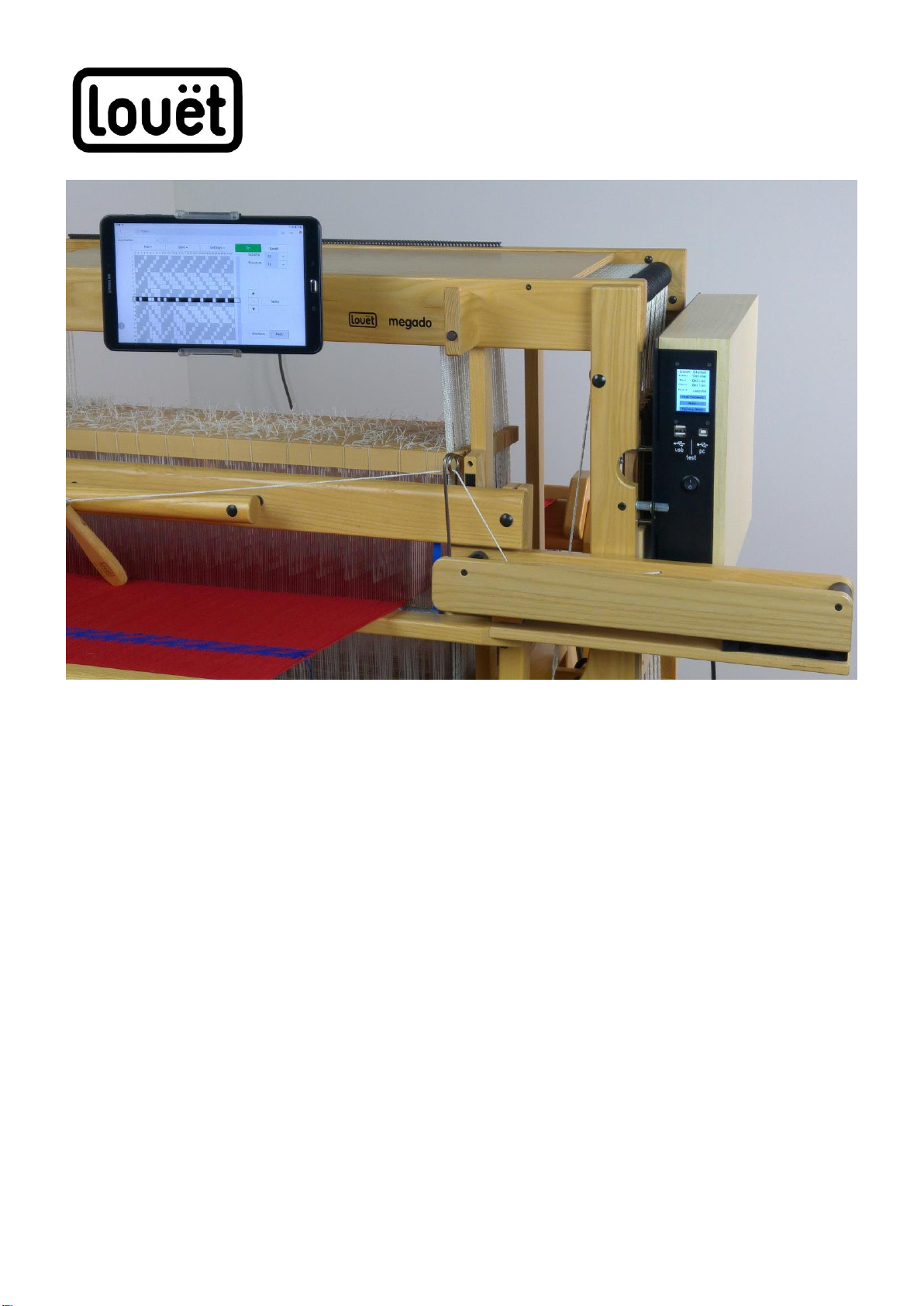
3. Enter the password shown on the Dobby 2.0 screen.
This password appears on the status screen of the Dobby 2.0 when
you push the button ‘show password’. The password is always a string
of seven numbers, preceded by a capital L.
4. Click on ‘OK’ on your device
5. Follow additional instructions if there are any.
You are now connected with the Dobby 2.0. Under the network name you
should see ‘connected’. A message can pop up, informing you that a normal
Internet connection is not possible. This is expected behavior. If you want to
be able to browse the internet with your device during weaving, you should
do step two: Connect the Dobby 2.0 to your home network, explained on
page 10
Mac OSX
Making a connection with the built in Wireless Access Point of your Dobby
2.0.
1. Click the Wi-Fi icon ( or ) in the menu bar.
2. If Wi-Fi is off, choose "Turn Wi-Fi on
3. Select ‘LouetWifi’ in the list of available networks.
4. Enter the password shown on the Dobby 2.0 screen.
This password appears on the status screen of the Dobby 2.0 when
you push the button ‘show password’. The password is always a string
of seven numbers, preceded by a capital L.
5. Click on ‘OK’
6. Follow additional instructions if there are any.
7.
8. A message can pop up, informing you that a normal Internet
connection is not possible. This is expected behavior. If you want to be
able to browse the internet with your device during weaving, you
should connect your Dobby 2.0 to your home network, explained on
page 10