9
SETTING UP DATE AND TIME:
As your viewer has capability to take images and record video, time and date is
automatically stamped onto each image and video recording. To set the
correct date and time, please follow this procedure:
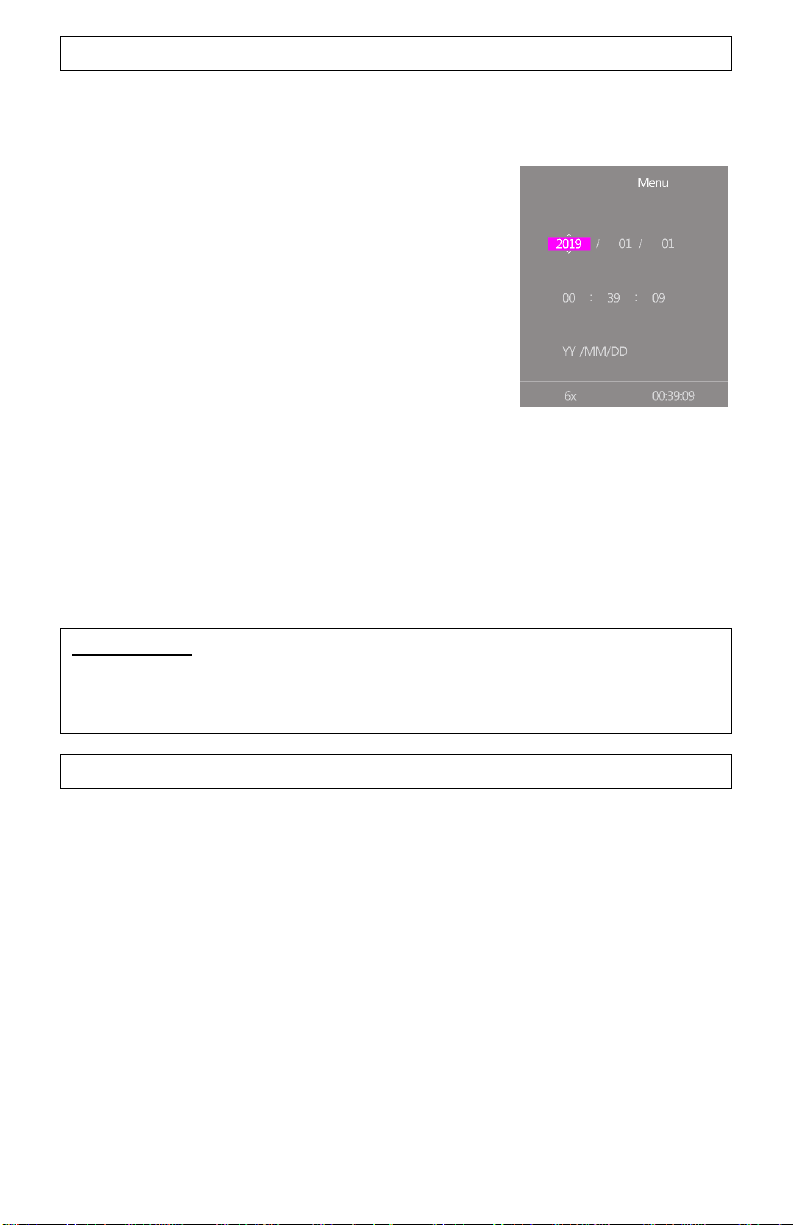
Turn the unit ON. After image appears, press onto
the Super Controller (9) and hold it for
approximately 2 seconds to activate the menu. Scroll
until Date/Time function by rotating the Super
Controller and select it by momentarily pressing
onto it. To adjust the numbers, rotate the Super
Controller in either direction. To switch between
numbers, press onto Super Controller momentarily.
After Date is set, adjust the time. Time is in 24hr
format, so 13:00 is 1pm; 17:30 is 5:30pm and so on. As with the date, changing
hours and minutes is done by rotating the Super Controller and moving
between hours and minutes is done by pressing onto it. Once the time is
adjusted you may choose to change the date format to MM/DD/YYYY or
YYYY/MM/DD according to your preference. Once you are finished setting date
and time, you can exit the menu by pressing Super Controller (9) for
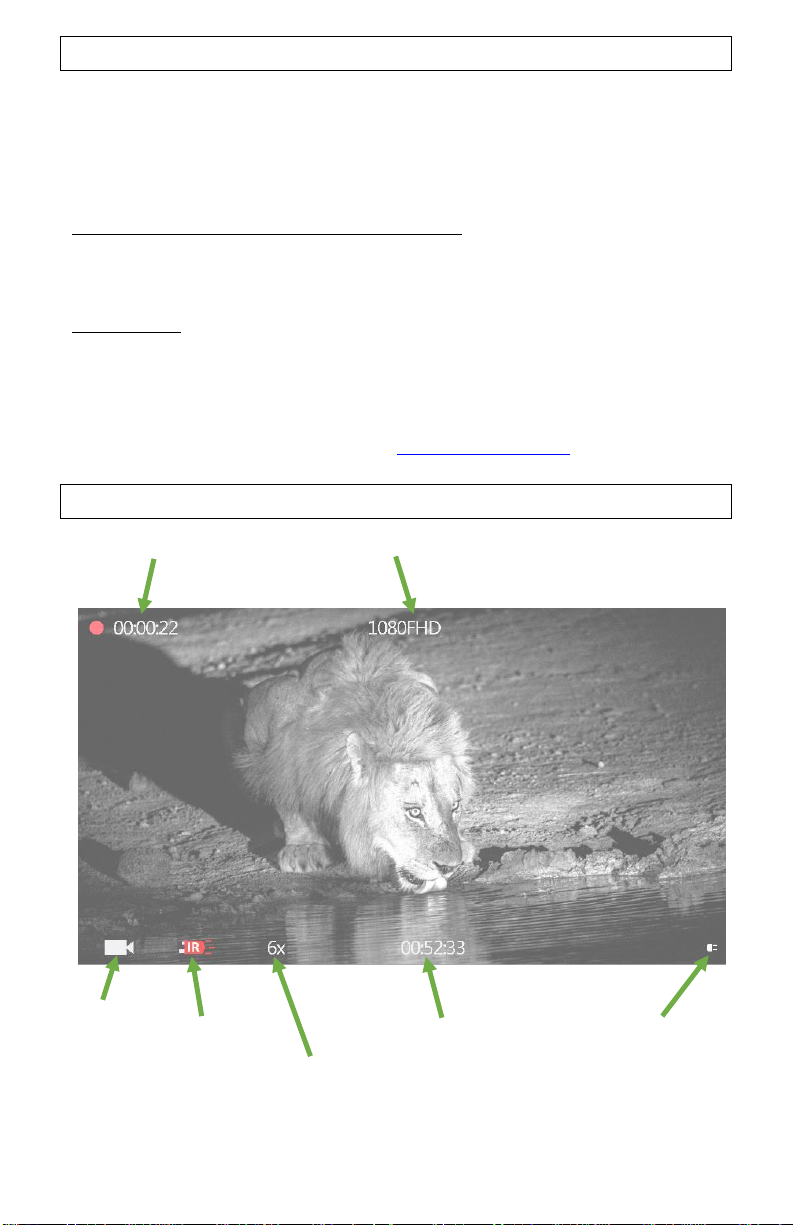
approximately 2 seconds. Once set, the time will be displayed on the bottom of
the OLED image display.
IMPORTANT: in order to preserve the set date/time do not remove the dead
batteries from the unit until you are ready to replace them with the new set,
then replace the old batteries with new set as quickly as possible and the
date/time will be preserved.
USING INFRARED ILLUMINATOR:
Your digital viewer is equipped with a built-in powerful Infrared illuminator
light (7). This light operates in a spectrum, which is normally invisible to a
human eye, however with the help of the Image Sensor, located inside the unit,
you will see a beam of light when looking though the ocular lens. Since the
Image Sensor does not actively amplify the available light, you will need to
utilize the IR illuminator often in the nighttime conditions.
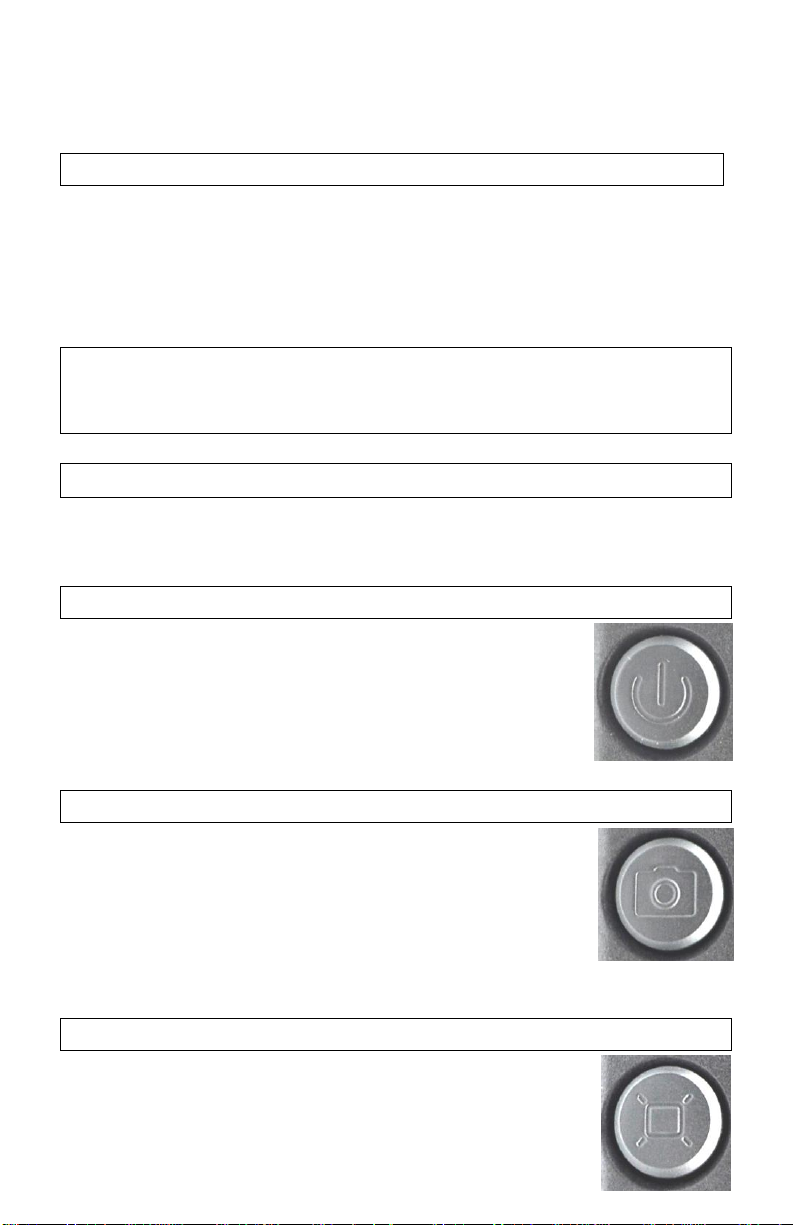
To turn the Infrared illuminator ON, press the Infrared illuminator button (4)
momentarily –the IR icon on the bottom of the display will light in pink color
and red LED light indicator (10) located next to the eyepiece will light on,
indicating the IR illuminator is operating. The illuminator intensity can be
further increased by pressing the IR button (4) second and third time
(momentarily). The IR icon in the image display will change colors from pink to
orange to red, indicating the three different power levels. After the red level